
App Store Screenshot Sizes 2026 (+ Fix Wrong Dimensions)
Check every required App Store screenshot size for iPhone and iPad, then validate or fix rejected images free before uploading to App Store Connect.
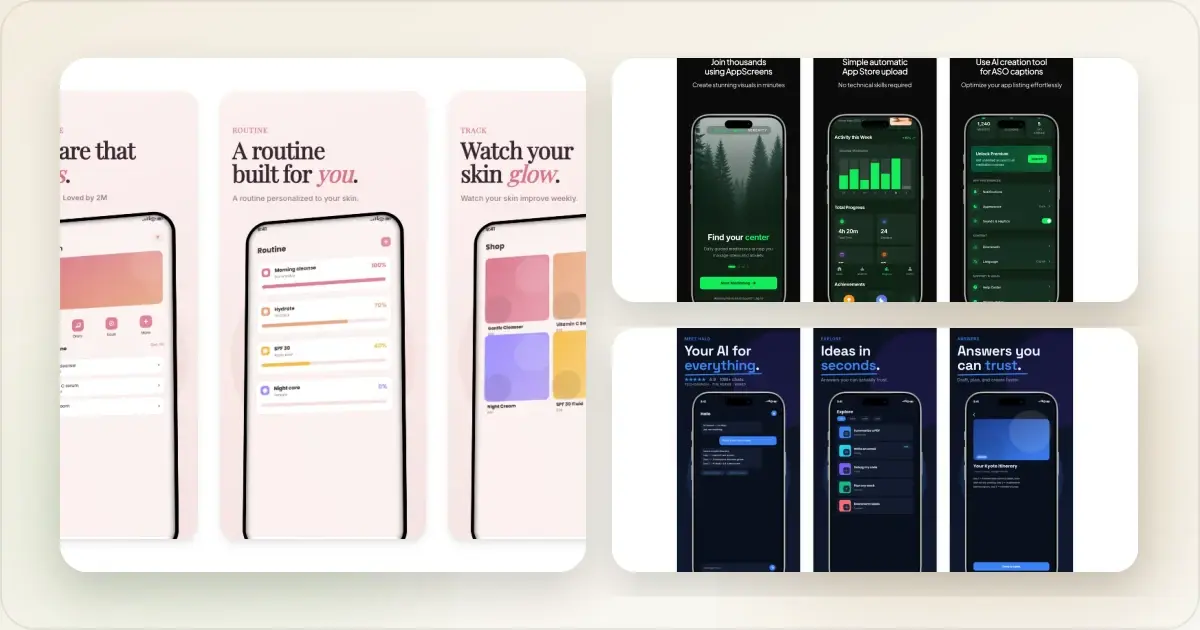
The large Dynamic Island group accepts 1260 × 2736, 1290 × 2796 and 1320 × 2868. These are additional accepted pairs, not a reason to label every device with a physical screen diagonal.
Choose the display before you export
First, check your existing screenshot files. The checker reads pixel dimensions locally in your browser. A passing size check does not verify screenshot content or guarantee App Review approval.For Duo, Apple lists separate outer and inner display sizes. Its current reference says Duo screenshots become required in April 2027 for apps using the iOS 27.1 SDK or later. Use 1398 × 2034 for the portrait outer display or 2007 × 2853 for the portrait inner display; reverse the pair for landscape. These are screenshot submission dimensions. The landscape canvas around a folding marketing mockup is a different output. See the Duo two-screen tutorial for that workflow.
| What you have | What to do next |
|---|---|
| A file from a current iPhone capture | Match its exact pixel size to the selected App Store Connect display slot. |
| An existing accepted Face ID (large display) set | Review the current required display group and scaling behaviour before relying on an older set. Keep the original source image for any new export. |
| An iPad version of the app | Prepare the required 13-inch set as well as the iPhone set. |
| A doubled export, such as 2640 × 5736 | Re-export the 1320 × 2868 artboard at 1×. A 2× file has different pixel dimensions. |
| A frame or extra padding added after export | Set the final artboard to an accepted size and fit the composition inside it. |
Rebuild rejected screenshots with current App Store presets
A concrete example: 1320 × 2868 and 2640 × 5736 have the same shape, but only the first appears in the accepted Dynamic Island (large display) size list. An off-by-one file at 1321 × 2868 also needs a corrected export. Changing a file's DPI label does not change its pixel dimensions.
Accepted App Store Screenshot Sizes (2026)
| Display class | Accepted size (portrait) |
|---|---|
| iPhone Duo outer display | 1398 × 2034 px |
| iPhone Duo inner display | 2007 × 2853 px |
| iPhone Dynamic Island (large) (Air) | 1260 × 2736 px |
| iPhone Dynamic Island (large) (18/17/16 Pro Max) | 1320 × 2868 px |
| iPhone Dynamic Island (large) (16 Plus/15 Pro Max/15 Plus/14 Pro Max) | 1290 × 2796 px |
| iPhone Face ID (large) legacy (11 Pro Max, XS Max) | 1242 x 2688 or 1284 x 2778 px |
| iPhone Dynamic Island (medium) | 1179 × 2556 or 1206 × 2622 px |
| iPhone Face ID (medium) | 1170 × 2532, 1125 × 2436, or 1080 × 2340 px |
| iPhone 5.5" (8 Plus era) | 1242 x 2208 px |
| iPad 13" | 2064 × 2752 or 2048 × 2732 px |
Landscape usually reverses the portrait pair. Apple lists separate heights for legacy sizes captured without a status bar, and those exceptions are included in the downloadable reference.
_Last verified against Apple's screenshot specifications: October 13, 2026._
Download the complete reference: CSV · JSON Blocked by a dimensions error? Two ways to prepare a corrected export:- Fix the "wrong dimensions" error → — choose an accepted output such as 1242 × 2688, 1284 × 2778, or 1320 × 2868, then inspect the re-export.
- Create correctly-sized screenshots from scratch → — select the relevant iPhone or iPad preset, then inspect the export.
Already have the right dimensions? Present the same UI in a current iPhone mockup or a landscape and portrait iPad mockup, then reuse that device treatment across the whole store listing.
What this guide adds over Apple's reference: a searchable table, downloadable CSV and JSON files, an in-browser validator, and a direct path to re-export an off-size image. Apple remains the source of truth for accepted dimensions."The Dimensions of One or More Screenshots Are Wrong" — What Apple Expects
If App Store Connect says _"The dimensions of one or more screenshots are wrong. They must be one of the following: 1242 × 2688px, 2688 × 1242px, 1284 × 2778px or 2778 × 1284px"_, your file is not one of Apple's accepted Face ID (large display) sizes. App Store Connect validates the pixel size exactly — an image that is 1243 × 2688, 1242 × 2689, or scaled to "roughly" the right size all get rejected. Match an accepted size for the selected slot, then check the format and transparency if the upload still fails.
| Apple's error says | Accepted size | Orientation | Device class |
|---|---|---|---|
| 1242 × 2688px | 1242 x 2688 px | Portrait | iPhone Face ID (large) (XS Max, 11 Pro Max) |
| 2688 × 1242px | 2688 x 1242 px | Landscape | iPhone Face ID (large) (XS Max, 11 Pro Max) |
| 1284 × 2778px | 1284 x 2778 px | Portrait | iPhone Face ID (large) (11 Pro Max, 12/13 Pro Max) |
| 2778 × 1284px | 2778 x 1284 px | Landscape | iPhone Face ID (large) (11 Pro Max, 12/13 Pro Max) |
iPhone Screenshot Dimensions
Apple accepts one to 10 screenshots per device size. For iPhone apps, its current required-size section names the medium Dynamic Island display. Where the interface is consistent, App Store Connect can scale the supplied images according to its display-specific fallback notes.
Current accepted iPhone sizes
| Device | Dimensions (Portrait) | Dimensions (Landscape) |
|---|---|---|
| iPhone Air, Dynamic Island (large) | 1260 x 2736 px | 2736 x 1260 px |
| iPhone 18/17/16 Pro Max, Dynamic Island (large) | 1320 x 2868 px | 2868 x 1320 px |
| iPhone 16 Plus/15 Pro Max/15 Plus/14 Pro Max, Dynamic Island (large) | 1290 x 2796 px | 2796 x 1290 px |
| iPhone Face ID (large) accepted size | 1284 x 2778 px | 2778 x 1284 px |
| iPhone Face ID (large) accepted alternative | 1242 x 2688 px | 2688 x 1242 px |
| iPhone Dynamic Island (medium) | 1179 x 2556 or 1206 x 2622 px | reversed pair |
| iPhone Face ID (medium) | 1170 x 2532, 1125 x 2436, or 1080 x 2340 px | reversed pair |
| iPhone 5.5" (8 Plus, 7 Plus, 6s Plus) | 1242 x 2208 px | 2208 x 1242 px |
Which iPhone Size to Prioritize
Start with the medium Dynamic Island group listed in Apple’s required-size section, using 1179 × 2556 or 1206 × 2622. If your app runs on iPad, also provide the required 13-inch set. Apple can scale screenshots when the interface is consistent across display sizes and localizations. Supply additional native images when the experience differs or when the submission slot calls for them. The selected slot in App Store Connect and Apple’s current reference remain the source of truth.
iPad Screenshot Dimensions
iPad screenshots are required if your app supports iPad.
Required iPad Sizes
| Device | Dimensions (Portrait) | Dimensions (Landscape) |
|---|---|---|
| iPad Pro M4 13" | 2064 x 2752 px | 2752 x 2064 px |
| iPad Pro 12.9" (6th gen) | 2048 x 2732 px | 2732 x 2048 px |
| iPad 11" | 1488 x 2266 or 1668 x 2420 px | reversed pair |
| iPad Pro 11" | 1668 x 2388 px | 2388 x 1668 px |
| iPad 10.9" | 1640 x 2360 px | 2360 x 1640 px |
Which iPad Size to Prioritize
Provide a 13-inch set when the app runs on iPad. Apple lists both 2064 × 2752 and 2048 × 2732 as accepted 13-inch portrait sizes. Use the downloadable data for older 10.5- and 9.7-inch exceptions.
Screenshot Requirements
Beyond dimensions, Apple has other requirements:
Format:- PNG or JPEG (PNG recommended for quality)
- RGB color space
- No alpha/transparency
- Screenshots must show the app in use and accurately reflect its core experience
- Text and image overlays are permitted when they explain the real app experience
- Use fictional account information instead of a real person's data
- Maximum 10 screenshots per device type
- Features, prices, awards, or results the app does not actually provide
- Names, icons, or imagery from other mobile platforms unless the app has approved cross-platform functionality
How to Create the Right Sizes
Option 1: Screenshot from Simulator
Xcode Simulator exports at exact device dimensions:
1. Run your app in Simulator
2. Select the target device
3. File → Save Screen (Cmd + S)
Option 2: Use a Mockup Tool
An App Store screenshot generator like Screenhance lets you:
1. Upload any screenshot
2. Export at exact App Store dimensions
3. Add device frames and backgrounds
This can reduce repeated setup when you need several selected outputs from one source image. An ASO screenshot tool can also help you build variants for a controlled Product Page Optimization test.
Option 3: Design in Figma
Create artboards at exact dimensions, then export. Good for adding text overlays and custom backgrounds.
Quick Reference Cheat Sheet
Current top-level display classes:| Device | Dimensions |
|---|---|
| iPhone Air, Dynamic Island (large) | 1260 x 2736 px |
| iPhone 18/17/16 Pro Max, Dynamic Island (large) | 1320 x 2868 px |
| iPhone Plus/earlier Pro Max, Dynamic Island (large) | 1290 x 2796 px |
| iPad 13" | 2064 x 2752 or 2048 x 2732 px |
These are not interchangeable labels for one device. Match the accepted size to the device or artboard used for the source capture.
Common Mistakes
Wrong dimensions
Even 1 pixel off can cause rejection. Double-check before uploading. If App Store Connect already rejected your upload, here is exactly how to fix the "dimensions of one or more screenshots are wrong" error.
Low resolution
Avoid enlarging a low-resolution capture when a native-resolution source is available; inspect any resampling closely for blurred UI text.
Inconsistent orientation
Check the orientation rules for the selected display class and preview the sequence in App Store Connect.
Missing required sizes
If the submitted app runs on iPad, provide the required iPad screenshot set as well as the applicable iPhone set.
iPhone 17 Pro Max Screenshot Dimensions: 1320 x 2868 (Same as iPhone 16 Pro Max)
Apple lists 1320 × 2868 px for iPhone 18 Pro Max, iPhone 17 Pro Max and iPhone 16 Pro Max. The large Dynamic Island display group also accepts 1290 × 2796 px for the listed Plus and earlier Pro Max devices and 1260 × 2736 px for iPhone Air. Apple lists iPhone 17 and iPhone 17 Pro in the Dynamic Island (medium display) class, which accepts 1179 × 2556 and 1206 × 2622 px.
Accuracy matters more than the production method
Apple does not publish different review-speed guarantees for Simulator captures, generated compositions, or designed screenshots. Its rule is accuracy: screenshots should show the app in use and reflect the experience a customer receives. Text and image overlays are permitted, but they cannot turn a roadmap feature, fabricated result, or false price into apparent product functionality.
Use real product UI, fictional account data, and claims you can demonstrate inside the submitted app. That produces a more trustworthy listing and avoids promising a feature the binary does not contain.
Related Reading
- App Store Screenshot Generator - Create screenshots with current App Store presets
- Play Store Screenshot Generator - Android screenshot sizes and generation
- App Store Screenshots: The Complete Guide - Sizes, framework, localization, and tools
- App Store Screenshot Localization Guide - Adapt a valid master set for each supported market
- How to Create App Store Screenshots That Convert - Design tips
- Screenshot Size Guide: Dimensions for Every Platform - All platforms
Frequently Asked Questions
Why does App Store Connect say my screenshot dimensions are wrong?
App Store Connect rejects a screenshot with "the dimensions of one or more screenshots are wrong" when the file's pixel size does not exactly match one of Apple's accepted dimensions for that device class. It validates the size to the pixel — a file that is 1243 × 2688 instead of 1242 × 2688, an image that was exported at a scaled or "fit" size, or a screenshot that picked up extra pixels from a device frame or padding will all fail. The common accepted Face ID (large display) sizes Apple lists in the error are 1242 × 2688, 2688 × 1242, 1284 × 2778, and 2778 × 1284; one accepted Dynamic Island (large display) size is 1320 × 2868. Re-export at an accepted size and inspect the result before uploading again. The dimension checker and repair guide identifies a size mismatch and links to the editor for re-export.
What size should App Store screenshots be in 2026?
For the required medium Dynamic Island group, use 1179 × 2556 or 1206 × 2622 portrait. The large Dynamic Island group accepts 1260 × 2736, 1290 × 2796, and 1320 × 2868 portrait screenshots for the device families listed in its specification. For the required 13-inch iPad class, it accepts 2064 × 2752 and 2048 × 2732. Use the exact size that matches your source device or artboard.
How many screenshots can I upload to the App Store?
Apple allows one to 10 screenshots for each supported device class. Use enough images to explain the core experience clearly; there is no requirement to fill all 10 slots.
Do I need different screenshots for each iPhone size?
Apple lists the medium Dynamic Island group for iPhone and the 13-inch group for iPad apps under required sizes. When the interface is consistent, App Store Connect can scale screenshots according to its fallback rules. Additional native sets can show layouts that differ by device.
What format should App Store screenshots be?
Use PNG for best quality, especially for screenshots with text and UI elements. JPEG is accepted but may show compression artifacts. Images must be RGB color space with no transparency.
Can I add device frames to App Store screenshots?
Apple permits text and image overlays, but the result must show the app in use and accurately reflect its core experience. If you add a device treatment with an iPhone mockup generator, keep the UI truthful and export the final composition at an accepted size.
Can I submit fewer than 10 screenshots?
Yes. Apple allows one to 10 screenshots for each supported device class. Choose the number that explains the product clearly instead of padding the listing with repetitive images.
Can I update screenshots without a binary update?
You can submit eligible metadata changes through App Store Connect. Their availability and review path depend on the app version and metadata field, so check the current App Store Connect status and submission guidance before planning an experiment.
What App Store metadata guidelines should I know before submitting?
Apple's App Review Guidelines section 2.3 requires screenshots and previews to reflect the app's core experience accurately and remain up to date. Screenshots should show the app in use, may contain explanatory text or image overlays, and should use fictional—not real—account information. Avoid irrelevant competing-platform imagery and any claim the app does not deliver.
How do I appeal a screenshot rejection?
Use the App Review section of App Store Connect to respond to the rejection notice. Address the specific issue Apple identified and point to the screen or workflow that substantiates your metadata. If the file is simply off-size, re-exporting at an accepted dimension is faster than disputing the validator.
Should I localize device names in screenshot captions?
If a caption references a specific device, preserve Apple's official product name while translating the surrounding copy accurately. For feature captions, localize the full message for a market only when the app supports that experience. Have a fluent reviewer check important locales.
Conclusion
App Store screenshot dimensions are exact. Provide the currently required medium Dynamic Island iPhone set, and a 13-inch iPad set if the app supports iPadOS. Check Apple's live specification before each release.
Get the dimensions right and make the opening screenshots explain the product clearly. Once the sizes pass validation, read how to create App Store screenshots that actually convert for testable design guidance and use Screenhance's translation workflow across 16 supported locales for the markets your app actually serves. The right dimensions are the starting point, not the whole listing strategy.
Two ways to get unblocked right now:- Already got the "wrong dimensions" rejection? Choose an accepted output in the dimension fixer →, inspect the re-export, and upload it to the matching App Store Connect slot.
- Starting fresh? Create correctly-sized App Store screenshots →, choose the relevant presets, and inspect each output.
Ready to build a store set? Try the App Store screenshot generator. Pick a template, add your screenshots, and export the supported sizes and locales your release needs.
Launching the app, not just shipping screenshots? The Screenhance Launch Kit turns one brief into your whole launch set at once: App Store screenshots, a Product Hunt gallery, an OG social card, and a website hero, all sharing one brand look.
Check your image dimensions
Check the pixel size and file format for App Store screenshots. Files stay in your browser and are not stored.
This checks dimensions and file type only. Check the selected display slot, colour profile, transparency and artwork separately. A matching size does not guarantee store approval.
Accepted App Store screenshot sizes
- iPhone · Duo outer: 1398 × 2034 (landscape 2034 × 1398)
- iPhone · Duo inner: 2007 × 2853 (landscape 2853 × 2007)
- iPhone · Dynamic Island (large display): 1260 × 2736 (landscape 2736 × 1260)
- iPhone · Dynamic Island (large display): 1320 × 2868 (landscape 2868 × 1320)
- iPhone · Dynamic Island (large display): 1290 × 2796 (landscape 2796 × 1290)
- iPhone · Face ID (large display): 1284 × 2778 (landscape 2778 × 1284)
- iPhone · Face ID (large display): 1242 × 2688 (landscape 2688 × 1242)
- iPhone · Dynamic Island (medium display): 1179 × 2556 (landscape 2556 × 1179)
- iPhone · Dynamic Island (medium display): 1206 × 2622 (landscape 2622 × 1206)
- iPhone · Face ID (medium display): 1170 × 2532 (landscape 2532 × 1170)
- iPhone · Face ID (medium display): 1125 × 2436 (landscape 2436 × 1125)
- iPhone · Face ID (medium display): 1080 × 2340 (landscape 2340 × 1080)
- iPhone · Home Button (large display): 1242 × 2208 (landscape 2208 × 1242)
- iPhone · Home Button (medium display): 750 × 1334 (landscape 1334 × 750)
- iPhone · 4": 640 × 1096 (landscape 1136 × 600)
- iPhone · 4": 640 × 1136 (landscape 1136 × 640)
- iPhone · 3.5": 640 × 920 (landscape 960 × 600)
- iPhone · 3.5": 640 × 960 (landscape 960 × 640)
- iPad · 13": 2064 × 2752 (landscape 2752 × 2064)
- iPad · 13": 2048 × 2732 (landscape 2732 × 2048)
- iPad · 11": 1488 × 2266 (landscape 2266 × 1488)
- iPad · 11": 1668 × 2420 (landscape 2420 × 1668)
- iPad · 11": 1668 × 2388 (landscape 2388 × 1668)
- iPad · 11": 1640 × 2360 (landscape 2360 × 1640)
- iPad · 10.5": 1668 × 2224 (landscape 2224 × 1668)
- iPad · 9.7": 1536 × 2008 (landscape 2048 × 1496)
- iPad · 9.7": 1536 × 2048 (landscape 2048 × 1536)
- iPad · 9.7": 768 × 1004 (landscape 1024 × 748)
- iPad · 9.7": 768 × 1024 (landscape 1024 × 768)
Specifications checked 2026-10-13. Apple’s source requirements.
Screenhance examples
Two editable starting points from the Screenhance library, selected for this app stores guide.
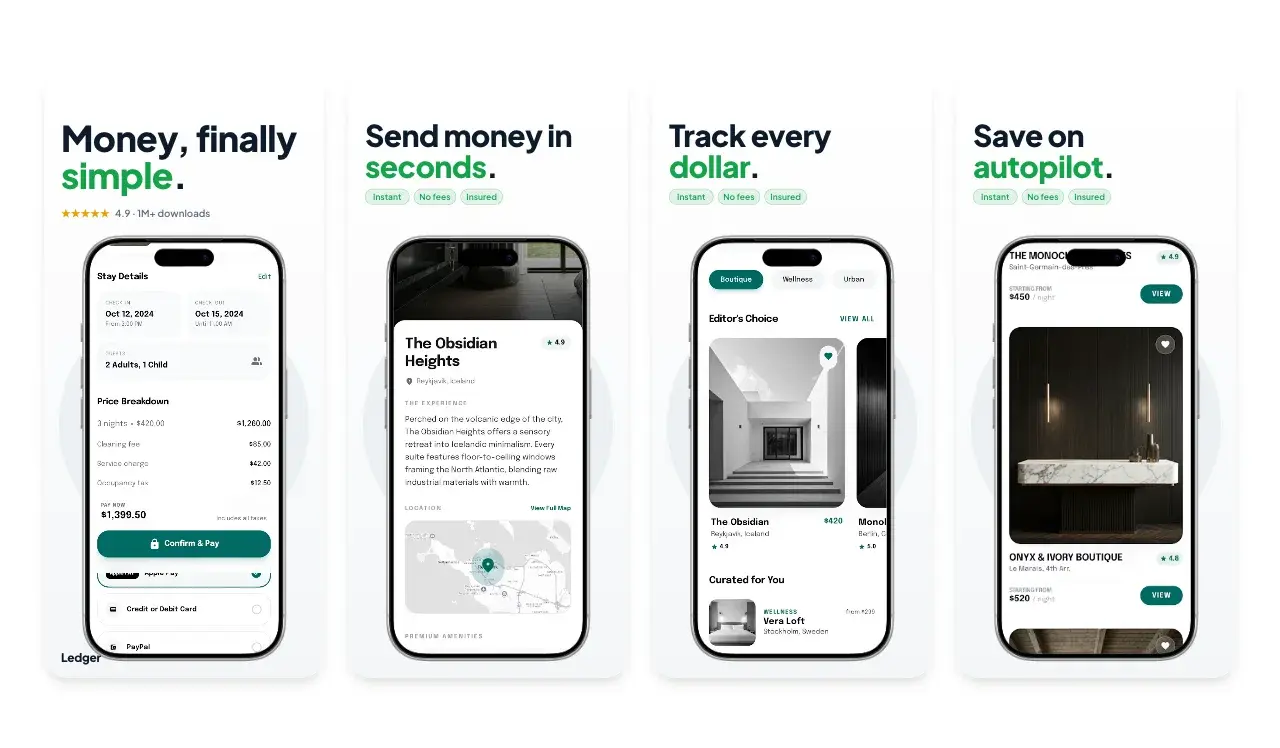
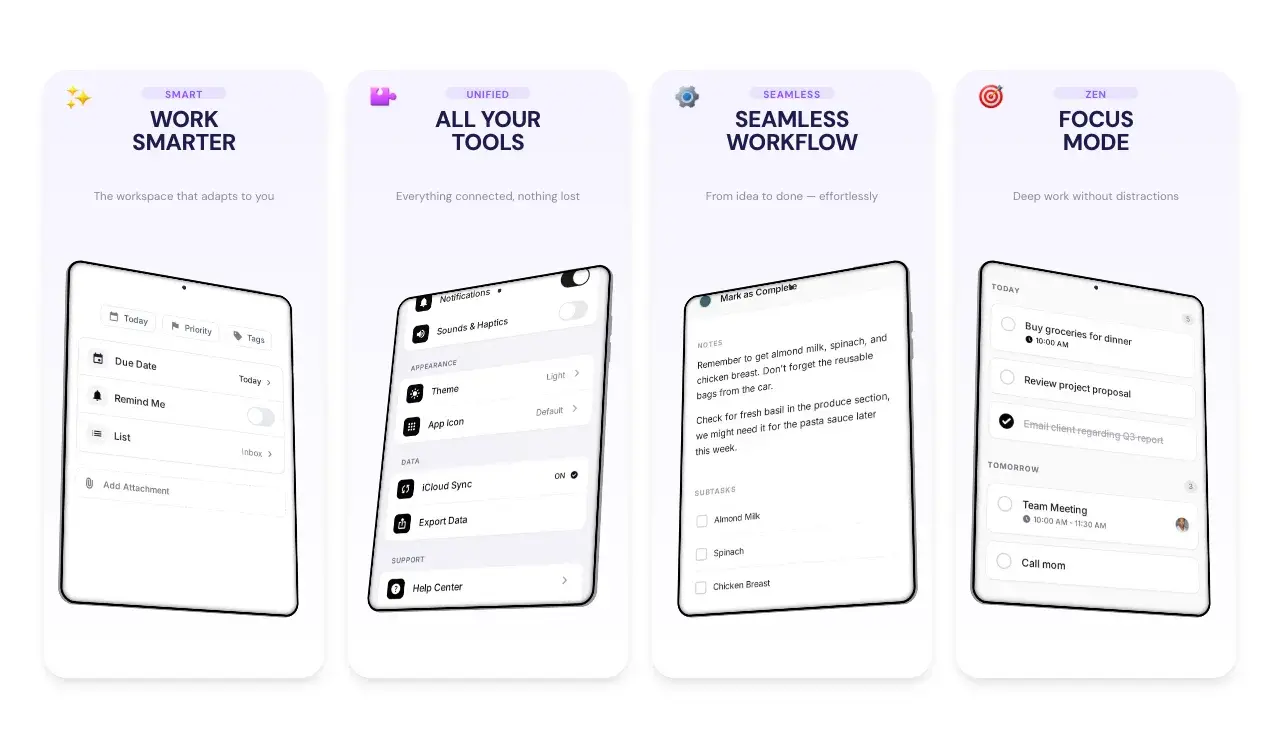
Rebuild rejected screenshots with current App Store presets
Free to start. No credit card required.
Keep reading
Related, product-tested guides from Screenhance.
App Store Screenshots by Market: The Complete 2026 Guide
The hub for per-market App Store screenshot guides: which markets to prioritize, what to change, and how to ship every market from one master set.
9 Feb 2026 · 7 min read
How to Make App Store Screenshots That Convert in 2026
A practical guide to accurate App Store screenshot sizes, clear visual storytelling, localization and Product Page Optimization testing.
21 Mar 2026 · 10 min read
The State of App Store Screenshots in 2026: Requirements and Testing
A current, source-linked guide to App Store screenshot requirements, localization, Product Page Optimization, and the checks to run before upload.
4 Jul 2026 · 3 min read