
%2FOlivia%20Rhye.webp&w=64&q=75)
%2FPhoenix%20Baker.webp&w=64&q=75)
%2FLana%20Steiner.webp&w=64&q=75)
%2FDemi%20Wilkinson.webp&w=64&q=75)
%2FDrew%20Cano.webp&w=64&q=75)
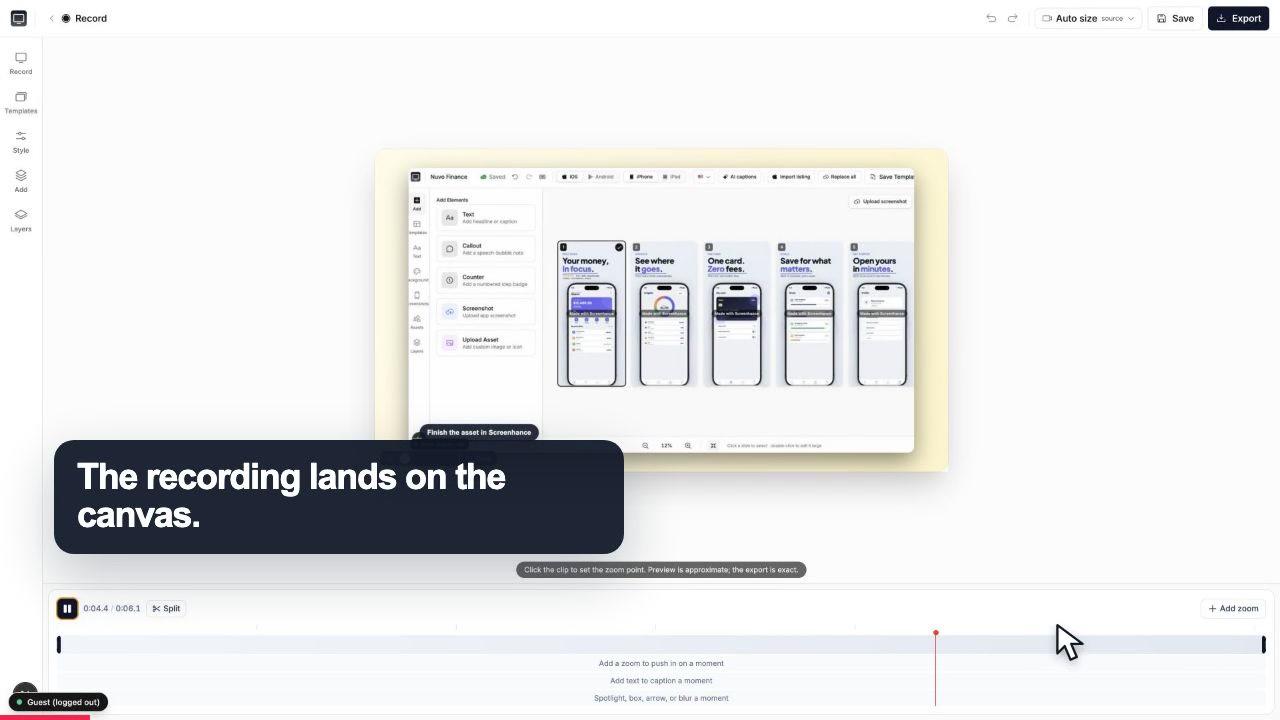
Start with the whole screen
0:07The recording lands on a clean canvas with the timeline ready underneath.
Turn a screen recording into a clear how-to video. Record right in your browser, zoom into the exact step that matters, add captions and a clean frame, then export MP4, WebM, or GIF. No editing skills, no download.
Free to start · No signup to try · Works on macOS, Windows and Linux
Loved by 3,000+ creators
You do not touch a timeline or learn an editor. Record, point at what matters, export.
Open Studio in your browser and hit record. Capture your screen, and optionally your webcam, with no download. Walk through the flow you want to teach exactly as you would do it normally.
Click to place a zoom on the button, field, or menu that matters, so the viewer's eye lands in the right spot. Wrap the recording in a device or window frame over a clean background, and add captions or annotations.
Pick square, portrait, or landscape for wherever the video is going, then export MP4, WebM, or GIF. Drop it into a YouTube upload, a docs page, a landing-page hero, or a support reply.
The hard part of a screen-recorded tutorial is not the recording. It is that a full-screen capture buries the one thing the viewer needs to see. A cursor moves to a tiny toggle in the corner, a setting three menus deep, a field halfway down a form, and the viewer misses it because there was nothing telling their eye where to go.
Screenhance Studio fixes that with click-to-place zoom, the signature feature of the tool. After you record, you point at the exact part of the frame that matters at the moment it matters, and the video pushes in there. The viewer sees the button get big right as you click it, the field fill up close, the menu item picked out from everything around it. It reads like a good demo instead of a raw capture, and you set it up by pointing, not by keyframing anything.
Because the zoom follows your intent rather than the whole screen, one recording can teach several steps clearly: zoom into step one, pull back, zoom into step two, and so on. That is the difference between a video people finish and one they scrub past. If you are weighing this against a desktop tutorial editor, see the Camtasia alternative comparison.
The recording lands on a clean canvas with the timeline ready underneath.
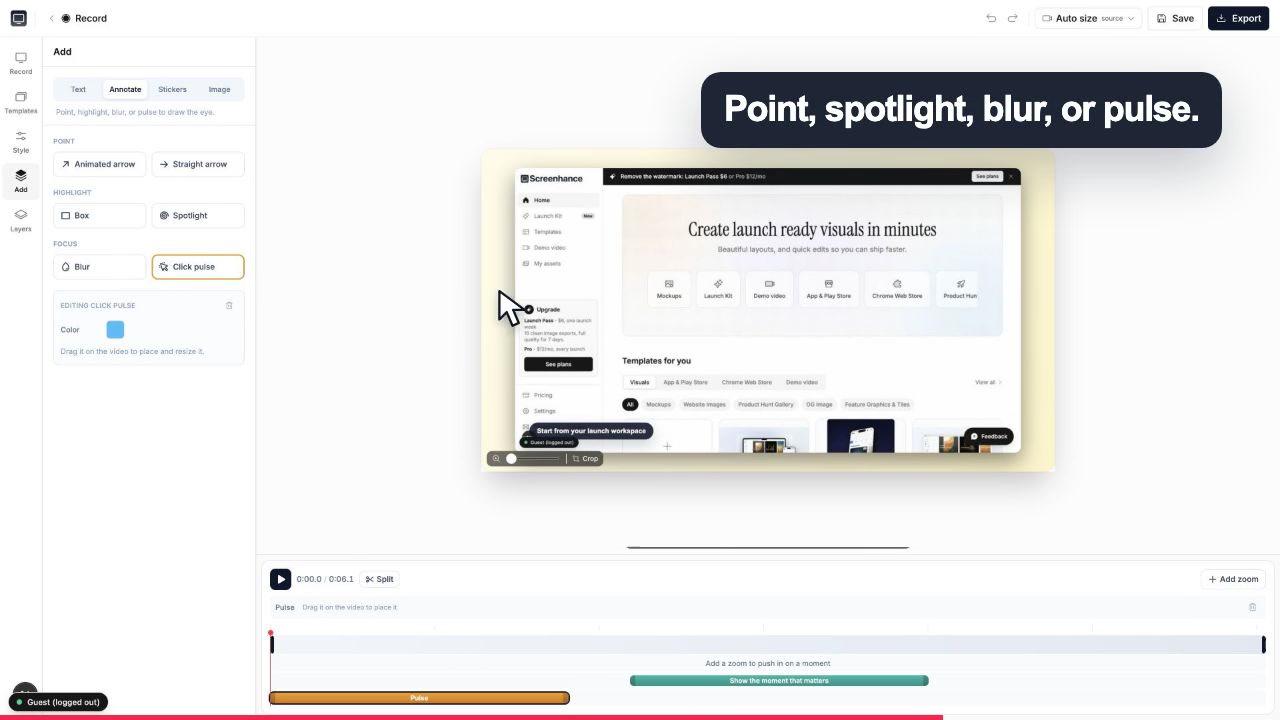
A click pulse and caption make the exact interaction obvious before the camera moves.
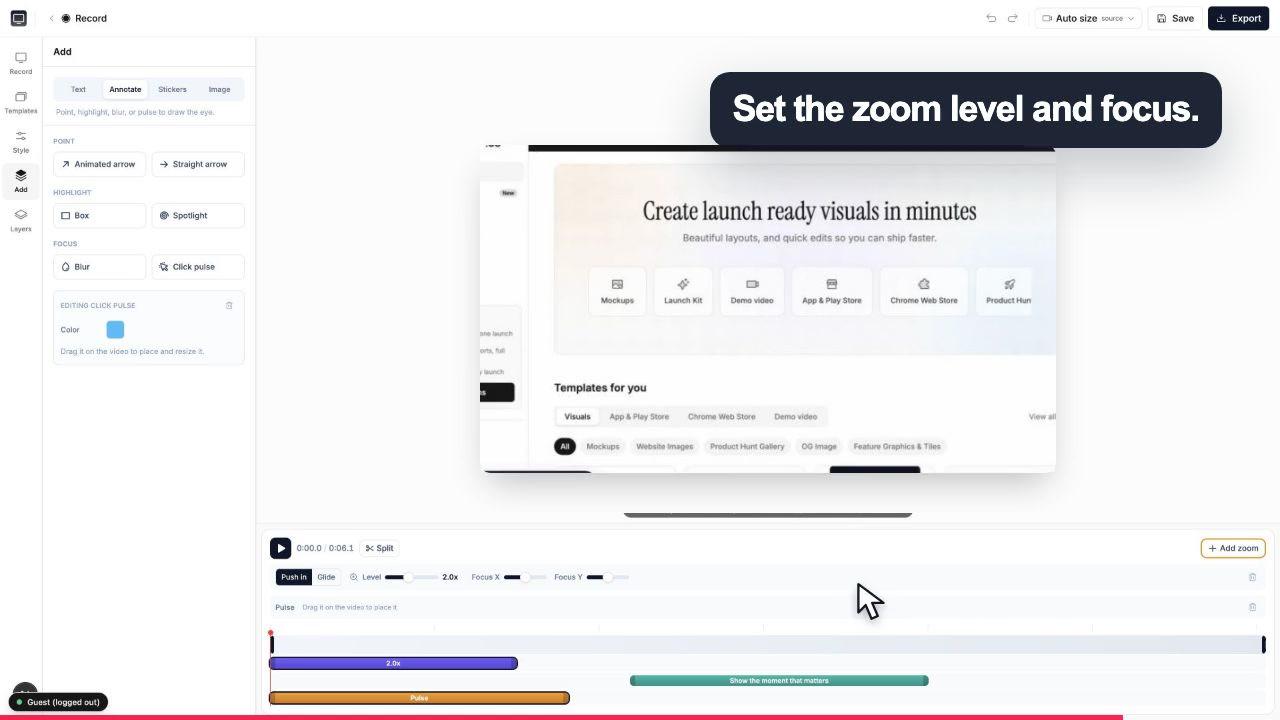
Choose the zoom level and focal point while the real controls stay visible around the canvas.
Recorder and editor in one browser tab. Nothing here needs a separate app.
Record your screen, and optionally your webcam, right in the browser. No download, and it works on macOS, Windows, and Linux. Show your face in a corner or keep it screen-only.
Point at the part of the recording that matters and Studio zooms in there, so the viewer's eye is guided to the right spot at the right moment. This is the signature feature.
Wrap the recording in a realistic device frame or macOS and browser window chrome, set over gradient or preset backgrounds, so a plain capture looks like a proper product demo.
Add captions with custom fonts, plus annotations and stickers, so each step is labelled and clear even with the sound off.
Export in the aspect ratio that fits: portrait for Shorts, Reels, and TikTok, landscape for YouTube or a landing-page hero, and square for a feed.
Start from a demo-video template for a fast, on-brand result, then swap in your own recording instead of setting up the look from scratch.
Export MP4 and WebM for full videos, or GIF for a short looping clip that embeds anywhere.
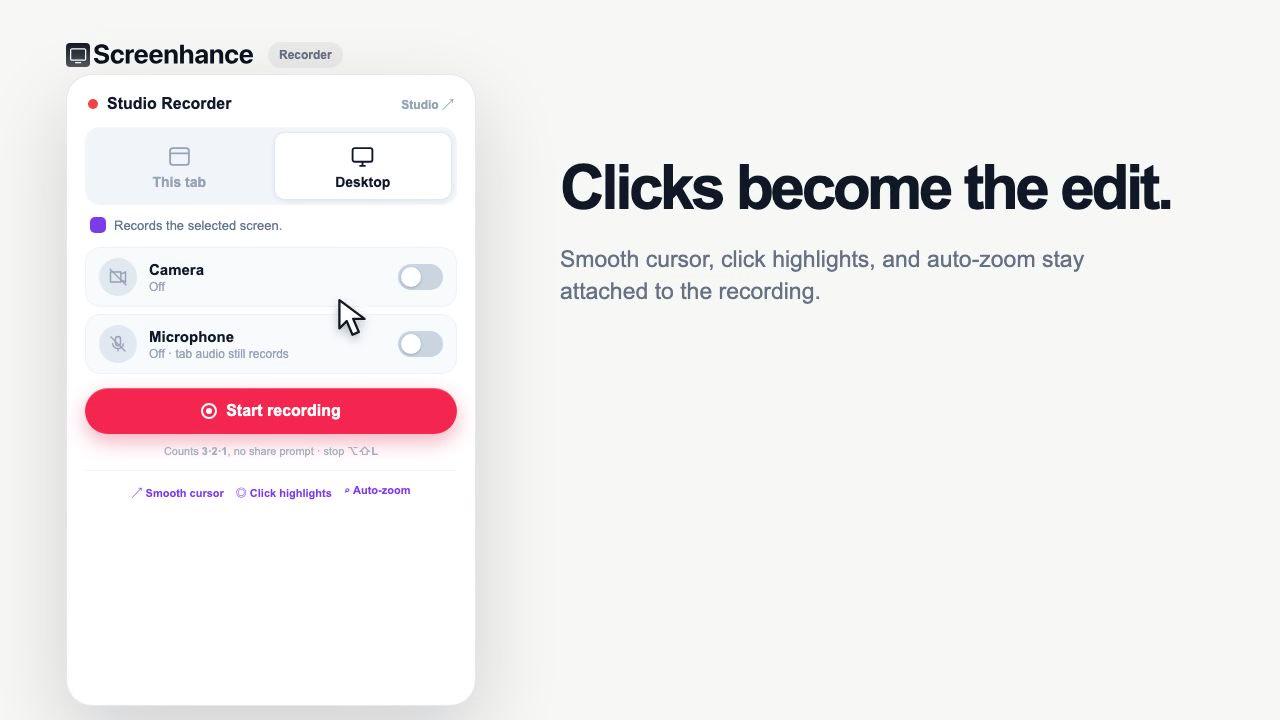
The extension keeps the cursor path and clicks with the take.
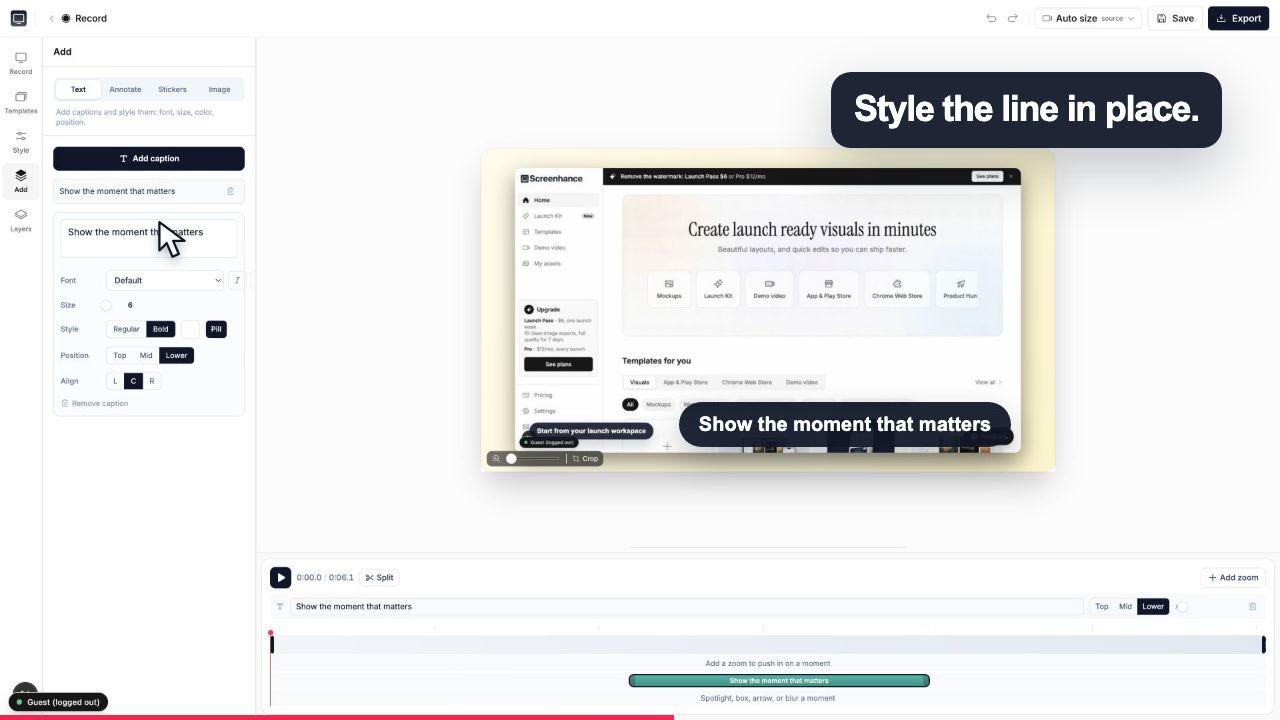
Add captions, effects and timing without leaving the browser.
A short tutorial video answers a question faster than a wall of text. A few jobs it does especially well:
Show a new feature in action for a landing page, a changelog, or a launch. Zoom into the moment it does its thing so the value is obvious in a few seconds.
Record the setup flow once, zoom into each step, caption it, and embed the video where new users get stuck. One clear video replaces a page of screenshots.
Answer "how do I do X?" with a short clip that points at the exact button instead of describing where it lives. Export a GIF for a quick reply or an MP4 for a help article.
A tutorial video rarely ships alone. The same launch usually needs App Store screenshots, a device mockup for the landing page, and an OG image for the share preview, and stitching those together across four different tools is where an afternoon disappears.
Screenhance Studio is the same tool for all of it. The recorder and editor that make your how-to video are the same ones that make your App Store screenshots, device mockups, and OG images, so your demo video and your store assets share the same frames, backgrounds, and brand look by default. That is what Launch Kit means here: one place for every launch visual, video included.
Studio is free to start. Free exports include a small Screenhance watermark, which the $12 per month Pro plan removes from video, so you can make a full tutorial and watch it back before deciding whether to pay. Want to browse the rest of the kit? The Launch Kit page covers the screenshots, mockups, and share images that go with your video.
No. Screenhance Studio runs in your browser at app.screenhance.com/studio, so there is nothing to download or install. You record your screen (and optionally your webcam), edit, and export all in the same tab. It works on macOS, Windows, and Linux.
Zoom is click-to-place. After you record, you point at the part of the screen that matters at the moment it matters, and Studio pushes in there so the viewer's eye is guided to the right button, field, or menu. Setting up these zooms is the signature part of making a clear tutorial, because it removes the guesswork of where to look.
Yes. You can add captions with custom fonts, plus annotations and stickers, so a step can be labelled or called out without a voiceover. This is what turns a raw screen recording into an actual how-to video that stands on its own.
You can export MP4 and WebM for full videos, and GIF for short looping clips that embed anywhere. MP4 is the safe default for YouTube and most sites; GIF is handy for a quick loop in docs, a changelog, or a Slack message.
Free exports include a small Screenhance watermark. Removing it from video takes the Pro plan at $12 per month or $99 per year; the $6 Launch Pass removes it from image exports only, so video stays watermarked on it. Everything else about the recorder and editor is free to start, so you can make a full tutorial and see the result before deciding whether to pay.
Square, portrait, and landscape. Portrait suits Shorts, Reels, and TikTok, landscape suits YouTube and a landing-page hero, and square works well in a feed. You pick the ratio that matches where the tutorial is going instead of cropping it later.
Yes. Studio records your webcam alongside your screen, so you can appear in a corner while you walk through the steps. If you would rather keep it hands-off, record the screen only and let captions and zooms carry the explanation.
It is. Screenhance Studio is one place for every launch visual: the same tool that records and edits your tutorial videos also makes your App Store screenshots, device mockups, and OG images. That is part of Launch Kit, so your demo video and your store assets share the same frames, backgrounds, and brand look.
Still weighing it? The editor is free and opens in one click: open Studio →
Record, edit, frame, and export the next version of your product video.
Record screen + webcam with click-to-place zoom and export MP4
Start creatingPolished demo videos with click-to-place zoom
Start creatingPolished demo videos with click-to-place zoom
Start creatingRecord, click-to-zoom, frame, and export a demo video
Start creatingFrame, caption, zoom, and export a raw recording as a polished MP4
Start creatingRecord, zoom, and export MP4 demo videos for SaaS
Start creatingRecord, zoom into each step, add captions and a frame, and export MP4, WebM, or GIF. In the browser, free to start.