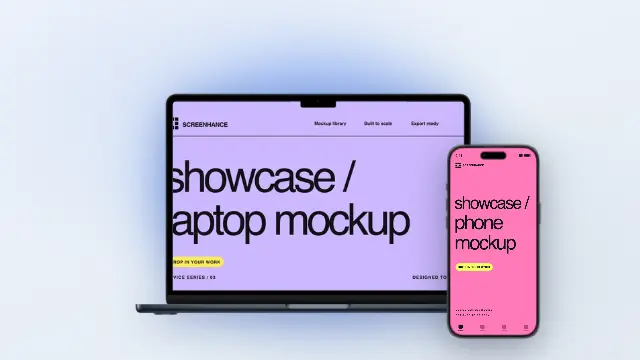
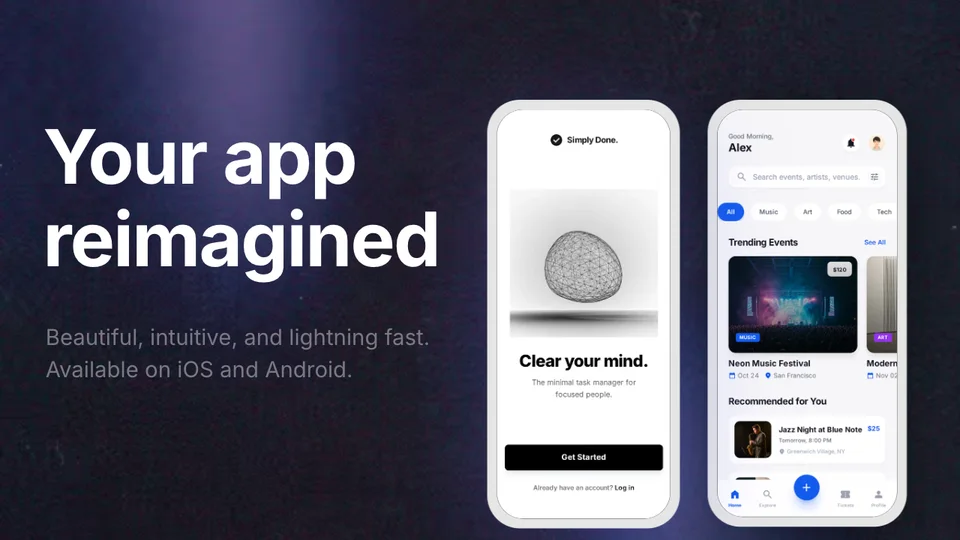
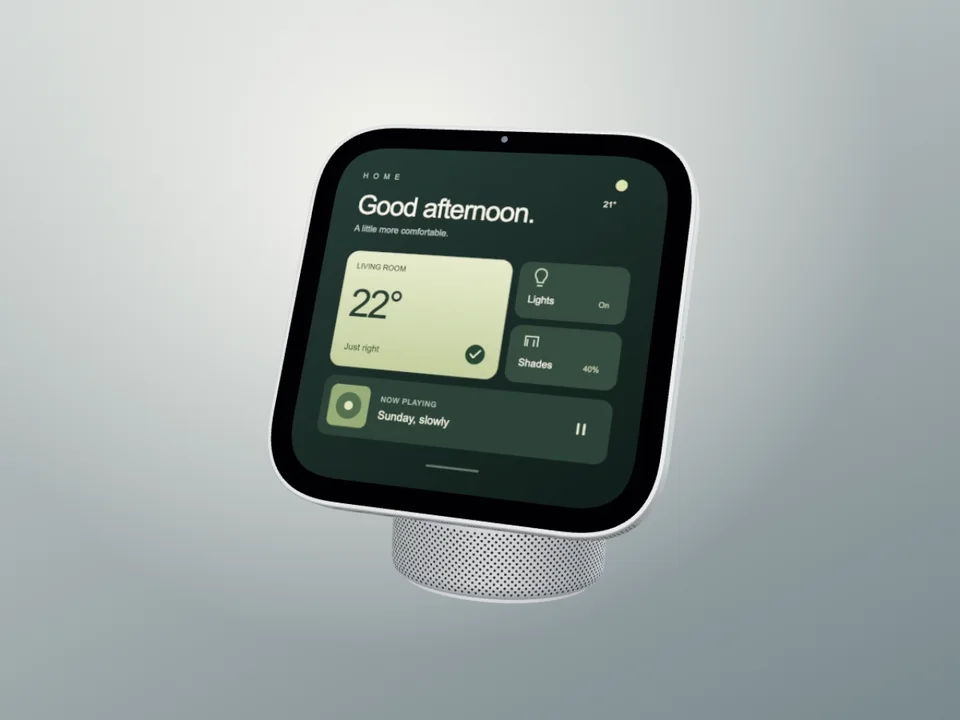
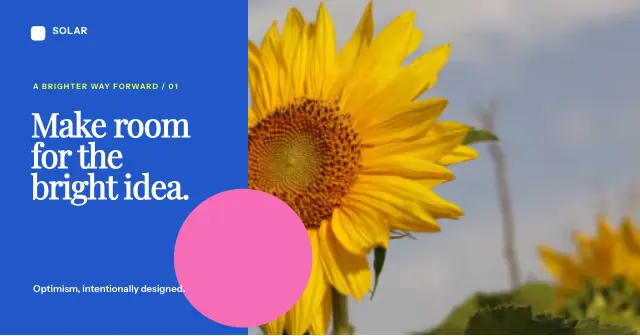
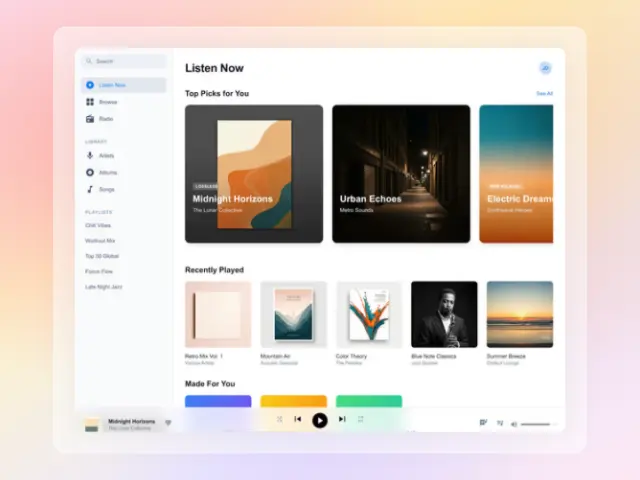
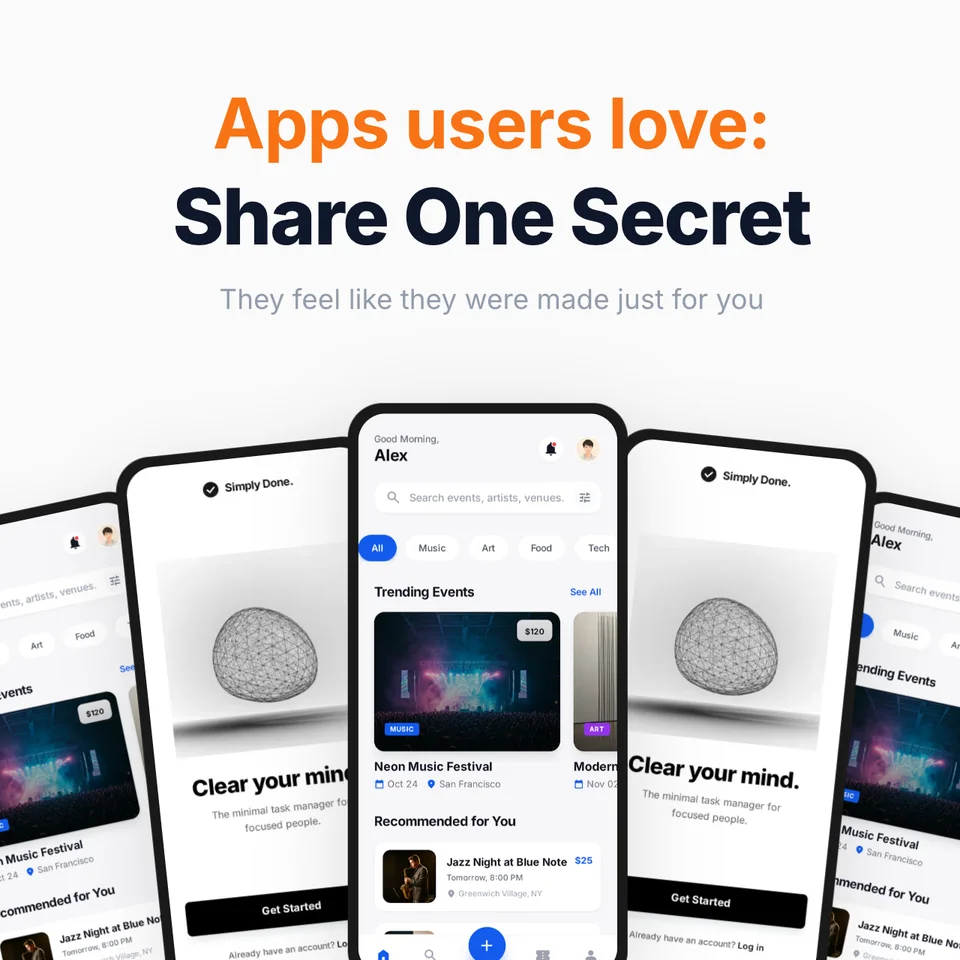
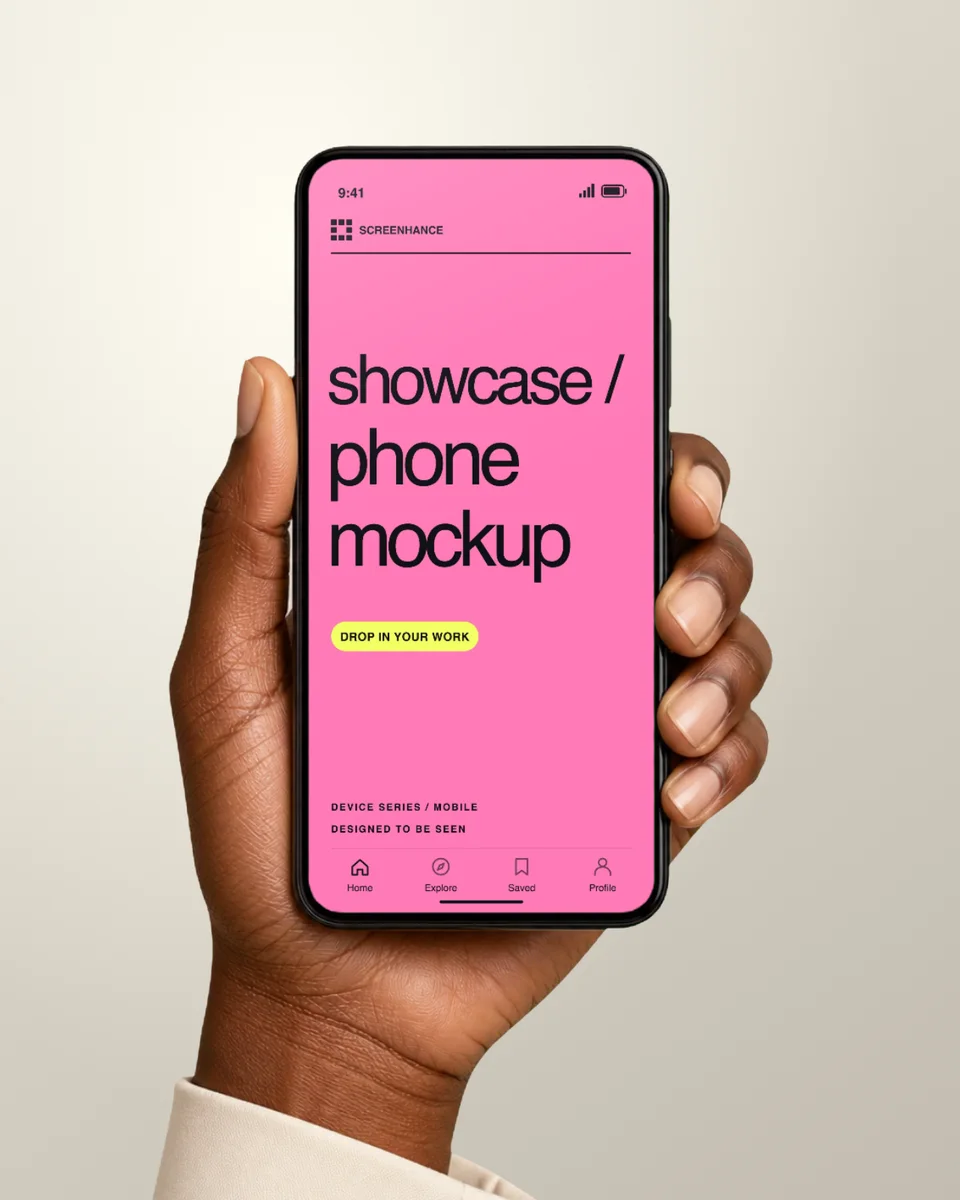
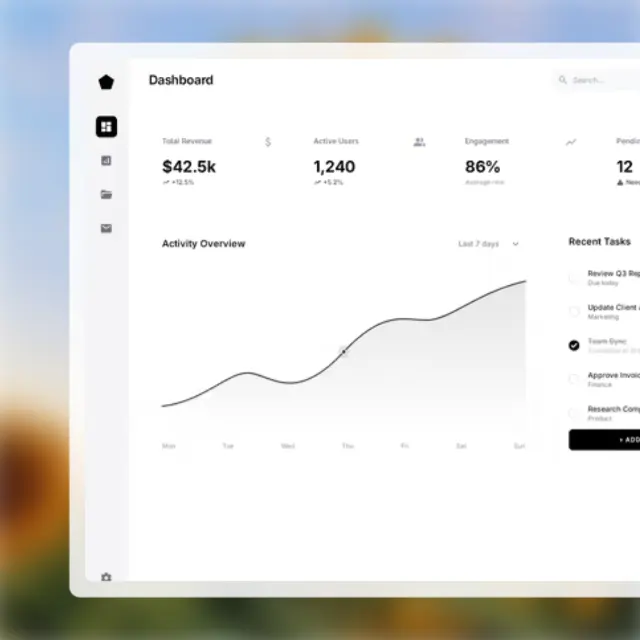
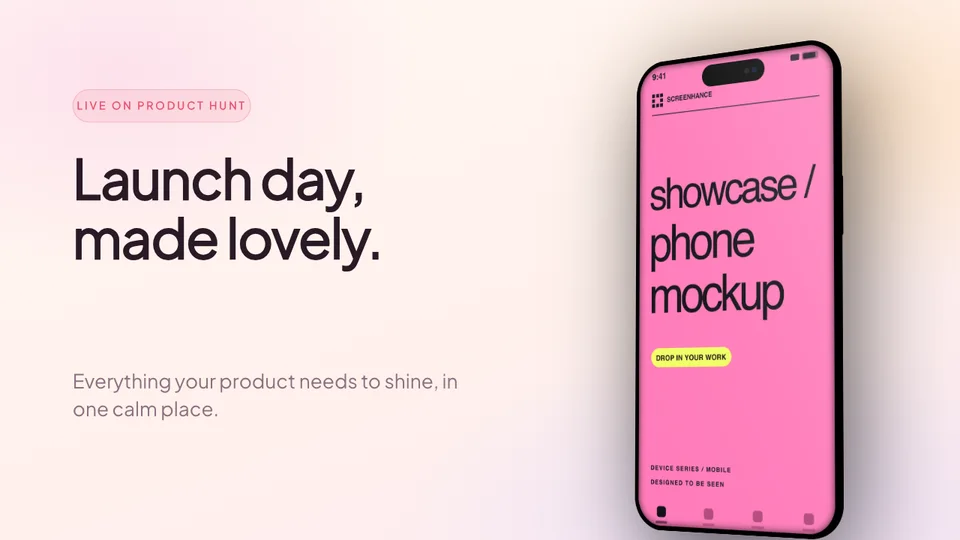
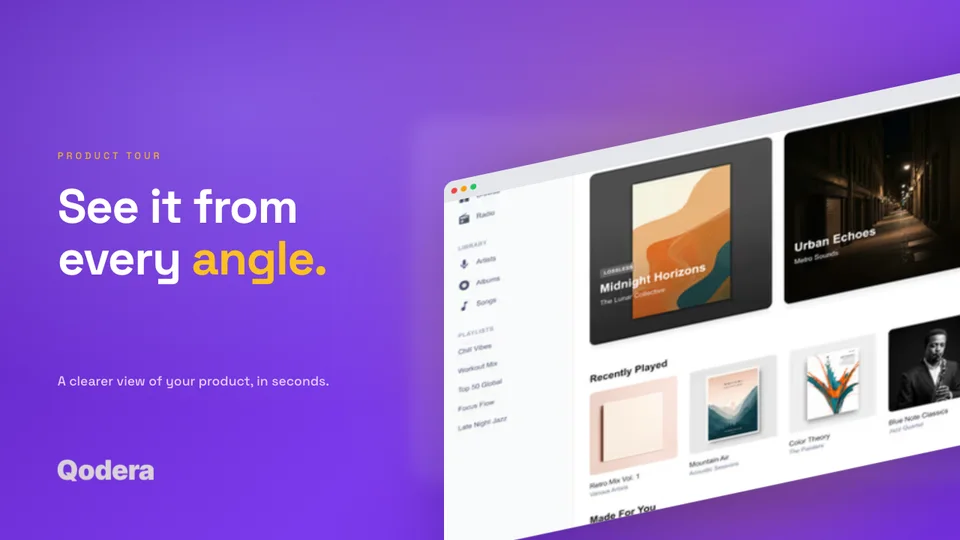
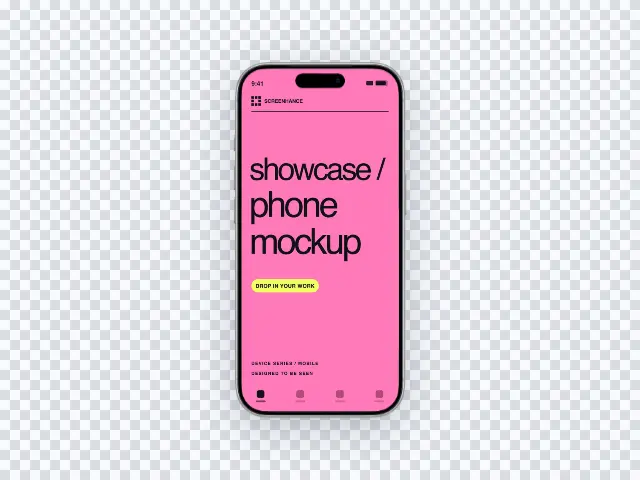
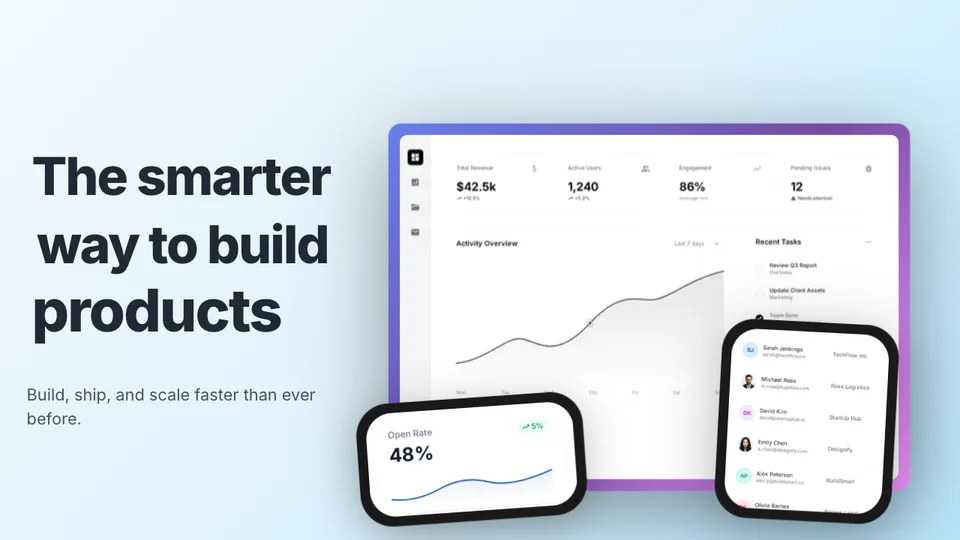
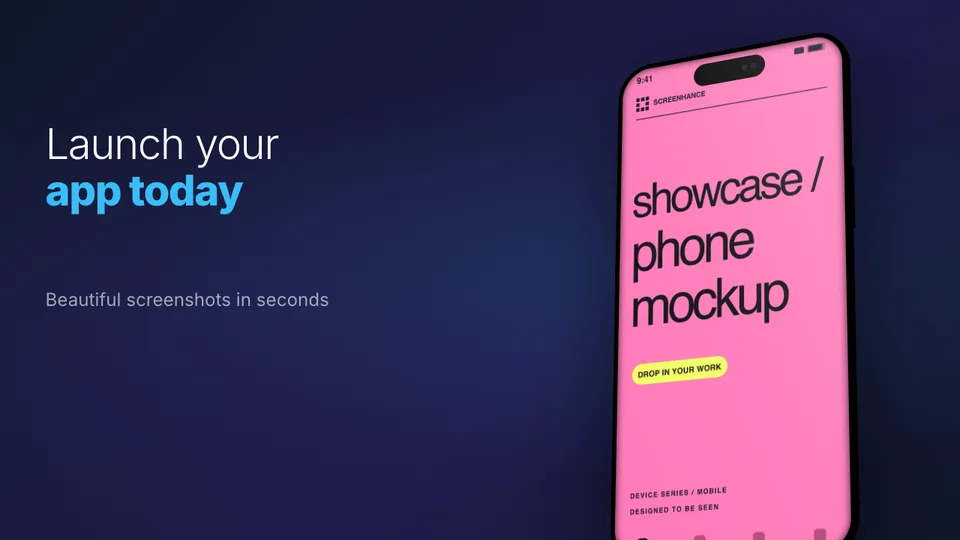
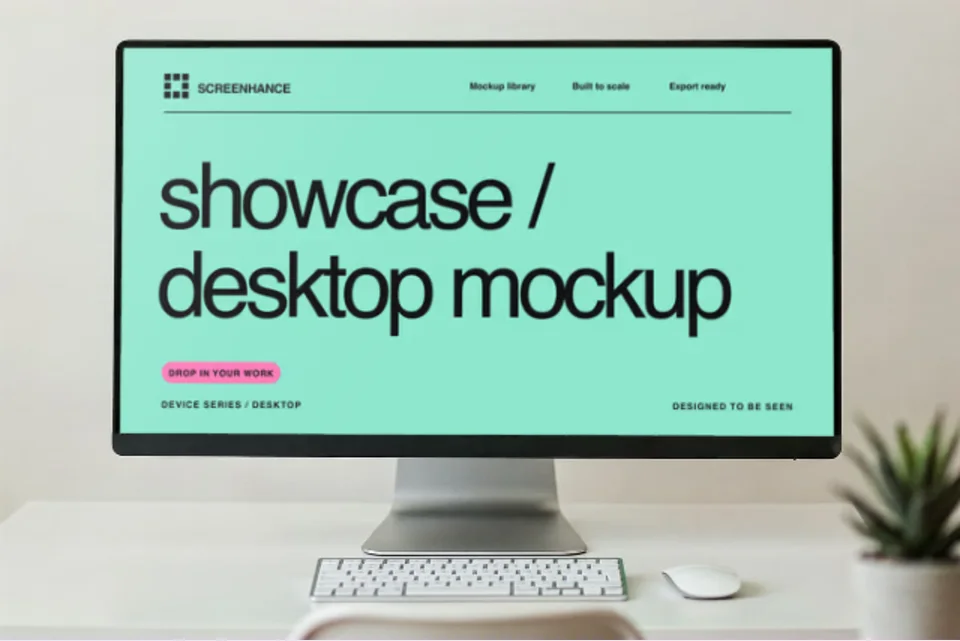
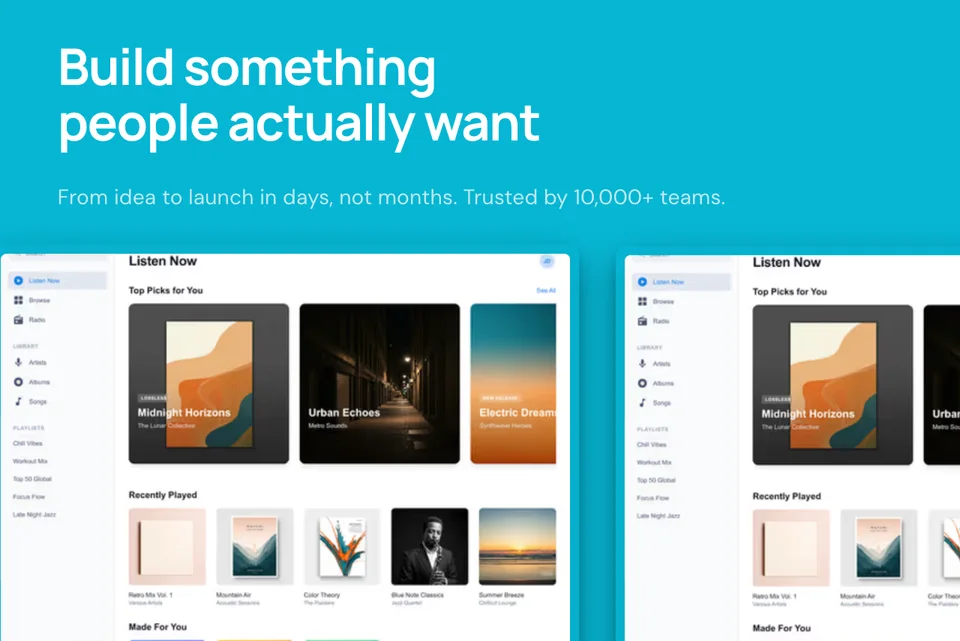
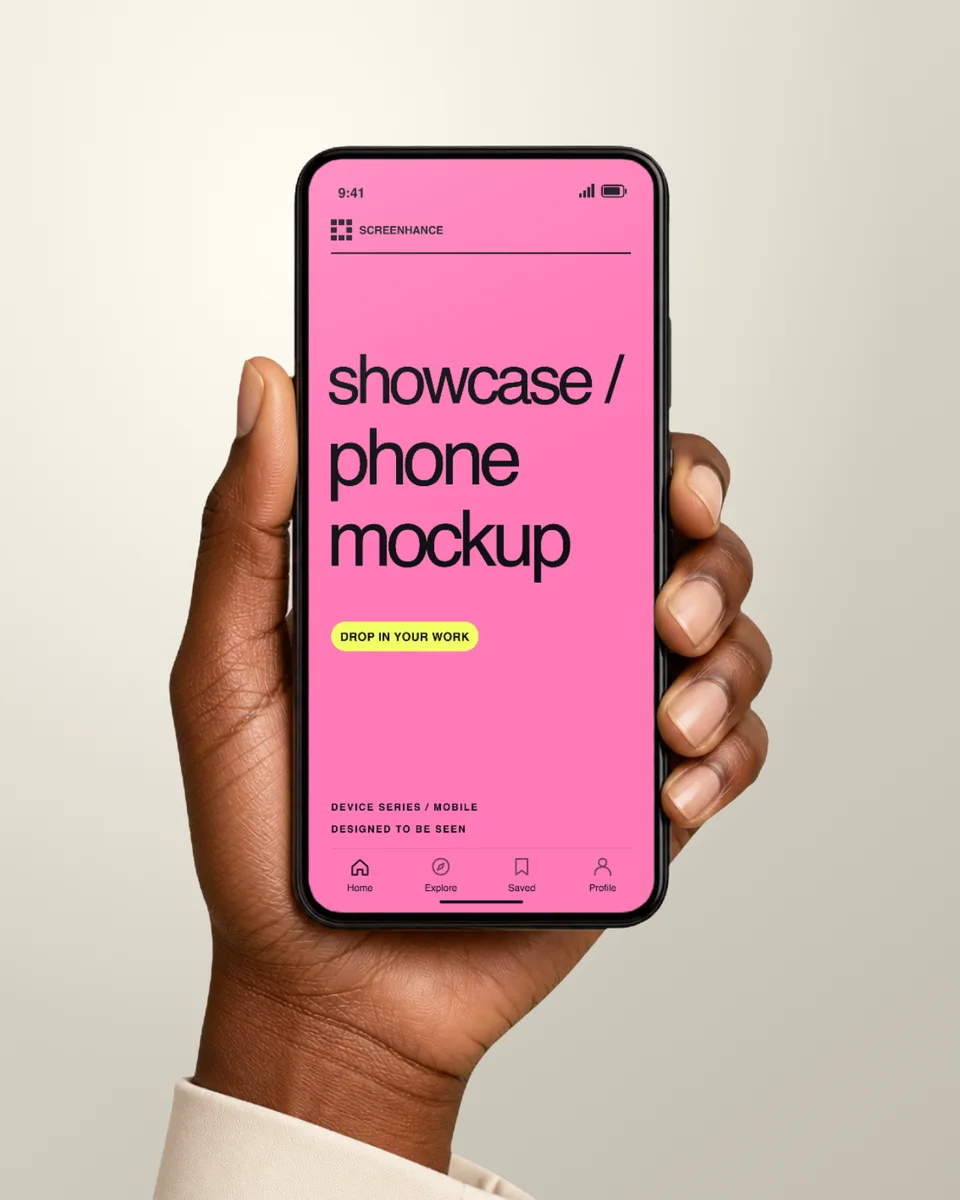
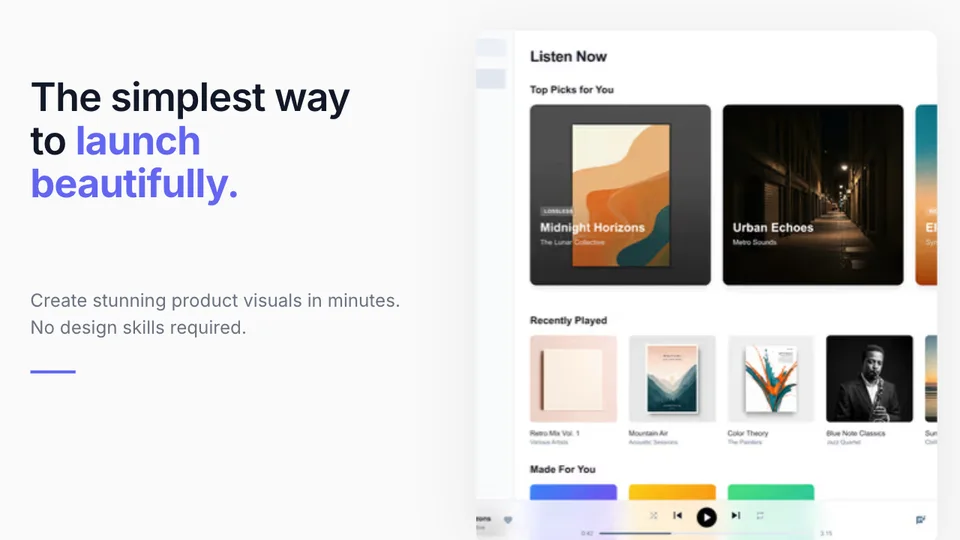
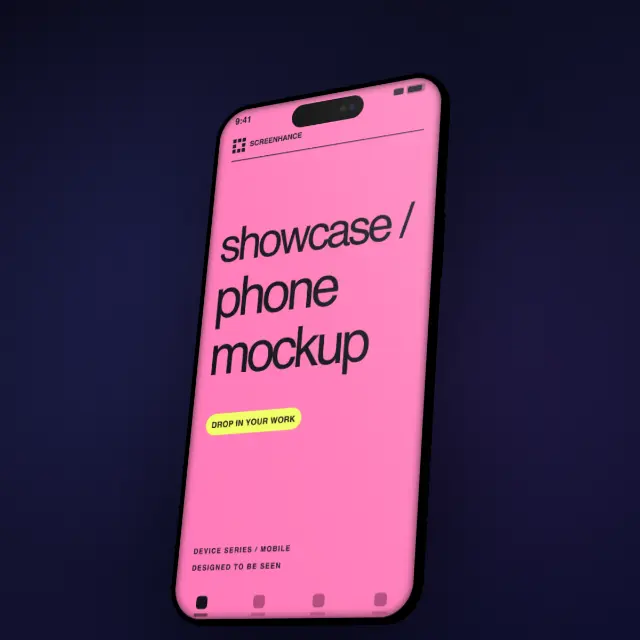
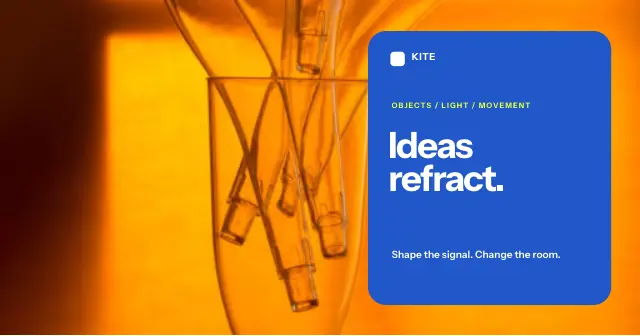
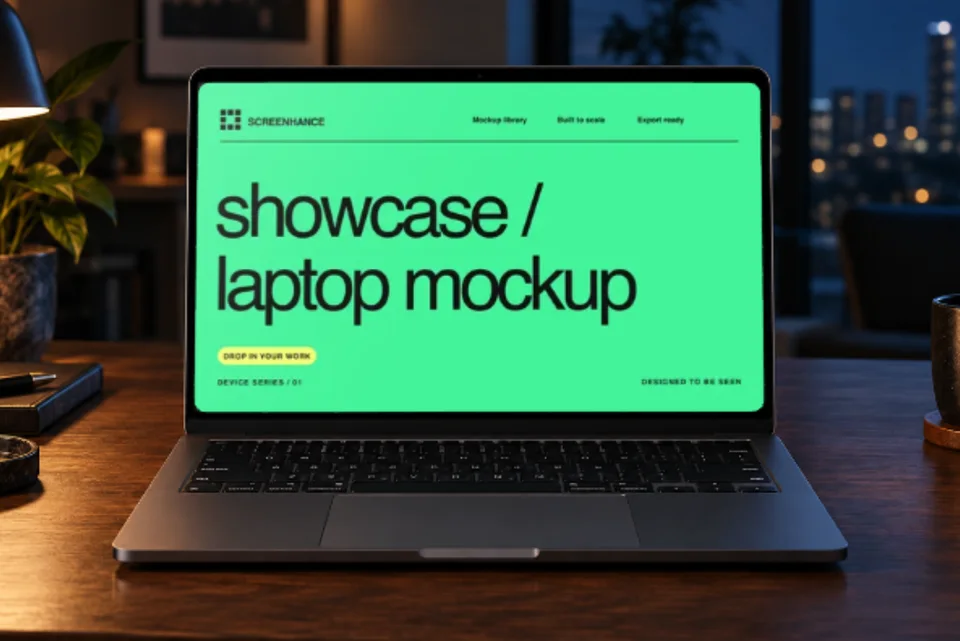
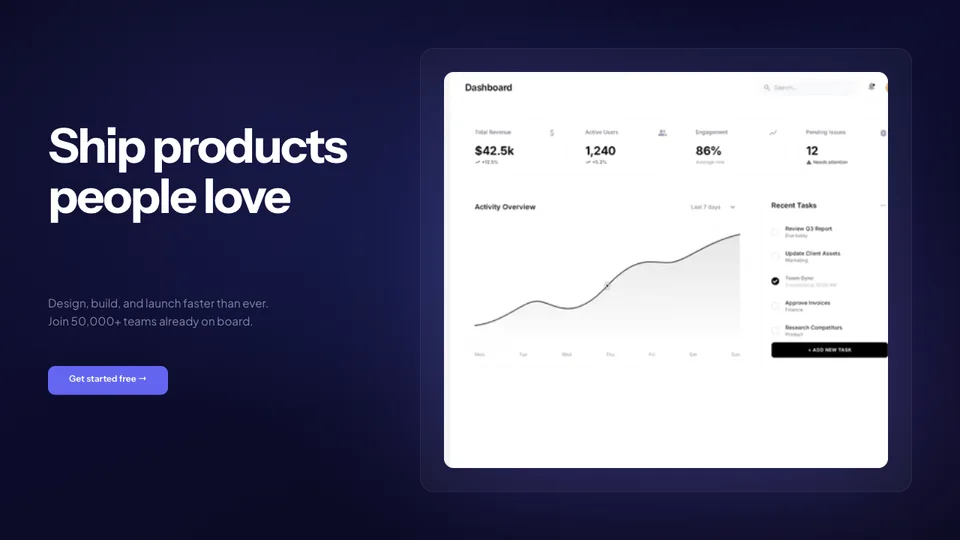
Screenhance ships more than 100 ready-to-use templates across six categories: Product Hunt gallery images (1270×760), App Store and Google Play screenshots in every required device size, OG social cards (1200×630), website hero images, device mockups for iPhone, iPad, MacBook, Android and browser, and general marketing visuals. Every template uses real device frames — over 40 of them — and ships with editable headlines, captions, background gradients, and frame colours.
Open any template in the editor by clicking "Use this template." The template loads pre-styled with a sample screenshot, headline, background, and frame. Replace the screenshot with your own (drag-drop or paste from clipboard). Edit the headline and caption inline. Swap the device frame from the right panel — over 40 frames are available, including iPhone 17 Pro, iPhone Air, Pixel 9, Samsung Galaxy S25, MacBook Pro M4, and iPad Pro M4. Pick a background from gradient, mesh, glass, aurora, or solid presets, or upload your own. Export at 1× for web, 2× for Retina, or 3× for App Store submission. Static templates export as PNG, WebP, or JPEG; templates with motion effects also export as GIF or WebM.
Every template ships under the Screenhance licence: free to use for commercial and non-commercial work, no attribution required. Templates are not for resale on template marketplaces and may not be redistributed as a competing template library. Free-plan exports include a small Screenhance watermark; Pro removes it. See the pricing page for plan details.
Every template in the Screenhance library passes the same five-part audit before it ships. First, the device frame is pixel-accurate to the real hardware — bezel proportions, corner radii, button placement, and screen aspect ratio all match the device exactly. Second, the composition holds up at thumbnail size: a template that looks good at 1200px wide but unreadable at 200px wide won't survive a Product Hunt grid or an App Store search result. Third, the headline area accommodates 3–7 words without breaking the layout — the most common headline length in production marketing. Fourth, the background works in both light and dark contexts so the template stays usable when the embedded screenshot is dark mode. Fifth, the template exports cleanly at every supported resolution (1×, 2×, 3×) without artefacts. Templates that fail any of these criteria don't make it into the public library.
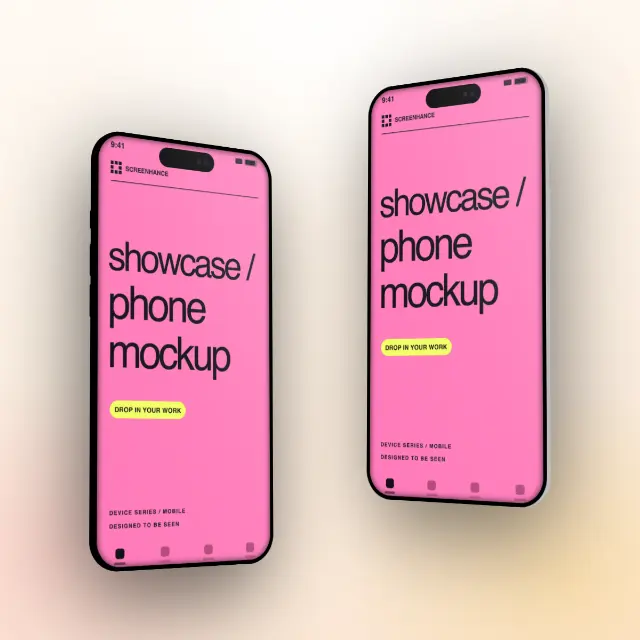
Marketplace PSDs are static smart-object files: open in Photoshop, drop a screenshot into the smart object, save out a PNG. Screenhance templates are live editable designs — you can change the device frame, swap the background, edit the headline, adjust padding, and re-export at multiple sizes from one design. A Screenhance template that ships as an iPhone 17 Pro mockup can be re-rendered as the same composition on an iPhone Air or iPhone 16 in one click. A PSD can't. That flexibility is why the same template often saves a designer 5–10 minutes per iteration once you account for the inevitable client revisions.
If none of the built-in templates fit, every Screenhance template is a starting point you can fork. Pick the closest match, then change the background, device frame, headline, caption, and accent colour to match your brand. Save the result as a personal template (Pro plan) and reuse it across every launch. Most teams end up with three to five personal templates that cover 80% of their marketing output — one for landing-page heroes, one for OG social cards, one for App Store screenshot sets, and one or two for blog post headers. Building these once and reusing them is what separates teams that ship consistent visuals from teams that redesign every export from scratch.
The gallery above is organised into six tabs that map to the most common launch and marketing workflows. Product Hunt covers the 1270×760 gallery images that ship on launch day plus pre-launch "coming soon" cards. Website covers landing-page heroes, feature sections, comparison blocks, and pricing visuals. OG Images covers 1200×630 social cards for blog posts, landing pages, and shared links. Mockups covers single-device frame compositions for iPhone, iPad, MacBook, Android, and browser. App & Play Store covers the multi-slide screenshot sets that App Store Connect and Google Play Console require, with every iOS and Android device size generated from one design. Hover over any template card for a live preview; click "Use this template" to open the design in the editor with your sample screenshot already in place.
Can I use a template for a client project? Yes, on every plan. Templates are commercially licensed out of the box, with no attribution required. Pro and Week Pass exports remove the watermark.
Do templates update when new devices ship? Yes. When Apple, Google, or Samsung releases a new device, the frame is added to the editor and existing templates can be re-rendered onto it without losing the background, headline, or composition. No need to wait for a marketplace seller to update their PSDs.
Are App Store templates compliant with Apple review? Yes. App Store templates ship at the exact dimensions Apple requires for each device class (6.9-inch, 6.7-inch, iPad 13-inch, etc.) and avoid prohibited elements like fake status bars or simulated UI chrome. Templates are reviewed against Apple's marketing image guidelines before publishing.
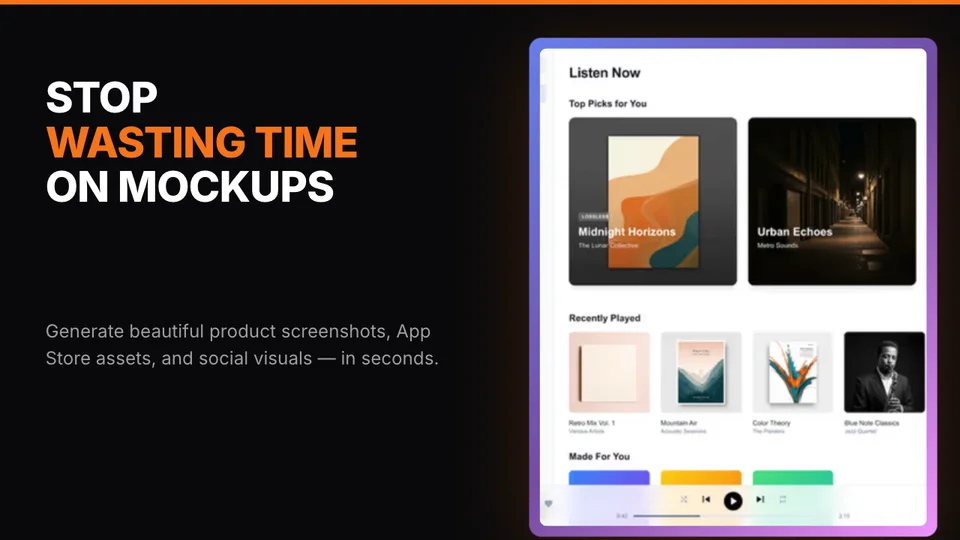
Can I import templates from Figma or Photoshop? Not directly. Screenhance templates are native to the editor so they stay editable across device frames and export sizes. If you have a Figma design you want to convert into a Screenhance template, screenshot the Figma frame and use it as the background in a new template — keep the device frame and headline live inside Screenhance.
Is there an API for generating templates programmatically? A template API is on the 2026 roadmap. Today, templates are designed in the visual editor; programmatic rendering of a template with custom screenshot/headline is the most-requested feature from API customers. Email hello@screenhance.com if you have a specific use case.
Most design tools open to a blank canvas. The implicit promise is "you can build anything." The actual result, for non-designers, is decision paralysis: which device frame, which background, which font, which padding, which export size. Twenty minutes later, you have a half-built mockup and a strong urge to give up.
A template gallery inverts that. Instead of starting from nothing, you start from the closest match to what you need — App Store screenshot set, Product Hunt gallery hero, OG card for a blog post — and customise from there. Every decision (frame, background, layout, dimensions) is pre-made; you only change the parts that need to be different for your product.
For most teams, this is a 10-30× speed improvement over building from scratch. A Product Hunt gallery that takes a Figma user 45 minutes per image takes a Screenhance template user 90 seconds. The first time you ship five launch images in 10 minutes instead of an evening, the template approach stops feeling like a shortcut and starts feeling like the default.
The gallery above is organised by surface — Product Hunt, Website, OG Images, Mockups, App & Play Store. A quick guide to which tab to start in depending on what you're shipping.
Launching on Product Hunt this week. Start in the Product Hunt tab. Pick a 1270×760 cover template for image #1, then build out four supporting images (feature shot, social proof, pricing, founder story) using the same template family for consistency. The Product Hunt gallery generator page walks through the full workflow.
Submitting to the App Store or Google Play. Start in the App & Play Store tab. Pick a template that matches your product category (productivity, finance, fitness, social), then customise the screenshots and headlines. Every template auto-generates all required device sizes (iPhone 6.9-inch, 6.7-inch, iPad 13-inch, Android phone, Android tablet) from one design. The App Store screenshot generator page covers the multi-size export workflow in detail.
Designing a new landing page. Start in the Website tab for hero compositions and feature blocks. Pick a hero template that matches your product category (B2B SaaS, consumer app, dev tool, AI product) and a feature-block template that matches your number of features. The landing page mockup generator page covers landing-page-specific patterns.
Generating an OG card for a blog post. Start in the OG Images tab. Pick a 1200×630 template, drop in the post title and a relevant screenshot, export. Most teams set up a default OG template once and reuse it for every post — the OG image generator page covers how to automate this.
Just need an iPhone or MacBook mockup. Start in the Mockups tab. Pick the device frame matching your product (iPhone for mobile apps, MacBook or browser for web apps), drop in your screenshot, customise the background and headline, export. This is the simplest workflow and the one most users start with on day one.
Product Hunt templates. 1270×760 covers and supporting images sized for the Product Hunt launch grid. Designed to read at both full size and thumbnail size — the most common failure mode of PH gallery images is text that disappears at 200px wide. Templates here are tested at thumbnail scale before shipping.
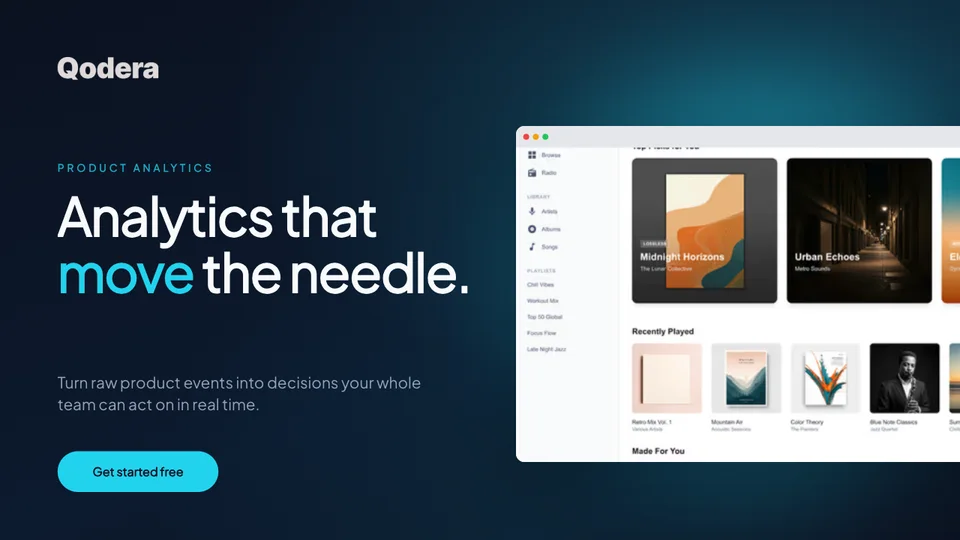
Website templates. Hero compositions, feature breakdowns, comparison blocks, and pricing visuals for marketing pages. Most templates here include both desktop and mobile crops from the same design so you don't have to maintain two parallel asset libraries.
OG image templates. 1200×630 social cards optimised for Twitter, LinkedIn, Facebook, and Slack unfurls. Designed with the safe zone in mind (different platforms crop differently); the focal content always survives the worst-case crop.
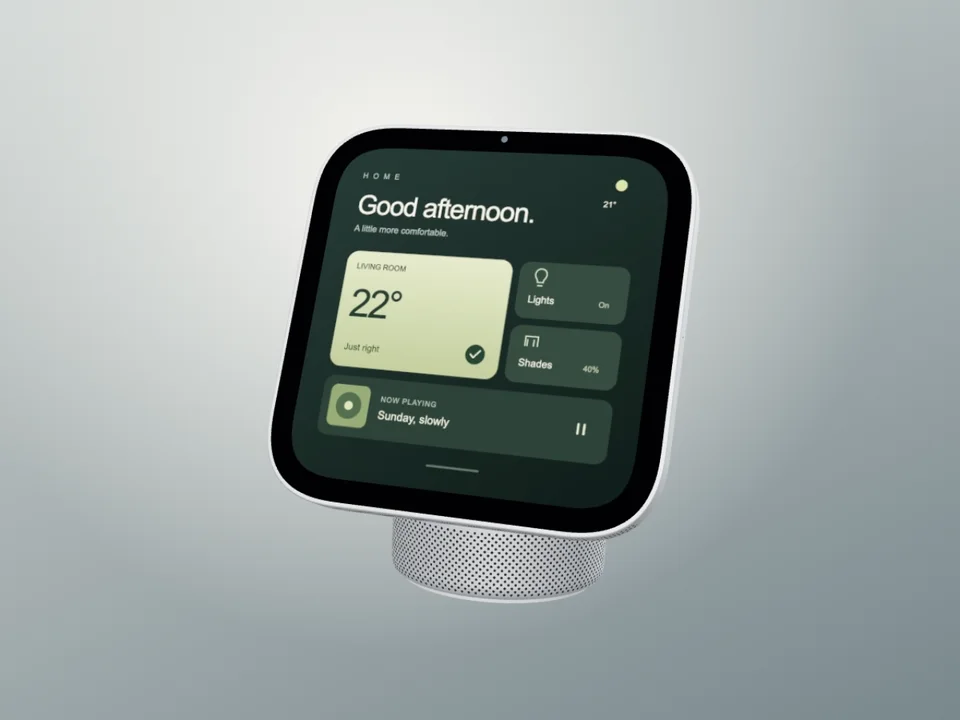
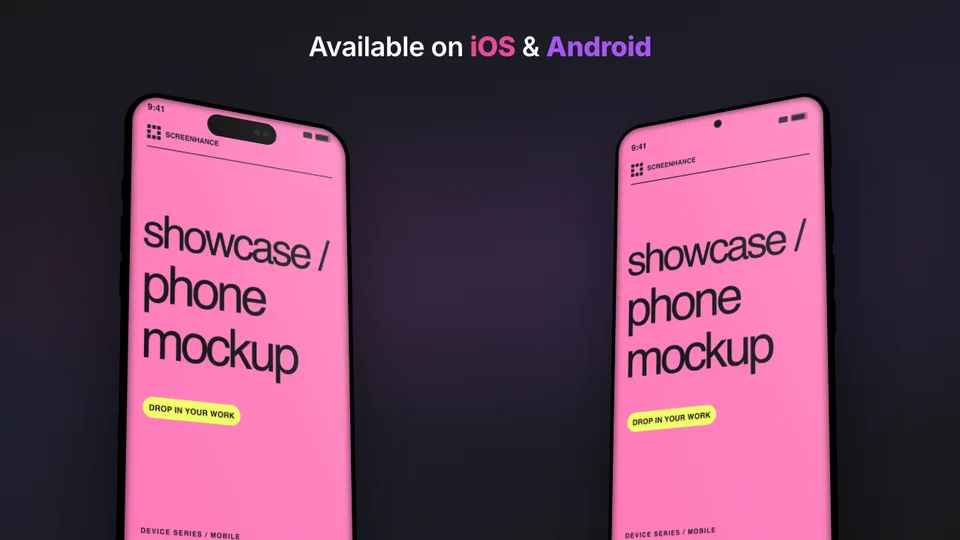
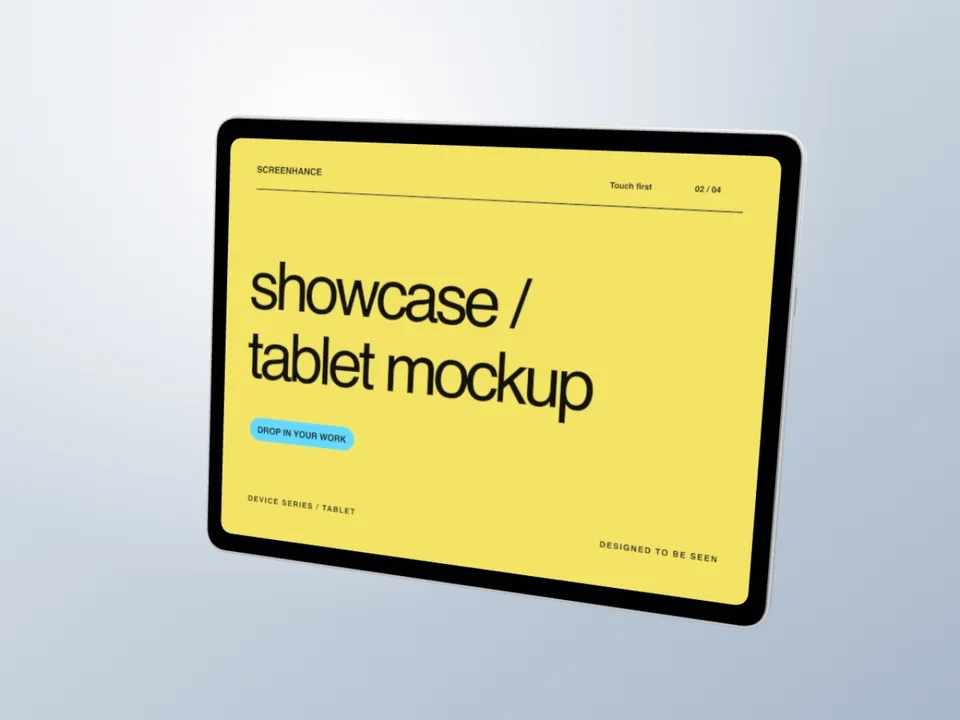
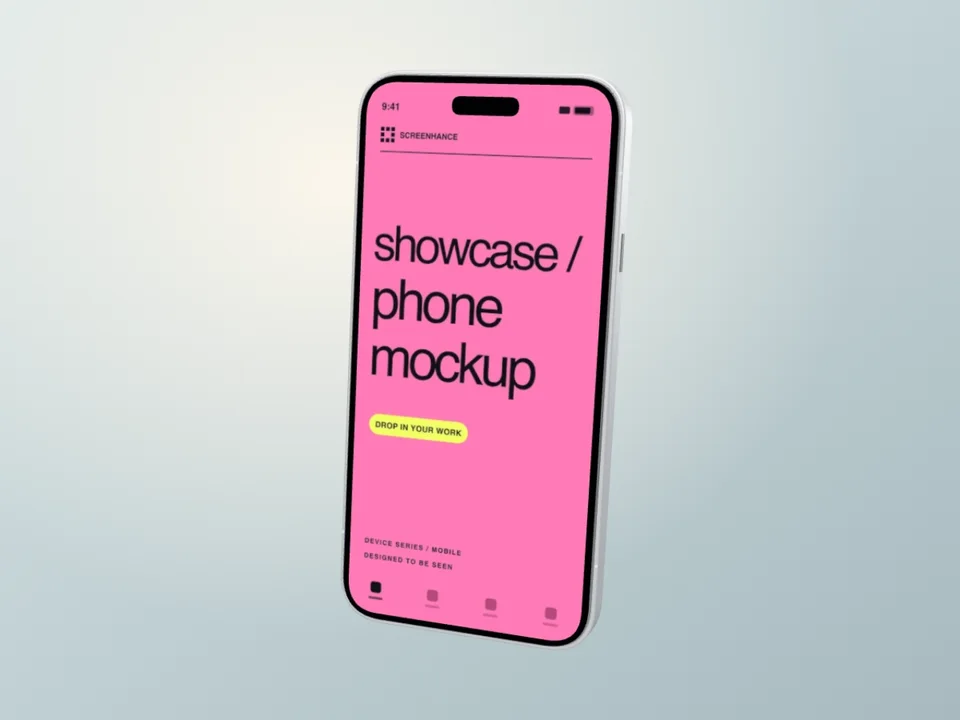
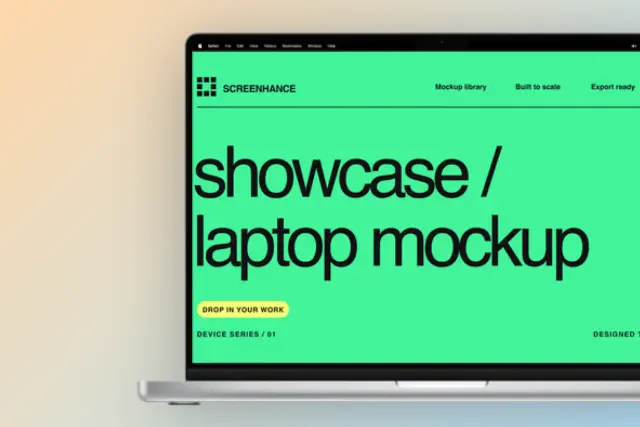
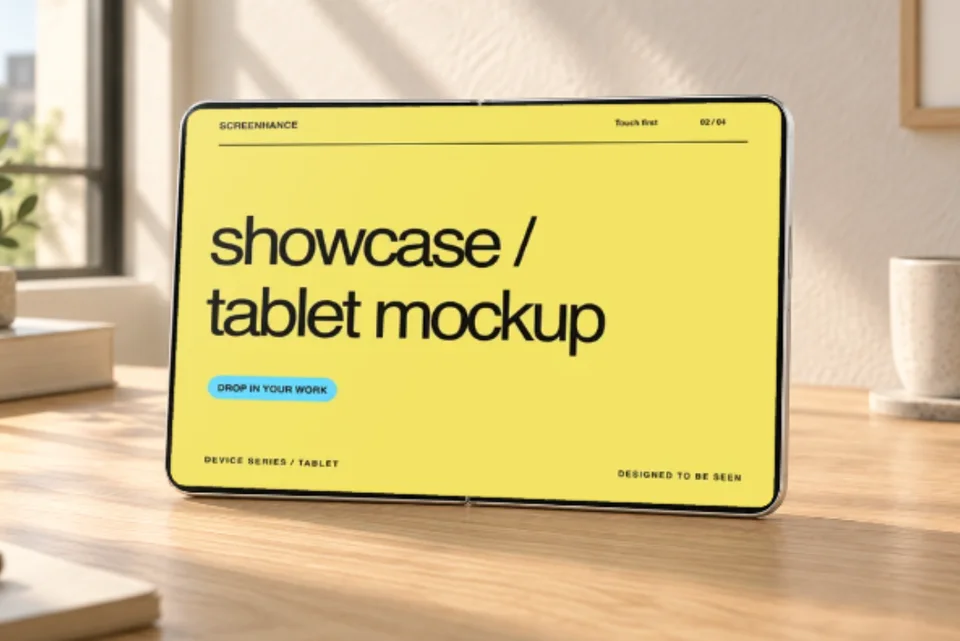
Mockup templates. Single-device compositions for iPhone, iPad, MacBook, Pixel, Galaxy, and Apple Watch. Every frame is pixel-accurate to the real hardware — Dynamic Island position, bezel proportions, button placement. If a frame doesn't match the device exactly, it doesn't ship.
App Store and Play Store templates. Multi-slide screenshot sets sized for every iOS and Android device class. Design once, export at all required sizes — Apple's iPhone 6.9-inch, 6.7-inch, 6.5-inch, iPad 13-inch, iPad 12.9-inch; Google's phone, 7-inch tablet, 10-inch tablet, Chromebook, and Wear OS. The Play Store templates page covers the Android-specific subset.
Fork a template once, reuse it forever. Pick the closest match in the gallery, customise it for your brand (colours, frame, headline style), and save the result as a personal template. Most teams end up with three to five personal templates that cover 80% of their output. Pro plan unlocks unlimited personal templates.
Match templates to your visual brand, not your aspiration. If your brand is restrained and corporate, the dramatic gradient templates won't fit no matter how good they look in the gallery. Pick templates that match your existing visual identity, then customise from there — switching to a wildly different aesthetic for one launch is usually a mistake.
Don't over-template the launch image. Product Hunt image #1 and the landing-page hero are the two visuals worth designing from scratch (using a template as a starting point but customising heavily). Everything else — feature shots, OG cards, supporting images — should run straight through a template with minimal tweaking. The 80/20 lives in the headline images.
Re-export when the product UI changes. Templates referencing your old UI date faster than templates referencing competitor UI. Set a quarterly calendar reminder to swap stale screenshots in your most-used templates. Five minutes of refresh work avoids a "this company has slowed down" perception.