
%2FOlivia%20Rhye.webp&w=64&q=75)
%2FPhoenix%20Baker.webp&w=64&q=75)
%2FLana%20Steiner.webp&w=64&q=75)
%2FDemi%20Wilkinson.webp&w=64&q=75)
%2FDrew%20Cano.webp&w=64&q=75)
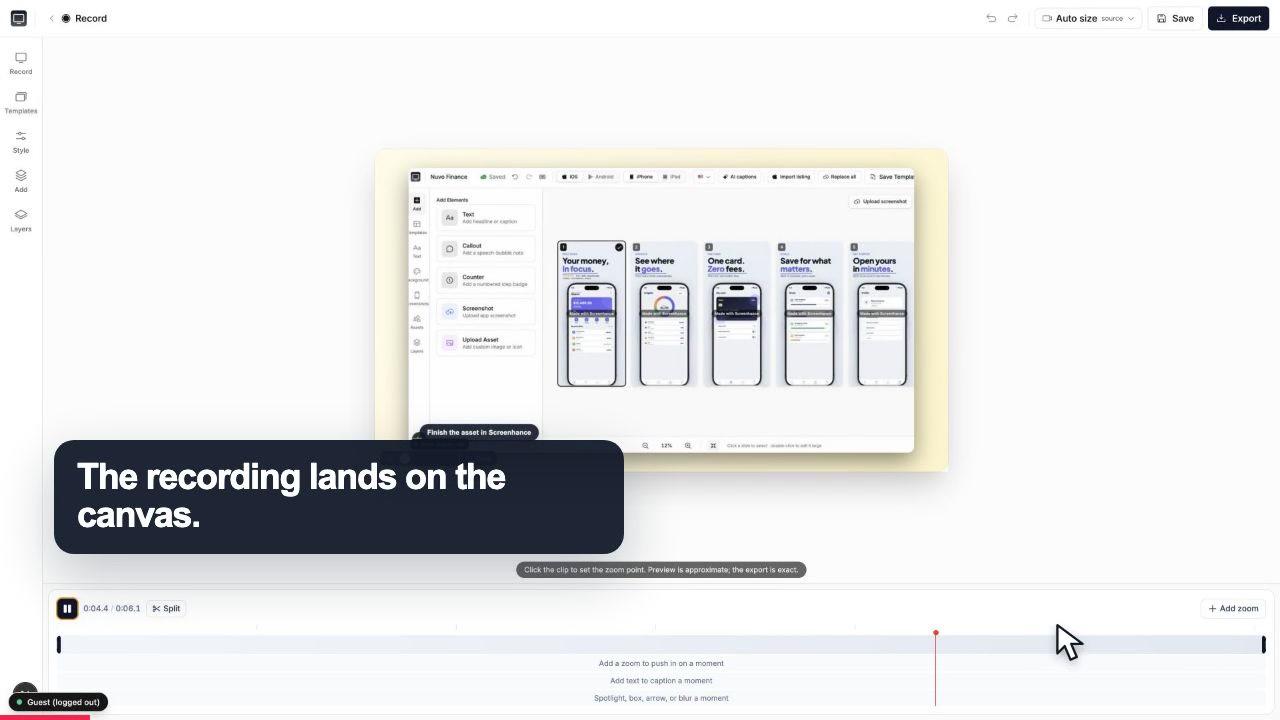
Start with the whole screen
0:07The recording lands on a clean canvas with the timeline ready underneath.
Screenhance Studio records your screen and webcam, guides the viewer's eye with click-to-place zoom, and wraps it in clean device frames. No heavy desktop install. Free to start, and it exports MP4, WebM, and GIF.
Free to start · No signup to try · Works on macOS, Windows and Linux
Loved by 3,000+ creators
A focused visual timeline, with no license to buy before you can press record.
Open Studio and capture your screen, and your webcam too if you want a talking-head bubble. Nothing to install, and it runs the same on macOS, Windows, and Linux.
Click the exact spot that matters and Studio zooms into it to guide the eye. Then wrap the recording in a realistic device frame or window chrome over a gradient background.
Render in square, portrait, or landscape for social, YouTube, or a landing-page hero. Export MP4 or WebM for video, or a GIF that drops straight into a README or changelog.
The recording lands on a clean canvas with the timeline ready underneath.
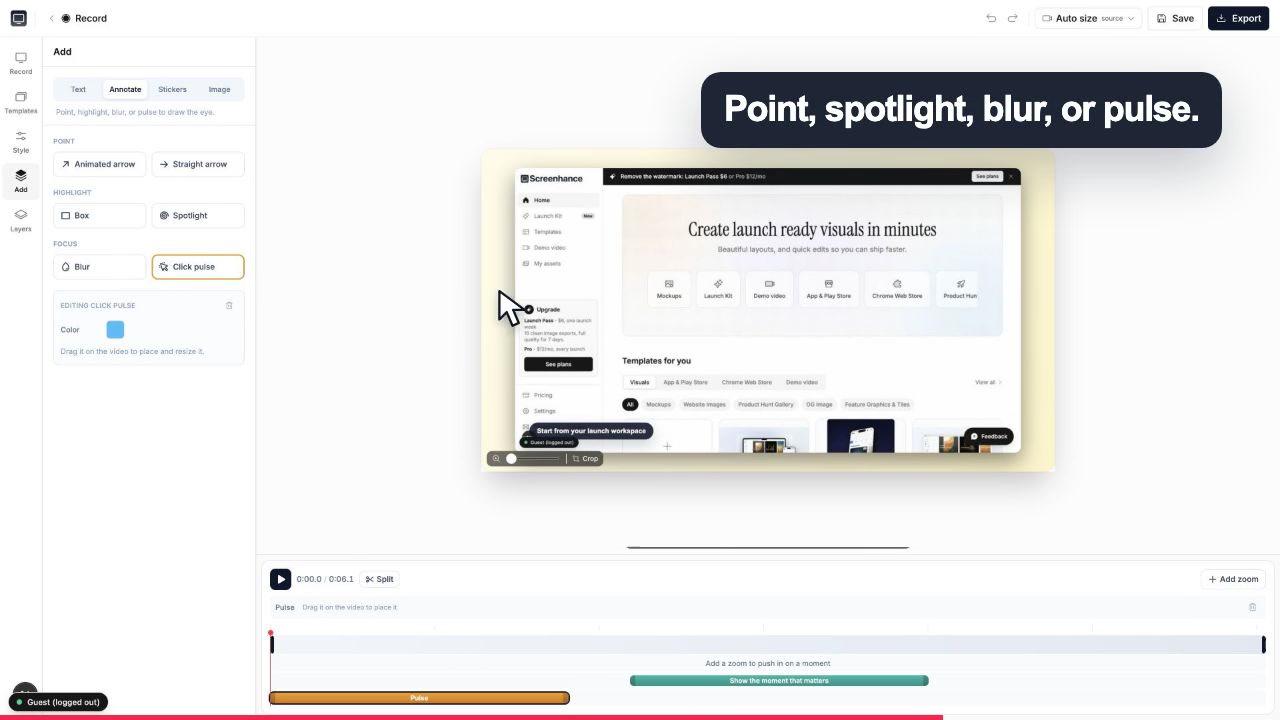
A click pulse and caption make the exact interaction obvious before the camera moves.
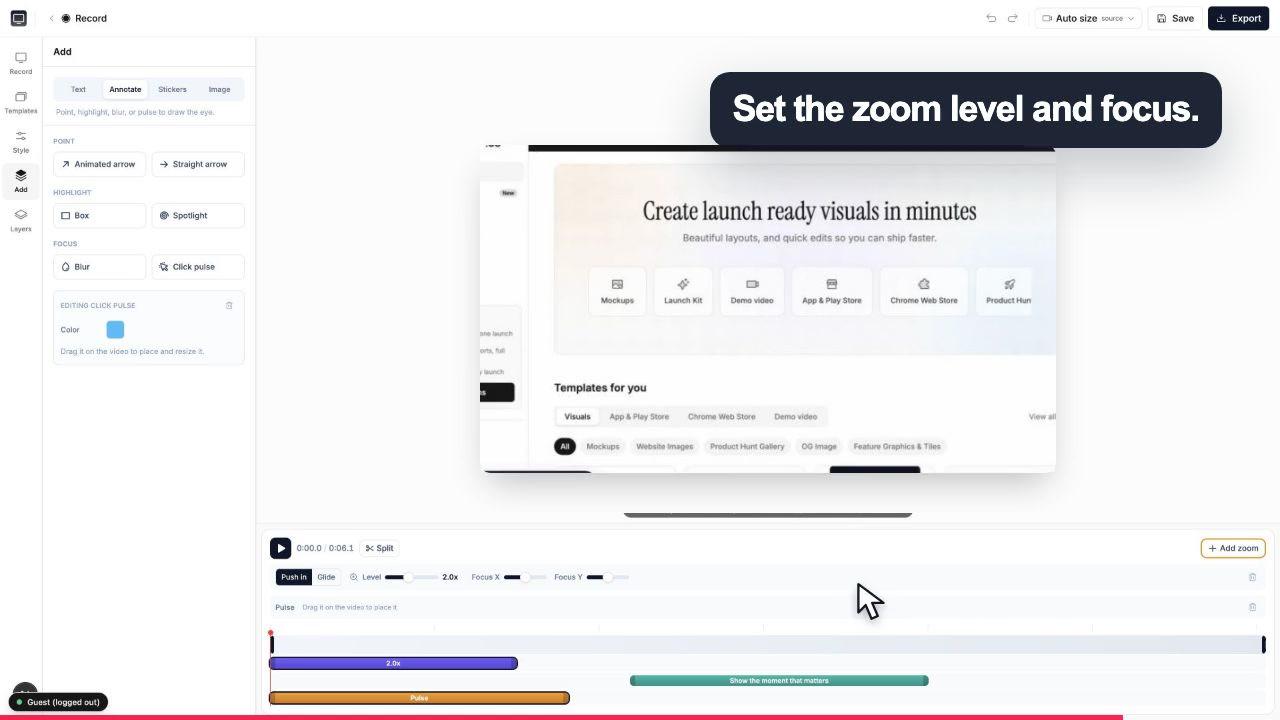
Choose the zoom level and focal point while the real controls stay visible around the canvas.
The parts of a produced demo, in one browser tab.
Capture your screen, and optionally your webcam, right in the browser. No download, and the same URL works on macOS, Windows, and Linux.
The signature feature. Click the part of the recording that matters and Studio zooms in so the viewer follows the exact button, field, or menu you mean.
Wrap the recording in realistic device frames plus macOS and browser window chrome, set over gradient and preset backgrounds, so a raw capture looks launch-ready.
Add captions in custom fonts, drop annotations to call out a step, and place stickers. Everything that turns a screen grab into something you would put on a landing page.
Square, portrait, and landscape from the same recording, so one take becomes a YouTube video, a vertical social clip, and a landing-page hero.
Export video as MP4 or WebM, or a GIF for short loops that live in a README, a changelog, or a Slack thread. Ready-made demo-video templates give you a fast, on-brand start.
These tools are built for different jobs. Here is where each one wins.
The short version: if your job is hour-long courses and cut-by-cut timeline editing, Camtasia earns its license. If your job is a fast, on-brand demo video, a product GIF, or a launch clip made in the browser, Studio gets you there without the install or the price tag.
A desktop application with its own install, update cycle and supported operating systems.
Open the editor in a Chromium browser, record or import a take, then edit and export from the same workspace.
Most people who need a Camtasia alternative do not only need video. On launch day you also need App Store screenshots, device mockups, an OG image for the link preview, and social cards. Studio is the same tool that makes all of those, so your demo video and your store screenshots share one visual style instead of coming from four disconnected apps.
Record the walkthrough in Studio, then reuse the same frames and backgrounds to build your App Store screenshots, your device mockups, and your OG image. It is all part of Launch Kit, so the whole set looks like it was made by the same hand, because it was.
It is free to start. You can record your screen and webcam, add zoom and device frames, and export a finished video without paying. Free exports carry a small Screenhance watermark; removing it from video takes the $12/month Pro plan (the $6 Launch Pass covers watermark-free image exports only, so video stays watermarked on it). Camtasia, by comparison, is a one-time desktop license that runs into the low hundreds of dollars. If you make the occasional demo, GIF, or launch clip, Studio's free tier is genuinely usable; if you make videos every day, Pro is a fraction of a Camtasia license.
No. Studio runs entirely in the browser at app.screenhance.com/studio, so there is nothing to download, install, or update, and it works on macOS, Windows, and Linux from the same URL. Camtasia is a native desktop app you install per machine. If you switch computers often, work on a locked-down work laptop, or just do not want another heavy install, recording in the browser removes that whole step.
Zoom is Studio's signature feature. After you record, you click the exact part of the frame that matters and Studio zooms into it, so the viewer's eye is guided to the button, field, or menu you are talking about instead of hunting across the whole screen. It is the single thing that makes a raw screen recording feel like a produced demo, and it takes a click rather than manual keyframing.
Yes. Studio records your screen and, optionally, your webcam at the same time, so you can put a talking-head bubble over a product walkthrough or a tutorial. You choose whether the webcam is on before you record.
Studio exports MP4 and WebM for video, plus GIF for short looping clips that drop straight into a README, a changelog, or a Slack message. You can render in square, portrait, or landscape aspect ratios, so the same recording can become a YouTube video, a vertical social clip, or a landing-page hero without re-recording.
Camtasia is built for long-form, multi-track timeline editing: hour-long course modules, videos that layer many audio tracks, transitions, and callouts, and detailed cut-by-cut editing. It also works fully offline once installed, and it has a deep library of assets built up over years. If that is your work, Camtasia earns its price. Studio is aimed at a different job: fast, on-brand demo videos, product GIFs, and launch clips made in the browser, where zoom and framing matter more than a deep timeline.
Yes. Studio wraps your recording in realistic device frames and macOS or browser window chrome over gradient and preset backgrounds, and you can add captions with custom fonts, annotations, and stickers on top. That is what turns a plain capture into something that looks like it belongs on a landing page rather than a raw screen grab.
Yes. Studio is part of Screenhance's Launch Kit, the same place you make App Store screenshots, device mockups, and OG images. So your demo video, your store screenshots, and your social cards all come out of one tool with one visual style, instead of a separate app for each launch asset.
Still weighing it? The editor is free and opens in one click: open Studio →
Record, edit, frame, and export the next version of your product video.
Polished demo videos with click-to-place zoom
Start creatingRecord, click-to-zoom, frame, and export a demo video
Start creatingFrame, caption, zoom, and export a raw recording as a polished MP4
Start creatingRecord, zoom, and export MP4 demo videos for SaaS
Start creatingRecord, zoom into each step, and export a how-to video
Start creatingRecord, zoom, and caption product onboarding videos
Start creatingScreen and webcam recording, click-to-place zoom, device frames, and MP4, WebM, or GIF export. Free to start, nothing to install.