
%2FOlivia%20Rhye.webp&w=64&q=75)
%2FPhoenix%20Baker.webp&w=64&q=75)
%2FLana%20Steiner.webp&w=64&q=75)
%2FDemi%20Wilkinson.webp&w=64&q=75)
%2FDrew%20Cano.webp&w=64&q=75)
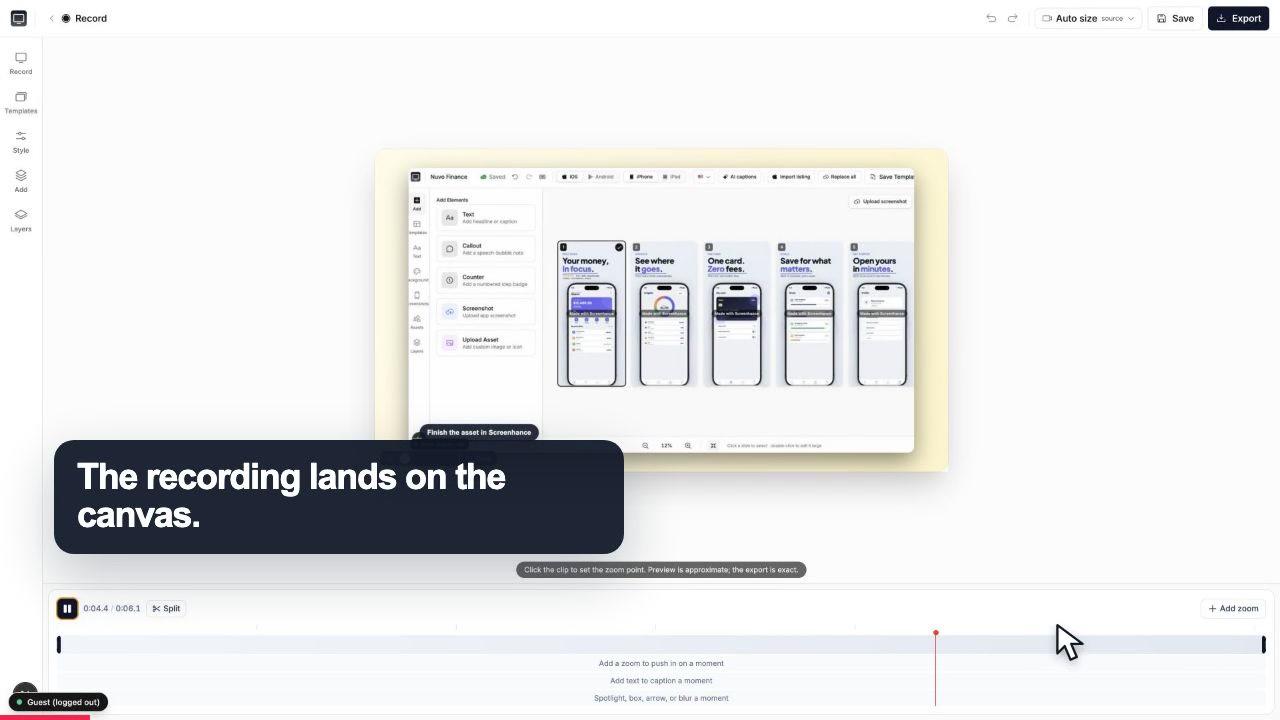
Start with the whole screen
0:07The recording lands on a clean canvas with the timeline ready underneath.
Record your screen in the browser, then click to place a zoom on the exact part that matters, so the viewer's eye is guided straight to it. No download, no keyframing, no desktop editor. Just point at the moment worth showing and Screenhance Studio moves the camera in for you.
Free to start · No signup to try · Works on macOS, Windows and Linux
Loved by 3,000+ creators
The hardest part of a good product demo is not recording it, it is making sure the viewer looks where you look. In a full-screen capture, the one setting you changed or the button you clicked is a few pixels lost in a busy interface. So you end up narrating "up here, on the left, the small toggle" and hoping people find it in time.
Studio's signature feature fixes that with a click. After you record, you scrub to the moment that matters and click the spot you want to feature. The recording zooms into that point, holds the viewer's attention on it, then eases back out. You are not dragging scale keyframes or hand-tuning easing curves; you are pointing, and the camera move happens. It feels automatic, but you decide exactly what gets emphasised and when.
Because the zoom is a real move into the recording rather than a static crop, the cursor and on-screen motion stay smooth through it. The result reads like a guided camera rather than a jump cut, which is the difference between a demo that feels considered and one that feels like a raw screen grab.
The recording lands on a clean canvas with the timeline ready underneath.
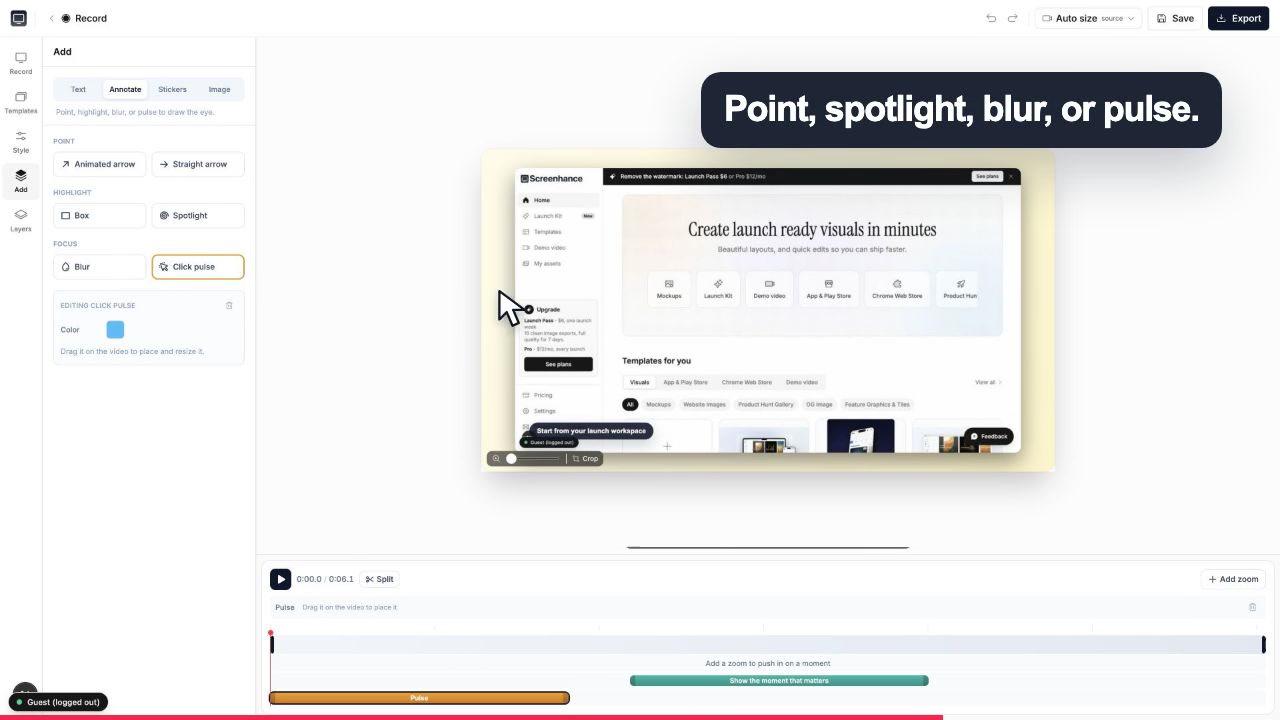
A click pulse and caption make the exact interaction obvious before the camera moves.
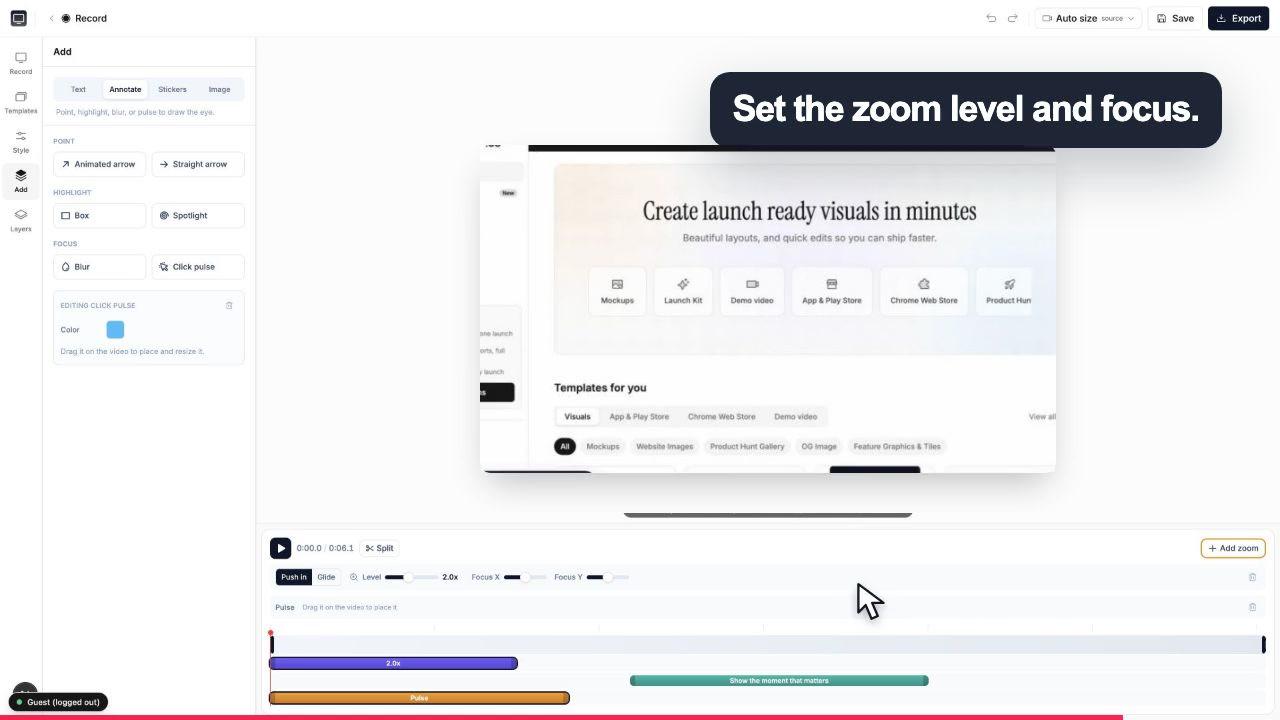
Choose the zoom level and focal point while the real controls stay visible around the canvas.
Three steps, all in the browser. There is nothing to download, and it runs on macOS, Windows, and Linux.
Open Studio in your browser and capture your screen, optionally with your webcam for a talking-head bubble. No install, works on macOS, Windows, and Linux.
Click to place a zoom on the moments that matter, then wrap the recording in a device or browser frame over a gradient background. Add captions, annotations, and stickers.
Pick square, portrait, or landscape for social, YouTube, or a landing-page hero, then export MP4, WebM, or GIF. Free to start; Pro removes the watermark from video exports.
Studio is a browser-based screen and webcam recorder and a demo-video editor, so the recording and the polish happen in the same place.
The signature move: point at the spot that matters and Studio zooms the recording into it to guide the viewer's eye, then eases back out. Set the moment and focus visually without hand-building keyframes.
Record your screen on its own, or add your webcam for a talking-head bubble. Everything is captured right in the browser, with no download on macOS, Windows, or Linux.
The cursor and on-screen motion stay smooth through each zoom, so the video reads as a guided camera move rather than a jarring cut between crops.
Wrap the recording in realistic device frames plus macOS and browser window chrome, set over gradient or preset backgrounds, to make a raw capture look finished.
Add captions with custom fonts, annotations, and stickers to explain what is happening on screen without a separate editor.
Export square, portrait, or landscape for social, YouTube, or a landing-page hero, and start fast from ready-made demo-video templates. Output as MP4, WebM, or GIF.
You can absolutely zoom into a screen recording in a traditional video editor. The problem is the effort per zoom. For each point you want to emphasise, you set a scale keyframe at the start, another where the zoom lands, then tune the easing so it does not snap. Do that for five moments in a demo and you have spent more time on camera moves than on the recording itself, and it still might feel mechanical.
Studio collapses all of that into a click. You point at the spot, and the movement in and back out is handled for you, tuned to feel like a considered camera move. Because it is built for demo recordings specifically rather than being a general editor, the defaults already do the right thing, which is why it feels automatic.
The other win is that there is no round trip. A desktop workflow usually means record in one app, import into an editor, add frames somewhere else, then export and hope the sizes are right. In Studio you record, place your zooms, wrap the video in a device frame, and export MP4 or WebM without leaving the browser tab. Recording, emphasis, framing, and export are one continuous flow. Coming from a desktop editor? See how Studio stacks up as a Camtasia alternative.
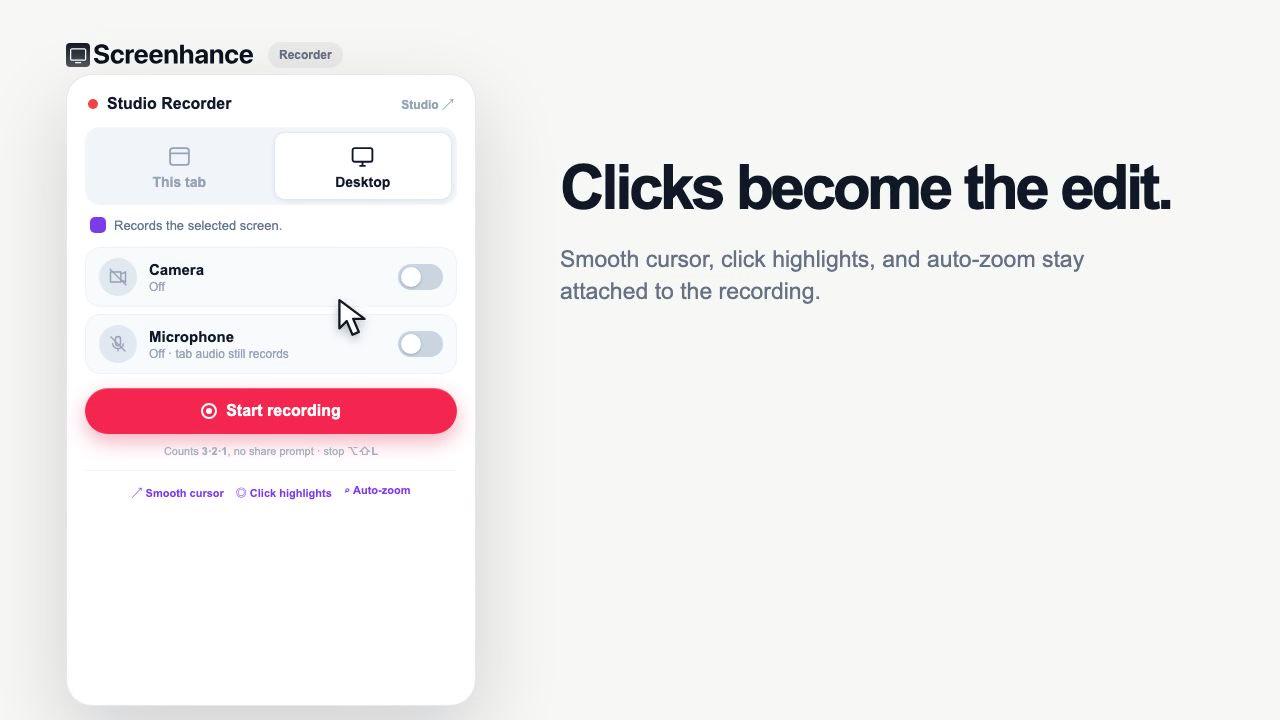
The extension keeps the cursor path and clicks with the take.
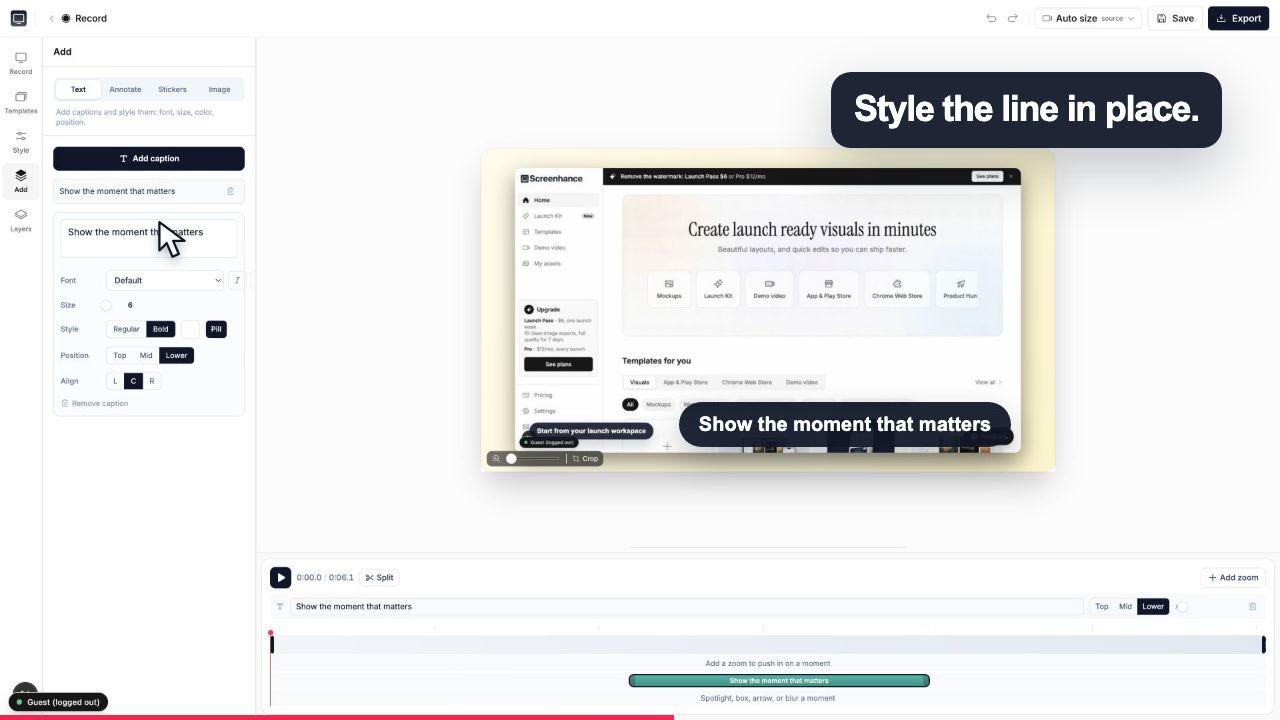
Add captions, effects and timing without leaving the browser.
Show the exact feature you shipped, with a zoom on the moment it clicks, framed and ready for a landing-page hero or a launch post.
Guide viewers step by step and zoom into each setting or button so nobody gets lost in a busy interface. Add captions to reinforce the steps.
Export portrait or square with a zoom on the payoff so a short, vertical clip lands the point in the first few seconds, for the feed or a story.
Studio is the same Screenhance tool that makes your App Store screenshots, device mockups, and OG images. It is part of Launch Kit, so the demo video, the store screenshots, and the share cards for a launch all come from one place and stay on brand.
That means the zoomed, framed demo you record here can sit next to store-ready screenshots and a matching OG card without hopping between tools, exporting in mismatched styles, or rebuilding your look in three different apps.
After you record, you scrub to the moment that matters and click the spot you want to feature. Studio zooms the recording into that point so the viewer's eye is guided straight to it, then eases back out. You place the zoom where you want it rather than dragging keyframes on a timeline, so it feels automatic even though you stay in control of exactly what gets emphasised and when.
No. Studio runs at app.screenhance.com/studio right in the browser, so there is nothing to install and it works on macOS, Windows, and Linux. You record your screen (and optionally your webcam), place your zooms, and export without ever leaving the tab.
In a desktop editor you typically set two scale keyframes, tune the easing curve, then repeat that for every point you want to highlight, which is slow and easy to get wrong. Studio's zoom is click-to-place: you point at the spot and it handles the movement in for you. It also keeps the cursor and motion smooth so the zoom reads as a guided camera move rather than a jarring jump, and it lives in the same tool that frames and exports the video, so there is no round trip between apps.
Yes. Studio is a screen and webcam recorder, so you can capture your screen on its own or add your webcam for a talking-head bubble alongside the demo. Both are recorded in the browser in the same session.
Yes. Studio wraps your recording in realistic device frames plus macOS and browser window chrome, set over gradient or preset backgrounds. You can also add captions with custom fonts, annotations, and stickers, so a raw screen capture comes out looking like a finished demo.
You can record and export in square, portrait, or landscape, which covers social clips, YouTube, and a landing-page hero. Exports come out as MP4 and WebM, and you can also export a GIF. Free exports include a small Screenhance watermark, removed on video by Pro at $12 per month.
Yes, it is free to start. You can record, place zooms, frame the video, and export, with free exports carrying a small Screenhance watermark. To remove the watermark from video you subscribe to Pro at $12 per month or $99 per year; the $6 Launch Pass removes it from image exports only, so video stays watermarked on it.
Yes. Studio is part of Launch Kit, the same Screenhance workspace that produces your App Store screenshots, device mockups, and OG images. That means one place for every launch visual: the demo video, the store screenshots, and the share cards all come from the same brand-consistent tool.
Still weighing it? The editor is free and opens in one click: open Studio →
Record, edit, frame, and export the next version of your product video.
Record screen + webcam with click-to-place zoom and export MP4
Start creatingPolished demo videos with click-to-place zoom
Start creatingPolished demo videos with click-to-place zoom
Start creatingRecord, click-to-zoom, frame, and export a demo video
Start creatingFrame, caption, zoom, and export a raw recording as a polished MP4
Start creatingRecord, zoom, and export MP4 demo videos for SaaS
Start creatingCapture your screen in the browser, click to place a zoom on the moment that matters, frame it, and export MP4 or WebM. Free to start, no download.