
%2FOlivia%20Rhye.webp&w=64&q=75)
%2FPhoenix%20Baker.webp&w=64&q=75)
%2FLana%20Steiner.webp&w=64&q=75)
%2FDemi%20Wilkinson.webp&w=64&q=75)
%2FDrew%20Cano.webp&w=64&q=75)
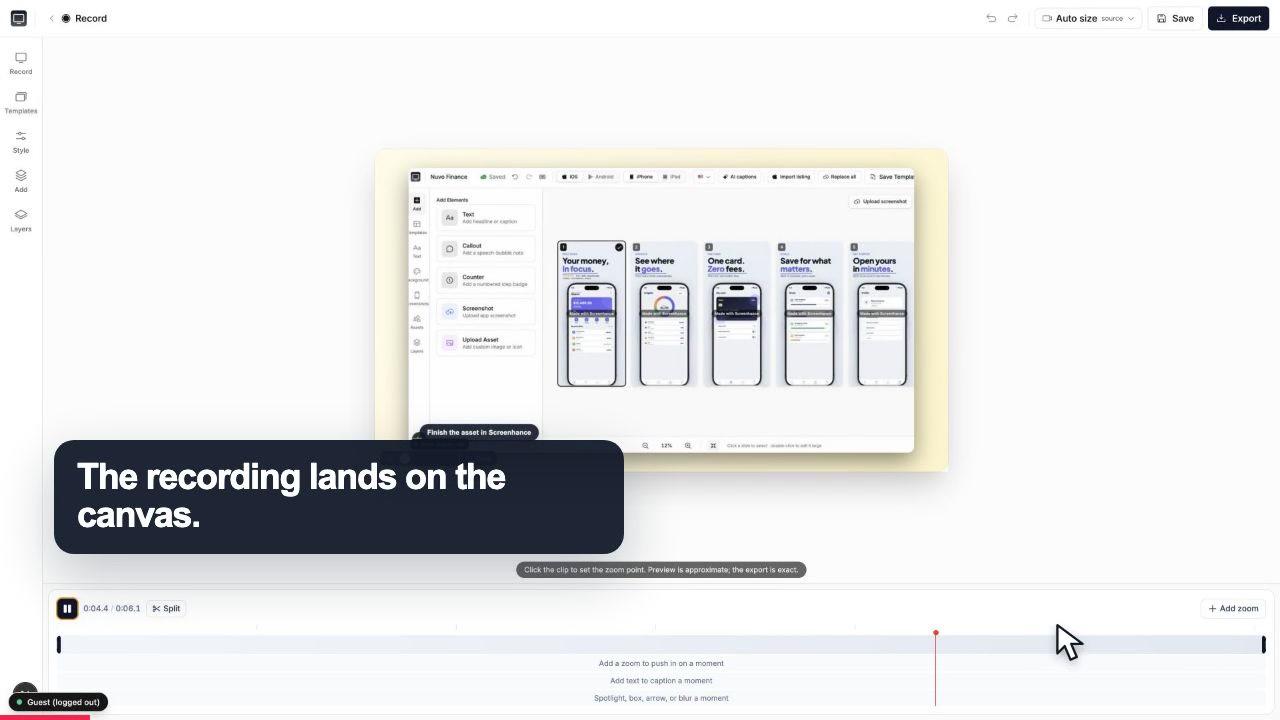
Start with the whole screen
0:07The recording lands on a clean canvas with the timeline ready underneath.
Arcade makes interactive HTML demos. Screenhance Studio makes polished demo videos for social, ads, landing pages, and Product Hunt. Record your screen in the browser, guide the eye with click-to-place zoom, and export MP4, WebM, or GIF.
Free to start · No signup to try · Works on macOS, Windows and Linux
Loved by 3,000+ creators
Arcade and Studio are not the same tool wearing different labels. They make different things. Here is the honest split so you reach for the right one.
A clickable, self-guided walkthrough you embed on your own pages. The visitor moves through the steps themselves at their own pace.
A recording of your screen that plays as a video, framed and zoomed so it reads instantly, ready for anywhere a video goes.
If the surface is your own site and the viewer should click through, an interactive demo is the natural format. If attention is short or the surface expects portable media, Studio is the stronger fit.
A story that travels
Interactive demos are strongest when someone is ready to click. Studio gives the same product story a portable form for feeds, ads, email, Product Hunt, and autoplaying page sections.
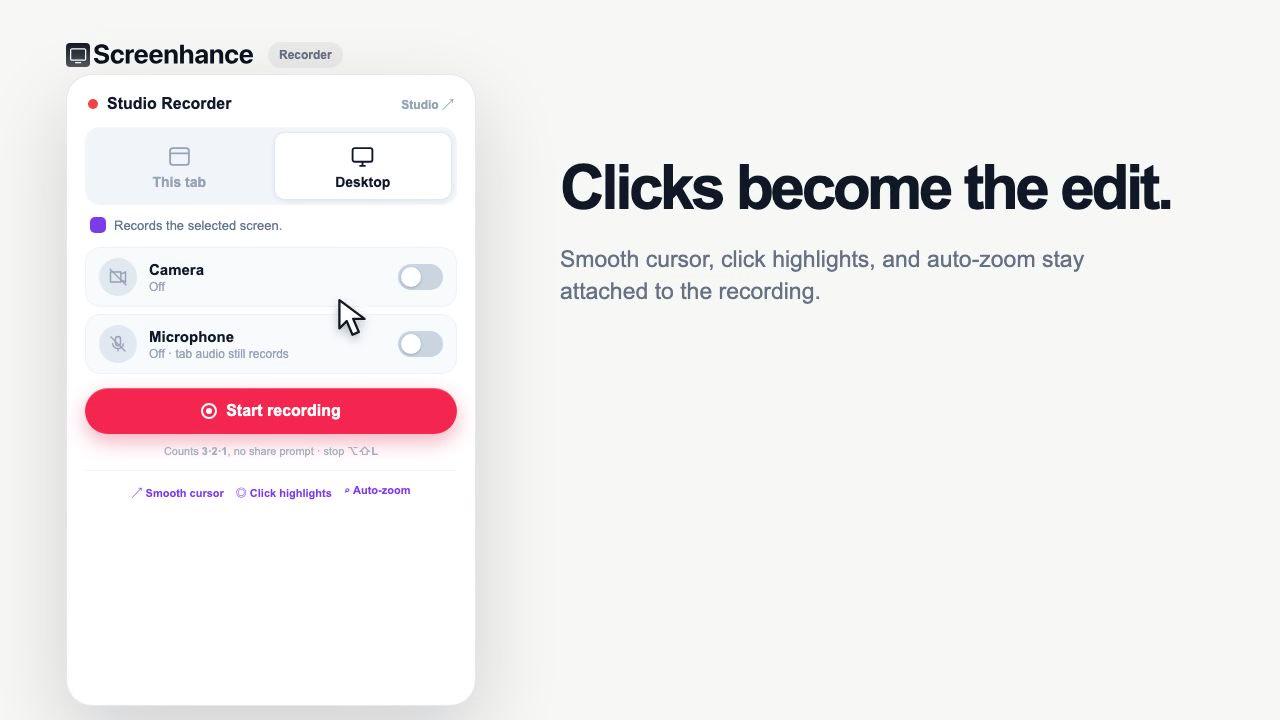
Capture the actual flow in Chrome and preserve its important interactions. The viewer sees the product behave, not a reconstructed sequence that drifts from the current UI.
The recording lands on a clean canvas with the timeline ready underneath.
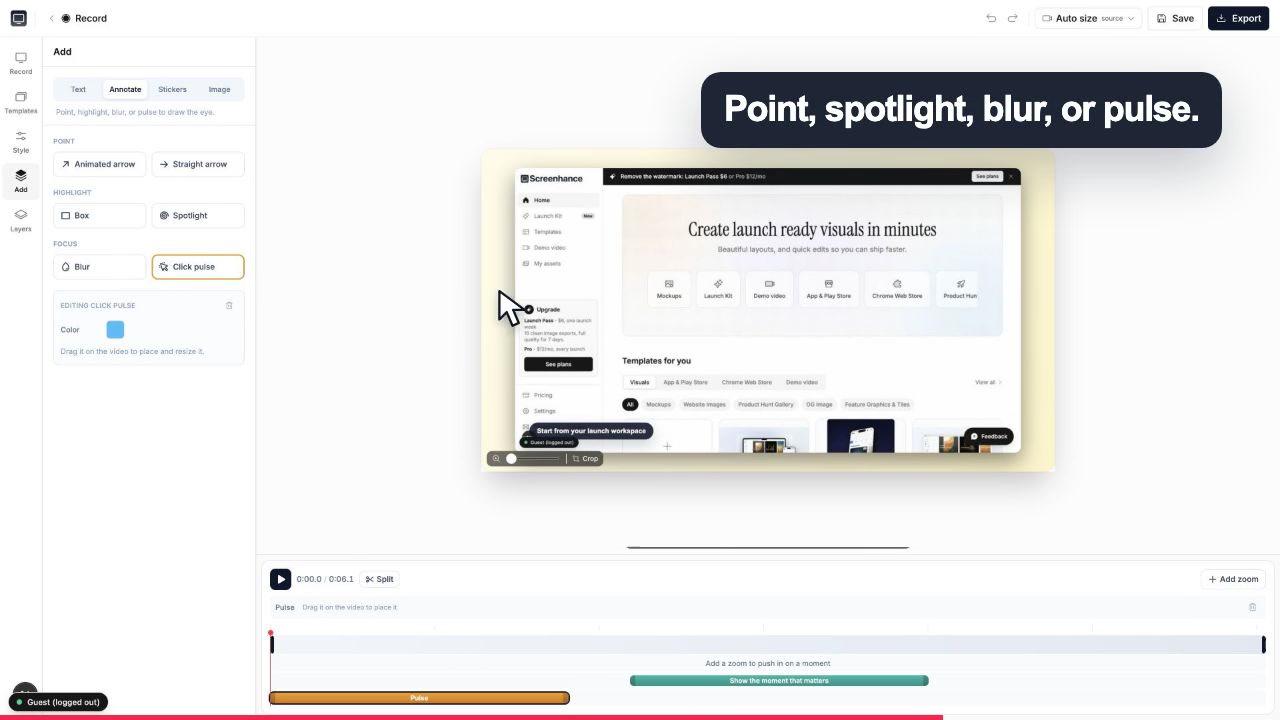
A click pulse and caption make the exact interaction obvious before the camera moves.
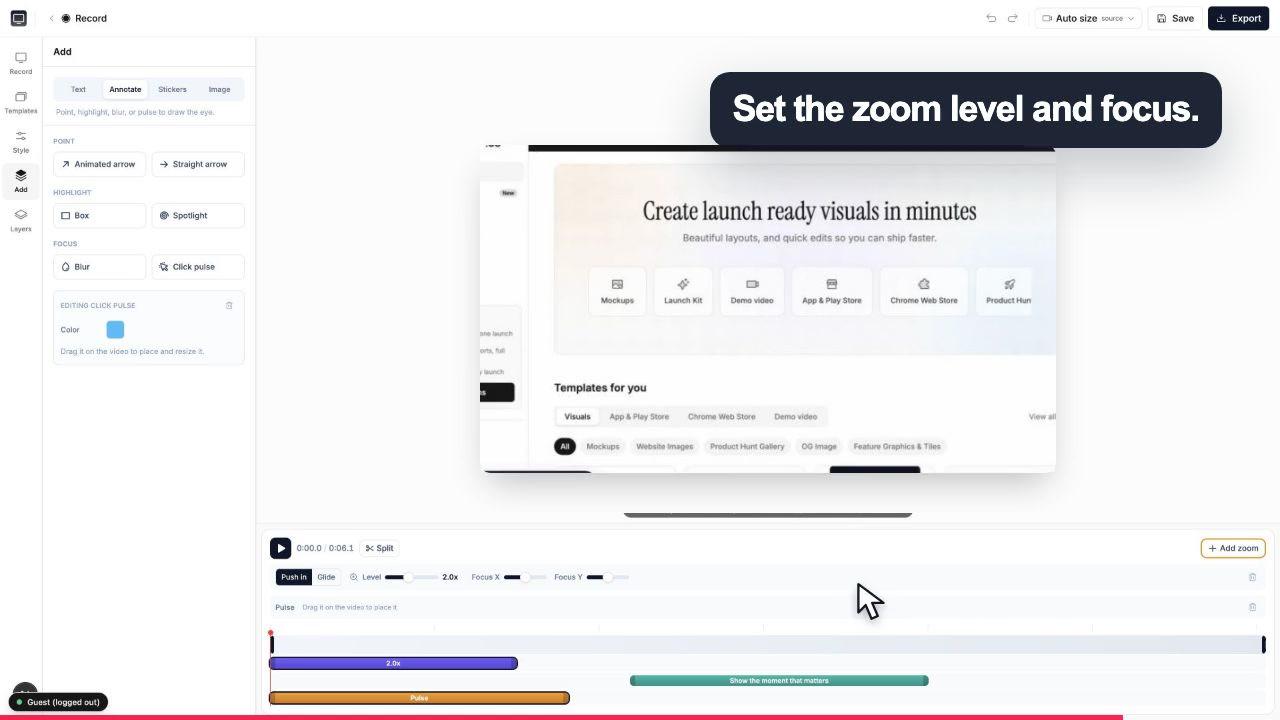
Choose the zoom level and focal point while the real controls stay visible around the canvas.
Portable demo-video tools
A browser recorder and demo-video editor built around the one thing that makes a passive demo land: guiding the viewer's eye to what matters.
The signature feature. Zoom into the exact part of the recording that matters so the viewer's eye is guided to the button, field, or result you are demonstrating, instead of squinting at a full desktop.
Wrap your recording in a realistic device frame with macOS or browser window chrome, set over a gradient or preset background, so a raw screen capture looks like a finished product shot.
Add captions with custom fonts, annotations to call things out, and stickers for personality. The polish that makes a demo feel intentional rather than screen-recorded.
Export square, portrait, and landscape from the same recording, so one demo becomes a feed post, a vertical Reel, a YouTube video, and a landing-page hero without re-recording.
MP4 for social and ads, WebM for a lighter web file, and animated GIF for READMEs, changelogs, and chat. The format follows where the demo needs to go.
Start from demo-video templates for a fast, on-brand result, then customize. It is the quickest way from a raw recording to something you would happily post.
A screen recording on its own is rarely watchable. It is captured at desktop resolution, the cursor wanders, and the viewer has no idea where to look. On a phone-sized feed, that is where most demos lose people. Studio is built to fix exactly that gap between a raw capture and something you would put your name on.
The click-to-place zoom is the piece that does the heavy lifting. Instead of hoping the viewer notices the small toggle you just clicked, you drop a zoom onto that spot and the frame pushes in on it. The eye follows the movement, so your demo reads even muted, even at thumbnail size, even at the speed people scroll. That single behavior is why a Studio video communicates in seconds what a full-screen recording buries.
Around the zoom, the rest is finishing. A realistic device frame with macOS or browser chrome makes the recording look like a product shot rather than a screen grab. A gradient or preset background gives it a stage. Captions with custom fonts carry the message for the majority who watch without sound, and annotations and stickers add the emphasis and personality that make a clip feel made rather than dumped. Ready-made templates get you most of the way there before you touch a single setting.
Then the same recording flexes to fit the channel. Set it square or portrait for a feed post, a Reel, a Short, or a TikTok. Set it landscape for YouTube or the autoplay hero at the top of your landing page. Export MP4 for social and ads, WebM for a lighter web file, or a GIF for a README, a changelog, or a Slack message. One recording, every surface a launch needs.
The extension keeps the cursor path and clicks with the take.
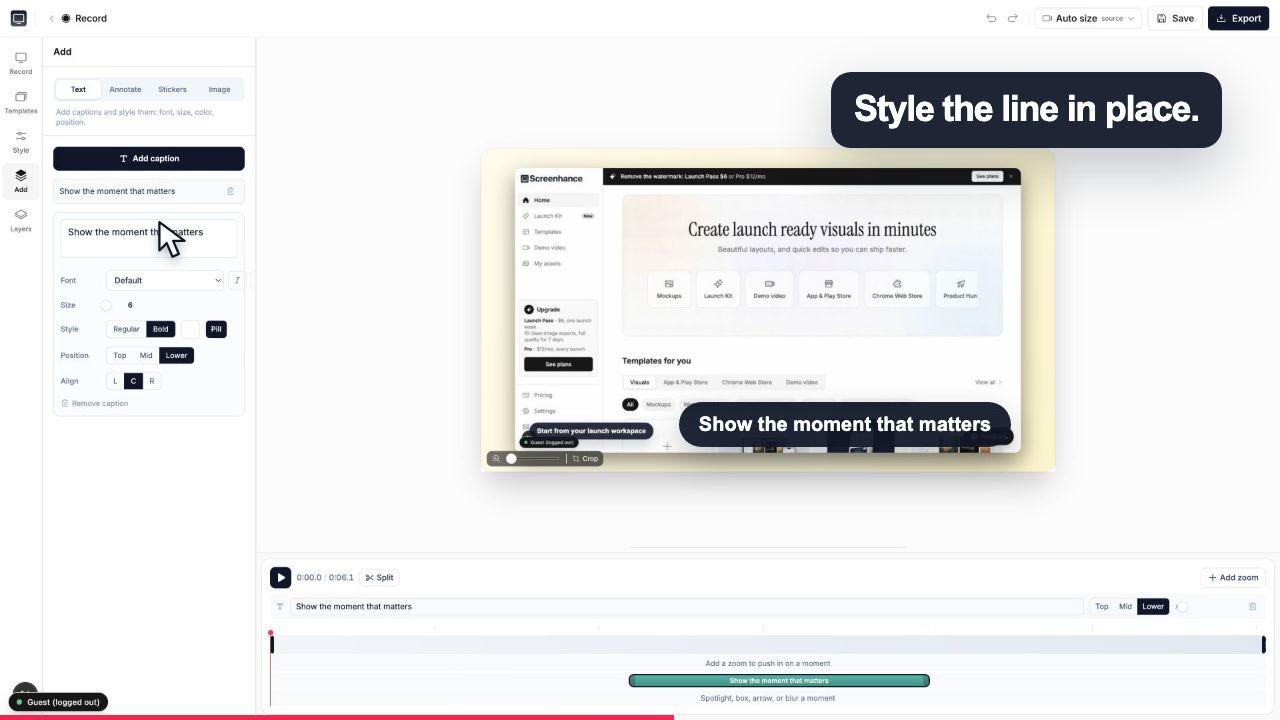
Add captions, effects and timing without leaving the browser.
The reason Studio is not a standalone screen recorder is that a launch is never just a video. You also need App Store or Play Store screenshots, a Product Hunt gallery, an OG image for the link preview, and a website hero. If those live in five different tools, keeping them on-brand becomes its own project.
Studio is the same tool that makes your App Store screenshots, device mockups, and OG images. The device frames, backgrounds, and fonts you pick for your demo video are the same ones behind your static assets, so the whole launch reads as one set. It is all part of Launch Kit: upload your screenshots once and generate every visual you need for the day, matching, from one place.
Arcade builds interactive HTML demos: clickable walkthroughs embedded on a page. Screenhance Studio produces portable demo videos as MP4, WebM, or GIF. Choose Arcade when the visitor should explore a self-guided tour; choose Studio when the demonstration must travel across social, ads, landing-page heroes, Product Hunt, email, and other video surfaces.
Use an interactive demo when the viewer is already on your site with intent and should explore at their own pace. Use video when the surface does not support interaction or attention is short: social, YouTube, ads, email, launch galleries, or an autoplay landing-page hero. The destination determines the format.
The signature feature is click-to-place zoom. After you record, you drop a zoom onto the exact part of the frame that matters, so the viewer's eye is guided to the button, field, or result you are talking about instead of scanning a full-resolution desktop. Studio then wraps the recording in a realistic device frame with macOS or browser window chrome over a gradient or preset background, and lets you add captions with custom fonts, annotations, and stickers. You can export square, portrait, or landscape so the same recording fits a feed post, a Reel, a YouTube video, or a landing-page hero.
No. Studio records your screen, and optionally your webcam, right in the browser at app.screenhance.com/studio. There is nothing to install, and it works on macOS, Windows, and Linux. You start a recording, capture what you want to show, and go straight into the editor to zoom, frame, and export.
MP4 and WebM for video, plus animated GIF for places that need a lightweight looping clip, such as a README, a changelog entry, or a Slack message. MP4 is the safe default for social platforms and ads, WebM keeps files smaller for the web, and GIF covers the spots where a real video player is not available.
Square, portrait, and landscape. Square and portrait fit social feeds and vertical formats like Reels, Shorts, and TikTok, while landscape suits YouTube, embeds, and a landing-page hero. Because the aspect ratio is set in the editor rather than baked into the recording, you can re-frame the same demo for several channels without re-recording.
Yes, it is free to start. Free exports include a small Screenhance watermark. Removing it from video takes Pro at $12 a month or $99 a year; the $6 Launch Pass removes it from image exports only (10 over 7 days), so your demo video stays watermarked until Pro. There is no separate signup for the recorder: it is part of the same account.
No. Studio is the same tool that makes your App Store screenshots, device mockups, and OG images, so every visual for a launch lives in one place as part of Launch Kit. That means the device frames, backgrounds, and fonts you use for your demo video match the static assets you ship alongside it, without hopping between apps to keep a launch on-brand.
Still weighing it? The editor is free and opens in one click: open Studio →
Record, edit, frame, and export the next version of your product video.
Record, zoom, and caption product onboarding videos
Start creatingRecord a tab with cursor and click data for smooth motion and auto zoom
Start creatingRecord your screen and click to place a guiding zoom
Start creatingRecord screen + webcam with click-to-place zoom and export MP4
Start creatingPolished demo videos with click-to-place zoom
Start creatingRecord, click-to-zoom, frame, and export a demo video
Start creatingCapture your screen in the browser, guide the eye with click-to-place zoom, and export MP4, WebM, or GIF for social, ads, and Product Hunt. Free to start.