
%2FOlivia%20Rhye.webp&w=64&q=75)
%2FPhoenix%20Baker.webp&w=64&q=75)
%2FLana%20Steiner.webp&w=64&q=75)
%2FDemi%20Wilkinson.webp&w=64&q=75)
%2FDrew%20Cano.webp&w=64&q=75)
Record your screen (and webcam)
Open Studio in your browser, pick the window or tab to capture, and optionally turn on your webcam. No download, and it works on macOS, Windows, and Linux. Run through the exact flow you want to show.
Record the real product, guide attention with click-to-place zoom, add captions and framing, then export a focused MP4, WebM, or GIF—without leaving the browser.
Free to start · No signup to try · Works on macOS, Windows and Linux
Loved by 3,000+ creators
Choose a stage to see the real Screenhance workspace change. The recording, its interaction data, and the final polish stay together from the first take to export.
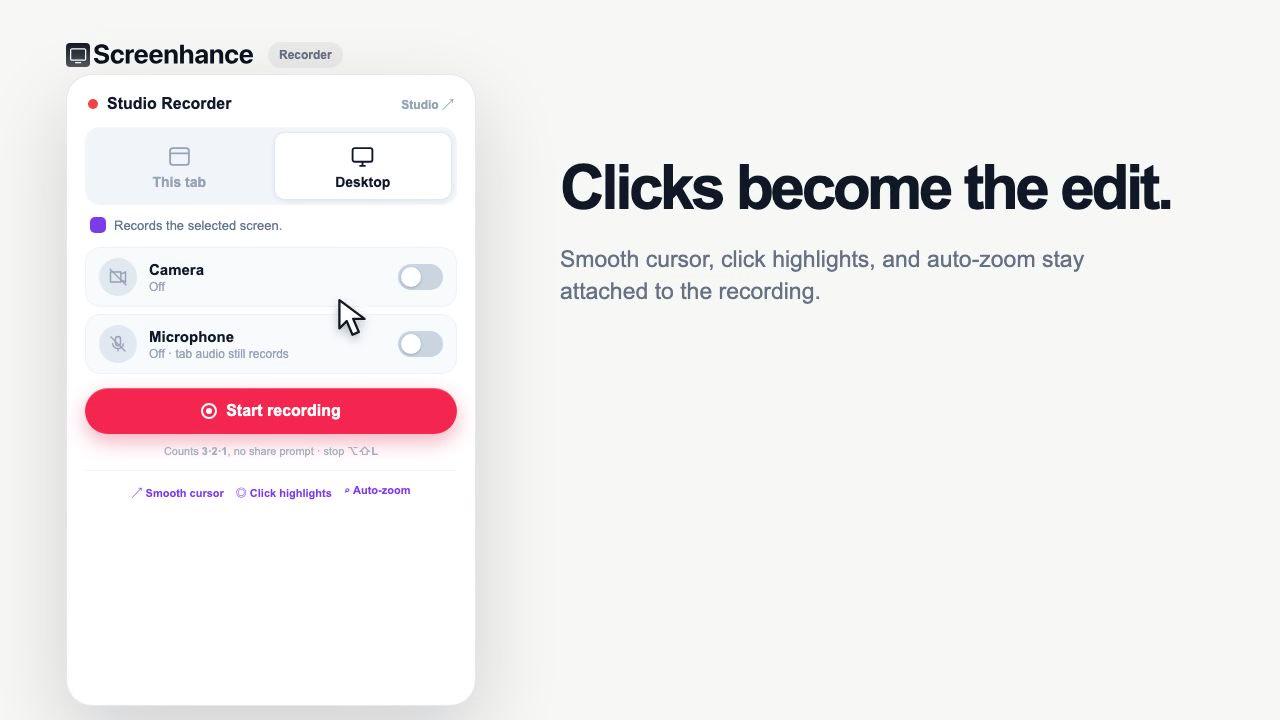
Choose a browser tab or desktop, optionally include your webcam and microphone, and record the focused interaction you want customers to understand.
Open Studio in your browser, pick the window or tab to capture, and optionally turn on your webcam. No download, and it works on macOS, Windows, and Linux. Run through the exact flow you want to show.
Drop click-to-place zooms on the moments that matter so the viewer's eye lands in the right spot. Wrap the recording in a realistic device frame or window chrome over a gradient background, then add captions, annotations, and stickers.
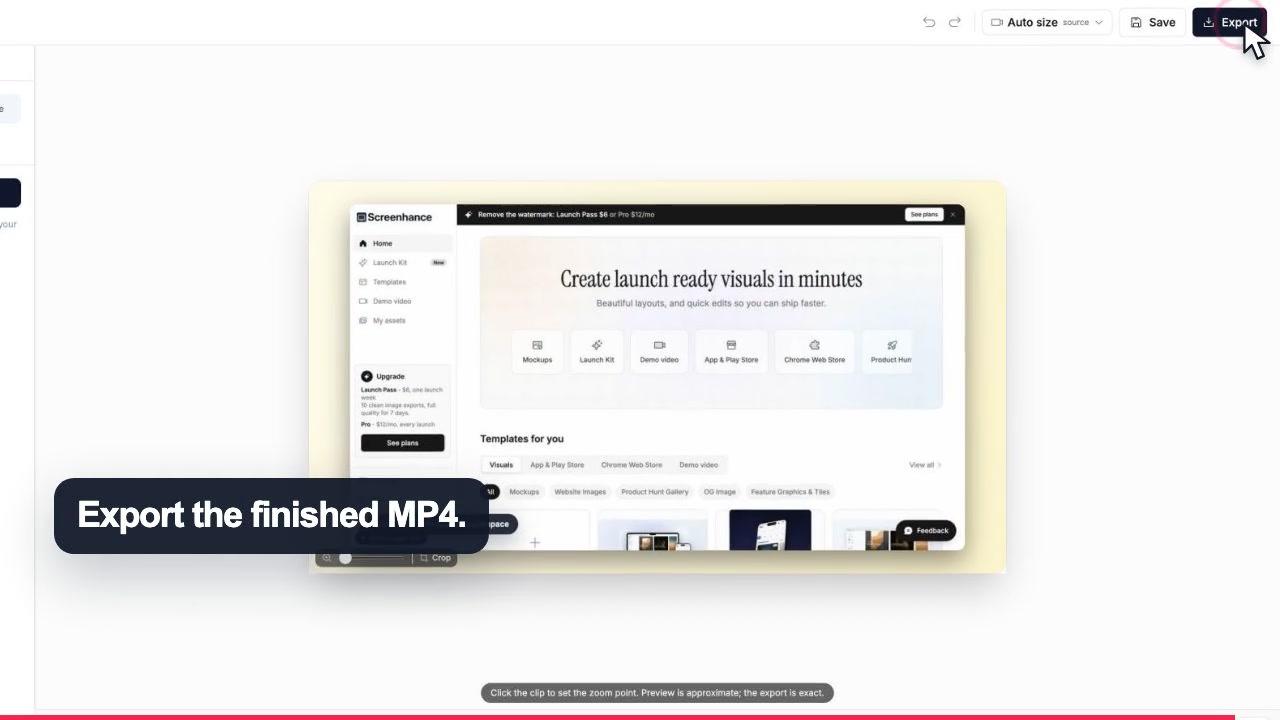
Choose square, portrait, or landscape, then export MP4, WebM, or GIF. Free exports include a small watermark; the $12/mo Pro plan removes it. The file is ready for YouTube, social, or your landing page.
The extension keeps the cursor path and clicks with the take.
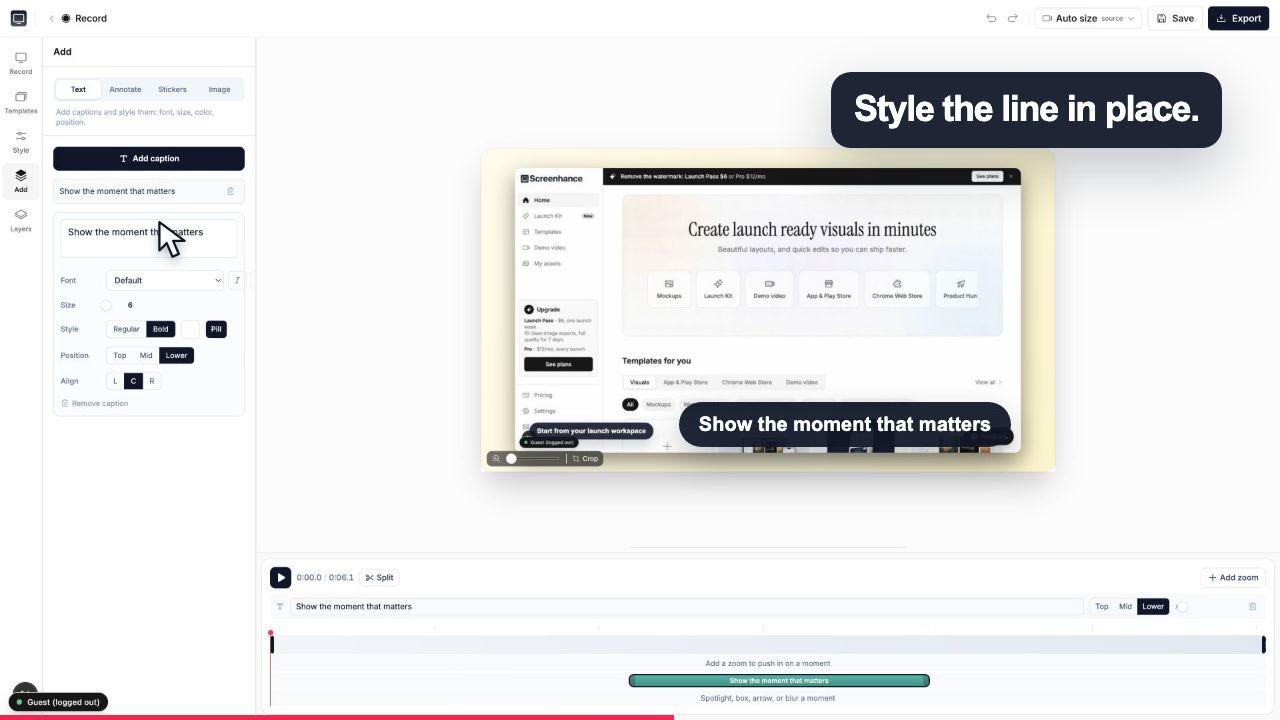
Add captions, effects and timing without leaving the browser.
Record, edit, frame, caption, and export without stitching together a recorder, an editor, and a design tool.
The signature feature. Guide the viewer's eye to the exact button, field, or setting that matters, so even a dense dashboard reads clearly on a small screen.
Capture your screen alone or add a webcam bubble for a personal, narrated walkthrough. All in the browser, nothing to install.
Wrap the recording in a realistic phone or laptop frame, or macOS and browser window chrome, over gradient and preset backgrounds.
Add captions in custom fonts to set context, plus annotations and stickers to point, label, and add personality.
Square, portrait, and landscape from the same recording, for a Reel, a YouTube walkthrough, or a landing-page hero.
Export the format your channel needs. GIF for inline loops and READMEs, MP4 and WebM for video everywhere else.
Start from a template built for demo videos for a fast, on-brand result, instead of a blank canvas and a blinking cursor.
The same Studio makes your App Store screenshots, device mockups, and OG images. One place, one brand look, part of Launch Kit.
The most convincing product demo is a recording of the product actually working. Animated explainers and slideshows can look slick, but they ask the viewer to trust that the software does what the animation implies. A real screen recording removes that gap: this is the exact screen, these are the exact clicks, this is the result. The catch is that raw recordings are hard to watch. Full-resolution screens make buttons tiny, mouse movements wander, and the viewer loses the thread.
That is the problem click-to-place zoom solves. Instead of hoping the viewer follows your cursor, you push the camera into the moment that matters, the toggle you just flipped, the field you just filled, the result that just appeared. The eye lands where you want it, and a dense dashboard becomes legible even on a phone. Because you place zooms after recording, you do not have to perform flawless live mouse choreography; you record naturally, then decide where the attention goes.
Around that, Studio adds the finish that makes a demo feel intentional: a realistic device frame or window chrome, a clean gradient background, captions in your fonts to set context, and a webcam bubble when a face helps. Export in square, portrait, or landscape and the same recording becomes a vertical clip for social and a landscape hero for your site.
A product launch rarely needs just one video. You want a landing-page hero that shows the product in ten seconds, an onboarding walkthrough that teaches a new user their first task, an explainer that answers "what does this even do," and short vertical clips for social. Traditionally each of those means a different tool or a different template. In Studio they all start from the same recording and the same editor.
Record the core flow once. For the hero, keep it tight, add a couple of zooms, and export landscape with a browser frame. For onboarding, slow down, zoom on every action, and add step captions. For the explainer, turn on your webcam and narrate. For social, switch to portrait and wrap the recording in a phone frame. Same source, different exports, no re-recording.
Reframe the same recording for a landing page, a feed post, or a vertical launch clip—without performing the demo again.
16:9
Landing pages and YouTube
1:1
Feed posts
9:16
Reels and Shorts
Studio is the same tool behind each of these. Pick the angle that fits what you're making.
A browser recorder with click-to-place zoom, device frames, and MP4 export, no desktop app to install.
Learn moreRecord your screen and push the camera into the exact spot that matters, so dense UI still reads clearly.
Learn moreTurn a screen recording into a short, captioned explainer with a webcam bubble and on-brand backgrounds.
Learn moreWalk new users through your product step by step, with zoom on each action and portrait or landscape output.
Learn moreFrame your app in a realistic device, record the flow, and export a vertical clip for social or a hero for your site.
Learn moreGet automatic-feeling zoom and polished frames in the browser, on Windows and Linux as well as macOS.
Learn moreThe subtle motion adds a premium feel without becoming distracting.
Well designed and useful for decks and product launches.
It surpassed what I expected. The flow is direct, with great layouts and templates for screenshots.
Clean, easy to use, and I especially love the one-week pass.
The one-week pass is perfect for those big portfolio update sprints.
For a software or SaaS product, screen recording beats a scripted actor video every time, because you are showing the real thing people will use. The practical recipe is: record your screen doing the exact flow you want to sell, zoom in on the moments that matter so the viewer never squints at tiny UI, add a short caption or two for context, and export a clean file. Screenhance Studio does all four steps in one browser tab, so you record and edit in the same place instead of stitching together a recorder, an editor, and a zoom plugin.
No. Screenhance Studio runs entirely in your browser at app.screenhance.com/studio, so there is nothing to install and it works the same on macOS, Windows, and Linux. You grant screen and (optionally) webcam permission, record, edit, and export, all from the tab. That makes it easy to try on a locked-down work laptop where you cannot install desktop apps.
Click-to-place zoom is the signature feature. Instead of the viewer hunting across a full-resolution screen for the button you just clicked, you drop a zoom on the exact spot that matters and the camera pushes in there. It guides the eye, so a demo of a dense dashboard or a small settings toggle reads clearly even on a phone screen. You place zooms after recording, on the moments you choose, rather than trying to perform perfect mouse movements live.
Yes. You can record your screen on its own, or add your webcam so a small camera bubble appears over the recording. A face on screen makes onboarding and explainer videos feel more personal and keeps attention longer. The webcam is optional per recording, so you can leave it off for a silent feature clip and turn it on for a founder-narrated walkthrough.
Studio exports MP4 and WebM for video, plus GIF for short loops you want to embed inline or drop in a README. Free exports carry a small Screenhance watermark. Removing it from video takes Pro at $12 a month or $99 a year; the $6 Launch Pass covers watermark-free image exports only (10 over 7 days), so it handles the launch stills around your demo while video exports keep the watermark. There is no separate render farm or upload queue, the export happens from the same tab.
Square, portrait, and landscape. Landscape suits a YouTube walkthrough or a landing-page hero, portrait fits Reels, TikTok, and Shorts, and square works well in a feed. Because Studio also wraps your recording in device frames and window chrome over a background, the same demo can become a phone-framed vertical clip for social and a browser-framed landscape clip for your site without re-recording.
It is free to start. You can record, add zooms and frames, write captions, and export, and free exports include a small watermark. When you want a watermark-free video you subscribe to Pro at $12 a month or $99 a year; the $6 Launch Pass buys 10 watermark-free image exports for a single launch push, with video staying watermarked. There is no upfront paywall to try the whole flow.
Yes, and that is part of the point. Studio is the same Screenhance tool that makes your App Store screenshots, device mockups, and Open Graph share images, all under Launch Kit. So the frames, backgrounds, and brand look you use in your demo video match your static launch visuals, and you are not learning a new tool for every asset a launch needs.
Still weighing it? The editor is free and opens in one click: open Studio →
Record, edit, frame, and export the next version of your product video.
Polished demo videos with click-to-place zoom
Start creatingRecord, click-to-zoom, frame, and export a demo video
Start creatingFrame, caption, zoom, and export a raw recording as a polished MP4
Start creatingRecord, zoom, and export MP4 demo videos for SaaS
Start creatingRecord, zoom into each step, and export a how-to video
Start creatingRecord, zoom, and caption product onboarding videos
Start creatingRecord screen and webcam, add click-to-place zoom and device frames, and export MP4, WebM, or GIF. Free to start, nothing to install.