
%2FOlivia%20Rhye.webp&w=64&q=75)
%2FPhoenix%20Baker.webp&w=64&q=75)
%2FLana%20Steiner.webp&w=64&q=75)
%2FDemi%20Wilkinson.webp&w=64&q=75)
%2FDrew%20Cano.webp&w=64&q=75)

iPhone Duo · White Folding Tour
One connected device unfolds and turns over a soft cream-to-peach gradient. Both screens are replaceable.
Use motion templateRecord your app in the browser, click to zoom into the feature that matters, frame it in a real device, and export a demo video for the App Store, social, or your site. No download, works on macOS, Windows, and Linux. Free to start.
Free to start · No signup to try · Works on macOS, Windows and Linux
Loved by 3,000+ creators
Open a template to replace the demo image, change the background and finish, and adjust the motion. Each scene keeps one device in focus.
One connected device unfolds and turns over a soft cream-to-peach gradient. Both screens are replaceable.
Use motion template
A midnight MacBook opens, holds its screen, then closes in one connected, seamless studio film.
Use motion template
One rose phone follows a soft, suspended arc over a quiet blush pastel.
Use motion templateFrom feature to finished story
A good app demo is not a tour of every screen. It is one valuable moment, captured cleanly, directed deliberately, and reframed for every place the launch needs to appear.
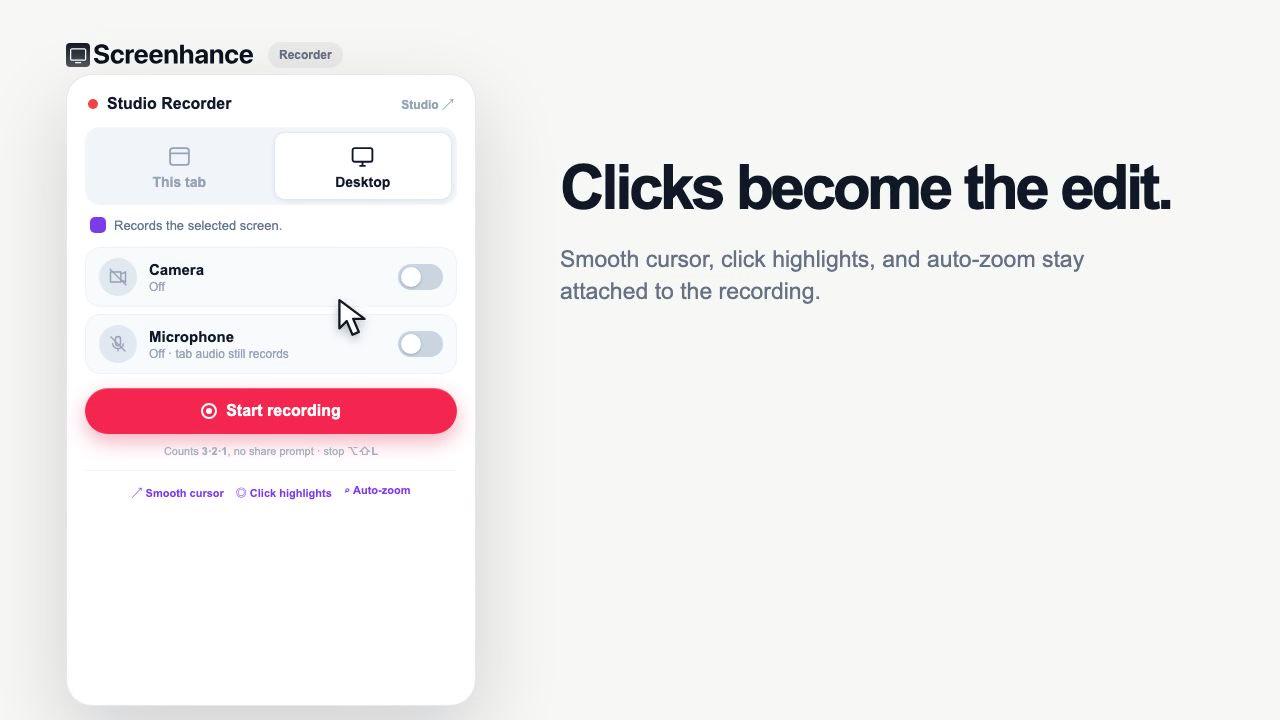
Record the real app, with your webcam if the story needs a face. The Chrome path preserves cursor and click data, so the edit begins with more than a flat video file.
The problem with a raw screen recording is that the interesting part is usually small and in the corner. A viewer watching your full window has no idea where to look, and by the time they find the button you clicked, the moment has passed. Most people fix this by narrating over the top, but narration only helps people who have the sound on.
Studio's click-to-place zoom fixes it visually. You click the spot in the recording you want to emphasize, and the frame eases in on it, holds, and eases back out. Drop one on the toggle that changes everything, another on the result that appears, a third on the confirmation. The eye follows the zoom, so a busy app still reads as a clear, deliberate demo, with or without sound.
Because the zoom is placed after you record, you are not fighting the recording as it happens. Capture the flow once at a comfortable pace, then decide where the emphasis goes. That separation is what makes a first-take recording look edited. Recording a web product instead of a mobile app? The same flow powers the product demo video maker.
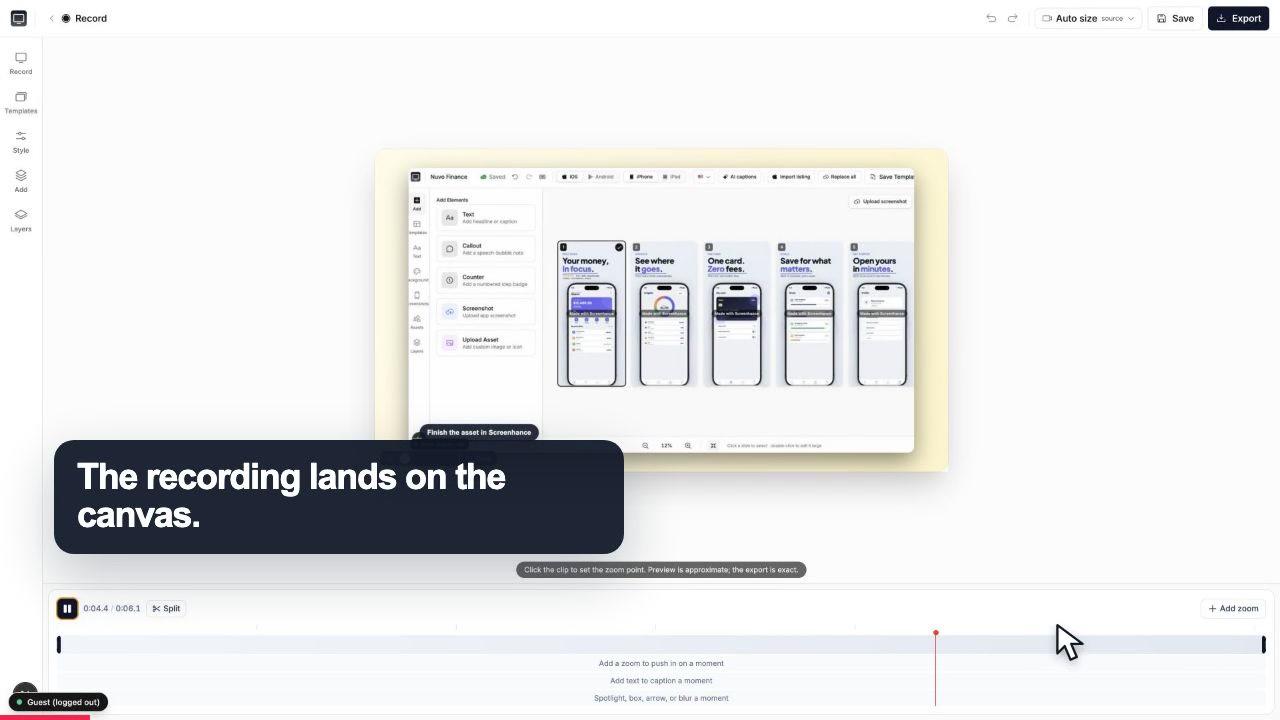
The recording lands on a clean canvas with the timeline ready underneath.
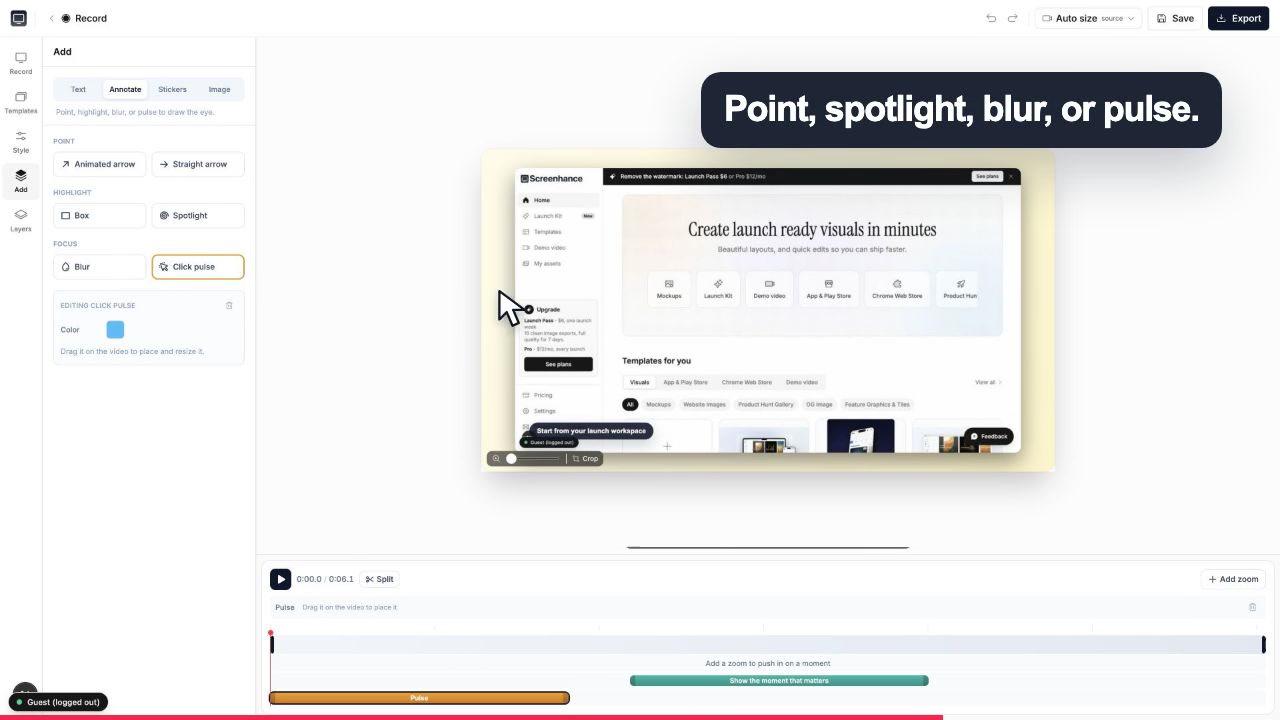
A click pulse and caption make the exact interaction obvious before the camera moves.
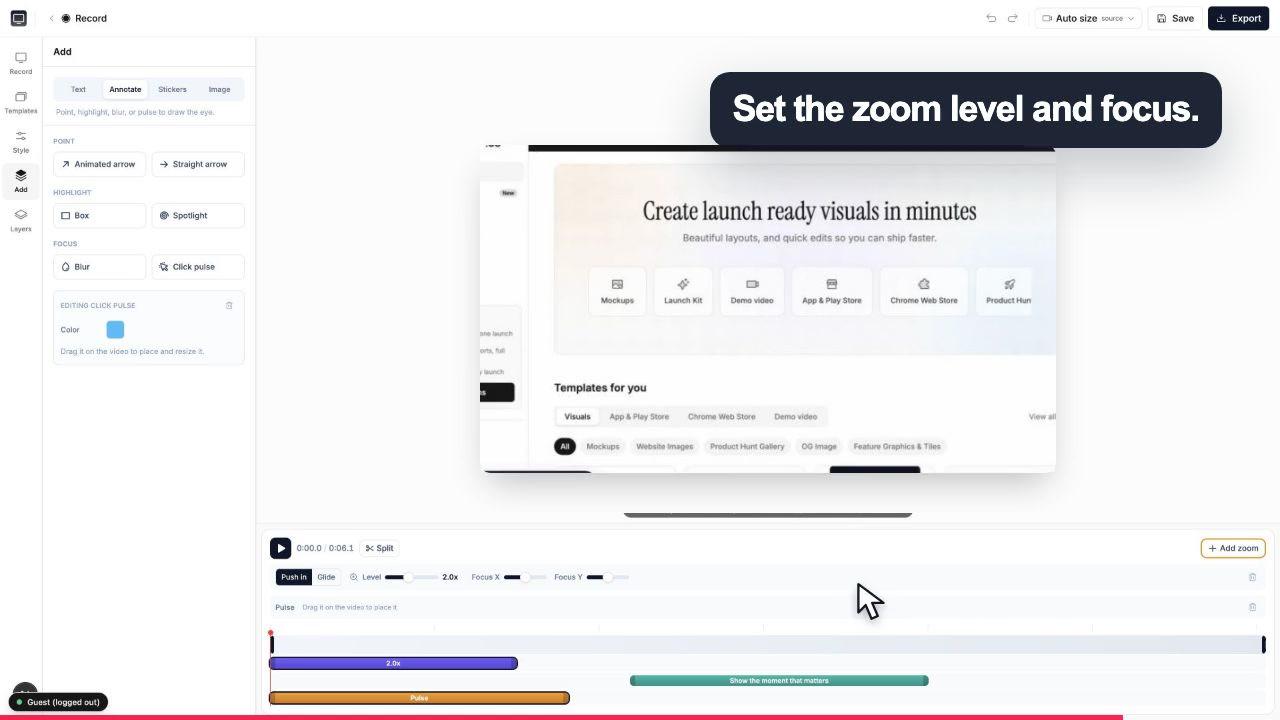
Choose the zoom level and focal point while the real controls stay visible around the canvas.
The app-demo toolkit
Record, guide the eye, frame, caption, and export without stitching together a recorder, a video editor, and a mockup tool.
The signature move: click the button, chart, or step that matters and the frame pushes in, so the viewer looks exactly where you want. Place it visually on the timeline without hand-building animation keyframes.
Wrap a mobile recording in a phone frame or a web recording in macOS and browser chrome, set over gradient and preset backgrounds. The same framing that makes your still mockups.
Add captions in custom fonts, point with annotations, and drop in stickers. Enough to explain a flow without opening a separate video editor.
One canvas, three shapes: square for the feed, portrait for Reels and Shorts, landscape for YouTube or a landing-page hero. Switch aspect ratio without re-recording.
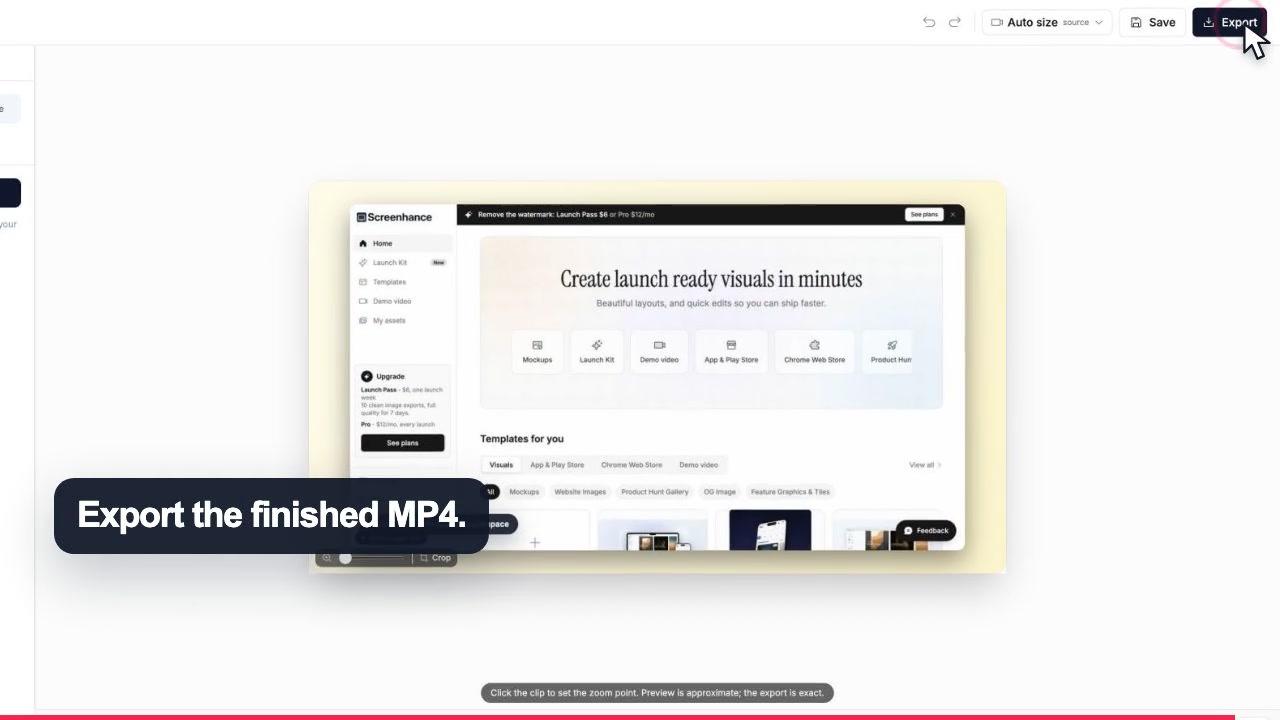
MP4 for the App Store and social, WebM for a lighter web file, and GIF for a looping snippet in a README, changelog, or email. Export the format each destination actually wants.
Start from a demo-video template for a fast, on-brand result, or build from a blank canvas. Either way you land on framing and backgrounds that already look finished.
The App Store and Play Store. An app preview video shows a feature in motion where a static screenshot cannot. Record the flow, frame it in the right device, zoom into the moment that matters, and export a landscape or portrait MP4 that fits the store slot.
Social and short-form. Portrait for Reels, TikTok, and Shorts; square for the feed. A framed recording with a click-to-place zoom and a caption reads clearly on mute, which is how most feeds get watched.
Your landing page and README. A landscape MP4 or WebM makes a strong above-the-fold hero, and a lightweight GIF loops a single feature inside a README, changelog, or launch email without asking anyone to press play.
Because Studio is the same tool that makes your App Store screenshots, device mockups, and OG images, the demo video matches the rest of your launch set instead of looking like it came from a different tool.
16:9
Landing pages and YouTube
1:1
Feed posts
9:16
Reels and Shorts
Record the real app doing the one thing you want to show, then guide the viewer's eye so they do not miss it. Screenhance Studio does both in the browser: you record your screen (and optionally your webcam), then place a zoom on the exact button, chart, or step that matters, so the frame pushes in right when the viewer needs to look there. Wrap the recording in a device or browser frame over a clean background, add a caption or two, and export from the focused timeline. No download and no separate recorder, editor, and mockup tool.
No. Studio runs at app.screenhance.com/studio and records your screen and webcam directly in the browser, so there is nothing to install and it works on macOS, Windows, and Linux. You open the page, pick what to capture, and record. That also means you can put together a quick demo on a machine that is not yours without asking anyone to install anything.
After you record, you click the spot in the recording you want to emphasize and Studio zooms into it, then eases back out. It is the signature feature because a full-screen recording buries the important part in the corner. A zoom on the exact toggle, field, or result guides the viewer's eye there without you having to narrate 'now look at the top right.' You can place a zoom on each key moment, so a two-minute walkthrough still reads clearly at a glance.
Yes. Studio wraps your recording in realistic device frames and macOS or browser window chrome, set over gradient or preset backgrounds. A mobile app recording sits inside a phone frame; a web app recording sits inside a browser window. It is the same framing engine behind Screenhance's device mockups, so the demo video matches the still screenshots you use elsewhere.
You can work in square, portrait, or landscape, which covers a social feed, a vertical Reel or Short, and a YouTube video or landing-page hero. Exports come out as MP4, WebM, or GIF: MP4 for the App Store, social, and most players; WebM when you want a smaller web-friendly file; and GIF for a looping snippet in a README, changelog, or email. You start from a ready-made demo-video template if you want an on-brand head start, or build from a blank canvas.
Yes, it is free to start and free to record and edit. Free exports include a small Screenhance watermark. Clean, unwatermarked video export is a Pro feature at $12 a month or $99 a year. The $6 Launch Pass covers 10 watermark-free image exports over 7 days (handy for the launch screenshots around your demo), but video exports stay watermarked on it. There is no separate charge for the recorder versus the editor versus the framing; it is all one tool.
Yes, and that is the point of using Studio. It is the same tool that makes your App Store screenshots, device mockups, and OG images, so every launch visual comes out of one place with a consistent look. Record the demo video here, then reuse the same frames, backgrounds, and captions for the still screenshots and share cards that go with it. It is all part of Launch Kit.
Still weighing it? The editor is free and opens in one click: open Studio →
One brief covers your whole launch: App Store, Play Store, Product Hunt, OG, and website visuals. Upload your screenshots once and Launch Kit generates them all, on-brand and matching.
Record, edit, frame, and export the next version of your product video.
Record, zoom, and export MP4 demo videos for SaaS
Start creatingRecord, zoom into each step, and export a how-to video
Start creatingRecord, zoom, and caption product onboarding videos
Start creatingRecord a tab with cursor and click data for smooth motion and auto zoom
Start creatingRecord your screen and click to place a guiding zoom
Start creatingRecord screen + webcam with click-to-place zoom and export MP4
Start creatingCapture your screen, zoom into the feature that matters, frame it, and export MP4, WebM, or GIF. Free to start, right in your browser.