Use Cases
Loom is great for a quick screen-share you paste into a chat. Screenhance Studio is for the demo that has to look the part. Record in the browser, guide the eye with click-to-place zoom, wrap it in device frames, add captions, and export square, portrait, or landscape for anywhere.
Loved by 2,000+ creators

The same recording, wrapped in a device frame with a click-placed zoom and a caption: what a raw screen-share turns into inside Studio.
Record, zoom and frame, export. The whole thing lives in one browser tab.
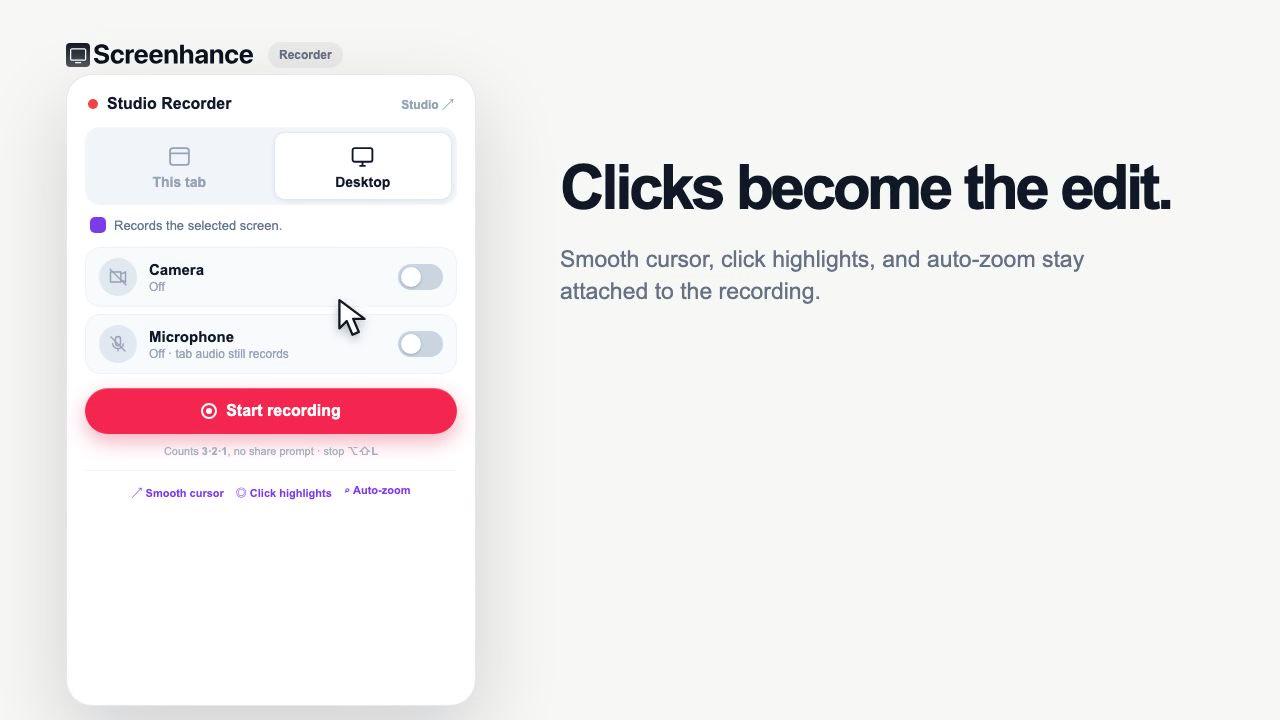
Open Studio and capture your screen, and your webcam if you want to be on camera, with no download on macOS, Windows, or Linux. Start ready-made from a demo-video template, or record from a blank canvas.
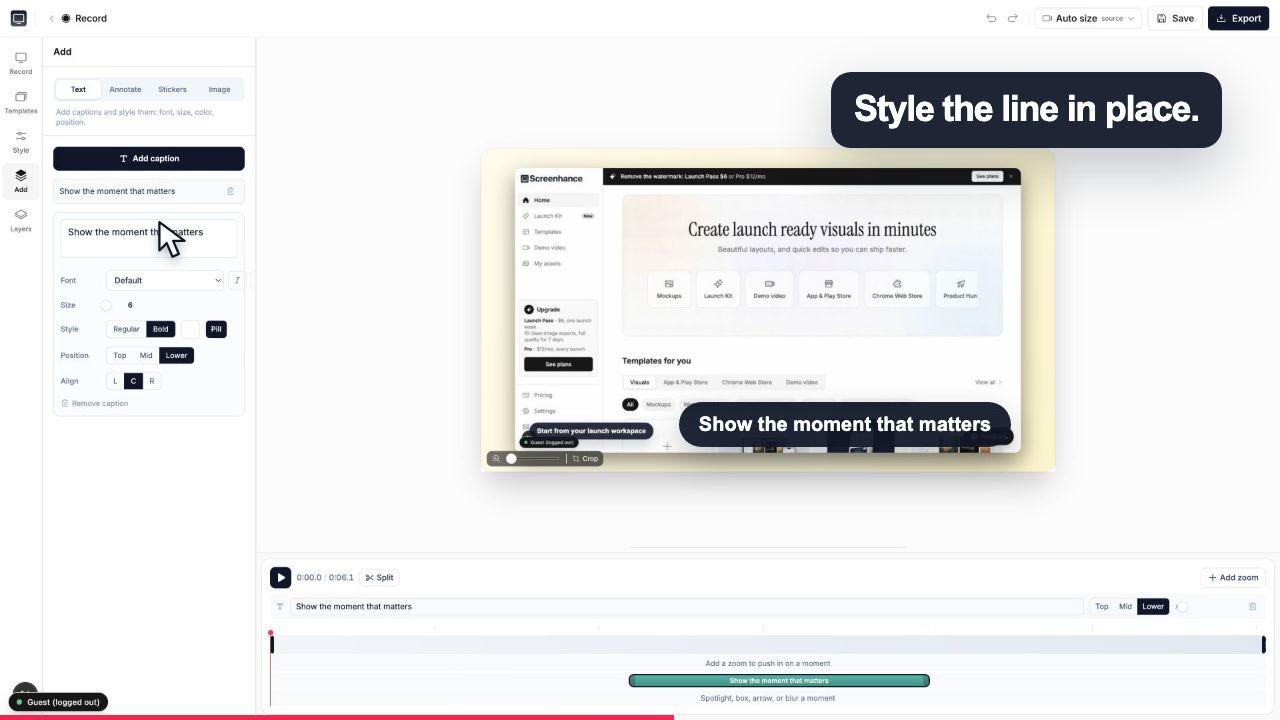
Click the exact spot that matters to place a zoom, wrap the recording in a realistic device frame or macOS window over a gradient background, and add captions in your own font, plus annotations and stickers.
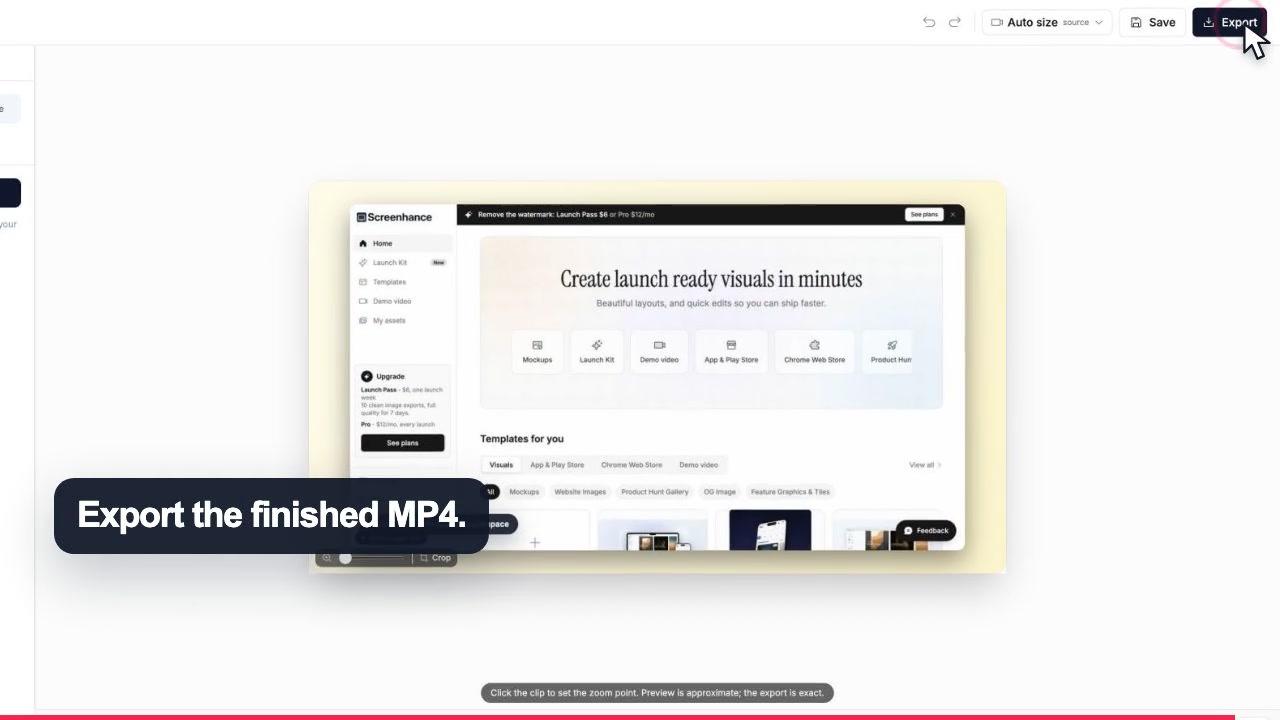
Set square, portrait, or landscape, then export MP4, WebM, or GIF, ready for YouTube, a feed, a Reel, or a landing-page hero. Free exports carry a small watermark, removed by the Week Pass or Pro.
A Loom recording ends when you stop. In Studio, that recording is where the work starts.
The signature move. Click the part of the recording that matters and Studio zooms in on it at that moment, guiding the viewer's eye instead of leaving them to hunt across a full screen. This alone is the difference between a raw screen-share and a directed demo.
Wrap your recording in a realistic device frame, or macOS and browser window chrome, sitting over a gradient or preset background. The demo stops looking like a bare screen grab and starts looking like product marketing.
Add captions in a custom font so the demo reads with the sound off, then point with annotations and lighten it up with stickers. The same palette that marks up a screenshot works on the moving frame.
Square, portrait, and landscape from one recording, so the demo fits YouTube, a landing-page hero, a square feed post, or a portrait Reel, TikTok, or Short without re-recording anything.
Ready-made templates give you an on-brand starting point instead of a blank timeline, so the first draft of a demo is minutes of work rather than an afternoon of fiddling.
Export MP4 and WebM for video destinations and GIF for a changelog or a README. Free to start; free exports carry a small Screenhance watermark, removed by the $6 Week Pass or $8 per month Pro.
They solve different problems. Here is the honest split, so you can pick the right one for the video in front of you.
We are not going to pretend Studio replaces Loom for everything, because it does not. Loom is a fast, honest tool for a specific job, and for that job it is the better pick. If what you need is to record a two-minute walkthrough, get a shareable link, and drop it into Slack or an email so a teammate can watch when they get to it, reach for Loom. That async-messaging loop is the whole point of the product and Studio does not try to compete with it.
Loom also wins any time viewer analytics matter. Knowing who opened your video, how far they watched, and what they reacted to is genuinely useful for sales follow-up, onboarding, and internal updates, and Studio has none of that because it is a video editor rather than a hosting and messaging platform. If a shareable link with tracking is central to how you work, keep Loom.
The dividing line is simple. When the recording is a message, Loom is the right tool. When the recording is a deliverable, a demo that will live on a landing page, a store listing, or a social feed and needs to look the part, that is where Studio earns its place. Plenty of teams use both: Loom for the daily async back-and-forth, Studio for the polished demo they publish.
Studio is not a standalone recorder bolted onto Screenhance. It is the same tool that makes your App Store screenshots, device mockups, and OG share images. The device frames, gradient backgrounds, and captions you reach for on a demo video are the same building blocks behind the still visuals, so your video, your store listing, and your social card all come out looking like they belong to the same product.
That matters most on launch day, when you need a demo video for the landing page, a portrait cut for social, a gallery of screenshots for the store, and an OG image for the share preview, all on brand and all at once. Doing that across four separate tools is where launches lose their afternoon. Doing it in one, as part of Launch Kit, is the reason Studio lives here instead of on its own.
And the pricing follows the same logic. There is no separate bill for Studio. It is free to start, free exports carry a small watermark, and the $6 Week Pass or $8 per month Pro that clears the watermark on your demo video is the same plan that clears it on every other launch visual.
It depends on the job. Loom is built for fast, async screen shares you drop into a chat: hit record, stop, and paste a link. Screenhance Studio is built for the demo video that has to look polished, the one that goes on a landing page, a Product Hunt gallery, or a social feed. You record your screen and optionally your webcam right in the browser, then edit: click to place a zoom on the exact part that matters, wrap the recording in a device frame, add captions and a background, and export to the aspect ratio the destination wants. If your goal is a quick shareable clip, Loom is faster. If your goal is a demo you would be proud to put in front of customers, Studio is built for that.
No. Studio records your screen, and optionally your webcam, right in the browser at app.screenhance.com/studio. There is no app to install and it works on macOS, Windows, and Linux. You start recording, capture what you need, and land straight in the editor with the clip ready to polish.
It is the signature feature and the main reason people reach for Studio over a raw screen recording. Instead of leaving the viewer to hunt across a full screen, you click the exact part of the recording that matters and Studio zooms the camera into it at that moment. The viewer's eye is guided to the button, the setting, or the result you are talking about. Layered across a demo, these zooms turn a flat screen-share into something that feels directed and easy to follow.
Yes. You can record your webcam alongside your screen so your face is part of the demo, the same way a Loom recording puts you in the corner. The difference is what happens next: in Studio the recording drops into an editor where you can frame it, place zooms, add captions, and set a background before you export, rather than sharing the raw take as-is.
Studio exports square, portrait, and landscape, so the same recording can become a landscape demo for YouTube or a landing-page hero, a square clip for a feed, or a portrait video for Reels, TikTok, and Shorts. Exports come out as MP4, WebM, and GIF. Free exports include a small Screenhance watermark, removed by the $6 Week Pass or $8 per month Pro.
No, and that is an honest gap. Loom tracks who watched, how far they got, reactions, and comments, which is genuinely useful for async team communication and sales follow-up. Studio has no viewer analytics because it is a video editor, not a hosting and messaging platform. You export a finished MP4, WebM, or GIF and post it wherever you like. If per-viewer tracking is central to how you work, Loom is the right call.
Yes, it is free to start. You can record, add zooms and frames, and export without paying. Free exports carry a small Screenhance watermark. To remove it, a $6 Week Pass covers a single launch and $8 per month Pro covers ongoing work. There is no separate charge for Studio: it is the same tool that also makes your App Store screenshots, device mockups, and OG images, so one plan covers every launch visual.
That is the point of it living inside Screenhance. Studio is part of Launch Kit, the same place you make App Store screenshots, device mockups, and Open Graph share images. The device frames, backgrounds, and captions you use on a demo video are the same building blocks you use on the still visuals, so a launch stays on-brand across the video, the store listing, and the social card without hopping between tools.
Explore more ways to create stunning visuals with Screenhance.
Create iOS and Android store visuals
Try it freeAndroid-ready Google Play visuals
Try it freeEvery launch visual from one brief: App Store, Product Hunt, OG, and website
Try it freeNo-watermark mockups on the free plan
Try it freeCreate mockups without design skills
Try it freeMockups without the complexity
Try it freeRecord in the browser, place your zooms, frame it, and export MP4, WebM, or GIF. Free to start, no download required.