ScreenhanceBeta

The Vidyard Alternative for Demo Videos

Vidyard hosts and tracks your videos. Screenhance Studio makes them. Record your screen in the browser, guide the viewer with click-to-place zoom, wrap it in a device frame, and export a polished MP4. Free to start, no download.

Olivia RhyePhoenix BakerLana SteinerDemi WilkinsonDrew Cano
4.9

Loved by 2,000+ creators

A product demo video in Screenhance Studio, zoomed into a key detail inside a device frame on a gradient background

From Raw Recording to Polished Demo in Three Steps

No download, no timeline wrangling. Studio records and edits in the browser on macOS, Windows, and Linux.

1

Record your screen

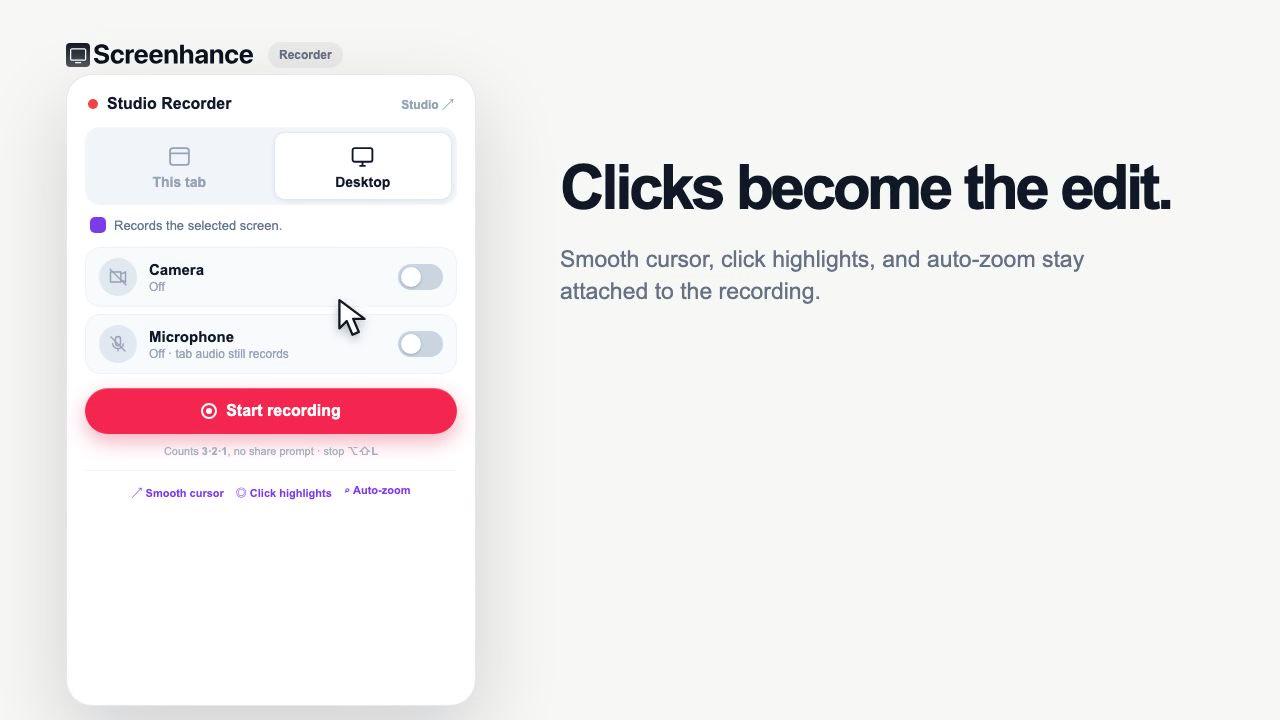
Capture your screen, optionally with your webcam, straight from the browser. Nothing to install and nothing to configure before you hit record.

2

Zoom and frame

Click to place a zoom on the exact part that matters so the viewer's eye is guided, then wrap the clip in a device frame or window chrome over a preset background.

3

Export MP4

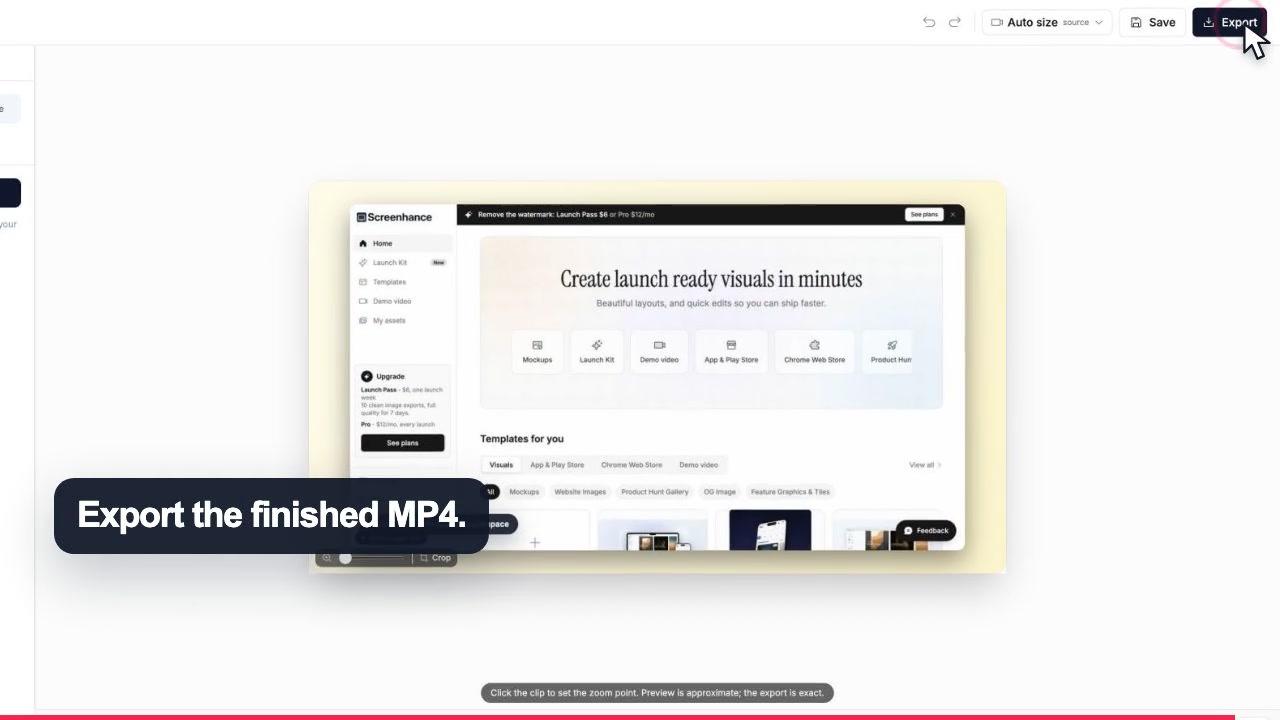
Pick square, portrait, or landscape and export as MP4, WebM, or GIF, ready for social, YouTube, a sales inbox, or a landing-page hero.

What Makes Studio Demos Look Polished

The difference between a raw screen capture and a demo people actually watch is guidance and finish. Studio builds both into the recorder.

Click-to-place zoom

Studio's signature move. Click the exact spot that matters and the view pushes in there, guiding the viewer's eye through the flow instead of leaving them to hunt across a full-screen recording.

Device frames and window chrome

Wrap your recording in realistic device frames and macOS or browser window chrome over gradient and preset backgrounds, so a plain capture looks like something a designer made.

Captions, annotations, and stickers

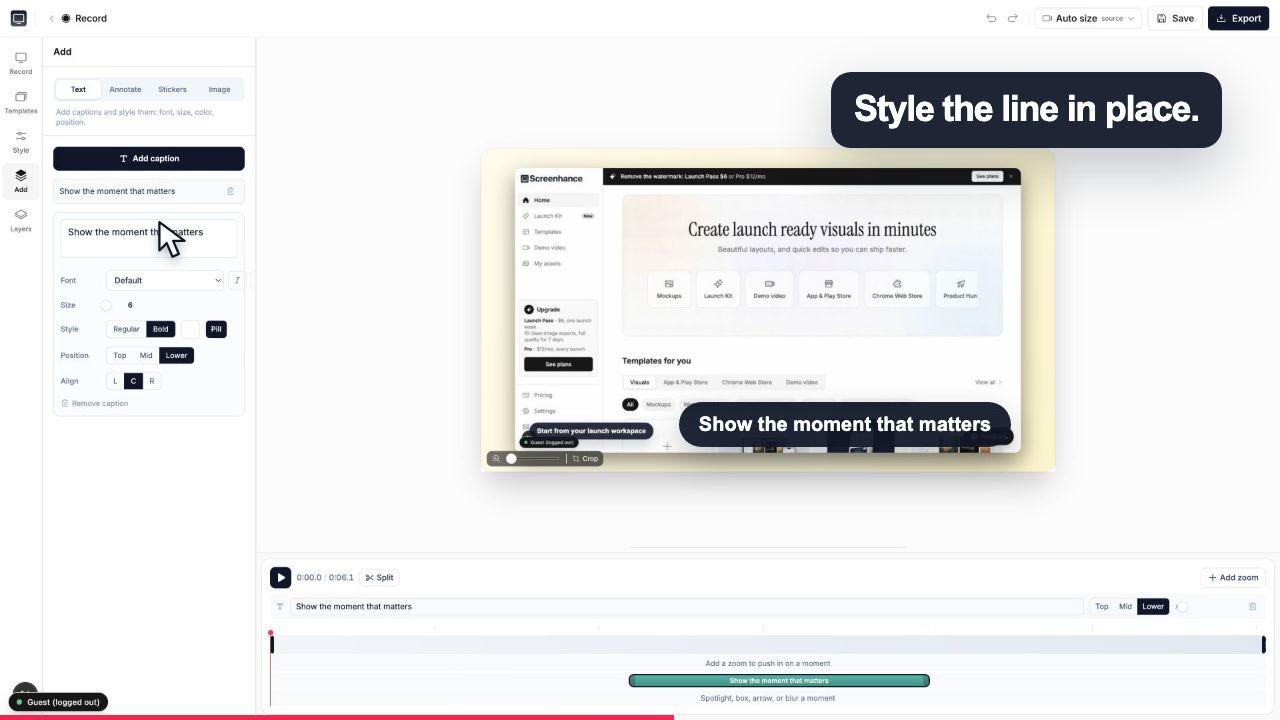
Add captions with custom fonts so the demo plays without sound, plus annotations and stickers to label steps and call out what changed.

Every aspect ratio

Square, portrait, and landscape from the same recording, so one demo becomes a social clip, a YouTube video, or a landing-page hero without re-recording.

Ready-made templates

Start from demo-video templates for a fast, on-brand result, then swap in your own recording, colors, and copy.

MP4, WebM, and GIF

Export the finished video as MP4 or WebM, or a silent looping GIF. Free to start; free exports carry a small watermark, removed by the $6 Week Pass or $8/mo Pro.

Studio vs Vidyard: An Honest Breakdown

These tools solve different halves of the problem. Here is where each one earns its place.

Keep Vidyard when you need

  • A hosting home for your videos with a shareable player
  • Per-viewer analytics: who watched, and how far they got
  • Sales-engagement features and activity that syncs to your CRM
  • Gated views, lead capture, and follow-up triggers

Reach for Studio when you need

  • A fast, polished, on-brand demo video
  • Click-to-place zoom that guides the viewer's eye
  • Device frames, backgrounds, captions, and stickers
  • Free to start, in the browser, exports MP4 and WebM

The two are complementary, not mutually exclusive. Plenty of teams make the video in Studio, then host and track it wherever they already do. If tracking and CRM are the whole reason you opened Vidyard, stay there. If the reason is that your demos should look better and take less time to make, that is Studio's job.

One Tool for Every Launch Visual

Studio is not a standalone video widget bolted onto an unrelated product. It is the same tool that makes your App Store screenshots, device mockups, and OG images, which means the demo video, the store screenshots, and the share cards for a launch all come out of one editor with one visual language.

That matters more than it sounds. When the demo video, the App Store screenshots, and the OG image share the same frames, backgrounds, and type, the whole launch looks like it came from one team instead of five different tools. It is all part of Launch Kit, so you learn one editor and use it for the entire release.

If you are recording a walkthrough today, you can design the Product Hunt gallery and the device mockups for the same launch in the same session, without exporting to a second app.

Frequently Asked Questions

Is Screenhance Studio a real Vidyard alternative?

For making demo videos, yes. Studio is a browser-based screen and webcam recorder plus a demo-video editor: you record, guide the viewer with click-to-place zoom, wrap the clip in a device frame, and export an MP4. It is not a video-hosting platform, so if your reason for using Vidyard is hosting, viewer analytics, or sales-engagement features tied to your CRM, keep Vidyard. If your reason is producing a polished, on-brand demo video quickly, Studio is built for exactly that and is free to start.

When is Vidyard actually the right choice?

Vidyard is strong at things Studio does not do. If you need a hosting home for your videos, per-viewer analytics on who watched what and for how long, or sales-engagement features that log activity back to your CRM and trigger follow-ups, Vidyard is the right tool. Studio focuses on the creation step: turning a raw recording into a clean, guided demo you would be happy to send. Many teams use both, making the video in Studio and hosting or tracking it wherever they already do.

What is the click-to-place zoom?

It is Studio's signature feature. Instead of the viewer hunting for the button or field you are talking about, you click to place a zoom on the exact part of the recording that matters, and the view smoothly pushes in there. It guides the viewer's eye through the demo the way a good presenter would point at the screen, which makes a product walkthrough far easier to follow than a flat, full-screen recording.

Do I have to install anything?

No. Studio records and edits entirely in the browser at app.screenhance.com/studio, so there is no app to download and it works on macOS, Windows, and Linux. You can record your screen on its own or record your screen with your webcam for a more personal sales or onboarding video.

What can I do to the recording after I capture it?

Studio wraps your recording in realistic device frames and macOS or browser window chrome over gradient and preset backgrounds, so a raw screen capture becomes something that looks designed. You can add click-to-place zoom, captions with custom fonts, annotations, and stickers, and start from ready-made demo-video templates for a fast, on-brand result. Aspect ratios cover square, portrait, and landscape, so the same recording can become a social clip, a YouTube video, or a landing-page hero.

What formats can I export, and is there a watermark?

Studio exports MP4 and WebM, and also GIF when you want a silent looping clip. It is free to start. Free exports include a small Screenhance watermark, which is removed by the $6 Week Pass or the $8 per month Pro plan. That makes it easy to try a full demo end to end before deciding whether to pay.

Is Studio only for videos?

No, and that is part of the appeal. Studio is the same tool that makes your App Store screenshots, device mockups, and OG images, so one place covers every launch visual as part of Launch Kit. If you are shipping a product, you can record the demo video, then design the store screenshots and share cards without switching tools or re-learning an editor.

Can I make sales demo videos with it?

Yes. Record your screen with your webcam, use click-to-place zoom to walk a prospect through the exact flow that matters to them, add captions so it plays without sound, and export a portrait or landscape MP4. Studio handles making the video polished and on-brand; where you send it, host it, and track opens is up to you and the tools you already use.

Make a Demo Worth Watching

Record your screen, guide the viewer with click-to-place zoom, and export a polished MP4. Free to start, right in the browser.