Use Cases
The complete guide to device mockups in 2026 — how to choose the right device, when to use realistic vs minimal frames, and the free tools for iPhone, iPad, MacBook, Android, Pixel, Apple Watch, and browser. Pick your device and start in seconds.
Loved by 2,000+ creators
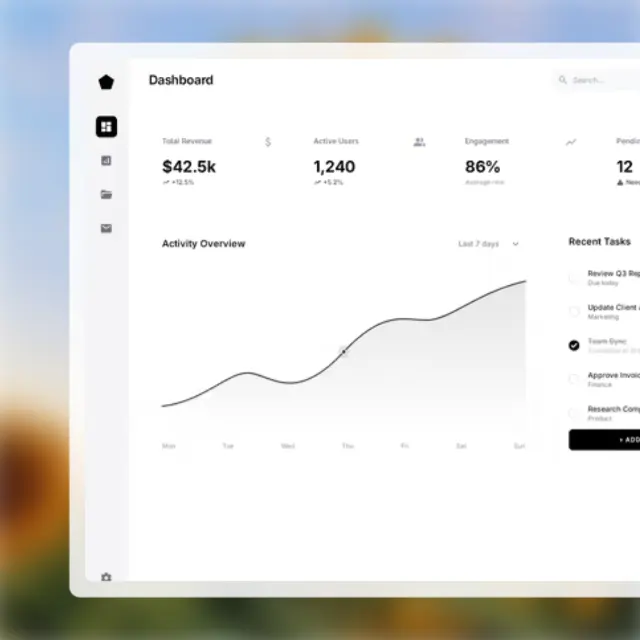
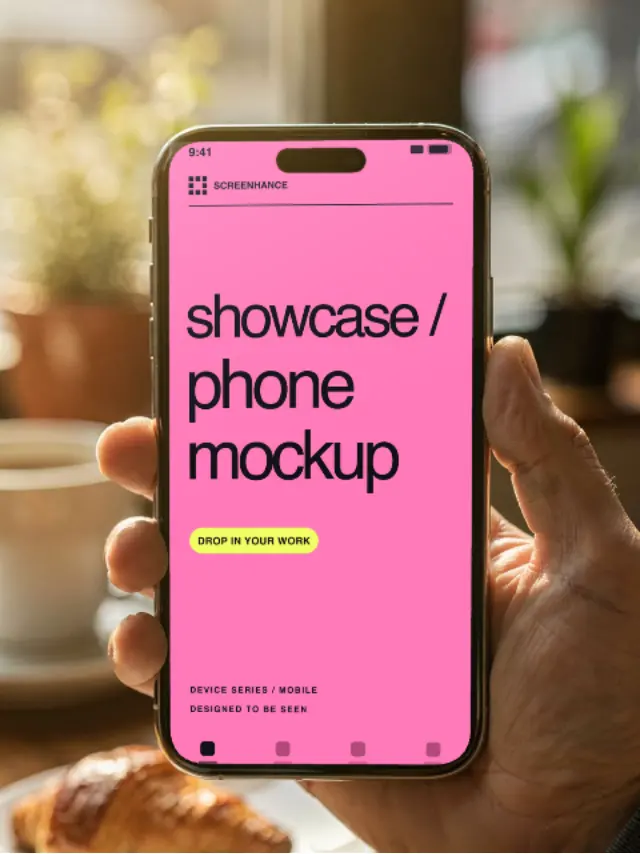
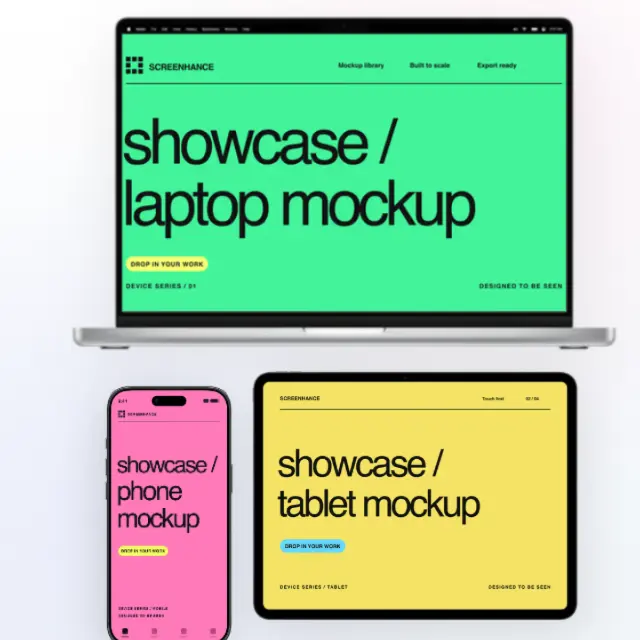
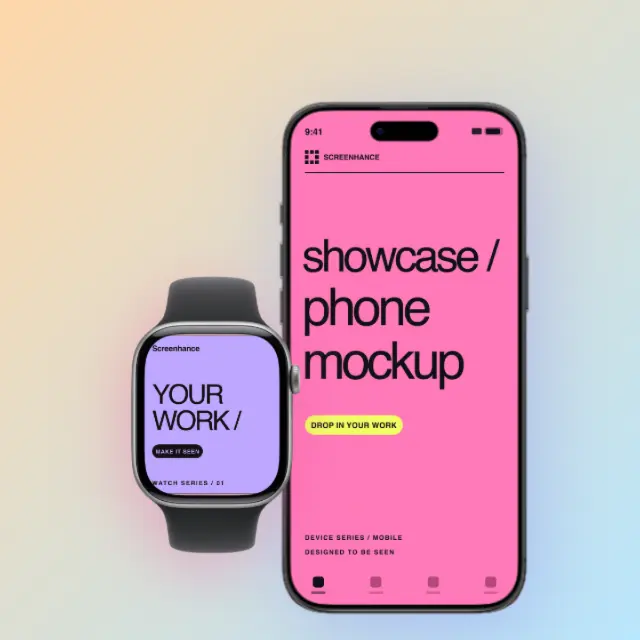
A device mockup places your screenshot inside a realistic frame — a phone, tablet, laptop, watch, or browser — turning a raw capture into a marketing-ready image that shows your product in context. The right mockup depends on your audience and surface: current iPhone for broad reach, MacBook or browser for web apps, Pixel for Android-first products, Apple Watch for wearables. Below is how to choose, the frame styles that fit each job, and the dedicated tool for every device.
A dedicated, pre-sized tool for every device — or use the all-in-one mockup generator.
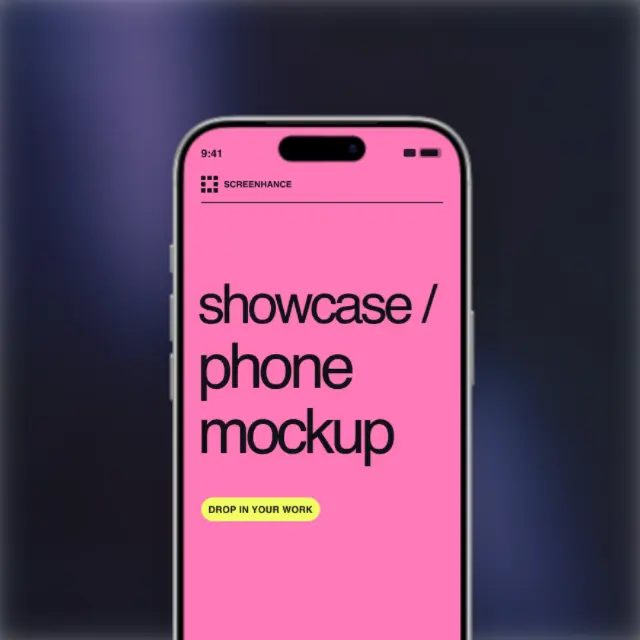
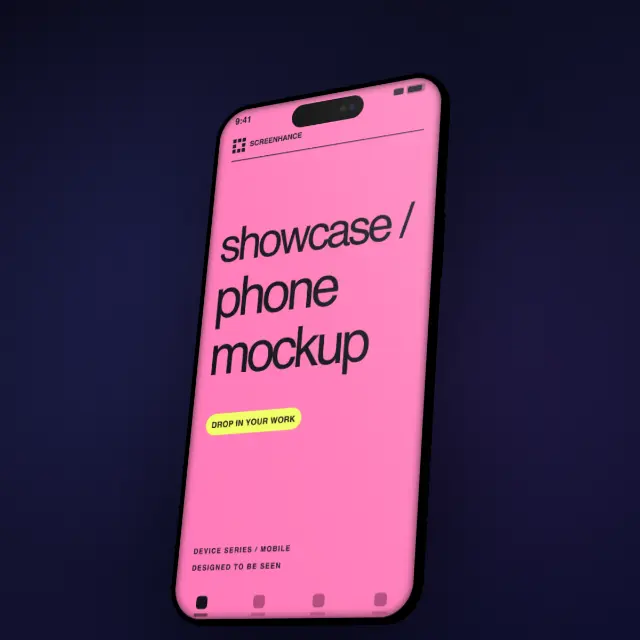
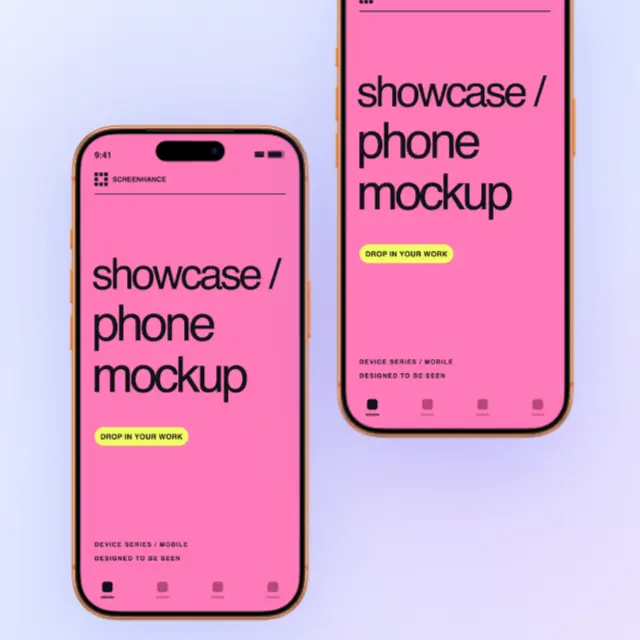
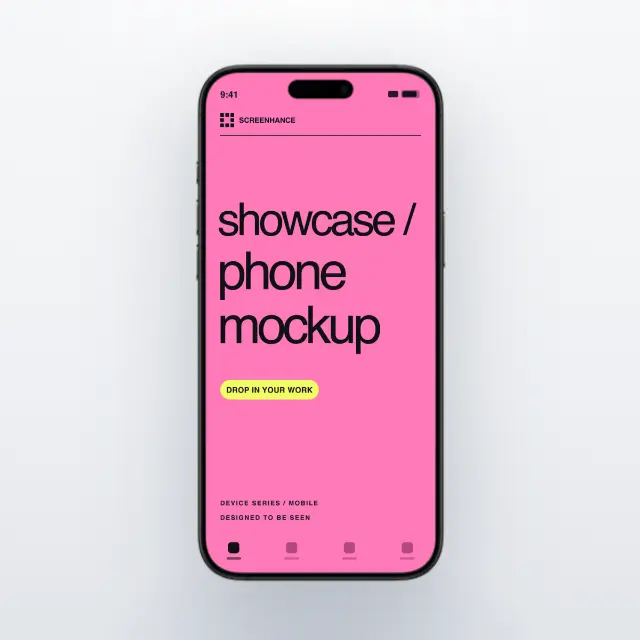
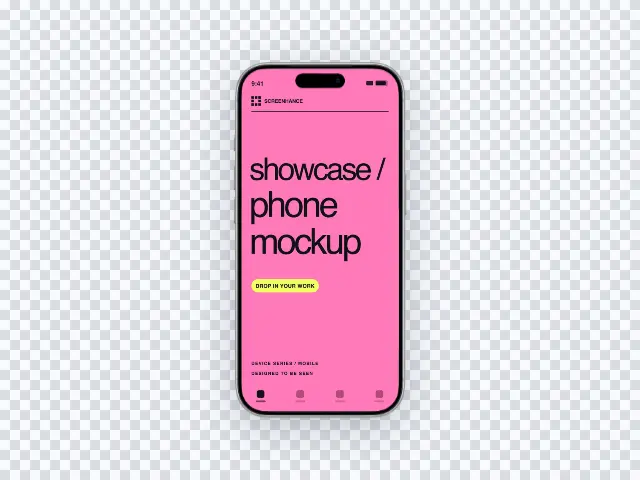
iPhone 17, Air, and recent generations.
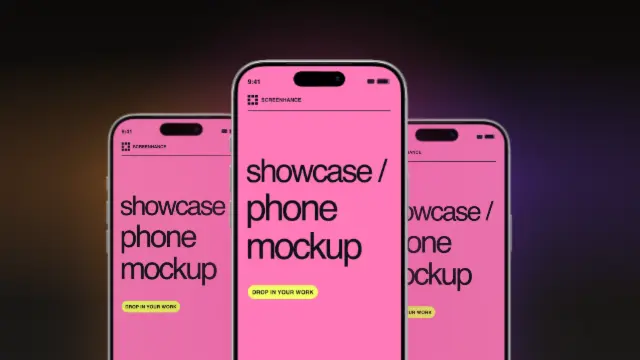
17, 17 Pro, Pro Max, and iPhone Air frames.
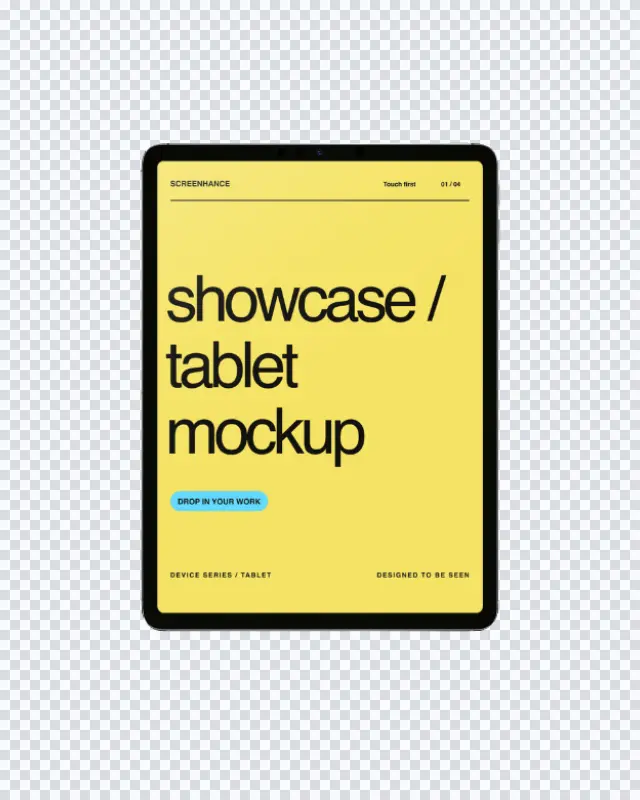
iPad Pro frames for tablet apps.
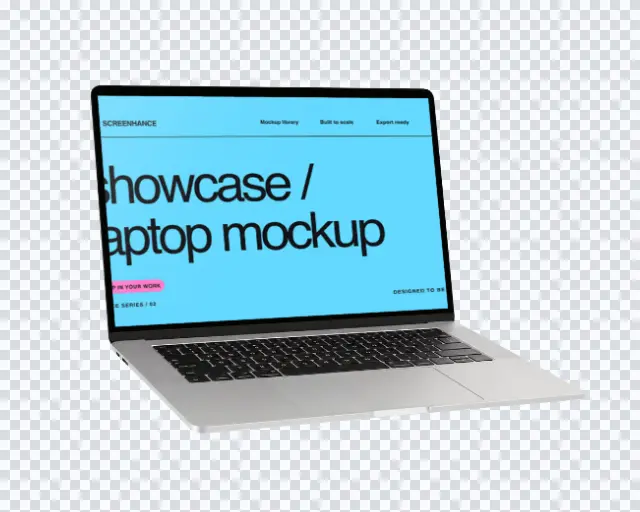
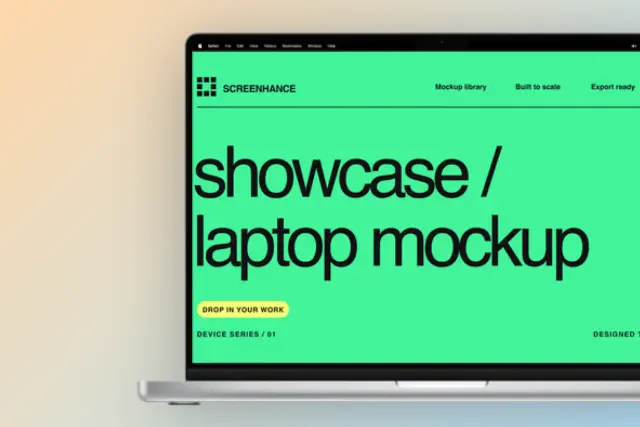
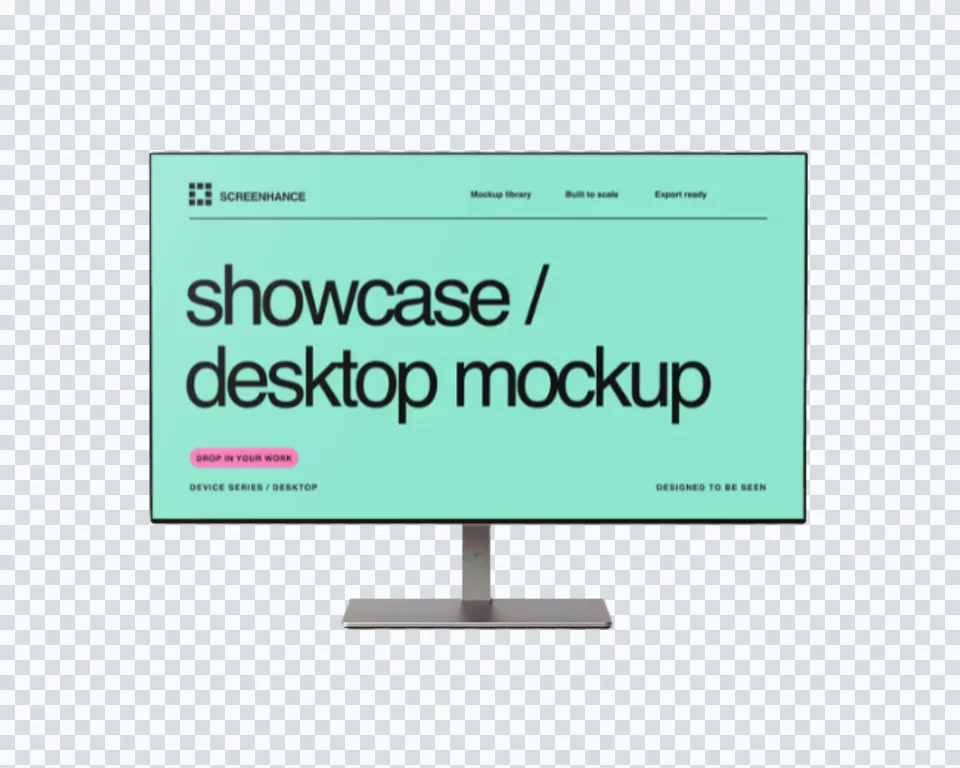
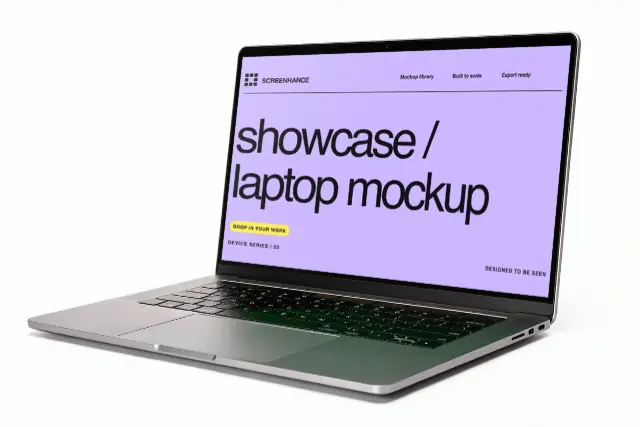
Showcase web apps and sites in a MacBook.
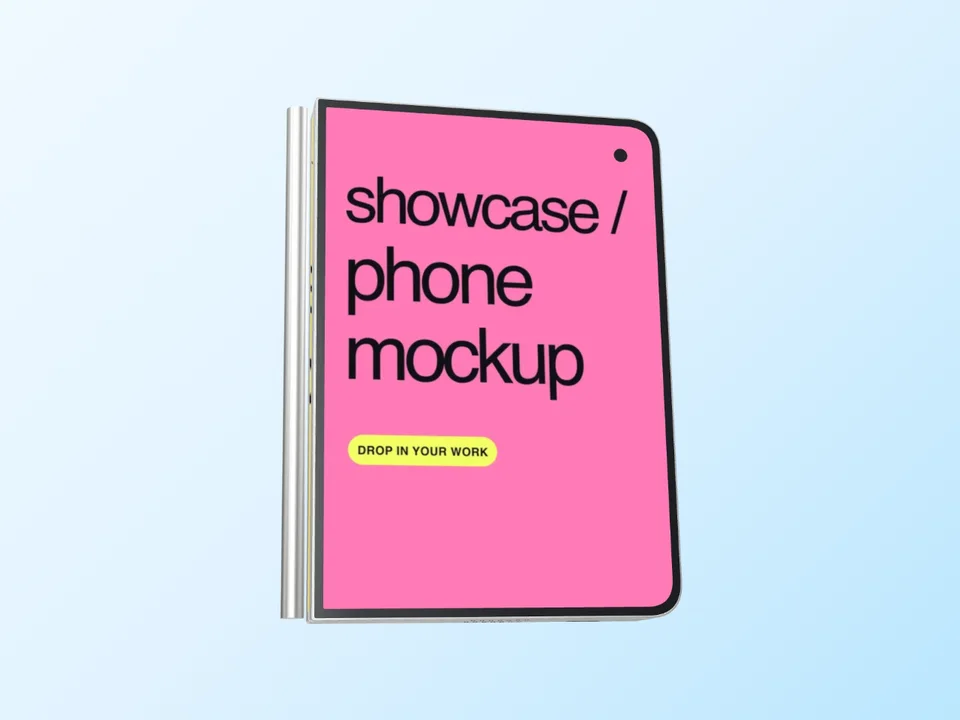
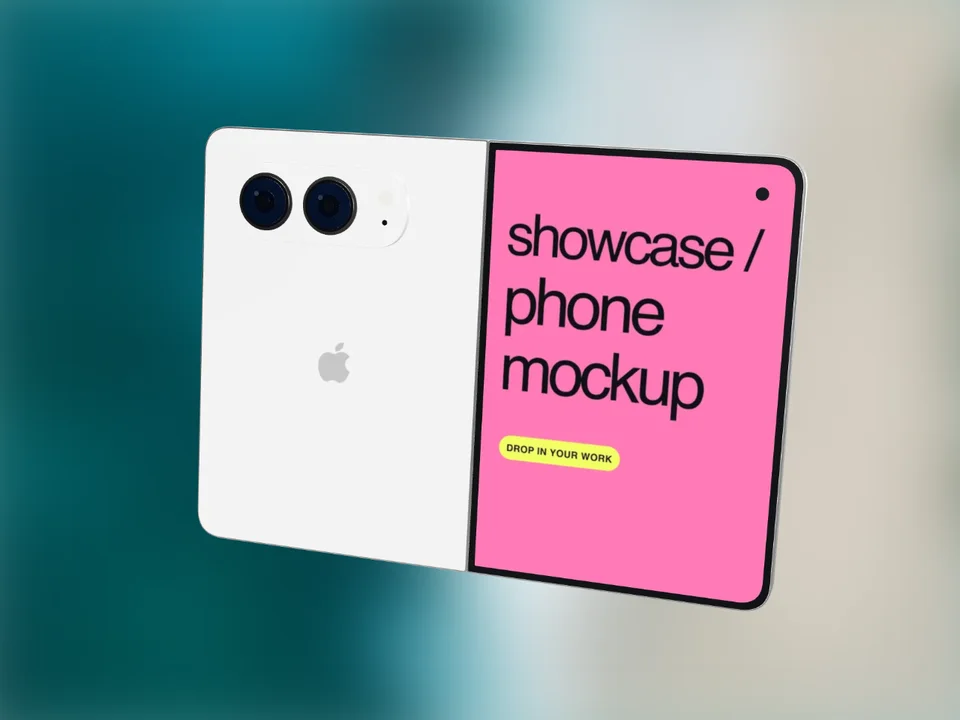
Android device frames for app screenshots.
Realistic Pixel 9 Pro, stock Android.
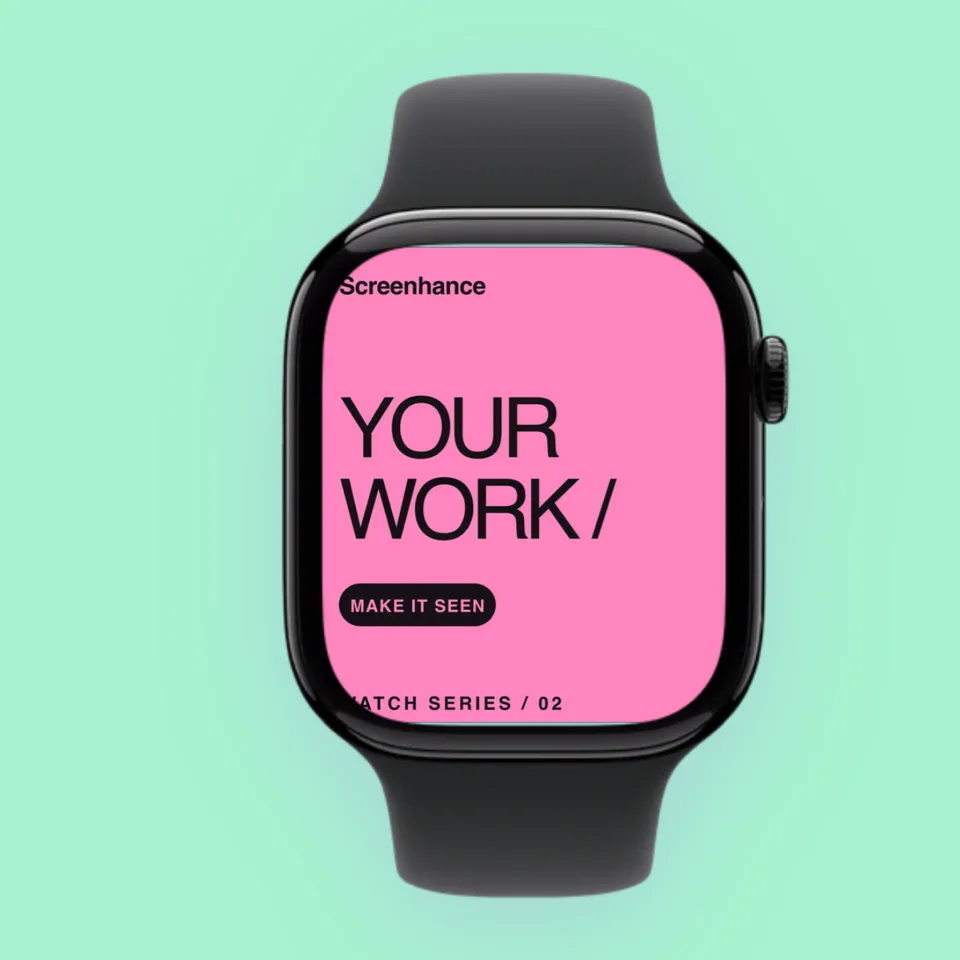
Series 11 frames for watchOS apps.
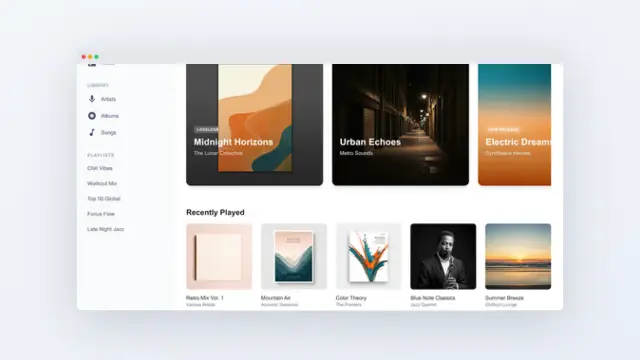
Chrome, Safari, and Firefox frames.
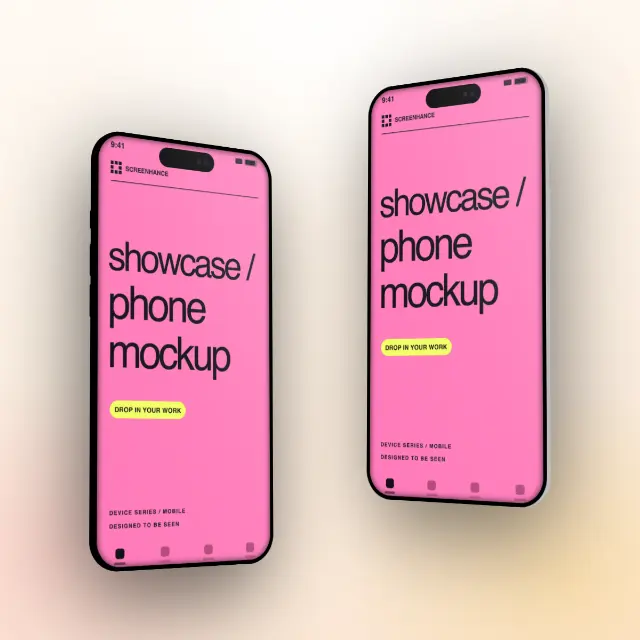
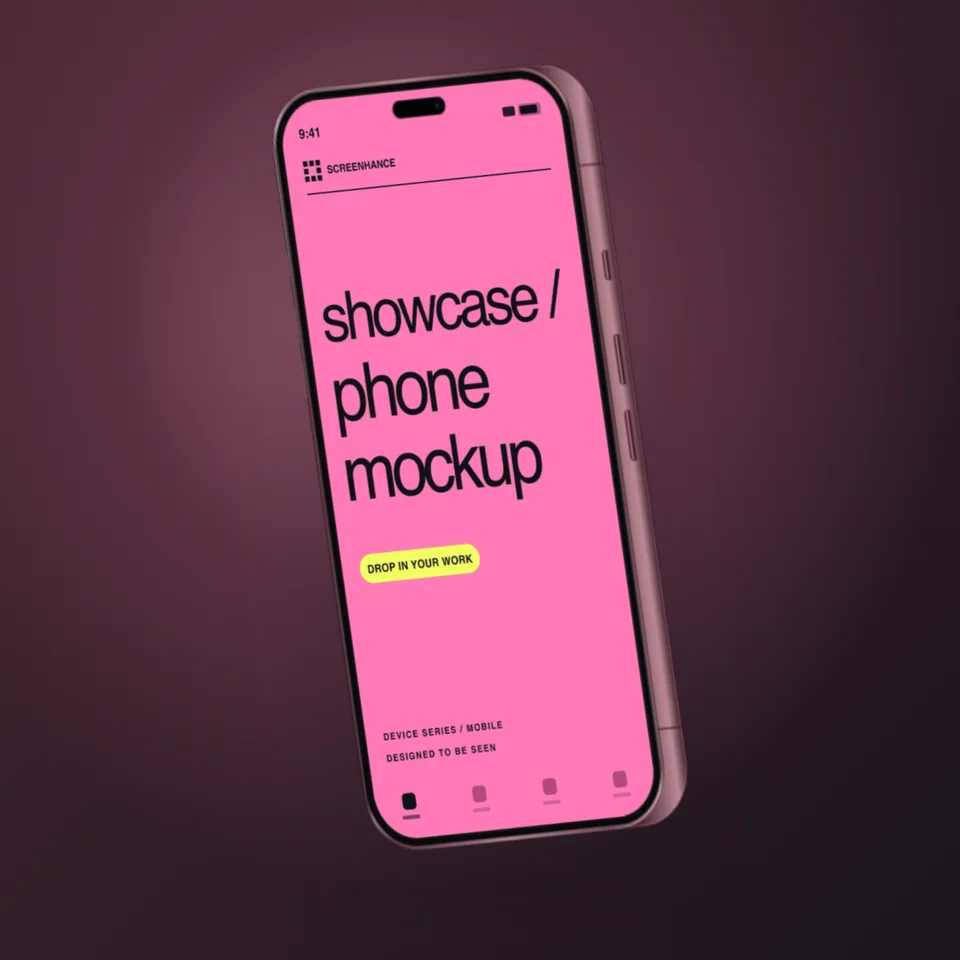
Realistic frames — with accurate bezels, buttons, and finishes — add credibility and context. They're the right call for App Store and Play Store screenshots, product-page hero shots, and anywhere the device itself is part of the story. The trade-off is visual weight: the frame competes with the UI for attention.
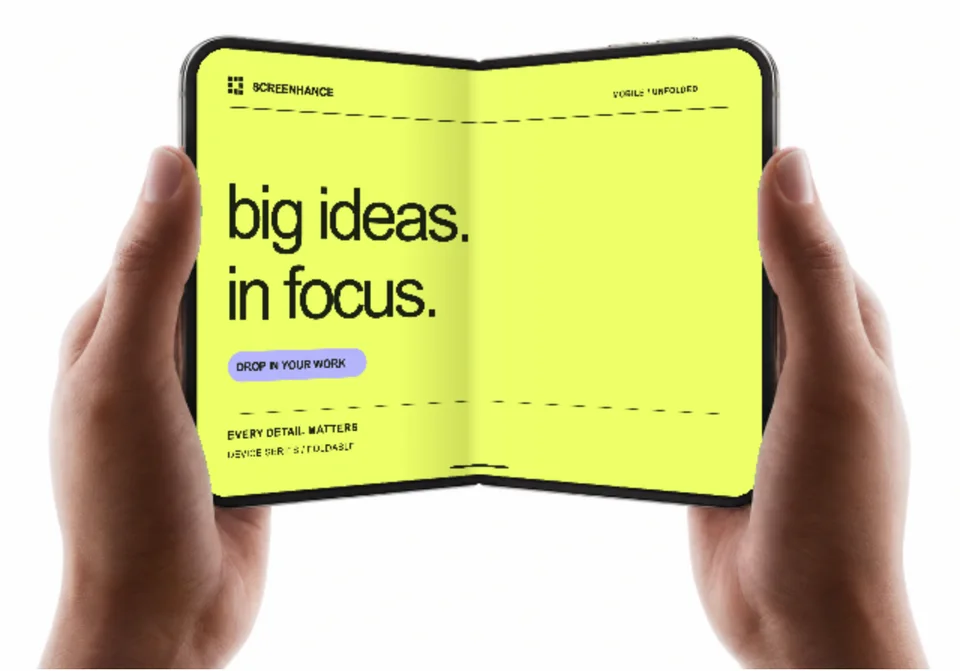
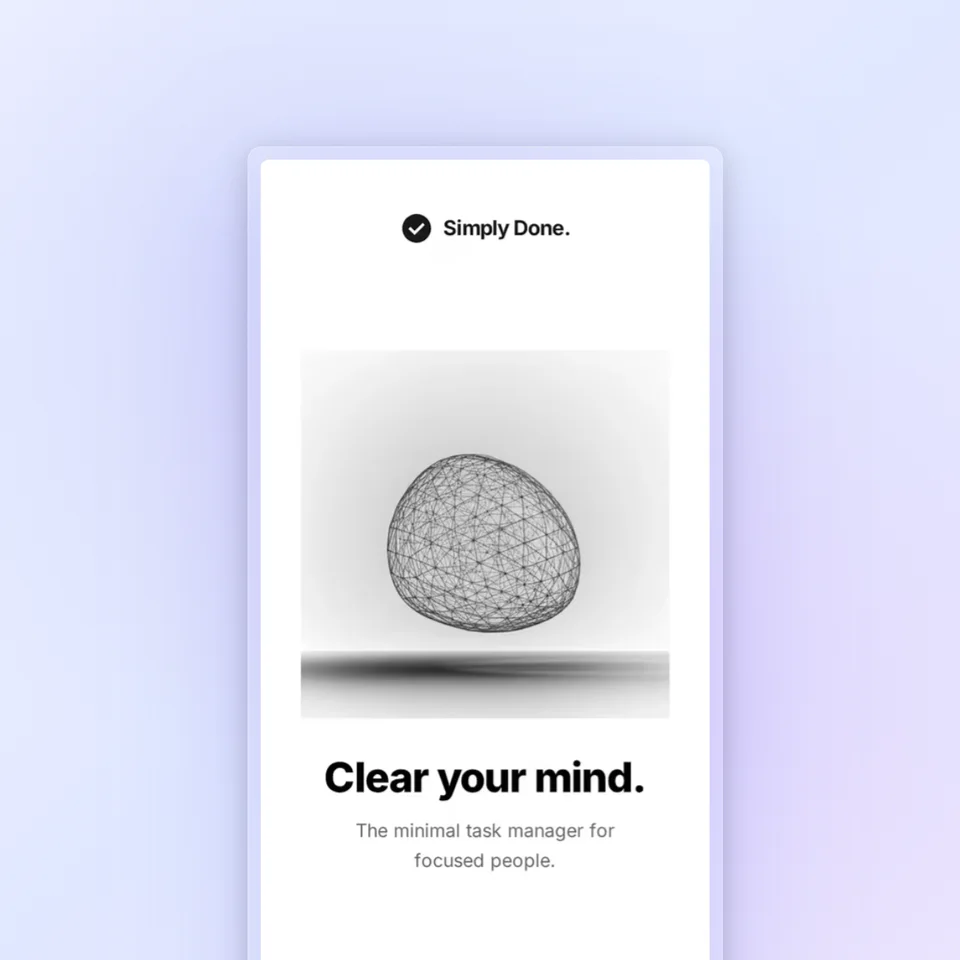
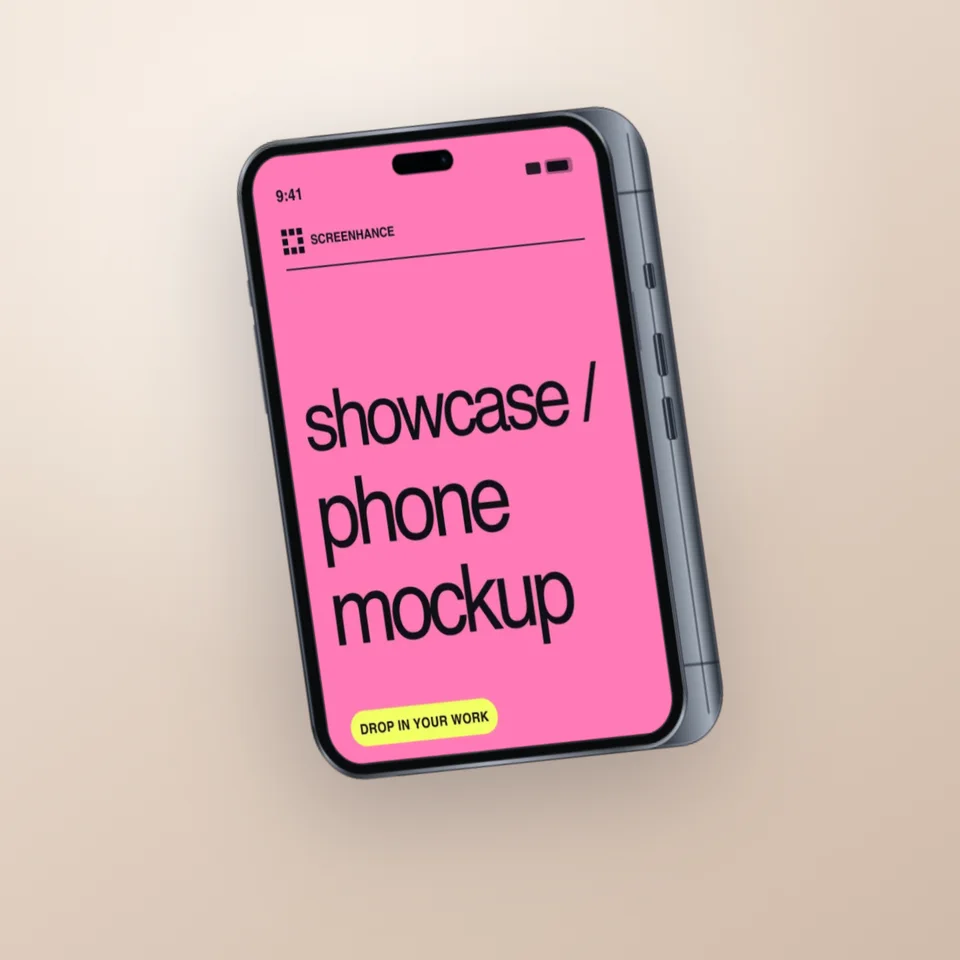
Minimal or clay frames strip the device down to a clean silhouette so the screenshot is the hero. They suit documentation, changelogs, dense feature grids, and developer-facing content where the UI is the point. Use the device frame generator to switch styles, and the animated mockup generator when a moving demo will out-convert a static image. Whatever you choose, keep one style and one device generation per surface — mixing them is the most common thing that makes an otherwise good set look careless.

Create professional mockups in three simple steps. No design skills required.
Drag and drop or select any screenshot, design, or image from your device.
Pick from iPhone, iPad, MacBook, browser frames and beautiful gradient backgrounds.
Download as PNG, WebP, JPEG, GIF, or video. Ready for marketing in seconds.
Go deeper on mockups for any device.
A device mockup places a screenshot or design inside a realistic frame of a phone, tablet, laptop, watch, or browser. It turns a raw screenshot into a marketing-ready image that shows your product the way people actually use it — on a device.
Match the device to your audience and the surface. Use the current iPhone for the broadest consumer reach, iPad for tablet-first apps, MacBook or browser for web apps and SaaS, Apple Watch for wearables, and Pixel for Android-first products. The key rule: stay on one generation per campaign instead of mixing old and new devices.
Realistic device frames (with bezels, buttons, and finishes) add credibility and context — best for App Store screenshots and product pages. Minimal or clay frames keep the focus on the UI — best for documentation, changelogs, and dense feature grids. Pick one style per surface and keep it consistent.
Yes. Screenhance runs in the browser with no install, and the free plan exports real, watermark-free mockups for every device with full template access.
Yes. Beyond static PNGs, you can export animated GIF and WebM device mockups — useful for Product Hunt openers, landing-page heroes, and demo clips that out-convert static images.
Explore more ways to create stunning visuals with Screenhance.
Showcase apps in iPad Pro and Air frames
Try it freeCreate iOS and Android store visuals
Try it freeAndroid-ready Google Play visuals
Try it freeOptimised Twitter/X share cards
Try it freePolished LinkedIn post visuals
Try it freeHero images and landing page assets
Try it freeDrop in a screenshot, pick a device frame, and export a polished mockup — static or animated — in seconds.