ScreenhanceBeta

Free iPhone 17 Mockup Generator

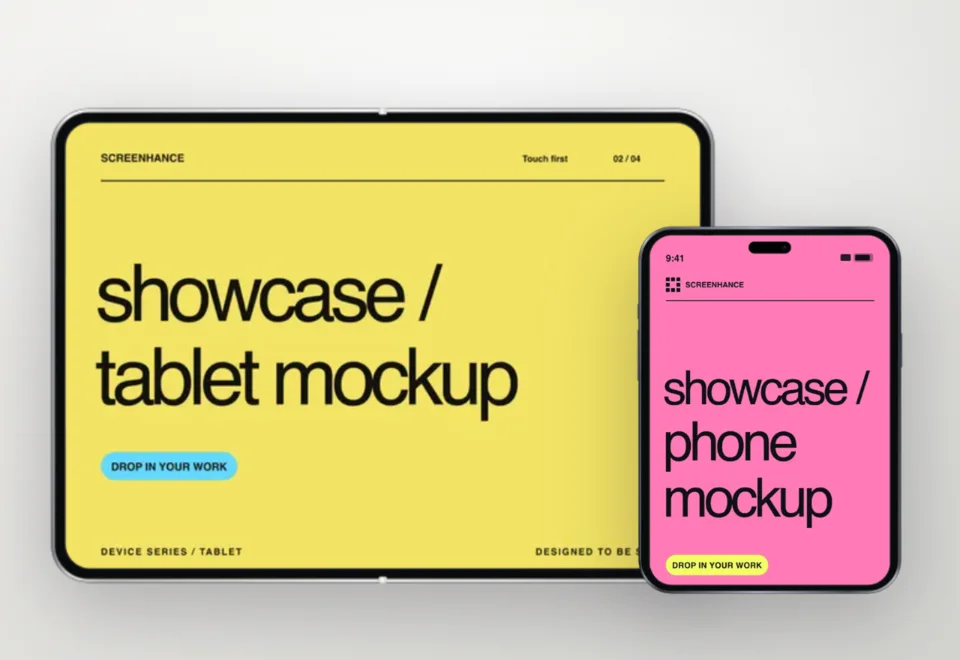
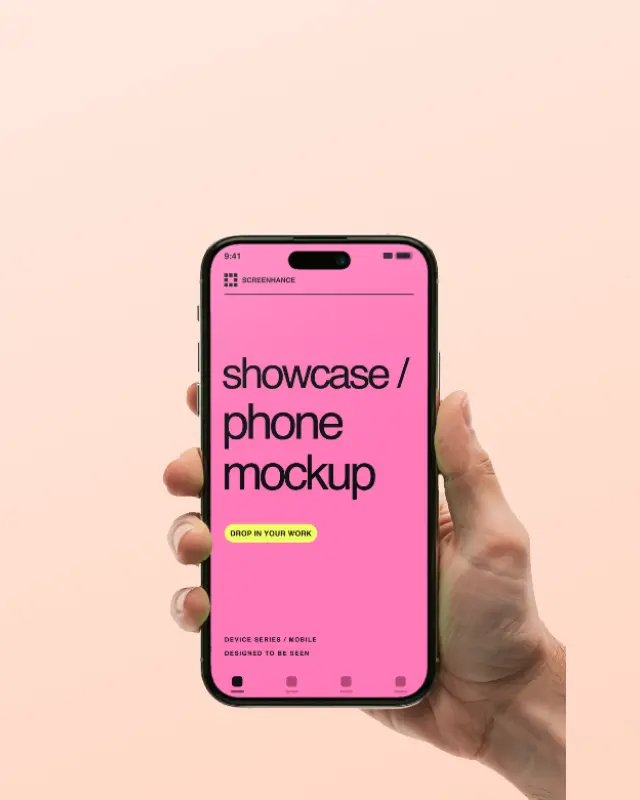
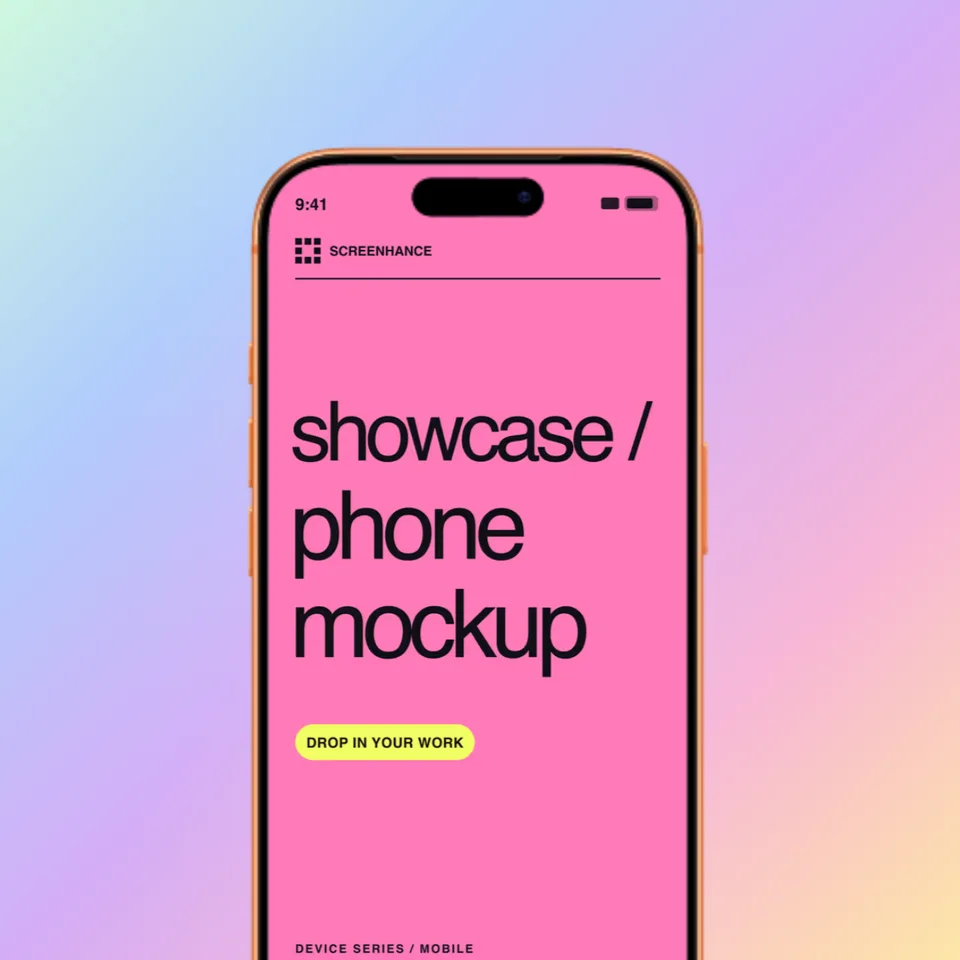
Create stunning iPhone 17, iPhone 17 Pro, iPhone 17 Pro Max, and iPhone Air mockups in seconds. Realistic device frames with Dynamic Island, exact 2026 resolutions, and high-resolution export.

Olivia RhyePhoenix BakerLana SteinerDemi WilkinsonDrew Cano
4.9

Loved by 2,000+ creators

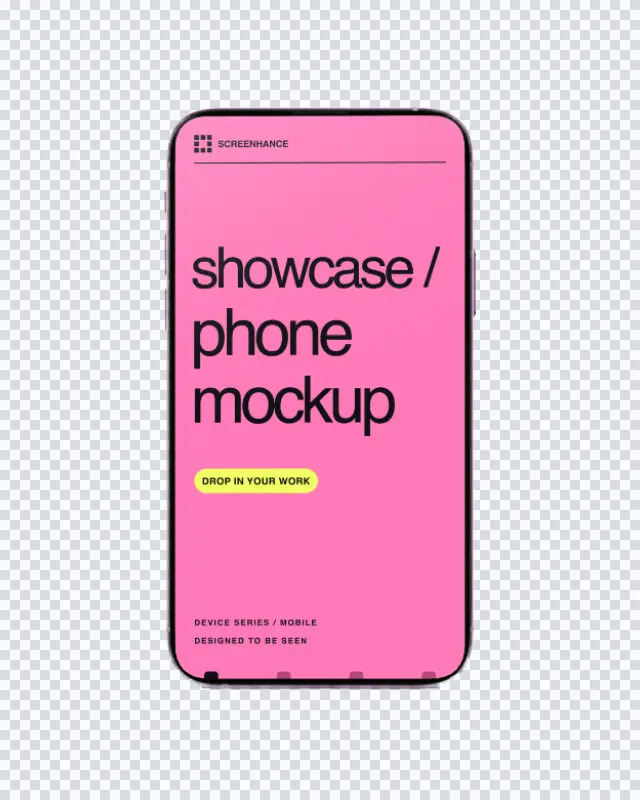
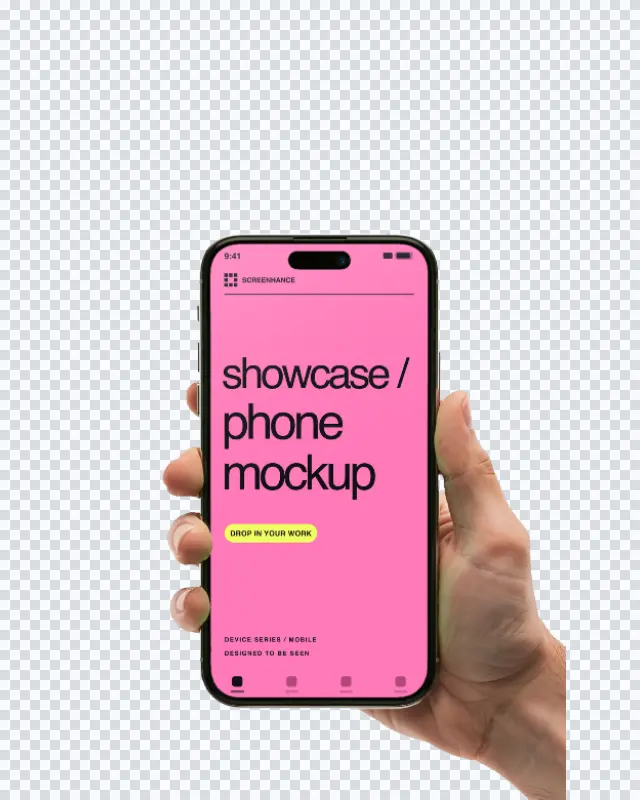
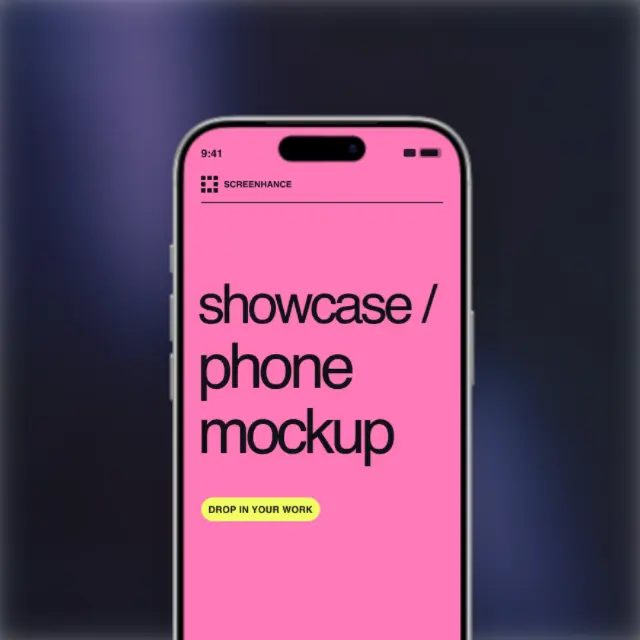
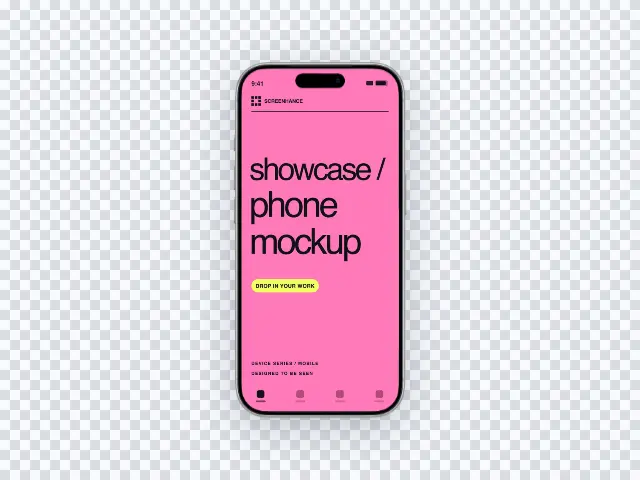
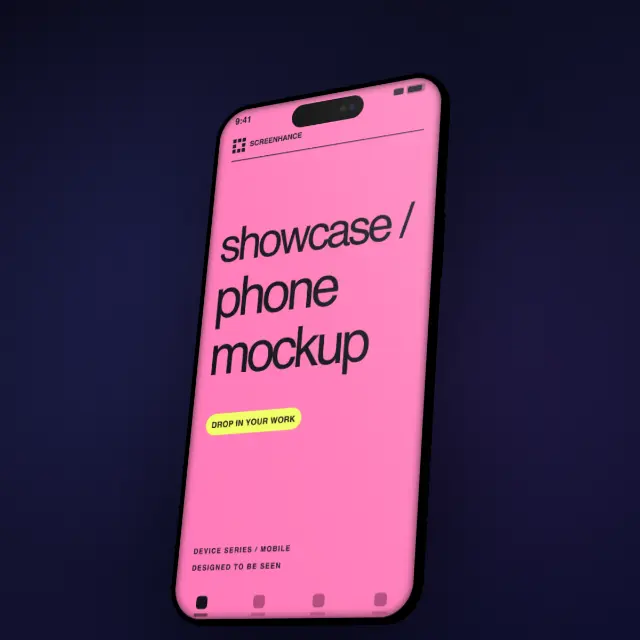
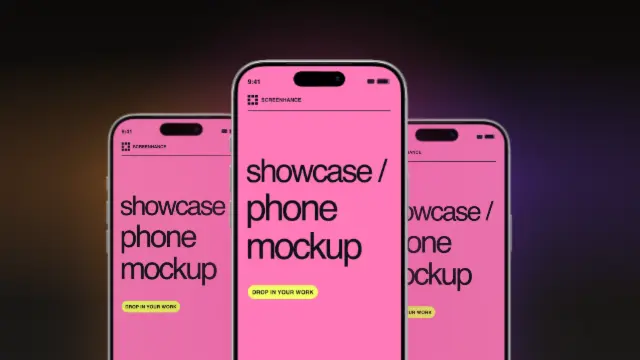
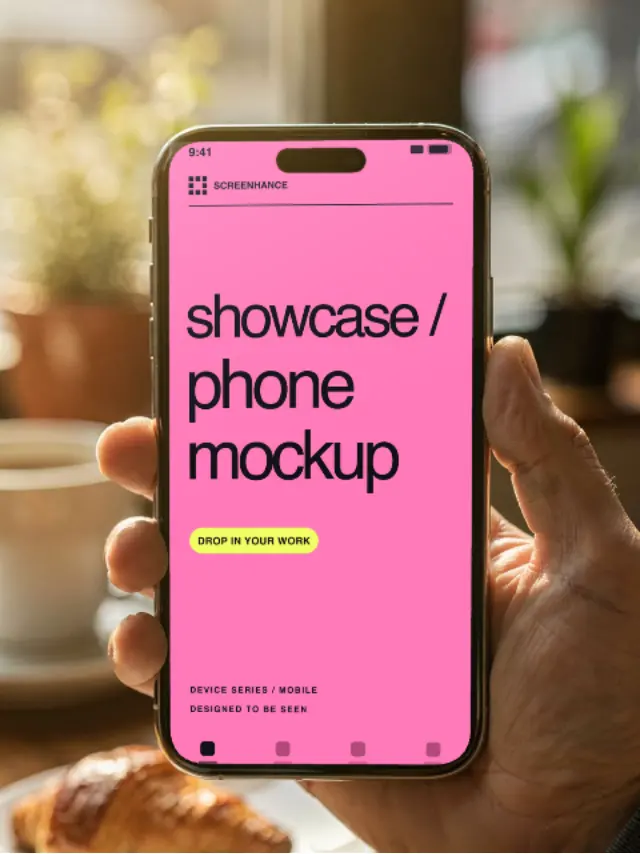
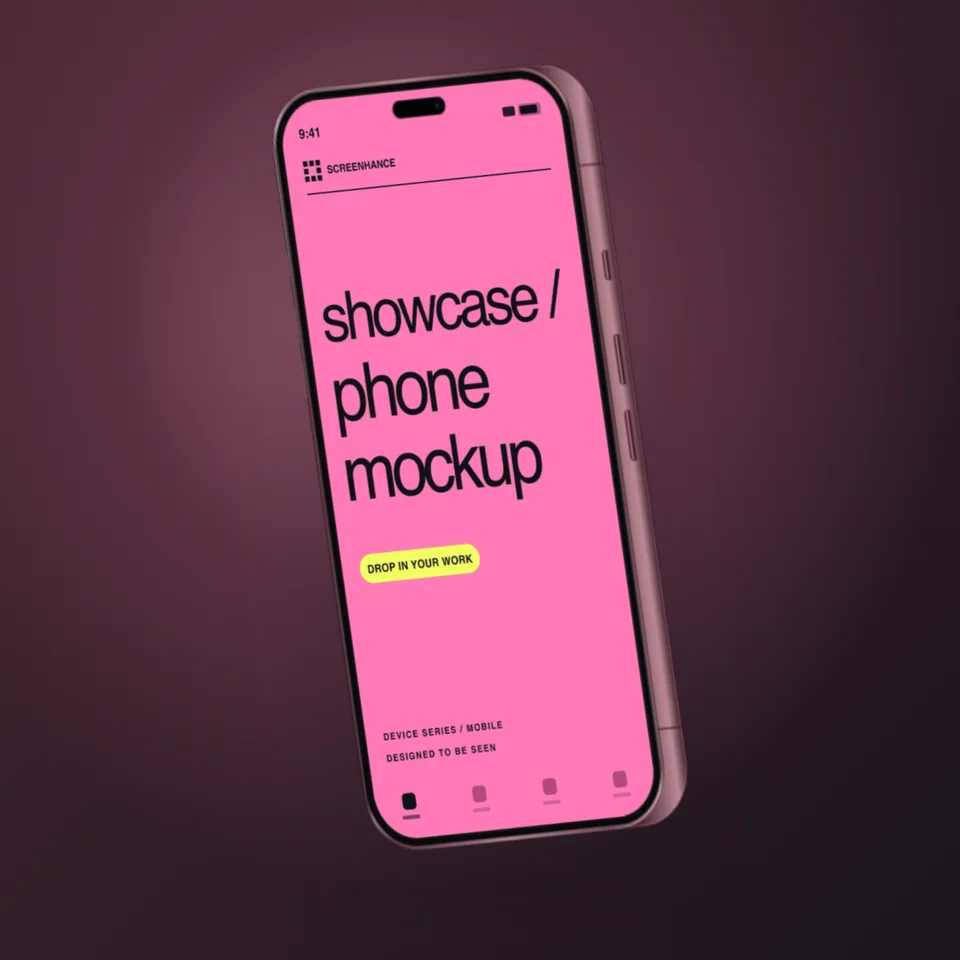
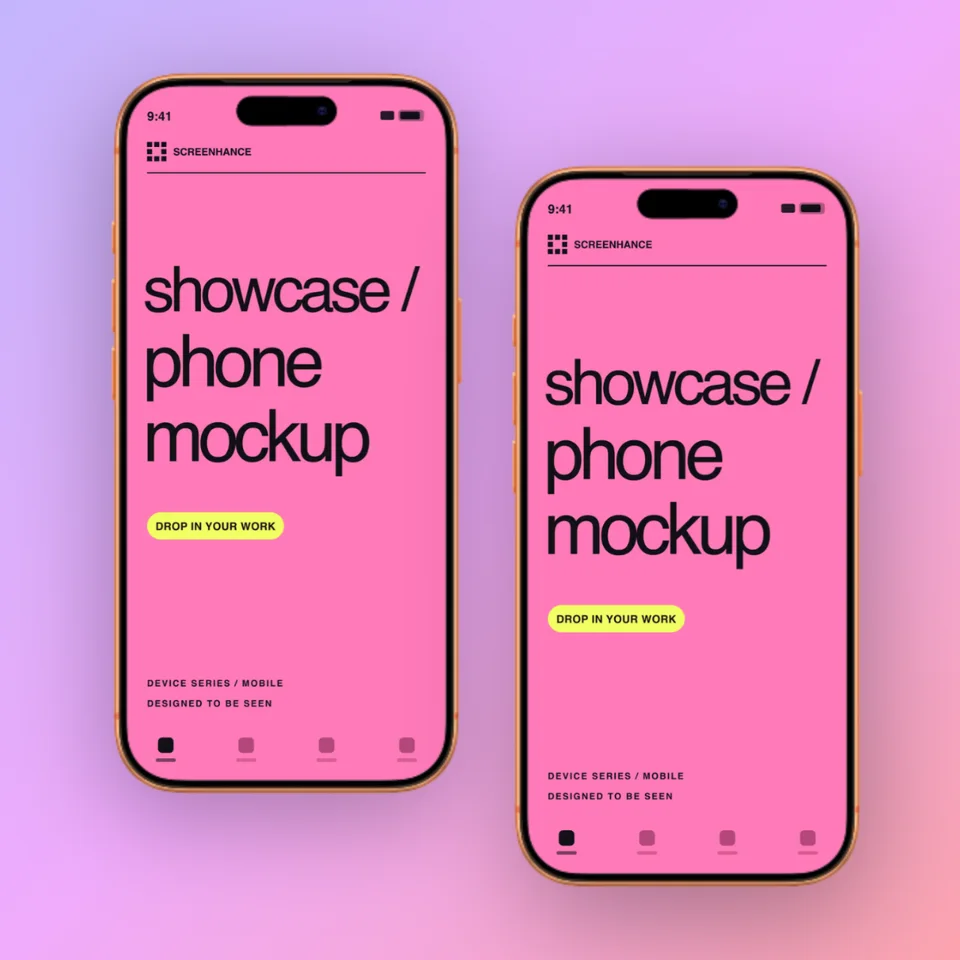
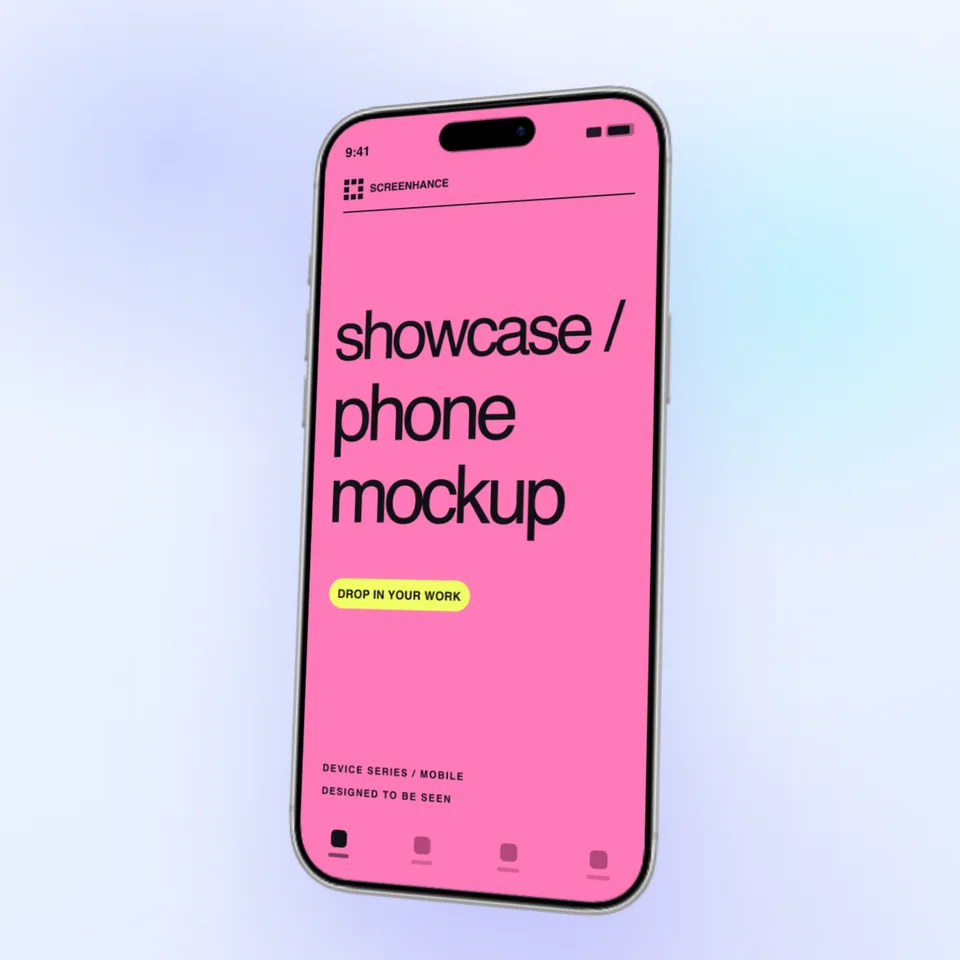
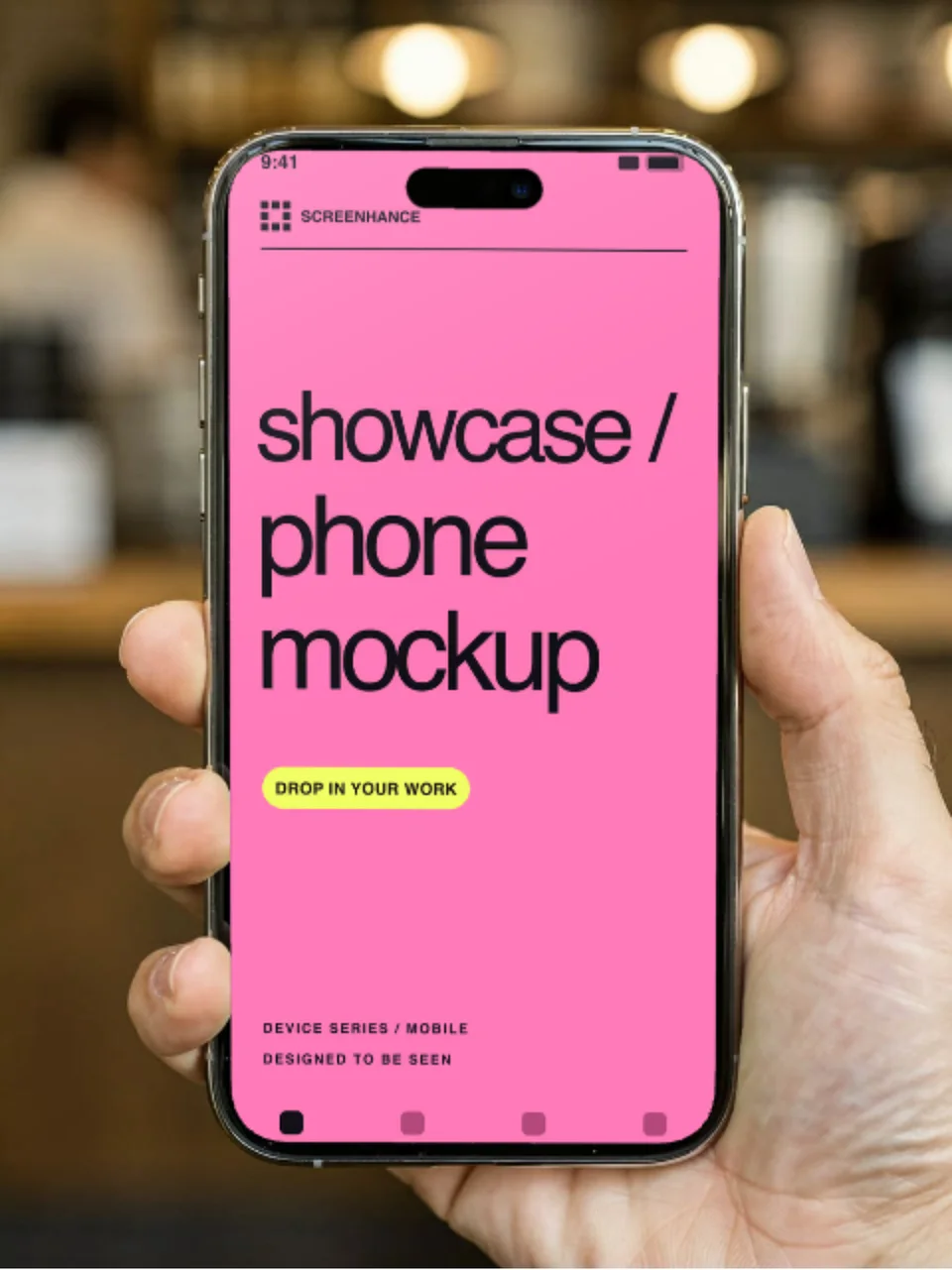
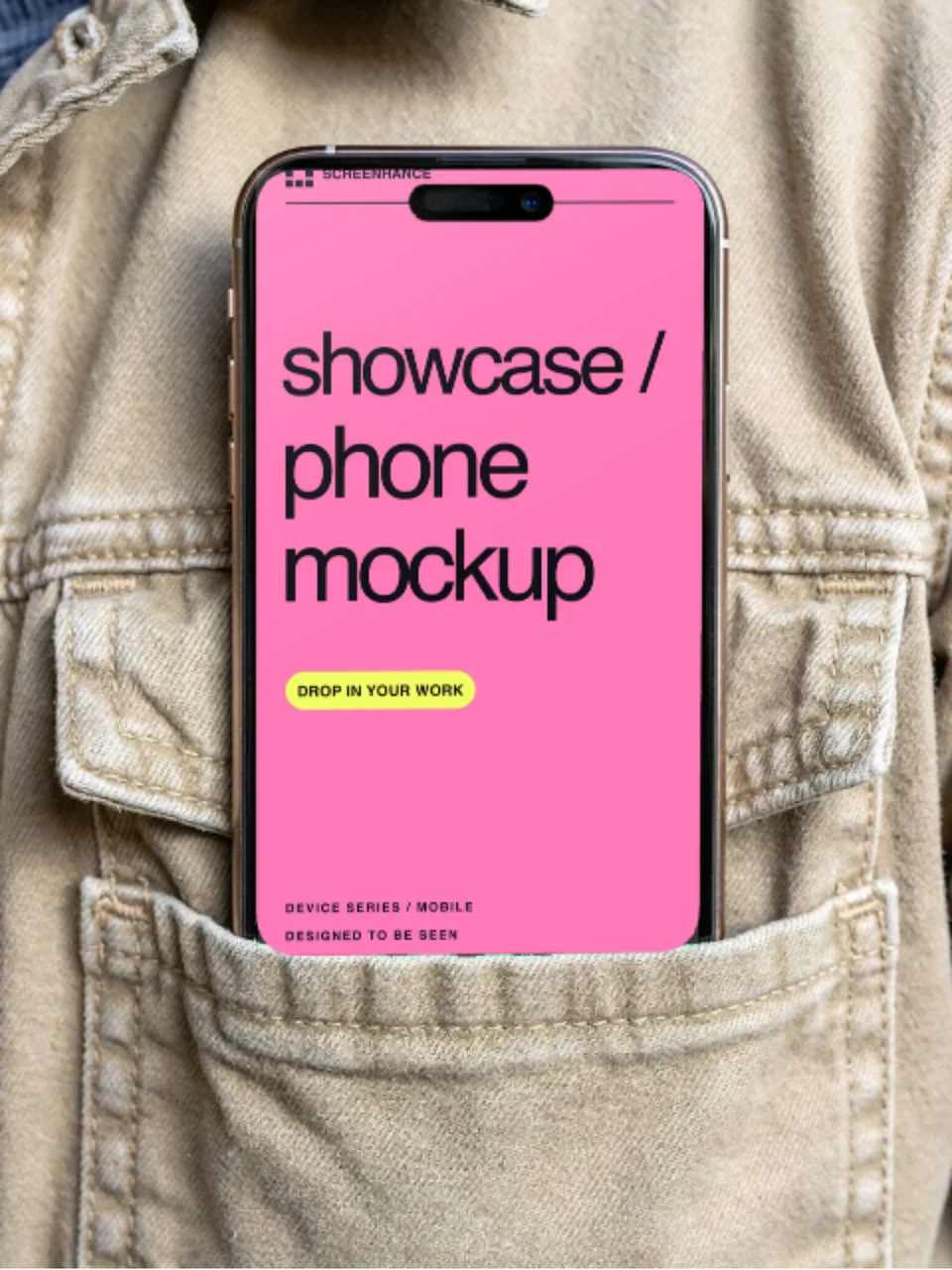
App screenshot in an iPhone 17 Pro frame with Dynamic Island

What is an iPhone 17 Mockup Generator?

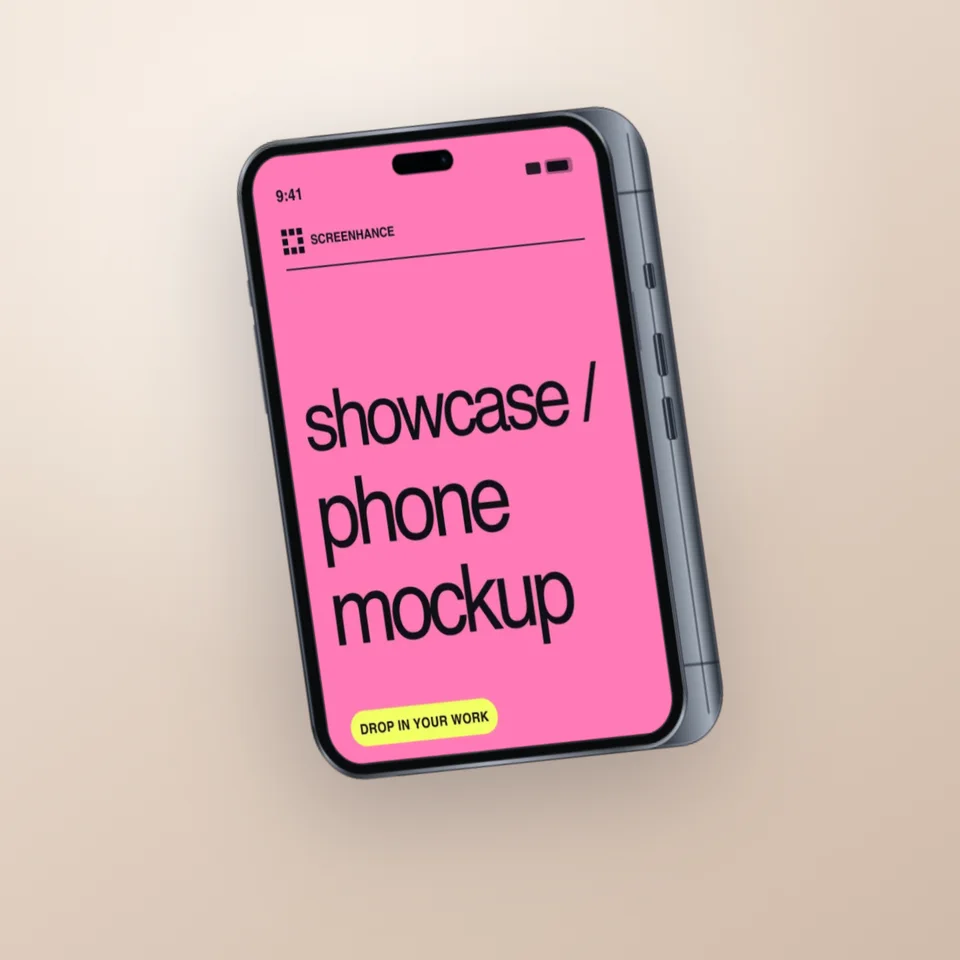
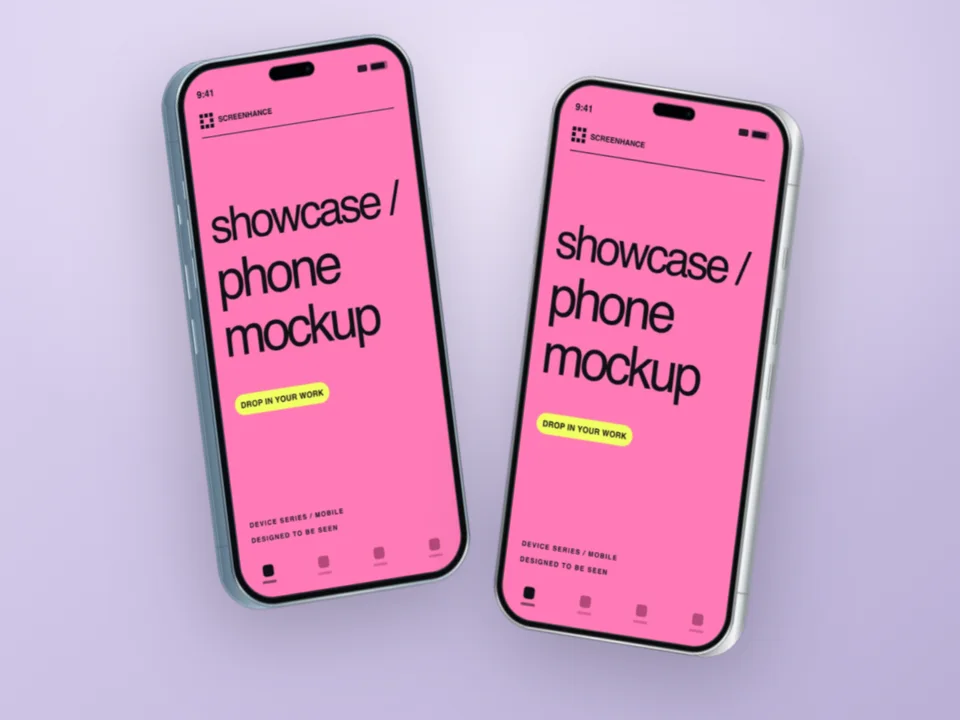
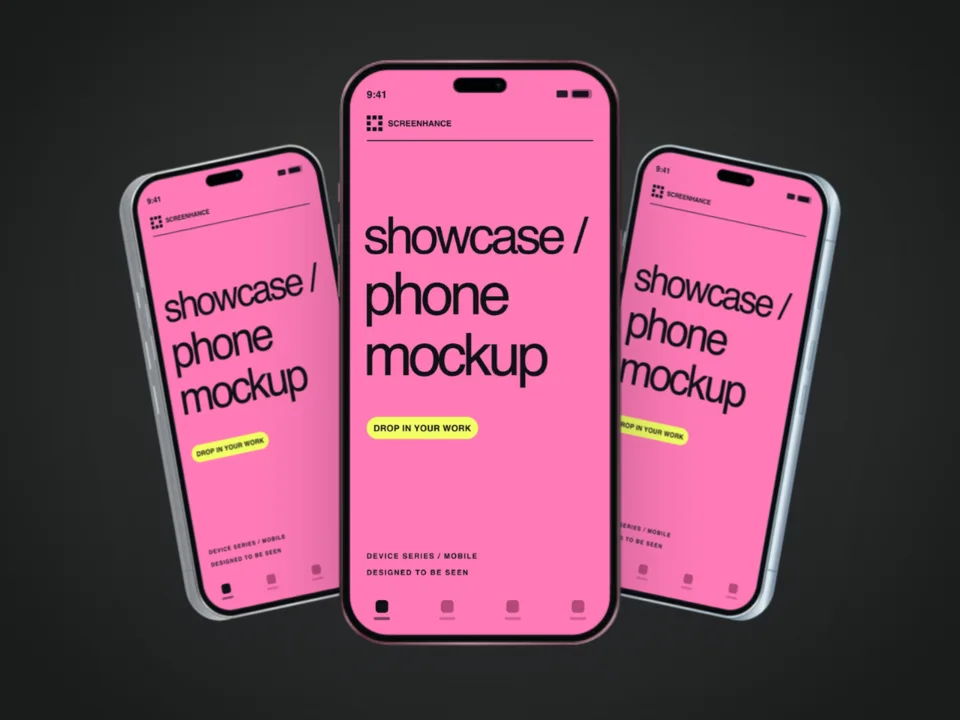
An iPhone 17 mockup generator places your app screenshots or designs into realistic iPhone 17 device frames. The result is a professional image that shows your product exactly as it appears on Apple's 2026 hardware — Dynamic Island, slim bezels, and the correct proportions for each model in the lineup.

Screenhance generates pixel-perfect iPhone 17, iPhone 17 Pro, iPhone 17 Pro Max, and iPhone Air frames in seconds — no Photoshop or Figma. Use them for App Store listings, marketing sites, launch posts, and investor decks.

New to the 2026 lineup? Read our iPhone 17 mockup guide for sizes, frame choices, and examples.

Available iPhone 17 Models

Pixel-perfect frames for the full 2026 lineup, each at its exact native resolution.

iPhone 17

6.3″ display

1206 × 2622 px

iPhone 17 Pro

6.3″ display

1206 × 2622 px

iPhone 17 Pro Max

6.9″ display

1320 × 2868 px

iPhone Air

6.5″ display

1260 × 2736 px

How It Works

Create professional mockups in three simple steps. No design skills required.

Step 1

Upload your screenshot

Drag and drop or select any screenshot, design, or image from your device.

Step 2

Choose frame & background

Pick from iPhone, iPad, MacBook, browser frames and beautiful gradient backgrounds.

Step 3

Export & share

Download as PNG, WebP, JPEG, GIF, or video. Ready for marketing in seconds.

Why Choose Screenhance?

Two capabilities that separate Screenhance from every other mockup tool in 2026: animated exports and App Store screenshot localization.

Animated GIF & WebM exports

Template-driven motion — float, reveal, parallax. Export animated mockups at Product Hunt, landing-page, and Twitter/X dimensions. Most mockup tools are static-only.

App Store localization in 80+ languages

One master design, per-locale captions, every required Apple and Google Play size per language. RTL and CJK support. Apple reports localized listings drive 2-3x install lifts.

Every required Apple & Google size

iPhone 17 Pro Max (1320×2868), iPhone Air (1260×2736), iPad Pro M4 (2064×2752), and the full Google Play set — exported from one design in a single pass.

30 seconds, zero design skills

Pick a template, drop in your screenshot, export. No Figma, no Photoshop, no learning curve. Free tier covers 3 exports a month; $6 Week Pass unlocks unlimited for a launch.

Perfect For

Launch Announcements

Show your app on the newest iPhone the day it matters. iPhone 17 frames signal that you ship fast and stay current.

App Store Screenshots

Export the 17 Pro Max frame at 1320 × 2868 to meet Apple's 6.9-inch requirement, then derive the rest from one design.

Marketing Websites

Add polished iPhone 17 mockups to hero sections and feature pages to keep your product looking up to date.

Pitch Decks & Portfolios

Showcase your work on the latest Apple hardware — the implied recency makes the design itself feel fresher.

Choosing the right iPhone 17 frame

The 2026 lineup gives you four silhouettes, and they are not interchangeable. iPhone 17 Pro Max is the 6.9-inch flagship at 1320 × 2868 — the size Apple treats as primary for App Store screenshots, so it's the safe default for store assets. iPhone 17 and 17 Pro share a 6.3-inch, 1206 × 2622 display; they read as the "standard current iPhone" most viewers picture. The iPhone Air is the wildcard: a noticeably thinner body with a 6.5-inch, 1260 × 2736 display, and its proportions are distinct enough that using it purely for visual variety can confuse rather than impress.

A simple rule: match the frame to the story. If the message is "newest and most premium," reach for 17 Pro Max. If it's "the phone most people will use your app on," the 6.3-inch 17 is the most relatable. Save the iPhone Air frame for content that's actually about thinness, design, or the Air itself — its silhouette draws attention to the hardware, which is great when that's the point and distracting when it isn't.

Whichever you pick, stay consistent across the surface. An App Store set that opens on iPhone 17 Pro Max and switches to iPhone Air halfway through looks like an unfinished refresh, not a deliberate choice. Lock one model per campaign and carry it across your App Store screenshots, website, and social cards. If you also support older devices, the broader iPhone mockup generator carries every recent generation in one place.

Common iPhone 17 mockup mistakes

The most frequent slip is the doubled Dynamic Island. If your source screenshot already renders a status bar with the island, the frame overlays its own on top and the result looks smudged. Strip the status bar from your screenshot before placing it — the iPhone 17 frame supplies the correct one.

Second is the wrong resolution. Each model has its own: 1320 × 2868 for 17 Pro Max, 1206 × 2622 for 17 and 17 Pro, 1260 × 2736 for iPhone Air. A simulator capture at a mismatched scale will fit the frame but render soft because the editor has to interpolate. Capture at the native resolution and the mockup stays crisp.

Third is treating the iPhone Air as a drop-in for the standard 17. Because the Air's body and aspect ratio differ, swapping it in for visual variety makes a set feel inconsistent to anyone who knows the lineup. Reserve it for content that is genuinely about the Air. For everything else — multi-device hero shots, general mockups, and social posts — pick one frame and reuse it.

Frequently Asked Questions

Which iPhone 17 models are available?

Screenhance includes frames for iPhone 17, iPhone 17 Pro, iPhone 17 Pro Max, and the new iPhone Air. Each frame uses the device's exact resolution and Dynamic Island position so your mockup matches the real hardware.

Is the iPhone 17 mockup generator free?

Yes. The free plan includes 3 exports per month with full access to all iPhone 17 templates and device frames. Pro plans unlock unlimited exports, higher resolution, and animated mockups.

What is the iPhone 17 Pro Max screenshot size?

iPhone 17 Pro Max uses a 6.9-inch display at 1320 × 2868 px — the same primary App Store screenshot size as iPhone 16 Pro Max. iPhone 17 and 17 Pro use 6.3-inch displays at 1206 × 2622 px, and iPhone Air uses a 6.5-inch display at 1260 × 2736 px. Screenhance exports each at the exact native resolution.

Can I use iPhone 17 mockups for App Store screenshots?

Yes. Export the iPhone 17 Pro Max frame at 1320 × 2868 to satisfy Apple's 6.9-inch requirement, then derive the other sizes from the same design. See our App Store screenshot generator to export the full set at once.

What's the difference between iPhone 17 and iPhone Air mockups?

The iPhone Air is the thin new model in the 2026 lineup with a 6.5-inch display (1260 × 2736), while iPhone 17 and 17 Pro use 6.3-inch displays (1206 × 2622) and 17 Pro Max uses 6.9-inch (1320 × 2868). Pick the frame that matches the device you're marketing to; the silhouette and proportions differ enough that the wrong one reads as off.

Should I use iPhone 17 or iPhone 16 frames in 2026?

Lead with iPhone 17 when recency is part of the message — launch posts, dev tools, hardware-adjacent apps, and audiences that skew toward early adopters. iPhone 16 still has the larger active install base mid-cycle, so it remains safe for the broadest App Store and marketing reach. The only real mistake is mixing generations on the same listing or page.

Why does my iPhone 17 mockup look soft or stretched?

It's almost always a resolution mismatch. Capture your simulator or device screenshot at the native resolution for the model — 1320 × 2868 for 17 Pro Max, 1206 × 2622 for 17 and 17 Pro, 1260 × 2736 for iPhone Air — before dropping it into the frame, so the editor never has to interpolate.

Do I need to remove the status bar before uploading?

Yes, if your screenshot already includes one. The iPhone 17 frame renders its own Dynamic Island and status bar at the correct size and position. If your source screenshot also has a notch or island baked in, you'll get a doubled element. Strip the status bar first and let the frame supply the clean version.

Create iPhone 17 Mockups in Seconds

No Photoshop or Figma required. Upload your screenshot and download a polished iPhone 17 mockup.