
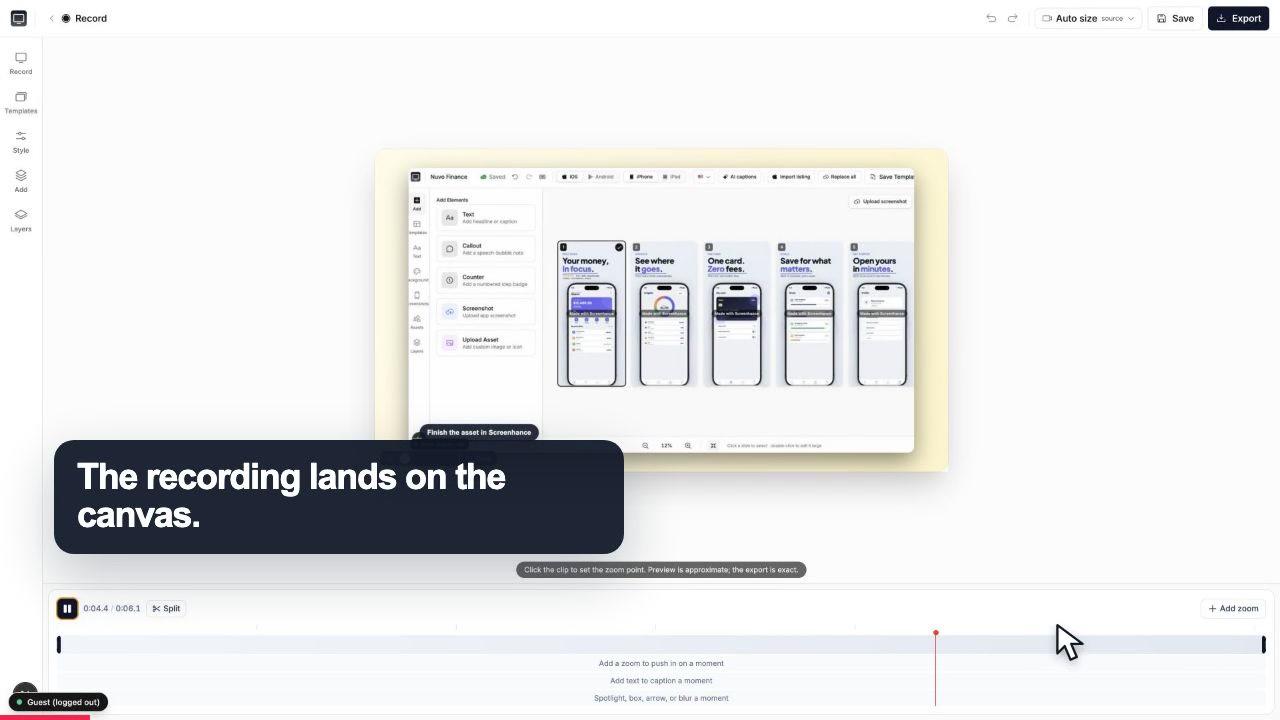
Start with the whole screen
0:07The recording lands on a clean canvas with the timeline ready underneath.
Walk new users through your product with a recording they can actually follow. Record your screen in the browser, click to zoom into the step that matters, add captions and frames, and export MP4, WebM, or GIF. No download, free to start.
Free to start · No signup to try · Works on macOS, Windows and Linux
Record, guide the eye, and export. The whole thing happens in one browser tab.
Capture your product flow right in Studio, with your webcam in the corner if you want a face on it. No download, and it works on macOS, Windows, and Linux.
Click to place a zoom on the exact button or field the user needs to see, then wrap the recording in a device or browser frame over a clean background. Add captions, annotations, and stickers.
Pick square, portrait, or landscape and export MP4, WebM, or GIF: a social clip, a YouTube walkthrough, or a landing-page hero from one recording.
The reason most onboarding videos lose people is that everything on the screen is the same size. A new user does not know where to look, so they look everywhere, and by the time they find the button you meant, you have moved on. A raw full-screen recording asks the viewer to do the work of finding the important thing in every frame.
Studio flips that. As you record, you click to place a zoom on the exact part of the recording that matters right then: the field to fill in, the toggle to flip, the menu item that is easy to miss. The viewer's eye is guided to it. That single feature is the difference between a video someone watches to the end and one they close after ten seconds, and it is why a Studio walkthrough reads as a guided tour rather than a screen dump.
Around the zoom you get the rest of the polish in the same place: captions in custom fonts to name each step, annotations and stickers for emphasis, and a realistic device or browser frame set on a clean background so the finished video looks like part of your product. Start from a demo-video template and the on-brand look is there from the first take.
The recording lands on a clean canvas with the timeline ready underneath.
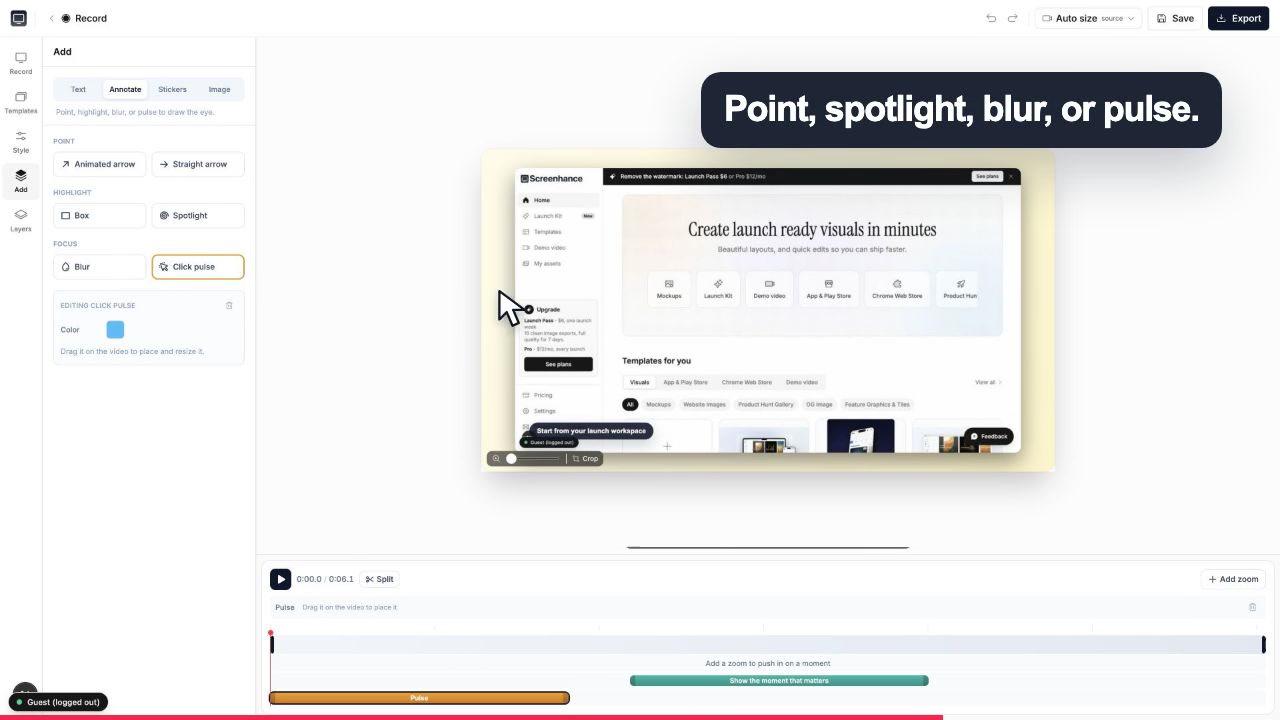
A click pulse and caption make the exact interaction obvious before the camera moves.
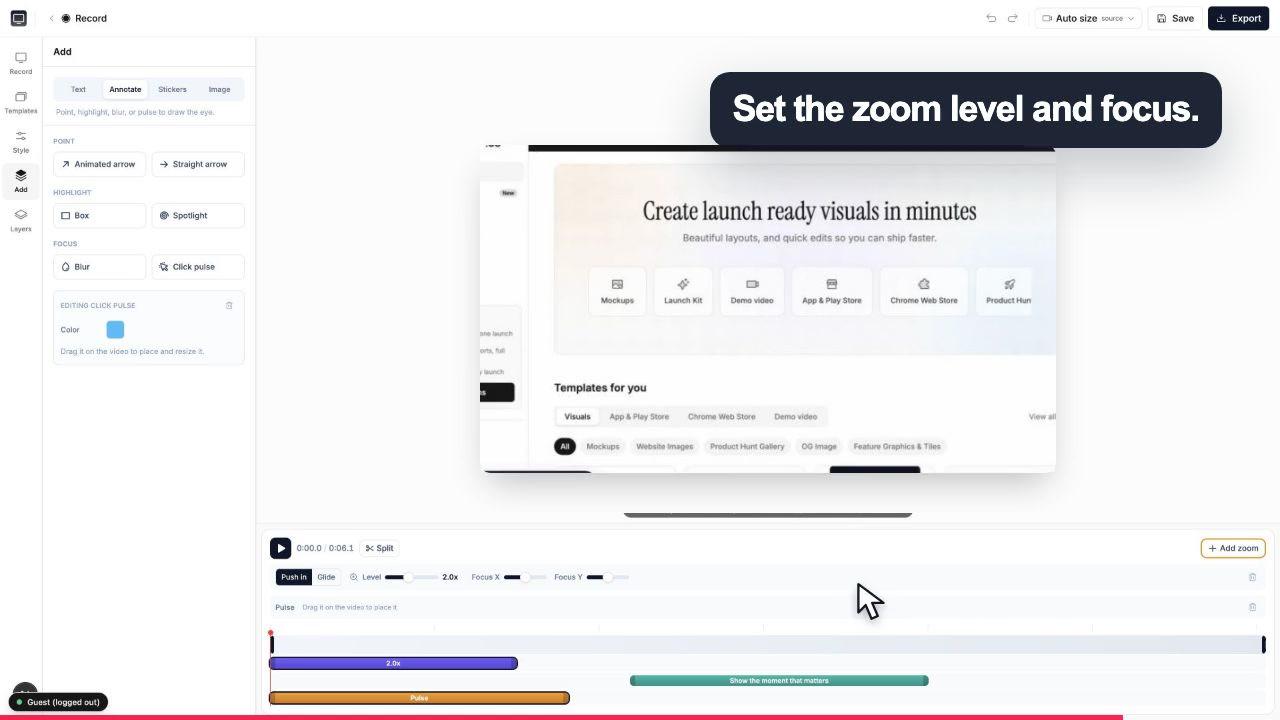
Choose the zoom level and focal point while the real controls stay visible around the canvas.
Record, guide, brand, and export without stitching three apps together.
The signature move. Guide the viewer's eye to the exact part of the screen that matters at each moment, so a busy interface becomes a clear, followable walkthrough instead of a flat recording people scrub past.
Set your recording inside realistic device frames or macOS and browser window chrome, over gradient and preset backgrounds, so the onboarding video looks designed rather than screen-grabbed.
Add captions in custom fonts, point things out with annotations, and drop stickers where you need emphasis. The important steps get called out on screen without a separate editing app.
Start from demo-video templates tuned for product walkthroughs, so the first version is already on-brand and you spend your time on the flow, not the layout.
Square for feeds, portrait for stories and shorts, landscape for YouTube and landing pages. Re-target the same recording for a new placement without re-recording it.
Export MP4 or WebM for full video, or GIF for a lightweight loop you can embed in docs, a changelog, or a help-center article. Free to start; a small watermark on free exports.
The quiet cost of onboarding videos is not making the first one, it is keeping it honest. Ship a redesign, rename a menu, move a button, and a video produced in a heavyweight editor is suddenly wrong and expensive to fix, so it lingers and quietly teaches new users the old interface.
Because Studio lives in the browser and keeps your frames, captions, and template together, re-recording the step that changed and rebuilding the export is a quick edit rather than a reopened production. You keep the same look, swap the stale footage, and re-export in the same tab. That is what makes an onboarding video maintainable instead of a one-time asset that rots.
And it is the same tool that produces your App Store screenshots, device mockups, and OG images, so every launch visual comes out of one place. It is part of Launch Kit.
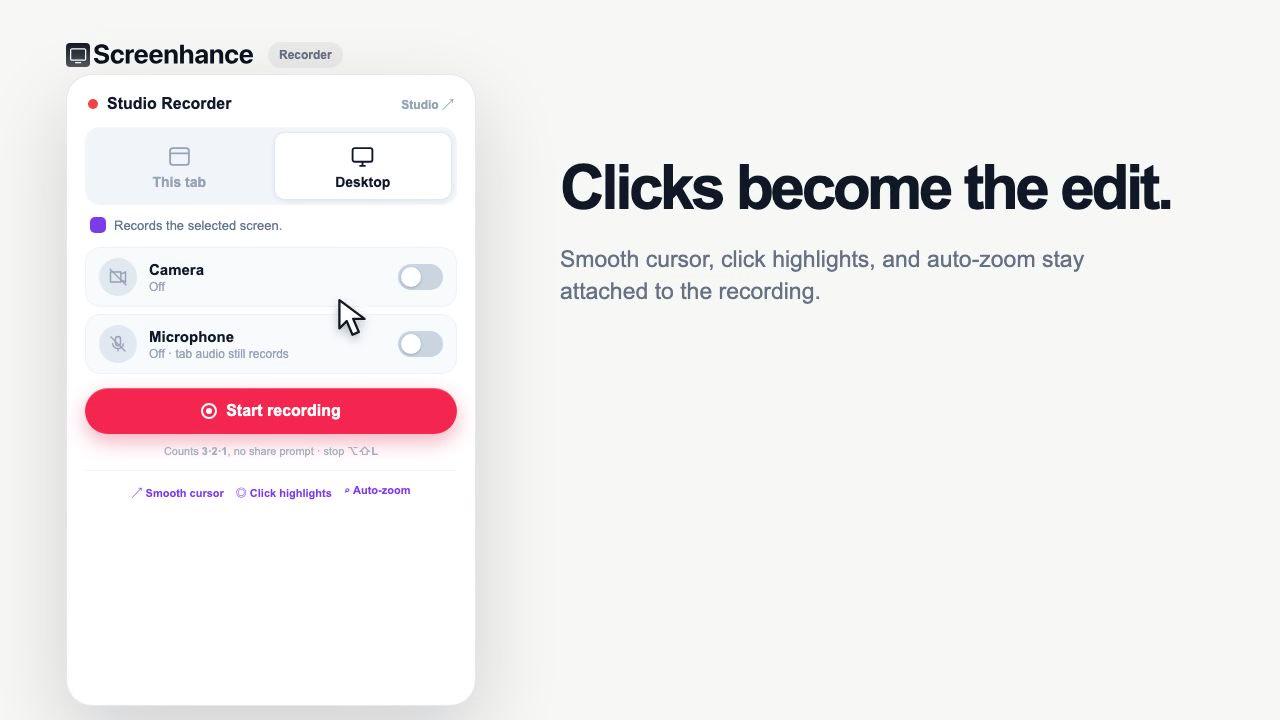
The extension keeps the cursor path and clicks with the take.
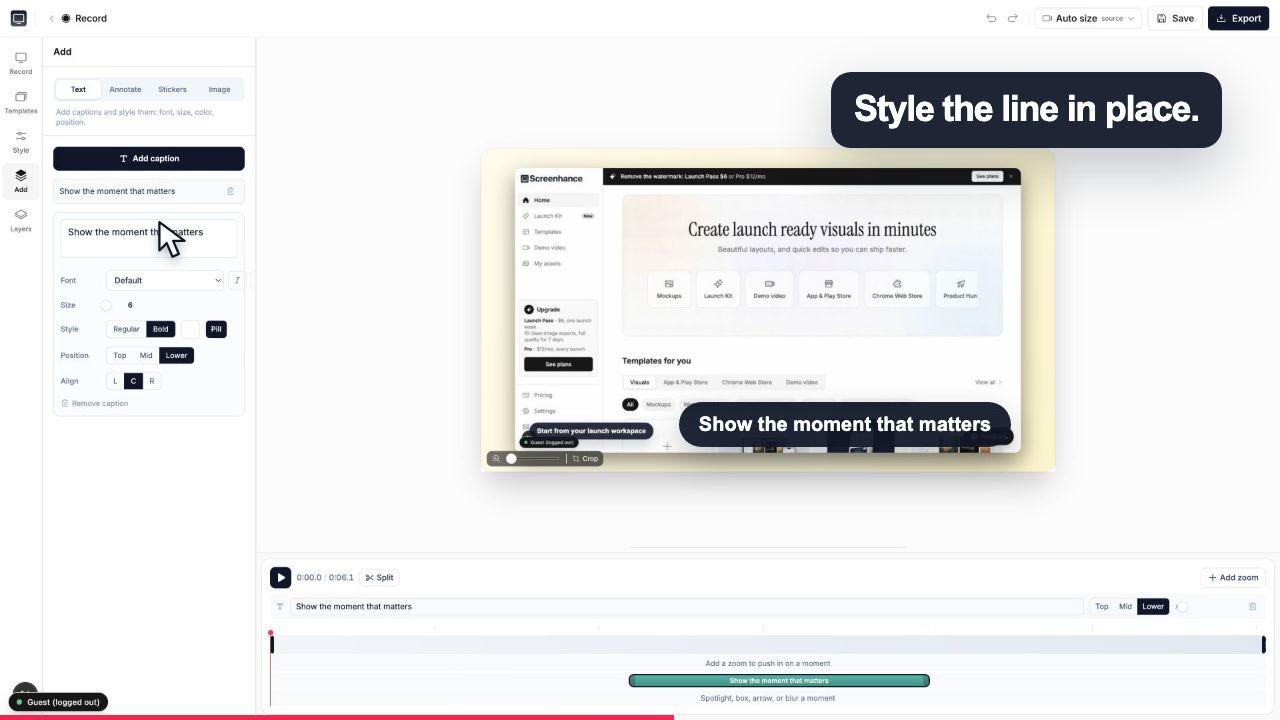
Add captions, effects and timing without leaving the browser.
A short, zoomed walkthrough does the explaining. Three places it earns its keep:
Show a new user the first three things to do and the moment the product clicks. A zoomed, captioned clip beats a checklist nobody reads.
Ship a feature and a short demo the same day. Frame it, zoom the new control, export a landscape clip for the changelog and a square one for the feed.
Answer 'how do I do that?' with a GIF that points at the exact step, embedded right in the help article, instead of a paragraph of directions.
An onboarding video walks a new user through your product: where to click first, what each screen does, and how to reach the moment the product actually pays off. For SaaS and mobile apps it usually takes the form of a short screen recording with the important steps called out, so someone can watch it once and know what to do instead of reading a wall of documentation.
Open Studio in your browser and record your screen, optionally with your webcam in the corner. As you demo the flow, click to place a zoom on the exact part of the screen the user needs to notice. Then wrap the recording in a device or browser frame, drop it on a background, add captions and any annotations, and export. There is nothing to download, and it works on macOS, Windows, and Linux.
No. Studio is browser-based, so recording and editing both happen on app.screenhance.com/studio with no app to install and no operating-system lock-in. It runs on macOS, Windows, and Linux from the same page.
Yes, and it is the signature feature. Instead of recording at one flat zoom level, you click to place a zoom on the exact button, field, or menu that matters at that point in the video. The viewer's eye follows the zoom to the thing you want them to see, which is the difference between a recording people tune out of and one they can actually follow.
Yes. Add captions with custom fonts, plus annotations and stickers, and set the recording inside realistic device frames or macOS and browser window chrome over gradient and preset backgrounds. Ready-made demo-video templates give you an on-brand starting point so the video looks like it belongs to your product rather than a raw screen grab.
You can export MP4 and WebM for video, plus GIF for lightweight embeds. Aspect ratios cover square, portrait, and landscape, so the same recording can become a social clip, a YouTube walkthrough, or a landing-page hero without re-recording.
It is free to start. Free exports include a small Screenhance watermark. Removing it from video takes Pro at $12 per month or $99 per year, which unlocks watermark-free exports across the tool; the one-time $6 Launch Pass removes it from image exports only (10 over 7 days), so video stays watermarked on it.
You re-record the part that changed and rebuild the video in the same browser tab, reusing your frames, captions, and template so it stays on-brand. Because setup lives in Studio rather than in a heavyweight editor project, keeping an onboarding video current after a redesign is a quick edit rather than a from-scratch production.
Still weighing it? The editor is free and opens in one click: open Studio →
Record, edit, frame, and export the next version of your product video.
Frame, caption, zoom, and export a raw recording as a polished MP4
Start creatingRecord, zoom, and export MP4 demo videos for SaaS
Start creatingRecord, zoom into each step, and export a how-to video
Start creatingRecord a tab with cursor and click data for smooth motion and auto zoom
Start creatingRecord your screen and click to place a guiding zoom
Start creatingRecord screen + webcam with click-to-place zoom and export MP4
Start creatingRecord, zoom into what matters, frame and caption it, and export MP4, WebM, or GIF. Browser-based, no download, free to start.