ScreenhanceBeta
✦ New · Screenhance Studio

Explainer Video Maker

Turn a screen recording into a polished product explainer video, right in your browser. Record what you want to show, click to zoom into the part that matters, wrap it in a device frame, and export an MP4. No animation skills, no downloads.

Olivia RhyePhoenix BakerLana SteinerDemi WilkinsonDrew Cano
4.9

Loved by 2,000+ creators

A product walkthrough recorded and framed in Screenhance Studio, the browser-based explainer video maker

Record in the browser, place a zoom on the moment that matters, frame it, and export. Studio is part of Screenhance Launch Kit, the same tool behind your App Store screenshots and OG images.

From Screen Recording to Explainer in Three Steps

The fast path is record, then zoom and frame, then export. No timeline wrangling and no animation software.

1

Record your screen

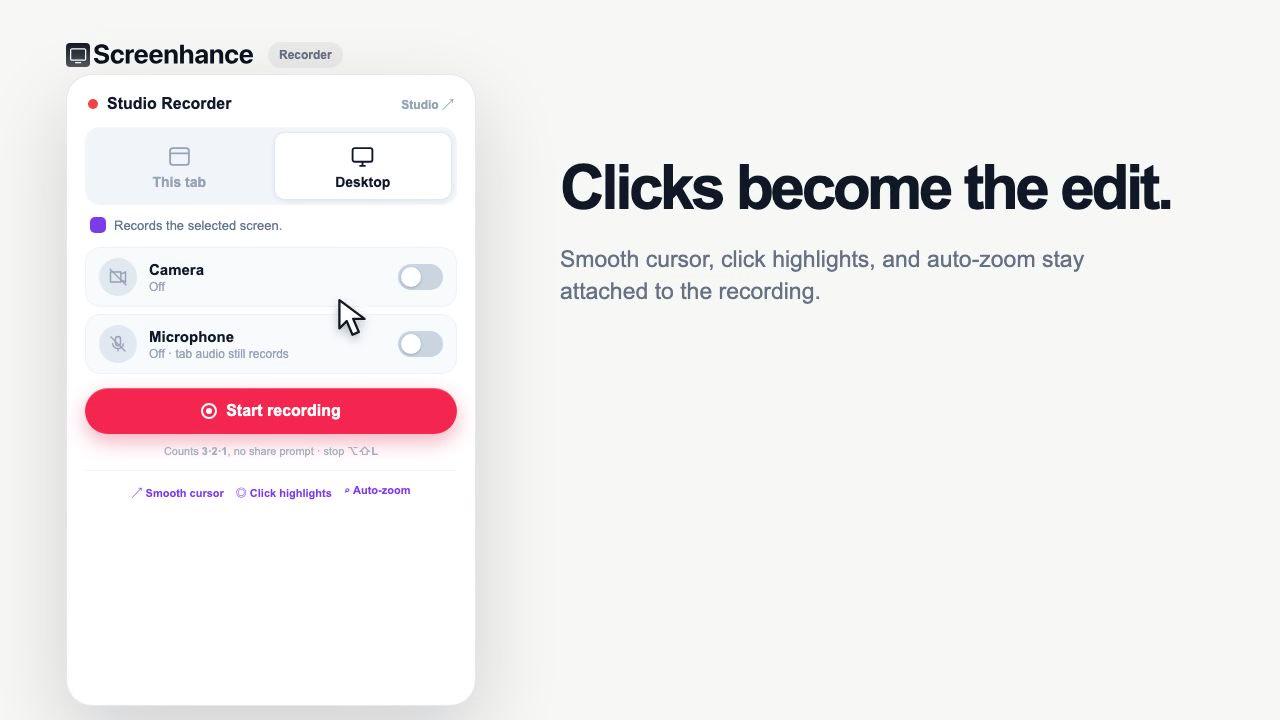
Hit record and walk through your product in the browser. No download, and it works on macOS, Windows, and Linux. Add your webcam if you want a presenter bubble, or keep it screen-only.

2

Zoom and frame

Click the exact spot the viewer should look at and Studio zooms into it. Wrap the recording in a realistic device frame or window chrome over a gradient background, then add captions, annotations, and stickers.

3

Export and share

Choose square, portrait, or landscape for social, YouTube, or a landing-page hero, and export as MP4, WebM, or GIF. Start from a ready-made template if you want a running start.

Everything a Software Explainer Needs

One browser editor takes your raw capture to a finished demo. No second tool, no export-import shuffle.

Click-to-place zoom

The signature feature. Click the button, field, or result you are explaining and Studio zooms into it, then smoothly returns. It guides the viewer's eye so a plain screen capture reads as an intentional walkthrough.

Browser screen + webcam recording

Record your screen, and optionally your webcam, without installing anything. It runs on macOS, Windows, and Linux, so the whole team can make demos on whatever machine they have.

Device frames and window chrome

Wrap your recording in a realistic device frame or macOS and browser window chrome over gradient and preset backgrounds, so a plain capture instantly looks like a produced product demo.

Captions, annotations, and stickers

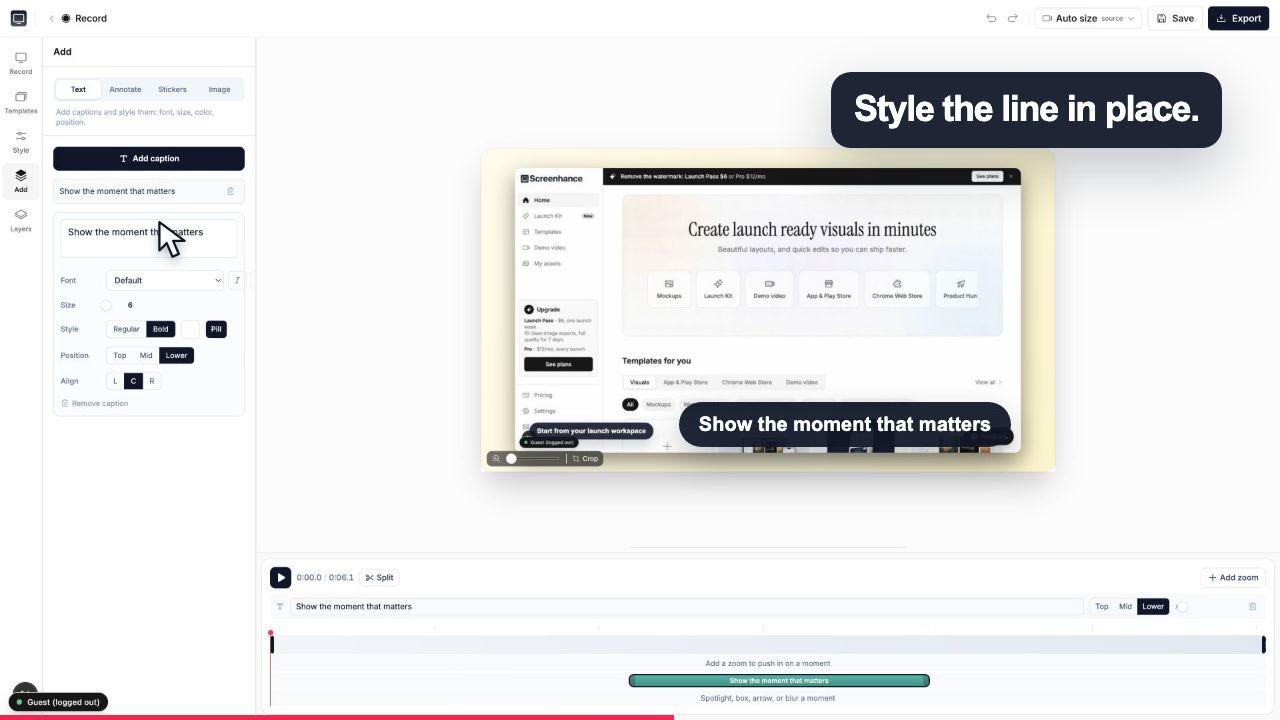
Add captions in custom fonts to narrate a step, annotations to call out a feature, and stickers for a bit of personality. All inside the editor, no round trip through a separate design tool.

Social, YouTube, and hero aspect ratios

Export the same recording as square for a feed post, portrait for a vertical short, or landscape for YouTube or a landing-page hero. Size the video for where it is going to live.

MP4, WebM, and GIF export

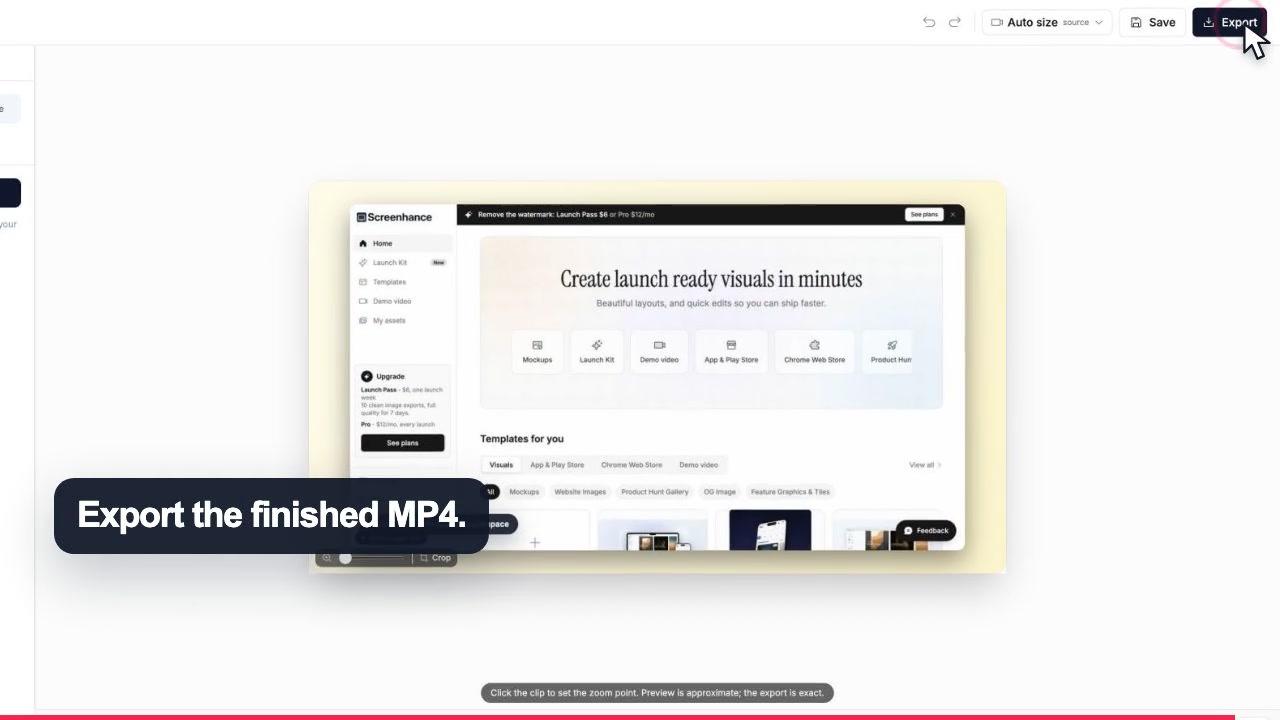
Export to MP4 or WebM for a clean video, or GIF for an inline loop in a README or changelog. Free exports carry a small watermark that the $6 Week Pass or $8/mo Pro removes.

Start From a Template, Not a Blank Timeline

Most explainer-video tools ask you to learn a motion-graphics timeline before you can show anyone anything. That is the wrong tax to pay when all you want is to demonstrate that your feature works. Studio flips it around: the video is your real screen recording, and the editing is a handful of clicks on top of it. You record the flow, drop a zoom on the moment that matters, and you are most of the way to a finished explainer.

Ready-made demo-video templates give you an on-brand starting point so the first version does not look like a raw capture. Pick a template, swap in your recording, and the frame, background, and pacing are already handled. It is genuinely a record-to-export workflow, which is why it fits a launch day instead of blocking one.

And because Studio is part of Screenhance Launch Kit, the same place that makes your App Store screenshots, device mockups, and OG images, your explainer video shares a visual style with the rest of your launch assets. One tool, one look, every surface.

What People Make in Studio

A product explainer is the same core recording, sized and framed differently for where it needs to go.

Landing-page demo

A landscape hero video that shows your product working in the first five seconds. Frame it, zoom on the key interaction, and export an MP4 that autoplays above the fold.

Social and shorts

A square or portrait clip for a feed post or a vertical short. Add captions so it reads with the sound off, and export the aspect ratio the platform wants.

Feature announcements

A short walkthrough of a new feature for a changelog, a launch tweet, or an onboarding email. Export a GIF for an inline loop or an MP4 for the announcement.

How It Works

Create professional mockups in three simple steps. No design skills required.

Step 1

Upload your screenshot

Drag and drop or select any screenshot, design, or image from your device.

Step 2

Choose frame & background

Pick from iPhone, iPad, MacBook, browser frames and beautiful gradient backgrounds.

Step 3

Export & share

Download as PNG, WebP, JPEG, GIF, or video. Ready for marketing in seconds.

Why Choose Screenhance?

Two capabilities that separate Screenhance from every other mockup tool in 2026: animated exports and App Store screenshot localization.

Animated GIF & WebM exports

Template-driven motion — float, reveal, parallax. Export animated mockups at Product Hunt, landing-page, and Twitter/X dimensions. Most mockup tools are static-only.

App Store localization in 80+ languages

One master design, per-locale captions, every required Apple and Google Play size per language. RTL and CJK support. Apple reports localized listings drive 2-3x install lifts.

Every required Apple & Google size

iPhone 17 Pro Max (1320×2868), iPhone Air (1260×2736), iPad Pro M4 (2064×2752), and the full Google Play set — exported from one design in a single pass.

30 seconds, zero design skills

Pick a template, drop in your screenshot, export. No Figma, no Photoshop, no learning curve. Free tier covers 3 exports a month; $6 Week Pass unlocks unlimited for a launch.

Frequently Asked Questions

What is Screenhance Studio?

Studio is a browser-based screen and webcam recorder plus demo-video editor. You record your screen right in the browser, then zoom into the parts that matter, wrap the recording in a device frame or window chrome, add captions, and export a finished explainer video as MP4, WebM, or GIF. There is nothing to download, and it runs on macOS, Windows, and Linux.

Do I need animation skills to make an explainer video?

No. That is the whole point of the record-then-zoom approach. You are not keyframing motion graphics; you record a normal screen walkthrough of your product, then click to place a zoom on the exact spot the viewer should look at. The frames, backgrounds, and templates handle the polish, so the finished video looks produced without you touching an animation timeline.

How does click-to-place zoom work?

As you review your recording, you click the part of the screen you want to emphasize and Studio zooms into it, then smoothly returns. It guides the viewer's eye to the button, field, or result you are talking about, which is the difference between a raw screen capture and an explainer that actually explains. It is Studio's signature feature and the fastest way to make a demo feel intentional.

Can I record my webcam along with my screen?

Yes. Studio records your screen and, optionally, your webcam at the same time, so you can add a talking-head or presenter bubble to your walkthrough. If you would rather keep it screen-only, you can do that too. Either way the recording happens in the browser with no separate app to install.

What aspect ratios and export formats does it support?

You can export in square, portrait, or landscape, which covers a social feed post, a vertical short, a YouTube upload, or a landing-page hero from the same recording. Exports come out as MP4, WebM, or GIF. Free exports include a small Screenhance watermark; the $6 Week Pass or $8/mo Pro removes it.

Is it free to make an explainer video?

Yes, it is free to start and free to export. Free exports carry a small Screenhance watermark. If you want a clean, watermark-free video, the $6 Week Pass covers a launch week and the $8/mo Pro covers ongoing use. Everything else, the recording, the zoom, the frames, the captions, the templates, is available while you build.

Can I add captions, annotations, and stickers?

Yes. Studio lets you add captions with custom fonts, plus annotations and stickers, so you can label a step, call out a feature, or add a little personality without leaving the editor. It also wraps your recording in realistic device frames and macOS or browser window chrome over gradient and preset backgrounds, so the final clip looks on-brand.

Is this the same tool that makes my App Store screenshots?

Yes. Studio is part of the same Screenhance Launch Kit that produces your App Store screenshots, device mockups, and OG images. That means one place, and one consistent visual style, for every launch visual, whether you are exporting a still for the store or a moving explainer for your landing page.

✦ New · Launch Kit

Your whole launch, from one brief

One brief covers your whole launch: App Store, Play Store, Product Hunt, OG, and website visuals. Upload your screenshots once and Launch Kit generates them all, on-brand and matching.

Make Your First Explainer Video Today

Record your screen, click to zoom, frame it, and export an MP4. Free to start, in the browser, no animation skills required.