
How to Make App Store Screenshots That Convert in 2026
A practical guide to accurate App Store screenshot sizes, clear visual storytelling, localization and Product Page Optimization testing.
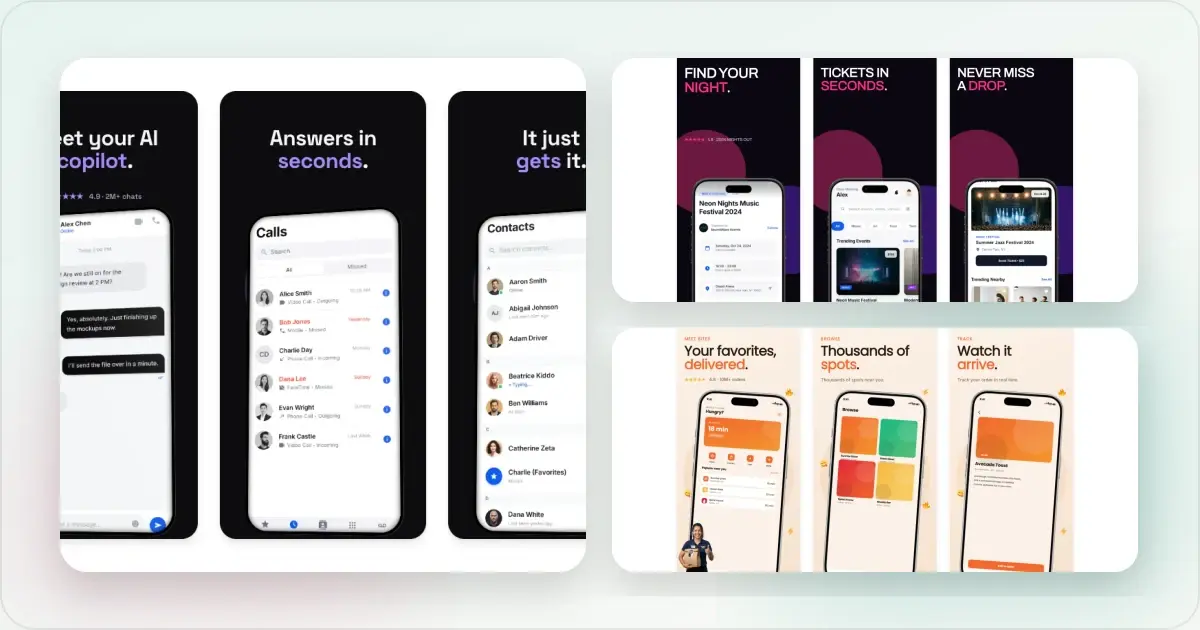
App Store screenshots can help someone understand an app before downloading it, but there is no universal “high-converting” layout, headline length or number of slots. What works depends on the product, audience, storefront and traffic source.
A better process is to start with accurate screenshots, make the value easy to scan, and use Apple's Product Page Optimization to test meaningful alternatives. This guide separates Apple's actual requirements from design choices you should validate for your own app.
Build supported App Store variants from one editable design with the App Store screenshot generator, or start with the complete App Store screenshots guide.
The 2026 App Store screenshot sizes you need
Apple allows one to ten screenshots in .jpeg, .jpg or .png format. Images cannot contain alpha channels or transparency. Its live screenshot specification lists every accepted portrait and landscape size.
iPhone screenshot dimensions (2026, post-iPhone 17 launch)
| Display class | Accepted portrait sizes |
|---|---|
| 6.9-inch | 1260 × 2736, 1290 × 2796 or 1320 × 2868 |
| 6.5-inch | 1242 × 2688 or 1284 × 2778 |
| 6.3-inch | 1179 × 2556 or 1206 × 2622 |
| 6.1-inch | 1080 × 2340, 1125 × 2436 or 1170 × 2532 |
| 5.5-inch | 1242 × 2208 |
Make App Store screenshots that convert
For landscape, reverse the dimensions. iPad, Mac, Apple TV, Apple Watch and Vision Pro have separate tables.
You do not necessarily need a custom image for every smaller display class. App Store Connect can scale down the highest-resolution screenshots when the interface is the same. Use Media Manager to provide custom assets when a device or localization needs a different composition. Apple's upload guide explains that workflow.
Because Apple updates the supported device list, treat the official table—not an old template—as the release checklist. If App Store Connect already flagged yours, use the App Store screenshot size checker and compare the result with Apple's current table.
Why App Store screenshots actually move the needle
Screenshots are part of the product page's explanation. They can affect whether a visitor understands the app well enough to download, but Apple does not publish a universal percentage for how much each slot contributes.
Use App Store Connect to measure product-page conversion for your own app. When you change the screenshots, account for simultaneous product releases, paid campaigns, seasonality and storefront mix before attributing movement to the creative.
Plan the story before choosing a template
Start with the questions a prospective customer needs answered, not a rigid seven- or ten-slide framework.
For many apps, the useful sequence is:
1. What outcome does the app provide? Show the screen that makes the answer obvious.
2. How does the core task work? Use the strongest real interface, not a decorative splash screen.
3. Why is this product a good fit? Demonstrate a meaningful capability or constraint such as offline use, collaboration or privacy—only if true.
4. What else matters before downloading? Show a second workflow, supported device experience or relevant use case.
5. What proof can you substantiate? If you use a rating, award or customer figure, keep evidence and update the asset when it changes.
Some products need three screenshots; others benefit from eight. Apple provides up to ten, not a requirement to fill ten. Preview the whole carousel and remove a slot if it merely repeats another one.
Headline copy that converts
There is no Apple rule requiring a three-word headline or an 80-point font. Readability depends on the export size, composition, language and how the store displays the asset.
The font guide for app screenshots compares fourteen families that are available in Screenhance and explains which ones suit compact captions, metrics, and more expressive launch headlines.
Use these practical checks instead:
- give each screenshot one main idea;
- state a specific outcome or capability in plain language;
- avoid “all-in-one,” “revolutionary” and other claims that explain nothing;
- use text large enough to read in a product-page preview, not just on the full canvas;
- keep key words away from crop-prone edges;
- check contrast and do not rely on color alone to convey meaning;
- shorten translated copy only after a fluent speaker confirms the meaning is intact.
“Split a bill in seconds” is useful if the screen visibly shows that workflow. “The ultimate finance revolution” is not.
Device frames: which ones, when
Device frames are a design choice, not an App Store requirement and not a guaranteed conversion lift. A frame can clarify device context or make room for a caption. It can also shrink the interface until important details disappear.
Compare both approaches at the size customers will see:
- a full-bleed crop when the interface itself is the story;
- a restrained device frame when hardware context helps;
- a simple background with enough contrast to separate the screen;
- a connected multi-image composition only when each individual screenshot still makes sense.
Use a frame that matches the captured interface and supported product. Avoid treating a newer hardware silhouette as proof that an app is maintained; the actual UI and metadata need to stay current. You can build either treatment with the App Store screenshot generator or iPhone mockup generator.
Backgrounds: gradient, solid, or photo
Solid colors, subtle gradients, patterns and photography can all work. None is universally better. The background should preserve legibility and visual hierarchy rather than advertise a design trend.
Check the asset in context:
- Can you identify the important part of the UI without zooming?
- Does the caption remain readable on a phone?
- Is the contrast strong enough at every edge of the device or screenshot?
- Does a texture, photograph or glow compete with the feature being demonstrated?
- Does the sequence still feel consistent after localization?
If the answer is unclear, simplify the background before adding more decoration.
Localization: which markets, what to translate
App Store Connect lets you upload screenshots and App Previews for individual localizations. If you do not provide a localized preview, Apple may show the next best available language for that storefront.
Choose priorities from your own product-page impressions, downloads and supported languages. Then localize all visible meaning, including:
- headline and supporting copy;
- in-app UI where the localized product supports it;
- currency, units, dates and example content;
- right-to-left layout for languages the product actually supports;
- the claims or use cases that matter in that market.
Do not assume localization has a fixed conversion multiplier. Publish a well-reviewed set, then compare performance for that locale. The App Store screenshot localization guide has a detailed quality checklist.
A/B testing screenshots
Apple's Product Page Optimization can compare up to three alternate treatments containing app icons, screenshots or App Previews. A test can run for up to 90 days. App Analytics reports conversion rate, estimated relative lift and a credible interval, and labels a result when the evidence reaches Apple's confidence threshold. Read Apple's PPO overview and analytics guidance before you launch one.
A useful screenshot test has a clear question:
- Does an outcome-led first image work better than a feature-led first image?
- Does showing the core UI at a larger scale help?
- Does a localized treatment improve the intended storefront?
- Does a preview video add value for this product?
Keep unrelated elements stable so you can interpret the result. Choose traffic allocation and expected improvement using Apple's estimate, then let the test gather enough evidence. A fixed “5,000 views” or “14 days” rule ignores the app's baseline conversion, traffic and effect size.
Treat an inconclusive result as information. It may mean the difference is too subtle or the app cannot gather enough data within the test window—not that either treatment is universally correct.
Check accuracy before App Review
Apple's App Review Guidelines section 2.3 covers accurate metadata. Before submission, verify that the screenshots:
- use an accepted pixel size and file type;
- show the current app in use rather than only title art, a login page or a splash screen;
- do not advertise hidden, dormant or unreleased features;
- avoid pricing information and unverifiable product claims;
- use fictional account information instead of a real person's data;
- contain only imagery and trademarks the publisher has a right to use;
- focus on the Apple-platform experience rather than another mobile platform;
- remain suitable for a 4+ audience even if the app itself has a higher age rating.
Apple does not publish a ranked list or percentage breakdown of screenshot rejection causes, so treat this as a source-backed preflight checklist rather than a claim about what is “most common.”
Accessibility in screenshots
Store artwork is not a substitute for an accessible app, but it should still be easy to understand:
- use strong text-to-background contrast;
- do not communicate critical meaning through color alone;
- preview copy at the size used on the product page;
- avoid placing important details near crops or behind hardware frames;
- use realistic fictional content rather than lorem ipsum or real personal data.
There is no universal point-size threshold for an App Store screenshot. Judge legibility in the rendered context and increase the text or simplify the composition when it fails.
A maintainable production workflow
Xcode Simulator (for raw screenshots)
Xcode Simulator can capture the underlying iOS interface. Use a public-release-equivalent build and fictional data, then check the resulting pixels against the destination display class.
Screenhance (for the framed marketing screenshots)
Screenhance can add device frames, backgrounds and captions, then export supported App Store sizes from one editable design with the App Store screenshot generator. The tool speeds up production; your team still owns the product claims, localization review and final App Store Connect validation.
Figma (for full creative control)
Figma is useful when a team already has a component system and needs precise manual layouts. Create artboards only from the current accepted dimensions and keep localized variants tied to the same source content.
Review the finished set as a customer would
Export the complete sequence, view it at product-page scale and ask someone unfamiliar with the app to explain what it does. If their interpretation differs from the product, revise the story rather than adding more decoration.
You can study current listings in the same category for vocabulary and information hierarchy, but do not infer that a visual pattern caused their ranking or conversion. Use those observations to form a testable hypothesis for your own page.
Frequently Asked Questions
How many App Store screenshots should I upload?
Apple accepts one to ten. Use enough to explain the app without repeating yourself. The right count should come from the product story and, where traffic allows, a Product Page Optimization test.
What size should App Store screenshots be in 2026?
It depends on the display class. The current 6.9-inch group accepts 1260 × 2736, 1290 × 2796 or 1320 × 2868 in portrait. Check Apple's screenshot specification for every supported target before exporting.
What should the first App Store screenshot show?
Start with a real screen that helps the intended audience understand the app's primary outcome. A short plain-language caption can help, but its length should follow the design and localization rather than a universal word count.
Are device frames required for App Store screenshots?
No. Apple's rules focus on accurately showing the app in use. A frame is optional; use it only when it improves context without making the interface hard to see.
How do I make App Store screenshots without a designer?
Capture the current app in Xcode Simulator, then use an editor or the App Store screenshot generator to compose the UI, caption and background. Export an accepted size and compare every visible claim with the released build before upload.
Can I A/B test App Store screenshots?
Yes. Product Page Optimization can test up to three treatments with alternate screenshots, previews or icons for eligible iOS and iPadOS product pages. Use App Analytics' reported lift, interval and confidence to interpret the outcome instead of an arbitrary view threshold.
What gets App Store screenshots rejected by App Review?
Apple does not publish a ranked list of rejection reasons. Check the accepted dimensions and the Accurate Metadata rules: screenshots should show the current app in use, use fictional personal data, avoid pricing and unverifiable claims, and focus on the Apple-platform experience.
Related reading
- App Store Screenshot Dimensions 2026: Every Size in One Chart
- App Store Screenshot Localization Guide
- ASO Screenshot Best Practices 2026
- App Store Screenshot Generator
- Play Store Screenshot Generator
- iPhone Mockup Generator
The takeaway
Accurate, readable and current screenshots are the baseline. A clear product story, careful localization and evidence from Product Page Optimization are how you improve from there. Avoid universal conversion claims and rigid slot formulas: make a credible hypothesis, show the real app and let your own store data decide.
Check your image dimensions
Check the pixel size and file format for App Store screenshots. Files stay in your browser and are not stored.
This checks dimensions and file type only. Check the selected display slot, colour profile, transparency and artwork separately. A matching size does not guarantee store approval.
Accepted App Store screenshot sizes
- iPhone · Duo outer: 1398 × 2034 (landscape 2034 × 1398)
- iPhone · Duo inner: 2007 × 2853 (landscape 2853 × 2007)
- iPhone · Dynamic Island (large display): 1260 × 2736 (landscape 2736 × 1260)
- iPhone · Dynamic Island (large display): 1320 × 2868 (landscape 2868 × 1320)
- iPhone · Dynamic Island (large display): 1290 × 2796 (landscape 2796 × 1290)
- iPhone · Face ID (large display): 1284 × 2778 (landscape 2778 × 1284)
- iPhone · Face ID (large display): 1242 × 2688 (landscape 2688 × 1242)
- iPhone · Dynamic Island (medium display): 1179 × 2556 (landscape 2556 × 1179)
- iPhone · Dynamic Island (medium display): 1206 × 2622 (landscape 2622 × 1206)
- iPhone · Face ID (medium display): 1170 × 2532 (landscape 2532 × 1170)
- iPhone · Face ID (medium display): 1125 × 2436 (landscape 2436 × 1125)
- iPhone · Face ID (medium display): 1080 × 2340 (landscape 2340 × 1080)
- iPhone · Home Button (large display): 1242 × 2208 (landscape 2208 × 1242)
- iPhone · Home Button (medium display): 750 × 1334 (landscape 1334 × 750)
- iPhone · 4": 640 × 1096 (landscape 1136 × 600)
- iPhone · 4": 640 × 1136 (landscape 1136 × 640)
- iPhone · 3.5": 640 × 920 (landscape 960 × 600)
- iPhone · 3.5": 640 × 960 (landscape 960 × 640)
- iPad · 13": 2064 × 2752 (landscape 2752 × 2064)
- iPad · 13": 2048 × 2732 (landscape 2732 × 2048)
- iPad · 11": 1488 × 2266 (landscape 2266 × 1488)
- iPad · 11": 1668 × 2420 (landscape 2420 × 1668)
- iPad · 11": 1668 × 2388 (landscape 2388 × 1668)
- iPad · 11": 1640 × 2360 (landscape 2360 × 1640)
- iPad · 10.5": 1668 × 2224 (landscape 2224 × 1668)
- iPad · 9.7": 1536 × 2008 (landscape 2048 × 1496)
- iPad · 9.7": 1536 × 2048 (landscape 2048 × 1536)
- iPad · 9.7": 768 × 1004 (landscape 1024 × 748)
- iPad · 9.7": 768 × 1024 (landscape 1024 × 768)
Specifications checked 2026-10-13. Apple’s source requirements.
Screenhance examples
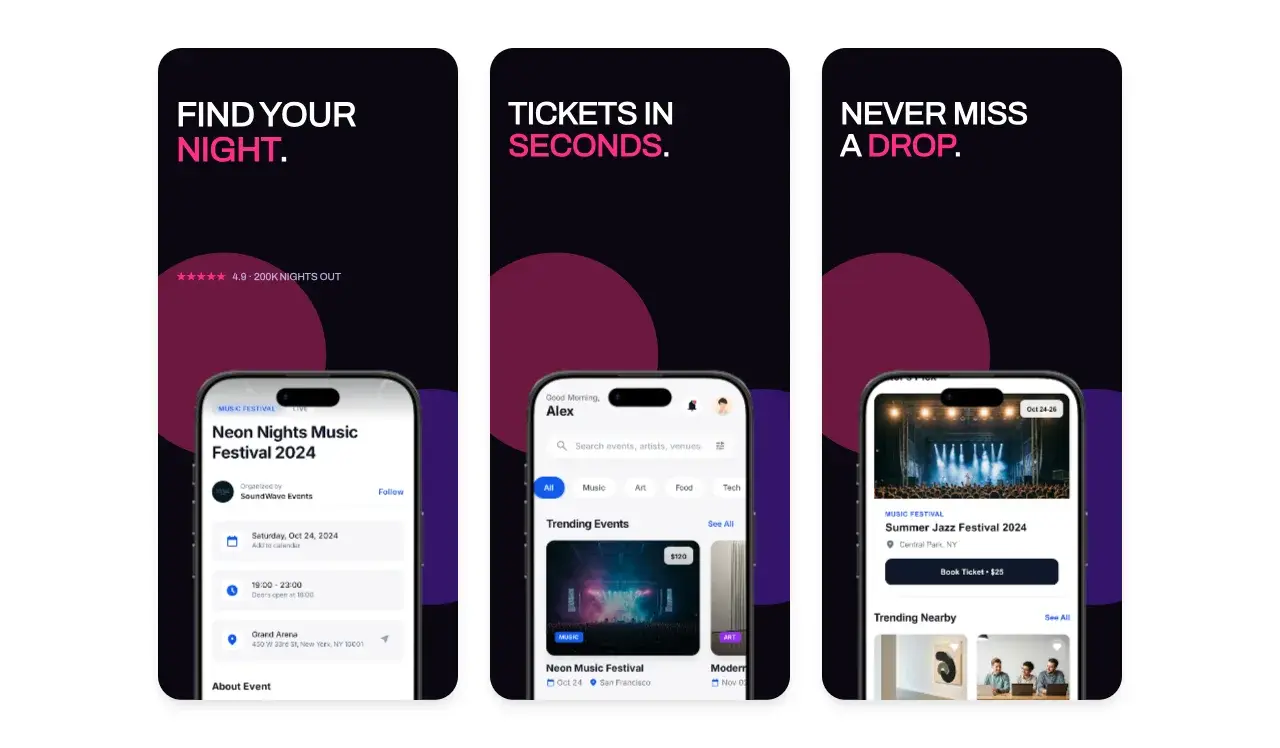
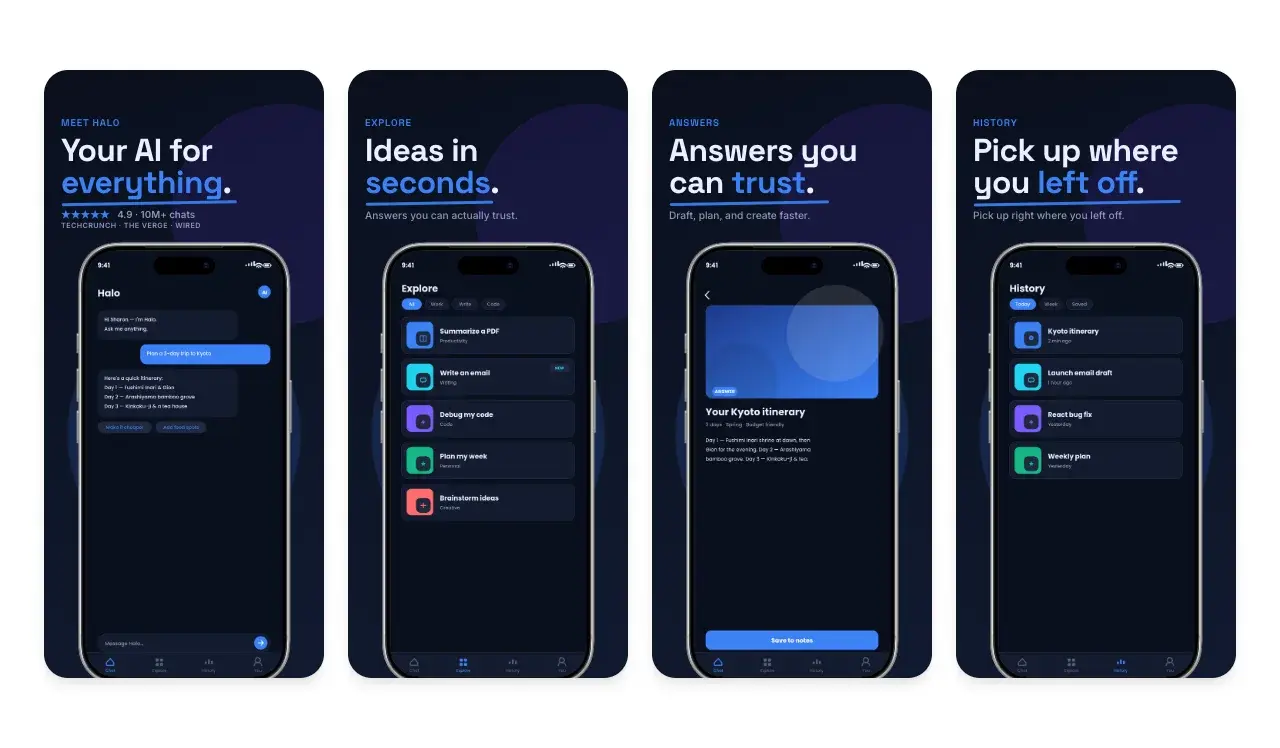
Two editable starting points from the Screenhance library, selected for this app stores guide.
Make App Store screenshots that convert
Free to start. No credit card required.
Keep reading
Related, product-tested guides from Screenhance.
Best App Store Screenshot Generators in 2026: 7 Workflows Compared
Compare seven screenshot tools by real workflow: store sizes, localized captions, editable templates, direct uploads, 3D scenes and launch assets.
15 Jun 2026 · 6 min read
How to Make App Store Screenshots Without a Designer (2026 Guide)
A practical DIY workflow for creating accurate App Store screenshots with templates, current size presets, readable captions, and final human review.
21 Apr 2026 · 8 min read
App Store Screenshots by Market: The Complete 2026 Guide
The hub for per-market App Store screenshot guides: which markets to prioritize, what to change, and how to ship every market from one master set.
9 Feb 2026 · 7 min read