
iPhone 16 Mockup Free: Create Stunning Mockups in Seconds
Need a free iPhone 16 mockup? Create professional device mockups with the latest iPhone 16 and iPhone 16 Pro frames. No Photoshop or design skills required.
You need an iPhone 16 mockup but don't want to spend hours in Photoshop or pay for overpriced templates.
Good news: you can create professional iPhone 16 mockups for free in under a minute.
What's New with iPhone 16
The iPhone 16 lineup introduced several design changes that affect how mockups look:
- A18 chip across all models (A18 Pro on Pro models)
- Camera Control button — a new physical button on the right side that's visible in mockup frames
- Action Button on all models — no longer exclusive to Pro devices
- Updated color options — new finishes for both standard and Pro models
- Slightly larger Pro displays — 6.3" and 6.9" screens
These changes mean older iPhone mockup frames won't accurately represent the iPhone 16. Use updated frames for credibility.
iPhone 16 Screen Dimensions
When creating mockups, use the correct resolution for each model:
| Model | Screen Resolution | Display Size |
|---|---|---|
| iPhone 16 | 1179 x 2556 px | 6.1" |
| iPhone 16 Plus | 1290 x 2796 px | 6.7" |
| iPhone 16 Pro | 1206 x 2622 px | 6.3" |
| iPhone 16 Pro Max | 1320 x 2868 px | 6.9" |
Make a free device mockup
iPhone 16 Color Options
Standard iPhone 16
- Ultramarine — Vibrant blue, great for creative and consumer apps
- Teal — Fresh green-blue, stands out in mockups
- Pink — Soft and approachable, good for lifestyle apps
- White — Clean and neutral, works with everything
- Black — Classic, professional look
iPhone 16 Pro
- Desert Titanium — Warm gold tone, premium feel
- Natural Titanium — Light silver-gray, clean and neutral
- White Titanium — Bright, minimal look
- Black Titanium — Dark and sleek, most popular choice
Free iPhone 16 Mockup Options
Option 1: Online Mockup Generators (Fastest)
Tools like Screenhance's iPhone mockup generator let you create iPhone 16 mockups instantly:
1. Upload your screenshot
2. Select iPhone 16 or iPhone 16 Pro as the device
3. Choose a background
4. Export
Time: Depends on the source image, styling, and review required Cost: Free (with limits) or paid for unlimited Skill required: NoneThis is the fastest option for most people.
Option 2: Figma (Free with Setup)
Figma has free iPhone 16 mockup templates in the community:
1. Create a free Figma account
2. Search the community for "iPhone 16 mockup"
3. Duplicate a template to your workspace
4. Replace the screen content with your screenshot
5. Export
Time: 5–10 minutes (first time), 2–3 minutes after Cost: Free Skill required: Basic Figma knowledgeGood if you're already using Figma for design work.
Option 3: Free PSD Templates
Sites like Freepik, Mockup World, and GraphicBurger offer free PSD templates:
1. Download the PSD file
2. Open in Photoshop or Photopea (free)
3. Replace the smart object with your screenshot
4. Export
Time: 5–15 minutes Cost: Free (but Photoshop costs $20+/month) Skill required: Photoshop basicsOnly worth it if you already have Photoshop.
Creating Your Mockup Step-by-Step
Using Screenhance (Recommended)
Step 1: Prepare your screenshot- Export from your app at native resolution (1179 x 2556 for iPhone 16, 1206 x 2622 for 16 Pro)
- Or use any clean screenshot — it will be resized automatically
- Go to app.screenhance.com
- Pick a template or start from scratch
- Select "iPhone 16" or "iPhone 16 Pro" from the device menu
- Pick your preferred color finish
- Drag and drop your image onto the device frame
- Adjust positioning if needed
- Select a background (gradient, solid, or custom)
- Adjust padding and shadow
- Add text captions if desired
- Download as PNG for best quality
- Use 2x or 3x for retina displays
Done in under a minute.
Best Practices for iPhone 16 Mockups
Show the Dynamic Island
The Dynamic Island is present on all iPhone 16 models. If your app integrates with Live Activities or the Dynamic Island, showcase it. Even if it doesn't, the Dynamic Island in the mockup frame signals a current-generation device.
Pick the Right Color
| App Style | Best Frame Color |
|---|---|
| Dark mode app | Black Titanium |
| Light/minimal app | White or Natural Titanium |
| Consumer/fun app | Ultramarine, Teal, or Pink |
| Professional/business | Natural Titanium or Desert Titanium |
Keep a Consistent Style
If creating multiple mockups for a marketing page or pitch deck, use the same device color, background style, and export resolution across all images. Inconsistency looks unprofessional.
Use High-Resolution Screenshots
Always start with the highest resolution screenshot you have. Upscaling a low-res image into a high-res mockup frame results in blurry screens that undermine the professional look of the device frame.
Where to Use iPhone 16 Mockups
App Store
Required for iOS app submissions. Mockups make screenshots more appealing than raw captures and help you stand out in search results.
Landing Pages
An iPhone 16 frame can give a hero image device context. Test it against a plain screenshot with your own audience rather than assuming either treatment will perform better.
Social Media
A polished device mockup can provide context on social media, but creative performance depends on the audience, message, and channel.
Pitch Decks
Investors expect polished visuals. Showing your app in a current-generation device signals product maturity and market awareness.
Product Hunt
Essential for launch galleries. Device frames look more professional than raw screenshots and help your launch stand out.
iPhone 16 Mockup Design Patterns That Beat iPhone 15 Patterns
The iPhone 16 inherits most of the iPhone 15 Pro's visual language, but a few hardware changes shift how the frame reads in a mockup. Using the same composition that worked for an iPhone 15 mockup on an iPhone 16 frame can quietly undercut the device's most marketable details.
Lead with the right side of the device, not the left. The Camera Control button is the headline feature on the iPhone 16, and it sits on the right edge below the power button. Mockups that show the device in a slight three-quarter view from the right side reveal Camera Control, Action Button, and the power button in one clean silhouette. iPhone 15 mockups defaulted to straight-on or left-tilted compositions because the right side was uneventful. That habit hides exactly what makes the iPhone 16 frame current.
Tighten the camera bump rendering. The iPhone 16 standard moved to a vertical pill camera arrangement instead of the diagonal layout on the iPhone 15. If you're refreshing a mockup library, that one detail is what separates "current" from "last year" to anyone who actually owns an iPhone. The Pro line kept the square plateau but Apple subtly enlarged it. Generic mockup frames built for "iPhone 15/16" often render the older camera geometry and skin a 16 label on top.
Use the new colour palette to your advantage. Ultramarine and Teal on the standard iPhone 16 are louder than anything Apple shipped on the iPhone 15 line. For consumer apps where the device frame is part of the personality of the marketing — kids' apps, lifestyle, music, dating — those colours pull the eye in a way the muted iPhone 15 finishes never did. Desert Titanium on the Pro is the inverse: warm, restrained, and quietly premium. It's the best Pro colour Apple has shipped for fintech and B2B mockups.
Mistakes to Avoid When Refreshing 2024 Mockups onto iPhone 16 Frames
The iPhone 16 launch sent a lot of teams rebuilding their mockup libraries, and the same handful of mistakes keep showing up.
Do not skip the Camera Control button in edge views. If your mockup angle shows the right side of the device but the button is missing, the frame instantly reads as an iPhone 15 with a 16 sticker. This is the single most common mismatch in cheap mockup templates floating around right now. Either use a straight-on portrait view that hides both edges, or show the right edge with Camera Control visibly rendered.
Do not pair a current device frame with stale UI chrome. If your screenshots are from an older build, regenerate them on a current simulator before dropping them into a 16-series mockup. A device frame cannot correct status-bar details already baked into the screenshot.
Do not retain iPhone 15 portrait crops. iPhone 16 Pro is a hair taller than the 15 Pro thanks to the larger display, and the corner radius math is slightly different. Reusing a 2024 screenshot at 1179 x 2556 inside a frame built for 1206 x 2622 leaves a sliver of frame visible around the screen edge. Subtle, but design-aware viewers see it. Re-export from a current iPhone 16 Pro simulator.
Do not over-rely on the new colours for every mockup. Teal and Ultramarine are striking but distinct enough that they brand the mockup as much as your app does. For an App Store screenshot set or a hero image meant to be timeless, default to Black or White on the standard and Natural or Black Titanium on the Pro. Save the loud colours for social posts where pulling the eye is the entire point.
Frequently Asked Questions
Is the iPhone 16 mockup generator really free?
Yes, tools like Screenhance offer free iPhone 16 mockup generation. Free tiers typically include basic device frames and backgrounds. Paid plans unlock premium templates, bulk export, and higher resolution options.
What's the difference between iPhone 16 and iPhone 16 Pro mockups?
The iPhone 16 Pro has a titanium frame with sharper edges, slightly larger display (6.3" vs 6.1"), and different color options. The standard iPhone 16 has an aluminum frame with rounder edges. Pro mockups generally look more premium, which is preferred for business and professional apps.
Can I create multiple iPhone 16 mockups at once?
Screenhance supports multi-page designs and coordinated store-screenshot sets. Confirm the export formats and limits required by your project before building the full set.
What export formats are available?
Most generators export as PNG (best quality, supports transparency) or JPEG (smaller file size). Some tools also support SVG and WebP. For App Store submissions and marketing materials, PNG is recommended.
Do I need to credit Screenhance?
No, mockups created with Screenhance are yours to use without attribution. You can use them for commercial projects, App Store listings, marketing materials, and client work without any credit requirement.
How accurately should the Camera Control button be rendered in mockups?
Accurately enough to look like the real device when shown at edge angles. The button sits below the power button on the right side, is slightly recessed, and runs vertically rather than horizontally. Generic frames that show it as a simple rectangle or use the same pill shape as the Action Button are giveaways. If your mockup is straight-on portrait, Camera Control isn't visible at all and accuracy is moot — but the moment you tilt the device, render it correctly or use a different angle.
Action Button versus the old Ring/Silent switch — does that matter for mockups?
It matters at the edge. The Ring/Silent switch on iPhones up through the 14 was a sliding toggle that left a visible notch in the frame. Every iPhone from the 15 Pro onward — and now the entire iPhone 16 line — replaced it with the Action Button, which is a flush, pill-shaped button. If your mockup shows the left edge of the device, the Action Button is the correct rendering. Showing the old switch notch on a 16 frame is one of the fastest ways to look outdated.
How do I show USB-C accurately on an iPhone 16 mockup?
Most iPhone 16 mockups don't show the bottom edge, so USB-C rarely matters. If your composition does include the bottom — a hero shot showing the device standing up, or a top-down flat lay — render USB-C as a centred oval port flanked by the speaker grilles. Lightning ports were narrower and asymmetric; using a Lightning silhouette on an iPhone 16 frame is a clear "this is an old template" tell.
Which iPhone 16 colour should I pick for App Store screenshots?
Black Titanium for the Pro is the safest default — it gives you maximum contrast against light app UIs and recedes against dark ones, and it photographs cleanly at thumbnail sizes. For the standard iPhone 16, White is the equivalent neutral. Reach for Desert Titanium if your brand palette skews warm or your app is in finance, productivity, or B2B. Ultramarine and Teal are best reserved for social or marketing pages where the bold colour reinforces your brand, not App Store screenshots where it can clash with whatever sits next to your listing in search results.
Can I use iPhone 16 mockups for AppleCare-style packaging compositions?
Yes, and they work well for it. The iPhone 16 box mockup style — flat device on a textured background with a hint of packaging or accessories nearby — is a strong format for hardware-adjacent apps, smart home products, and anything that sells alongside physical goods. Pair the iPhone 16 frame with a soft shadow, a muted background in the same colour family as the device, and minimal props. Skip stylised renders that don't match Apple's actual product photography conventions; the goal is to feel like Apple's marketing, not to imitate it.
Related Reading
- How to Create an iPhone Mockup: Step-by-Step Tutorial - Detailed mockup creation guide
- iPhone Mockup Generator - Create iPhone mockups online
- App Store Screenshot Dimensions 2026 - Required dimensions for every device
Conclusion
You don't need to pay for templates or learn Photoshop to create professional iPhone 16 mockups.
Use an online mockup generator for speed, Figma for more design control, or free PSDs if you already have Photoshop. The fastest path: upload your screenshot to a mockup tool and export in under a minute.
The iPhone 16 is the current flagship. Using updated device frames shows your audience that your product is modern and actively maintained. No more excuses for posting raw screenshots.
Screenhance examples
Two editable starting points from the Screenhance library, selected for this mockups guide.
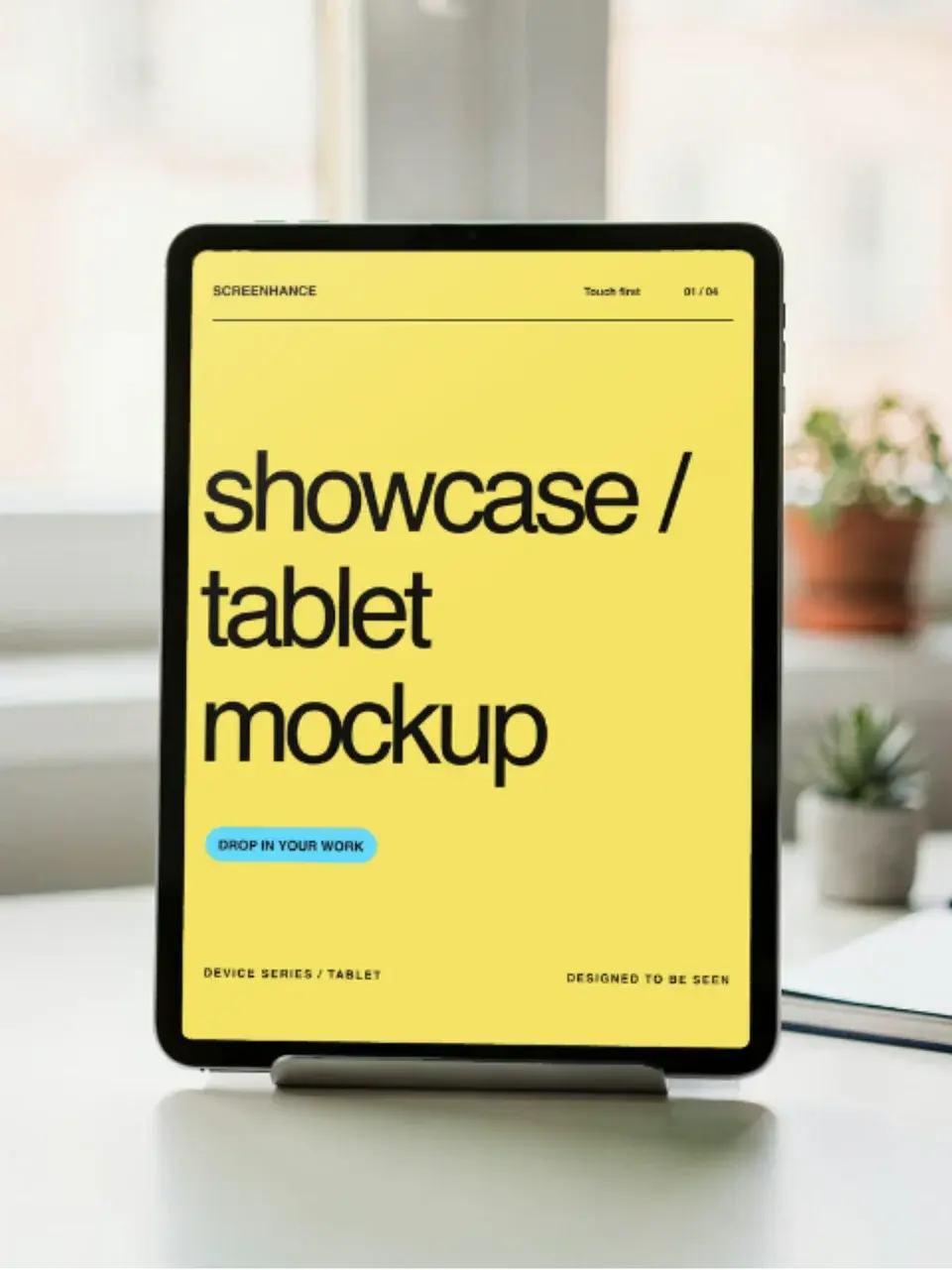
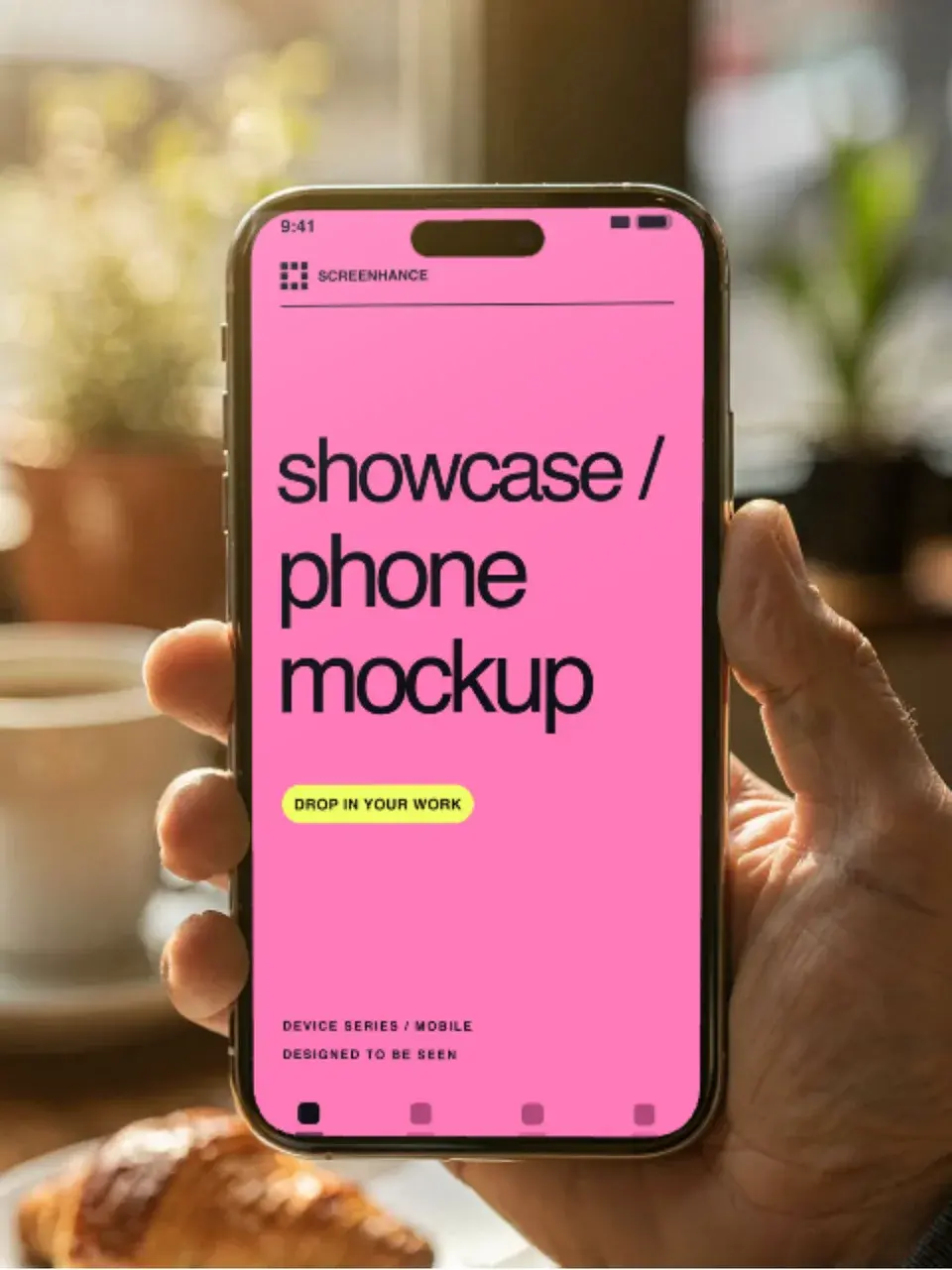
Make a free device mockup
Free to start. No credit card required.
Keep reading
Related, product-tested guides from Screenhance.
iPhone 15 Pro Mockup Free: Create Professional Mockups in Seconds
Need a free iPhone 15 Pro mockup? Here's how to create stunning device mockups without Photoshop or design skills.
21 Apr 2026 · 9 min read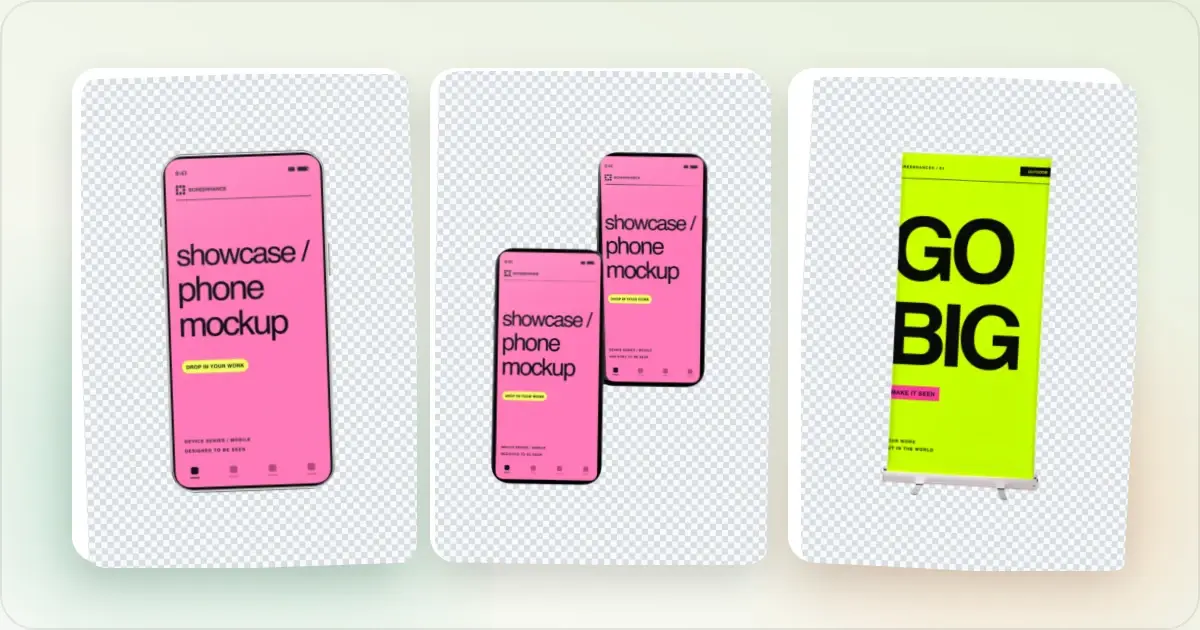
How to Create Effective iPhone Mockups
Make an iPhone mockup from your screenshot: try editable transparent and laptop-and-phone examples, replace the demo screens, check the crop, and export.
7 Feb 2026 · 10 min read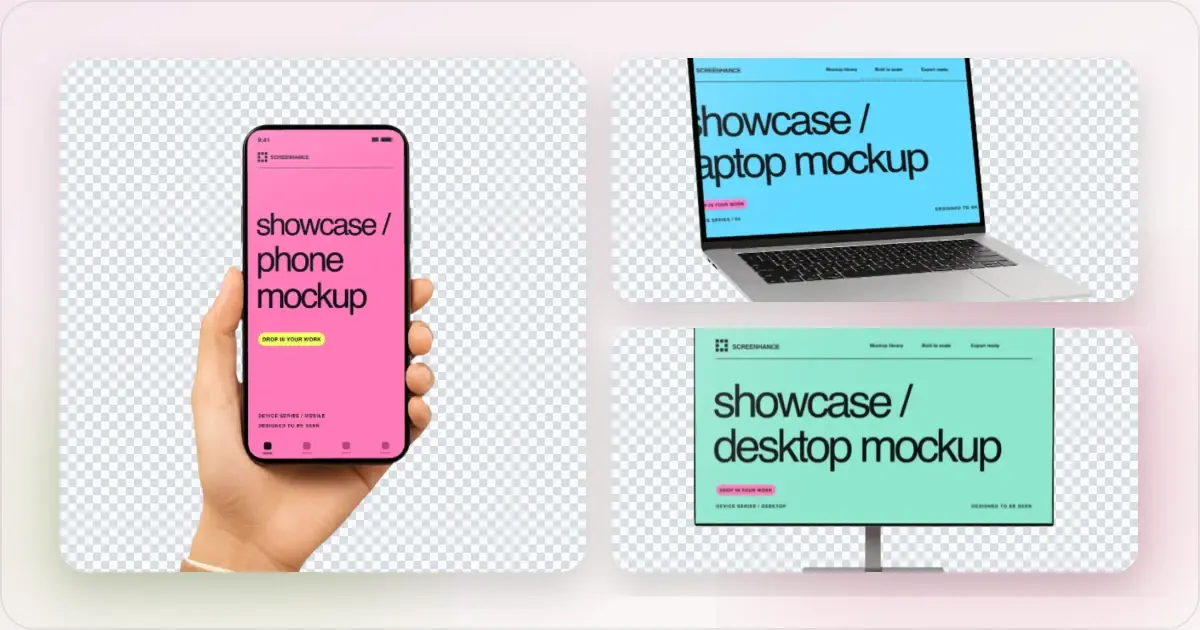
Apple Watch Mockup Guide: Framing watchOS Apps in 2026
How to create Apple Watch mockups that sell a watchOS app: choosing 46mm vs 42mm, capturing clean watch screenshots, and the iPhone-plus-Watch layout.
29 May 2026 · 6 min read