
How to Create Effective iPhone Mockups
Make an iPhone mockup from your screenshot: try editable transparent and laptop-and-phone examples, replace the demo screens, check the crop, and export.
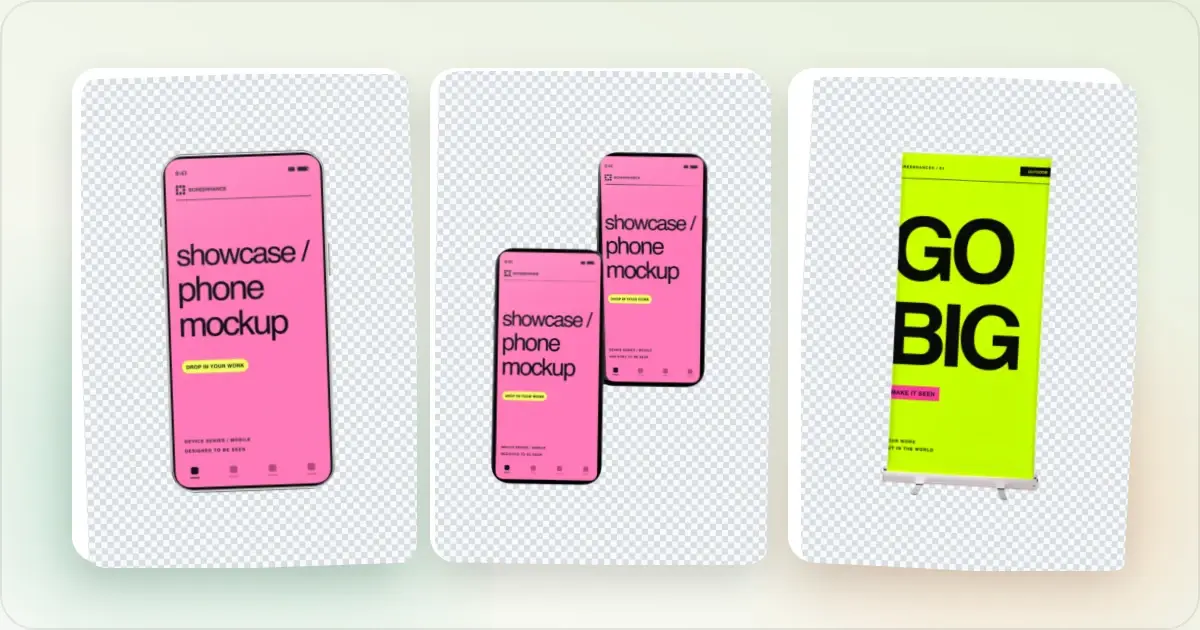
An iPhone mockup gives a product screen recognizable device context. Used well, it can help viewers understand that they are looking at a mobile experience and focus attention on the right part of the interface.
Many iPhone mockups are visually polished but do not explain the product. Here is how to make the frame support a clear, accurate message.
Have a capture ready? Browse the iPhone mockup generator, or open one of the two editable examples below.
Start with an editable iPhone mockup
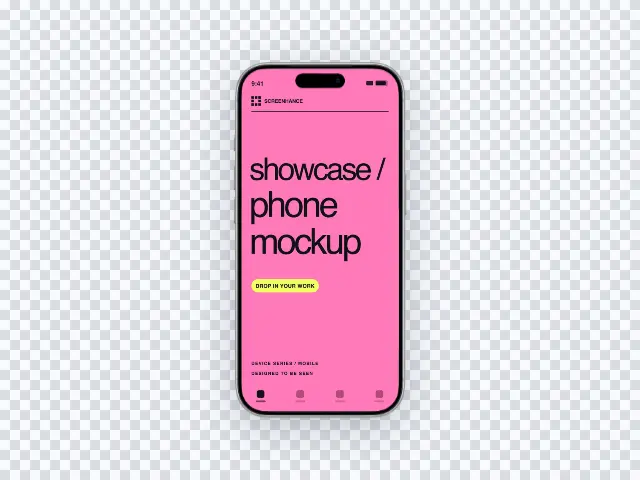
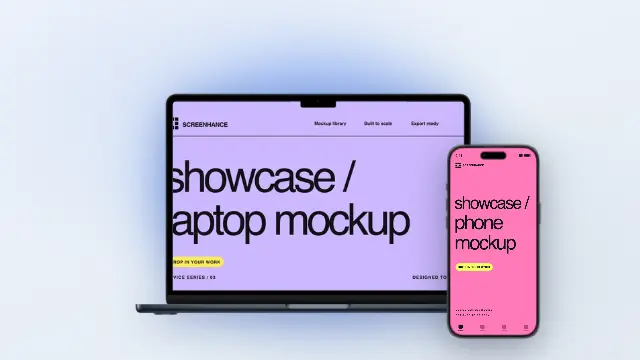
These previews come from the templates you will open. They use demo artwork; replace every example screen with your own product before publishing.
A transparent iPhone for your website or deck
A matching phone and laptop for a product launch
Replace the screen, check the crop, and export
1. Open the matching template. Each example opens the editor with Media available. Use the template link, not a saved copy of the preview image.
2. Replace the demo screen. Select the screenshot you want to change and use its replacement control to choose your capture. In a two-device layout, replace the laptop and phone separately; adding an extra image to the canvas does not replace the existing screen.
3. Review the fitted image. Check the top and bottom of the interface, important controls, and the camera cutout. Adjust the crop if necessary. A frame does not convert a desktop interface into a mobile layout.
4. Prepare the destination. Keep the transparent background for a cutout, or choose a background for a standalone social or launch image. Check the composition at the size it will appear on your page.
5. Download and inspect it. Choose Export in the top-right toolbar, then Image. For the free export, choose PNG at 1× and sign in or create an account when prompted. Open the downloaded file and check that your own screens, crop, background, and dimensions are correct.
You can try editing before signing up. A free account includes 3 watermarked PNG exports per month at 1×. The $6 Launch Pass includes 10 clean static image exports over 7 days. Pro is $12/month or $99/year for ongoing work and includes motion exports. See current plans and export limits.
One exported composition uses one image export, even if it contains two devices. Exporting separate versions or sizes produces additional images. Choose a pass for a small batch; compare Pro when you regularly refresh release graphics, documentation, or campaigns.
For an App Store submission, use the App Store screenshot generator and the screenshot size checker. A website mockup's canvas size is not automatically a valid store upload size.
What an iPhone mockup can communicate
On a marketing page or store listing, a mockup may be one of the first product visuals a visitor sees.
A useful iPhone mockup can serve three distinct jobs:
- Establishes device context by showing that the screen belongs to an iPhone experience
- Directs attention to the product area named by the surrounding copy
- Shows supported behavior when the hardware, system UI, and app capture are accurate
Framing, context, and focus affect how clearly that visual explains the product. Measure the effect on your own page or listing rather than assuming a particular frame will lift conversion.
Choosing the Right iPhone Model
Not all iPhone frames provide the same hardware context. Choose a model deliberately.
Recent Pro-style frames can suit a campaign that deliberately wants current, premium hardware context. They are not inherently better for every audience. Standard iPhone frames are a quieter option when the screen itself should take priority over the hardware. Older frames can make sense when they reflect devices your audience actually uses or the hardware your app supports.For example, an iPhone 15 Pro mockup remains useful when it matches the source capture, the supported hardware, or an existing campaign. A newer frame is not automatically a more accurate one.
Color selection matters too. A dark frame (Space Black or Black Titanium) works well with light-colored app UIs because it creates strong contrast. A lighter frame suits dark-mode interfaces. Match the frame to your app's visual identity, not just your personal preference.Best Practices for App Marketing Mockups
Lead with Your Core Value Screen
Your most important mockup should show the single screen that best answers the question: "What does this app do for me?" This is usually not your onboarding flow or settings page. It is the screen where your product delivers value.
For a fitness app, show the workout tracking screen with real-looking data. For a finance app, show the dashboard with a healthy-looking portfolio. For a photo editor, show a stunning before-and-after result.
Use Realistic Data
Placeholder content such as “Lorem ipsum” can make the product hard to evaluate. Use realistic fictional data, remove personal information, and show an empty state only when that state is the feature being explained.
Create a Visual Sequence
If you are creating multiple mockups for an App Store listing or landing page, think of them as a story, not a collection. Each mockup should build on the last.
- Mockup 1: The hero shot showing your core value proposition
- Mockup 2: A key differentiating feature
- Mockup 3: Social proof or results the user can expect
- Mockup 4: A secondary feature that broadens appeal
Keep Backgrounds Purposeful
Your background should enhance your mockup, not compete with it. Subtle gradients that complement your app's color palette work well in most contexts. Avoid busy patterns, stock photography backgrounds, or neon gradients that distract from the app itself.
Showcase Contexts That Work
Different marketing channels call for different mockup approaches.
App Store listings need mockups that are readable at small sizes on a phone screen. Keep text in your screenshots large and contrast high. Use the App Store screenshot generator for a coordinated set at the listing's required output sizes. Landing pages give you more room. You can use larger mockups with more detail visible. Consider pairing an iPhone mockup with a secondary device like a MacBook mockup to show cross-platform capability. Social media posts need to grab attention quickly. Bolder backgrounds and slightly angled mockups can help your post stand out in a crowded feed. Pitch decks and presentations require mockups that read well on a projector. Use high contrast and make sure key UI elements are visible even from the back of the room.Common mistakes that reduce clarity
Showing Too Many Screens at Once
Cramming four or five iPhone screens into one image means none of them get proper attention. Each mockup should feature one device with one clear message.
Using Outdated Frames
An old frame paired with a current iOS interface can look inconsistent. Choose a frame that matches the product story and the UI being shown; a mockup generator makes frame alternatives easy to compare.
Ignoring Platform Conventions
If you are marketing an iOS app, your mockup should reflect iOS design patterns. Android-style navigation or non-standard UI elements in an iPhone frame create subtle cognitive dissonance that erodes trust.
Low Resolution Exports
Export at the pixel dimensions required by the destination and inspect the result after any compression. For App Store assets, use one of Apple's accepted display-class sizes rather than applying a universal “2x” rule.
Testing Your Mockups
Mockups are marketing assets, and marketing assets should be tested. If you have the traffic, A/B test different approaches.
- Try different iPhone models and colors
- Test various background styles
- Compare feature-focused versus benefit-focused screenshots
- Experiment with the order of your mockup sequence
Informal comprehension testing can reveal whether people understand the visual. Treat a small preference sample as qualitative feedback, not conversion evidence.
A Quick Checklist
Before publishing any iPhone mockup, run through this list:
- Does the screenshot show real value, not just UI?
- Is the data in the screenshot realistic and relatable?
- Is the iPhone model current?
- Does the background complement without distracting?
- Is the export resolution high enough for the target platform?
- Is the overall composition clean and focused?
If you can check every box, the mockup is ready for destination-specific review and testing.
Choosing realistic or minimal frames
Some compositions benefit from a realistic device frame; others are clearer with only the screen and a restrained edge or shadow.
A realistic frame can help when the device context is important—for example, when explaining a gesture, a compact mobile layout, or a Live Activity. Test a frameless treatment too when the bezel competes with the UI.
Frameless screens can suit documentation, UI-focused product pages, or cross-platform campaigns that should not privilege one device. The viewer can study the interface without extra hardware detail.
If the composition will sit on top of a website or slide background, a transparent iPhone mockup PNG gives the destination control of the surrounding colour and spacing. For a cross-platform launch, build the Android version from the same visual rules rather than putting Android UI inside an iPhone frame; the Android mockup guide covers those device choices.
There is no universal winner. Compare realistic, minimal, and frameless versions in your own Product Page Optimization or landing-page experiment. For games and other visually dense products, also check whether a bezel leaves enough room for the content to remain legible.
iPhone Mockups for the Four Most Common Product Categories
Different product categories create different presentation needs. Use the following as starting points, not performance guarantees.
Consumer apps may benefit from representative content that makes the main activity easy to recognize: a permitted conversation example, a current media screen, or a saved item. Choose the frame angle and background for legibility rather than assuming one “consumer” style. Settings or onboarding can still be the right screen when that is the feature being explained. Productivity apps should show a representative workflow with plausible, non-sensitive data. Straight-on framing and a quiet background can keep dense interfaces legible, but other treatments can work when they fit the product. An empty state is useful only when that state is what the asset needs to explain. Finance apps need especially careful claim and privacy review. Use accurate synthetic data or content you have permission to show, and do not imply returns, balances, or transaction states the product cannot substantiate. A Live Activity or Dynamic Island treatment belongs in the mockup only if the shipped app actually provides that experience. Social and creator apps often depend on the content visible inside the interface. Use media you own or have permission to show, remove private data, and choose a still that makes the workflow understandable. The iPhone mockup generator can help compare frame and screen-content variants.Frequently Asked Questions
How accurate does the Dynamic Island need to be in marketing mockups?
Match the selected device rather than treating every pill or camera cutout as interchangeable. Any Live Activity content should represent functionality the app actually ships. Compare the composition with Apple's current device imagery or a real capture when hardware accuracy matters.
Should I use an iPhone Air frame or stick with iPhone 17 for marketing?
Use an iPhone Air frame when its thin hardware profile is part of the visual idea. Use an iPhone 17 or Pro frame when that device matches the source capture or campaign. Do not claim that either model represents what most viewers own without audience data.
What do I do for landscape-only apps like games?
Use a landscape frame built for the selected device and capture orientation. Check the safe areas, home indicator, and any camera cutout against a real device or simulator; do not rotate a portrait frame mechanically and assume its system chrome remains correct.
How should I handle dark mode in iPhone mockups?
Choose dark or light mode based on the real product experience and the feature being shown. A set can include both when the change is intentional and clearly explained; visual consistency is not a reason to hide a supported mode.
How do iOS 18 and later status bar changes affect mockup accuracy?
Status-bar treatments can differ by iOS version and device. If the marketing asset claims to show a particular current experience, compare the system chrome with a capture from that version and device. A mockup generator can provide the frame, but the final accuracy check still belongs to the publisher.
Related Reading
- Add an iPhone Frame to a Screenshot - Follow the framing, crop, and export workflow in the generator
- App Store Screenshots That Convert: A Complete Guide - Optimizing your full App Store listing
- How to Present App Screenshots Professionally - General screenshot presentation tips
- How to Create SaaS Hero Images That Convert - Hero image design for landing pages
Screenhance examples
Two editable starting points from the Screenhance library, selected for this mockups guide.
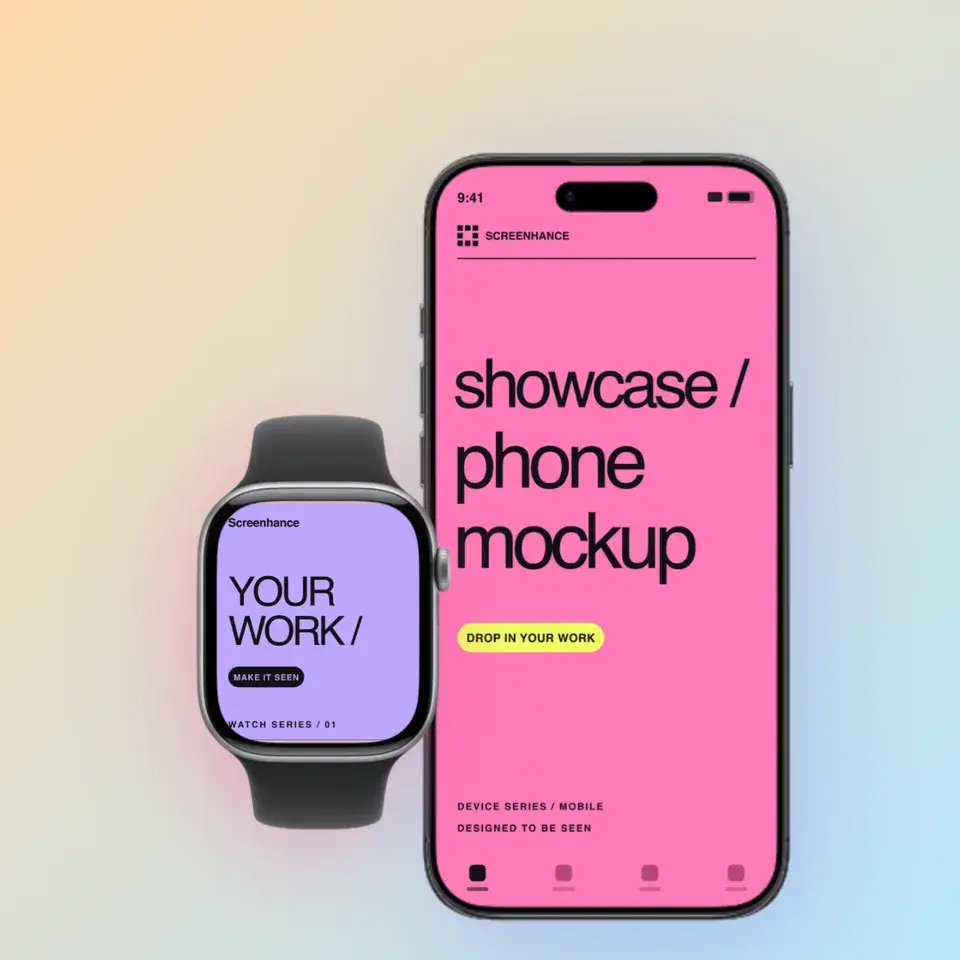
Make a free device mockup
Free to start. No credit card required.
Keep reading
Related, product-tested guides from Screenhance.
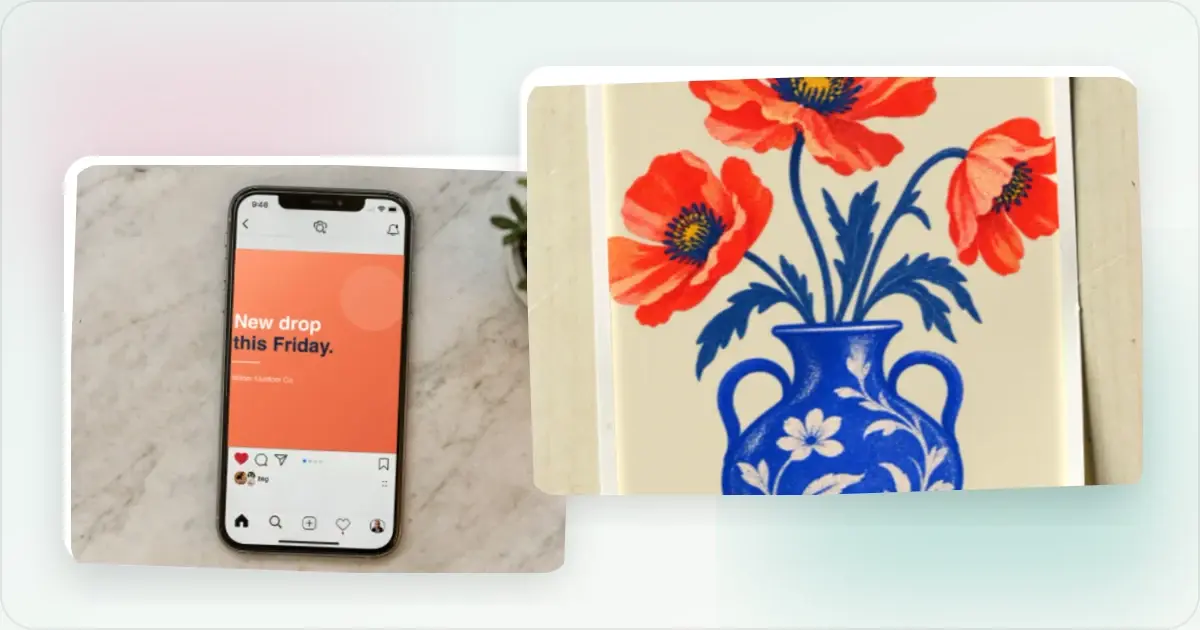
iPad Mockups: Choose a Still, 3D Turn or Handheld Animation
Choose an iPad mockup for your app: a 3D turn, screen close-up, portrait handheld scene or keyboard desk animation. Learn how to prepare and export it.
7 Feb 2026 · 6 min read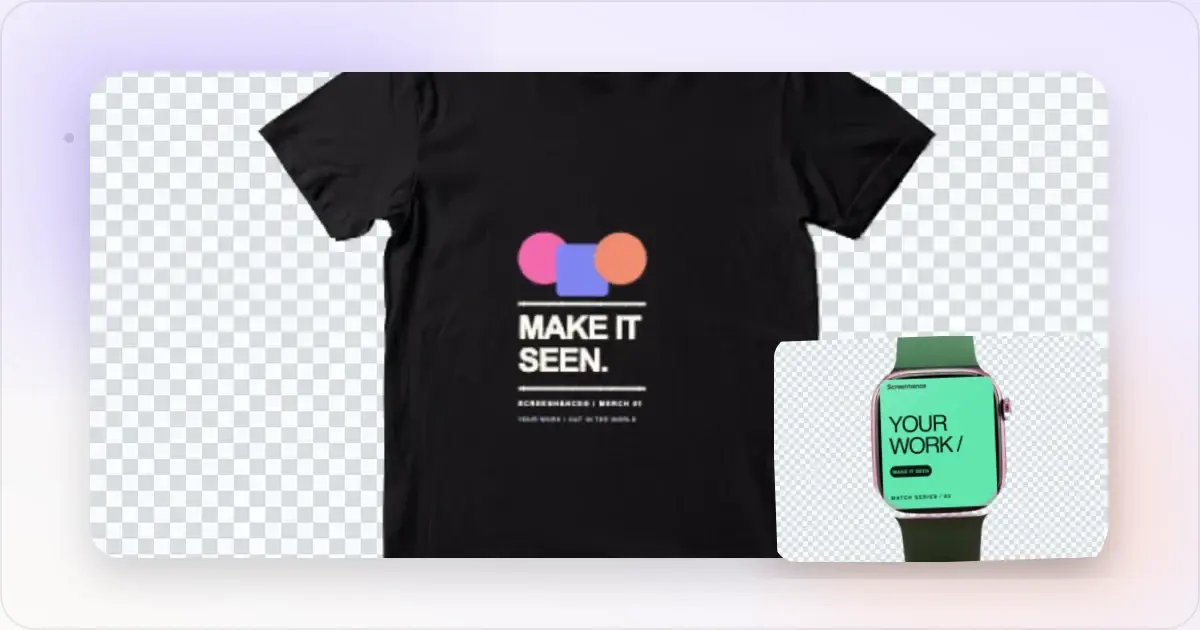
Android Mockup Guide: Pixel, Samsung, and More
Android's device diversity is a marketing challenge. How to pick the right Android frames, create Play Store screenshots, and handle cross-platform mockups.
7 Feb 2026 · 10 min read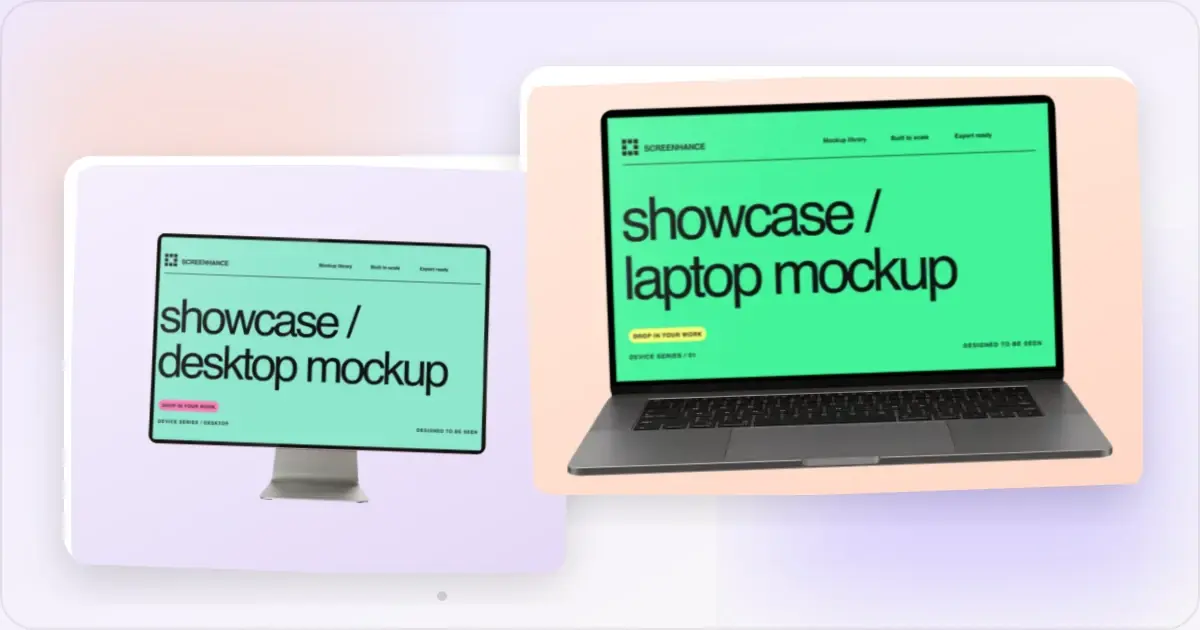
iPhone 15 Pro Mockup Free: Create Professional Mockups in Seconds
Need a free iPhone 15 Pro mockup? Here's how to create stunning device mockups without Photoshop or design skills.
21 Apr 2026 · 9 min read