
iPad Mockups: Choose a Still, 3D Turn or Handheld Animation
Choose an iPad mockup for your app: a 3D turn, screen close-up, portrait handheld scene or keyboard desk animation. Learn how to prepare and export it.
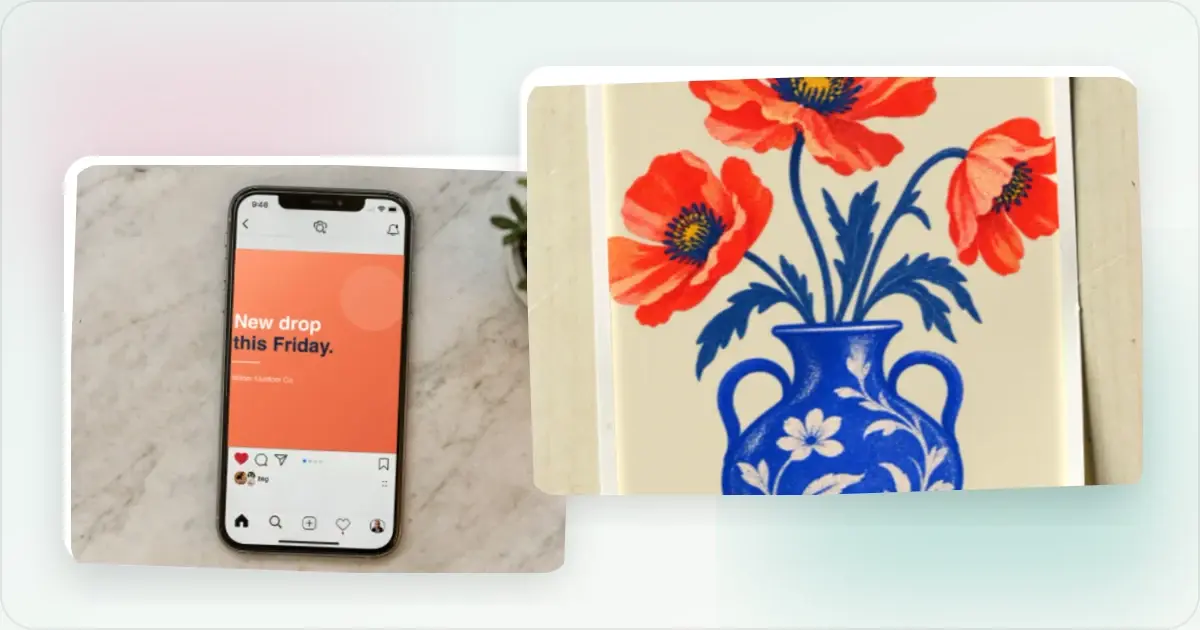
An animated iPad mockup places your app screenshot inside a tablet scene and adds movement to the device or composition. You can start from one still screenshot. Choose a studio turn when you want to introduce the hardware, a screen close-up when the interface matters most, or a handheld or keyboard scene when the setting helps explain the app.
The iPad mockup generator includes still templates and editable motion templates in the same gallery. This guide explains which scene to choose, how to prepare the screen, and what to check before you export.
Which iPad motion template should I use?
Start with the job the visual needs to do. A fast introduction, a detailed interface explanation and a quiet website loop need different compositions. Screenhance's examples below use sample artwork; replace it with your actual iPad interface before publishing.
| Template | What moves | Good starting point for |
|---|---|---|
| Silver Turn | The 3D tablet turns through several angles | A launch introduction or portfolio reveal |
| Screen Focus | The camera emphasizes the screen | A dashboard, editor or detailed app view |
| Handheld Portrait | The portrait tablet, hands and screen move together | Reading, notes or another vertical interface |
| Keyboard Desk | A slow push into a landscape desk scene | Productivity apps and keyboard workflows |
| Cloud Drift | A floating 3D camera treatment | A calm product hero |
| Graphite Sweep | An overhead 3D treatment | A different view of a landscape app |
Make a free device mockup
The default films use an eight-second loop. Preview every part of it: a device may look attractive at a side angle while the screenshot becomes difficult to read. If the main goal is understanding a feature, give that feature a clear screen-facing view rather than relying on a dramatic angle.
Should an iPad mockup be portrait or landscape?
Match the orientation to the interface you actually ship. A reading layout with one column may suit portrait. A dashboard with navigation, a table and a detail pane may need landscape. Neither orientation is automatically better for marketing; the right one preserves the layout and makes the important content readable.
The output canvas and the tablet screen are separate choices. A landscape marketing image can contain a portrait tablet, leaving room for a headline beside it. A portrait social post can contain a landscape tablet, but the screen will occupy less space. Check the final size before committing to that arrangement.
Do not stretch a portrait screenshot across a landscape display. Capture the app in the intended orientation, or choose a template whose screen matches the available screenshot. If the editor crops the image, inspect navigation bars, controls and text near all four edges.
How to make an animated iPad mockup from a screenshot
1. Capture a useful app state. Choose one screen that demonstrates a feature. Remove private information and use sample content that resembles the real product. Avoid an empty dashboard unless the empty state is what you are explaining.
2. Choose a template. Open Silver Turn or Screen Focus for a studio treatment. Pick Handheld Portrait or Keyboard Desk when the environment helps communicate how the app is used.
3. Replace the example screen. Select the screen layer, upload your screenshot and review its crop. Keep text proportional to the tablet; a phone layout stretched onto an iPad can leave important details too small or awkwardly spaced.
4. Tune the composition. Adjust the background and the motion controls available for the selected template. Some templates animate a 3D device; others move a complete scene with its inserted screen.
5. Preview the entire loop. Watch the beginning, the clearest screen view and the return to the start. Check that the movement does not hide the feature you want people to notice.
6. Export and review. Open the exported file at its intended display size. A preview that looks readable in a large editor may be too small in a social feed.
When does a handheld or keyboard scene help?
A handheld scene places an interface in a familiar use context. The new portrait iPad template is useful when the product is something people read or browse while holding a tablet. Keep the screenshot's main action visible above the hands and away from the rounded screen corners.
A keyboard desk scene gives a landscape interface a workstation setting. It can help explain a writing app, planning tool or dashboard. Use it when that context is truthful for the product. A keyboard in a marketing visual should not imply that the app supports features or shortcuts it does not have.
For either scene, the artwork belongs on the screen plane. Screenhance keeps the inserted image with the device as the composition moves. Your review should still include the edge crop, perspective and contrast against the surrounding light.
Should I export an image, GIF or video?
Use a static image when the destination is a slide, documentation page or image-only placement. Choose an animated format when movement adds information: introducing the device, drawing attention to a feature or giving a product page a short loop.
A GIF can be useful where it is supported as an image, but can become large or lose smooth gradients. Video is often more suitable for a detailed loop. Screenhance's available formats, resolution and watermark options depend on the plan and export workflow. The GIF versus MP4 guide includes practical export comparisons.
For a website, include a still poster and respect visitors' reduced-motion preferences. Make the interface understandable even when the animation does not play. For a social post, inspect the platform's current upload requirements before exporting the final version.
Can I use these for the iPad App Store listing?
Use the App Store screenshot editor when you need a coordinated store set with headings and a specific export size. Check Apple's current screenshot specifications for the required display class and accepted dimensions.
A promotional device animation is a separate output from an App Store app preview. Do not assume a rotating mockup satisfies Apple's preview requirements. Capture the app's actual behavior and check the relevant submission rules for that workflow.
What should I check before publishing?
Read the smallest important label at the final display size. Check that the screenshot is not stretched, clipped or obscured. Watch the full motion loop rather than judging only its opening frame. Confirm the interface, accessories and setting represent features your product actually supports.
For a matching phone visual, browse the handheld phone mockups. For a smart home dashboard, the HomeView collection offers a different display shape and room setting. The full motion library includes iPad, HomeView, phone and laptop scenes so you can choose the device that fits the story.
Screenhance examples
Two editable starting points from the Screenhance library, selected for this motion guide.


Make a free device mockup
Free to start. No credit card required.
Keep reading
Related, product-tested guides from Screenhance.
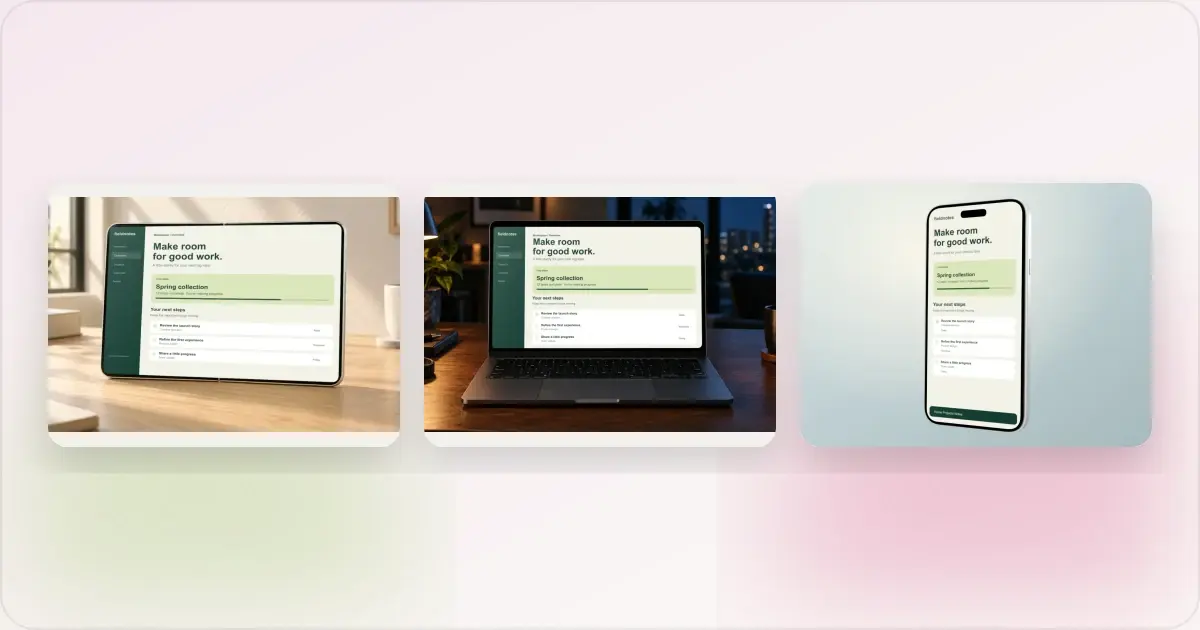
Same App, Three Motion Styles: Real Animated Mockup Exports
Compare actual Duo, MacBook and iPhone 18 animated mockup exports using the same sample app. See how scene, pacing and screen holds change the result.
17 Sept 2026 · 4 min read
GIF vs MP4 for Animated Mockups: File Size and Screen Clarity
Compare real Duo and MacBook GIF and MP4 exports: measured file sizes, actual downloads, screen-detail crops and a responsive video example.
11 Sept 2026 · 4 min read
How to Make an iPhone Duo Folding Mockup With Two Screens
Make an iPhone Duo mockup with two editable screens. Follow the folding tutorial, crop each screenshot, or start with a realistic photo scene.
11 Sept 2026 · 6 min read