
Google Play Screenshot Dimensions 2026: Sizes and Requirements
Current Google Play screenshot dimensions, formats, aspect-ratio rules, and large-screen guidance for phone, tablet, Chromebook, Wear OS, and TV listings.
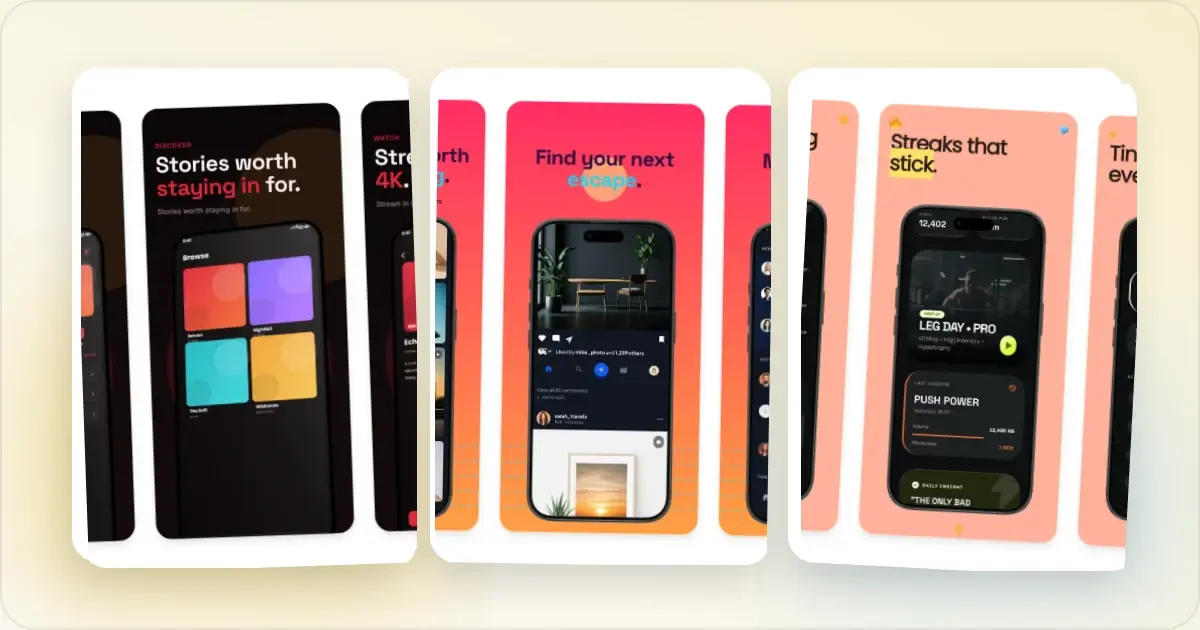
Google Play accepts a range of screenshot sizes rather than one mandatory phone canvas. That flexibility is useful, but it also means many online “exact size” tables confuse a convenient design preset with a Play Console requirement. This guide separates the two. _Last checked: September 2026._
Google's official preview-asset requirements remain the source of truth. Recheck them in Play Console before a release because requirements can change.
Current screenshot requirements
Google requires at least two screenshots across the listing's device types and allows up to eight screenshots for each supported device type. Its base screenshot requirements use JPEG or 24-bit PNG (no alpha) and these bounds:
- Minimum dimension: 320 px
- Maximum dimension: 3,840 px
- The longest side cannot be more than twice the shortest side
That last rule permits ratios from 2:1 through 1:2. It does not require every screenshot to be exactly 16:9 or 9:16.
Device-specific sections add or replace parts of that baseline. For example, Google's current page specifies:
- Tablets and Chromebooks: at least four screenshots, 1080–7680 px, using 16:9 landscape or 9:16 portrait captures without extra text outside the core app experience
- Wear OS: at least one current 1:1 app screenshot at 384 × 384 px or larger, showing only the app UI without a device frame, extra text, graphics, or background
- Android TV: at least one TV screenshot plus a separate TV banner
- Android Automotive OS: category-dependent rules and prescribed emulator profiles for required captures
- Android XR: four to eight JPEG or PNG screenshots, up to 8 MB each, at an 8:5 aspect ratio
Use the device-specific section of Google's documentation rather than applying the phone baseline to every form factor.
Practical canvases, not fixed requirements
The dimensions below are useful starting points for a coordinated set. They are not extra Google mandates.
| Listing asset | Practical starting canvas | What to verify |
|---|---|---|
| Phone portrait screenshot | 1080 × 1920 px | Within Google's range and ratio limits |
| Phone landscape screenshot | 1920 × 1080 px | Matches the app's real orientation |
| Tablet screenshot | Capture from a representative tablet profile | UI is genuinely adapted to the larger screen |
| Chromebook screenshot | Capture the app's actual large-screen layout | Keyboard, pointer, and windowed UI are represented honestly |
| Wear OS screenshot | Capture from the supported watch profile | Important content remains legible on the target display |
| Feature graphic | 1024 × 500 px | JPEG or 24-bit PNG without alpha |
Generate Google Play screenshots at every size
Google provides separate upload areas for phone, tablet, Chromebook, Wear OS, TV, Automotive, and XR assets when they apply to the app. A phone screenshot is not a substitute for a tablet layout: capture the interface users will actually see on that form factor.
Large-screen listings
Google's recommendation-eligibility guidance is stricter than the base listing minimum. For app placements that use screenshot recommendations, Google currently calls for at least four screenshots at 1080 px minimum resolution, using 16:9 landscape (at least 1920 × 1080) or 9:16 portrait (at least 1080 × 1920). Review both the large-screen and recommendation sections before preparing tablet, foldable, or Chromebook sets.
There is no universal “foldable screenshot size.” Use captures from representative foldable states only when the app supports them, and keep captions away from edges that may be cropped in different placements.
Feature graphic
The feature graphic uses an exact 1024 × 500 px canvas. Keep the focal point and essential text away from the edges because Google may crop the asset in different surfaces. Treat it as a separate listing asset, not as another screenshot.
A reliable creation workflow
1. Capture the current production UI on each form factor the app supports.
2. Choose a consistent portrait or landscape direction that matches the product.
3. Add concise captions only where they clarify a real feature.
4. Export JPEG or opaque PNG files inside Google's accepted range.
5. Inspect every output at full size and at phone-thumbnail size.
6. Upload to Play Console and resolve any device-specific warning shown there.
A Play Store screenshot generator can provide coordinated phone and tablet presets, device frames, captions, and backgrounds. It does not remove the need to check the selected output against the current Play Console slot.
You can also work from Android Studio captures or create the final canvases manually in Figma or another image editor.
Common mistakes
Treating 1080 × 1920 as mandatory
It is a sensible portrait preset, not Google's only accepted phone size. The actual validator uses the minimum, maximum, and side-ratio rules above.
Stretching phone UI into tablet assets
A larger file is not a tablet screenshot if the interface remains a scaled phone layout. Use a representative tablet or foldable capture and show the wider-screen experience accurately.
Exporting transparent PNG files
Google asks for 24-bit PNG files without alpha. Flatten transparent artwork onto its intended background before upload.
Using stale or invented interface elements
Screenshots should reflect the app's current experience. Avoid fabricated reviews, store controls, prices, awards, or features that are not present in the product.
Baking short-lived offers into permanent assets
Pricing and promotional copy can expire while the screenshot remains live. Use time-sensitive claims only when you have a process to update the listing promptly.
Frequently asked questions
What is the minimum Google Play screenshot size?
The shortest accepted side is 320 px, the longest is 3,840 px, and the longest side cannot exceed twice the shortest. Google accepts a range rather than one exact phone dimension.
How many screenshots can I upload?
Google requires at least two screenshots across the listing's device types and allows up to eight for each supported device type. Some form factors have additional minimums and format rules.
Does Google Play accept WebP screenshots?
The documented screenshot formats are JPEG and 24-bit PNG without alpha. Convert WebP or AVIF captures before upload.
Do I need separate phone and tablet screenshots?
Provide form-factor-specific assets when the app supports those experiences and you want the listing to represent them. Do not present a phone-only layout as a tablet experience.
Does Google Play provide a dark-mode screenshot slot?
No separate dark-mode slot is documented. Choose the theme that best represents the app, or use different screenshots in the set to show both modes when that helps users understand the product.
How should I choose locales?
Start with markets your product actually supports and use Play Console performance data to prioritize additional localizations. Translate captions and sample content accurately; do not imply that the app itself is localized when it is not.
Related Reading
- App Store Screenshot Dimensions 2026 - Apple's requirements for comparison
- App Store vs Play Store Screenshots - Key differences between platforms
- Play Store Screenshot Generator - Create coordinated Play Store screenshot sets
Conclusion
Google Play gives teams room to choose an appropriate canvas. Work from honest device captures, stay inside the documented bounds, and treat tablet, Chromebook, watch, and TV assets as distinct product experiences when your app supports them.
Ready to build a consistent set? Try the Play Store screenshot generator, then verify each export in its intended Play Console slot.
Check your image dimensions
Check the pixel size and file format for Google Play screenshots. Files stay in your browser and are not stored.
This checks dimensions and file type only. Check the selected display slot, colour profile, transparency and artwork separately. A matching size does not guarantee store approval.
Google Play screenshot dimensions
- 320–3840 pixels on each side. Long side no more than twice the short side. PNG or JPEG; check Google Play’s additional requirements for large screens separately.
Screenhance examples
Two editable starting points from the Screenhance library, selected for this app stores guide.
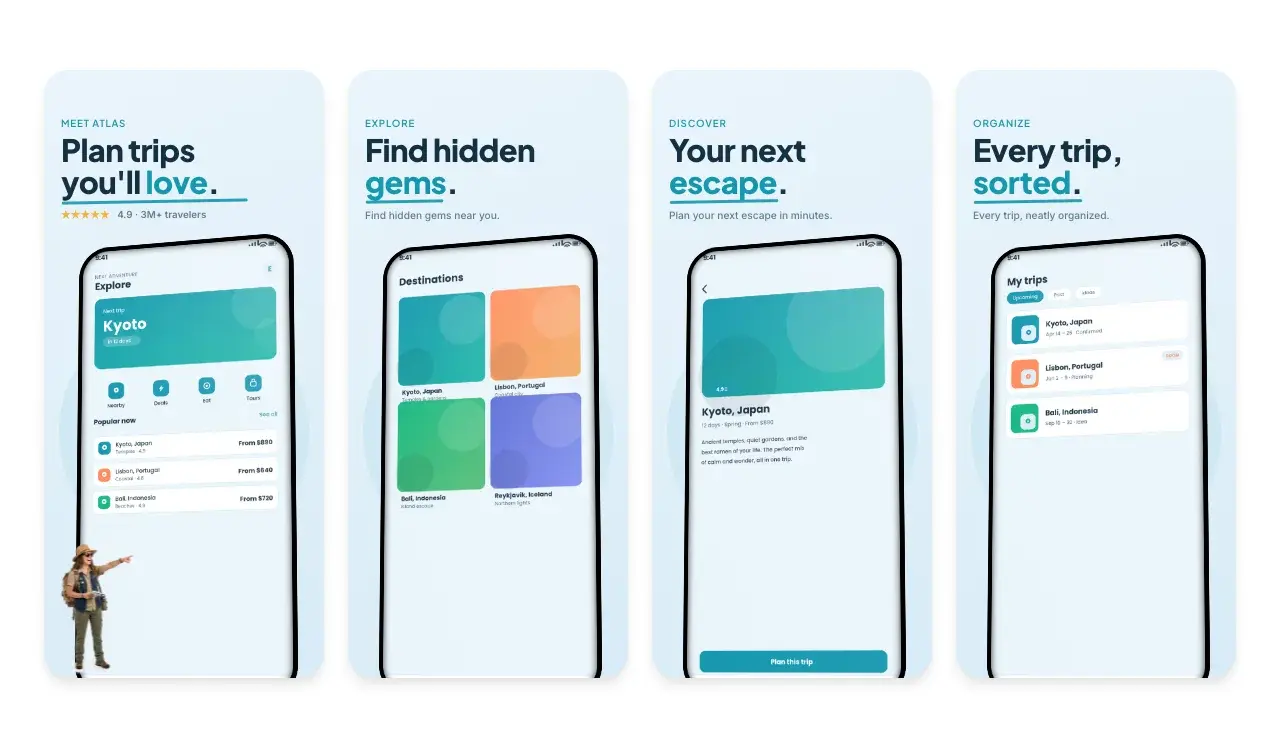
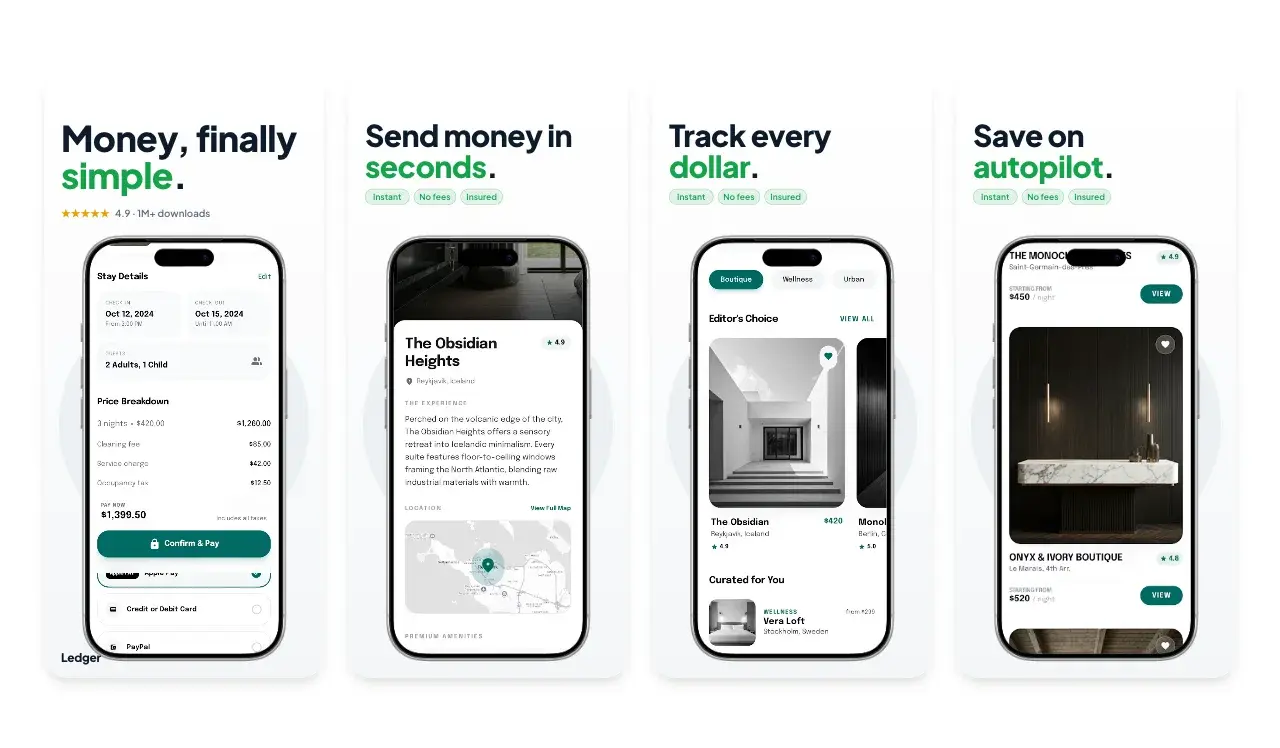
Generate Google Play screenshots at every size
Free to start. No credit card required.
Keep reading
Related, product-tested guides from Screenhance.
9 App Design Examples That Explain the Product Clearly
Study nine original app design concepts and the specific hierarchy, screenshots, contrast, and story decisions that make each product easier to understand.
20 Aug 2026 · 8 min read
The State of App Store Screenshots in 2026: Requirements and Testing
A current, source-linked guide to App Store screenshot requirements, localization, Product Page Optimization, and the checks to run before upload.
4 Jul 2026 · 3 min read
Best Google Play Screenshot Generators in 2026: 7 Compared
Compare seven Google Play screenshot generators across Android frames, phone and tablet workflows, localization, motion, pricing, and free access.
15 Jun 2026 · 6 min read