
App Store vs Play Store Screenshots: Current Requirements
A source-backed comparison of current Apple App Store and Google Play screenshot rules, video behavior, localization and testing.
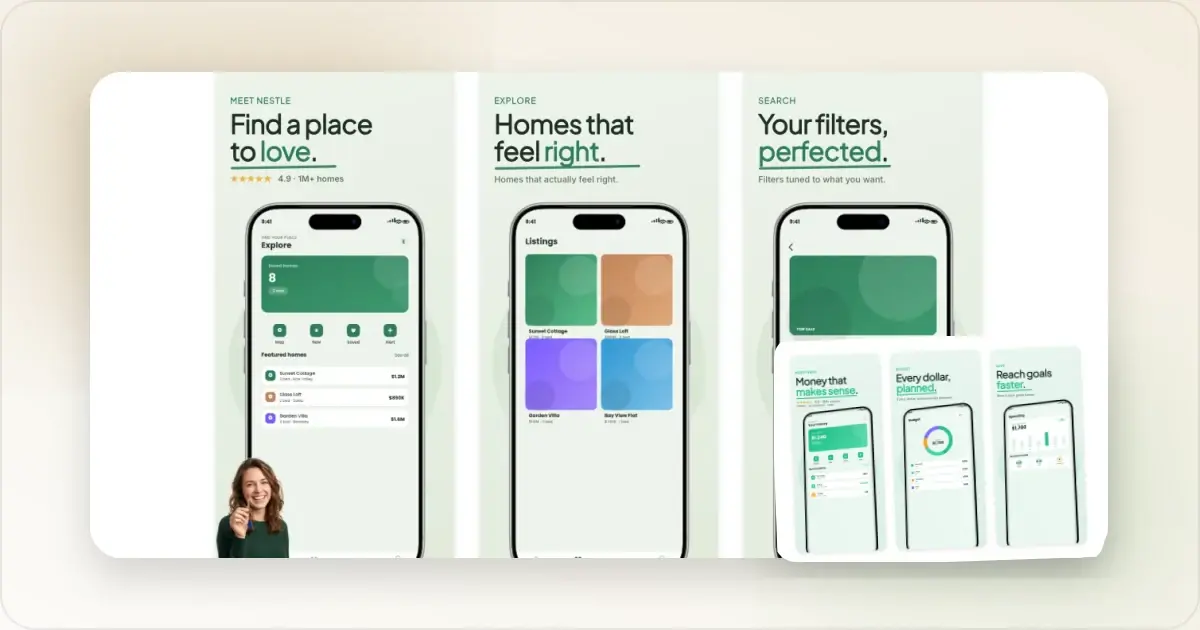
Apple and Google both use screenshots to show the real product experience, but their upload rules and distribution surfaces are different. A shared design system is useful; one identical export set usually is not.
This comparison uses the current requirements from App Store Connect and Google Play Console. Check those pages again before a release because accepted devices and presentation surfaces change.
The Side-by-Side Comparison
| Detail | Apple App Store | Google Play |
|---|---|---|
| Screenshot count | 1 to 10 screenshots | At least 2 across device types to publish; up to 8 for each supported device type |
| File types | .jpeg, .jpg or .png; no alpha or transparency | JPEG or 24-bit PNG; no alpha |
| Phone sizing | Accepted pixel sizes are tied to Apple display classes | Each side must be 320–3840 px; the long side cannot be more than twice the short side |
| Larger-device assets | Separate display classes for iPad, Apple Watch, Mac, TV and Vision Pro where applicable | Separate assets for phones, tablets, Chromebooks, TV, Wear OS, Automotive and XR where applicable |
| Localization | Screenshots and previews can be supplied per localization | Graphic assets can be localized per store listing language |
| Video | Optional App Preview file; up to 3 per supported device size and language | One standard preview video supplied as a YouTube URL |
| Native testing | Product Page Optimization | Store Listing Experiments |
Generate Google Play screenshots free
The minimum rules are not the same as the requirements for every distribution target. For example, Google has additional screenshot rules for Wear OS, Android TV, Automotive and XR. Use the exact section for each device type you support.
Dimension Differences Are More Than Numbers
Apple's screenshot specification lists accepted portrait and landscape dimensions for each display class. The large Dynamic Island iPhone group accepts 1260 × 2736, 1290 × 2796 or 1320 × 2868 portrait images, with the dimensions reversed for landscape. Other iPhone and iPad classes have their own accepted sizes.
App Store Connect can scale a highest-resolution screenshot down when the interface is the same across smaller device sizes. You can provide custom assets through Media Manager when a layout or localization needs its own composition. Do not infer a device class from an old template: validate the exported pixel dimensions against Apple's live table.
Screenshot Count: 10 vs. 8
For standard screenshots, Google requires JPEG or 24-bit PNG without alpha. Each dimension must be between 320 and 3840 pixels, and the maximum dimension cannot be more than twice the minimum dimension.
Google separately recommends at least four 1080-pixel screenshots for apps that want to be eligible for recommendation formats using screenshots. Those should be 16:9 landscape at a minimum of 1920 × 1080, or 9:16 portrait at a minimum of 1080 × 1920. That is an eligibility guideline, not a universal upload size for every device type.
Google can display screenshots beyond the product page, including search and home surfaces. It therefore asks publishers to keep the app UI prominent, limit extra tagline text, avoid tiny details and provide useful alt text.
Device Frame Conventions
Device frames are optional design elements, not a requirement from either store. Apple allows text and image overlays as long as screenshots show the app in use. Google recommends avoiding device imagery because it can become obsolete or alienate users, and asks publishers to keep the actual interface prominent.
Use a frame only when it adds useful context without shrinking the UI. Never show a platform-specific frame or interface in the other platform's listing. A Play Store screenshot generator can create a separate Android composition from the same design system.
Review Process Differences
Apple's App Review Guidelines require metadata, screenshots and previews to reflect the app's core experience and stay current. Screenshots should show the app in use; text and image overlays are allowed when they help explain it. Apple also asks publishers to use fictional account information instead of a real person's data and to keep other mobile platforms out of App Store metadata.
Google similarly requires screenshots to depict the current app or game experience. Its current guidance says to prioritize UI in the first three screenshots, keep tagline text to no more than 20% of an image, and avoid ranking, award, testimonial, pricing, promotion and install-call-to-action language.
The safest cross-platform base is therefore the same: real, current UI and claims that the product can prove. The surrounding frame, captions and layout can then adapt to the destination's rules.
Landscape Screenshots
Both stores accept portrait and landscape assets for many device types, but the exact accepted dimensions and device rules differ. Match the orientation in which the product is genuinely used. Check Google's device-specific sections for large screens, TV, Wear OS, Automotive and XR instead of applying a phone rule everywhere.
Video vs. Screenshots
Apple App Previews are 15 to 30 seconds. Apple accepts H.264 .mov, .m4v or .mp4 files and ProRes 422 HQ .mov files at supported resolutions. A preview precedes screenshots when it is present. See Apple's current App Preview specifications.
Google Play accepts a YouTube URL for the standard preview video. The video appears before screenshots and uses the feature graphic as a cover. It may autoplay inline with muted audio for up to 30 seconds depending on the surface, device, settings and network; otherwise the customer sees a play button. The video must be public or unlisted, embeddable, not age-restricted and have ads disabled.
You can start both assets from the same source recording, but their hosting and export requirements differ. The app demo video maker can help prepare motion from a product capture; validate the final file or URL for the destination store.
Localization Support
Both platforms support localized visual assets. Localize visible headlines, currency, units and example content when they change the meaning of the screen. Keep the shown interface consistent with the language the app actually supports.
Choose locales from your product's own acquisition, product-page and install data rather than a generic list of “best markets.” A smaller set reviewed by fluent speakers is more useful than broad coverage with awkward or misleading copy. The App Store screenshot localization guide covers the workflow in more detail.
Design Approach Differences
Brand colors, typography, the order of core benefits and the underlying creative brief can stay aligned across the stores. Exact pixel dimensions, device-specific UI, promotional-video delivery and some policy details cannot.
Avoid stereotypes such as “App Store equals minimal” or “Play Store equals bright.” Look at how each asset reads on the actual store surface, and use experiments to resolve a meaningful design question.
Testing on Each Store
Apple's Product Page Optimization can compare up to three treatments containing alternate icons, screenshots or previews. Tests can run for up to 90 days, and App Analytics reports estimated lift, conversion rate and confidence. Read the PPO overview before configuring a test.
Google Play Store Listing Experiments can test screenshots and other graphics. Play Console estimates the required time and acquisitions from your traffic and statistical settings, and Google recommends testing one asset at a time. Its experiment guide explains minimum detectable effect, confidence and the possible “more data needed” or draw outcomes.
Do not impose the same sample size or duration on both platforms. Let each console's model and your actual traffic determine when a result is interpretable.
The Practical Workflow for Cross-Platform
1. Capture real UI for each platform. Do not put an iOS screen inside an Android listing or vice versa.
2. Write a shared story. Decide which outcome, feature or use case each slot explains.
3. Create platform variants. Adjust composition, copy and visible UI to the destination.
4. Export against the live specifications. Use the App Store screenshot generator for Apple sizes and the Play Store screenshot generator for Google Play variants.
5. Preview at realistic display sizes. Check legibility, cropping and whether the UI remains the focus.
6. Localize where your data supports it. Have a fluent reviewer check overlays and in-app text.
7. Test a meaningful difference. Change one idea, use the console's statistical result and record what was learned.
Related Reading
- App Store Screenshot Dimensions 2026 - Current Apple upload classes and accepted dimensions
- Google Play Store Screenshot Guide - Complete Play Store specs and design strategy
- Google Play Screenshot Dimensions 2026 - All Google Play dimensions in one reference
Check your image dimensions
Check the pixel size and file format for Google Play screenshots. Files stay in your browser and are not stored.
This checks dimensions and file type only. Check the selected display slot, colour profile, transparency and artwork separately. A matching size does not guarantee store approval.
Google Play screenshot dimensions
- 320–3840 pixels on each side. Long side no more than twice the short side. PNG or JPEG; check Google Play’s additional requirements for large screens separately.
Screenhance examples
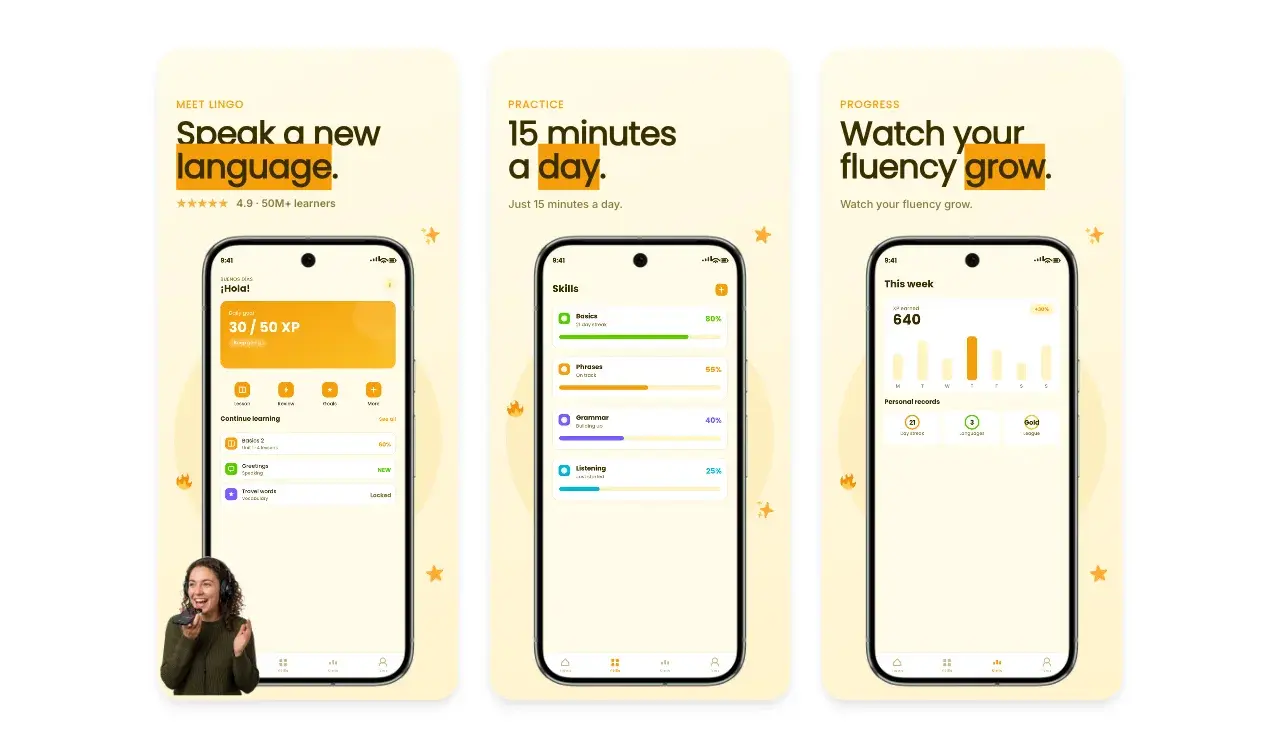
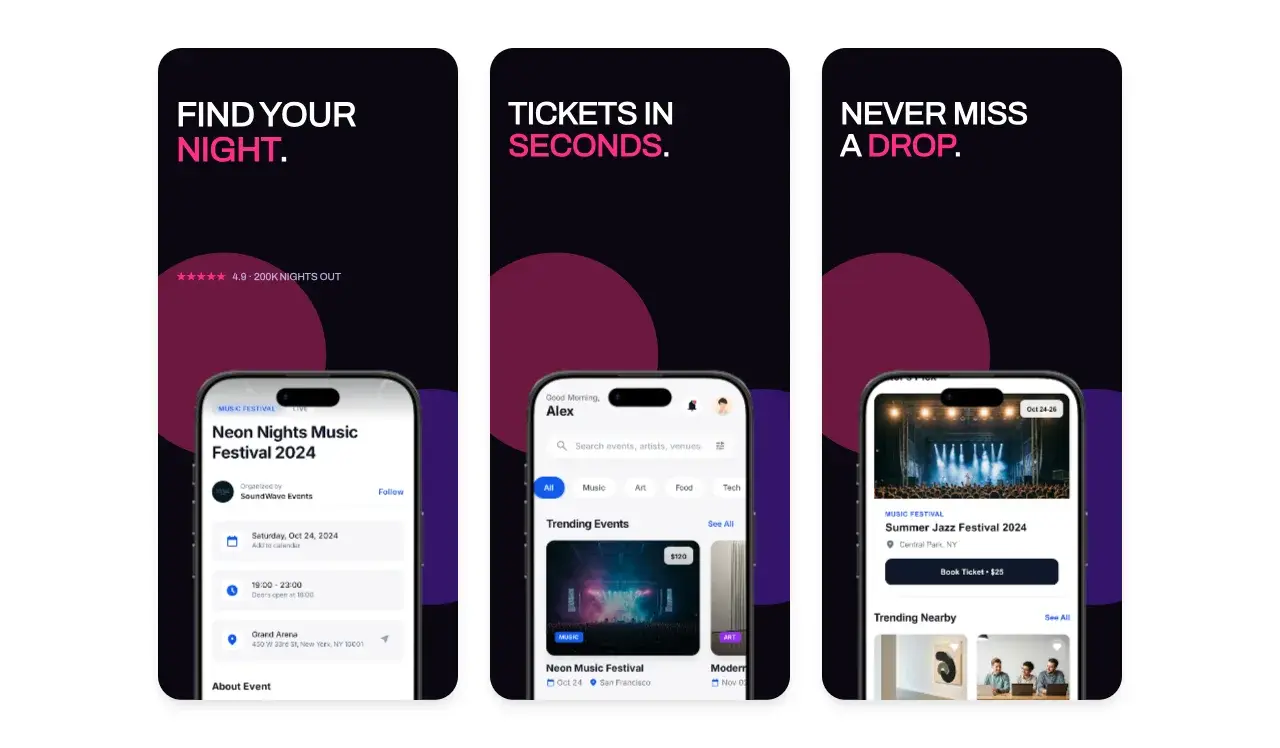
Two editable starting points from the Screenhance library, selected for this app stores guide.
Generate Google Play screenshots free
Free to start. No credit card required.
Keep reading
Related, product-tested guides from Screenhance.
App Store Screenshots by Market: The Complete 2026 Guide
The hub for per-market App Store screenshot guides: which markets to prioritize, what to change, and how to ship every market from one master set.
9 Feb 2026 · 7 min read
9 App Design Examples That Explain the Product Clearly
Study nine original app design concepts and the specific hierarchy, screenshots, contrast, and story decisions that make each product easier to understand.
20 Aug 2026 · 8 min read
The State of App Store Screenshots in 2026: Requirements and Testing
A current, source-linked guide to App Store screenshot requirements, localization, Product Page Optimization, and the checks to run before upload.
4 Jul 2026 · 3 min read