


App Store and Google Play screenshots
Coordinated store sets with your headlines, device frames and backgrounds, plus the Google Play feature graphic. They download as PNG files at store sizes.
See store screenshot templates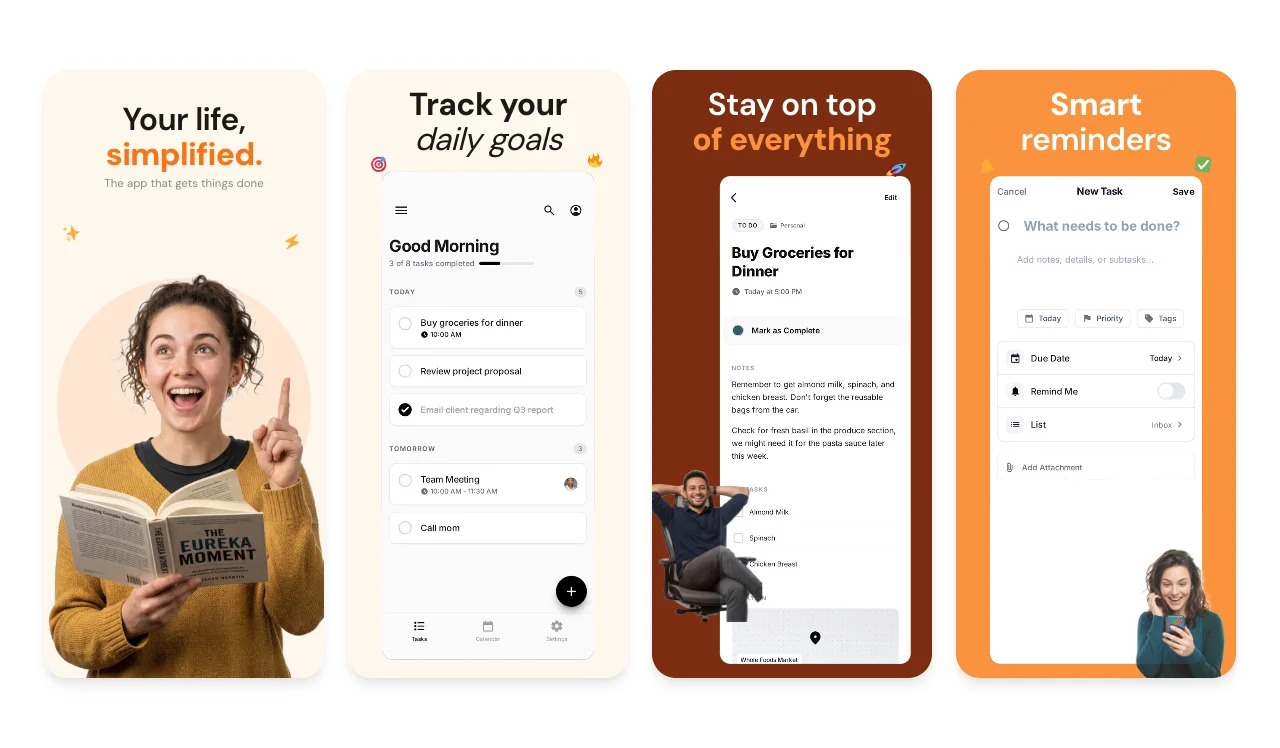
Live in ChatGPTWorks in Claude
Share a few real screenshots of your app, compare three designs and edit them by asking. Screenhance turns your own screens into store screenshots, device mockups, motion and launch images, and saves them to your account.
Free to connect, create and preview. Using Claude Code or Codex? Connect the MCP server.
Loved by 3,000+ creators
ChatGPT, Claude and the Screenhance editor share one template library. Describe a style in a chat, or open any template in the editor.
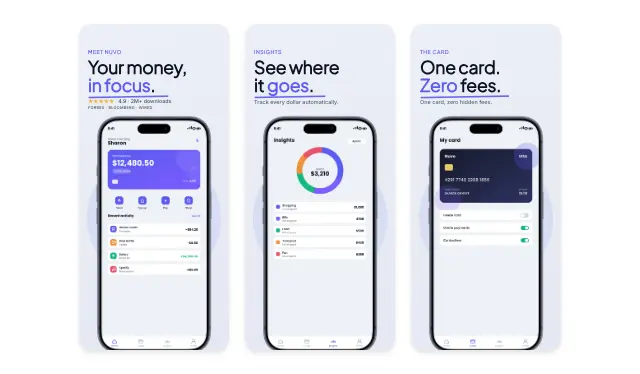
5 slides · minimal
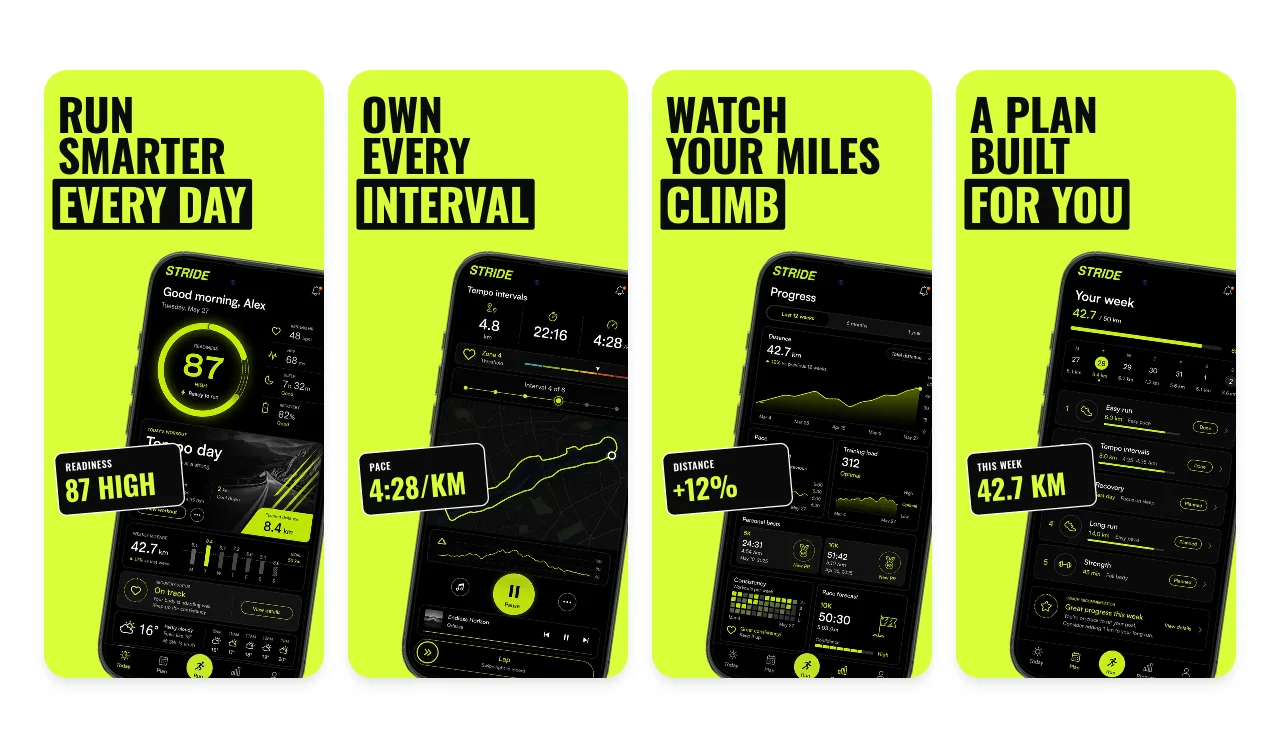
5 slides · bold
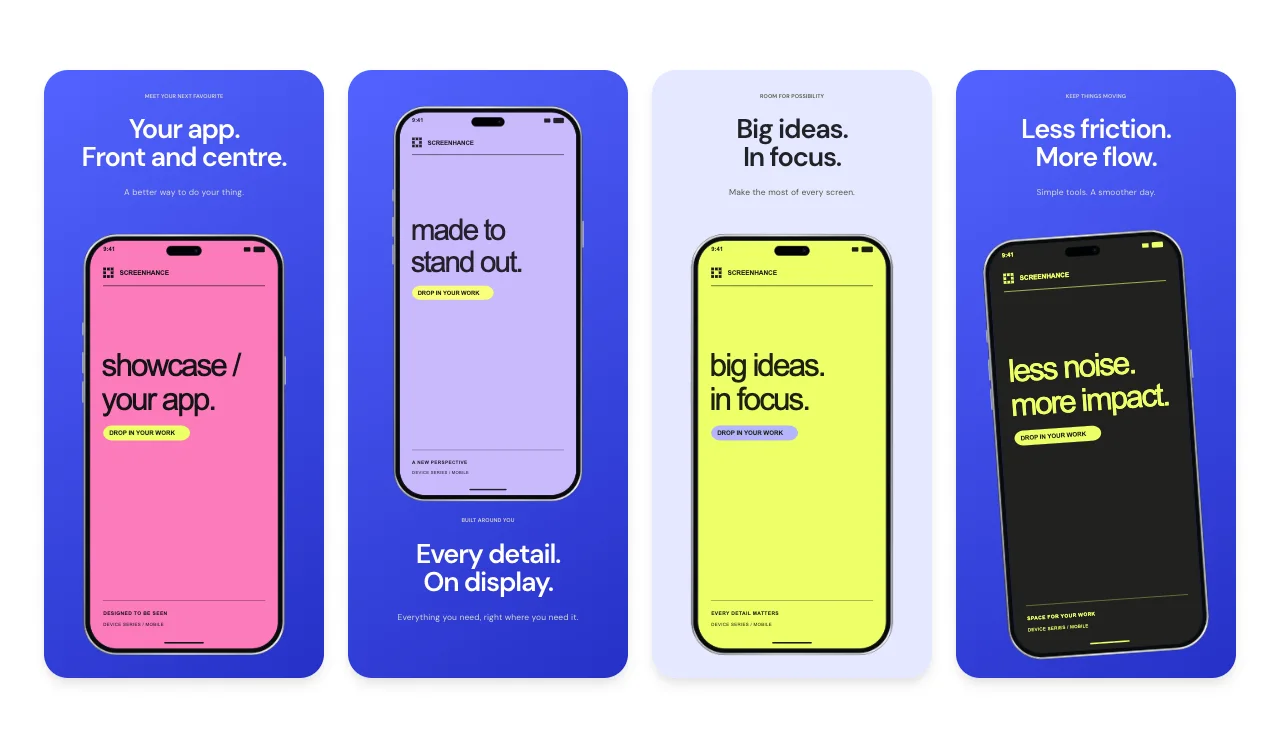
5 slides · bold
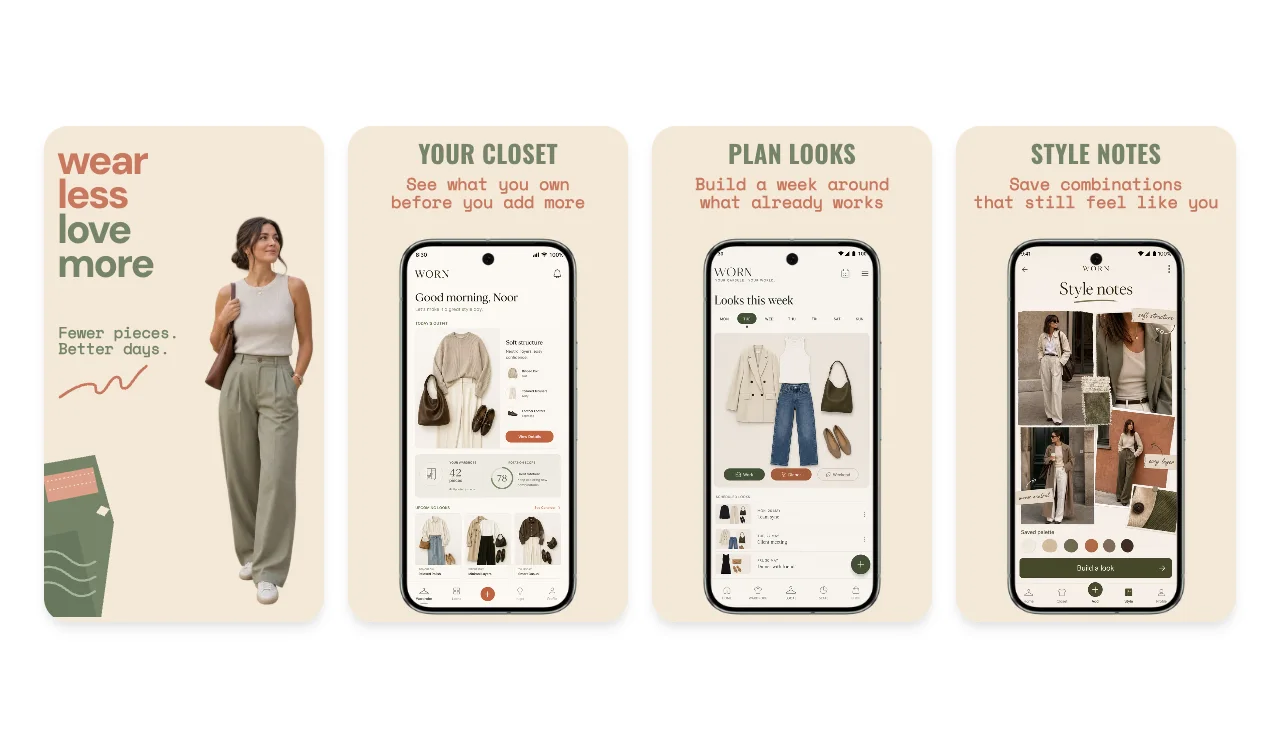
6 slides · bold
Yes, you can make App Store screenshots in ChatGPT and Claude: add the Screenhance plugin or connector, attach real screenshots of your app, and ask. Screenhance suggests three designs, changes them when you ask, and shows watermarked previews that never use an export. Exports follow your Screenhance plan: Free includes 3 watermarked exports a month, and the $6 Launch Pass or Pro remove the watermark from images.
Attach the screenshots you already have and say what you need. Screenhance does the layout, the frames and the type.
You ask
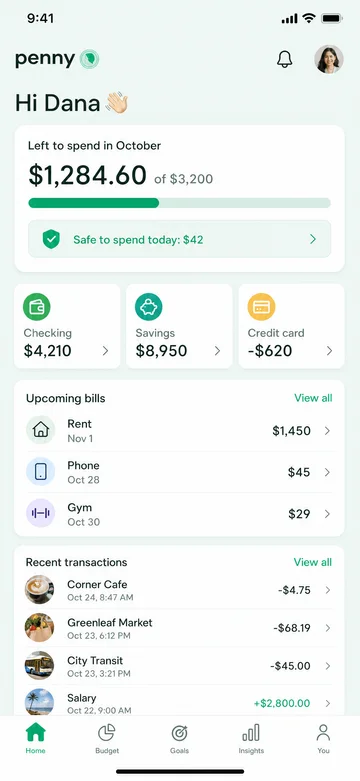
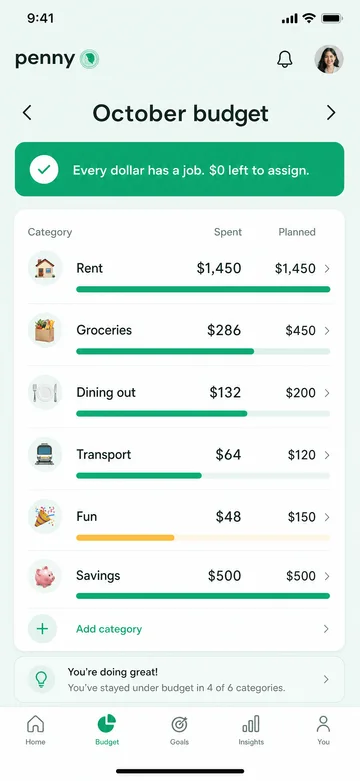
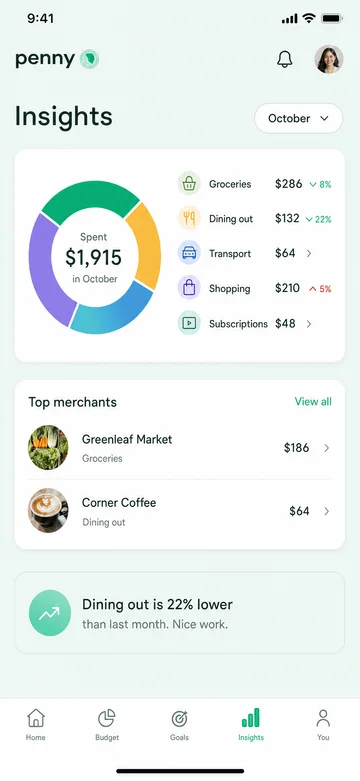
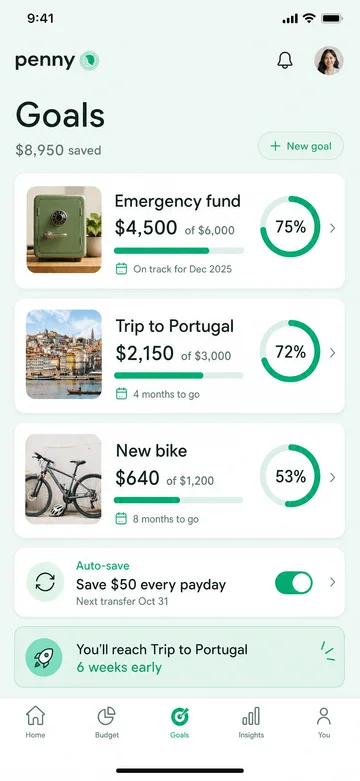
Use Screenhance to turn these screens into App Store screenshots. Lead with: Money that makes sense.
Screenhance designs
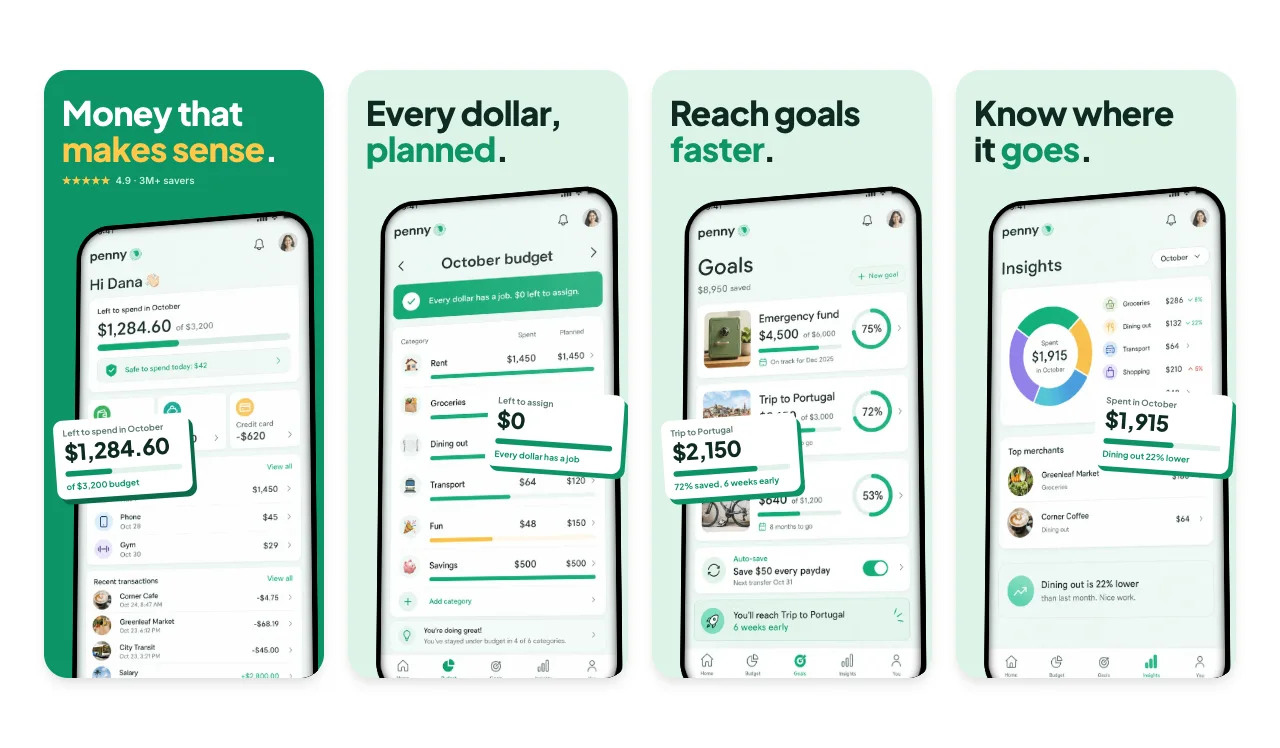
Shown: Penny, one of the store templates in the Screenhance library.
Ask for one output or all of them in the same chat. Every design starts from your real screens, never from invented ones.
Coordinated store sets with your headlines, device frames and backgrounds, plus the Google Play feature graphic. They download as PNG files at store sizes.
See store screenshot templatesPhoto scenes and studio mockups for phones, tablets, watches, laptops and browsers, including a single device on a transparent background.
See mockup templates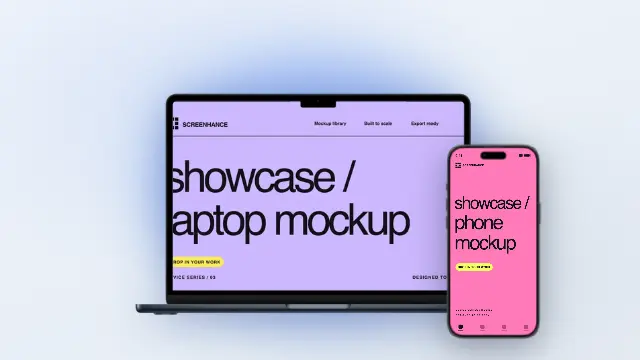
Device reveals, product tours, feature spotlights and short social cuts. Download MP4, or WebM when the background is transparent.
See motion templatesOpen Graph images, Product Hunt galleries, website visuals, and posts for Instagram, LinkedIn and X, all from the same screenshots.
See launch image templates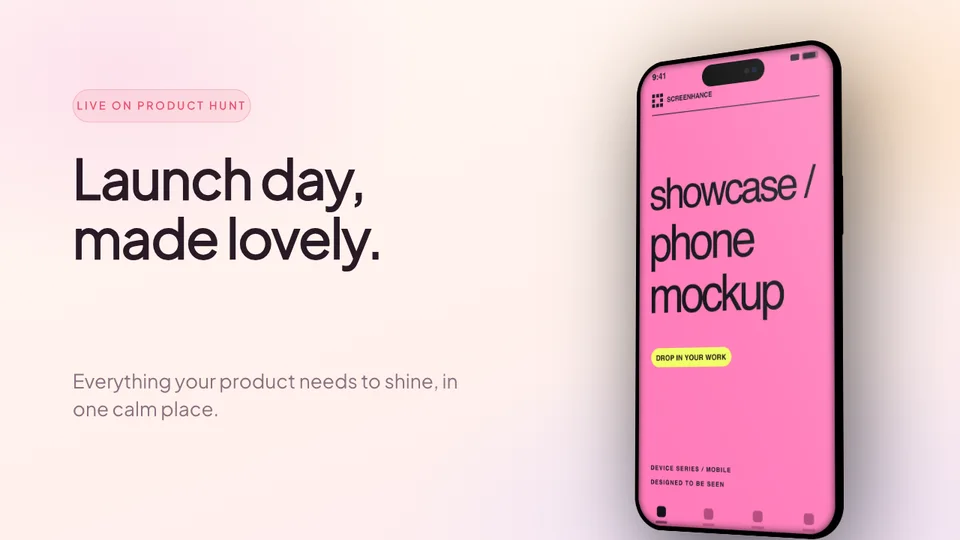
The same five steps in ChatGPT and in Claude. Nothing to install, and every design starts from your real screens.
Install the Screenhance plugin in ChatGPT or add the Screenhance connector in Claude, then sign in with your Screenhance account.
Attach a few real screenshots of your app and say what you need: store screenshots, a mockup, a short film or a launch image.
Screenhance suggests three directions, ranked by how well each one fits your screenshots, your style and the length of your headlines, and marks the one it recommends.
Ask for a new headline, font, frame or background, or change it in the panel. Each change applies to the design you name and leaves the rest alone.
Watermarked previews are free and never use an export. When the set looks right, export once and download the PNG files, the videos and one ZIP with everything.
Ready?
Connect once and make your first set today.
An image generator can draw a picture of an app. Your store page has to show the real one. Screenhance keeps your screenshots exactly as they are and designs around them.
Designs are built around the screenshots you attach. Nothing in your interface is redrawn or made up.
Store screenshots download as PNG files at App Store and Google Play sizes.
Change text, colours, fonts, frames and backgrounds by asking, or swap the whole design and keep your content.
Every design is an editable project. Open it on the web later and pick up where you left off.
Nothing to install on your computer. You sign in with your Screenhance account, so your plan and your saved designs come with you.
Live in the plugin directory
Try: “@Screenhance show me three directions for App Store screenshots from these screens.”
Claude on the web and the desktop app
https://app.screenhance.com/api/mcpCustom connectors work on every Claude plan, and the Free plan allows one. On Team and Enterprise plans, an Owner adds the connector in Organization settings first.
ChatGPT and Claude both reach Screenhance through one MCP server. MCP is the open standard AI apps use to call tools, so you can add the same server to a coding agent and make store screenshots without leaving your project.
claude mcp add --transport http screenhance https://app.screenhance.com/api/mcpThen type /mcp in Claude Code, choose screenhance and sign in.
codex mcp add screenhance --url https://app.screenhance.com/api/mcp
codex mcp login screenhance
The login command opens your browser so you can sign in.
“Use Screenhance to make an App Store screenshot set from the PNGs in ./screenshots, use the headlines in docs/store-copy.md, and save the export to fastlane/screenshots/en-US.”
Saving into fastlane folders lets you upload with your existing release flow. See App Store Connect screenshots for the folder layout. Other MCP clients can connect with the same address if they sign you in through your browser on the same computer.
Copy one into ChatGPT or Claude, attach your screenshots and change the details. Naming Screenhance in your first message helps the assistant pick it.
“Use Screenhance to show me three directions for App Store screenshots from these screens. The headline is: Plan a calmer day.”
“Use Screenhance to make a transparent iPhone mockup and a short animated loop from this screenshot.”
“Put my app in a photo scene, with someone holding the phone in a cafe.”
“Change the font on the second design, then preview it again.”
“Add Google Play screenshots and an OG image in the same style.”
“Export everything and give me one download.”
ChatGPT and Claude connect to your own Screenhance account. Creating, editing and previewing never use an export, on any plan.
Free
3 exports a month, with a watermark.
Launch Pass, $6 once
10 exports over 7 days with no watermark on images, each one a whole download with everything you pick.
Pro, $12 a month
Unlimited exports, including clean motion and video.
Yes. Install the Screenhance plugin in ChatGPT, attach screenshots of your app and ask for an App Store or Google Play set. You can compare three designs, edit them in the chat and download PNG files when you export.
Yes. Add Screenhance as a connector in Claude and sign in with your Screenhance account. Developers can add the same Screenhance MCP server to Claude Code with one command, so a coding agent can make store screenshots from inside a project.
Your real screenshots. Screenhance places them into its templates with device frames and backgrounds, and uses the headlines you give it. If you give none, short headlines are drafted from your description, and you can change them in the chat.
MCP, the Model Context Protocol, is the open standard that ChatGPT, Claude and coding agents use to connect to tools. The Screenhance MCP server at https://app.screenhance.com/api/mcp is what the ChatGPT plugin and the Claude connector use, and you can add it to Claude Code, Codex or another MCP client that signs you in through your browser.
Claude Code and Codex connect with the commands on this page. Other tools can connect if they sign you in through your browser on the same computer. Cursor is not supported yet.
Yes. You sign in with your Screenhance account when you connect, and everything you make is saved there, so you can open it again later. A free account is enough to start.
Connecting, creating, editing and previewing are free. Exports use your Screenhance plan: the free plan includes 3 exports a month with a watermark, the $6 Launch Pass gives 10 exports over 7 days with no watermark on images, each one a whole download with everything you pick, and Pro at $12 a month adds unlimited exports with clean motion and video.
They are saved privately to your Screenhance account and are not shared with other users. ChatGPT or Claude can reach them only while connected, and you can disconnect either one at any time from Connected apps in your Screenhance account. Disconnecting removes its access but keeps your work.
Still designs download as PNG, including transparent PNG for single-device mockups. Motion downloads as MP4, or as WebM when the background is transparent. Every export also comes as one ZIP.
Open the same outputs in the browser editor, or check your files before you upload.
Social share cards for every platform
Start creatingEvery launch visual from one brief: App Store, Product Hunt, OG, and website
Start creatingValidate screenshots before App Store Connect rejects them
Start creatingCreate iOS and Android store visuals
Start creatingAndroid-ready Google Play visuals
Start creatingUpload straight from Screenhance, in App Store Connect, or with fastlane folders
Start creatingBring a few screenshots of your app. Compare three designs, change anything by asking, and export when it looks right.
Prefer to design by hand? Open the editor free.