
Figma Device Mockup Plugins vs Dedicated Tools (2026 Comparison)
Compare Figma, Mockuuups, Artboard Studio, Jitter and Screenhance by workflow: editable layers, realistic scenes, motion, store sets and exports.
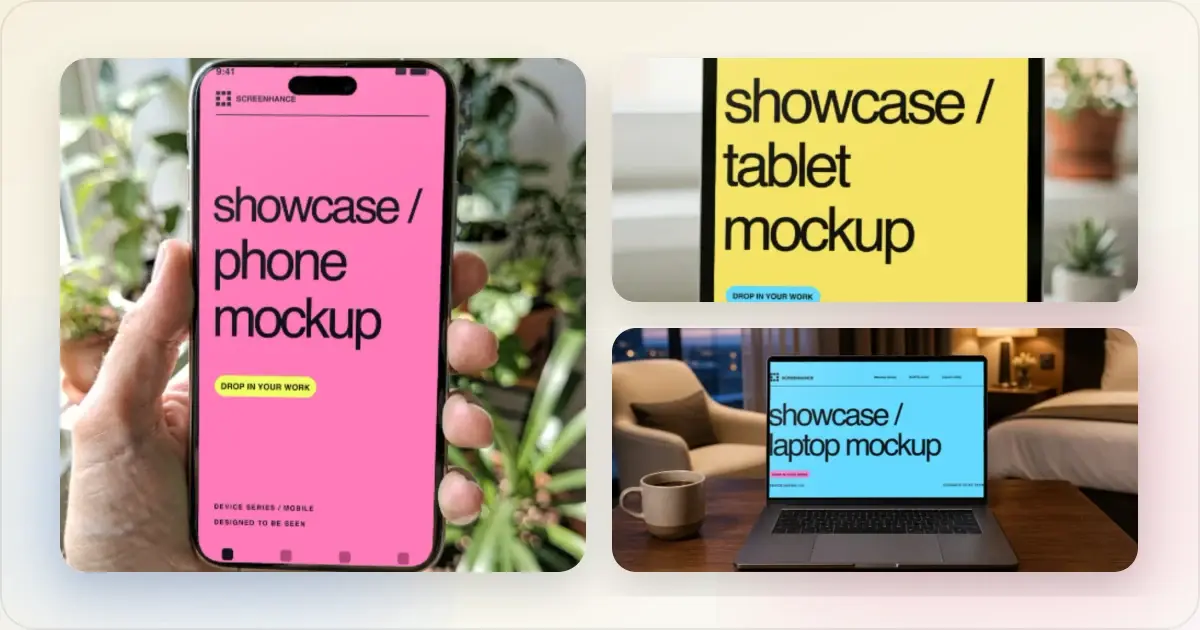
This comparison was reviewed on 12 October 2026 against the official documentation linked below. Screenhance publishes this article. It compares documented workflows, not measured speed, popularity or conversion performance.
Which workflow fits your deliverable?
| Deliverable | A useful starting point | Check before committing |
|---|---|---|
| A realistic device or print scene inside Figma | Mockuuups Studio plugin | Artwork position, crop and how an existing placement updates |
| A mockup with image or video on its surface | Artboard Studio | Scene availability and the required output format |
| An animation using your Figma layers | Figma Motion or Jitter | Layer compatibility, motion controls and export limits |
| A coordinated store listing | Screenhance store editor | Required sizes, caption wrapping, localization and ZIP structure |
| Mockups plus social and website launch assets | Screenhance visual editor or Launch Kit | Whether the starting layouts fit the message and screenshots |
| Product UI, components and prototypes | Figma | Your team's design system and collaboration requirements |
Make a free device mockup
Mockuuups Studio: preview your design in the scene library
The Mockuuups Figma plugin previews a selected design across its mockup library. Its editor supports backgrounds, positioning and crop adjustments. An existing placed mockup can be updated after the source design changes.
That is a useful benchmark for a mockup workflow: judge scenes using your actual UI, then verify that replacement keeps the composition you chose. A catalogue thumbnail alone cannot tell you whether a dense dashboard remains readable at a particular angle.
Artboard Studio: image and video surfaces
Artboard Studio combines a browser editor with Figma and Adobe Express integrations. Its documented exports include PNG, JPEG and WebP images, plus MP4 and WebM video. Its animation gallery includes orbit, stack, carousel and grid compositions.Use this kind of scene-led workflow when the physical setting or arrangement carries the presentation. Check a finished export with your own media before selecting a template for a client deliverable.
Figma Motion and Jitter: animation is a real option
Figma's animation export documentation describes MP4, WebM, GIF, SVG and Lottie outputs. Figma Motion is in open beta; exports larger than 1920 × 1080 or above 30 fps require a paid plan. It is no longer accurate to describe Figma as incapable of animated export.
Jitter's Figma workflow transfers selected frames or layers through its plugin. In Jitter, you can adjust animation timing and easing, use presets, and export video, GIF or Lottie.For either workflow, test the layers and effects your design actually uses. A supported file format does not imply that every effect transfers unchanged.
Screenhance: store sets and surrounding launch assets
Screenhance starts from real screenshots and recordings. Its tools cover different outputs:
- The visual editor combines screenshots, frames, text, backgrounds, annotations and artwork in editable compositions.
- The store editor provides coordinated App Store, Google Play and Chrome Web Store sets, size presets and organized image exports.
- Store localization supports the built-in locale list. Review translated captions in the design before exporting.
- Animated mockups add motion to a product composition; Studio turns a recording into an edited product video.
- Launch Kit provides coordinated starting assets from a product brief and uploaded media.
For a reliable Figma-to-Screenhance handoff, export the finished UI frame as PNG and upload it as screenshot media. The imported UI remains an image; it does not become editable Figma layers. Add and edit the presentation's captions, frame and background in Screenhance. This article does not depend on availability of a Screenhance Community plugin.
What remains editable?
“Editable mockup” can mean several things. Distinguish the original UI, the mockup scene and the surrounding presentation.
A PNG handoff preserves the appearance of your UI. It does not preserve its text nodes or components. Scene controls may let you replace the screen, change its crop or alter the background while leaving the photographic environment fixed. A layer-based animation workflow may preserve more of the original design, but compatibility depends on the layers and effects.
Before choosing a tool, make one representative asset and try these steps:
1. Replace the screenshot with a newer version.
2. Change a short caption to a longer one.
3. Export at the actual destination size.
4. Reopen the project and confirm what you can still edit.
5. For motion, inspect the final frame, duration and background in the downloaded file.
Store screenshots need a separate output check
A device mockup and an accepted store upload are different deliverables. Check the App Store screenshot dimensions, preserve readable UI, and inspect each required size and language.
An animated mockup can support a landing page or social post. It does not replace an image in a store's static screenshot slot. Store preview videos have their own requirements.
Frequently asked questions
Can I make mockups without leaving Figma?
Yes. Mockuuups Studio and Artboard Studio offer Figma integrations. Their workflow and scene controls differ, so try the actual scene and replacement operation your project needs.
Can Figma export animated mockups?
Yes. Figma Motion documents animated exports, including MP4, WebM and GIF. Jitter also offers a connected Figma animation workflow. Check current plan limits and effect compatibility in the linked documentation.
Does importing a Figma PNG preserve its layers?
No. It preserves the rendered image. In Screenhance, the surrounding composition remains editable, while changes to the UI itself require a replacement image from the source design.
Which is faster?
This article does not establish a timed winner. A plugin can minimize handoff work when your design is already in Figma. A store-focused editor can reduce repeated setup for sizes, captions and localized exports. Compare using the same real project.
How should I compare pricing?
Check the current plan, commercial-use terms, export resolution, watermarks and monthly limits for your intended output. A free plugin installation does not necessarily include every scene or export.
See Screenhance pricing, the product capabilities guide, and Figma alternatives for mockups for the next step.
Screenhance examples
Two editable starting points from the Screenhance library, selected for this mockups guide.

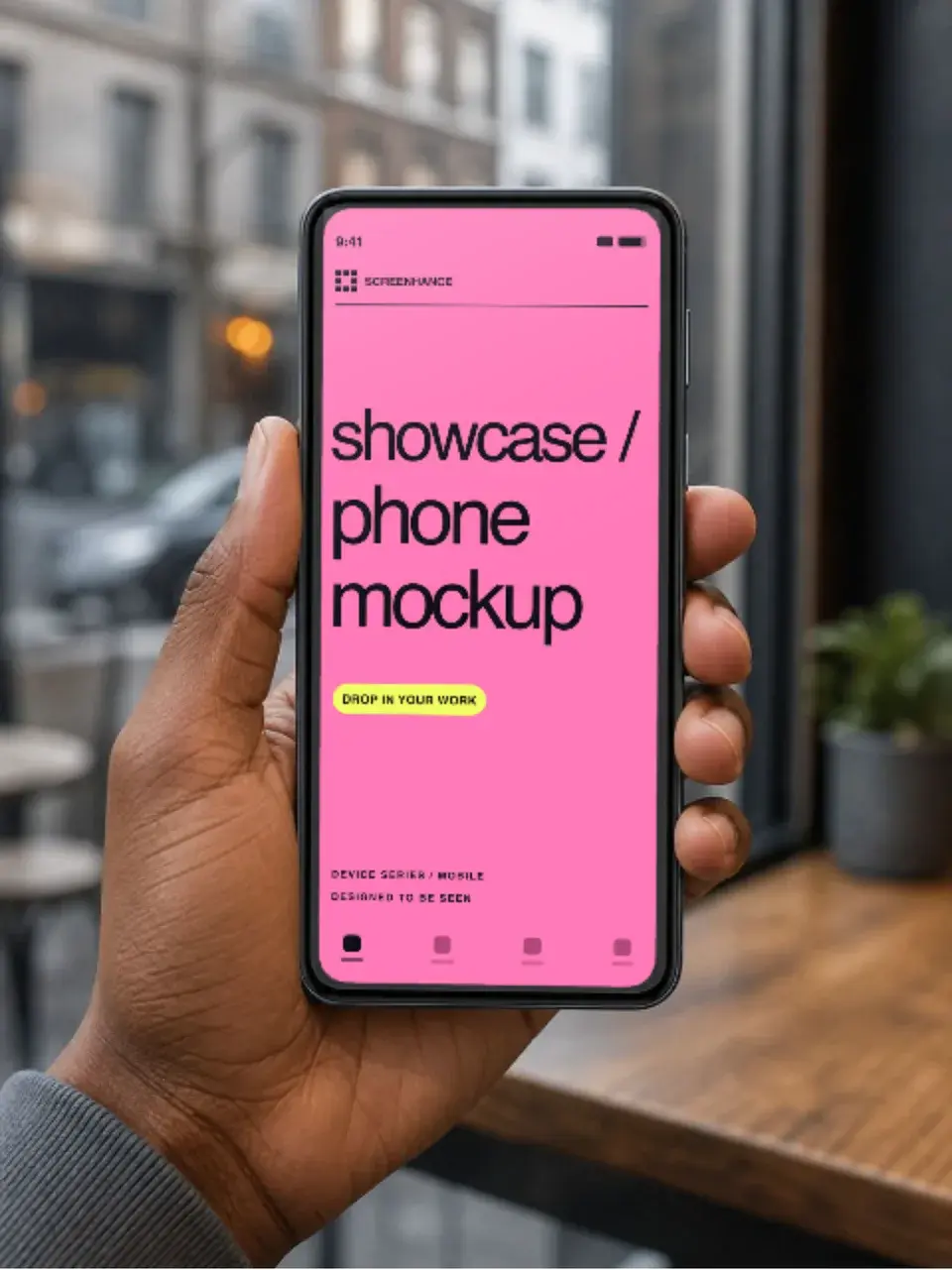
Make a free device mockup
Free to start. No credit card required.
Keep reading
Related, product-tested guides from Screenhance.
Apple Watch Mockup Guide: Framing watchOS Apps in 2026
How to create Apple Watch mockups that sell a watchOS app: choosing 46mm vs 42mm, capturing clean watch screenshots, and the iPhone-plus-Watch layout.
29 May 2026 · 6 min read
Google Pixel Mockup Guide for Android Marketing in 2026
Choose and use a Google Pixel frame for Android marketing, compare it with a Galaxy treatment, and prepare accurate Play Store visuals.
29 May 2026 · 5 min read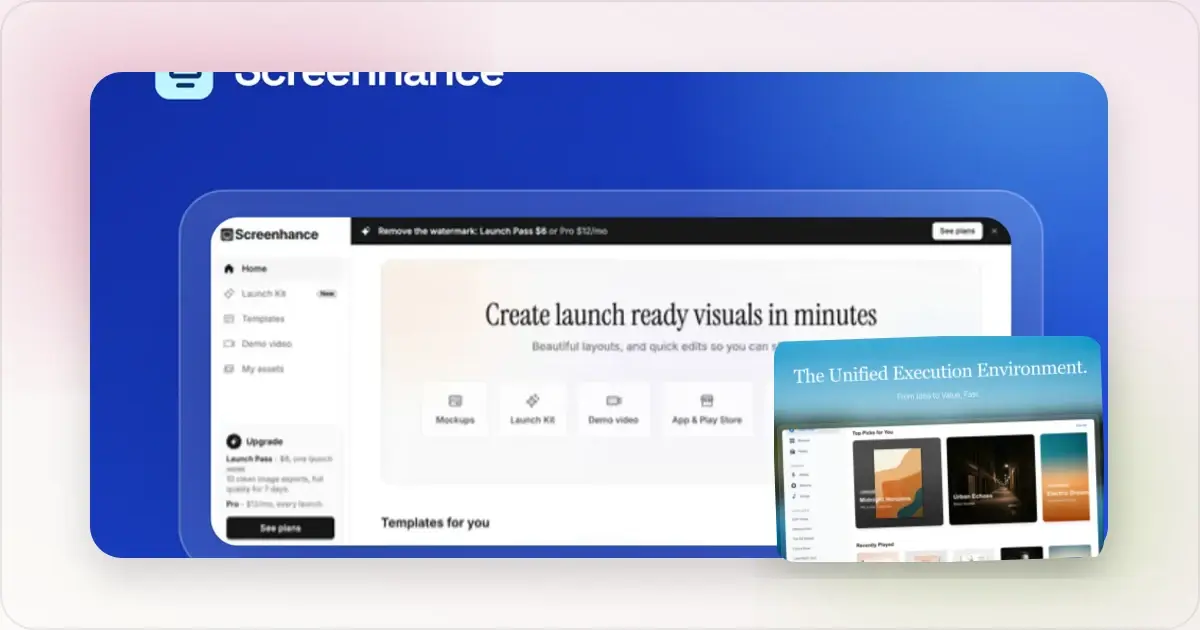
AI Mockup Generators in 2026: Where They Help and Where They Fail
A practical guide to AI mockup generators: when generated scenes help, when real product screenshots matter, and how to build a repeatable launch workflow.
13 May 2026 · 6 min read