
How to Publish an AI-Built App to the App Store (Lovable, Bolt, Replit)
A practical App Store submission walkthrough for AI-assisted apps: enrollment, builds, listing metadata, screenshots, privacy details, and review preparation.
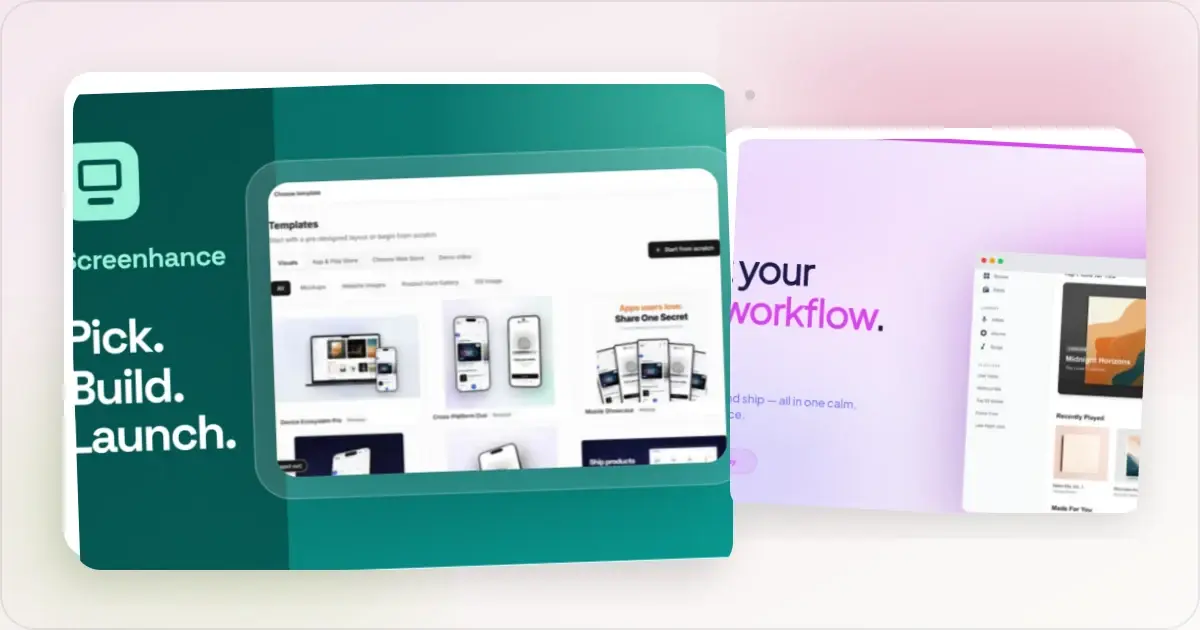
This is the store-submission half of launching. The marketing half, from OG images to Product Hunt, is covered in the AI-built app launch guide.
Step 1: The accounts
- Apple: enroll in the Apple Developer Program before the release window. Fees and verification steps vary by region and account type, so confirm them on Apple's enrollment page.
- Google Play: if you also ship Android, complete the current Play Console registration and verification flow separately.
Choose individual or organization enrollment deliberately because the seller name, verification documents, and any later account or app transfer follow Apple's rules.
Step 2: Get a build, per builder
Replit. Confirm whether the project is a native mobile app or a web app, then follow Replit's current deployment documentation. A hosted web deployment is not automatically an App Store build. Bolt.new. Mobile projects may use Expo and EAS for signing, building, and submission. Verify the current project export and Expo documentation because the available path depends on how the project was created. Lovable. A web project needs a supported native packaging approach before it can be submitted as an iOS binary. Capacitor is one possible route, but packaging does not guarantee that the resulting experience satisfies App Review.Whichever route you take, test the signed build on supported real devices before submitting. Simulators may not expose every keyboard, safe-area, permission, network, or performance issue.
Step 3: The listing
App Store Connect asks for listing metadata such as the app name, subtitle, description, keywords, support URL, privacy information, age rating, categories, and availability. Limits and required fields can differ by platform and change over time, so use Apple's App information reference while completing the record. Privacy answers must match the app and its third-party SDKs.
Write an accurate name and plain-English subtitle that help customers understand the app. Avoid irrelevant search terms or an unsubstantiated ranking formula.
Step 4: Screenshots at the exact sizes
App Store Connect validates screenshots against accepted dimensions for the selected display class. 1320 × 2868 is one accepted 6.9-inch iPhone portrait size, not the only possible listing canvas. The current options and official source are collected in the App Store screenshot dimensions guide.
The App Store screenshot generator turns raw captures into framed, captioned assets using current presets. Select the outputs relevant to the devices the app supports, then run them through the size checker and verify the intended App Store Connect slot. Shipping Android too? The Play Store generator provides practical canvases within Google's documented ranges.
Use enough screenshots to explain the important workflow without padding the set. Lead with clear, representative product screens because some placements expose only the beginning of the gallery.
Step 5: Prepare for review
Review time varies and Apple reports current estimates through App Store Connect and its developer resources. Common preparation issues include:
- Guideline 4.2, minimum functionality. Apple's App Review Guidelines say an app should provide features, content, and UI that elevate it beyond a repackaged website. Native capabilities can help when they serve the product, but Apple does not publish the short checklist claimed by many wrapper guides.
- Placeholder or broken content. Remove “Lorem ipsum,” unintended test data, dead controls, and unfinished flows from the submitted build.
- Login walls without demo access. If the app needs an account, provide a working demo login in the review notes.
- Broken privacy answers. Saying you collect nothing while your analytics SDK says otherwise.
If Apple raises an issue, read the cited guideline and review note, correct the underlying problem, and explain the change clearly in the next submission. A resubmission is not guaranteed approval.
Step 6: Press publish, then launch properly
Approval provides store distribution, not a complete launch plan. Reuse current product captures as source material for applicable launch assets, then create and review the right composition for an OG image, Product Hunt gallery, or social card. That half of the job is covered in the launch checklist.
Frequently Asked Questions
Can I publish a Lovable app to the App Store?
It is possible to package a web project with a native wrapper such as Capacitor, but the resulting app must still satisfy signing, privacy, functionality, UI, and review requirements. Do not add arbitrary native features solely as a review workaround; build a coherent mobile experience and read guideline 4.2.
How does Replit publish to the App Store?
The route depends on whether the Replit project is native or web-based and on Replit's current product capabilities. Follow its current mobile deployment documentation, and expect to supply your own Apple developer access, listing, screenshots, and privacy details.
How much does it cost to publish an app?
Apple and Google publish their current enrollment or registration fees during sign-up, and amounts or requirements can vary by region and account type. Builder plans, signing services, hosting, and any legal or business setup are separate costs.
What screenshot sizes does the App Store require?
Apple accepts multiple display-class dimensions. For example, 1320 × 2868 is accepted for a 6.9-inch iPhone portrait asset. The dimensions guide links to Apple's current specification; choose and validate the outputs relevant to your app.
How long does App Store review take for a first submission?
There is no guaranteed review duration. Check Apple's current status and estimates, submit complete review notes, provide a working demo account when needed, and make privacy answers accurate.
Do I need different screenshots for the App Store and Google Play?
Keep the brand system consistent, but use platform-accurate UI, frames, and canvases. Google accepts a size range rather than Apple's display-class dimensions. Derive both sets from shared source material, then check each store separately.
Check your App Store screenshot sizes
Drop your screenshots to check each one against Apple's accepted App Store Connect sizes before you upload. Nothing leaves your browser, and nothing is stored.
Accepted App Store sizes
- iPhone Duo outer: 1398×2034 (or 2034×1398 landscape)
- iPhone Duo inner: 2007×2853 (or 2853×2007 landscape)
- iPhone 6.9": 1260×2736 (or 2736×1260 landscape)
- iPhone 6.9": 1320×2868 (or 2868×1320 landscape)
- iPhone 6.9": 1290×2796 (or 2796×1290 landscape)
- iPhone 6.5": 1284×2778 (or 2778×1284 landscape)
- iPhone 6.5": 1242×2688 (or 2688×1242 landscape)
- iPhone 6.3": 1179×2556 (or 2556×1179 landscape)
- iPhone 6.3": 1206×2622 (or 2622×1206 landscape)
- iPhone 6.1": 1170×2532 (or 2532×1170 landscape)
- iPhone 6.1": 1125×2436 (or 2436×1125 landscape)
- iPhone 6.1": 1080×2340 (or 2340×1080 landscape)
- iPhone 5.5": 1242×2208 (or 2208×1242 landscape)
- iPhone 4.7": 750×1334 (or 1334×750 landscape)
- iPhone 4": 640×1096 (or 1136×600 landscape)
- iPhone 4": 640×1136 (or 1136×640 landscape)
- iPhone 3.5": 640×920 (or 960×600 landscape)
- iPhone 3.5": 640×960 (or 960×640 landscape)
- iPad 13": 2064×2752 (or 2752×2064 landscape)
- iPad 13": 2048×2732 (or 2732×2048 landscape)
- iPad 11": 1488×2266 (or 2266×1488 landscape)
- iPad 11": 1668×2420 (or 2420×1668 landscape)
- iPad 11": 1668×2388 (or 2388×1668 landscape)
- iPad 11": 1640×2360 (or 2360×1640 landscape)
- iPad 10.5": 1668×2224 (or 2224×1668 landscape)
- iPad 9.7": 1536×2008 (or 2048×1496 landscape)
- iPad 9.7": 1536×2048 (or 2048×1536 landscape)
- iPad 9.7": 768×1004 (or 1024×748 landscape)
- iPad 9.7": 768×1024 (or 1024×768 landscape)
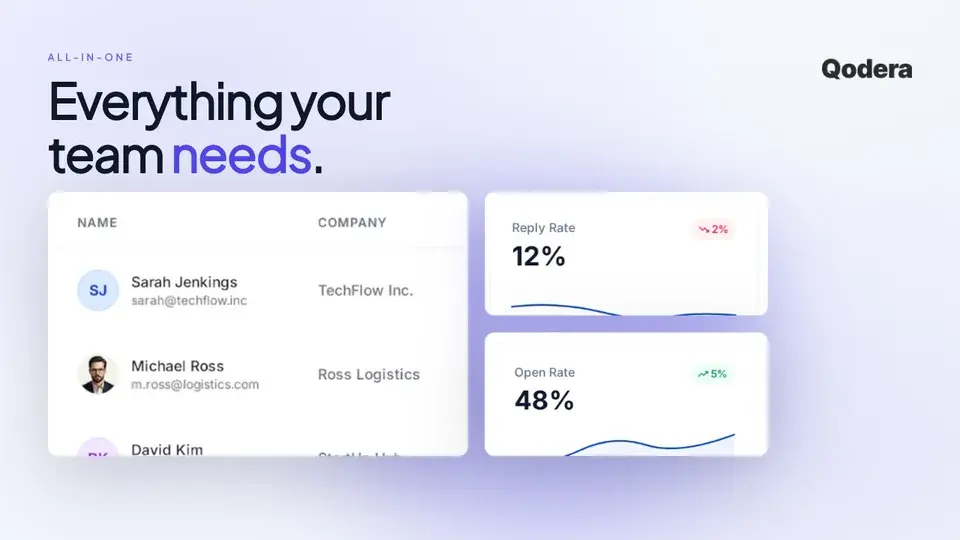
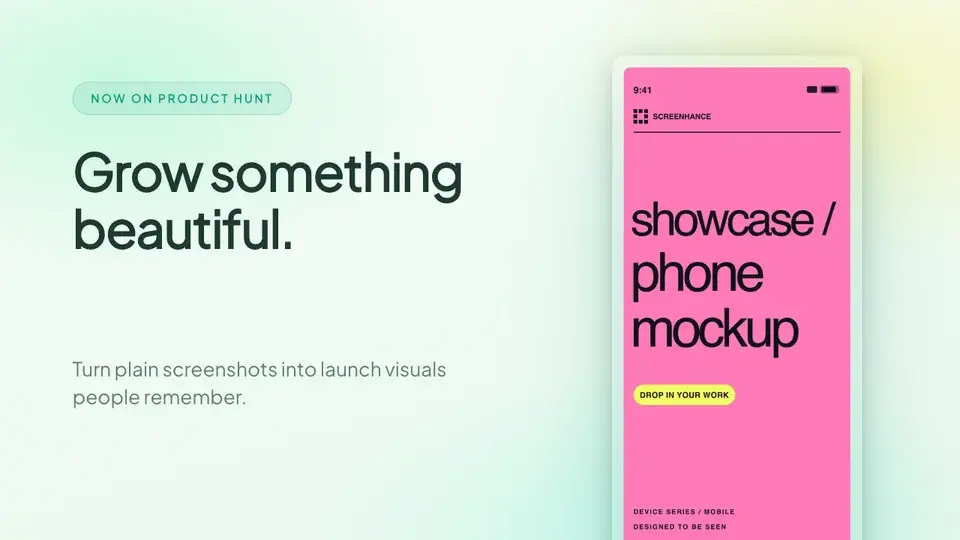
Screenhance examples
Two editable starting points from the Screenhance library, selected for this launches guide.
Create a complete, consistent App Store screenshot set
Free to start. No credit card required.
Keep reading
Related, product-tested guides from Screenhance.
You Built an App With AI. Here's How to Launch It
A practical launch-visual checklist for apps built with Lovable, Bolt, Cursor, Replit, or other AI-assisted development tools.
19 Jun 2026 · 7 min read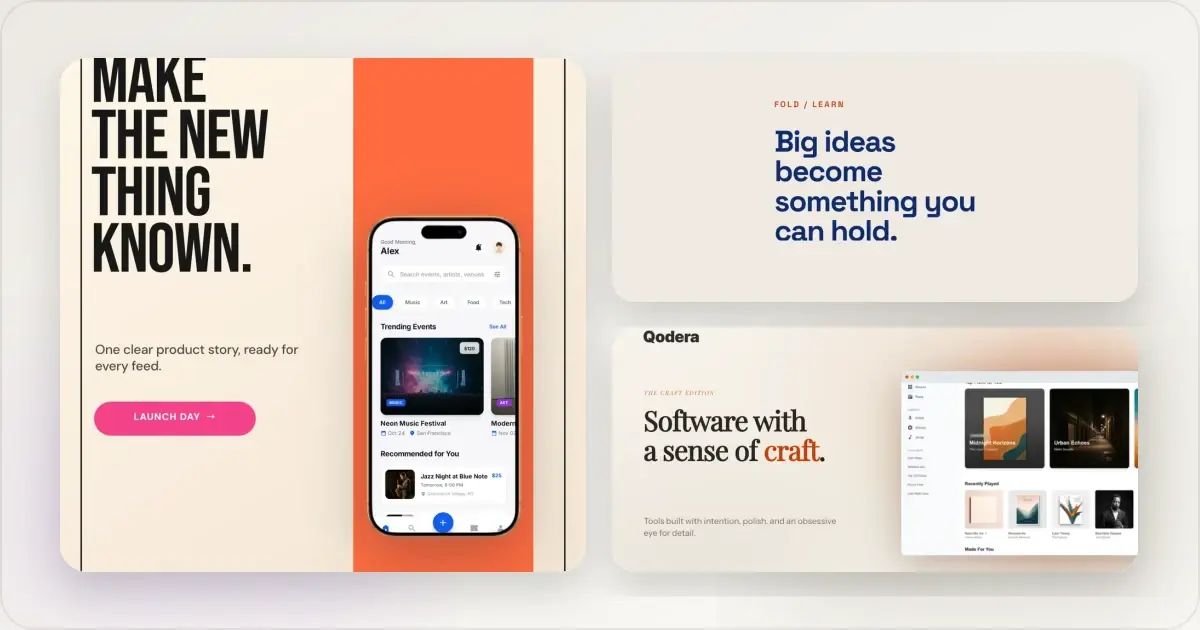
14 Best Fonts for App Screenshots and Launch Graphics
Choose readable fonts for App Store screenshots, Google Play graphics, social posts, and launch visuals, with practical pairings and editable examples.
1 Sept 2026 · 10 min read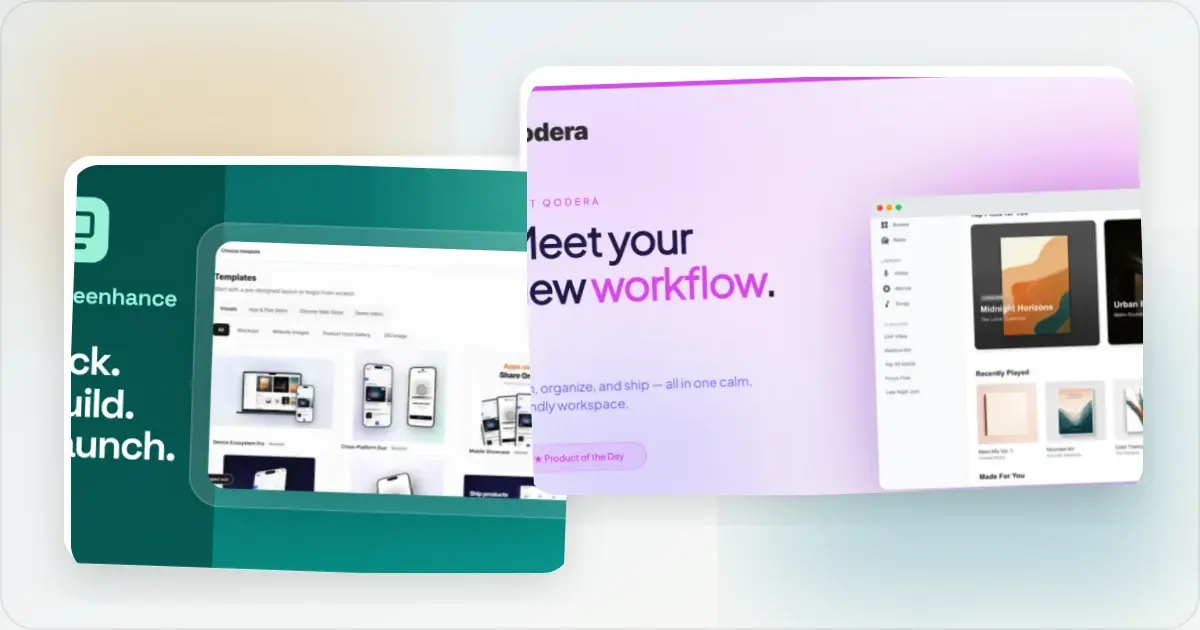
How to Launch an App in 2026: The Complete Step-by-Step Checklist
The complete 2026 app launch checklist: a 4-6 week timeline across pre-launch, launch day, and post-launch, plus every store, Product Hunt, and OG asset needed.
4 Jul 2026 · 8 min read