
You Built an App With AI. Here's How to Launch It
A practical launch-visual checklist for apps built with Lovable, Bolt, Cursor, Replit, or other AI-assisted development tools.
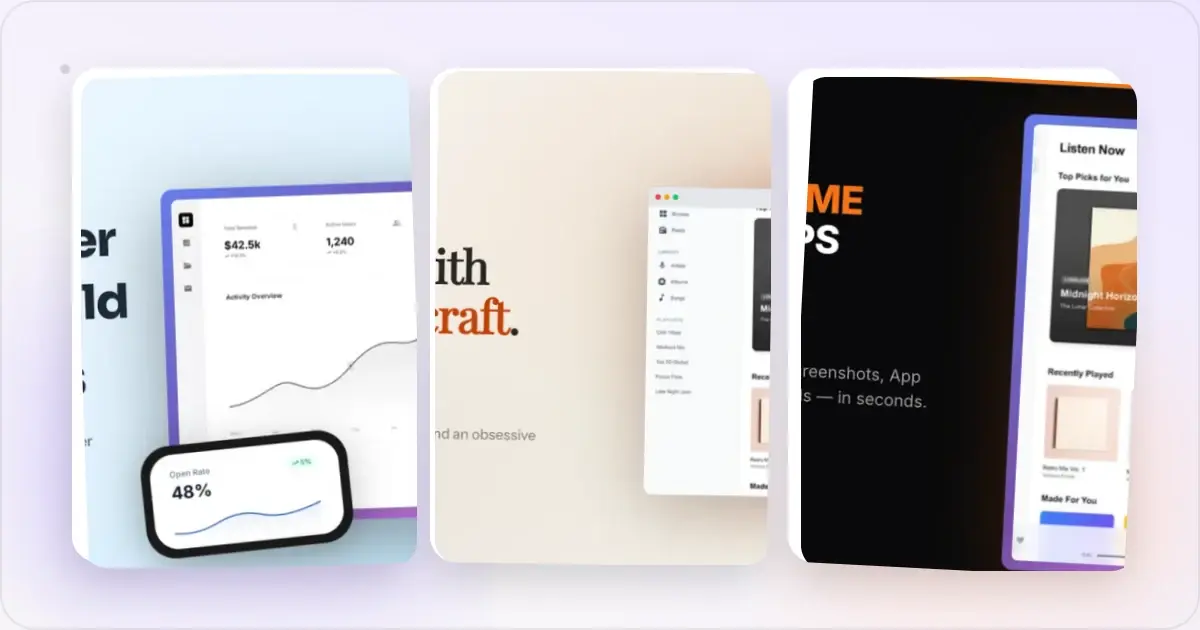
You built the app with Lovable, Bolt, Cursor, Replit, v0, Claude, or another assisted-development tool. What comes next depends on where you plan to release it: an app-store listing, a landing page, a Product Hunt post, and social assets are separate launch jobs.
Conversational development tools can get a product to a working state without producing all of its launch assets. A launch still needs accurate store, website, and social visuals.
This guide covers that second half. Each step maps a launch surface to the visual asset it may need and a template-based way to prepare it.
Coordinate the visual work: the Launch Kit creates store screenshot, landing-page hero, OG image, and Product Hunt gallery starting points from one brief. Review each destination separately.
Shipping from a specific builder? There are dedicated launch-asset checklists for Lovable, Replit, and Bolt.new apps.
The launch surfaces an AI-built app actually needs
Before the checklist, here is a map of four common launch surfaces. App stores enforce technical and content rules; websites, Product Hunt, and social platforms have their own formats and review needs.
| Surface | What it needs | Why it matters |
|---|---|---|
| App Store / Play Store | Accurate screenshots for the supported store slots | The listing needs to explain the real product clearly |
| Website / landing page | A product hero and an OG image where useful | The page and shared link should explain the product clearly |
| Product Hunt | Gallery and thumbnail assets requested by the current form | The gallery explains the product after someone opens the launch |
| Social (X, LinkedIn, Reddit) | Launch-day cards previewed per platform | A product visual can give the announcement immediate context |
Generate every launch visual from one brief — App Store, Product Hunt, OG, and website
Notice what these have in common. They are all images, and they all show your app. You already have the raw material, which is your app screens. The work is turning raw screenshots into framed, captioned, correctly-sized marketing visuals. That is the entire job.
The step-by-step launch checklist
Here is the order that works for a solo founder or non-designer. Do them roughly in sequence, because each asset feeds the next.
Step 1: Capture clean screens of your app
Open your app and grab the 4 to 6 screens that tell the story: the main screen, the one feature that makes people go "oh nice," the result or payoff screen, and onboarding. Use real-looking content, not "Test User 1" and "asdf." Placeholder data is the number-one tell of an unfinished app.
If it is a web app, screenshot the browser. If it is mobile, use your phone or the simulator. Save them as PNGs. This is your source material for almost everything that follows.
Step 2: Build your store screenshots
If you are shipping to the App Store or Google Play, screenshots are a required part of the listing. A device frame, restrained background, and short outcome-led headline can add context, but use them only when the final asset still represents the app accurately.
Apple uses accepted pixel dimensions for its display classes, while Google Play accepts a documented size range and ratio. Use the App Store screenshot generator for iOS and the Play Store screenshot generator for Android. Pick the relevant preset, then verify each export against the current store specification and the slot you intend to fill.
Use as many screenshots as needed to explain the core workflow without padding the set. Put the clearest value and most legible UI early because some placements show only part of the gallery.
Step 3: Make a landing page and its OG image
Even if your app lives in a store, you need a web page to point people to. The two visuals it needs:
- A hero image: a representative product view near the top of the page, aligned with the headline and responsive layout.
- An OG image: an explicit preview image for services that read Open Graph metadata when someone shares the page.
Without an explicit OG image, each service decides what preview it can build from the page metadata. A dedicated OG image at a broadly supported 1200 × 630 canvas gives you more control, but preview it in the platforms that matter because cropping and caching differ.
Step 4: Prepare your Product Hunt launch
Product Hunt can be one launch channel for a new app. Its listing includes visual assets, so the gallery should explain the product even to someone who has not read the full description.
Check Product Hunt's current submission form for required assets and limits. A useful gallery might include an opening explanation, a few feature screens, and a result. Build the set with the Product Hunt gallery generator so the visual system remains consistent.
Choose a date you can support, prepare honest answers for likely questions, and have the gallery ready before submission. Product Hunt's own launch resources describe the current mechanics and rules.
Step 5: Stage your launch-day social posts
On launch morning you may post to X, LinkedIn, a relevant subreddit, or Indie Hackers. Use an image when it helps the audience understand the product. Reuse a store screenshot or hero shot when it previews correctly, and recrop it when the platform needs a different composition.
Draft and review the copy before launch day when possible. Lead with what the app does. Mention that it was built with AI only when that detail is relevant to the audience and the post's purpose.
The fast path: generate the whole set at once
The same screens often need different framing, sizing, and captions across several surfaces. Keeping one editable source reduces repeated setup.
The faster path is to treat the launch as one coordinated job. Describe the app once, provide current screens, and create store presets, a landing-page hero, an OG image, and a Product Hunt gallery in a consistent style. That is what Launch Kit does. You fill in a short brief, it produces a coordinated starting set, and you refine each destination from there.
If you would rather jump straight in, open the app at app.screenhance.com/launch and start from your app name and a screenshot. The goal is to reduce repeated layout work while leaving enough time to inspect, correct, and approve each asset.
You did the hard, technical part. Do not let resizing images be the thing that keeps your app from getting seen.
Frequently Asked Questions
I built an app with AI. What do I actually need to launch it?
Prepare visuals only for the surfaces you will use: store screenshots for a mobile-store release, a landing-page product image and OG card, a Product Hunt gallery if you launch there, and destination-specific social assets. Not every app needs all four.
How do I launch an app I built with Lovable, Bolt, Cursor, or Replit?
The code-generation tool does not change the destination requirements. Check what your builder currently exports, capture clean screens, prepare any applicable store screenshots, add a landing-page OG image, and create gallery or social assets only for channels you will use. The Launch Kit creates a coordinated starting set, and there are dedicated asset pages for Lovable, Replit, and Bolt.new apps.
Do I need App Store screenshots if my app is web-based?
No. Store screenshots are only for apps shipping to the Apple App Store or Google Play. A web app still needs a landing-page hero and an OG image so shared links look polished, plus a Product Hunt gallery if you launch there.
What is an OG image and why does it matter for my launch?
An OG (Open Graph) image supplies preview artwork to services that read Open Graph metadata. A 1200 × 630 image is a broadly supported starting point, but cropping and caching vary, so test the live URL on the destinations you use.
How long does it take to make all the launch visuals?
The time depends on the number of destinations, localizations, and review rounds. A coordinated tool such as Launch Kit can reduce repeated setup, but every output still needs a destination-specific check.
Is Product Hunt worth it for an app built with AI?
It can be useful when its audience overlaps with yours, but it is not a guaranteed acquisition channel. Review current launch guidance, prepare a clear Product Hunt gallery, and judge the channel by relevant visits, conversations, and sign-ups rather than upvotes alone.
Screenhance examples
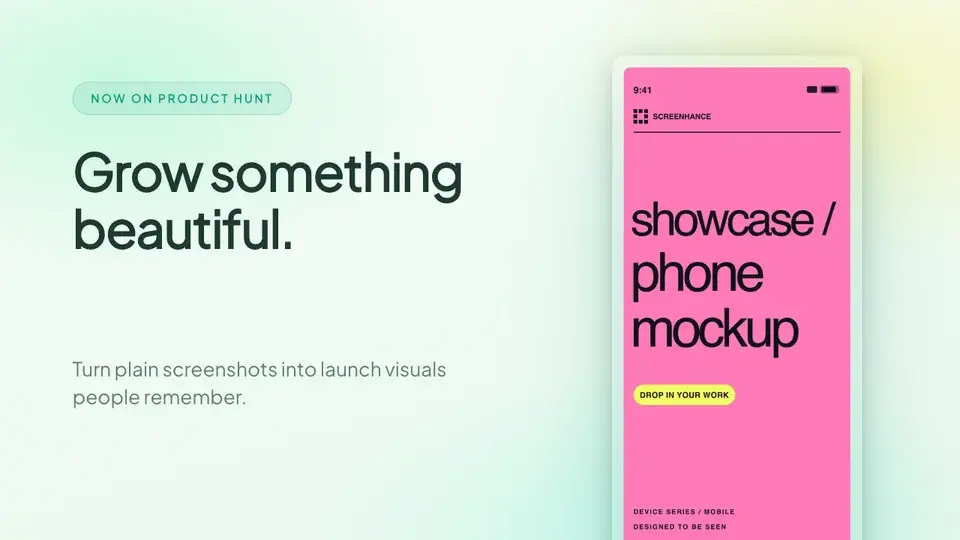
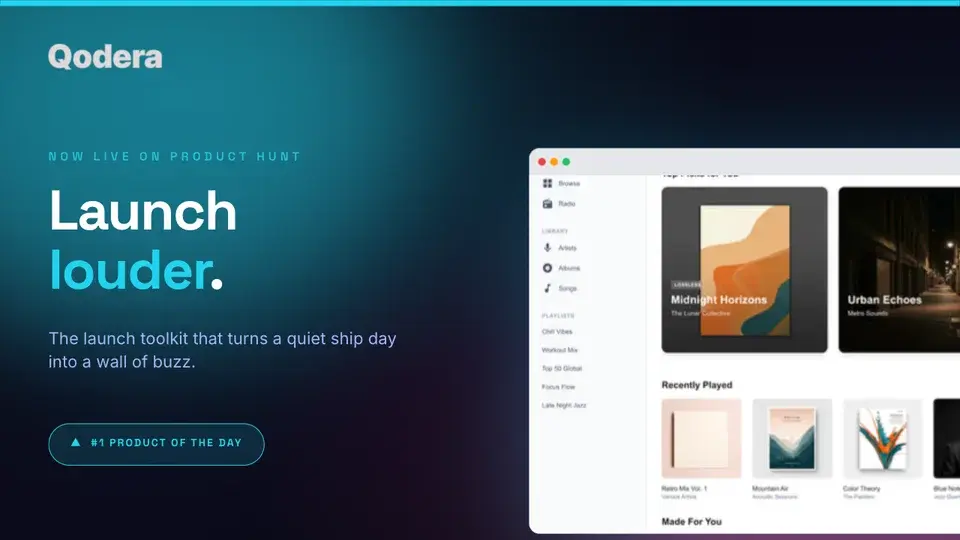
Two editable starting points from the Screenhance library, selected for this launches guide.
Generate every launch visual from one brief — App Store, Product Hunt, OG, and website
Free to start. No credit card required.
Keep reading
Related, product-tested guides from Screenhance.
How to Publish an AI-Built App to the App Store (Lovable, Bolt, Replit)
A practical App Store submission walkthrough for AI-assisted apps: enrollment, builds, listing metadata, screenshots, privacy details, and review preparation.
2 Jul 2026 · 5 min read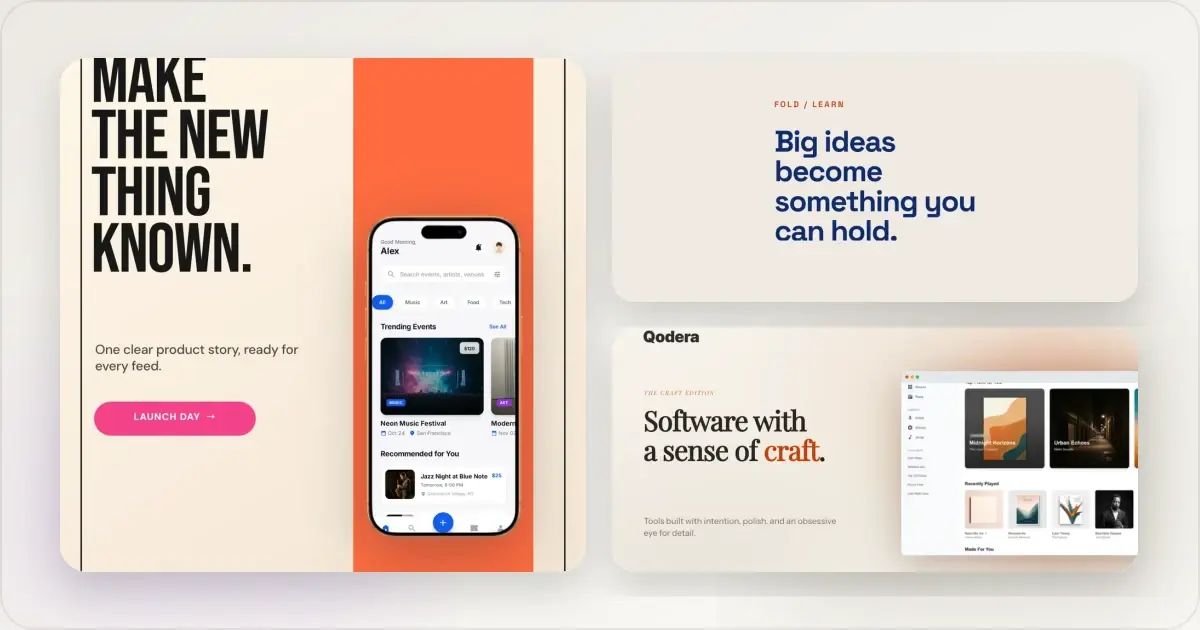
14 Best Fonts for App Screenshots and Launch Graphics
Choose readable fonts for App Store screenshots, Google Play graphics, social posts, and launch visuals, with practical pairings and editable examples.
1 Sept 2026 · 10 min read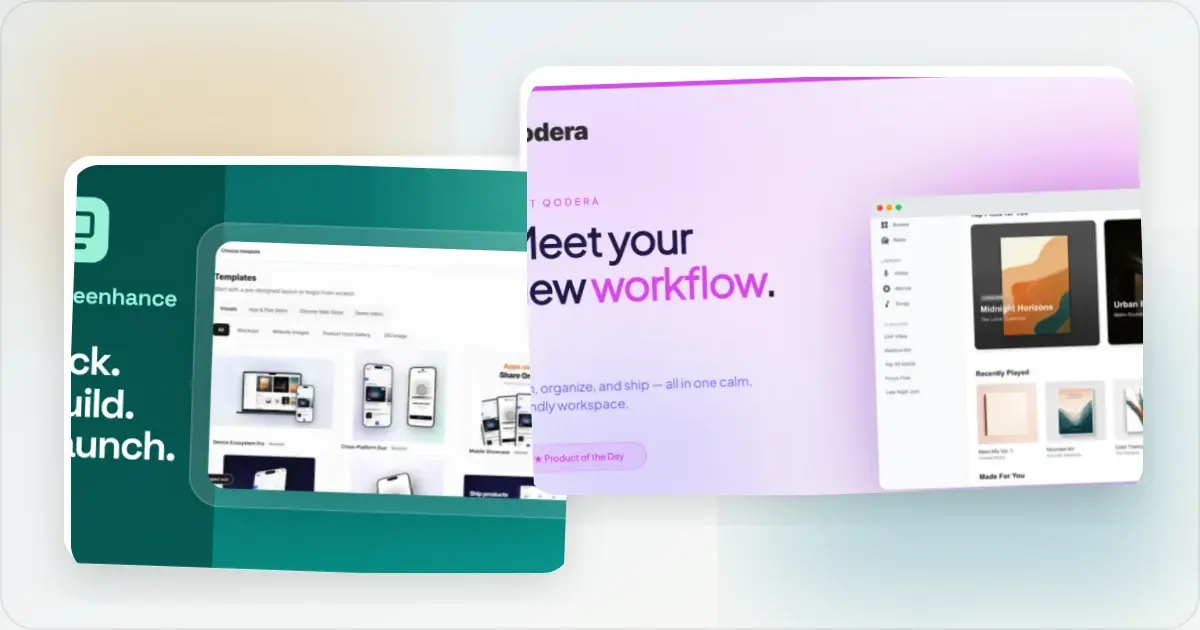
How to Launch an App in 2026: The Complete Step-by-Step Checklist
The complete 2026 app launch checklist: a 4-6 week timeline across pre-launch, launch day, and post-launch, plus every store, Product Hunt, and OG asset needed.
4 Jul 2026 · 8 min read