
How to Make a Mockup: A Beginner's Guide
Learn how to create professional mockups from scratch. Step-by-step guide covering device frames, backgrounds, and export settings.
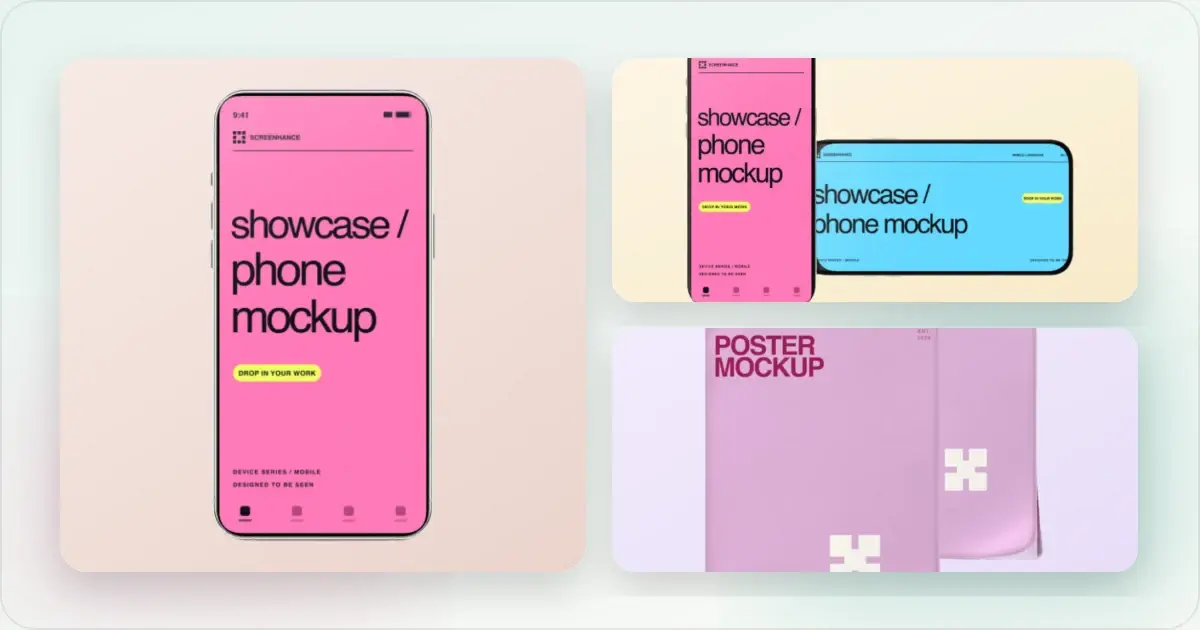
A mockup presents a screenshot or design in context: inside a device or browser frame, within a physical scene, or as part of a composed marketing image. The workflow can be simple, but the right choices depend on the content and destination.
What You'll Need
To create a mockup, you need:
1. A screenshot - The image you want to showcase
2. A mockup tool - Software to add frames and backgrounds
3. A defined destination — the page, store, deck or post where the result will appear
You can use a dedicated generator or a general design tool. Neither guarantees a useful result without a clear crop, accurate content and appropriate export settings.
How to Make a Mockup Step by Step
Step 1: Take a Clean Screenshot
Before making your mockup, get a good source image:
- Hide distractions - Close unnecessary tabs, hide bookmarks bar
- Use truthful sample data - Do not invent customers, transactions or results
- Capture the right area - Focus on what matters, not your entire screen
- Capture enough detail - Start at or above the final display dimensions when possible
Step 2: Choose Your Mockup Tool
You have several options:
Dedicated mockup generators:- Upload screenshot
- Pick device frame
- Choose background
- Export
- Find a mockup template
- Place your screenshot
- Adjust as needed
- Export
- Open a mockup PSD
- Replace smart object
- Refine layers, effects and export settings as needed
- Export
A dedicated mockup generator provides a focused workflow when the available frames and templates fit the job. A general design tool is useful when the composition must integrate with an existing design system or needs custom artwork.
Step 3: Select a Device Frame
Match the frame to your content:
| Content Type | Frames to consider |
|---|---|
| Web app / SaaS | Browser or MacBook |
| iOS app | iPhone |
| Android app | Samsung or Pixel |
| Tablet app | iPad |
| Cross-platform | Multiple devices |
Make a free device mockup
For launch and fundraising material, a startup screenshot tool can provide starting points for common marketing layouts.
Use a device that accurately represents the product and audience. A newer frame is not automatically better, especially when the app supports older hardware or the image documents a specific device.
Step 4: Pick a Background
Your background options:
- Gradients - Useful when they support the brand and preserve contrast
- Solid colors - Clean and simple
- Custom images - Your own branded backgrounds
- Transparent - For placing on existing designs
Choose by testing the screenshot against the background at the final size. A solid color, transparent export or photographic scene may be clearer than a gradient.
Step 5: Adjust Settings
Fine-tune your mockup:
- Padding - Space around the device and room for surrounding copy
- Shadow - Optional depth or separation from the background
- Rotation - Slight angles can look dynamic
- Scale - Make sure important details are visible
Step 6: Export Your Mockup
Export settings matter:
- Format: PNG for lossless UI and transparency; JPEG for photographic material when lossy compression is acceptable; WebP for supported web delivery
- Dimensions: Match the intended destination and responsive image plan
- Review: Inspect the final output at its real display size
How to Make Different Types of Mockups
How to Make an iPhone Mockup
1. Screenshot your iOS app or mobile website
2. Upload to a mockup tool
3. Select a supported iPhone frame that matches the screenshot
4. Choose a background color/gradient
5. Export for the destination and inspect the result
How to Make a MacBook Mockup
1. Screenshot your web app or website
2. Upload to a mockup tool
3. Select a supported laptop frame that matches the screenshot
4. Choose a background that preserves contrast
5. Export for the intended destination
How to Make a Browser Mockup
1. Screenshot your website (hide browser chrome)
2. Upload to a screenshot mockup generator
3. Select Chrome, Safari, or generic browser frame
4. Choose light or dark mode frame
5. Export at the dimensions required by the destination
How to Make a Multi-Device Mockup
1. Prepare screenshots for each device
2. Upload all images
3. Select a multi-device layout
4. Ensure consistent styling across devices
5. Export the composition
Common Mockup Mistakes to Avoid
Insufficient source detail — Avoid enlarging a small screenshot beyond the point where UI text becomes soft Inaccurate device context — Use a frame that reflects the product or intended audience Busy backgrounds — Preserve contrast and legibility around the product Inconsistent styling — Define shared frame, color and spacing rules for related assets Too much content — Remove material that does not support the purpose of the imageA Repeatable Mockup Workflow
The time required varies with the source material, composition and review process. A simple workflow is:
1. Capture. Open the product state you want to show, remove private information and capture the relevant viewport.
2. Import. Add the source to a free mockup generator or your chosen design tool.
3. Frame. Pick a frame or scene that matches the screenshot's aspect ratio and the actual product context. Do not squeeze a desktop capture into a phone opening.
4. Compose. Set the crop, padding, background and any explanatory text. Keep important interface details readable.
5. Export and review. Use the destination's current dimensions and an appropriate format, then inspect the final file in context.
Save a reusable design once the choices have been reviewed. Replacing the screenshot in a proven layout is usually more consistent than rebuilding every asset from memory.
Common Beginner Mistakes and How to Recognise Them in Your Own Work
These issues are easy to miss when a tool still produces a technically valid export.
The aspect-ratio mismatch. Your screenshot is 16:9 and you crammed it into a 9:19.5 iPhone frame. The tool stretched or letterboxed it. If your viewers see black bars or distorted text, this is what happened. Fix: match capture dimensions to frame intent _before_ uploading. The over-rotated frame. A strong tilt reduces the space available to the interface and can make text hard to read. Reduce the angle or use a straight-on frame when the screenshot itself carries important detail. The low-contrast background. A frame or screenshot can disappear into a similarly valued background. Compare lightness and color contrast around the device edge, and add separation only where needed. The unreviewed default. A template is a starting point. Replace sample content and confirm that the frame, crop, background and typography fit the product and destination. Unhelpful placeholder data. Placeholder labels may distract from a product story. Use truthful sample data and label it when necessary; never invent customers, financial results or social proof.Related Reading
- What Is a Mockup? Types, Uses, and Examples - Understanding mockups
- Figma vs Photoshop vs Mockup Generators - Choosing the right tool
- Common Screenshot Mistakes — privacy, crop and legibility checks
- Free Mockup Tools in 2026 — evaluate free options
Frequently Asked Questions
How do I make a mockup for free?
Screenhance has a free tier with three watermarked PNG image exports per month at 1×. Figma and other tools may also offer free plans, but their features and limits change; check each product's current pricing and licensing before choosing one.
How long does it take to make a mockup?
There is no reliable universal time. A simple framed screenshot may be quick once a layout is established; a multi-device composition with approvals, custom type and several outputs takes longer. Include capture, privacy review and destination testing in your estimate.
Do I need design skills to make mockups?
You do not need formal design training to start from a template. You still need to judge accuracy, crop, contrast, hierarchy and legibility. Use the destination preview and ask another person to review important assets.
What size should my mockup be?
It depends on where the image will be displayed. Check the destination's current requirements, preserve the intended aspect ratio and use responsive variants on the web where appropriate. Higher-density exports can help on high-density displays, but they also increase file size; inspect the real result rather than applying a universal 2× rule.
What's the best file format for mockups?
Use PNG for lossless UI and transparency. JPEG can suit photographic material when lossy compression is acceptable. WebP supports lossy or lossless web delivery and transparency, but confirm destination support. Compare image quality and file size using the real asset.
Conclusion
Making a mockup can be straightforward: capture an accurate product state, choose an appropriate context, refine the composition and export for the destination. A frame is optional; a direct screenshot may be clearer for documentation or detailed interface explanation.
Start with one representative asset, review it in context and turn it into a reusable layout only after the choices hold up.
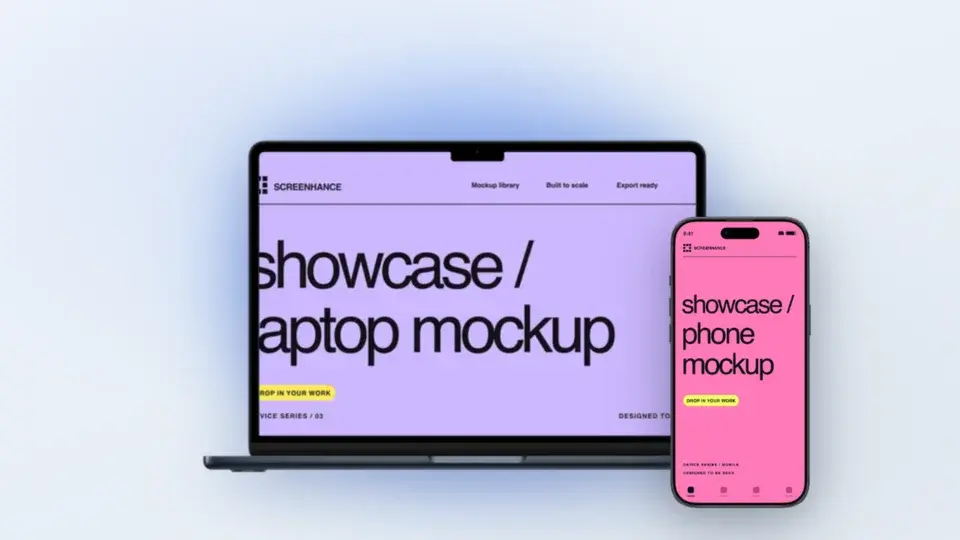
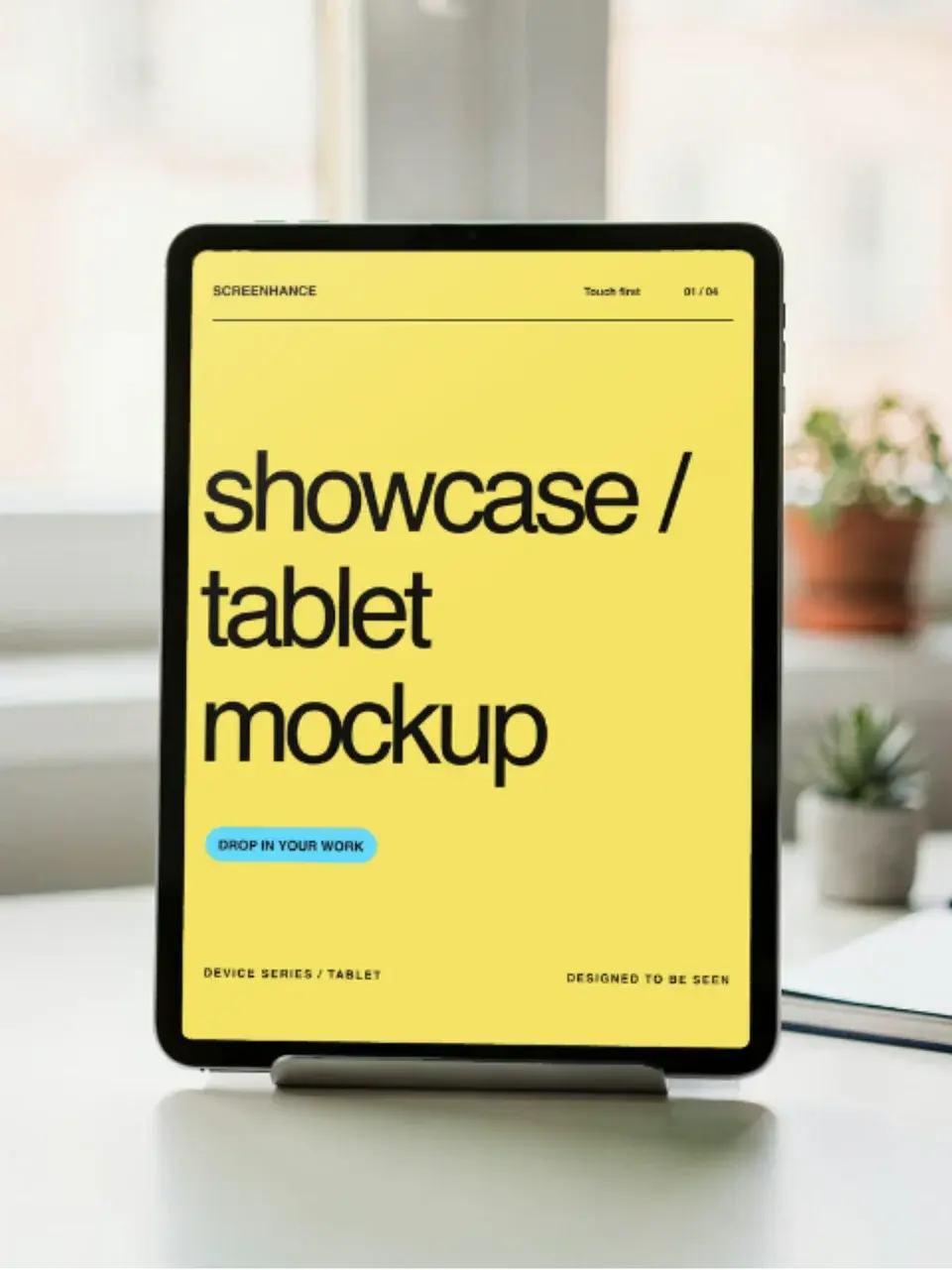
Screenhance examples
Two editable starting points from the Screenhance library, selected for this mockups guide.
Make a free device mockup
Free to start. No credit card required.
Keep reading
Related, product-tested guides from Screenhance.
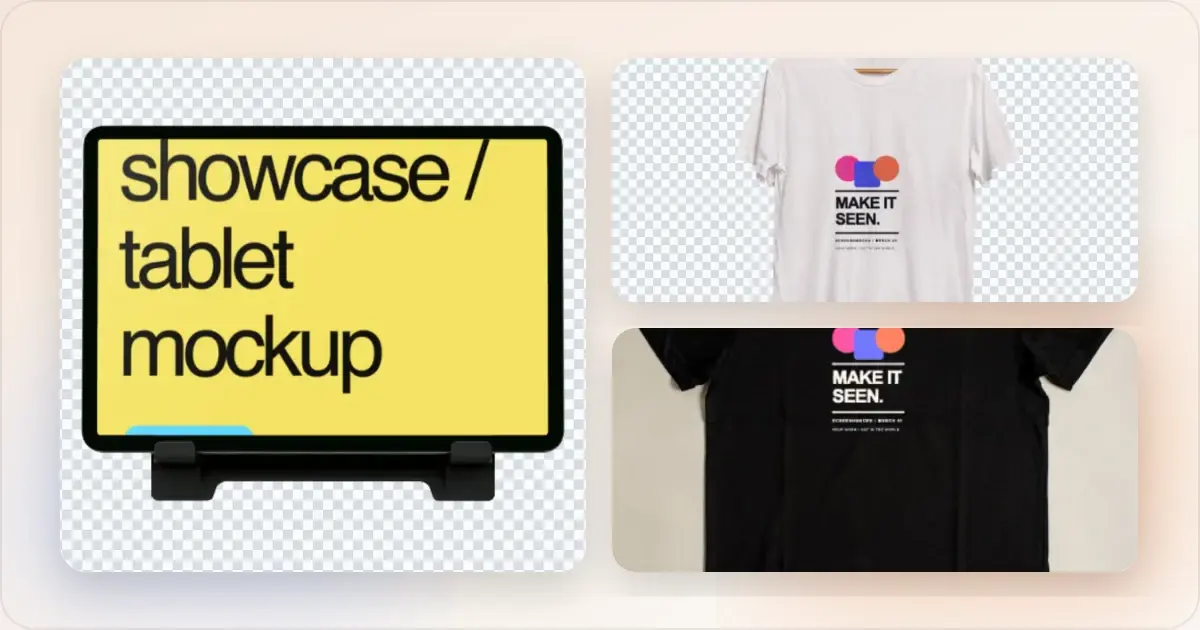
What Is a Mockup? Types, Uses, and Examples
Everything you need to know about mockups. Learn what they are, why they matter, and how to use them for your product or business.
21 Apr 2026 · 11 min read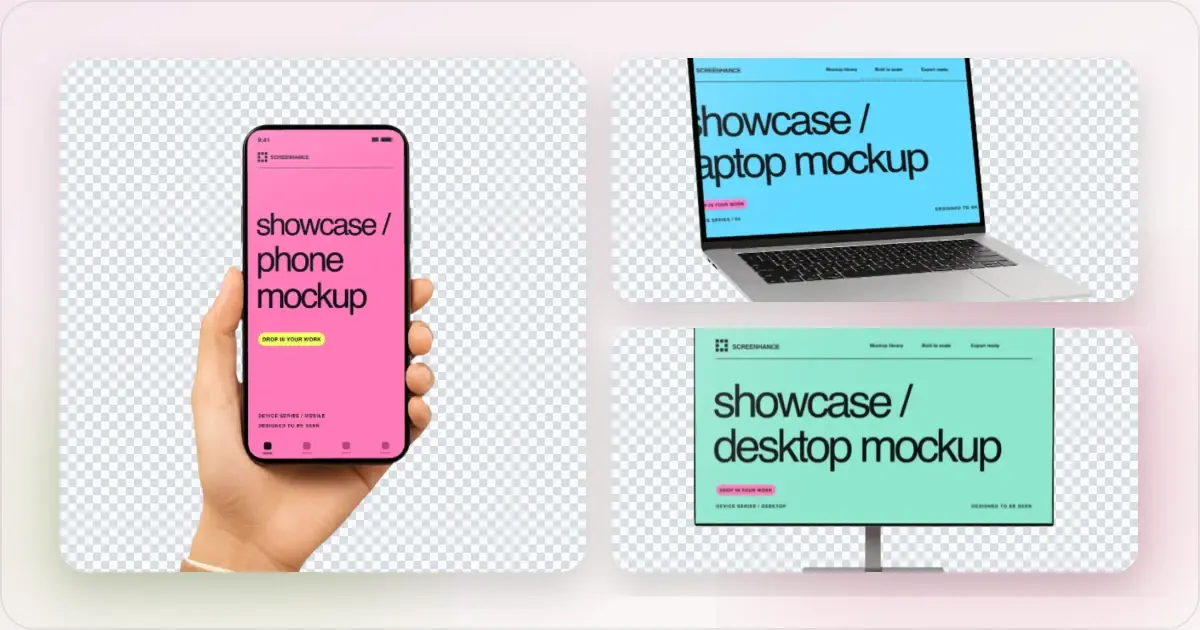
Apple Watch Mockup Guide: Framing watchOS Apps in 2026
How to create Apple Watch mockups that sell a watchOS app: choosing 46mm vs 42mm, capturing clean watch screenshots, and the iPhone-plus-Watch layout.
29 May 2026 · 6 min read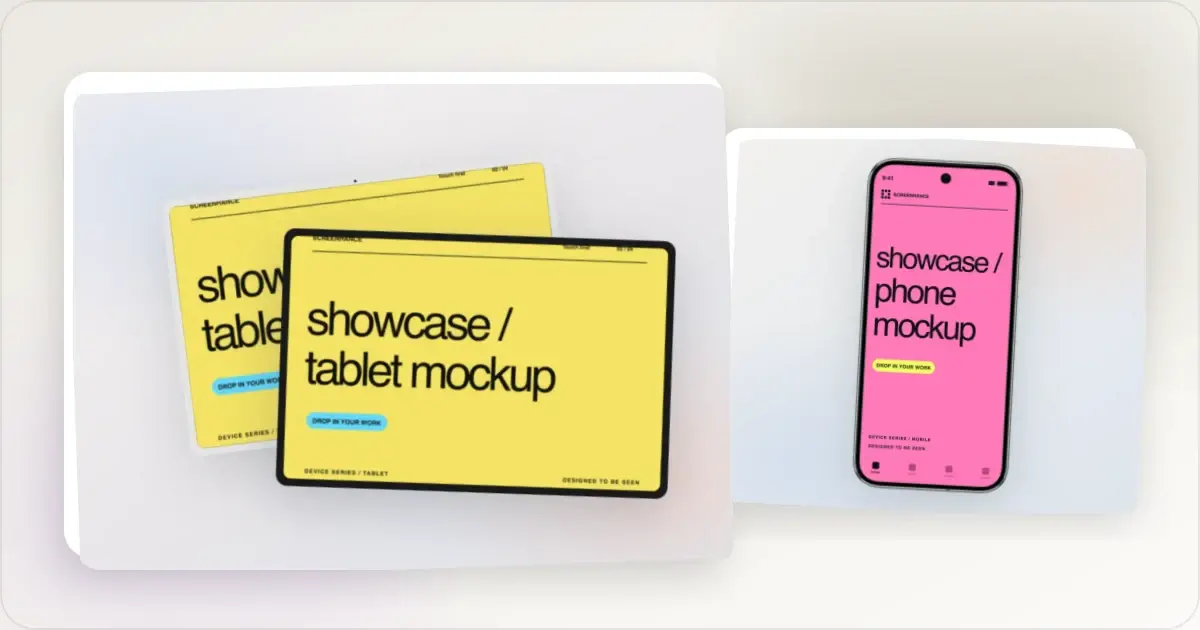
Google Pixel Mockup Guide for Android Marketing in 2026
Choose and use a Google Pixel frame for Android marketing, compare it with a Galaxy treatment, and prepare accurate Play Store visuals.
29 May 2026 · 5 min read