
Best Screenshot Tools for Developers in 2026
Developers need different screenshot tools than designers. Here are the best options for code snippets, terminal output, and technical documentation.
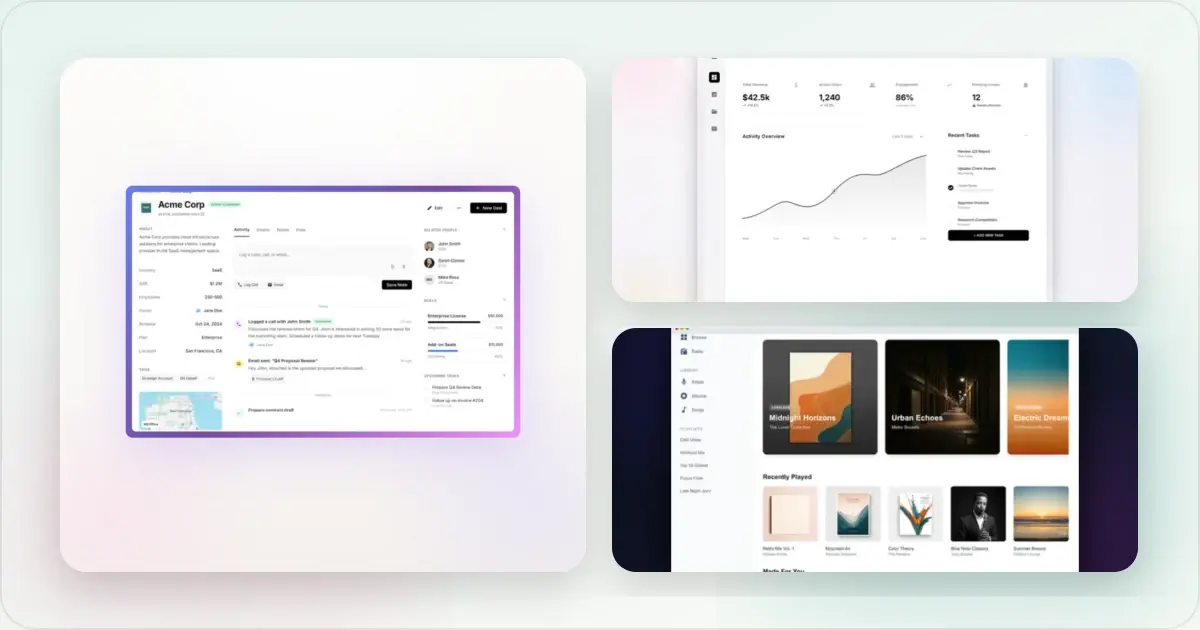
Developers share screenshots differently. Code snippets, terminal output, API responses—these need specialized tools.
Here's the complete guide to screenshot tools built for developers.
Code Screenshot Tools
Carbon (carbon.now.sh)
The original code screenshot tool. Still excellent.
Best for: Beautiful code snippets for social media Features:- Syntax highlighting for 100+ languages
- Customizable themes and backgrounds
- Window controls (macOS/Windows/none)
- Export as PNG or SVG
- No IDE integration
- Manual paste required
- Limited export sizes
Ray.so
From the makers of Raycast. Clean and fast.
Best for: Quick, beautiful code screenshots Features:- Minimal, modern design
- Dark mode by default
- Customizable padding and backgrounds
- Instant export
- Fewer customization options than Carbon
- No line numbers option
CodeSnap (VS Code Extension)
Screenshot directly from your editor.
Best for: Developers who live in VS Code Features:- Select code and screenshot instantly
- Uses your VS Code theme
- Adjustable container width
- Transparent backgrounds available
- VS Code only
- Less visual customization
Snappify
Premium option with more features.
Best for: Technical content creators Features:- Animations and GIFs
- Multiple code windows
- Rich backgrounds
- Team collaboration
- Paid for full features
- Can be overkill for simple needs
Terminal Screenshot Tools
termshot
Command-line tool for terminal screenshots.
Best for: Clean terminal output documentation Features:- Captures terminal with styling
- Automatic window decorations
- Multiple themes
- SVG and PNG export
iTerm2 (macOS)
Built-in screenshot features.
Best for: macOS users already using iTerm2 Features:- Capture visible session
- Save to file or clipboard
- Customizable appearance
API & Response Tools
Postman
Screenshots of API testing.
Best for: API documentation Features:- Clean request/response views
- Built-in export options
- Code generation screenshots
Insomnia
Alternative to Postman with good visuals.
Best for: API development screenshots Features:- Modern interface
- Dark mode
- Easy screenshot capture
General Screenshot Tools for Developers
CleanShot X (macOS)
The best general screenshot tool for Mac developers.
Best for: All-purpose development screenshots Features:- Scrolling capture for long pages
- Annotation tools
- Quick copy to clipboard
- Screen recording
- Auto-hide desktop icons
ShareX (Windows)
Free, powerful, open-source.
Best for: Windows developers Features:- Every capture mode imaginable
- Annotation and editing
- Auto-upload options
- Workflow automation
Flameshot (Linux)
The go-to for Linux.
Best for: Linux developers Features:- Annotation tools
- Customizable appearance
- Command-line integration
Mockup Tools for Developer Content
Once you have screenshots, you often need to polish them:
For Product Screenshots
A feature screenshot generator adds device frames and backgrounds to make product screenshots professional.
Best for: Product launches, landing pages, documentationFor Code Screenshots
Combine with syntax-highlighted code for tutorials.
Best for: Blog posts, social media, presentationsFor Technical Docs
Clean up and annotate screenshots for documentation.
Best for: READMEs, wikis, help articlesWorkflow Tips for Developers
1. Consistent Theme
Use the same color scheme across code screenshots. Pick one and stick with it.
2. Realistic Examples
Use real-ish code, not "foo bar" examples. Readers should be able to follow along.
3. Hide Sensitive Data
Before screenshotting:
- Clear browser history
- Use dummy API keys
- Remove personal bookmarks
- Check for sensitive terminal history
4. Add Context
A code snippet without context is confusing. Include:
- File name/path
- Language indicator
- Brief explanation
5. Optimize File Size
Screenshots in documentation add up. Use:
- PNG for code (crisp text)
- WebP for web (smaller size)
- SVG when possible (scalable)
Why Most General-Purpose Screenshot Tools Fail Developers
The default macOS screenshot binding and the Windows Snipping Tool are perfectly adequate for capturing a Slack thread. They fall apart the moment a developer needs to share something specific. Code rendered in a system screenshot includes the surrounding chrome no one cares about: tab bars, breadcrumbs, the half-visible terminal underneath. Text antialiasing differs between operating systems, so a screenshot taken on macOS and viewed on Windows looks wrong in subtle ways that erode reader trust. Subpixel rendering in particular makes the same code look sharp on the author's machine and fuzzy in a published blog post.
The deeper problem is that generic tools optimize for rectangles, not artifacts. Developers don't need a rectangle of pixels—they need a code block, a terminal session, a diff, or a network request. These artifacts have semantic structure that should survive into the image: syntax tokens, line numbers, ANSI color codes, fold markers, HTTP status colors. Carbon, Ray.so, and Snappify exist because the gap between "screen rectangle" and "code artifact" is real. A screenshot of code that doesn't preserve the syntax highlighting is closer to a photo of a printed page than to a useful technical asset.
There's also a workflow tax. Every general-purpose tool requires the developer to leave their editor, alt-tab to a capture tool, frame the region, copy or save the file, open another app to polish it, then drag it into the destination. A developer-grade workflow collapses this into one or two keystrokes from inside the editor or terminal. Tools that don't respect that compression get abandoned by the people who actually ship the documentation.
What a Developer-Grade Screenshot Workflow Looks Like in 2026
The shape of a modern developer workflow is opinionated. It starts with a CLI or API so that screenshots can be generated as part of a documentation build, not as a manual ritual. Tools like Silicon, freeze, and shot-scraper let you produce a polished code image from a file and a theme name without ever opening a UI. That means your README.md can regenerate its screenshots on every release, and your screenshots can't drift from the code they document.
Theme management matters more than people admit. Pick one syntax theme and one terminal theme and apply them across every asset on your site, your docs, and your social posts. Inconsistency reads as carelessness. Dark mode is the default for technical content in 2026, but check your renderings in both themes—some palettes (looking at you, Solarized Light) produce muddy contrast when exported to a website with its own dark background. A screenshot beautifier is useful here for layering branded backgrounds onto code without re-rendering from source.
Terminal styling is a separate discipline. Most developer screenshots fail because they include the developer's actual prompt—paths to home directories, branch names full of internal jargon, environment indicators no one outside the team recognizes. Use a stripped prompt ($ is fine) for screenshots, hide host-specific info, and turn off telemetry banners and version-check messages before capturing. Run the command once to clear those, then run it again for the screenshot.
The last piece is CI integration. A serious documentation pipeline regenerates code screenshots on the same commit that changes the code. Headless rendering through a tool with an API means your blog posts and docs can verify on every build that the screenshot still matches reality. Manual screenshots rot. Automated ones don't.
Related Reading
- PNG vs JPEG vs WebP: Which Format for Your Screenshots? - Choosing the right format
- 7 Screenshot Mistakes That Make Your Product Look Amateur - Common mistakes to avoid
- How to Make Screenshots That Go Viral on Twitter/X - Sharing code on social media
Frequently Asked Questions
What's the best tool for code screenshots?
Carbon (carbon.now.sh) and Ray.so are the most popular for beautiful code screenshots. For VS Code users, the CodeSnap extension is convenient. Choose based on your workflow.
How do I make terminal screenshots look good?
Use a tool like termshot or capture from iTerm2 with a good theme. Add window decorations and use a dark background. Clean up the output before capturing.
Should I use PNG or JPEG for code screenshots?
Always PNG for code. JPEG compression creates artifacts around text that make code hard to read. PNG preserves crisp text. Use WebP for web if file size is a concern.
How do I share code snippets on social media?
Use Carbon or Ray.so to create visually appealing screenshots. Add syntax highlighting, choose a dark theme, and export at 2x resolution. The visual quality matters for engagement.
Can I screenshot ASCII art or terminal output without breaking the alignment?
Yes, but you need a monospace-aware tool. termshot, freeze, and Silicon all preserve column alignment because they render text with a fixed-width font and known cell width. A general-purpose screen capture will work if your terminal font is monospace and you avoid emoji or wide CJK characters that throw off alignment. Export as PNG—JPEG compression destroys the crisp grid that makes ASCII art readable.
Which tool gives the best syntax highlighting accuracy?
The most accurate highlighting comes from tools that render the same parser your editor uses. CodeSnap inherits your VS Code theme and tokenizer, so what you see in the editor is what ships in the image. Carbon and Ray.so use Prism or similar web-based highlighters, which are excellent for common languages but occasionally lag behind for newer syntax (think modern TypeScript decorators or Rust async). If exact fidelity to your editor matters, screenshot from the editor.
How should I render dark mode code screenshots for a light-mode blog?
Keep the code in dark mode but add a subtle light-toned padding around it so the screenshot reads as an embedded artifact rather than a hole in the page. The padding doubles as a visual hand-off between your blog's light background and the dark code surface. Aim for a 24-32px padding ring and a soft shadow. Skip the shadow entirely if your blog already wraps images in a card—two layers of depth competing looks amateurish.
Are there OS-specific tools that outperform cross-platform ones?
For raw capture speed and integration, yes. CleanShot X on macOS, ShareX on Windows, and Flameshot on Linux each beat any cross-platform tool because they hook directly into native APIs. For code screenshots specifically, cross-platform tools win because the code itself is identical across operating systems—you want consistent output regardless of where the developer ran the command.
How do I integrate screenshot generation into CI/CD?
Use a tool with a headless API. Silicon, freeze, and shot-scraper all run in GitHub Actions. Trigger a workflow on changes to your code samples, render the screenshots, and commit them back to the repo or upload them to a CDN. The pattern that works best: store source files (.ts, .sh) in a docs/snippets/ folder and generate corresponding .png files on every push. This way your docs and screenshots can never drift apart.
Conclusion
The right screenshot tools make developers more effective communicators. Whether you're sharing code on Twitter, documenting an API, or creating a tutorial, invest in tools that make your work look professional. A screenshot beautifier can quickly polish raw captures into polished visuals.
Good screenshots aren't just nice to have—they're essential for technical communication.
Screenhance examples
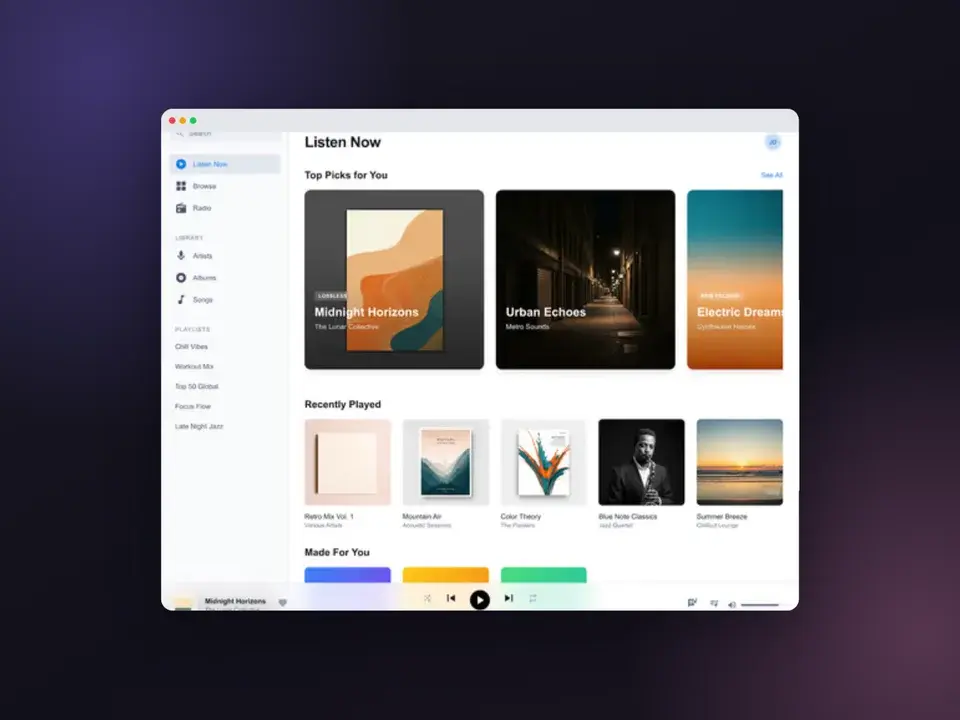
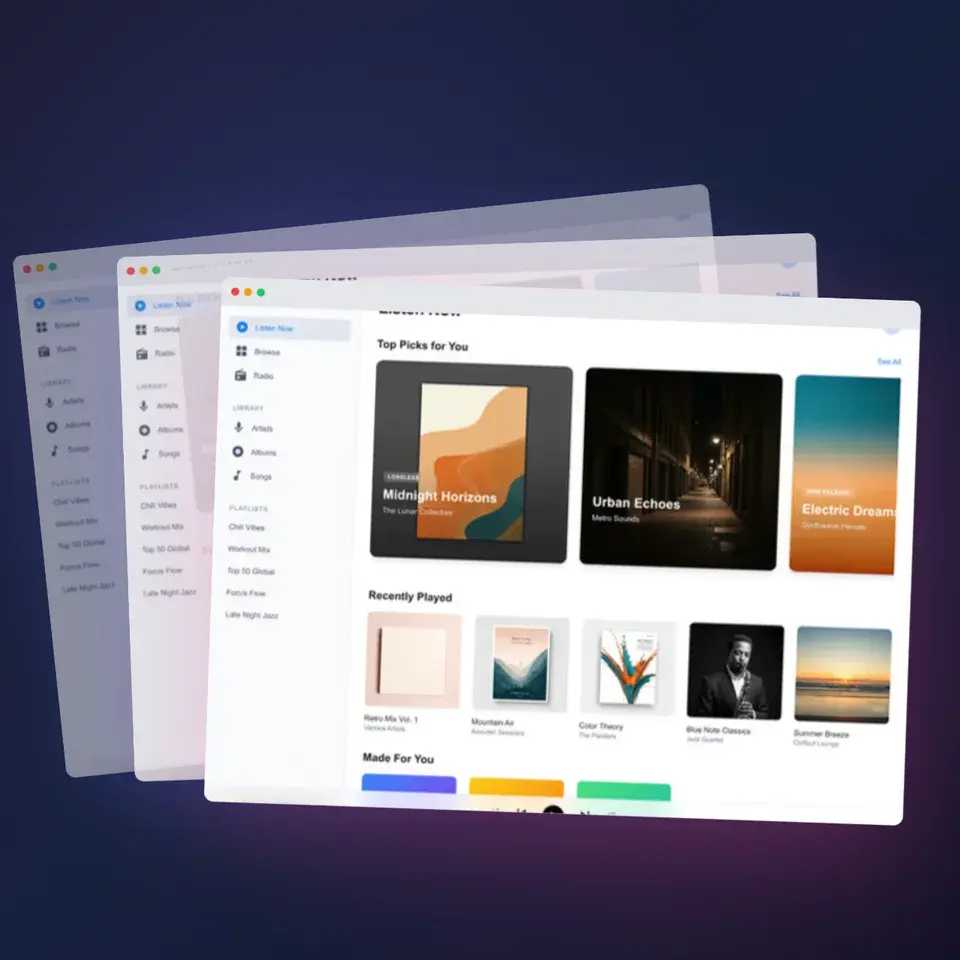
Two editable starting points from the Screenhance library, selected for this screenshots guide.
Ready to create stunning visuals?
Free to start. No credit card required.
Keep reading
Related, product-tested guides from Screenhance.
Best Screenshot Beautifier Tools in 2026
A roundup of the best screenshot beautifier and mockup tools in 2026. Honest reviews of Screenhance, Shots.so, Canva, SmartMockups, Placeit, and more.
7 Feb 2026 · 9 min read
How to Make Screenshots That Go Viral on Twitter/X
Twitter is visual. Learn how to create scroll-stopping screenshots that get likes, retweets, and followers.
21 Apr 2026 · 8 min read
How to Annotate Screenshots for Tutorials and Documentation
Arrows, highlights, and auto-numbered steps: the annotation workflow that makes tutorial screenshots readable, and the mistakes that scream MS Paint.
2 Jul 2026 · 4 min read