
Screenshot Beautifier Online: Transform Plain Screenshots Instantly
Turn boring screenshots into professional visuals with free online screenshot beautifiers. No design skills needed.
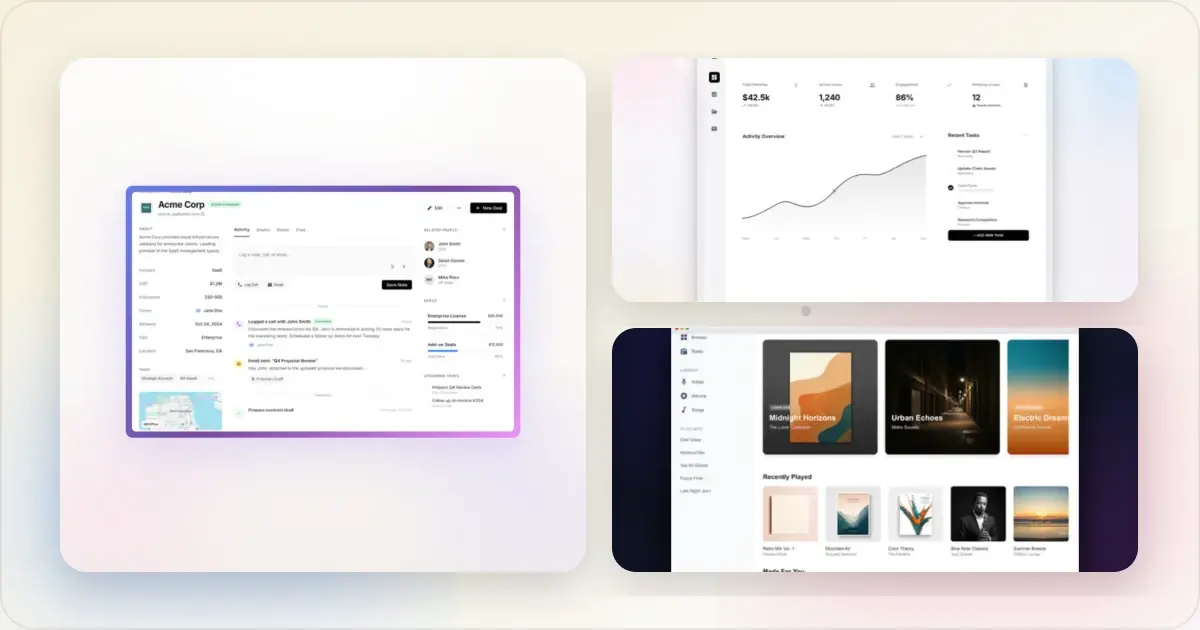
Raw screenshots often lack context or consistent presentation. A screenshot beautifier can add framing, spacing, backgrounds, and export presets.
Here's how to beautify your screenshots online without any design skills.
What Is a Screenshot Beautifier?
A screenshot beautifier is a tool that takes your plain screenshots and adds:
- Device frames (iPhone, MacBook, browser windows)
- Beautiful backgrounds (gradients, solid colors, patterns)
- Shadows and depth for a professional look
- Padding and spacing for visual breathing room
The result: screenshots that look designed, not captured.
Best Online Screenshot Beautifiers
Screenhance
Best for: Quick, professional mockups- Device frames (iPhone, iPad, MacBook, browser)
- Beautiful gradient backgrounds
- High-resolution exports
- Small watermark on the free tier; the $6 Launch Pass or Pro removes it
1. Upload your screenshot
2. Choose a device frame (or none)
3. Select a background
4. Export
Time: depends on the source image and the amount of styling and review required.
Carbon (for code)
Best for: Code screenshots- Syntax highlighting
- Multiple themes
- Custom fonts and colors
- Export as PNG
Great for developers sharing code snippets on social media.
Ray.so (for code)
Best for: Stylized code screenshots- Beautiful gradients
- Dark mode by default
- Simple interface
- Free to use
Another solid option for code beautification.
Pika
Best for: Browser screenshots- Automatic browser frame
- Gradient backgrounds
- Simple interface
- Free tier available
Good for web app screenshots specifically.
How to Beautify a Screenshot
Step 1: Capture a Clean Screenshot
Before beautifying, start with a good source:
- Hide unnecessary browser tabs
- Use realistic data (not Lorem ipsum)
- Crop to the relevant content
- Capture at high resolution
A beautifier enhances your screenshot—it can't fix a bad one.
Step 2: Choose Your Style
Decide what look you're going for:
| Goal | Recommended Style |
|---|---|
| App Store listing | Device frame + gradient |
| Social media post | Device frame + bold colors |
| Documentation | Browser frame + minimal background |
| Landing page hero | Device frame + brand colors |
| Code sharing | Code beautifier (Carbon/Ray.so) |
Beautify and edit your screenshot in one browser workspace
Step 3: Apply Beautification
Using an online tool:
1. Upload your screenshot
2. Frame - Add device frame if appropriate
3. Background - Choose gradient, solid, or custom
4. Adjust - Tweak padding, shadows, corners
5. Export - Download at high resolution (2x minimum)
Step 4: Use It
Your beautified screenshot is ready for:
- Social media posts
- Website hero images
- App Store listings
- Product Hunt launches
- Documentation
- Pitch decks and investor presentations
Before and After Examples
Raw vs. Beautified
Before: Flat screenshot, no context, looks unfinished After: Device frame, gradient background, subtle shadow—looks professionalThe difference is dramatic. Same content, completely different impression.
Screenshot Beautifier Tips
Match Your Brand
Use backgrounds that complement your product's colors. Consistent styling across all screenshots builds brand recognition.
Don't Overdo It
The screenshot is the star. Background and frames should enhance, not distract. When in doubt, go simpler.
Consider the Context
| Platform | Recommendation |
|---|---|
| Bold gradients, high contrast | |
| Professional, subtle gradients | |
| App Store | Clean, device frames essential |
| Documentation | Minimal, browser frames |
Export at High Resolution
Always export at 2x or 3x your display size. Blurry screenshots defeat the purpose of beautification.
Stay Consistent
If creating multiple screenshots:
- Same background style
- Same device frame
- Same padding
- Same shadow settings
Consistency signals professionalism.
Common Mistakes
Too busy
Background competes with the screenshot content.
Wrong device
Using iPhone frame for a web app, or MacBook for a mobile app.
Low resolution
Beautified but blurry. Export at high resolution.
Inconsistent styling
Each screenshot looks different. Pick a style and stick with it.
Outdated frames
iPhone X frame in 2025. Use current devices.
Free vs. Paid Tools
Free Tools Offer:
- Basic beautification
- Limited exports per day/month
- Watermarks on some
- Fewer device options
Paid Tools Offer:
- Unlimited exports
- No watermarks
- More device frames
- Custom branding
- Team features
For occasional use, free tools work fine. For regular content creation, a dedicated mockup generator saves time and delivers better results.
What a "Good" Screenshot Beautifier Should Actually Do
Most beautifiers ship a gradient picker and call it a day. That's not enough. Here is the concrete checklist that separates a tool you keep open in a pinned tab from one you abandon after the second export.
Frame quality. Device frames should match the screenshot's aspect ratio without stretching, and they should include the current generation of hardware. If the frame library tops out at iPhone 13 in 2026, the tool is unmaintained. Look for both light and dark chassis variants — half your screenshots are dark mode and a silver MacBook frame will fight them. Background controls that aren't toys. Gradient pickers are table stakes. The thing that actually matters is whether you can lift colours from your screenshot, paste a hex code from your brand guide, and re-use a saved gradient across ten exports without reconfiguring it each time. Tools that force you to recreate the same gradient every session are billing you in friction. Padding and density. A beautified screenshot needs negative space — the device should not touch the edge of the canvas. The right padding depends on where the image lands: 80px around the frame works for a Twitter card, 200px for a landing-page hero. The tool should expose this as a number, not a vague "small/medium/large" toggle. Output format and resolution. PNG at 2x is the minimum. WebP for web use is a nice-to-have. JPEG at quality 90+ is acceptable for backgrounds without text. A beautifier that only exports at 1x is producing thumbnails, not assets — for high-stakes hero shots use a screenshot to mockup converter that preserves Retina detail.If a tool fails on two of those four, find a different one. The cost of switching is a single re-upload; the cost of shipping a bad mockup is a thousand lower-converting impressions.
Why Browser-Based Beautifiers Beat Installed Apps in 2026
The argument for an installed Mac or Windows app for screenshot beautification used to be performance. That argument died around the time canvas-based browser tools started shipping with WebGL acceleration and instant export. Today the calculus has flipped entirely.
No install, no licence, no version drift. A browser tool works on a borrowed laptop, on a Chromebook in an airport, or on a fresh OS install before a launch. Installed apps add a download, permissions and licence management before you can edit, while a browser workflow starts from the page you already have open. Cross-device by definition. Your designer is on macOS, your founder is on a Surface, your VA is on a refurbished ThinkPad running Linux. A browser tool runs on all of them with identical output. Installed apps fragment immediately — CleanShot is Mac-only, ShareX is Windows-only, and your shared style guide breaks at the OS boundary. Real-time preview without re-render. Modern browser beautifiers update the canvas as you drag a slider. No "apply" button, no progress bar, no waiting for a PSD to re-save. Iterating on padding or gradient angle takes seconds, which means you actually iterate instead of shipping the first acceptable version. A good online mockup generator does this without breaking a sweat. Instant export, instant share. Click export, drag the resulting PNG into Slack, Figma, or your CMS. No "Export to..." dialog, no folder-picking, no "where did I save it?" hunt. The whole loop closes in the browser tab where you started.The remaining argument for installed apps is offline capture — but capture is a different tool than beautification. Capture on the desktop, beautify in the browser. That's the workflow that wins in 2026.
Related Reading
- How to Take Better Screenshots: Tips for Professional Results - Better source screenshots
- Best Free Mockup Tools in 2026 - Tool comparison
- 7 Screenshot Mistakes That Make Your Product Look Amateur - What to avoid
- How to Make Your Screenshots Go Viral on Social Media - Social media tips
Frequently Asked Questions
What is the best free screenshot beautifier?
Screenhance offers free screenshot beautification with device frames, gradient backgrounds, and high-resolution exports (free exports carry a small watermark that the $6 one-time Launch Pass or Pro removes). For code screenshots specifically, Carbon and Ray.so are excellent free options with syntax highlighting.
How do I make my screenshots look professional?
Add a device frame (iPhone, MacBook, browser) to provide context, use a clean gradient or solid color background, add subtle shadows for depth, and export at high resolution (2x or higher). Consistency across multiple screenshots also signals professionalism.
Can I beautify screenshots without Photoshop?
Yes, online screenshot beautifiers let you create professional results without any design software. Upload your screenshot, choose styling options, and export. The whole process takes under a minute with no design skills required.
What background works best for screenshots?
Gradient backgrounds work best for most use cases—they add visual interest without distracting from your content. Use colors that complement your product. Avoid busy patterns or photos that compete for attention.
Should I add device frames to all screenshots?
Device frames add professionalism and help users visualize your product in context. Use them for marketing materials, App Store listings, and social media. For documentation or tutorials where you're showing specific UI details, frames may be unnecessary.
Is it safe to upload screenshots to an online beautifier?
It depends on the tool. The safest beautifiers process your image entirely in the browser — the file never leaves your device, which means there is no server-side copy to leak or subpoena. Before uploading anything sensitive (an unreleased product, a customer dashboard, an internal tool) check the tool's privacy page for the phrase "processed locally" or "client-side." If the page is vague, assume your screenshot is hitting a server somewhere and treat it accordingly. For genuinely confidential captures, run them through a tool that ships an end-to-end client-side pipeline.
Are there file size limits on browser-based beautifiers?
Most browser tools cap individual uploads somewhere between 10MB and 50MB, which covers any reasonable screenshot. The real limit is browser memory: a 12,000-pixel-wide capture from a 4K monitor can choke a tab even if the file size is fine. If a beautifier hangs on upload, the problem is usually pixel dimensions, not megabytes — resize the source to 3,840 wide before uploading and the issue disappears.
Can I use beautifiers with screenshots taken on my phone?
Yes, and the workflow is improving fast. AirDrop or Google Photos sync the capture from phone to laptop in seconds, after which any web beautifier accepts the file. Mobile-friendly beautifiers also accept direct upload from the phone's gallery, which is useful when you're capturing an in-app moment and want to ship the mockup before you forget the context. The trade-off on mobile is fiddlier controls — landscape orientation makes the gradient picker easier to use than portrait.
Will a beautifier work with screenshots from older devices?
Yes, but you have a choice to make. You can frame an iPhone 8 screenshot in an iPhone 8 chassis (honest, dated-looking) or upscale it slightly and drop it into an iPhone 15 frame (more modern, slightly cheating). For App Store screenshots you must match the actual device. For marketing screenshots where the content matters more than the chassis, the modern frame usually wins. The screenshot itself rarely betrays its age unless your UI also looks old.
How do I keep brand consistency across many beautified screenshots?
Pick a single background gradient, a single device frame family, a single padding value, and a single shadow setting — then save them as a preset in whatever tool you're using. Every subsequent screenshot starts from that preset. The inconsistency that kills brand polish almost always comes from re-deciding these variables on each export. Locking them once buys you visual consistency for free across every future asset.
Conclusion
Screenshot beautification takes seconds and dramatically improves how your product is perceived.
Use an online tool to add device frames, beautiful backgrounds, and professional polish. No design skills required.
Stop posting raw screenshots. Beautify them first—your product deserves it.
Screenhance examples
Two editable starting points from the Screenhance library, selected for this screenshots guide.
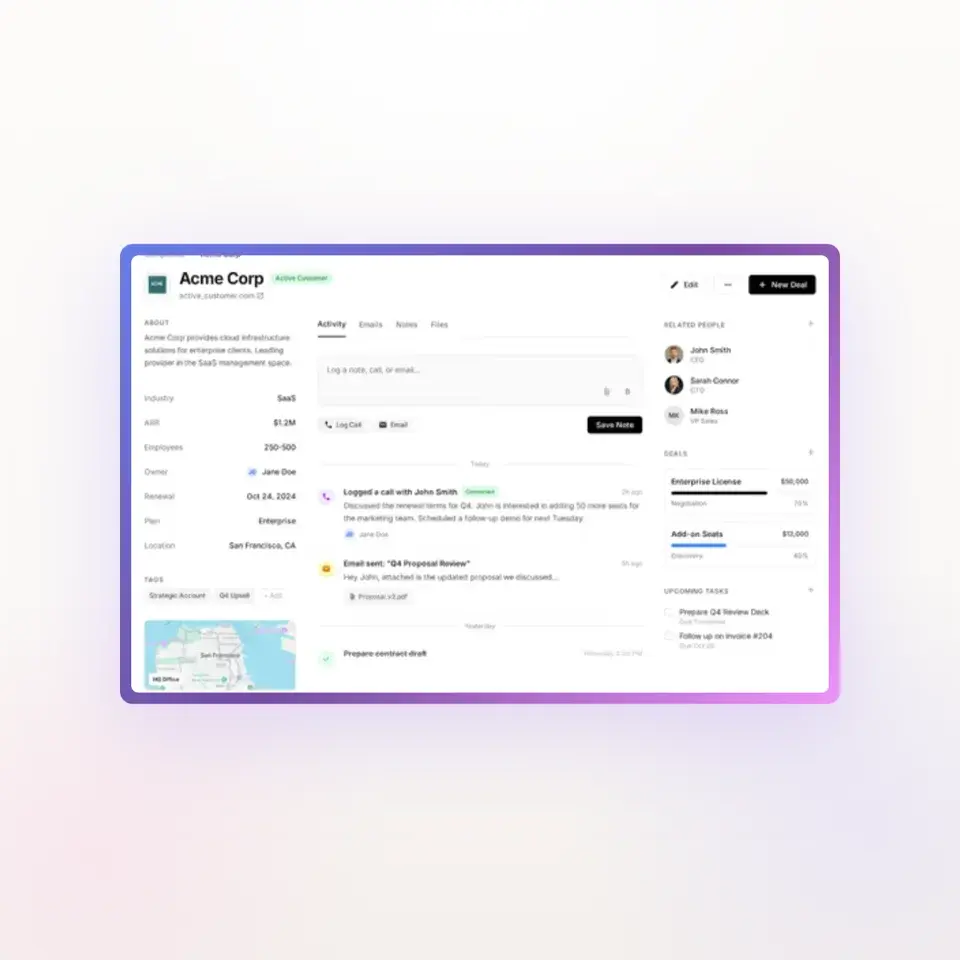
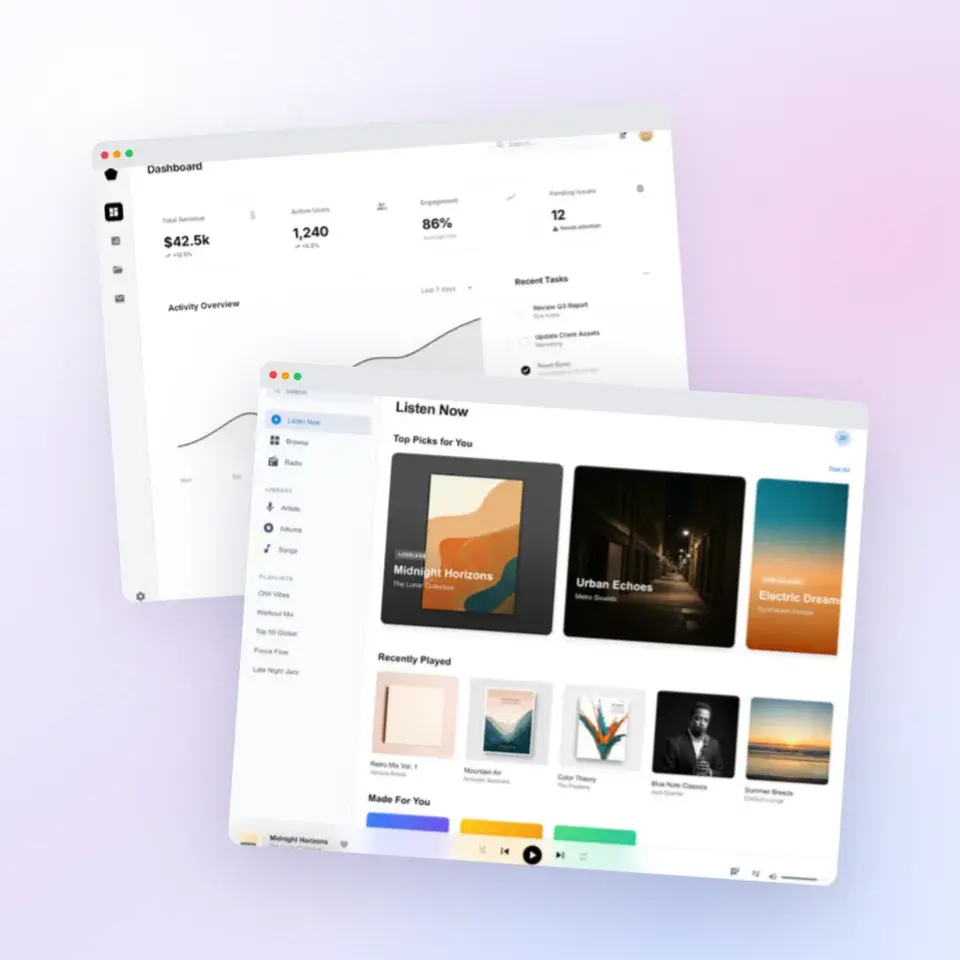
Beautify and edit your screenshot in one browser workspace
Free to start. No credit card required.
Keep reading
Related, product-tested guides from Screenhance.
Best Screenshot Beautifier Tools in 2026
A roundup of the best screenshot beautifier and mockup tools in 2026. Honest reviews of Screenhance, Shots.so, Canva, SmartMockups, Placeit, and more.
7 Feb 2026 · 9 min read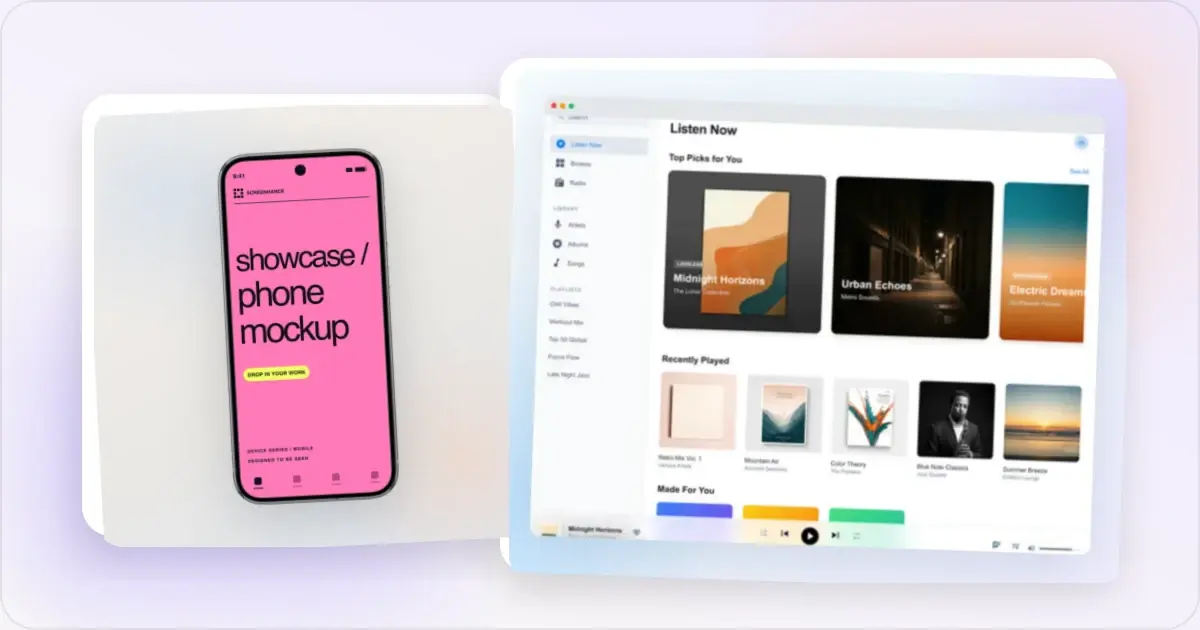
50 Screenshot Background Ideas: Gradients, Colors & Styles That Pop
Stop using plain white backgrounds for your screenshots. Here are 50 background ideas — gradients, mesh, glass, and aurora styles — organized by use case.
21 Apr 2026 · 11 min read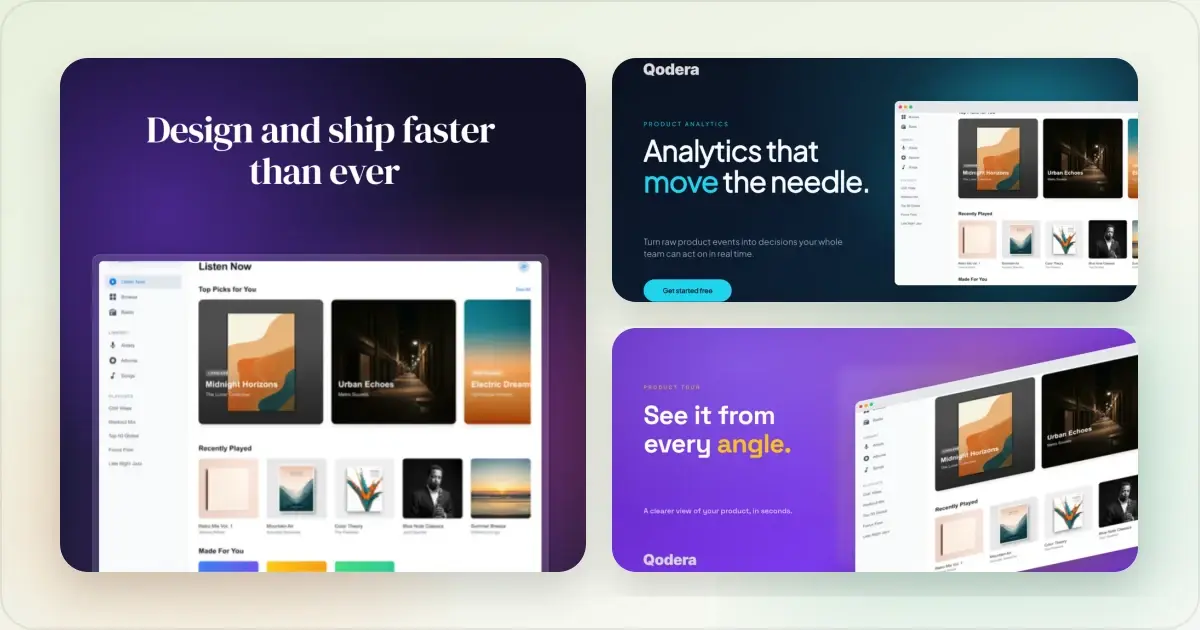
How to Annotate Screenshots for Tutorials and Documentation
Arrows, highlights, and auto-numbered steps: the annotation workflow that makes tutorial screenshots readable, and the mistakes that scream MS Paint.
2 Jul 2026 · 4 min read