
How to Launch a Chrome Extension in 2026: The Full Process
Launch a Chrome extension in 2026: prep the listing, build the required images (1280x800 screenshots, 440x280 and 1400x560 promo tiles), publish, and amplify.
Launching a Chrome extension in 2026 comes down to three things: a developer account, a packaged build, and a Chrome Web Store listing that sells the extension. The store listing requires a 128x128 icon, at least one 1280x800 screenshot (640x400 is also accepted), a 440x280 small promo tile, and an optional 1400x560 marquee tile. Most of your install rate is decided by those images, not by your code. A reviewer checks your manifest and permissions; a user scanning the store decides in a few seconds based on what the listing looks like.
This is the full process for an indie maker or solo dev: prepare the listing, build the exact image set the store needs, get through review and publish, then amplify the launch. The recurring point throughout is that the listing lives or dies on its visuals, and you can generate the whole set in one pass.
Skip the manual work: the Chrome Web Store screenshot generator builds every listing image at the exact required size from one design, or grab the whole set with Launch Kit.
Before you touch the store: the prerequisites
Two things have to be ready before the listing matters.
A developer account. Publishing to the Chrome Web Store requires a registered Chrome Web Store developer account, which carries a one-time registration fee. Set this up early so it does not block your launch day. A packaged extension. Your extension is a ZIP of your built files with a valid `manifest.json`. New extensions in 2026 use Manifest V3. The two things reviewers care about most are your permissions and your privacy disclosures: request only the permissions you use, and be ready to explain why you need each one. Over-asking for permissions is a common cause of friction and erodes user trust on the listing itself.With those in place, the listing is the real work.
Preparing the listing copy
The listing has a few text fields that do heavy lifting alongside the visuals.
Name
You get a limited character count, so lead with the function, not the brand. "Tab Manager: Save & Restore Sessions" tells a searcher what it does. "Tabby" does not. The name is also the single biggest factor in store search, so include the words people actually type.
Short description (summary)
This is the one-line summary that shows up in search results and on the tile. Keep it under the field limit, write it as a benefit, and avoid keyword stuffing. "Save and restore your browser sessions in one click" beats "best tab manager tabs session productivity tool extension."
Detailed description
This is where you explain what the extension does, who it is for, and what it does not do. Structure it: one-sentence summary, a short bullet list of features, then any permission or privacy notes. Reviewers read this, and so do skeptical users who scroll past the screenshots.
Category and language
Pick the category that matches how people would browse for your extension, not the one that sounds most impressive. Set your primary language so the store surfaces you to the right audience.
The required listing images, with exact sizes
This is the part most makers underestimate. The Chrome Web Store listing is image-led, and each asset has a fixed size. Get one wrong and the upload is rejected or the image renders blurry.
| Asset | Exact size | Required? | Where it shows |
|---|---|---|---|
| Store icon | 128x128 px | Yes | Listing header, search results, install button |
| Screenshot | 1280x800 px (or 640x400 px) | Yes, at least 1 | Main listing gallery |
| Small promo tile | 440x280 px | Yes for some surfaces | Store browsing tiles, category pages |
| Marquee promo tile | 1400x560 px | Optional | Featured placements and rotations |
Generate every launch visual from one brief — App Store, Product Hunt, OG, and website
A few rules that save a resubmit:
- Screenshots must be exactly 1280x800 or 640x400. Use 1280x800. It is sharper on modern displays and gives you more room for a headline. You can upload several, and the store shows them as a gallery, so treat them like an App Store screenshot set: one idea per image.
- Images are PNG or JPEG. PNG is the safer choice for screenshots with text and UI because it stays crisp on sharp edges. No alpha transparency in the final flattened image.
- The small promo tile is 440x280, the marquee is 1400x560. These are not screenshots. They are designed tiles: logo, product name, a short value line, and brand color. They are how your extension appears when it is being browsed or featured, so they need to read at a glance.
- The icon is 128x128. Make it legible at 16x16 too, because that is the size it renders at in the toolbar. Fine detail disappears at toolbar scale.
What goes in the screenshots
Treat the 1280x800 screenshots as a pitch, not a documentation dump. A pattern that works:
1. Screenshot 1: the core value. Show the extension doing its main job, with a short headline naming the outcome. This is the one most people actually look at.
2. Screenshot 2: the differentiator. Why this extension over the other five in the same category.
3. Screenshots 3 to 5: one feature each. Real UI, real-looking data, one benefit headline per image.
A raw cropped screenshot of your popup on a white background looks like a bug report. A framed browser screenshot with a clean background and a five-word headline looks like a product. That difference is most of your conversion.
What goes on the promo tiles
The 440x280 small tile and the 1400x560 marquee are brand surfaces. Keep them simple: logo, name, one short line of value, a calm background in your brand color. They get viewed at small sizes in a busy grid, so a single readable line beats a paragraph. Build the tile and the screenshots from the same visual system so the listing feels coherent rather than assembled from three different tools.
The fastest way to produce all of this at the correct pixel sizes is the Chrome Web Store screenshot generator, which outputs the 1280x800 screenshots, the 440x280 small tile, and the 1400x560 marquee from one design instead of three separate canvases.
The review and publish process, at a high level
Once the package and listing are ready, the flow is straightforward.
1. Upload the ZIP in the developer dashboard and fill in the listing fields and images.
2. Complete the privacy and permissions disclosures. You declare what data you collect, how it is used, and justify each permission. Be accurate. Mismatches between what you declare and what your code does are a common rejection reason.
3. Submit for review. Your extension is reviewed before it goes public. Review time varies, so do not schedule a hard launch the same hour you submit. Give yourself a buffer of a few days, and submit ahead of any coordinated launch date.
4. Publish. Once approved, you can publish immediately or schedule it. You can also publish to a limited group first if you want a soft launch before going fully public.
Two practical notes. First, you control visibility: an extension can be public, unlisted (only reachable by direct link), or private. An unlisted build is a clean way to test the full install flow before launch day. Second, plan for updates: shipping a fix later means submitting a new version that goes through review again, so budget time for that too.
I am deliberately not quoting exact review durations or fee amounts here, because Chrome's policies and timelines change. Check the current Chrome Web Store developer documentation for the live numbers before you submit.
Amplifying the launch
Approval is the starting line, not the finish. The store will not send you meaningful traffic on its own for a new extension, so the launch is on you.
Product Hunt
A Chrome extension is a strong Product Hunt launch because it installs in one click, which lowers the barrier for voters to try it. Prepare a gallery the same way you prepared the store screenshots: a strong lead image, then a few that show the extension working. The Product Hunt gallery generator builds that set at the right dimensions so you are not reformatting your store screenshots by hand.
Show HN and Reddit
Show HN rewards a clear, honest title and a working link people can try in seconds, which again suits an extension. Relevant subreddits can drive real installs if your extension genuinely fits the community, but read the rules first and lead with usefulness, not promotion.
Your own surfaces
Have a simple landing page or at least a section on your site. When that page gets shared on social, the link preview is decided by your Open Graph image, so set one deliberately rather than letting platforms grab a random crop. The OG image generator produces a clean 1200x630 card so your launch links look intentional everywhere they are posted.
Direct outreach
Email your waitlist, post in communities where the extension is relevant, and invite early users to leave honest reviews without incentives or suggested sentiment. Measure each channel with attributable listing visits and installs rather than assuming reviews guarantee ranking changes.
The one-pass approach
Notice how many image sets a real launch needs: the store icon, the 1280x800 screenshots, the 440x280 and 1400x560 promo tiles, a Product Hunt gallery, and an OG card. That is a lot of reformatting if you build each one separately, and it is where most solo launches stall.
The point of Launch Kit is to generate that entire set from one design and consistent branding, so the store listing, the Product Hunt gallery, and the social cards all look like the same product. Your code earns the install once someone clicks. The visuals are what earn the click in the first place, so it is worth getting them right and getting them all in one pass.
Frequently Asked Questions
What size do Chrome Web Store screenshots need to be?
Exactly 1280x800 pixels, or 640x400 as the alternative. Use 1280x800 because it is sharper and gives you more room for a headline. You can upload more than one, and they appear as a gallery in the listing, so treat them as a set with one idea per image.
What are the Chrome Web Store promo tile sizes?
The small promo tile is 440x280 pixels and the marquee promo tile is 1400x560 pixels. The store icon is 128x128. The small tile appears in browsing and category surfaces; the marquee is used for featured placements and is optional.
How long does Chrome Web Store review take?
Review time varies, so do not plan a hard launch for the same hour you submit. Submit a few days ahead of any coordinated launch date and check the current Chrome Web Store developer documentation for live timelines, since they change.
Do I need a paid account to publish a Chrome extension?
Yes. Publishing requires a registered Chrome Web Store developer account, which carries a one-time registration fee. Set it up early so it does not block your launch.
Can I launch a Chrome extension privately first?
Yes. You can publish as unlisted, which means the extension is only reachable by direct link, or restrict it to a test group. This is a clean way to verify the full install flow before going fully public.
What images do I need for a full Chrome extension launch?
At minimum: a 128x128 icon, at least one 1280x800 screenshot, and a 440x280 promo tile, plus an optional 1400x560 marquee. For amplification you also want a Product Hunt gallery and a 1200x630 OG image for shared links. Generating them from one design keeps the whole launch visually consistent.
Screenhance examples
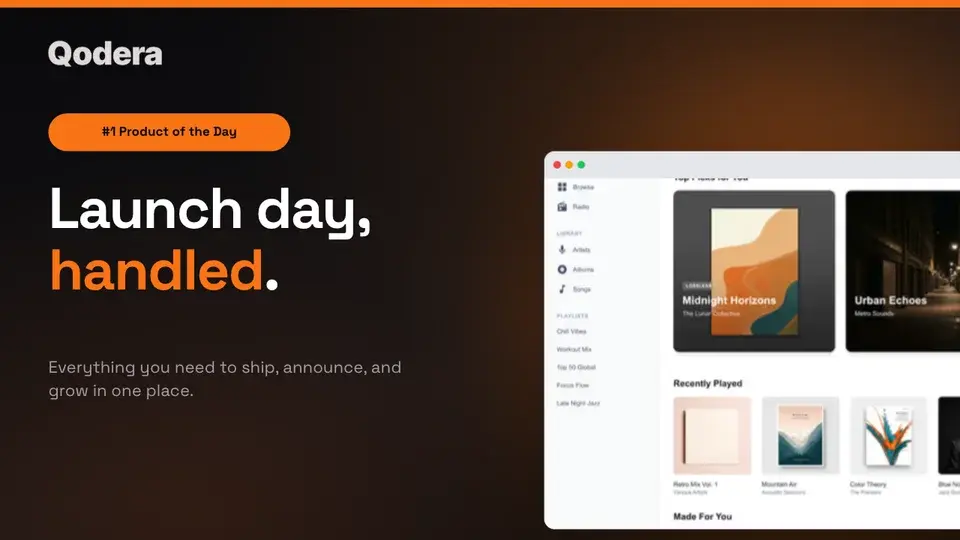
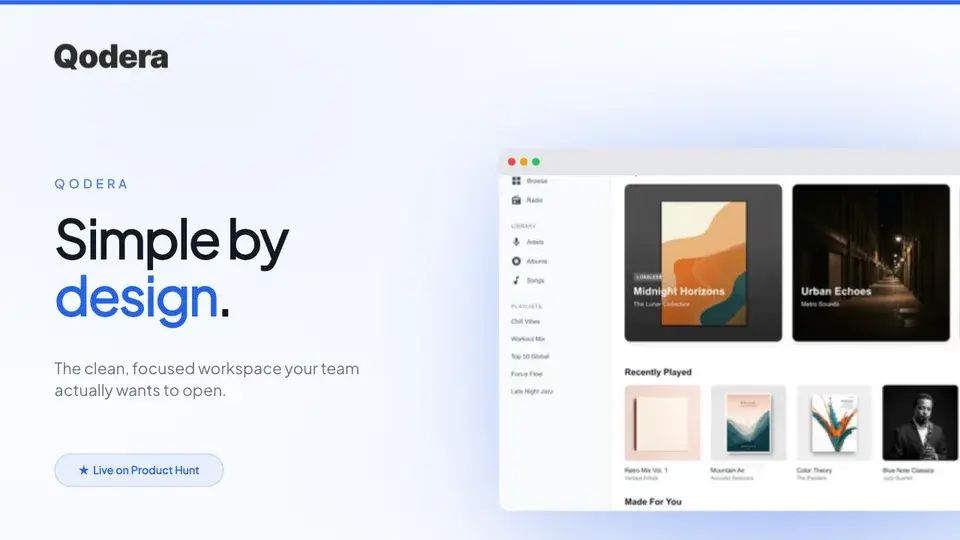
Two editable starting points from the Screenhance library, selected for this launches guide.
Generate every launch visual from one brief — App Store, Product Hunt, OG, and website
Free to start. No credit card required.
Keep reading
Related, product-tested guides from Screenhance.
14 Best Fonts for App Screenshots and Launch Graphics
Choose readable fonts for App Store screenshots, Google Play graphics, social posts, and launch visuals, with practical pairings and editable examples.
1 Sept 2026 · 10 min read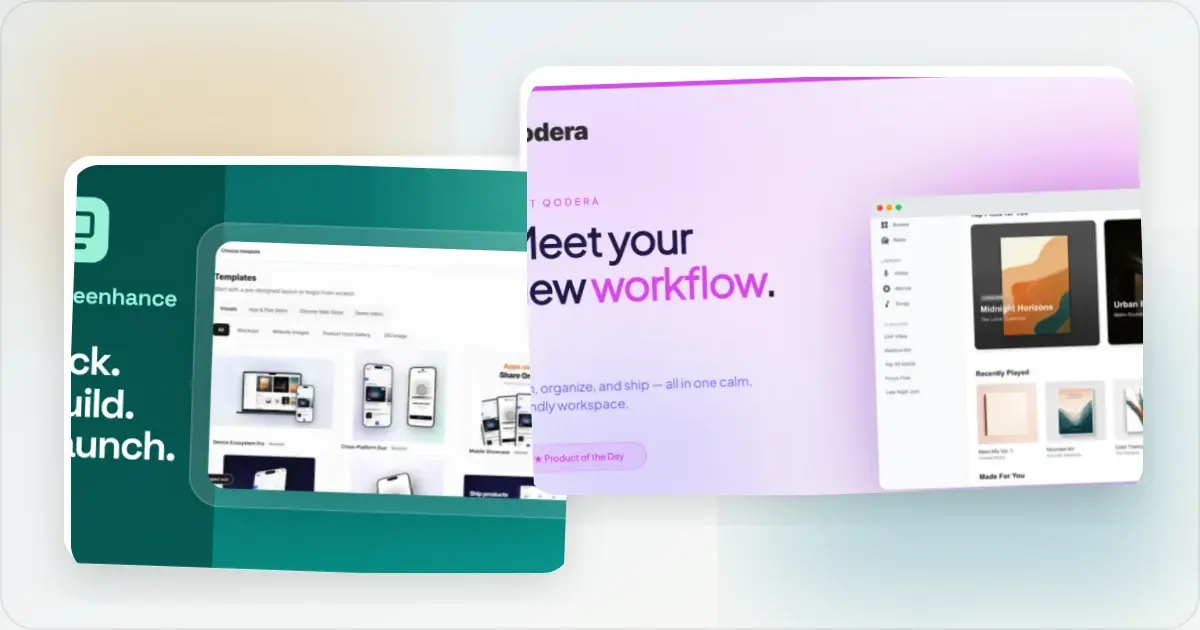
How to Launch an App in 2026: The Complete Step-by-Step Checklist
The complete 2026 app launch checklist: a 4-6 week timeline across pre-launch, launch day, and post-launch, plus every store, Product Hunt, and OG asset needed.
4 Jul 2026 · 8 min read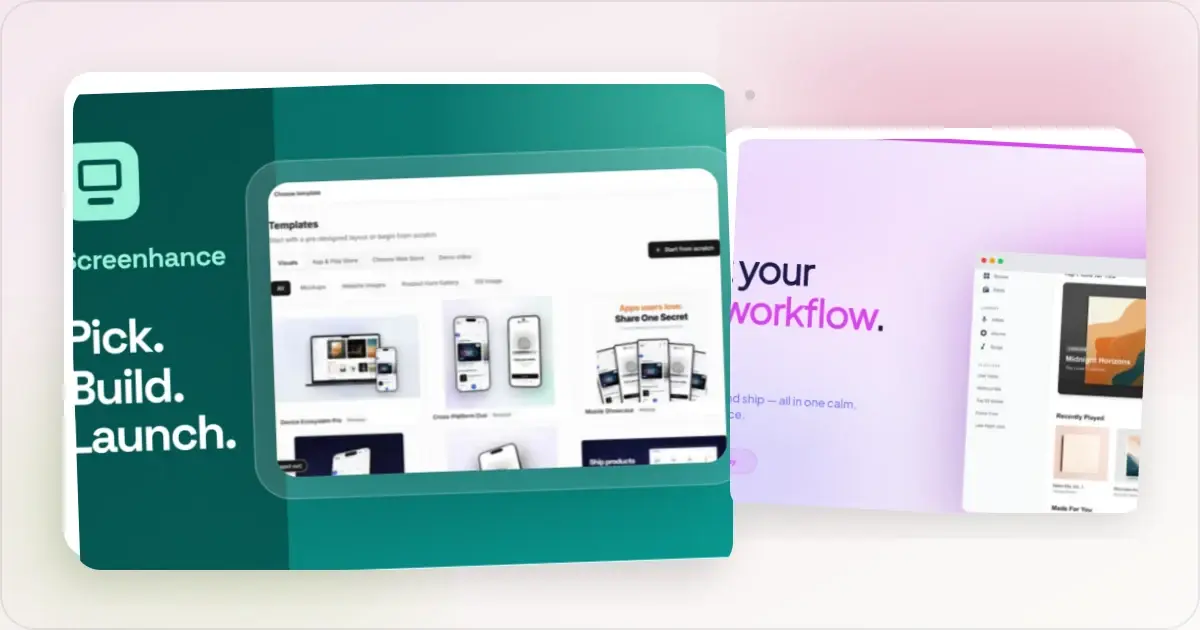
How to Publish an AI-Built App to the App Store (Lovable, Bolt, Replit)
A practical App Store submission walkthrough for AI-assisted apps: enrollment, builds, listing metadata, screenshots, privacy details, and review preparation.
2 Jul 2026 · 5 min read