
How to Present Screenshots in Your Design Portfolio
Your portfolio screenshots determine whether you get hired. Here's how designers and developers should present their work professionally.
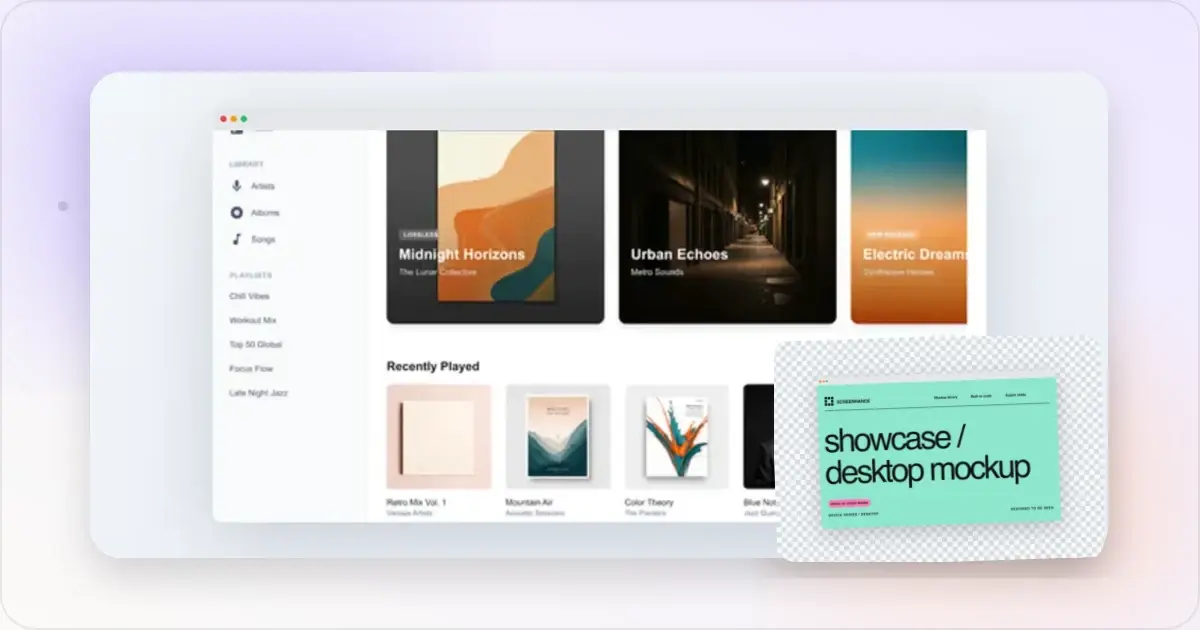
Your portfolio is your resume. And the screenshots you use are the first thing potential clients or employers see.
Here's how to make them count.
Why Presentation Matters
Two designers with identical skills can have very different outcomes based on how they present their work.
Raw screenshots say: "I did this work"
Polished mockups say: "I care about every detail"
Which designer would you hire?
The Basics
Every portfolio screenshot should have:
ContextShow your work in a device frame. A website in a browser. An app in a phone. A dashboard in a MacBook.
ConsistencyUse the same styling across all projects. Same backgrounds, same device frames, same padding.
QualityHigh resolution only. Blurry screenshots undermine great work.
Device Frame Selection
Match frames to the project:
- Web apps → Browser or MacBook mockup frames
- Mobile apps → iPhone mockup or Android frames
- Responsive designs → Multiple device composition
- Desktop software → Clean window frames
Background Strategies
Option 1: Neutral backgroundsSubtle grays or off-whites. Let the work speak for itself. Professional and safe.
Option 2: Brand-matched backgroundsUse colors from the project. Creates cohesion. Shows attention to detail.
Option 3: Gradient backgroundsAdd visual interest without distraction. Modern and polished.
For Case Studies
Case studies need more than just final screenshots:
Process shotsShow wireframes, iterations, before/after. Use consistent mockup styling for all of them.
Multiple screensShow the full user flow. Present them as a cohesive set, not random screenshots.
DetailsZoom in on specific UI elements. Show the craft in your work.
Common Portfolio Mistakes
Inconsistent stylingDifferent backgrounds, different frames, different crops. Looks unprofessional.
Outdated devicesUsing old iPhone frames makes your work look dated, even if it's recent.
Too much contextFull browser with tabs and bookmarks. Crop to what matters.
No contextRaw screenshots without any framing. Looks like you didn't try.
Low resolutionBlurry images destroy credibility instantly.
Quick Workflow
For each portfolio piece:
- Gather your best screenshots
- Choose appropriate device frames
- Apply consistent backgrounds
- Export at high resolution
- Arrange in your portfolio
With a screenshot beautifier, this takes minutes per project.
Platform-Specific Tips
Behance/DribbbleBold presentations work well. Eye-catching backgrounds, dramatic compositions.
Personal websiteCan be more subtle. Let your work breathe. A hero image generator can help you create polished visuals for your portfolio landing page.
LinkedInProfessional and clean. Avoid overly stylized mockups.
GitHub READMEClean browser or device frames. Focus on demonstrating functionality.
How Many Screenshots Per Project?
The "right" number depends on the role of the project in your portfolio, not on how much work you did.
Headline projects (3–5 screenshots). These are the case studies you most want to be hired off. Lead with a hero shot in a device frame, follow with two or three feature shots, and close with an "outcome" image — analytics, testimonials, or a final composition. More than five and reviewers stop scrolling. Supporting projects (1–2 screenshots). Side projects or older work that round out your range. A single polished hero mockup is enough. Don't burn attention on long write-ups for work you wouldn't take similar work in today. Archive projects (1 thumbnail). Anything older than two years should either get a quick refresh in your mockup generator or be cut. A blurry 2019 screenshot makes the whole portfolio feel out of date.A rule that works for most designers: cut your portfolio in half, then make every remaining screenshot twice as polished. Reviewers form opinions in seconds — the strength of your weakest image matters more than the count of your strongest.
Annotation: When to Add Callouts
Plain mockups read as "look at my work." Annotated mockups read as "look at my thinking." For senior or product-design roles, annotation often moves the needle more than the visual itself.
Good annotation:
- Calls out one decision per screenshot ("Replaced 3-step signup with passwordless to drop drop-off 38%")
- Uses one accent colour, not five
- Stays small relative to the screenshot itself
- References evidence, not opinion
Bad annotation:
- Captions every UI element
- Uses arrows that overlap the product
- Hides the screenshot behind text
- Reads like a feature list
If you're building a portfolio for a product-design role, alternate clean and annotated mockups so reviewers can choose how deep they want to go.
Frequently Asked Questions
What dimensions should portfolio screenshots be exported at?
For web portfolios, export at 2× the displayed size (e.g. 2400×1500 for an image shown at 1200×750). This keeps things sharp on Retina screens without blowing up file size. PNG for UI-heavy screenshots, WebP if your portfolio platform supports it. For Behance and Dribbble, follow their recommended dimensions — Dribbble shots are 800×600 (4×3) and Behance projects render full-width up to 1400px.
Should I use the latest iPhone frame for old projects?
Yes. Updating device frames to current models (iPhone 16/17, MacBook M-series) refreshes the perceived recency of the work. The screenshot inside the frame is still the original — you're just changing the bezel. A 2022 app shown in an iPhone 17 frame reads as "recent enough"; the same screenshot in an iPhone 11 frame reads as "old portfolio."
How do I handle confidential or NDA work?
Three options. First, blur sensitive data in the screenshots themselves and add a note that "details have been obscured under NDA." Second, recreate the screens in a generic style — same layout, fabricated content. Third, write the case study without the visuals and link to a password-protected version on request. Reviewers respect all three; what they don't respect is broken NDAs.
Should mockups match each project's brand or stay neutral?
For portfolio thumbnails, use one consistent background style (e.g. soft neutral gradients) so the grid reads as cohesive. Inside the case study, switch to brand-matched backgrounds — it shows you can extend the work into marketing assets, not just ship the UI.
Is it worth animating portfolio screenshots?
Yes, for one or two of your strongest projects. A subtle GIF or WebM looping a flow gives evidence that you ship working software, not just static comps. Don't animate every project — it slows the page and dilutes the effect. Tools like Screenhance can export animated mockups in WebM, which loads much faster than GIF on portfolio sites.
Portfolio Screenshot Patterns That Get Hired
Patterns matter more than individual screenshot quality. After reviewing hundreds of portfolios, three patterns consistently lead to job offers and client work.
The narrative grid. Three to four screenshots in a row that tell a chronological story — onboarding, core action, success state, retention. Each screenshot is technically a "feature shot" but the sequence reads as evidence of thinking about the full user journey, not just hero screens. Best for product-design and UX roles where reviewers want to see how you think. The problem-first composition. A single hero composition that pairs the old/competitor state with your solution. Side-by-side or stacked, with a single explanatory caption underneath ("Reduced signup from 7 steps to 2"). Best for case studies where you want to lead with the business outcome before the visual work. The system-on-display. A wide composition showing your design system at work — typography, components, multiple device frames using consistent rules. This reads as "I designed a system, not just screens" and matches the brief for senior and staff roles where systems thinking is the differentiator.The wrong pattern is also instantly recognisable: a grid of seven unrelated screenshots, each at a different angle, with no captions and no narrative. It signals work without thought, which is exactly the opposite of what hiring teams want to see.
Adapting Portfolio Screenshots for Different Surfaces
Your portfolio isn't one place — it's at least four, and each one needs slightly different exports of the same source work.
Personal website / portfolio site. Highest resolution (2× or 3×), full mockup with device frame, longer-form case-study detail. Reviewers spend the most time here so depth pays off. Dribbble / Behance. Strong visual hook, less explanatory text. The platforms reward eye-catching compositions in the first second. Use a hero image generator to build a single bold composition rather than a multi-screenshot grid. LinkedIn / Twitter post. Square or 16:9 crop, one screenshot with one accompanying sentence. Use the case study text in the post body, not on the image. A polished thumbnail wins the click; the website wins the consideration. GitHub README. Clean, minimal browser or device frame. Focus on demonstrating the working tool, not the design polish. Animated WebM at the top of a README dramatically increases star and fork rates for visible work.Build each version from one source design, not by re-designing from scratch. Most platforms have predictable size requirements — set them up as export presets once and reuse forever.
Related Reading
- 7 Screenshot Mistakes That Make Your Product Look Amateur - Mistakes to avoid
- The Complete Guide to Browser Mockups - Browser frames for web projects
- Visual Branding for Startups - Building consistent visual identity
Conclusion
Your portfolio work might be amazing. But if the presentation is poor, no one will notice.
Take the time to present each project professionally. Consistent device frames, quality backgrounds, high resolution exports.
It's the difference between looking like an amateur and looking like someone worth hiring.
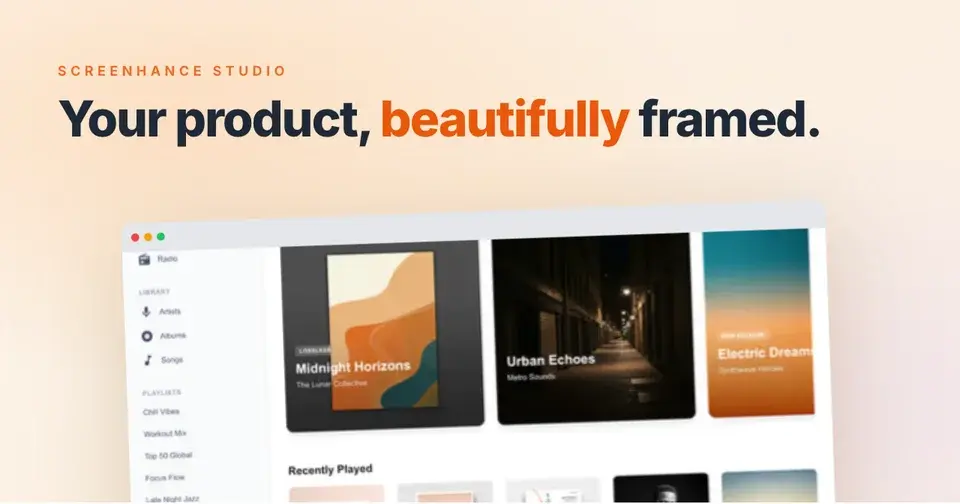
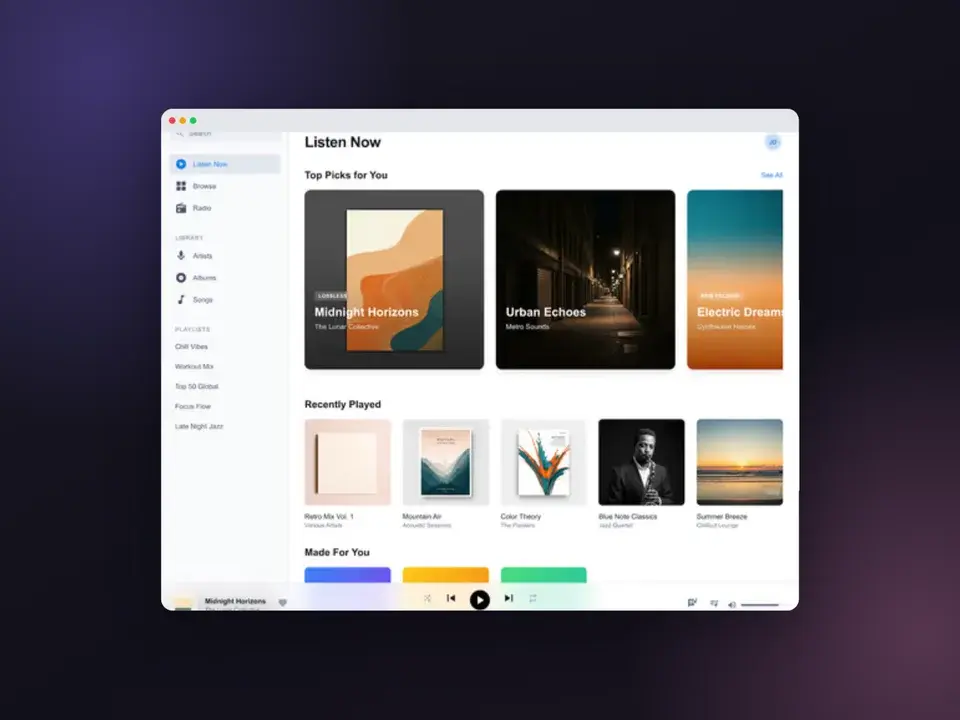
Screenhance examples
Two editable starting points from the Screenhance library, selected for this screenshots guide.
Ready to create stunning visuals?
Free to start. No credit card required.
Keep reading
Related, product-tested guides from Screenhance.
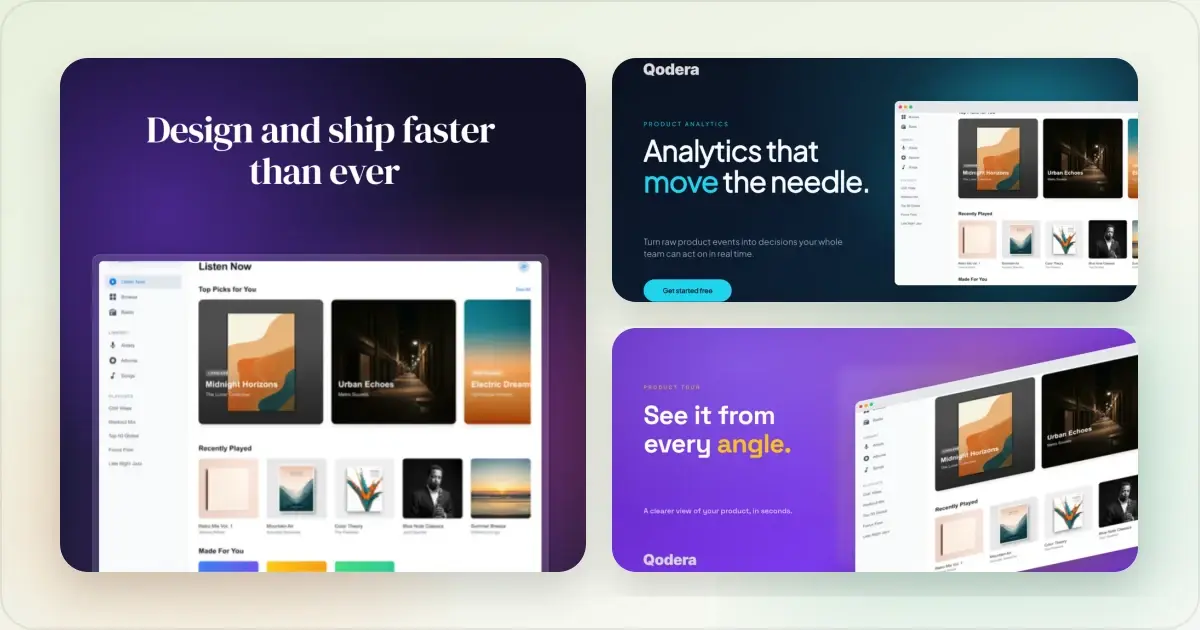
How to Annotate Screenshots for Tutorials and Documentation
Arrows, highlights, and auto-numbered steps: the annotation workflow that makes tutorial screenshots readable, and the mistakes that scream MS Paint.
2 Jul 2026 · 4 min read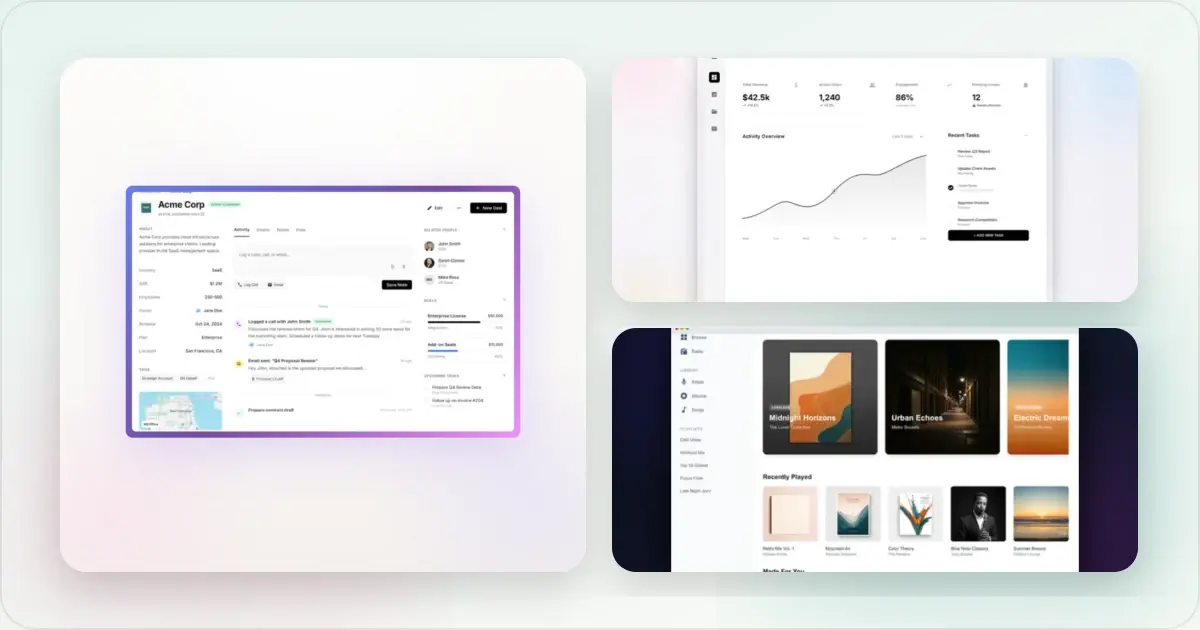
Best Screenshot Tools for Developers in 2026
Developers need different screenshot tools than designers. Here are the best options for code snippets, terminal output, and technical documentation.
21 Apr 2026 · 9 min read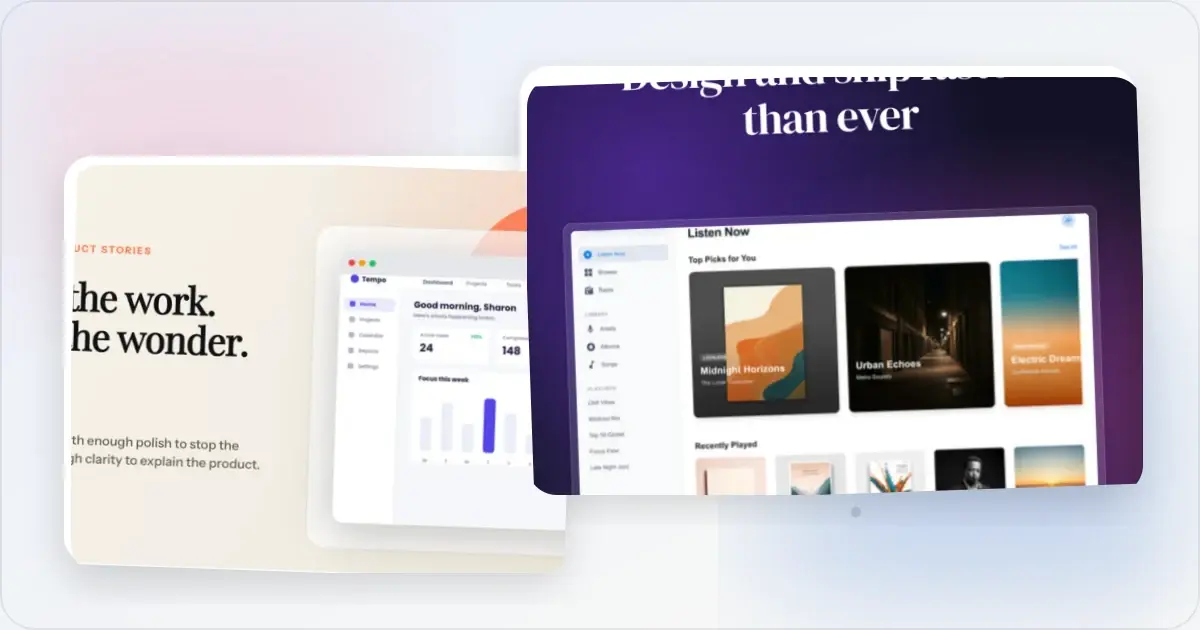
How to Take Better Screenshots: Tips for Professional Results
Your screenshots look amateur? Here's how to capture clean, professional screenshots that make your product shine.
21 Apr 2026 · 10 min read