
How to Blur Part of a Screenshot (and When to Redact Instead)
Blur emails, names, and API keys in a screenshot in your browser, free. When blur is enough, when to redact instead, and the two-minute workflow.
The part most guides skip: blur is not always the right tool. Sometimes you want the opposite of blur, and sometimes you want something stronger. Here is the full picture.
The two-minute workflow
1. Open the Screenhance editor in your browser and upload the screenshot. Nothing installs, and you do not need an account to edit.
2. Open Assets, then Annotate, and click Blur. A blur region appears on the canvas.
3. Drag and resize the region over the sensitive area. Add as many regions as the screenshot needs; each one resizes independently.
4. Export as PNG, WebP, or JPEG. The free plan includes 3 exports a month.
That covers the common cases: a customer email in a support reply, real revenue in a dashboard header, usernames in a community screenshot, a colleague's face in a meeting capture.
When to redact instead of blur
Blur has a known weakness: with enough effort, some blurs can be partially reversed. Researchers have reconstructed text from weakly blurred images more than once, because a blur is a mathematical transformation of the pixels rather than a removal of them. For a name in a casual screenshot, blur is fine. For anything that would cause real damage if recovered, it is not worth the bet.
Use solid-ink redaction instead when the content is:
- An API key, token, or password
- An account or card number
- Anything legal or compliance-related
The same Annotate palette has a Redact bar for exactly this: it paints solid ink over the pixels, so the export contains nothing to recover. The rule of thumb is simple: blur for politeness, ink for secrets.
Spotlight mode: blur everything except one area
The blur tool also runs in reverse. Spotlight mode blurs everything outside the box and keeps your chosen area sharp, which turns a cluttered screenshot into a pointer: the reader's eye lands exactly on the button, setting, or error you mean.
This is the better choice when the problem is not privacy but attention. A full dashboard where only one metric matters, a settings page where one toggle is the answer, a long menu where one item is the point. Blur the noise, keep the signal.
Do not rely on cropping alone
Cropping removes context, and it is easy to miss a second copy of the sensitive value elsewhere in the frame: a browser tab title, a notification, an avatar, the URL bar. The safer habit is to keep the frame that tells the story and deliberately cover every sensitive region. Scan the corners and edges before you export; that is where leaks hide.
If the screenshot needs explanation as well as privacy, the same palette includes arrows, a highlight marker, and numbered steps, covered in the screenshot annotation guide.
Frequently Asked Questions
How do I blur part of a screenshot for free?
Upload the screenshot to the free Screenhance editor, choose Blur from the Annotate palette, and drag the region over the area to hide. Editing requires no account; the free plan includes 3 exports a month.
Can blurred text be recovered?
Sometimes, yes. A blur transforms pixels rather than removing them, and weak blurs over known fonts have been reconstructed by researchers. For genuinely sensitive data such as API keys, passwords, or account numbers, use solid-ink redaction instead of blur, because ink replaces the pixels entirely.
What is the difference between blurring and redacting a screenshot?
Blur softens the pixels so content is unreadable at a glance but technically still present. Redaction paints solid ink over the region, so the information is removed from the image. Use blur for casual privacy and redaction for anything you truly cannot leak.
Can I blur more than one area in the same screenshot?
Yes. Add a separate blur region for each sensitive area; each region moves and resizes independently, and you can mix blur regions with a solid redact bar in the same image.
How do I blur everything except one part of a screenshot?
Use spotlight mode. Instead of hiding what is inside the box, it blurs everything outside it, keeping your chosen area sharp so the reader looks exactly where you want.
What export formats are supported?
PNG, WebP, and JPEG. The blur and redaction are baked into the exported pixels, so they survive any platform's recompression.
Screenhance examples
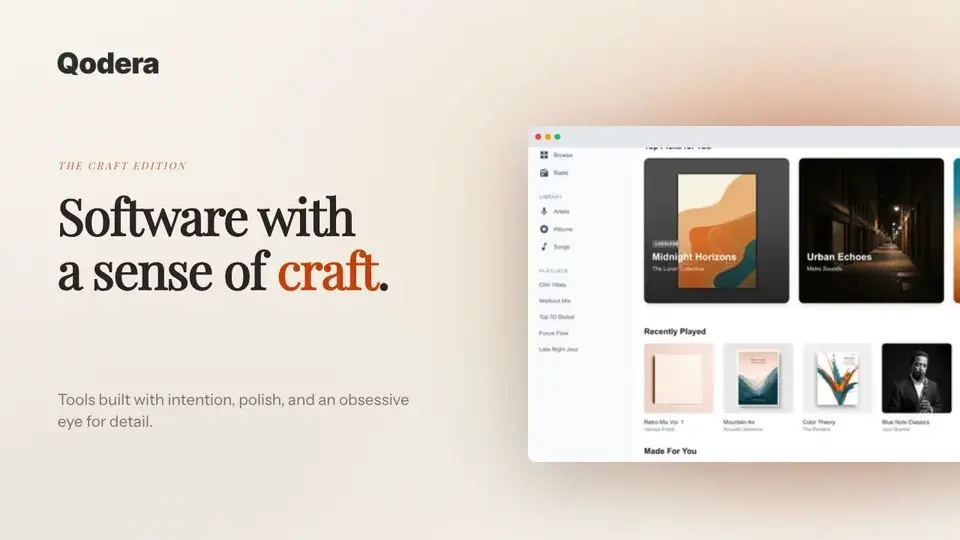
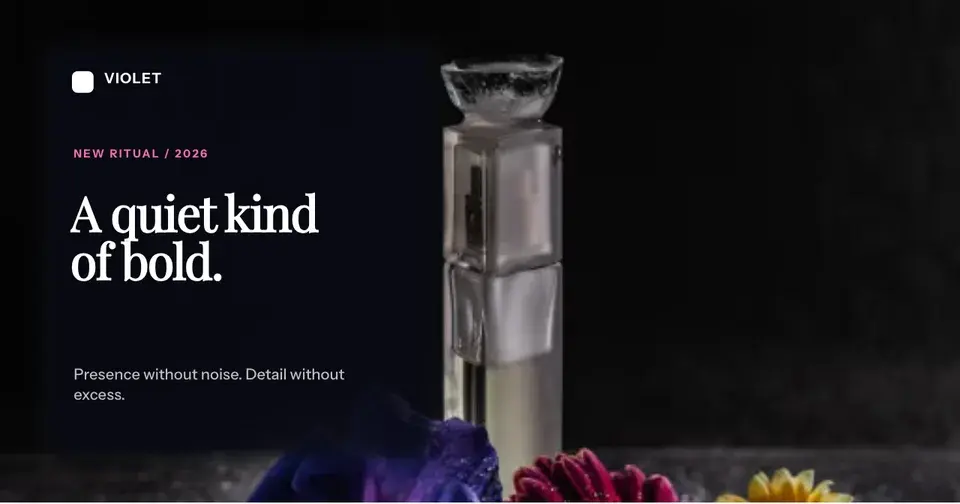
Two editable starting points from the Screenhance library, selected for this social and web guide.
Blur or redact your screenshot free, right in the browser
Free to start. No credit card required.
Keep reading
Related, product-tested guides from Screenhance.
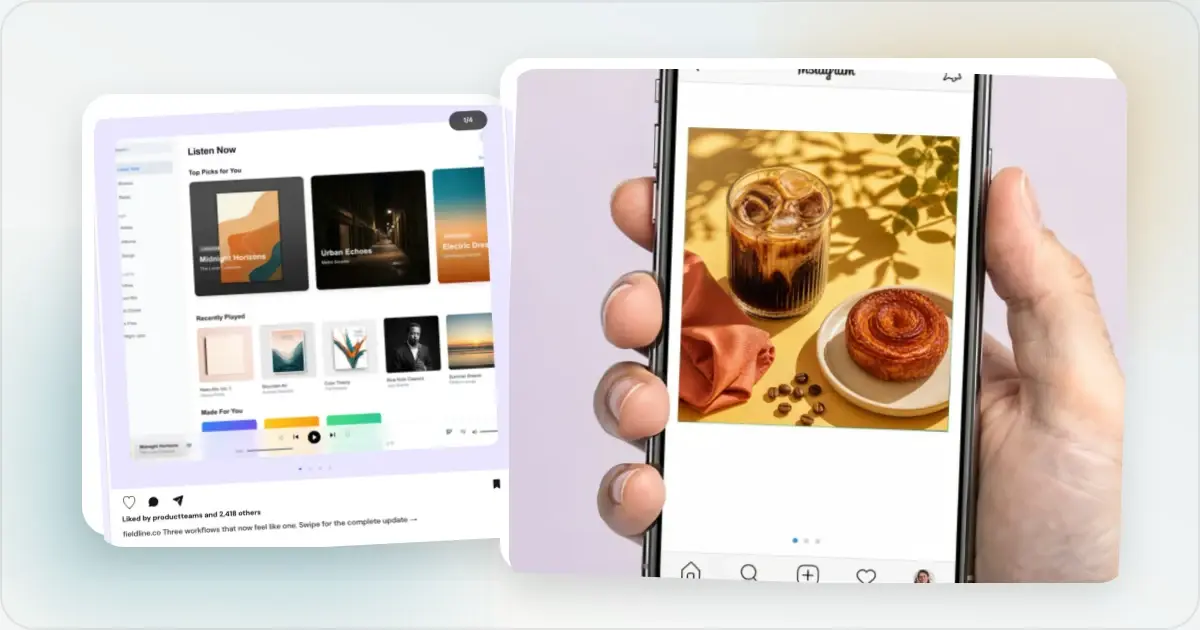
12 Instagram Mockup Examples for Better Product Launches
Explore 12 original Instagram mockup examples for feed posts, carousels, Reels, Stories, profiles, reviews, launch graphics, and product scenes.
1 Sept 2026 · 9 min read
12 OG Image Examples With the Layout Logic Explained
Explore twelve original OG image examples and learn how product proof, hierarchy, contrast, crops, photography, metrics, and quotes change the composition.
20 Aug 2026 · 7 min read
Dynamic OG Images: How to Auto-Generate Social Cards for Every Page
Compare manual, programmatic, and hybrid ways to create Open Graph images for blogs, e-commerce, and SaaS pages.
7 Feb 2026 · 9 min read