
How to Annotate Screenshots for Tutorials and Documentation
Arrows, highlights, and auto-numbered steps: the annotation workflow that makes tutorial screenshots readable, and the mistakes that scream MS Paint.
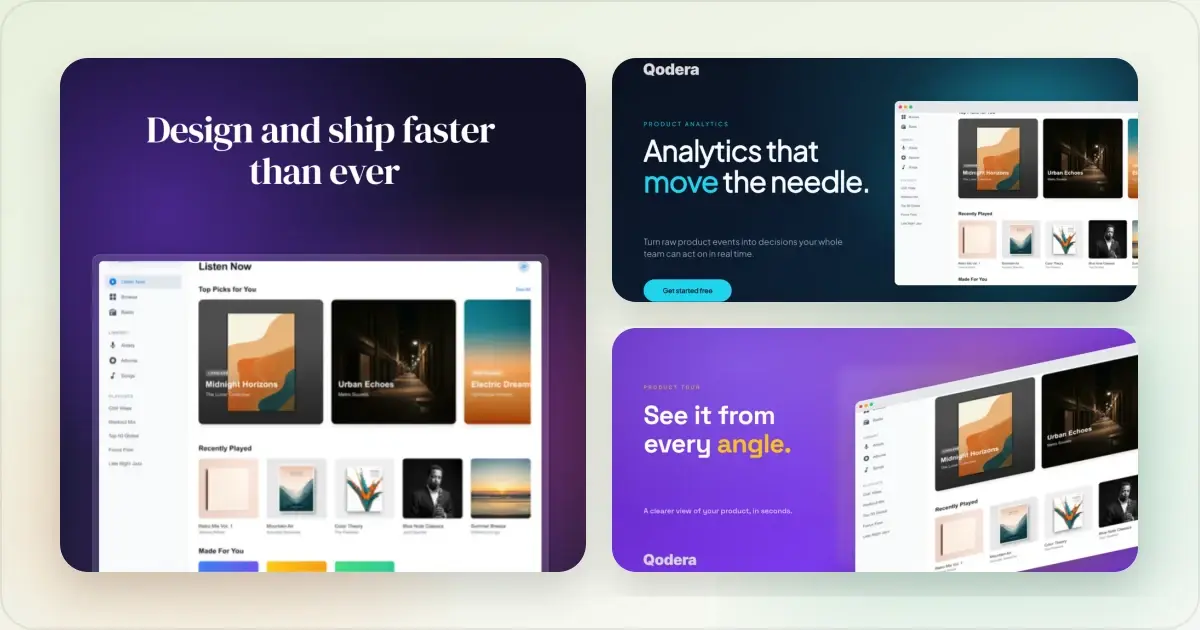
Good annotation is mostly restraint. Here is the workflow that produces documentation people can actually follow, and the habits that ruin it.
The four annotations that carry every tutorial
1. Numbered steps. The backbone of any walkthrough. Place a badge at each click target in order; the reader follows 1, 2, 3 without reading a paragraph. In Screenhance the badges auto-increment as you add them, and the number on any badge stays editable, so reordering a walkthrough does not mean retyping circles.
2. One arrow. An arrow answers "where exactly?" for the single most important action. Straight for close targets, curved when the label would otherwise cover the target, and a draggable connector when you need the tip on an exact pixel.
3. A highlight. A translucent marker wash over the line, setting, or value the step refers to. Unlike a box around it, a highlight keeps the text legible while making it impossible to miss.
4. Blur or redact for the sensitive bits. Documentation screenshots come from real workspaces more often than they should. Blur the customer names, ink over the keys; the full decision guide is in how to blur a screenshot.
The mistakes that make docs feel amateur
Too many arrows. If everything is pointed at, nothing is. One arrow per screenshot is a good default; if you need three arrows, you probably need three screenshots. Freehand circles. A wobbly red oval reads as hurried. A highlight wash or a clean numbered badge communicates the same thing and looks deliberate. Text baked into the image. Long labels inside the screenshot cannot be translated, searched, or updated. Keep sentences in the doc body, keep the image to pointers and numbers. This also matters for localized documentation: images without baked-in prose do not need re-shooting per language. Inconsistent style across a doc set. If step 3 of one article uses red arrows and step 3 of the next uses green boxes, readers notice. Pick one accent color and one badge style, then reuse them everywhere. Annotating in the same editor each time makes that automatic. Raw window captures. A tutorial screenshot dropped straight from the OS looks unfinished next to polished product docs. The same editor that annotates also frames: a browser or device frame and a quiet background make a knowledge-base article read as designed rather than pasted. That finishing pass is covered by the screenshot beautifier.A repeatable five-minute routine
1. Capture the screen with real-looking data, or blur what is real.
2. Crop to the region the step is about; context beats full-desktop captures.
3. Add numbered badges in click order.
4. Add one arrow or one highlight for the precise target.
5. Export as PNG for docs, or WebP where your knowledge base supports it.
Run every tutorial image through the same routine and a fifty-article help center starts looking like one person made it on their best day.
Frequently Asked Questions
How do I add numbered steps to a screenshot?
In the Screenhance annotation tool, open Assets, then Annotate, and click the step badge once per step. Badges number themselves in order (1, 2, 3), and the number on any badge is editable if the walkthrough order changes.
What is the best way to annotate screenshots for a knowledge base?
Use a consistent, minimal system: numbered badges for sequence, at most one arrow per image, a highlight for exact lines, and the same accent color across every article. Keep sentences in the article body rather than baked into the image.
Can I annotate a screenshot online without installing anything?
Yes. The Screenhance editor runs in the browser, no install and no account needed to edit; signup happens only at export. The free plan includes 3 exports a month.
How do I hide sensitive information in a documentation screenshot?
Use the blur region for casual privacy (names, emails) and the solid redact bar for anything dangerous to leak (keys, account numbers). Both live in the same Annotate palette as the arrows and badges.
Should tutorial screenshots use arrows or boxes?
Prefer one arrow for the action and a highlight wash for text. Boxes add visual noise and cover surrounding context; if you find yourself drawing several boxes, split the tutorial into more steps instead.
What format should documentation screenshots be exported in?
PNG is the safe default for docs platforms; WebP is smaller where supported. Avoid JPEG for UI screenshots, as text edges pick up compression artifacts.
Screenhance examples
Two editable starting points from the Screenhance library, selected for this screenshots guide.

Annotate a screenshot with arrows, highlights, and numbered steps
Free to start. No credit card required.
Keep reading
Related, product-tested guides from Screenhance.
Best Screenshot Tools for Developers in 2026
Developers need different screenshot tools than designers. Here are the best options for code snippets, terminal output, and technical documentation.
21 Apr 2026 · 9 min read
How to Take Better Screenshots: Tips for Professional Results
Your screenshots look amateur? Here's how to capture clean, professional screenshots that make your product shine.
21 Apr 2026 · 10 min read
PNG vs JPEG vs WebP vs AVIF for Screenshots
Choose an image format for UI screenshots, store listings and websites without relying on arbitrary quality settings or file-size promises.
21 Apr 2026 · 6 min read