
Free OG Image Generator: Create Social Cards Without Design Skills
Compare free template, general-design, and code-based ways to create OG images, with practical canvas, metadata, preview, and maintenance guidance.
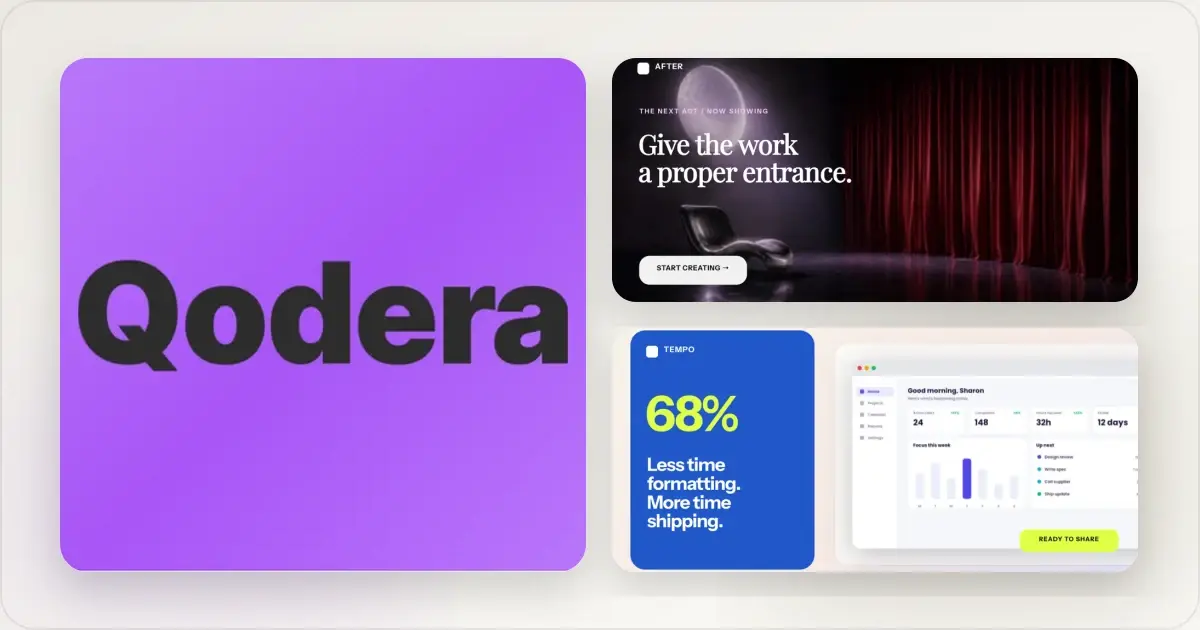
An Open Graph image gives services that read og:image an explicit visual to use when they build a link preview. It does not guarantee a particular crop or click-through rate, but it gives you more control than leaving preview selection to the crawler.
You can create a useful card without a paid design suite. The right tool depends on whether you need a one-off product image, a reusable visual template, or code-generated cards for a large site.
What an OG image controls
The image works alongside the page title and description. Different services may crop, cache, compress, or omit it, so no image is “universal” in the literal sense.
A good default card:
- identifies the page or product clearly;
- keeps important content away from the edges;
- uses text large enough to survive a small preview;
- includes accurate, current product imagery; and
- is tested from the public URL on the destinations that matter.
Comparing Free OG Image Tools
These options solve different versions of the job.
Screenhance (Free Tier)
Best for: Product screenshots turned into polished OG images- Full visual editor with reusable product-centered templates
- iPhone, MacBook, and browser frames with editable backgrounds
- Social-card presets, text, assets, uploads, annotations, and layers
- Three watermarked PNG exports per month at 1× on the free plan
- $6 Launch Pass for 10 clean static image exports over seven days; Pro for ongoing clean exports and motion
The free plan gives you the same product-focused editor and reusable template workflow before you pay. Build and inspect the full card, then use the included watermarked exports for evaluation or choose Launch Pass or Pro when the finished asset needs clean delivery.
Figma (Free)
Best for: Designers who want total creative control- Unlimited design flexibility
- Requires building or finding templates first
- Steeper learning curve
- More setup for people who do not already use it
- Great if you're already in Figma daily
If you're comfortable with Figma and have a template library, it's powerful. If you're starting from zero, you'll spend more time learning the tool than creating images.
Canva (Free Tier)
Best for: General-purpose social graphics- Drag-and-drop interface with templates
- Some OG image templates available
- Limited customization depth
- Results can look generic (Canva templates are everywhere)
- Export options are decent
Canva can work for straightforward social cards. Adapt any template to your brand and verify which elements are included in the free plan.
Vercel OG / Satori
Best for: Developers who want automated, dynamic OG images- Generate images programmatically from HTML/CSS
- Useful for blogs with repeatable metadata
- Requires coding knowledge
- No visual editor — you write JSX
- Free and open source
This is a developer workflow: define the template in code and populate it from page metadata. It is useful when many pages share a predictable structure.
Placeholder Generators (Various)
Best for: Getting something up quicklySimple text-on-background generators can cover documentation, small sites, or temporary launch pages. Check ownership, retention, and export terms before uploading private product material to any third-party service.
How Screenhance Makes It Easy
Here's the actual workflow for creating an OG image with Screenhance:
Step 1: Capture your screenshotTake a screenshot of the page, feature, or product you want to showcase. This can be a browser screenshot, mobile screenshot, or any visual that represents your content.
Step 2: Upload and styleDrop your screenshot into Screenhance. Choose from device frames (browser window, MacBook, iPhone) and background options (gradients, solid colors, or patterns). The tool applies professional styling automatically.
Step 3: Adjust and inspectTweak the background, padding, type, and frame until the product remains readable at thumbnail size. Check contrast and remove private data from the capture.
Step 4: Export at OG dimensionsExport at 1200 × 630 pixels as a broadly supported starting canvas. Keep an editable master because individual platforms may benefit from a different crop.
Step 5: Set your meta tagsAdd the image URL to your page's head:
<meta property="og:image" content="https://yoursite.com/og/your-image.png" />
<meta name="twitter:card" content="summary_large_image" />
<meta name="twitter:image" content="https://yoursite.com/og/your-image.png" />
Publish the page, then test the public URL. Authenticated or noindex staging pages may not be available to external preview crawlers.
Creating a Consistent OG Image System
One-off OG images are fine. A system is better.
Here's how to build consistency without burning time:
Establish a template. Pick a background system, type scale, safe area, and logo placement. Allow exceptions for pages whose imagery needs a different crop. A social card generator makes reusable variants easier to maintain. Batch creation where it helps. A publish checklist or build-time pipeline can reduce missed cards, but every generated image still needs a content and crop check. Audit important pages. Check live previews for the homepage, product pages, and frequently shared articles. Facebook Sharing Debugger and LinkedIn Post Inspector can request a fresh crawl; X's current tooling and preview behavior may change, so consult its live documentation. Store originals. Keep your source files organized. When you rebrand or update your design system, you'll want to regenerate OG images. Having the originals makes this painless.The Quick Way
If you want a visual workflow centered on product captures, start with Screenhance. The free plan includes the full editor and three watermarked PNG exports per month. When the card is ready for clean delivery, the $6 Launch Pass includes 10 static image exports over seven days; Pro covers ongoing clean exports and motion. Check the live pricing page for current terms.
Upload a screenshot, choose a style, inspect the small preview, and export.
For deeper guidance on what makes OG images effective, read the OG Image Best Practices guide.
Frequently Asked Questions
Do free OG image tools add watermarks?
Policies differ. Screenhance lets you build with the full editor on the free plan and includes three 1× PNG exports per month with a small watermark. The $6 Launch Pass or Pro removes it for clean delivery. Other tools can apply plan, asset-license, or export restrictions, so check the live terms before building a production workflow around them.
Can I automate OG image creation?
Yes, if you're technical. Tools like Vercel OG (Satori) let you generate images programmatically from templates written in JSX. This is ideal for blogs or sites with hundreds of pages. For non-developers, batch-creating images with a visual tool like Screenhance is the practical equivalent.
How often should I update my OG images?
Update them when your branding changes, when the content is significantly updated, or when your current images look dated. For evergreen content, reviewing OG images once or twice a year is sufficient. For time-sensitive content, make sure the image doesn't reference outdated dates or information.
How do I test OG previews before publishing?
Use current platform tools such as Facebook Sharing Debugger and LinkedIn Post Inspector, and inspect a draft share where a platform provides no dedicated validator. Test the public URL: authentication, robots controls, and crawler-inaccessible staging environments can prevent a preview from being fetched.
Do Slack, Discord, and LinkedIn render OG images differently?
Yes. Cropping, compression, surrounding UI, and cache behavior vary by client and can change. Keep essential content within a generous safe area, avoid tiny text, and test Slack, Discord, LinkedIn, and any other important destination directly instead of relying on a fixed crop formula.
How do I refresh OG images after a site redesign?
After updating og:image, request a fresh scrape in platform tools where available. Cache duration is service-specific and not guaranteed. A versioned image URL or new filename can help crawlers distinguish the new asset, but the page metadata must also be publicly fetchable.
Should OG images be accessible?
Support accessibility in the page itself rather than assuming preview clients expose the same metadata. Use meaningful page copy, strong contrast, large type, and avoid making the image the only place where essential information appears. Add platform-specific image-alt metadata where current documentation supports it.
When is it OK to skip OG images entirely?
It is reasonable to skip dedicated cards for authenticated or internal URLs that external crawlers cannot access. For public customer-facing pages, decide based on how likely the URL is to be shared and whether a page-level card adds useful context.
Static versus dynamic OG generation
Static images are simple to cache and inspect. The trade-off is that each page needs an asset and content changes may require a new export.
Dynamic generation can populate a code-defined template from page metadata. It reduces manual production but adds rendering, caching, font, and failure-mode considerations. Build-time generation is a useful middle ground when content changes during deployment rather than per request.
Choose based on publishing frequency, team ownership, and how safely the pipeline handles missing images or long titles—not an arbitrary page-count threshold. A social card generator can supply visual masters for a manual or build-time process.
OG image patterns worth testing
Useful variants to compare include a concise specific title versus a shorter category label, typography-only versus a real product image, and one cross-platform crop versus destination-specific crops. Do not place revenue, customer, or performance claims on a card unless the linked page substantiates them. Measure clicks from comparable shares when possible; platform and audience effects make universal uplift claims unreliable.
Related Reading
- OG Image Best Practices: The Complete Guide to Social Share Images - Design principles for effective social cards
- Best Free Mockup Tools in 2026: A Practical Comparison - Broader comparison of free design tools
- How to Create OG Images That Get Clicks on Twitter and LinkedIn - Platform-specific optimization strategies
- OG Image Size Guide: Dimensions for Every Social Platform - Exact dimensions per platform
Conclusion
An OG image can be made with a free template, a general design tool, or a code-based generator. The right option depends on export limits, branding control, publishing frequency, and who will maintain it.
A dedicated image is useful when it explains the linked page and survives the destinations where that URL is shared. Pick a tool that fits your publishing workflow, create a reusable system, and verify the live preview.
See how your link looks when shared
Paste a public page URL to inspect its Open Graph tags, image dimensions and missing metadata. The card is an approximation; each platform controls its final preview.
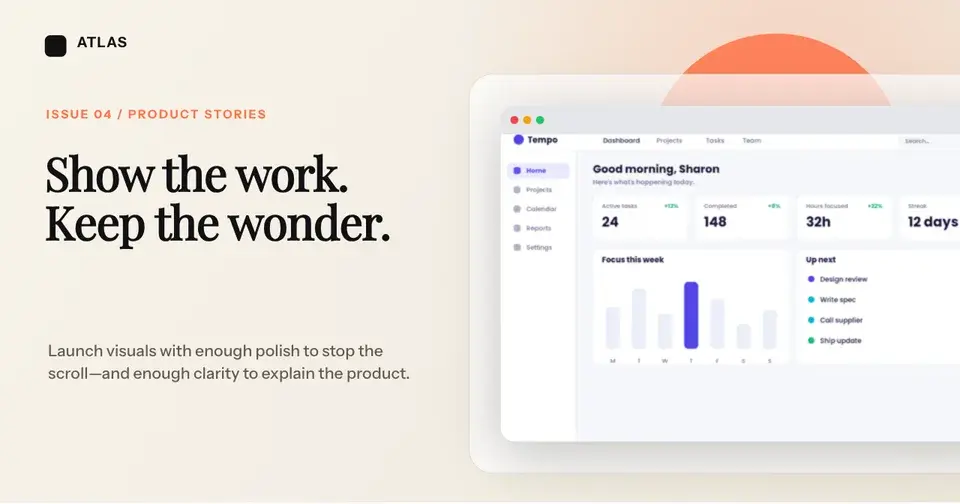
Screenhance examples
Two editable starting points from the Screenhance library, selected for this social and web guide.

Generate a social-ready OG image free
Free to start. No credit card required.
Keep reading
Related, product-tested guides from Screenhance.
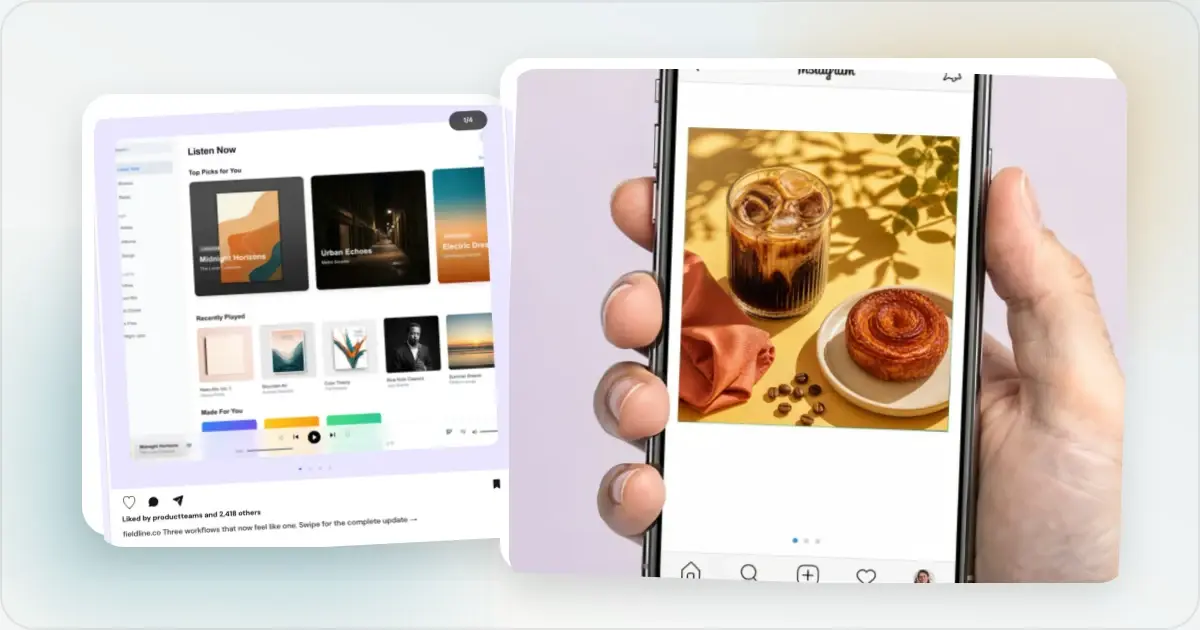
12 Instagram Mockup Examples for Better Product Launches
Explore 12 original Instagram mockup examples for feed posts, carousels, Reels, Stories, profiles, reviews, launch graphics, and product scenes.
1 Sept 2026 · 9 min read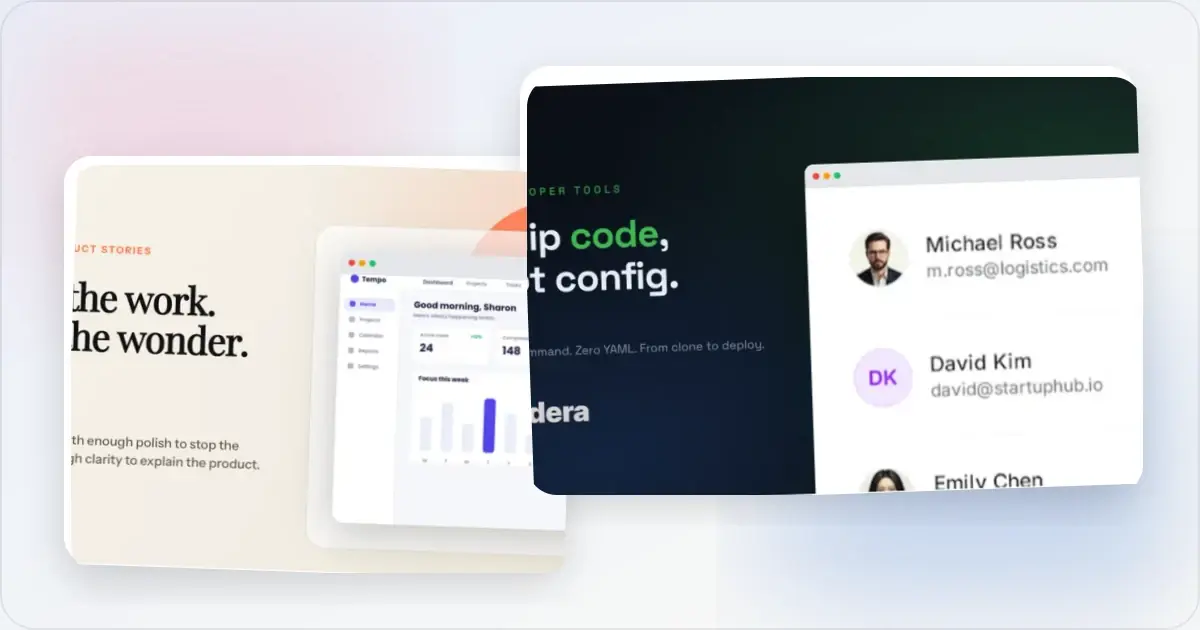
12 OG Image Examples With the Layout Logic Explained
Explore twelve original OG image examples and learn how product proof, hierarchy, contrast, crops, photography, metrics, and quotes change the composition.
20 Aug 2026 · 7 min read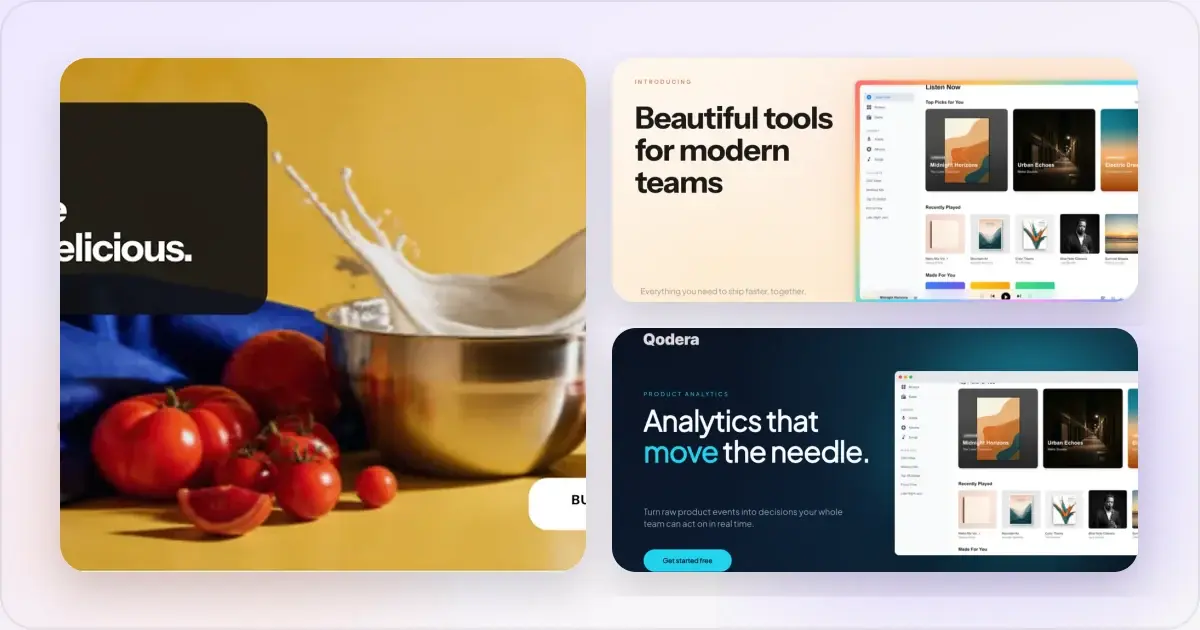
How to Blur Part of a Screenshot (and When to Redact Instead)
Blur emails, names, and API keys in a screenshot in your browser, free. When blur is enough, when to redact instead, and the two-minute workflow.
2 Jul 2026 · 4 min read