
How to Create OG Images for X and LinkedIn
Design, implement and test an Open Graph image that stays readable when a page is shared on X, LinkedIn and messaging apps.
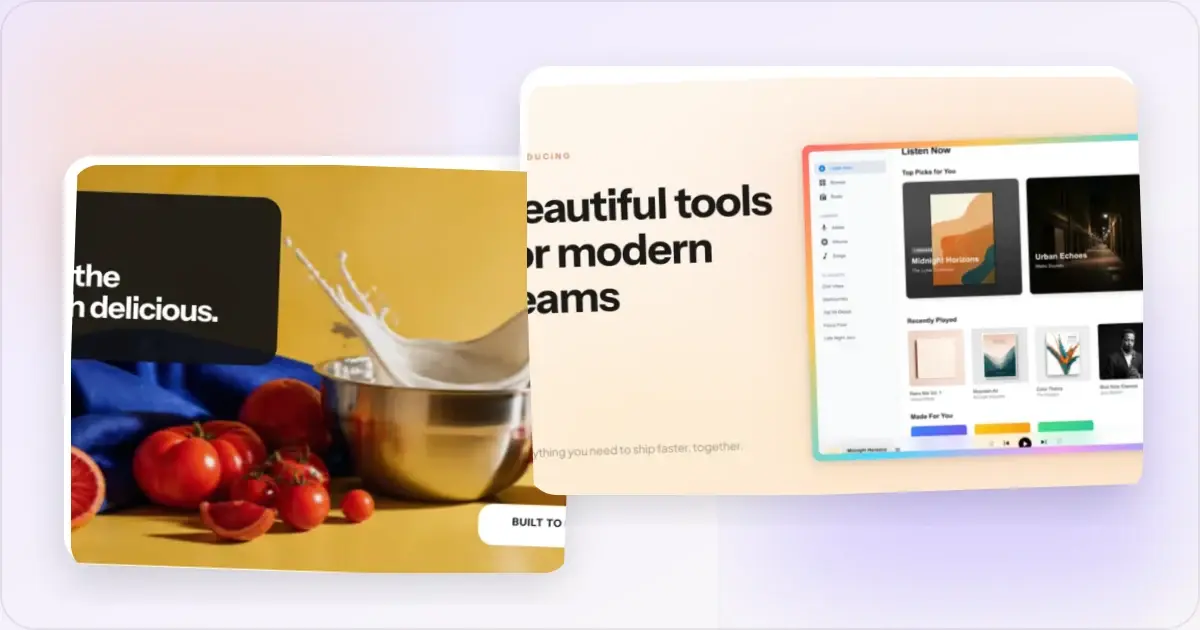
An Open Graph image is the visual that many services use when they turn a URL into a preview. Its job is simple: identify the page, remain readable at a small size and accurately represent what someone will find after clicking.
There is no design that guarantees clicks. Distribution, copy, audience and the page itself all matter. A good OG image prevents avoidable failures: a blank preview, a misleading claim, a crop through the headline or text that disappears on mobile.
The metadata an OG image needs
The Open Graph protocol defines og:title, og:type, og:image and og:url as the basic properties. It also supports structured image properties such as width, height, MIME type and alt text.
<meta property="og:title" content="A practical guide to product screenshots" />
<meta property="og:type" content="article" />
<meta property="og:url" content="https://example.com/guides/product-screenshots" />
<meta property="og:image" content="https://example.com/og/product-screenshots.png" />
<meta property="og:image:type" content="image/png" />
<meta property="og:image:width" content="1200" />
<meta property="og:image:height" content="630" />
<meta property="og:image:alt" content="Product dashboard beside the guide title" />
Use an absolute HTTPS URL that a logged-out crawler can fetch. Do not require cookies, block social crawlers or point to a temporary signed URL.
X can also read its own card metadata. A common large-card setup is:
<meta name="twitter:card" content="summary_large_image" />
<meta name="twitter:title" content="A practical guide to product screenshots" />
<meta name="twitter:description" content="Capture, crop and present product UI clearly." />
<meta name="twitter:image" content="https://example.com/og/product-screenshots.png" />
<meta name="twitter:image:alt" content="Product dashboard beside the guide title" />
If you omit platform-specific overrides, services may fall back to the Open Graph properties. Preview behaviour can change, so test the live URL rather than trusting an old screenshot of a card format.
Choose a canvas that tolerates small differences
A 1.91:1 landscape canvas is a practical shared starting point. Screenhance's OG templates use 1200 × 630. LinkedIn currently recommends a 1.91:1 link-preview image at 1200 × 627. The three-pixel difference is not a reason to duplicate a whole design; keep critical content away from the extreme edges and inspect both previews.
The image may be rendered at only a few hundred pixels wide. Judge the design at that size early.
A clear OG image hierarchy
A robust layout normally needs only three layers:
1. Page identity: a short version of the page title or outcome.
2. One relevant visual: a product crop, illustration, photograph or diagram.
3. Quiet source identity: a logo, publication name or domain.
The metadata title already appears near the card on many services, so the image headline does not have to repeat it word for word. Use the image to clarify the subject, not to squeeze the whole article introduction into a canvas.
If you include a number, quotation, rating or result, it must be real and supportable. An attractive fictional metric is still misleading.
Make the image readable in more than one context
- Keep important text and faces away from the edges.
- Use enough contrast between type and background.
- Avoid interface screenshots with tiny labels; crop to the relevant area.
- Check both light and dark surrounding interfaces.
- Do not use colour alone to communicate a comparison.
- Provide meaningful
og:image:alttext.
The alt text should describe what the image communicates. It is not a place to stuff keywords or repeat the page title several times.
Product screenshot, illustration or text-only card?
Use a product screenshot when the interface itself is evidence for the page. Crop it tightly enough to remain legible and avoid showing private customer data.
Use an illustration or photograph when the article is conceptual and the image can add context without inventing a product state.
A text-led card works when the topic is abstract or the headline is the clearest identifier. Keep the brand mark secondary and resist adding decorative widgets just to fill space.
There is no universal winner. If a page matters enough to test, compare controlled variants with tagged links and sufficient observations from the same audience. Do not call a result from two ordinary posts an A/B test: day, topic and distribution can overwhelm the image change.
Build a reusable OG system
A reusable system is more useful than one “perfect” card.
- Lock the canvas, margins, brand mark and type styles.
- Define a short, medium and long headline treatment.
- Prepare layouts for a screenshot, portrait, chart and text-only page.
- Add a fallback image for pages without a custom visual.
- Generate unique alt text and metadata for each page.
- Version the image URL when the underlying file changes.
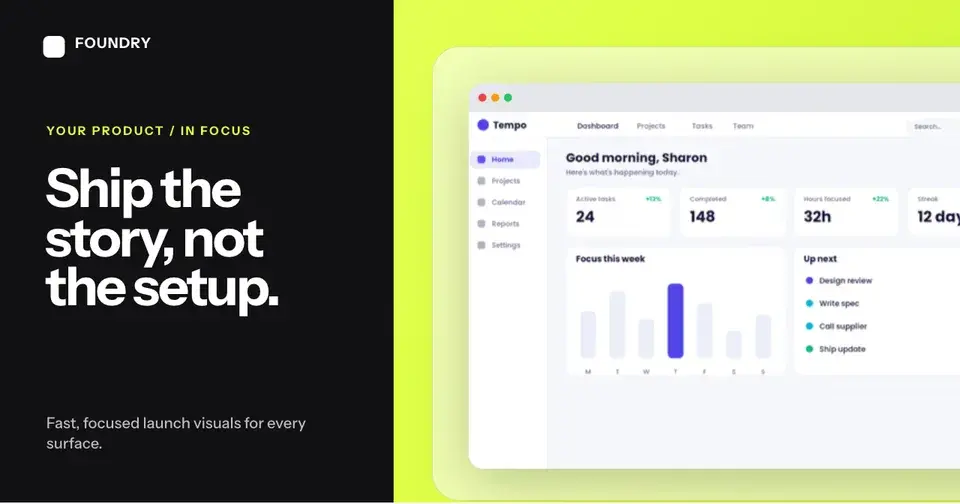
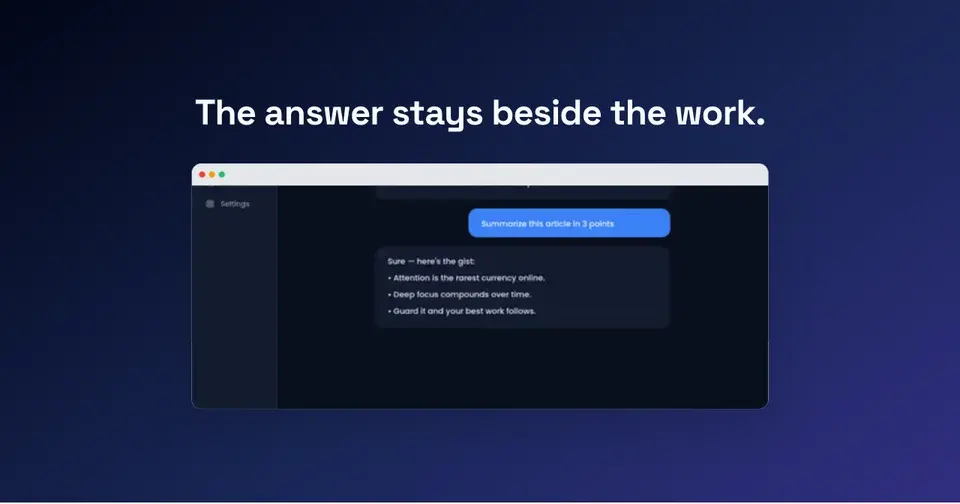
Use the OG image generator to start from a Screenhance template, replace the real content and open the design in the visual editor. The linked examples in the OG layout analysis are original Screenhance template outputs, and each preview opens its editable template.
Test the live page
An image can look correct in the editor and still fail because the metadata is wrong, the crawler sees a blocked URL or a service has cached an older version.
1. Deploy the page and image to a public HTTPS URL.
2. View the page source and confirm the final absolute metadata values.
3. Fetch the image URL in a private browser session.
4. Use LinkedIn Post Inspector to fetch or refresh the LinkedIn preview.
5. Share a private or disposable test where the destination offers no current public validator.
6. Check the preview on both desktop and mobile.
LinkedIn notes that refreshing a URL affects new shares, not existing posts. If a platform continues to use an older image, change the asset URL with a filename or query version and update the metadata.
Common OG image failures
The image URL is relative
Use https://example.com/image.png, not /image.png. Social crawlers need an unambiguous public URL.
The card contains unsupported proof
Do not invent customer names, testimonials, ratings or performance numbers in a template. Placeholder content must be replaced before publication.
One image is reused everywhere
A site-wide fallback is useful, but a shared article or product page should identify its own subject. Prioritise custom images for pages people actually share; utility and account pages can keep the default.
The title is too long at preview size
Create a shorter image headline or use a layout that supports three lines without shrinking the type below legibility. The full page title remains in the HTML metadata and on the page.
A redesigned image never appears
Confirm that the deployed meta tag changed, then refresh the URL through the destination's inspector where available. Version the image URL when caches continue to serve the old asset.
Frequently Asked Questions
Should an OG image contain text?
It can, but it does not have to. Include a concise line when it helps identify the page at thumbnail size. A strong product crop or photograph may communicate more clearly without a second headline.
Do X and LinkedIn need separate images?
Not necessarily. A well-spaced 1.91:1 design can work across both. Use separate twitter:image and og:image assets only when the previews need materially different crops or messages.
Why does LinkedIn show an old image?
LinkedIn caches link previews. Deploy the change, confirm the new metadata, then enter the URL in LinkedIn Post Inspector. Existing posts keep their existing preview.
Should every page have a unique OG image?
Give independently shared product pages, landing pages and articles a relevant image. A general fallback is sufficient for pages that are not meaningful share destinations.
Is an OG image a Google ranking factor?
Do not create OG images as a ranking shortcut. They are social-preview metadata. Their direct job is to make shared URLs understandable and presentable.
Related guides
See how your link looks when shared
Paste a public page URL to inspect its Open Graph tags, image dimensions and missing metadata. The card is an approximation; each platform controls its final preview.
Screenhance examples
Two editable starting points from the Screenhance library, selected for this social and web guide.
Generate a social-ready OG image free
Free to start. No credit card required.
Keep reading
Related, product-tested guides from Screenhance.
OG Image A/B Testing: How to Measure What Gets More Clicks
A practical framework for testing social share images, controlling variables, and measuring clicks without assuming a universal winner.
7 Feb 2026 · 7 min read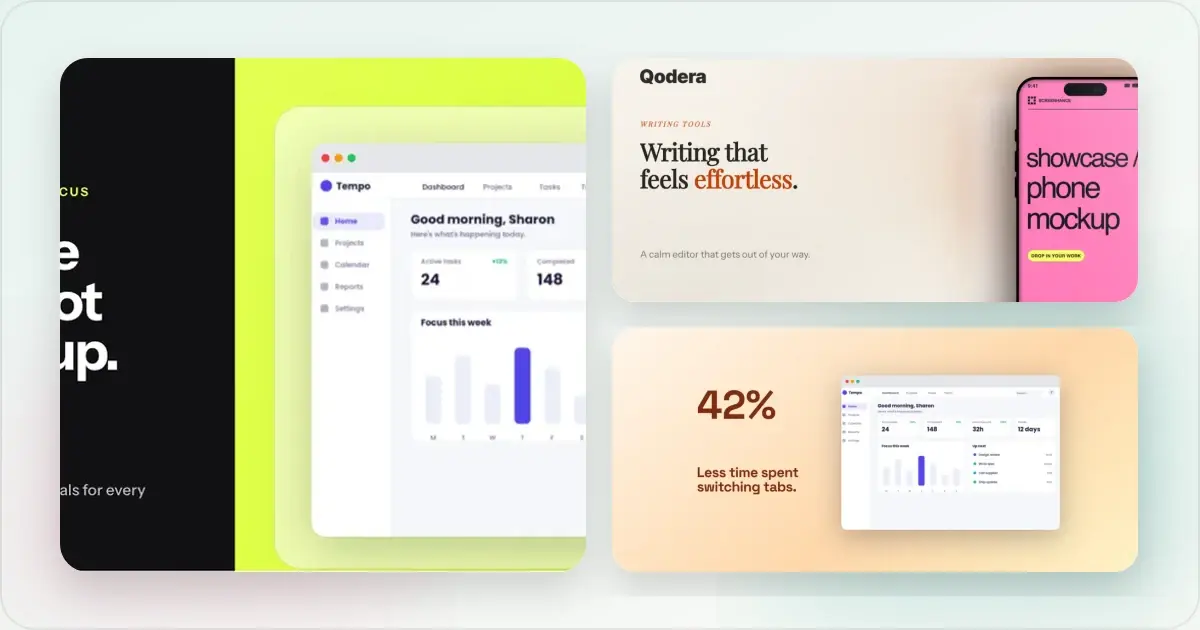
Twitter/X Card Dimensions 2026: The Complete Image Size Guide
The definitive 2026 guide to Twitter/X card image sizes. Exact dimensions for summary cards, large image cards, in-stream photos, and more.
7 Feb 2026 · 11 min read
12 Instagram Mockup Examples for Better Product Launches
Explore 12 original Instagram mockup examples for feed posts, carousels, Reels, Stories, profiles, reviews, launch graphics, and product scenes.
1 Sept 2026 · 9 min read