
How to Take Better Screenshots: Tips for Professional Results
Your screenshots look amateur? Here's how to capture clean, professional screenshots that make your product shine.
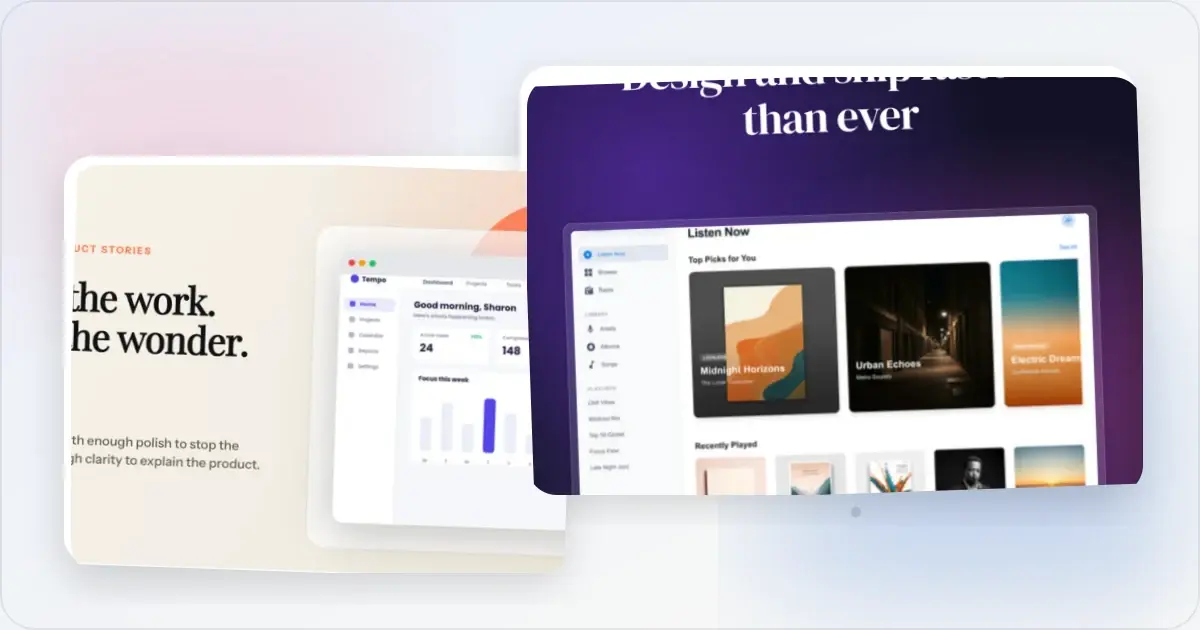
Great mockups start with great screenshots. No amount of fancy frames can fix a messy source image.
Here's how to capture screenshots that look professional from the start.
Before You Capture
Clean Up Your Screen
Hide browser clutter:- Close unnecessary tabs
- Hide the bookmarks bar
- Disable browser extensions (or hide their icons)
- Clear the URL bar of personal info
- Dismiss notifications
- Close chat widgets
- Hide debug tools
- Remove any personal data
Use Realistic Data
Nothing says "fake" like Lorem ipsum and John Doe.
Instead of:- "Lorem ipsum dolor sit amet"
- "John Doe"
- "123 Main Street"
- "$0.00"
- Real-sounding text that matches context
- Realistic names (Sarah Chen, Marcus Johnson)
- Plausible addresses and data
- Believable numbers
The extra 5 minutes spent on realistic data makes a huge difference.
Set Up the Right View
Focus on what matters:- Show the most impressive feature
- Crop to the relevant area
- Don't try to show everything at once
- What should viewers notice first?
- What action are you demonstrating?
- What value are you communicating?
Capturing Techniques
Method 1: Browser Screenshot (Web Apps)
For web applications, use your browser's DevTools:
1. Open DevTools (F12 or Cmd+Option+I)
2. Click the device toolbar icon
3. Set dimensions (e.g., 1920 x 1080)
4. Right-click → "Capture screenshot"
Benefits: Exact dimensions, no OS chrome, clean edges.Method 2: Full Page Capture
For long pages that don't fit on screen:
Chrome: DevTools → Cmd+Shift+P → "Capture full size screenshot" Firefox: Right-click → "Take Screenshot" → "Save full page" Safari: Develop menu → Show Web Inspector → Screenshot options Or use apps: CleanShot X, ShareX, or Fireshot extension.Method 3: Native OS Tools
Mac:- Cmd + Shift + 3: Full screen
- Cmd + Shift + 4: Selection
- Cmd + Shift + 4 + Space: Window
- Win + Shift + S: Snip & Sketch
- Win + PrtScn: Full screen to file
- Alt + PrtScn: Active window
- Varies by distro (gnome-screenshot, Flameshot, etc.)
Method 4: Dedicated Screenshot Apps
For professional results, consider:
CleanShot X (Mac - $29):- Scrolling capture
- Annotation tools
- Auto-hide desktop icons
- Quick copy workflows
- Every capture mode imaginable
- Built-in editor
- Automation workflows
- Annotation tools
- Easy customization
Making Screenshots Look Better
Tip 1: Increase Contrast
Screenshots with low contrast look washed out. If your UI is light:
- Use a darker background in your mockup
- Or increase saturation slightly
Tip 2: Capture at High Resolution
Always capture larger than needed. You can scale down; you can't scale up without blur.
Minimum: 2x your intended display size Ideal: 3x for maximum flexibilityTip 3: Use Consistent Window Sizes
When capturing multiple screenshots:
- Use the same browser/window dimensions
- Maintain consistent zoom levels
- Keep UI in the same state (same sidebar width, etc.)
Tip 4: Mind Your Cursor
Decide whether to include the cursor:
- Include: For tutorials showing actions
- Exclude: For marketing/showcase images
Most tools let you toggle cursor visibility.
Tip 5: Check Notification States
Before capturing:
- Dismiss all notifications
- Check for unread badges
- Clear any error states (unless intentional)
Platform-Specific Tips
Screenshots for Social Media
- Capture wider than needed (you'll crop)
- Avoid tiny text that won't be readable
- Check the mobile crop and readability for your own audience
- High contrast stands out in feeds
Screenshots for Documentation
- Consistent styling across all screenshots
- Clear focus on the relevant UI element
- Consider adding annotations after capture
- Version/date screenshots for maintenance
Screenshots for App Stores
- Follow exact dimension requirements
- Show real use cases, not empty states
- Focus on features that differentiate
- Test readability at thumbnail size
- An app screenshot maker can add device frames and export at the exact required dimensions
Quick Checklist
Before you capture:
- [ ] Unnecessary tabs closed?
- [ ] Bookmarks bar hidden?
- [ ] Realistic data displayed?
- [ ] Notifications dismissed?
- [ ] Correct window dimensions set?
- [ ] Right area of UI visible?
- [ ] High resolution enabled?
Capture Mistakes You Can't Fix in Post-Processing
Beautifiers, croppers, and AI cleanup tools can patch a lot. They cannot patch these. The mistakes below all happen at the moment of capture — once the shutter clicks, the asset is permanently compromised. Train yourself to check for them before pressing the key combo.
Wrong resolution at capture time. A 1x screenshot from a non-Retina display will never look sharp at 2x export. Upscaling adds detail that was never recorded. If you're capturing a web app, set the browser zoom and DevTools device emulation explicitly — don't trust the default. Capture at 2x or 3x, downscale if needed; never the reverse. Maximised-window state. A browser window that's maximised across a 32-inch monitor produces a screenshot with vast empty sidebars and a tiny content area. Resize to the actual aspect ratio you'll export at _before_ capturing. The fix isn't cropping — cropping wastes the resolution budget. System overlays caught in the frame. macOS notification banners, Slack toast popups, system update prompts, and battery-low warnings all crash the party at the worst possible moment. Switch to Do Not Disturb before capturing anything you'll ship. The same goes for the macOS menu bar's clock — it dates every screenshot to the minute. Autofill and password manager artefacts. Capture a login form and you'll often catch a 1Password drop-down halfway open, or a yellow Chrome autofill highlight. These are invisible to you during capture and obvious to viewers. Toggle the manager off in DevTools or use an incognito window with autofill disabled before capturing form UIs. Personal data in the visible area. Real email addresses, real customer names in the sidebar, a Slack workspace called "Acme Inc Stealth Mode." Once captured and posted, it's archived forever on Google. Use a clean demo account or a screenshot mockup generator workflow that lets you swap in synthetic data before publishing.OS-Specific Screenshot Keyboard Shortcuts and Their Hidden Gotchas
Every operating system ships a different set of shortcuts, each with at least one quiet gotcha that bites people who only ever read the tooltip. Here is the working knowledge you need to stop fighting your OS.
macOS Cmd+Shift+4 vs Cmd+Shift+5. Cmd+Shift+4 gives you a cross-hair for rectangular selection — fast and muscle-memory friendly. Cmd+Shift+5 opens a control bar with options for window, full screen, and short video recording. The gotcha: Cmd+Shift+5 saves to the desktop by default, whereas modern macOS versions changed that behaviour for Cmd+Shift+4 mid-Ventura. Check System Settings > Screenshots > Save to, or you'll wonder why captures vanish. Holding Option while clicking with Cmd+Shift+4 also removes the drop shadow on window captures — useful for clean exports. Windows Snipping Tool and Win+Shift+S. Win+Shift+S puts the capture on the clipboard but not always on disk; the toast notification at the bottom-right is the only way to save it as a file, and if you dismiss the toast the screenshot is clipboard-only. Print Screen alone copies the full screen to clipboard; Alt+Print Screen copies the active window. Win+Print Screen finally saves to Pictures > Screenshots — the only shortcut that does this without an extra click. Linux variants. GNOME ships gnome-screenshot bound to Print Screen with predictable behaviour. KDE ships Spectacle, which is more powerful but has different defaults. Flameshot is the cross-distro favourite and is worth installing on any Linux machine — it includes annotation tools that the native utilities lack. The gotcha across Linux is Wayland: on Wayland sessions, X11-era screenshot tools either don't work or capture a black rectangle. Check your session type before installing tooling. Browser DevTools full-page capture. Chrome (Cmd+Shift+P then "screenshot") and Firefox (right-click > Take Screenshot) both offer full-page capture that scrolls the page for you. The Chrome gotcha: it captures whatever the current device emulation is — if you forgot to switch off mobile emulation, you'll get a 390px-wide screenshot of a desktop site. The Firefox gotcha: full-page capture can clip elements withposition: fixed, producing duplicated headers. Always preview before shipping.
Related Reading
- 7 Screenshot Mistakes That Make Your Product Look Amateur - What to avoid
- Best Screenshot Size: Complete Guide - Dimension guide
- Best Screenshot Tools for Developers in 2026 - Tool recommendations
- How to Make a Mockup: Complete Beginner's Guide - Next steps after capture
Frequently Asked Questions
How do I take a high-quality screenshot?
Capture at the highest resolution possible, ideally 2-3x your intended display size. Use browser DevTools for exact dimensions, or dedicated screenshot apps like CleanShot X or ShareX. Export as PNG for screenshots with text or UI elements.
How do I make my screenshots look professional?
Clean up before capturing: hide browser clutter, use realistic data, and focus on the most important UI elements. Capture at high resolution, maintain consistent styling across screenshots, and use a screenshot beautifier to add mockup frames with professional backgrounds.
What is the best tool for taking screenshots?
On Mac, CleanShot X is a feature-rich option; verify its current price on the official site. On Windows, ShareX is an open-source option. Chrome and Firefox DevTools work for browser captures, while Carbon or Ray.so can format code snippets.
How do I take a screenshot without the taskbar?
Use window-specific capture instead of full screen. On Mac: Cmd+Shift+4 then Space, then click the window. On Windows: Alt+PrtScn captures just the active window. Or use browser DevTools for web content without any OS elements.
How do I take a scrolling screenshot?
Use CleanShot X (Mac), ShareX (Windows), or browser extensions like GoFullPage. In Chrome DevTools: Cmd+Shift+P → "Capture full size screenshot". Firefox has built-in full page capture via right-click menu.
Are macOS screenshots actually higher quality than Windows screenshots?
In practice, yes — but not because of the OS itself. macOS defaults to PNG at the display's native pixel density (typically 2x on Retina hardware), which produces files that look sharp at 100% zoom. Windows defaults to PNG as well but at the logical resolution unless you adjust DPI scaling. The fix on Windows is to capture at 200% scale or to use ShareX with explicit pixel-density settings. The hardware doesn't determine quality; the default settings do.
How do Retina captures behave when shared with non-Retina viewers?
A Retina screenshot is twice the pixel dimensions of its display points. When viewed on a non-Retina screen, the browser or image viewer downscales it on the fly — usually with passable quality but occasionally with visible artefacts on fine text. The safe move is to author for 2x and let modern browsers handle the downscaling. The unsafe move is to capture at 1x to "save bandwidth" — you can never recover that detail later, and most viewers in 2026 are on high-DPI displays anyway.
How do I remove the cursor from a screenshot after capture?
The cleanest fix is not to capture it in the first place — macOS's Cmd+Shift+5 control bar has a "show mouse cursor" toggle, and most third-party tools default to off. If you already captured it, manual removal in any image editor is fast: clone-stamp or content-aware-fill the cursor area. AI tools like Photoshop's Generative Fill or any modern in-paint tool handle it in one click. For batch removal across many captures, scripting Photoshop or running an automated in-paint pass is the pragmatic option.
What's the best workflow for capturing many screenshots in one session?
Set up once, capture many. Open the target app, set the window to the exact dimensions you'll need, disable notifications, log into a demo account with realistic data, and only then start capturing. Use a shortcut that saves directly to a dedicated folder (macOS Screenshots folder or Windows Pictures > Screenshots), rename in batch afterwards, and beautify in a single pass with a free screenshot tool that supports drag-multiple uploads. The bottleneck in batch capture is context-switching, not capture time — minimise the switches.
Can I automate screenshot capture for documentation that updates often?
Yes, when repeatability justifies the setup. Playwright and Puppeteer expose page.screenshot() with exact dimensions, can authenticate into a demo account, and can regenerate images on releases. Use deterministic names and review captures for unexpected UI or data changes before publishing.
Conclusion
Better screenshots start before you click capture. Clean up your screen, use realistic data, and capture at high resolution.
The few extra minutes spent on preparation save hours of trying to fix bad screenshots later.
Start with clean captures. Everything else -- mockups, frames, backgrounds -- builds on that foundation. From there, a product screenshot tool handles the rest.
Screenhance examples
Two editable starting points from the Screenhance library, selected for this screenshots guide.
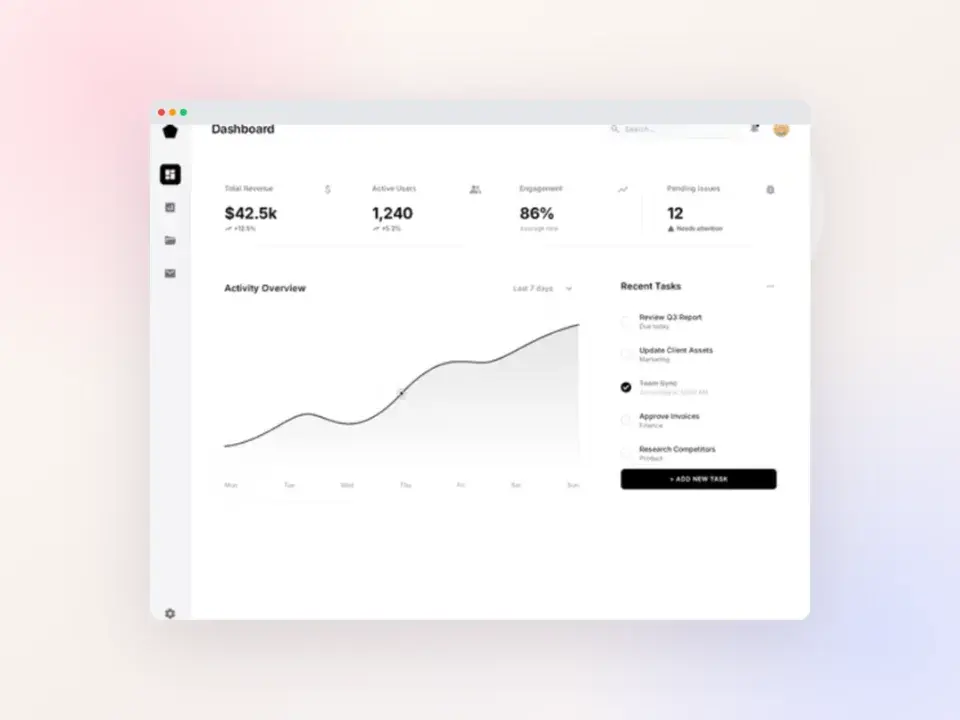
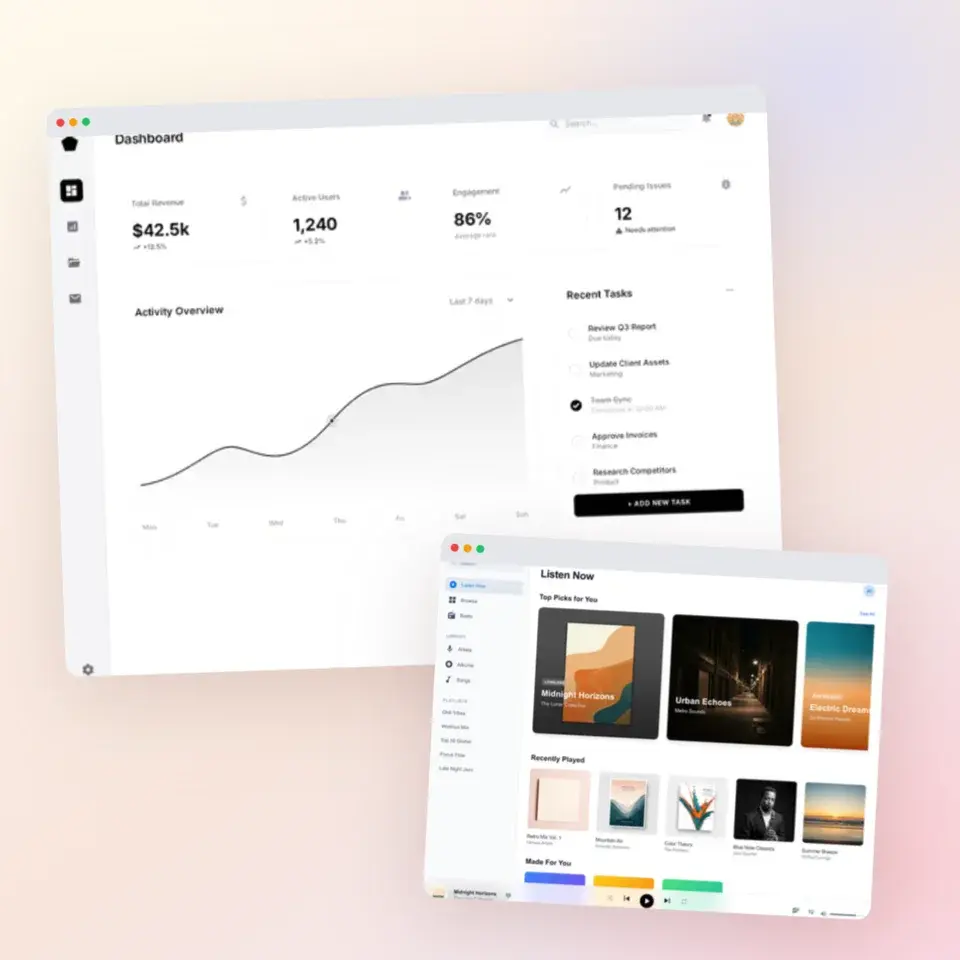
Polish the screenshot you just captured
Free to start. No credit card required.
Keep reading
Related, product-tested guides from Screenhance.
How to Annotate Screenshots for Tutorials and Documentation
Arrows, highlights, and auto-numbered steps: the annotation workflow that makes tutorial screenshots readable, and the mistakes that scream MS Paint.
2 Jul 2026 · 4 min read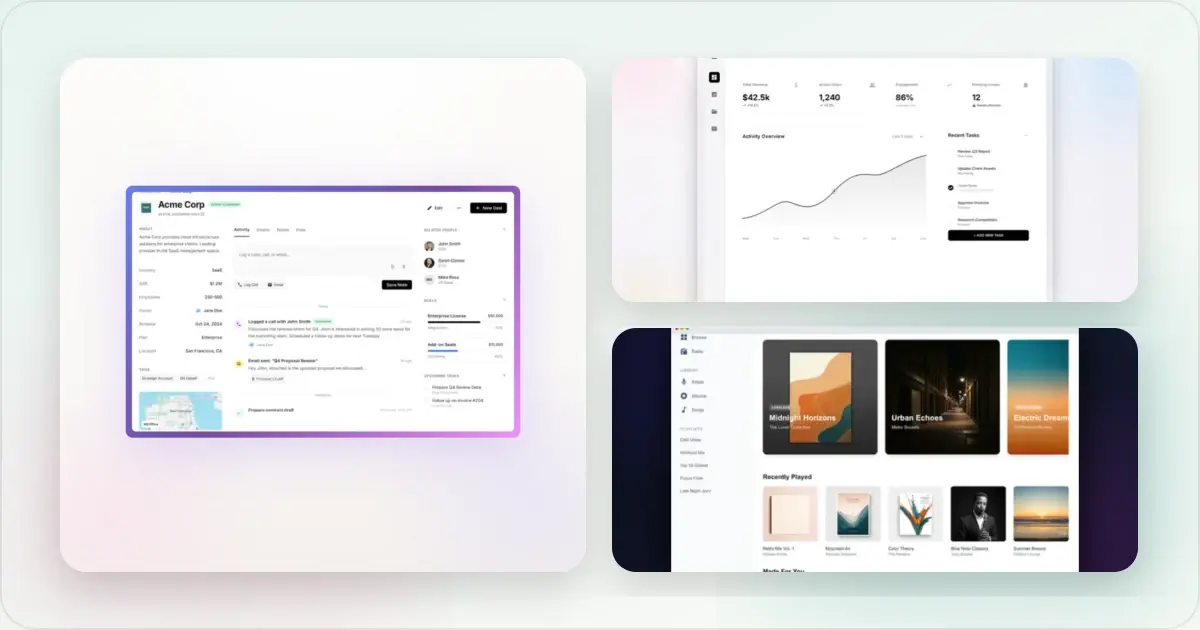
Best Screenshot Tools for Developers in 2026
Developers need different screenshot tools than designers. Here are the best options for code snippets, terminal output, and technical documentation.
21 Apr 2026 · 9 min read
PNG vs JPEG vs WebP vs AVIF for Screenshots
Choose an image format for UI screenshots, store listings and websites without relying on arbitrary quality settings or file-size promises.
21 Apr 2026 · 6 min read