
Screenhance vs Canva for Product Mockups: Which Is Better?
Compare Screenhance and Canva for product visuals, mockups, store screenshots, launch assets, motion, and collaborative design.
Canva and Screenhance can both turn a screenshot into a polished marketing asset, but they start from different places. Canva is a broad visual-communication platform. Screenhance is a product-visual workspace built around real screenshots, recordings, store listings, mockups, and coordinated launch assets.
That distinction matters more than a raw template count. If you need presentations, documents, social posts, stock photography, and live team collaboration in one system, Canva is a strong fit. If you need one product story to become website visuals, photorealistic mockups, store screenshot sets, animated assets, and a product video, Screenhance gives those workflows first-class treatment.
Quick comparison
| Capability | Screenhance | Canva |
|---|---|---|
| Product-visual starting points | editable visual templates | Broad general-purpose template library |
| Device and stylized frames | built-in library | Available through templates and mockups |
| Photorealistic scenes | across device, print, apparel, and outdoor formats | Large mockup and stock ecosystem |
| Layer editing, text, and assets | Yes | Yes |
| Product annotations | Arrows, highlights, blur, redact, step markers, and more | General design elements |
| App Store, Google Play, and Chrome Web Store sets | Coordinated dedicated set templates | Manual layouts/custom sizes |
| Store localization | Built-in translation across 16 locales | Manual or app-assisted workflow |
| Visual motion export | 18 styles; GIF and WebM | General animation and video tools |
| Screen-recording product video | Studio; MP4 and WebM | General video editor and recorder |
| Coordinated launch generation | Launch Kit | General template and AI workflows |
| Live multiplayer collaboration | No | Yes |
Make a free device mockup
Where Screenhance is the stronger fit
A complete product-launch workflow
Screenhance starts with the product itself. Upload screenshots or recordings, then build editable compositions with layers, text, backgrounds, assets, annotations, device frames, and scenes. The same source material can continue into store listings, Product Hunt galleries, website heroes, social graphics, and demo video without rebuilding the visual language in separate tools.The visual editor includes editable templates, device and stylized frames, and photorealistic scenes. Those scenes extend beyond phones and laptops into print, apparel, and outdoor formats, so Screenhance is no longer limited to a device floating on a gradient.
Store screenshots are a native workflow
Screenhance includes coordinated set templates for iOS, Google Play, and the Chrome Web Store. You work with explicit store-ready presets, keep a screenshot series consistent, translate captions across 16 supported locales, and export organized ZIP files. iOS projects can also use a fastlane-ready folder structure.
Canva can produce attractive store graphics, but the sizes, variants, naming, and localization process remain a design workflow you assemble yourself. Screenhance treats the complete set as the product.
Motion and product video stay connected to the stills
The visual editor includes editable motion styles for GIF and WebM assets. For a longer demonstration, Studio turns a screen recording into MP4 or WebM with frames, backgrounds, cursor treatment, captions, audio, and guided zooms. This keeps a launch's still and moving assets inside the same product-focused system.
Launch Kit reduces blank-canvas work
Launch Kit uses a brief, screenshots, logo, and palette to establish a coordinated asset direction. It is useful when a launch needs several related outputs rather than one isolated design. You can then refine the result in the editor instead of accepting a flattened generation.
Where Canva is the stronger fit
Canva's center of gravity is broader visual communication. It is a better fit when the work includes presentations, documents, print collateral, stock-led social content, or many non-product deliverables. Its mature team features also make it stronger when several people must edit, comment, and approve work together in real time.
Canva also offers a much larger general template and content ecosystem. A team whose work spans school materials, menus, sales decks, creator content, and event collateral will find more of those categories there. Screenhance stays focused on showing and launching a digital product, even though its mockup surfaces now include print, apparel, and outdoor scenes.
Which should you choose?
Choose Screenhance when:
- Your raw material is a product screenshot, recording, logo, or app artwork
- You need a coordinated set of launch assets, not just one design
- App Store, Google Play, or Chrome Web Store screenshots are part of the job
- Current device frames and photorealistic product scenes matter
- You want static assets, animated visuals, and polished demo video in one workflow
- Product annotations, localization, repeatable templates, and batch delivery matter
Choose Canva when:
- Your work spans many non-product design categories
- Live multiplayer editing and approval are central requirements
- You rely heavily on stock content or a broad general-purpose template library
- The mockup is one small element inside a presentation, document, or campaign system
The bottom line
Screenhance is not a reduced version of Canva. It covers a different workflow in greater depth: converting a real product into a consistent visual launch. Its editor, template library, frames, scenes, store-set builder, localization, motion system, Launch Kit, and Studio form one connected production path.
Canva remains stronger as a horizontal design and collaboration platform. Screenhance is the stronger fit when the deliverable must communicate a software product clearly across every launch surface.
Frequently asked questions
Is Screenhance only a device-mockup generator?
No. Device framing is one part of the product. Screenhance also provides a full layer editor, editable visual templates, photorealistic scenes across device and physical formats, store screenshot sets, localization, annotations, motion, Launch Kit, and Studio product video.
Can Screenhance create App Store and Google Play screenshot sets?
Yes. The store editor includes template catalogue across iOS, Google Play, and the Chrome Web Store, plus explicit presets, translation across 16 locales, organized ZIP output, and an optional fastlane-ready iOS structure.
Can Screenhance replace Canva for a product launch?
For the product-facing assets in many launches, yes: mockups, store listings, website heroes, Product Hunt galleries, social visuals, animated assets, and screen-recording videos can all be produced in Screenhance. Canva remains the better fit for broad document design, stock-led content, and real-time team collaboration.
Does Screenhance support physical-product mockups?
Yes. Its photorealistic scenes include print, apparel, and outdoor surfaces as well as phones, tablets, laptops, desktops, watches, TVs, and browser presentations.
Can I start with a template and still edit the result?
Yes. Templates are starting points inside the editor, not flattened exports. You can adjust layers, text, backgrounds, assets, frames, scenes, annotations, and motion before exporting.
Related reading
Screenhance examples
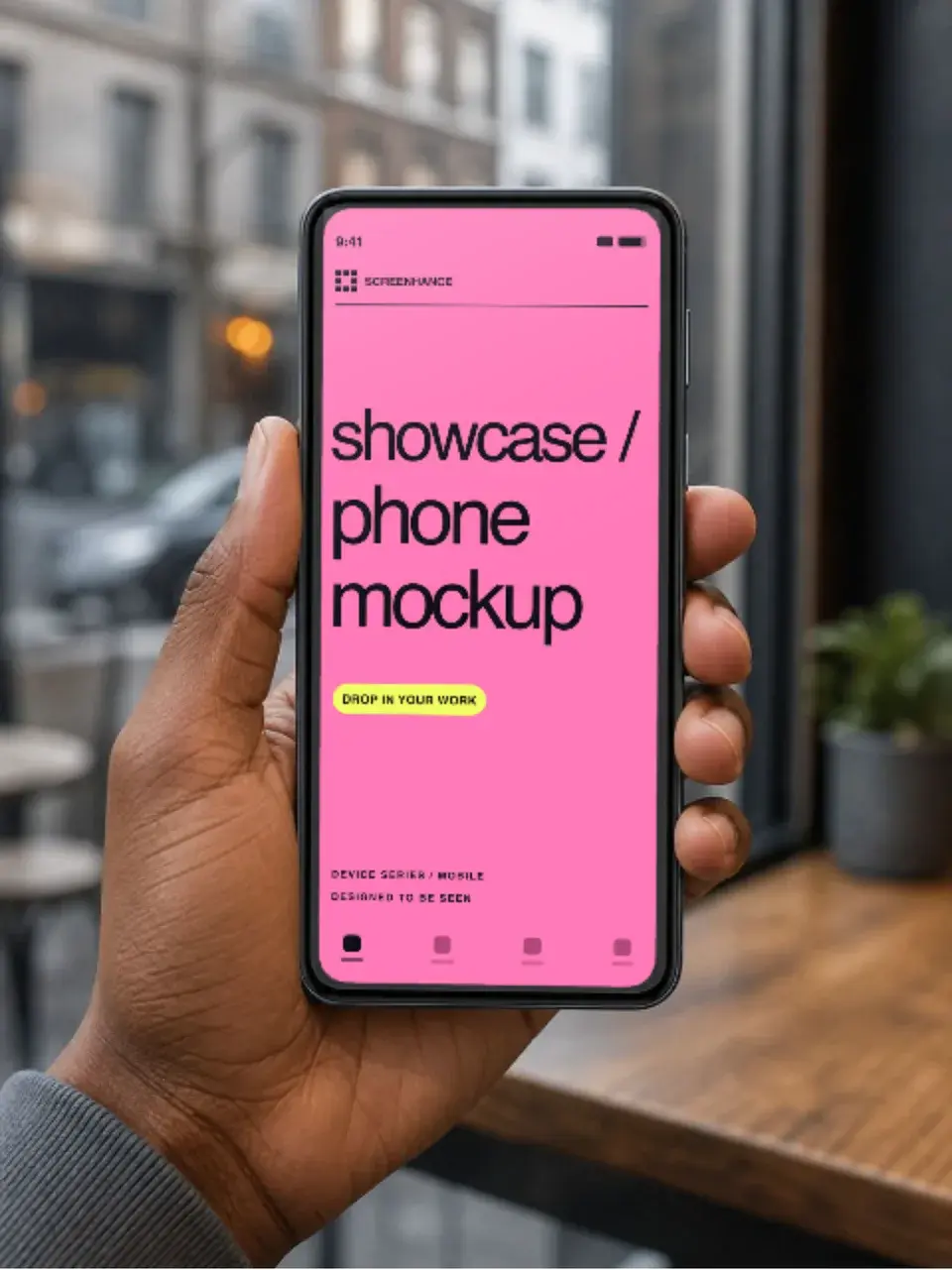
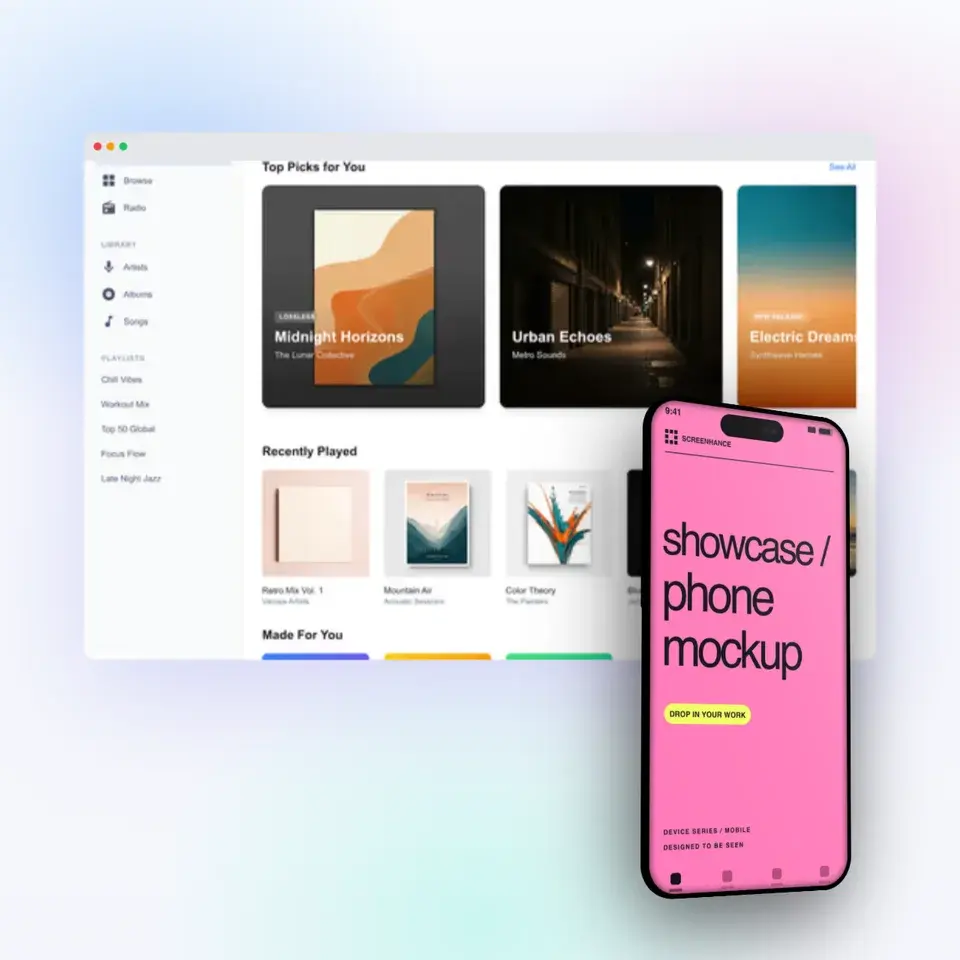
Two editable starting points from the Screenhance library, selected for this mockups guide.
Make a free device mockup
Free to start. No credit card required.
Keep reading
Related, product-tested guides from Screenhance.
Apple Watch Mockup Guide: Framing watchOS Apps in 2026
How to create Apple Watch mockups that sell a watchOS app: choosing 46mm vs 42mm, capturing clean watch screenshots, and the iPhone-plus-Watch layout.
29 May 2026 · 6 min read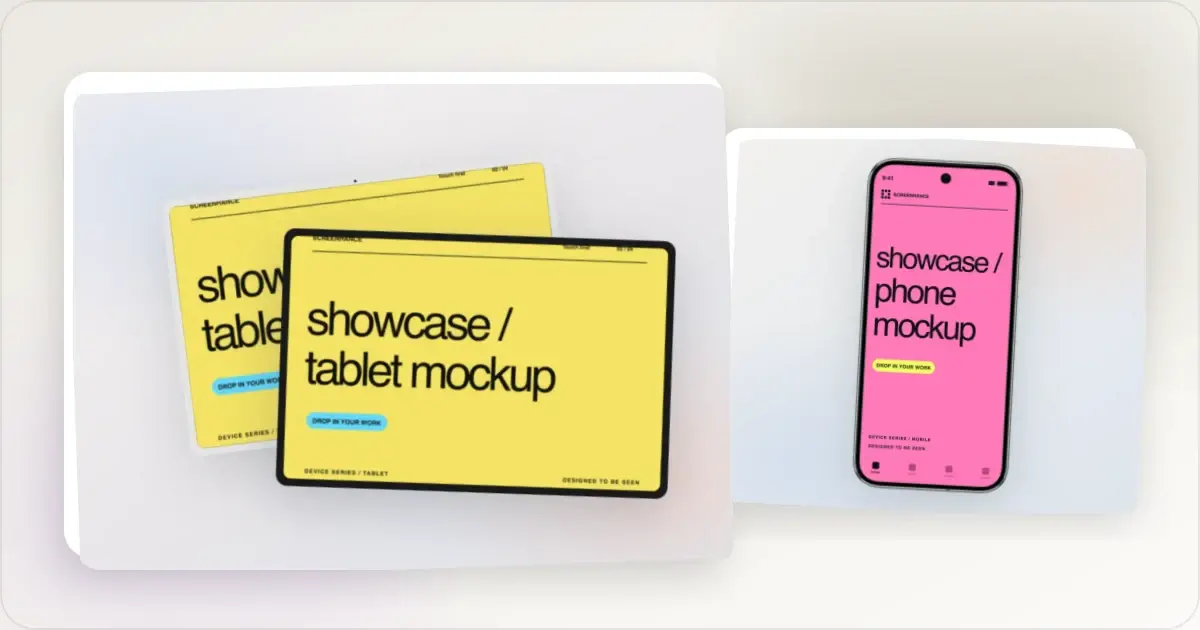
Google Pixel Mockup Guide for Android Marketing in 2026
Choose and use a Google Pixel frame for Android marketing, compare it with a Galaxy treatment, and prepare accurate Play Store visuals.
29 May 2026 · 5 min read
AI Mockup Generators in 2026: Where They Help and Where They Fail
A practical guide to AI mockup generators: when generated scenes help, when real product screenshots matter, and how to build a repeatable launch workflow.
13 May 2026 · 6 min read