
Hero Image Mobile Optimization: Display Beautiful Visuals on Every Screen
Most hero images look great on desktop and terrible on mobile. Here's how to build responsive hero visuals that work beautifully on every screen size.
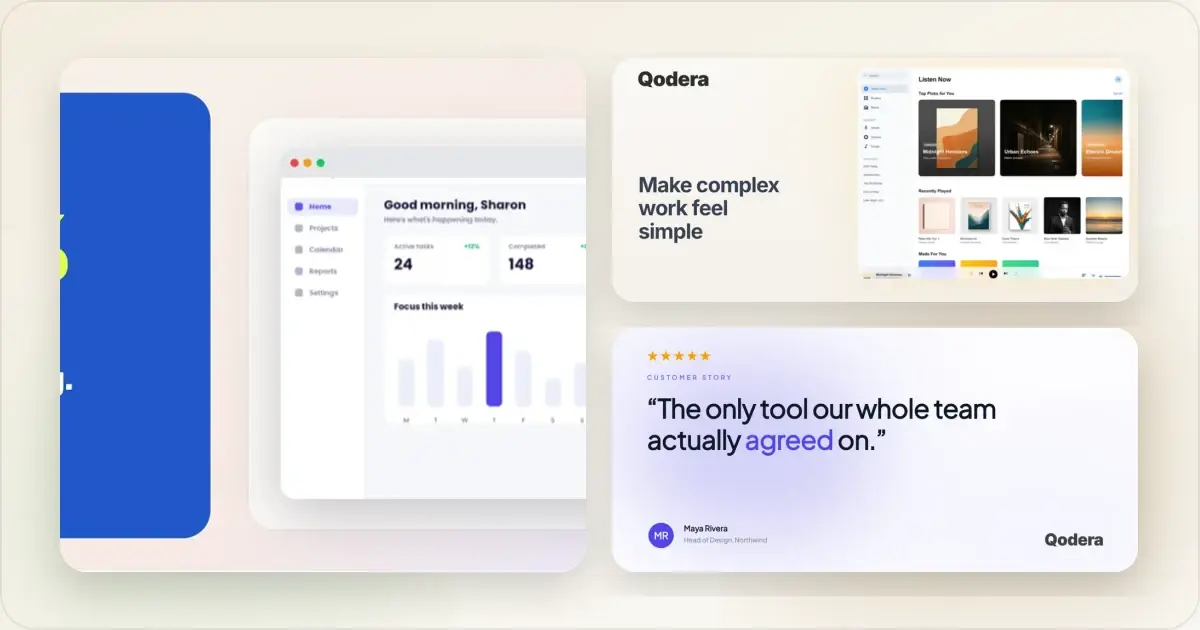
You design a stunning hero image on your 27-inch monitor. Wide product screenshot, bold headline, perfect composition. Then you check it on your phone and the screenshot is microscopic, the text is unreadable, and the layout is broken.
This is a common landing-page problem. Use your own analytics to understand the mobile share, but make the hero usable at every supported viewport rather than assuming the desktop composition will translate.
Why Mobile Hero Images Break
The fundamental problem is aspect ratio. Desktop screens are landscape (16:9 or wider). Phone screens are portrait (roughly 9:19). An image composed for a wide format gets squeezed, cropped, or shrunk on a tall, narrow screen.
Three things typically go wrong:
- The screenshot becomes too small to see. A product screenshot that looks detailed at 1400px wide becomes an unreadable smudge at 375px.
- Text gets clipped or compressed. A headline overlaid on the hero that works in a wide layout either overflows or becomes tiny on mobile.
- Cropping hides the important parts. CSS object-fit and background-size properties crop from edges. If your key content isn't dead center, it gets cut.
Fixing these requires intentional design decisions, not just responsive CSS.
Strategy 1: Art Direction with the Picture Element
Art direction means serving entirely different images to different screen sizes. Not just resizing the same image — actually using different compositions.
The HTML picture element makes this straightforward:
- Create a wide (16:9) hero image for desktop
- Create a square or portrait (4:5) version for mobile with a tighter crop focused on the most important content
- Use the picture element's source tags with media queries to serve the right image
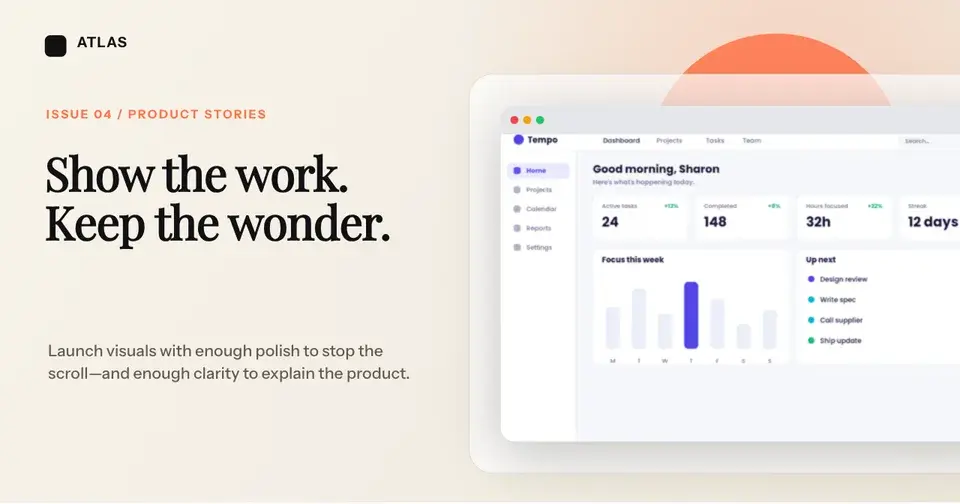
For your desktop version, you can show the full product screenshot in a browser frame with ample whitespace and supporting text. For mobile, crop to just the most impactful portion of the UI — the feature, the result, the moment that matters.
This approach takes more effort upfront because you are creating two compositions instead of one, but it gives you direct control over what remains visible on each form factor.
Strategy 2: Responsive Cropping with CSS
If creating separate images per breakpoint isn't feasible, you can use CSS to handle the adaptation:
- Use object-fit: cover with object-position to control which part of the image stays visible as the container changes shape
- Set different aspect ratios at breakpoints using the aspect-ratio CSS property
- Use percentage-based widths so the image scales fluidly
Keep important content inside a generous central safe area and test the actual breakpoint crops. The useful safe area depends on the container's aspect ratios and object-position, so a fixed percentage is not universal.
This approach is lower effort but gives you less control. It's best for hero images where the main subject is naturally centered.
Strategy 3: Separate Mobile and Desktop Hero Layouts
The most robust approach: design entirely different hero sections for mobile and desktop. Not just different images, but different layouts.
Desktop hero: Product screenshot in a laptop frame, large headline to the left, supporting text below the headline. Classic two-column layout. Mobile hero: Headline at the top, product screenshot in a phone frame below, supporting text beneath. Single column, stacked vertically.Use a hero image generator to create the product visuals, then implement the layout switch with CSS media queries or a responsive component library. This gives you full control over both experiences.
Image Loading Optimization
A hero image can become the page's largest loading cost. Test on representative devices and network conditions instead of assuming every mobile visitor has the same connection.
Format Selection
- WebP has broad modern-browser support and can compress interface imagery well; compare it with the source at the quality setting you plan to ship.
- AVIF can produce smaller files for some images, but encoding, decoding, and visual results vary. Test it against WebP rather than assuming a fixed saving.
- JPEG remains a useful fallback for photographic imagery. PNG may be more suitable when lossless UI text and transparency matter.
Use the picture element to serve AVIF first, then WebP, then JPEG as fallback. Browsers pick the first format they support.
The srcset Attribute
Instead of serving a 3840px wide retina image to a phone, use srcset to deliver appropriately sized versions:
- 640px wide for small phones
- 1024px wide for tablets
- 1920px wide for standard desktops
- 3840px wide for retina desktops
The browser uses the candidates and the sizes hint to choose an appropriate resource for the viewport and pixel density. Verify the selected candidate in browser developer tools.
Loading Strategy
- Do not lazy-load a hero image that is likely to be the LCP element. Let it load with the initial viewport.
- Consider
fetchpriority="high"for the confirmed LCP image, then verify the network impact. - Preload selectively. Preloading the wrong responsive candidate can duplicate work, so confirm which resource is requested before adding a preload.
Compression
There is no universal byte budget because image detail, format, page weight, and performance goals differ. Set a budget for each responsive candidate, inspect the rendered result, and make sure a narrow viewport does not receive the desktop asset. Tools like Squoosh let you compare quality levels before choosing the final encoding.
Touch-Friendly Hero Design
Mobile heroes interact differently than desktop ones. Consider these factors:
Button Sizing
If your hero includes a CTA button, follow the relevant accessibility and platform guidance for target size and spacing. Remember that platform guidelines may use points or CSS pixels rather than image pixels, and verify the control at common zoom levels.
Scroll Behavior
Mobile users scroll with their thumb. If your hero section is too tall, the CTA might be below the fold and require scrolling. Keep mobile hero sections concise — headline, image, one button, done.
Hover States Don't Exist
Any interaction that depends on hover (image overlays, tooltip previews, expand-on-hover) won't work on touch devices. Design for tap, not hover.
Common Mobile Hero Mistakes
Text Overlaid on Images
Text placed directly on a hero image can become unreadable when the crop shifts. Use a tested contrast treatment, a solid or semi-transparent overlay, or keep important text separate from the image so it can reflow.
Ignoring Landscape Mobile
Test the hero in landscape orientation, especially if it uses viewport-height units. A 100vh hero can leave very little vertical room once browser controls and a landscape viewport are taken into account.
Fixed-Height Heroes
A fixed pixel height can dominate short viewports or leave excess space on tall ones. Prefer content-driven sizing or tested min-height and max-height constraints.
Not Testing on Real Devices
Browser DevTools device simulation is a starting point, but it misses real-world issues — actual font rendering, touch behavior, network conditions. Test on a real phone before shipping.
Oversized Images Without srcset
Serving a large desktop image to a narrow viewport can waste bandwidth and delay rendering. Provide responsive candidates and confirm which file the browser selects.
A Practical Mobile Hero Checklist
Before shipping any hero section, run through this:
- Does the hero image look good at 375px wide?
- Is the headline readable without zooming on mobile?
- Does the CTA meet the applicable target-size guidance and remain easy to use at zoom?
- Does the page meet your Core Web Vitals and performance budget on representative mobile conditions?
- Is the hero section not excessively tall on small screens?
- Have you tested in both portrait and landscape orientation?
- Are you serving appropriately sized images with srcset?
- Is the image format optimized (WebP or AVIF with JPEG fallback)?
- Does the layout work if the user has increased their font size?
Mobile Hero Design Patterns to Test
These three patterns are useful starting points for narrow screens. Their effect depends on the product, audience, copy, and loading performance, so treat them as testable compositions rather than guaranteed winners.
The full-bleed product shot. A single product screenshot in a device frame, dominant on the screen, with the headline overlaid or set directly below. Works because the visual answers "what is this?" before the copy has to. Use a tight crop — full-width on mobile means the product is the only thing the visitor sees at first. The stacked headline-screenshot pair. Headline on top (large, serif or bold sans-serif), screenshot below in a clean device frame, CTA below that. This pattern stacks naturally on mobile without the awkward horizontal scroll that some landscape hero compositions force. It also gives the headline its own visual weight, which works for product categories where the value prop needs more explanation than the image alone provides. The animated reveal. A static poster image that transitions into a short animation showing one product interaction. Motion can explain a sequence, but it adds bytes and playback considerations. Respect reduced-motion preferences, preserve the static explanation, and measure the performance cost.Patterns that need extra care on mobile include multi-device fans, parallax-heavy compositions, and illustrations with baked-in text. They can become crowded, expensive to render, or unreadable on narrow screens; simplify or replace them when testing reveals those problems.
Measuring Hero Performance on Mobile
A hero image isn't doing its job just because it loads. Measure these signals over a consistent window long enough for your traffic level.
Mobile LCP (Largest Contentful Paint). Compare field data with the current Core Web Vitals guidance. The hero image is often an LCP candidate, but confirm the actual element before changing formats, dimensions, delivery, or priority. Scroll depth past the hero. A low continuation rate can be a useful diagnostic, but it does not identify the cause on its own. Segment by acquisition source and compare the image with the headline, offer, and page intent before attributing the result to the hero. Mobile vs desktop CTA click rate. Compare the two segments without imposing a universal ratio. A meaningful gap can justify checking target size, position, visual competition, traffic mix, and differences in visitor intent.If any of these three signals is meaningfully worse than your desktop baseline, the mobile hero needs work. A hero image generator with mobile and desktop variants from one design saves the back-and-forth of building two heroes by hand.
Related Reading
- The Complete Guide to Landing Page Hero Images - Hero image strategy and design principles
- How to Create SaaS Hero Images That Convert - SaaS-specific hero image tactics
- How to Display Screenshots on Your SaaS Landing Page - Integrating product screenshots into landing pages
- What Is the Best Screenshot Size? Complete Guide for Every Platform - Optimal dimensions for every use case
Screenhance examples
Two editable starting points from the Screenhance library, selected for this social and web guide.

Ready to create stunning visuals?
Free to start. No credit card required.
Keep reading
Related, product-tested guides from Screenhance.
How to Create Beautiful Notion Cover Images
Create a clear custom Notion cover from a screenshot or mockup, choose a useful crop, and keep the page readable across desktop and mobile.
21 Apr 2026 · 7 min read
How to Create SaaS Hero Images That Convert
Create accurate, responsive SaaS hero images that show the product clearly and support the landing-page message.
21 Apr 2026 · 9 min read
12 Instagram Mockup Examples for Better Product Launches
Explore 12 original Instagram mockup examples for feed posts, carousels, Reels, Stories, profiles, reviews, launch graphics, and product scenes.
1 Sept 2026 · 9 min read