
Google Play Store Screenshot Guide: Sizes, Tips, and Templates
Prepare Google Play screenshots with current size rules, editable Android examples, a step-by-step export workflow, and a checklist for your next release.
Screenshots help people understand a Google Play listing before installing. Their appearance varies by placement, device, and experiment, so the job is to make the product clear—not to assume one visual formula guarantees downloads.
The Play Store has size rules and form-factor guidance that differ from the Apple App Store. This guide separates official requirements from practical design choices.
Have your app captures ready? Browse Android screenshot templates, or follow the editable examples below. You can try the layouts before choosing an export plan.
Google Play Screenshot Requirements and Practical Presets
Google has specific requirements for Play Store screenshots, and submitting images that do not meet them will result in rejection. Here are the dimensions you need to know.
Google's official preview-asset requirements currently require at least two screenshots across the listing's device types and allow up to eight for each supported device type. The base screenshot rules specify JPEG or 24-bit PNG without alpha, a minimum dimension of 320 px, a maximum dimension of 3,840 px, and a longest side no more than twice the shortest. Device-specific sections add different rules for large screens, Wear OS, TV, Automotive, and XR.
Google does not mandate one exact phone or tablet canvas. 1080 × 1920 portrait or 1920 × 1080 landscape are practical phone starting points, not universal requirements. For tablets, Chromebooks, watches, and TV, capture the actual supported interface and check the current form-factor guidance in Play Console.
Requirements vs. Recommendations
Google's official requirements set a technical baseline. The rest of the work is explaining the product clearly.
What Google requires:- At least 2 screenshots across the listing's device types, with up to 8 per supported device type
- Images within the dimension constraints listed above
- JPEG or 24-bit PNG without alpha
- Any additional form-factor requirements that apply to the app
- No misleading content or device frames that misrepresent
- Enough screenshots to explain the product without padding the set
- Consistent design language across all screenshots
- Text overlays that highlight key benefits (not features)
- A logical narrative flow from the first screenshot to the last
- Android device context that accurately represents the app, or a frameless composition
- Backgrounds that complement your app's color scheme
Two screenshots can satisfy the base count while still leaving important questions unanswered. Use additional slots when they explain distinct features or workflows.
Localization also matters when the app supports the locale. Play Console supports localized store assets. Translate captions accurately, adapt sample names or currencies where appropriate, and compare performance by locale rather than assuming a fixed uplift.Design tips to test
The following principles improve clarity, but their effect on installs should be measured in your own store-listing experiments.
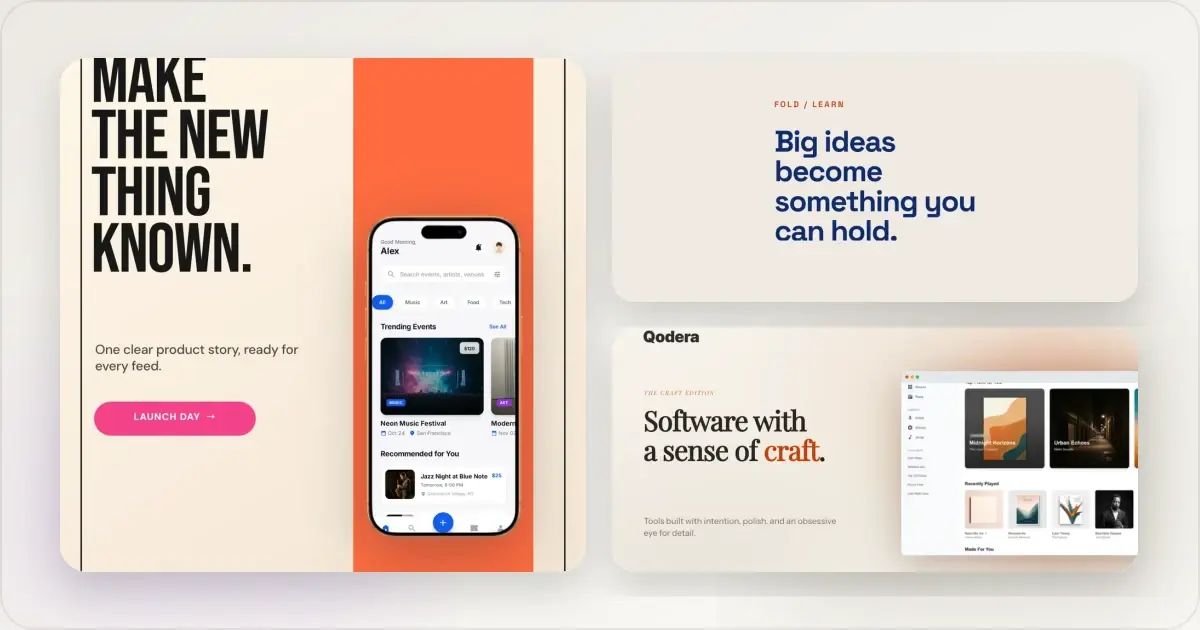
Lead with a clear screen. Some placements show only the opening part of the gallery. Start with a representative product view rather than a splash screen or login page unless onboarding is the feature being explained. Give the set a logical order. Start with a representative workflow, then use later images for distinct capabilities or context. Do not add fabricated testimonials, unsupported performance claims, or calls to action that conflict with Google's current preview-asset guidance. Add text overlays strategically. Brief captions above or below the device frame can clarify the screen. Keep them concise enough to read at thumbnail size and allow for longer translated phrases. Describe a real outcome rather than a vague feature label. Use a coherent visual system. Reuse typography, color, spacing, and frame treatments where they help the sequence read as one set. Allow a different crop when a form factor or feature needs it.If the type system is still open, the app screenshot font guide gives practical starting points for short store captions, numbers, and translated copy using families available in Screenhance.
Show accurate content. Use the current product and remove placeholder or private data. If the app displays user-generated content, obtain permission or use clearly synthetic examples that do not imply a real customer result. Design for rendered size. Screenshots can appear outside the full store-listing gallery. Inspect the Play Console preview and representative phone sizes; simplify captions or crops when the main product detail becomes unreadable.How Play Store Screenshots Differ From the App Store
If you publish on both Android and iOS, reuse the design system where helpful but check a distinct output for each store. The platforms differ in important ways.
Dimension differences. Apple accepts exact pixel dimensions for display classes. Google's base rules use a size and aspect-ratio range, with additional rules for certain device types and promotional eligibility. Verify each destination rather than assuming that a valid Apple canvas is valid on Google Play. Screenshot count. Apple allows one to 10 screenshots per supported display class. Google requires at least two across the listing's device types and allows up to eight per supported device type, with additional minimums for some form factors. Treat those numbers as bounds, not targets. Device frame conventions. Android listings can use a recognizable Android frame, a minimal generic treatment, or no frame. Choose the option that accurately represents the product and leaves enough space for the UI to remain readable. Video placement. Apple App Previews and Google Play promotional videos use different formats and placement rules. Check both stores' current documentation instead of reusing one export or assuming identical playback behavior. Text overlays. Both stores permit designed compositions within their content rules. Choose type size and placement from the actual preview rather than relying on a platform stereotype. Local context. If the app serves multiple markets, prioritize locales from your own acquisition and product data. Use culturally and linguistically appropriate examples without stereotyping a platform's users.Build a Google Play set from an editable Android template
Start from a layout that already uses Android device frames. These examples use fictional demo apps; replace their screens, names, captions, and any claims with your own product. The previews show the first four slides of each editable set.
Current Grid: show a dashboard and the action behind it
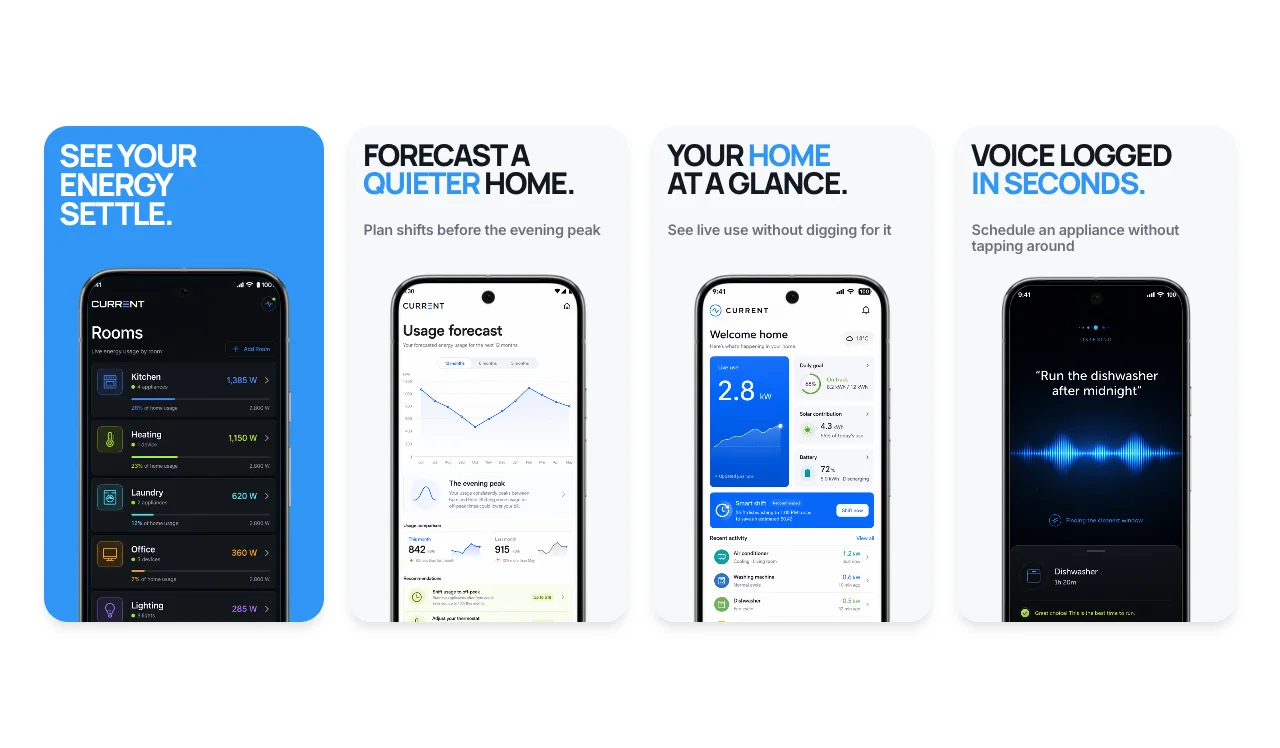
Current Grid pairs a clear dashboard with screens that explain what someone can do next. For your own app, choose a useful overview for the opening slide, then show a specific action and its result. Replace the demo charts and numbers with accurate sample data; the template's energy story is a starting composition, not copy to reuse unchanged.
Edit Current Grid in Android modeViolet Reset: explain a guided workflow
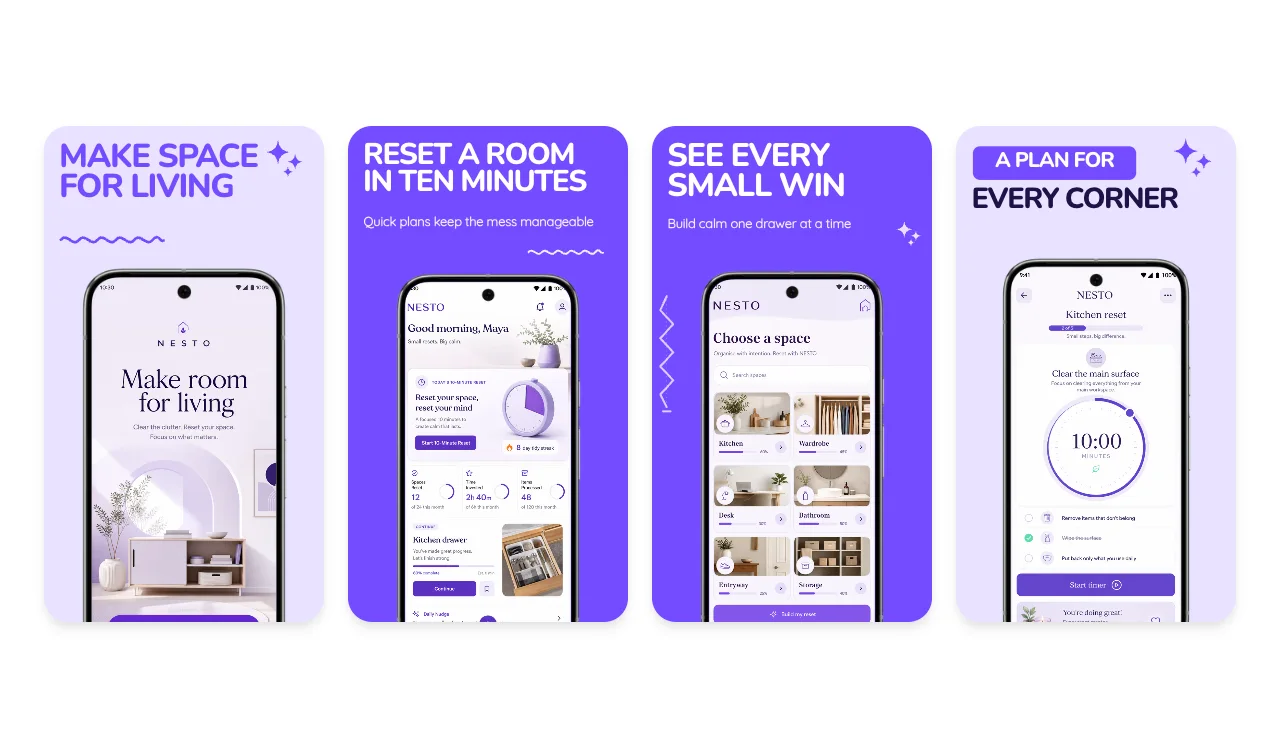
Violet Reset is useful when the product walks someone through a task. Choose screens that show the starting choice, the action, and the visible outcome. Read the captions without opening the full-size images: if the sequence needs a paragraph of explanation, shorten the story or change the captures.
Edit Violet Reset in Android modeReplace, review, then export
1. Open a template in Android mode and replace every demo capture with the current Android interface. Use the tablet interface for tablet outputs.
2. Rewrite each caption to describe the screen below it. Remove placeholder claims, ratings, and sample branding. Device frames are optional; simplify or remove them when they obscure the UI.
3. Check each slide's crop, text bounds, and contrast. Review the set at a small display size as well as full size.
4. Select the output sizes you need and export. Open the downloaded files and check them with the Play Store screenshot size checker.
5. Upload to the matching Play Console sections and inspect the resulting listing preview. A correct pixel size does not establish that the content meets Google's guidance.
Free includes three watermarked PNG exports at 1× per month. The $6 Launch Pass provides ten clean image exports over seven days, including multi-size output; each exported image counts toward the allowance. Pro is $12/month or $99/year for unlimited clean image exports. For example, five slides in two sizes use ten image exports. Compare the current plans before preparing a larger set.
Refresh screenshots when your app changes
Keep the editable source organized by release. Before replacing a listing, save a copy of the existing exported set and note the product version, locale, and device targets. Update screens whose UI has changed, remove retired features, and check that every caption still describes the shipped app.
For a screenshot experiment, write down one question first: does an overview screen explain the product better than the current opening screen? Prepare a variant that changes that idea while keeping the remaining layout consistent. Use Google Play's store listing experiments to compare the alternatives; a before-and-after install count can also change with traffic or seasonality.
When preparing both stores, keep the typography and palette together but review the captures and exports separately. Use the App Store screenshot generator for Apple's output presets and the iPhone mockup generator for matching website or launch visuals.
Using Screenhance for Android mockups
Figma and other general design tools provide detailed control. A dedicated store workflow can reduce repeated setup for frames, captions, and output presets.
A Play Store screenshot generator lets you upload a capture, choose a frame and background, and export from practical Play Store presets. Inspect each output against Google's current range, ratio, format, and form-factor guidance before upload.
Reusable templates make iteration practical. Compare a different opening screen, background, or text treatment in a controlled Google Play store-listing experiment, then evaluate the metrics relevant to your app.
Screenhance provides practical resolution, aspect-ratio, and format presets. You remain responsible for checking every output against Google's current rules and representing the app accurately.
Frequently Asked Questions
How many screenshots should I upload to the Google Play Store?
Upload enough screenshots to explain the important workflows. Eight is the current maximum per device type, not a target every app must hit. Do not add repetitive or fabricated testimonial slides simply to fill slots.
Can I use the same screenshots for the Play Store and the App Store?
Reuse source captures and visual-system elements when they remain accurate, but export and inspect a distinct asset for each store. The stores use different technical requirements and placements. Frames and UI must also match the platform being represented; do not put iOS UI in an Android frame or imply an Android experience the app does not provide.
Do I need tablet screenshots for the Play Store?
Provide tablet screenshots when the app supports a meaningful tablet experience. Google's large-screen quality and promotional requirements can change, so check the current Play Console guidance rather than relying on a badge formula or fixed tablet canvas.
Related Reading
- ASO Screenshot Tool - Optimize screenshots for app store search
- How to Create App Store Screenshots That Convert - Strategies for iOS App Store screenshots
- App Store Screenshot Dimensions 2026: Complete Size Guide - Current Apple upload classes and accepted dimensions
- How to Present App Screenshots: A Complete Guide - General app screenshot presentation strategies
- Best Screenshot Size: Complete Guide - Optimal dimensions across all platforms
Conclusion
Google Play currently allows up to eight screenshots per supported device type. Each one should add distinct information about what the app does.
Stay inside the documented bounds, then use a consistent set that leads with a clear product screen and adds only distinct, useful information. Pay attention to the differences between Android and iOS requirements, especially if you publish on both platforms.
Treat the official preview-asset page and the current Play Console slot as the final check for every export.
Check your image dimensions
Check the pixel size and file format for Google Play screenshots. Files stay in your browser and are not stored.
This checks dimensions and file type only. Check the selected display slot, colour profile, transparency and artwork separately. A matching size does not guarantee store approval.
Google Play screenshot dimensions
- 320–3840 pixels on each side. Long side no more than twice the short side. PNG or JPEG; check Google Play’s additional requirements for large screens separately.
Screenhance examples
Two editable starting points from the Screenhance library, selected for this mockups guide.
Generate Google Play screenshots free
Free to start. No credit card required.
Keep reading
Related, product-tested guides from Screenhance.
14 Best Fonts for App Screenshots and Launch Graphics
Choose readable fonts for App Store screenshots, Google Play graphics, social posts, and launch visuals, with practical pairings and editable examples.
1 Sept 2026 · 10 min read
Google Pixel Mockup Guide for Android Marketing in 2026
Choose and use a Google Pixel frame for Android marketing, compare it with a Galaxy treatment, and prepare accurate Play Store visuals.
29 May 2026 · 5 min read
Android Mockup Guide: Pixel, Samsung, and More
Android's device diversity is a marketing challenge. How to pick the right Android frames, create Play Store screenshots, and handle cross-platform mockups.
7 Feb 2026 · 10 min read