
Website Screenshot Mockups: Showcase Your Site Beautifully
Turn plain website screenshots into polished mockups with browser frames, backgrounds, and multi-device layouts. A complete guide.
Sometimes a raw website screenshot is exactly what a reader needs. In other contexts, a browser frame, background or multi-device layout can clarify that the image shows a web product and help it fit a portfolio, launch page or presentation.
This guide explains when that extra context is useful, how to capture the source responsibly and how to export without making unsupported claims about what a mockup will do for traffic or conversion.
When a Frame Adds Useful Context
A tight interface crop may not identify whether the product runs in a browser, desktop app or mobile app. A restrained frame can provide that context. It can also reserve space for a URL or title when either is relevant.
Raw captures can also reveal browser tabs, bookmarks, account names or notifications. Review the entire image for private and irrelevant information before publishing it.
A frame can provide platform context, but it is not evidence that a product is complete or trustworthy. Use the presentation that makes the interface easiest to understand. Product documentation, for example, often benefits from a direct crop with no decorative frame.
Browser Frame Mockups: The Foundation
A browser frame places the screenshot inside a window with a title bar, controls and, optionally, a URL field.
Minimal browser frames include a compact title bar or window controls and a border around the content. They add browser context while leaving more space for the screenshot. Full browser frames include tabs, the address bar, and sometimes the bookmarks bar. These feel more realistic but add visual noise. Use them only when the URL itself is part of the story, like showing a custom domain for a client project. Browser-specific frames may resemble a familiar browser interface. Use them only when that association is accurate and the frame asset is licensed appropriately.Choose based on the context you need to communicate and the space available, rather than assigning a fixed brand meaning to a browser style.
Sizing matters too. Match the screenshot's aspect ratio to the frame opening instead of stretching it. Capture at a viewport that represents the product, and crop around the part relevant to the surrounding message.Multi-Device Presentations
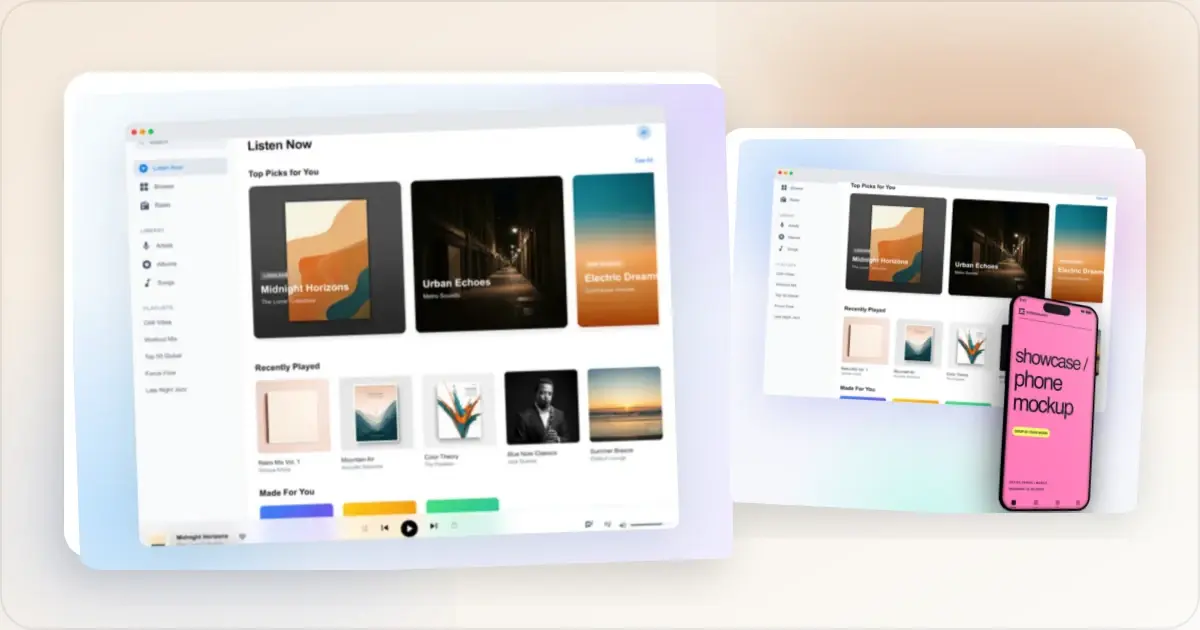
A multi-device presentation can show a responsive website or a companion app when those additional states are relevant.
A multi-device layout can pair a desktop or laptop mockup with a phone mockup. Use real captures from each responsive state; shrinking the desktop image into a phone frame does not demonstrate a mobile experience.
Add a tablet only when its layout contributes something relevant. More devices reduce the space available for each interface.
Considerations for multi-device layouts:- Give the primary product state enough space to remain readable
- Overlap devices only when important interface areas stay visible
- Show related, truthful product states; they do not need to be the same screen
- Use consistent background and type rules across the composition
- Check the smallest device capture at the final display size
Capturing the Right Screenshots
The source screenshot must remain accurate and readable after it is placed in the composition.
Choose relevant content. Pick the page or feature that supports the point around the image. A settings page may be appropriate when explaining configuration; a blank state may be appropriate when documenting onboarding. Clean up before capturing. Close notifications and remove personal information. If you use sample data, make it plausible enough to explain the interface but do not present invented customers, transactions or results as real. Capture enough source detail. Use a source at or above the final displayed dimensions when possible. Browser developer tools can emulate a viewport, but verify that the result reflects the real responsive layout. Scaling a small capture up cannot restore missing detail. Crop intentionally. You do not have to show the entire page. A focused crop can keep the relevant interface readable, but it should not remove information needed to interpret a result or claim.Export Formats for the Web
Choose the export format based on content, transparency, delivery support and file size.
PNG is useful for text, sharp interface edges and transparency. It is lossless, but the result can be larger than a lossy format. Measure the actual file rather than relying on a typical size range. WebP supports lossy or lossless compression and transparency. It can be useful on the web when your delivery stack and target browsers support it. Compare the rendered UI at several encoder settings rather than using one universal quality percentage. JPEG is useful for photographic material when transparency is not needed. Lossy compression can introduce artifacts around small interface text, so inspect the final output at its real display size. SVG can scale vector frames cleanly, but embedded website screenshots remain raster images. Confirm that the destination accepts the resulting SVG and any embedded assets. For social sharing, check the current requirements of each destination and preview the upload. Platform-specific exports give you more control over crops, but services can still change how they render an image.The Quick Way
A general design tool workflow may involve finding or building a licensed frame, importing the screenshot, fitting the crop, adjusting the composition and exporting. The time depends on the existing design system and complexity.
A landing page mockup generator such as Screenhance supplies editable templates, frames and backgrounds in the same workflow. Upload a screenshot, choose an appropriate starting point, refine the composition and export it for the intended destination.
Whichever tool you use, compare a small number of meaningful alternatives: framed versus unframed, a light versus dark background, or a single device versus a responsive pair. Review the result in context rather than generating variations with no decision criterion.
Frequently Asked Questions
What resolution should my website screenshot mockup be?
Start from the image's actual display size and delivery method. A higher-density source can help on high-density screens, but it also increases file size. Use responsive image variants where appropriate and inspect the final page on representative displays. Print work should follow the physical dimensions and resolution required by the printer.
Can I use a website screenshot mockup commercially?
Owning or operating a website does not automatically give you rights to every logo, photo, customer record or third-party work visible in it. Remove private data and confirm that you have permission to publish the screenshot, frame, font and background. For client work, follow the agreement and obtain approval where needed.
What is the best browser frame style for portfolio presentations?
Choose the least elaborate frame that provides the context the project needs. Compare it with a direct crop at the final portfolio size. Browser controls, a URL field or a specific browser style are useful only when they support the story and remain readable.
Related Reading
- Browser Mockup Guide for Web Apps — choose an appropriate browser frame
- How to Make a Mockup — a beginner workflow
- PNG vs JPEG for Screenshots — compare export formats
- Common Screenshot Mistakes — review privacy, crop and legibility
Conclusion
A browser mockup is one presentation option, not a requirement. Use it when the frame or composition helps a reader understand the product or places the screenshot naturally in a portfolio, social post or deck. Use a direct crop when documentation or interface detail is the priority.
In either case, protect private data, show a truthful product state, preserve legibility and export for the actual destination.
Screenhance examples
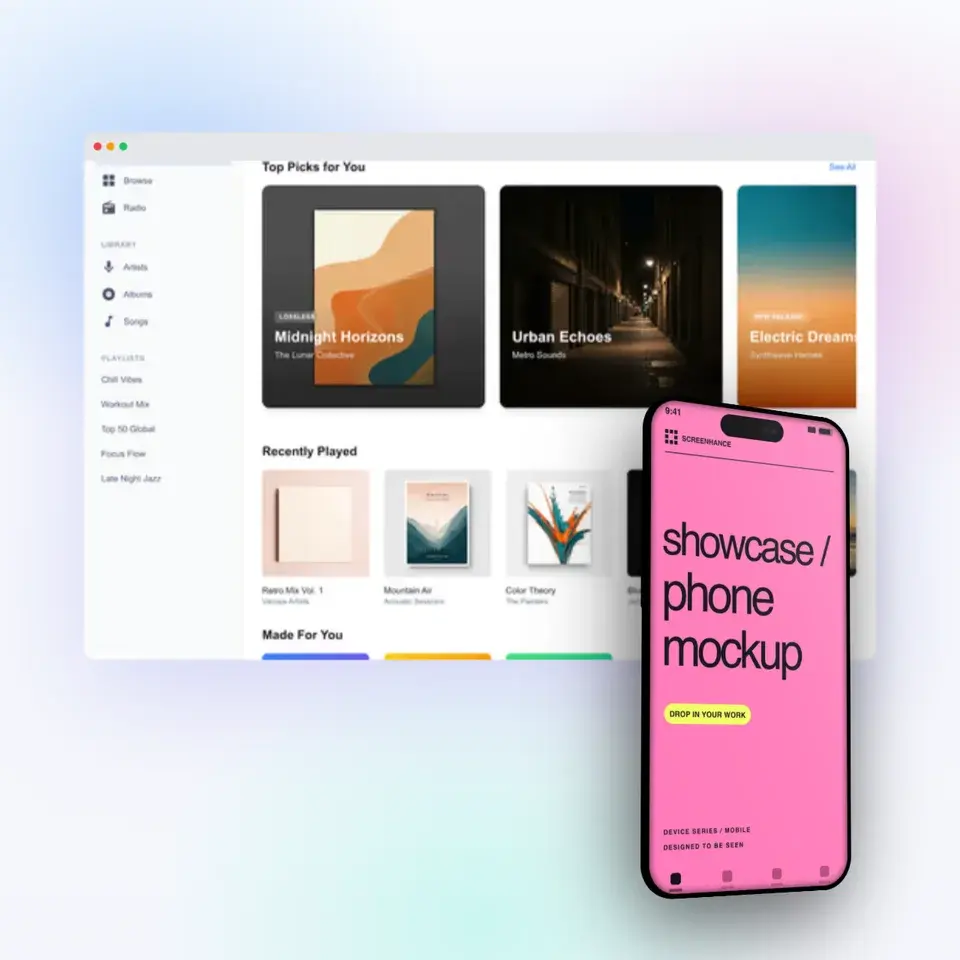
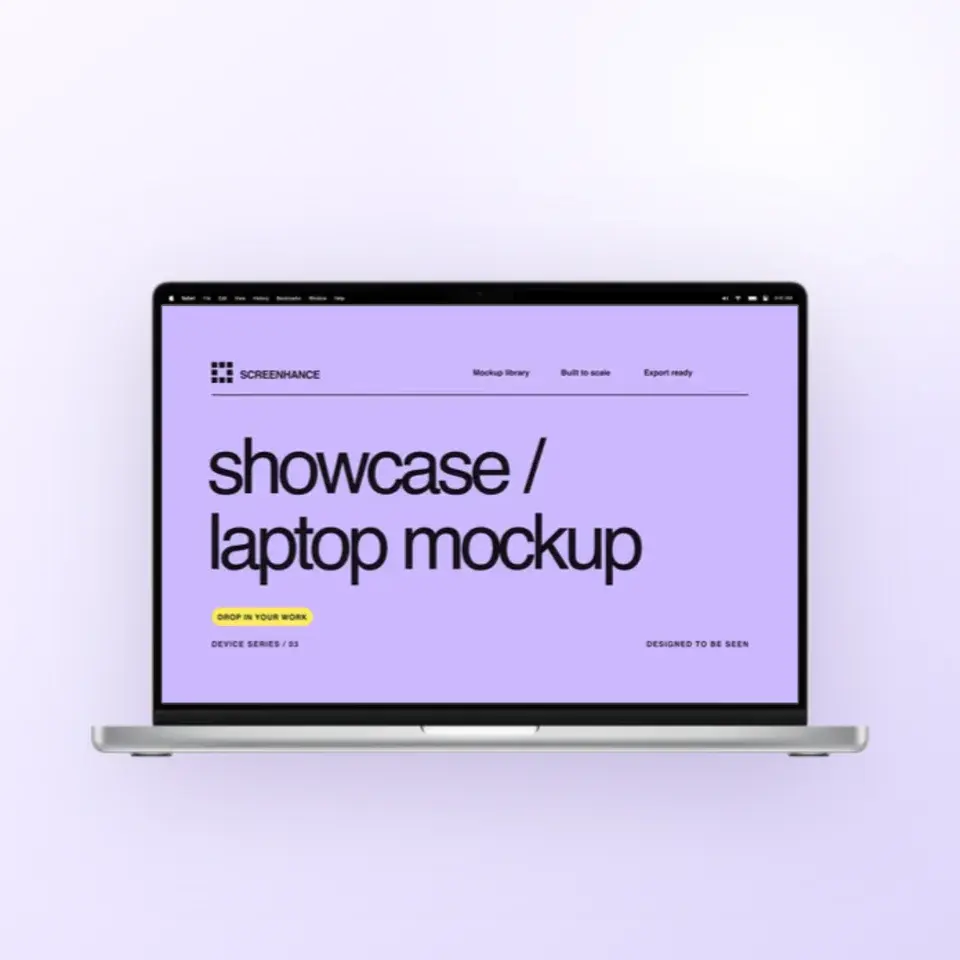
Two editable starting points from the Screenhance library, selected for this mockups guide.
Make a free device mockup
Free to start. No credit card required.
Keep reading
Related, product-tested guides from Screenhance.
How to Design Feature Section Screenshots for Your SaaS Landing Page
Feature sections sell your product, but most SaaS teams use raw screenshots that look amateur. Here's how to design feature screenshots that convert.
7 Feb 2026 · 10 min read
The Complete Guide to Browser Mockups for Web Apps
Learn when a browser mockup helps, how to choose a frame, protect privacy, crop responsive UI, and use static or animated versions across web and marketing.
21 Apr 2026 · 7 min read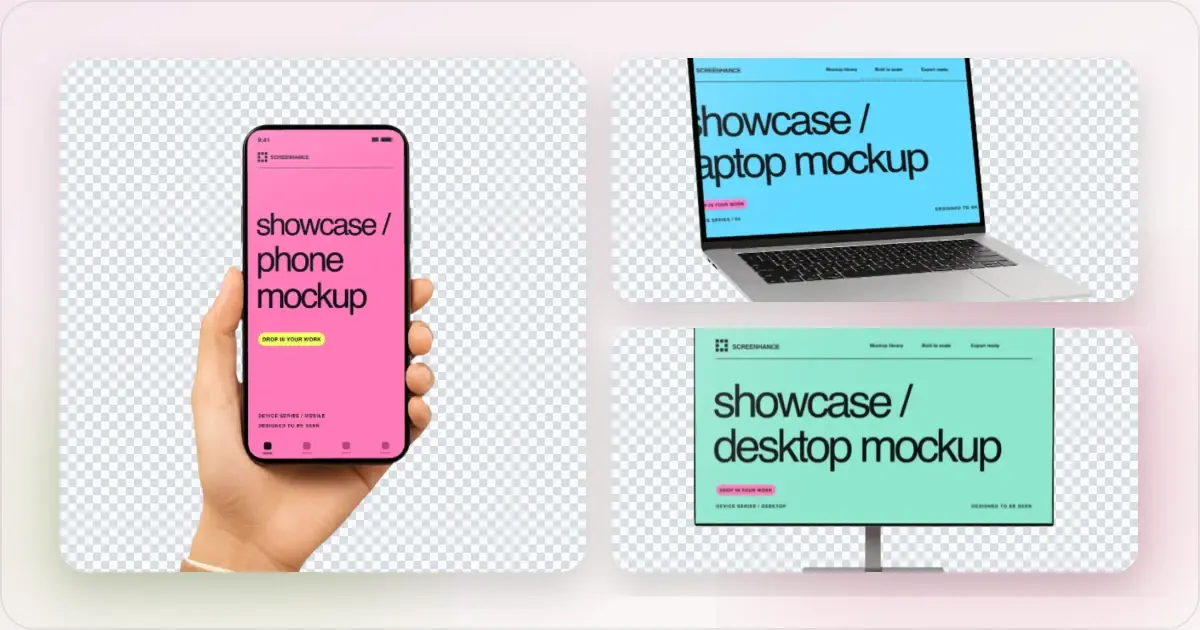
Apple Watch Mockup Guide: Framing watchOS Apps in 2026
How to create Apple Watch mockups that sell a watchOS app: choosing 46mm vs 42mm, capturing clean watch screenshots, and the iPhone-plus-Watch layout.
29 May 2026 · 6 min read