
PNG vs JPEG vs WebP vs AVIF for Screenshots
Choose an image format for UI screenshots, store listings and websites without relying on arbitrary quality settings or file-size promises.
PNG, JPEG, WebP and AVIF can all be sensible screenshot formats. The right choice depends on where the image is going, whether the pixels need to be lossless, and how the final file looks after it has been resized and compressed.
The short version:
- PNG is a dependable lossless source and delivery format for sharp UI, text and transparency.
- JPEG suits photographic content when transparency is unnecessary and some loss is acceptable.
- WebP supports lossy and lossless compression, transparency and broad modern-browser use.
- AVIF can compress very efficiently and supports transparency and HDR, but a fallback is still prudent when the destination is not under your control.
Do not choose from the extension alone. Export a representative screenshot in the formats the destination accepts, compare the rendered result and measure the actual file.
PNG for exact edges and editable source assets
PNG uses lossless compression and supports an alpha channel. It is a strong default when a screenshot contains small interface text, thin lines, icons or transparency.
Use PNG when:
- the destination requires or explicitly accepts it;
- you need a lossless master for future exports;
- transparency is necessary;
- lossy compression creates visible ringing around text and controls.
The tradeoff is size. A large, colourful screenshot can be much heavier than a visually similar lossy WebP, AVIF or JPEG. Optimise and resize the asset for the placement rather than serving the full design export everywhere.
JPEG for photographic screenshots and scenes
JPEG is lossy and does not support transparency. It is effective for photographs, gradients and complex textured scenes, where modest information loss is less noticeable than it is around UI text.
Repeatedly opening and resaving a JPEG can compound artifacts. Keep a lossless source and create the delivery JPEG from that source when possible.
Quality percentages are not standardised across encoders. “85” in one tool is not guaranteed to match “85” in another, so a universal threshold is not useful. Inspect the specific export.
WebP for practical web delivery
WebP supports both lossy and lossless modes, transparency and animation. It is widely supported in current browsers and is a practical delivery format for screenshots on a website.
Use it when your image pipeline, CMS and downstream sharing surfaces handle it correctly. If a social crawler, email client or publishing tool has uncertain support, provide a PNG or JPEG fallback or use the older format for that destination.
AVIF for efficient modern web images
AVIF supports lossy and lossless compression, transparency, animation and high-dynamic-range content. MDN describes it as a high-performance choice and recommends a fallback because support and tooling history are not as broad as older formats.
AVIF is worth testing for large website visuals, but it is not automatically the smallest or best-looking output for every screenshot. Encoding settings and image content matter. Compare it against WebP at the rendered dimensions.
On the web, the <picture> element can offer AVIF or WebP first and fall back to PNG or JPEG:
<picture>
    <source srcset="product.avif" type="image/avif" />
    <source srcset="product.webp" type="image/webp" />
    <img src="product.png" alt="Analytics dashboard showing the weekly report" width="1200" height="750" />
</picture>
Include real width and height attributes to reserve space, and write alt text for the screenshot's purpose rather than its file format.
Which format should you use?
| Destination | Starting choice | What to verify |
|---|---|---|
| App Store Connect | PNG or JPEG, according to Apple's current specification | accepted colour space, dimensions, transparency and upload preview |
| Google Play | JPEG or 24-bit PNG without alpha, according to Google's current requirements | pixel range, aspect ratio, file size and device-specific eligibility |
| Website UI screenshot | WebP or AVIF with an appropriate fallback | text clarity, transfer size, browser and crawler behaviour |
| Photograph-heavy web scene | JPEG, WebP or AVIF | gradients, skin tones, edge artifacts and file size |
| PNG or JPEG is the conservative choice | the actual email-client matrix and message weight | |
| Editable source library | PNG or the original design file | lossless reproduction and colour profile |
Ready to create stunning visuals?
Requirements change. Before a store upload, check Apple's screenshot specifications and Google's preview-asset requirements rather than copying dimensions or format rules from an old article.
Resolution and format are separate decisions
A crisp format cannot fix a screenshot that lacks enough source pixels, and exporting an arbitrarily large image does not make tiny interface text readable.
Work backwards from the rendered size:
1. Determine the largest CSS size or platform canvas where the image will appear.
2. Account for the pixel density that placement needs to support.
3. Capture or render enough source pixels for that target.
4. Export candidate formats.
5. Compare them at the actual display size, not only at 400% zoom.
Use responsive srcset or an image pipeline for websites so a phone does not download the same oversized file as a wide desktop display.
A repeatable comparison workflow
Use one representative screenshot with the smallest text, busiest gradient and any transparency the real set contains.
1. Export a lossless master.
2. Create WebP, AVIF or JPEG candidates at the final dimensions.
3. Compare sharp edges, fine text, gradients and transparent boundaries.
4. Record the file size and measure the page in a production-like build.
5. Keep the lightest candidate that remains visually acceptable and works in the destination.
This is more dependable than promising that one format is always a fixed percentage smaller than another.
Store screenshots need store-specific review
Apple and Google accept different combinations of dimensions, colour modes and file properties. Neither store requires you to use the same delivery format as your website.
For Screenhance store sets, keep the editable design as the source, export the supported store asset, and inspect it in App Store Connect or Play Console before submitting. A correctly sized file can still fail if it misrepresents the app, contains illegible copy or uses the wrong screenshots for the supported device.
Frequently Asked Questions
Is PNG or JPEG better for UI screenshots?
PNG is the safer starting point for small text, flat colours and sharp controls because it is lossless. A high-quality JPEG can be suitable when the screenshot is dominated by photography. Compare both at the final size.
Should I use WebP or AVIF on a website?
Test both in your actual image pipeline. AVIF can compress efficiently, while WebP has mature tooling and broad support. Provide an older-format fallback when a destination or crawler may not accept the modern format.
What JPEG or WebP quality setting should I use?
There is no universal number because encoders interpret quality scales differently. Start high, lower the setting in controlled steps, and stop before artifacts become visible at the real rendered size.
What file size should a screenshot be?
There is no useful single limit for every placement. A full-width hero and a small support thumbnail have different budgets. Measure the page, serve responsive variants and keep the image no larger than the visual job requires.
Can I upload WebP or AVIF to an app store listing?
Use the formats listed in the store's current documentation. At the time this guide was reviewed, Apple documents PNG or JPEG for screenshots, while Google documents JPEG or 24-bit PNG without alpha for preview assets. Verify again before upload.
Which formats can Screenhance export?
For static visual designs, Screenhance supports PNG, WebP and JPEG exports. Store-set workflows prepare assets for their destination; always review the result in the relevant store console.
Related guides
Screenhance examples
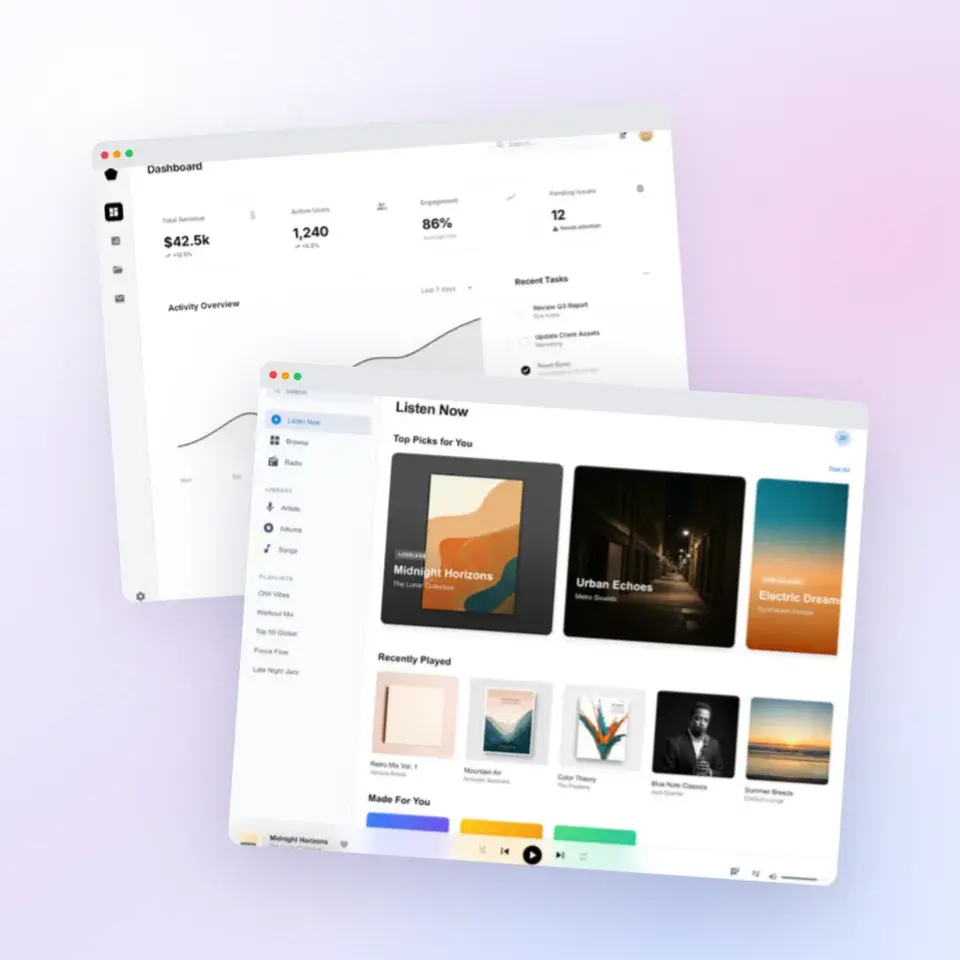
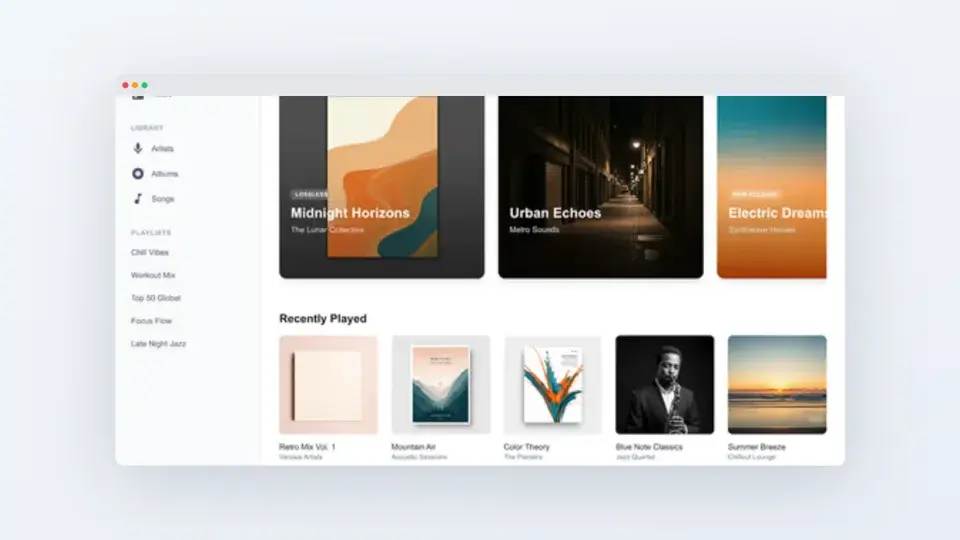
Two editable starting points from the Screenhance library, selected for this screenshots guide.
Ready to create stunning visuals?
Free to start. No credit card required.
Keep reading
Related, product-tested guides from Screenhance.
How to Annotate Screenshots for Tutorials and Documentation
Arrows, highlights, and auto-numbered steps: the annotation workflow that makes tutorial screenshots readable, and the mistakes that scream MS Paint.
2 Jul 2026 · 4 min read
Best Screenshot Tools for Developers in 2026
Developers need different screenshot tools than designers. Here are the best options for code snippets, terminal output, and technical documentation.
21 Apr 2026 · 9 min read
How to Take Better Screenshots: Tips for Professional Results
Your screenshots look amateur? Here's how to capture clean, professional screenshots that make your product shine.
21 Apr 2026 · 10 min read