
How to Design Feature Section Screenshots for Your SaaS Landing Page
Feature sections sell your product, but most SaaS teams use raw screenshots that look amateur. Here's how to design feature screenshots that convert.
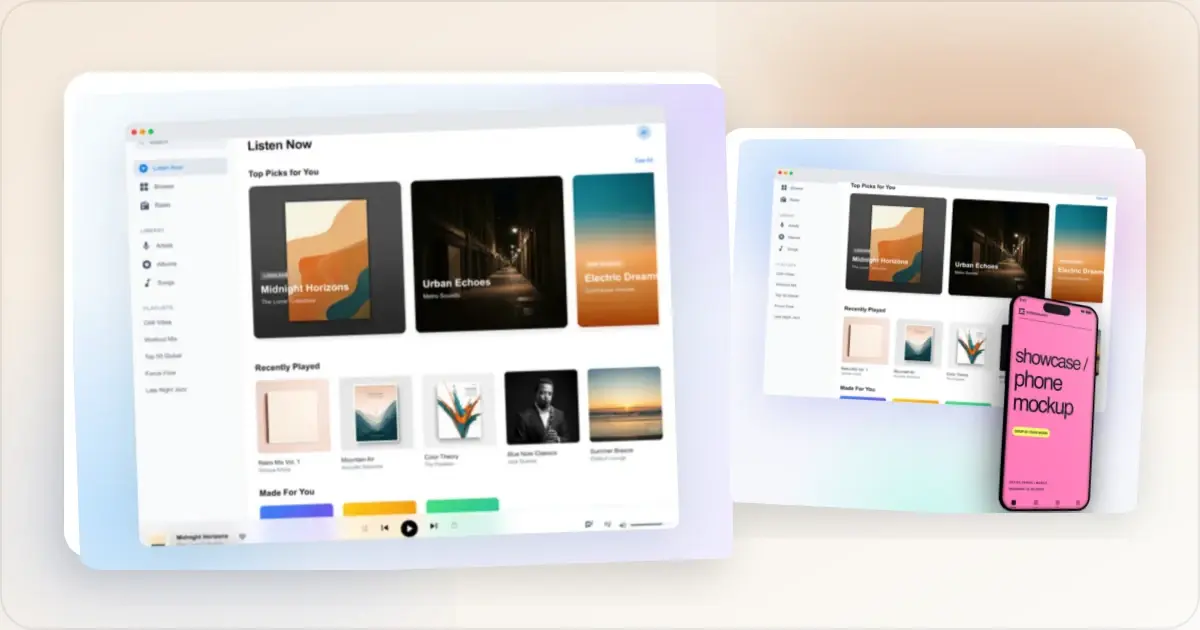
Your hero section gets visitors to scroll. Your feature sections close the deal.
This is where visitors decide whether your product actually does what they need. And most SaaS landing pages blow it by using raw, unstyled screenshots that make a polished product look amateur.
The fix is straightforward. Better screenshots, better framing, better presentation. Here is how.
Why Feature Screenshots Matter More Than You Think
Visitors do not read feature descriptions. They glance at them. What they actually study is the screenshot next to the description.
A well-presented feature screenshot answers the visitor's real question: "What does this actually look like in practice?" If the screenshot looks good, they trust that the feature works well. If it looks sloppy, they assume the product is sloppy too.
Feature sections are where buying decisions happen. The hero gets attention. The feature sections build conviction. Social proof confirms it. But the feature section is where visitors evaluate whether your product fits their needs.Every feature screenshot is an opportunity to build that conviction or undermine it.
Feature Section Layout Patterns
Before thinking about individual screenshots, consider how your feature sections are structured. The layout determines what kind of screenshots you need.
Alternating Layout
The most common pattern. Feature description on the left, screenshot on the right. Then flip for the next feature. This creates a natural reading rhythm and gives each feature equal visual weight.
Screenshot requirements: One polished screenshot per feature, typically 600-800px wide. Landscape orientation works best. Each screenshot needs enough context to be understood independently.Grid Layout
Features displayed in a 2x2 or 3x3 grid. Each cell has a small icon or image, a heading, and a brief description. This works well when you have many features to showcase.
Screenshot requirements: Smaller images, often cropped tightly to show just the key UI element. Consistency is critical here because all images are visible simultaneously. Inconsistent styling in a grid is immediately obvious.Tabbed Layout
One large screenshot area with tabs or buttons that switch between features. This is effective for showing multiple capabilities without overwhelming the page.
Screenshot requirements: All screenshots must be the same dimensions and framing style. The transition between tabs should feel smooth. Use the same device frame and background for every tab.How to Screenshot Each Feature
The biggest mistake is screenshotting your entire application and calling it a "feature image." That is not a feature screenshot. That is a product overview crammed into a small space.
Crop to the Relevant Area
If you are showcasing your reporting feature, screenshot the reports section. Not the full dashboard with navigation, sidebar, header, and reports somewhere in the middle.
Tight crops force focus. The visitor sees exactly the feature you are describing. No distractions, no confusion about where to look.
One Feature Per Image
Each screenshot should showcase exactly one capability. If your feature description talks about "advanced filtering," the screenshot should show the filter UI, not the entire page that happens to contain filters.
Show the Feature in Action with Realistic Data
Do not show empty states or default views. Show the feature actively being used with realistic data. A chart with actual numbers. A filter with selections applied. "Test Project" and "John Doe" make your product look like a demo. Use plausible names and believable content.
Design Principles for Feature Screenshots
Consistent Device Frames
Every feature screenshot on your page should use the same device frame. If your first feature shows a browser frame, they all should. If you start with a MacBook frame, stick with it.
Mixing browser frames, phone frames, and raw screenshots on the same page looks disjointed. Consistency signals quality.
A feature screenshot generator makes this easy. Set up your frame style once and apply it to every feature screenshot.
Matching Backgrounds
Your screenshot backgrounds should complement your landing page design. This does not mean every background must be identical, but they should feel like they belong in the same family.
Options that work well:
- Same gradient direction, different but complementary colors per feature
- Single consistent background color that matches your page
- Alternating between light and dark backgrounds in the alternating layout pattern
2x Export for Retina
Always export feature screenshots at 2x resolution. If your feature image displays at 600px wide on the page, export it at 1200px. Retina screens are standard now. Blurry feature images are an immediate trust killer.
A website screenshot generator can help you produce high-resolution outputs that look sharp on any display.
Common Feature Screenshot Mistakes
Showing the Full Dashboard When Only One Feature Matters
This is the number one mistake. Your "Analytics" feature section shows your entire application with analytics visible somewhere on screen. The visitor has to hunt for the relevant element.
Solution: Crop aggressively. Show only the analytics section. Make it big enough that details are readable.
Inconsistent Styling Across Features
Feature one has a gradient background. Feature two is a raw screenshot. Feature three has a different device frame. Create a template: same frame, same background family, same export dimensions. Apply it to every feature.
Tiny Screenshots with Unreadable Text
If visitors cannot read the text in your feature screenshots, the screenshots are not doing their job. Crop to a smaller area and display it larger. It is better to show 30% of a screen at readable size than 100% of a screen that nobody can parse.
Outdated UI
Your landing page shows version 1 of your feature, but users who sign up see version 3. Update your feature screenshots whenever you ship significant UI changes.
No Device Context
Raw screenshots without device frames look unfinished. A browser frame, laptop frame, or even a subtle shadow gives the screenshot a professional appearance.
A Practical Workflow
Here is how to create a complete set of feature screenshots in under an hour.
Step 1: List your features. Write down every feature that appears on your landing page. Typically 4-8 features. Step 2: Identify the best screen for each. For every feature, decide which view, section, or element best represents that capability. Step 3: Prepare your product. Log in, populate with realistic data, and set up the UI to show each feature at its best. Step 4: Screenshot each feature. Take focused, tightly cropped screenshots of each feature area. Capture at the highest resolution your screen supports. Step 5: Apply consistent framing. Use the same device frame and background style for every screenshot. Batch-process them for consistency. Step 6: Export and test. Export at 2x resolution. Compress to keep file sizes reasonable. Check your feature sections on desktop, tablet, and mobile to ensure readability.The Hierarchy of Value: Hero, Category, Feature, Detail
Most feature pages flatten everything to one zoom level. Every screenshot is the same size, same crop tightness, same level of abstraction. The result reads as a wall of UI, and visitors bounce because nothing tells them where to look first.
A feature page that converts uses four distinct screenshot tiers, and each tier has a job.
Tier one: the hero. One screenshot, sitting above the fold or at the top of the feature section. It shows the product holistically — enough of the UI for visitors to anchor on what kind of tool this is. Light crop, device frame, branded background. This is the only screenshot on the page where wide context beats tight cropping. The hero earns the scroll; it doesn't have to teach. Tier two: the category shot. One screenshot per feature category — "analytics," "automation," "collaboration." These are medium-tight crops showing the category's main view. The visitor doesn't need pixel-level detail yet; they need a sense of shape. Two to three of these on the page, max. Tier three: the feature shot. Tight crops of the specific feature you're describing. Anyone parsing your feature list lands here. Show the filter UI when describing filters. Show the chart when describing reports. These are the screenshots most teams default to — but they're the third tier, not the only tier. Use a feature screenshot generator to keep frame and background consistent across the set. Tier four: the detail. Optional zoom-ins on a single UI element — a button hover state, a specific data row, a microinteraction. Use sparingly, only when the detail is genuinely load-bearing for the value proposition. Visitors who reach tier-four screenshots are already convinced; they're verifying. Don't lead with these.The pattern works because it matches how visitors actually read feature pages: scan from wide to narrow, stop at whatever resolves their open question. Forcing them to start at tier three is like opening a film on a close-up of an eyeball — without context, the visitor doesn't know what they're looking at.
How to Crop a Screenshot So the Feature Is Unmissable in Three Seconds
Three seconds is the realistic window. By second four, the visitor has either understood your feature or scrolled past it. Crop tight enough that the answer to "what does this feature do" arrives inside that window.
The principle: every pixel in the crop should be doing work toward the feature's value claim. If you can blur a region of the screenshot without weakening the message, that region shouldn't be in the crop. Sidebars, navigation chrome, breadcrumbs, irrelevant data columns — strip them aggressively.
The visual focal point of the crop should be the feature itself, not the UI surrounding it. Use the rule of thirds: position the key UI element on a thirds intersection, not dead center. Centered crops feel staged; off-center crops feel like you caught the feature mid-use, which reads as more authentic.
When in doubt, crop tighter and zoom larger. A visitor would rather see 30% of the screen at readable size than 100% of the screen at unreadable size. The website screenshot generator lets you preview crops at the actual display width before exporting, which catches "looks fine in the design tool, illegible on the live page" mismatches.
One more rule: never crop through a meaningful UI boundary. If your filter row spans the top of the screen, don't crop halfway through it. Either include the whole row or exclude it entirely. Half-shown UI elements look like rendering bugs and make the screenshot feel broken.
Frequently Asked Questions
How many screenshots should I include per feature on a landing page?
One primary screenshot per feature is the right default. Two is acceptable if the feature has a meaningfully different "before" and "after" state. More than two and you're overloading the section — visitors stop parsing and start skimming. If you genuinely need three or four screenshots to convey a feature, that's a signal the feature deserves its own dedicated page, not more space on the overview page.
Should I annotate feature screenshots or use raw clean ones?
Default to clean screenshots. Annotations — arrows, callouts, numbered labels — add visual noise and rarely earn it. Use them only when the feature has a non-obvious element that visitors will miss without a pointer. If you find yourself annotating because the screenshot is too busy, the fix is a tighter crop, not more arrows. The feature screenshot generator supports both modes; start with clean and add annotations only where testing shows you need them.
Video versus static screenshots — which converts better?
Static for feature pages, video for product tour pages. Static screenshots are scannable; visitors can absorb them at their own pace and move on. Video demands attention you haven't earned yet on a feature page. The exception is interactive features (drag-and-drop, animations, multi-step flows) where a 4-6 second loop genuinely communicates what static can't. Even then, autoplay muted and loop, never block scroll for a play button.
Should I use a comparison-tab pattern with multiple feature views in one container?
Yes when you have three to five closely related variants of the same feature (e.g., "list view / board view / calendar view" of the same data). The comparison tab keeps the section compact and lets visitors compare without scrolling. It fails when the tabs aren't truly comparable — using a tabbed UI to cram unrelated features into one section is confusing, not efficient. Tabs work best when every tab answers the same visitor question with a different angle.
How do I measure whether my feature screenshots are actually converting?
Two metrics that matter, both via heatmaps or scroll-depth analytics. First: scroll depth past each feature section. If visitors stop scrolling at feature three, feature three's screenshot is failing. Second: click-through on the CTA below the feature section. A/B test feature screenshots in pairs (same copy, different image) and ship the one with higher downstream activation. Subjective design preferences don't matter here; conversion data does.
Related Reading
- How to Create SaaS Hero Images That Convert - Hero image design for landing pages
- How to Display Screenshots on Your SaaS Landing Page - Comprehensive landing page screenshot guide
- The Complete Guide to Landing Page Hero Images - Hero section best practices
- The Ultimate Guide to Website Screenshot Mockups - Mockup creation fundamentals
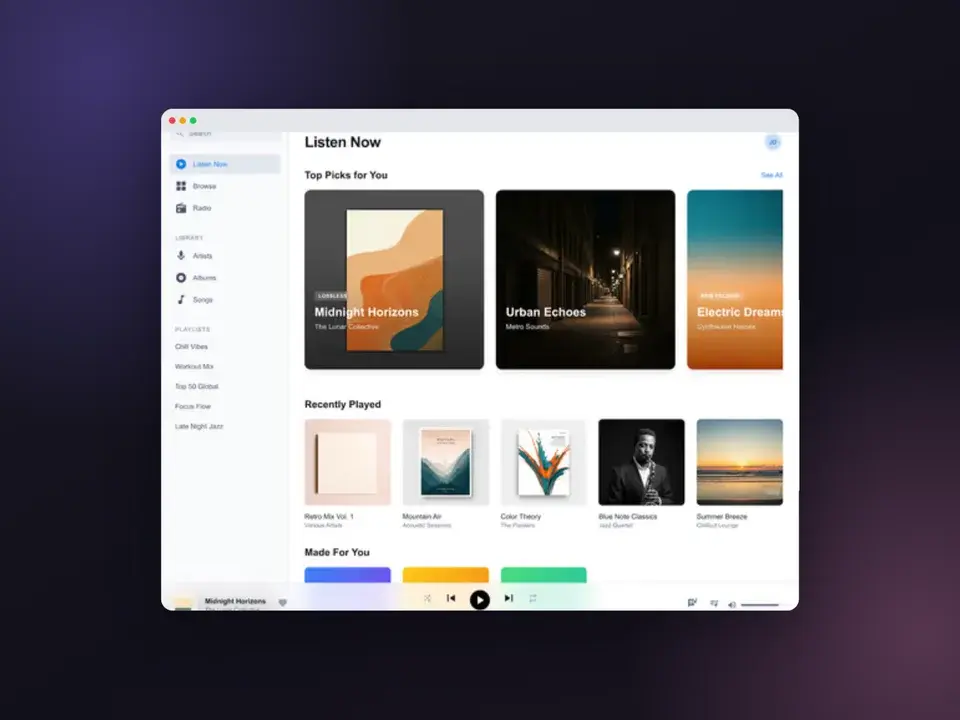
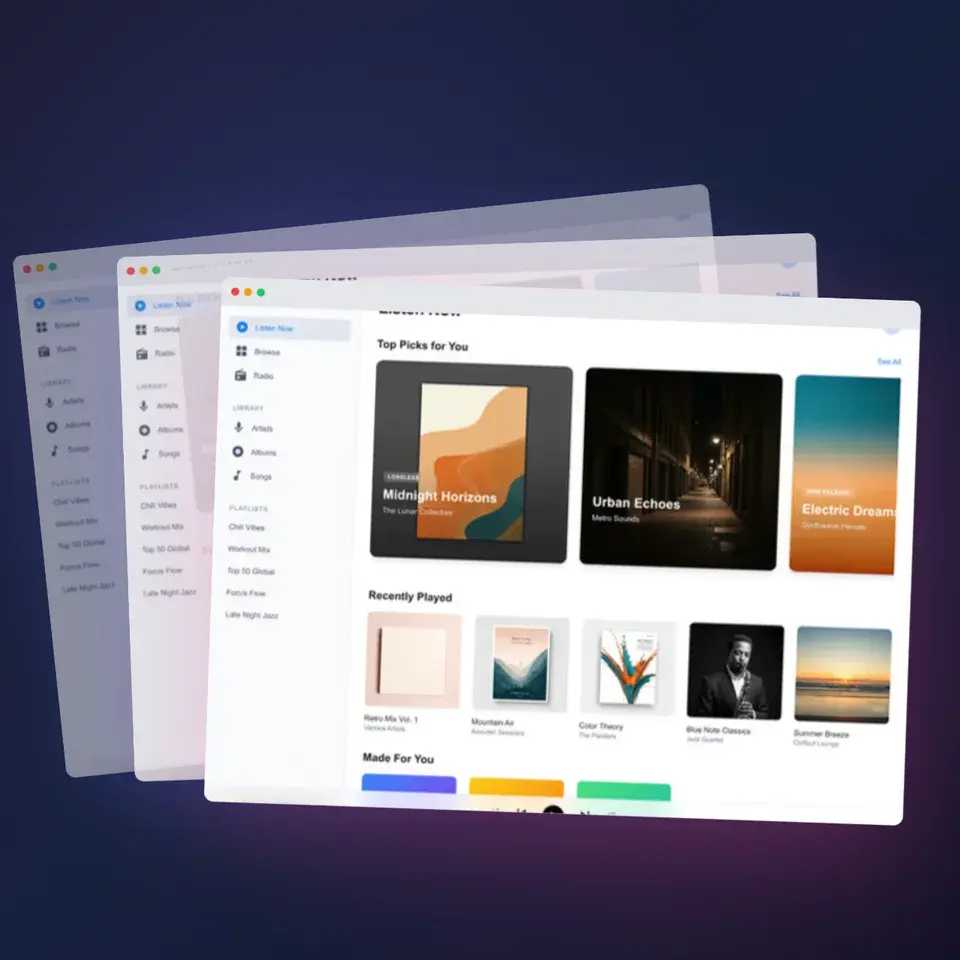
Screenhance examples
Two editable starting points from the Screenhance library, selected for this screenshots guide.
Ready to create stunning visuals?
Free to start. No credit card required.
Keep reading
Related, product-tested guides from Screenhance.
How to Annotate Screenshots for Tutorials and Documentation
Arrows, highlights, and auto-numbered steps: the annotation workflow that makes tutorial screenshots readable, and the mistakes that scream MS Paint.
2 Jul 2026 · 4 min read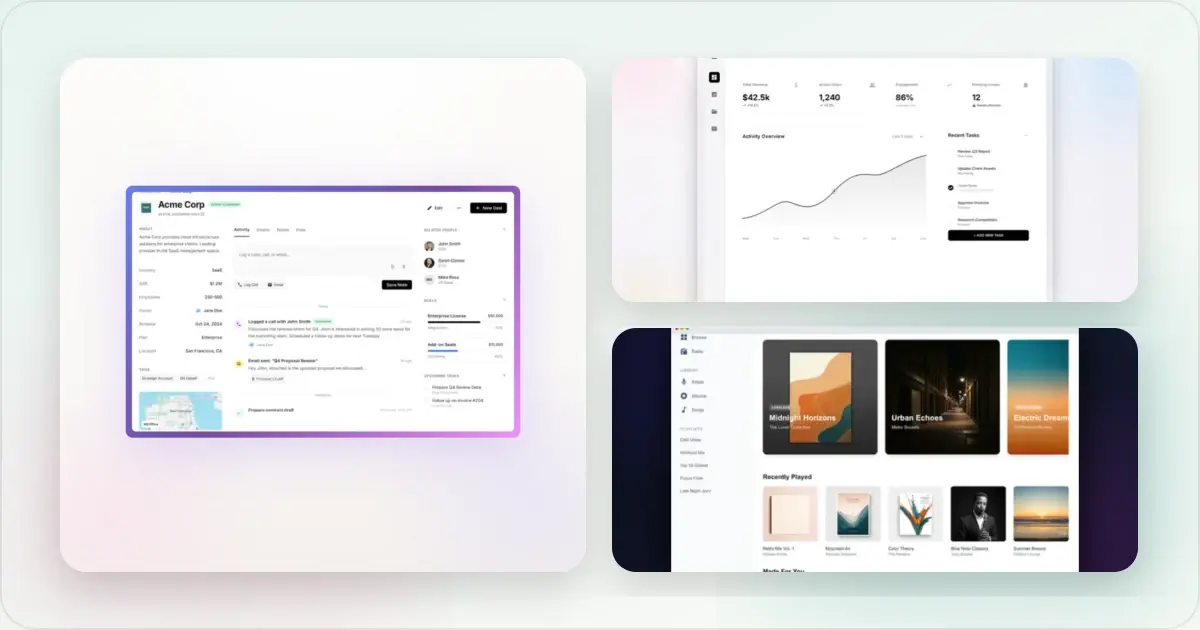
Best Screenshot Tools for Developers in 2026
Developers need different screenshot tools than designers. Here are the best options for code snippets, terminal output, and technical documentation.
21 Apr 2026 · 9 min read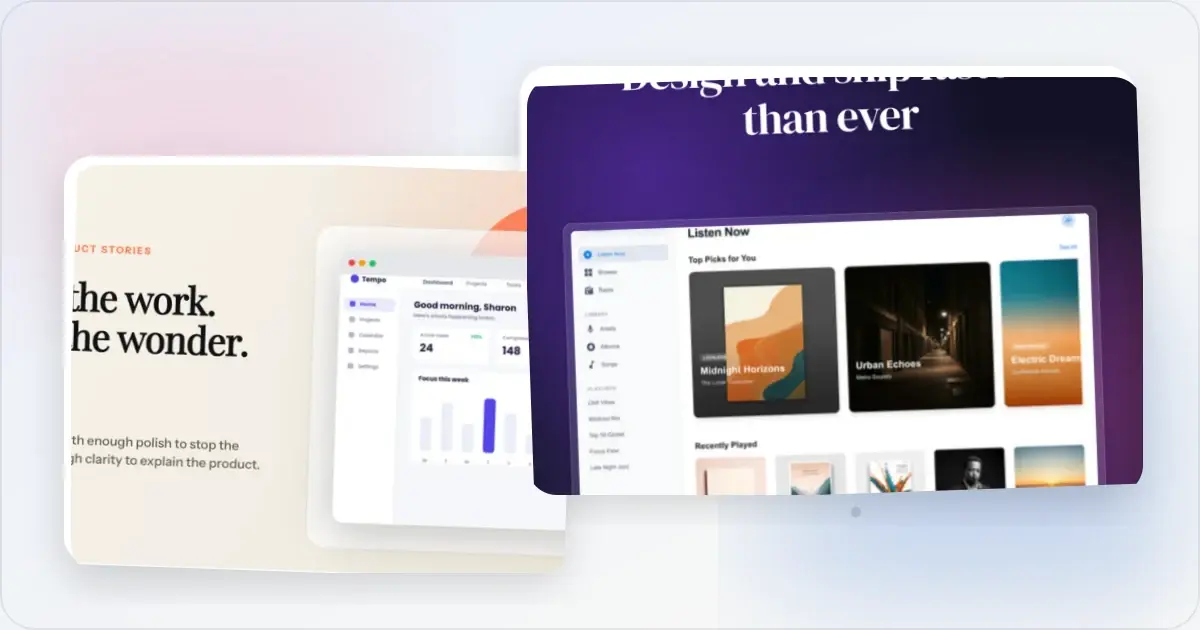
How to Take Better Screenshots: Tips for Professional Results
Your screenshots look amateur? Here's how to capture clean, professional screenshots that make your product shine.
21 Apr 2026 · 10 min read