
LinkedIn Post Image Guide: Sizes, Formats, and Design
LinkedIn image dimensions, format choices, accessibility checks, and a practical way to compare what works for your own audience.
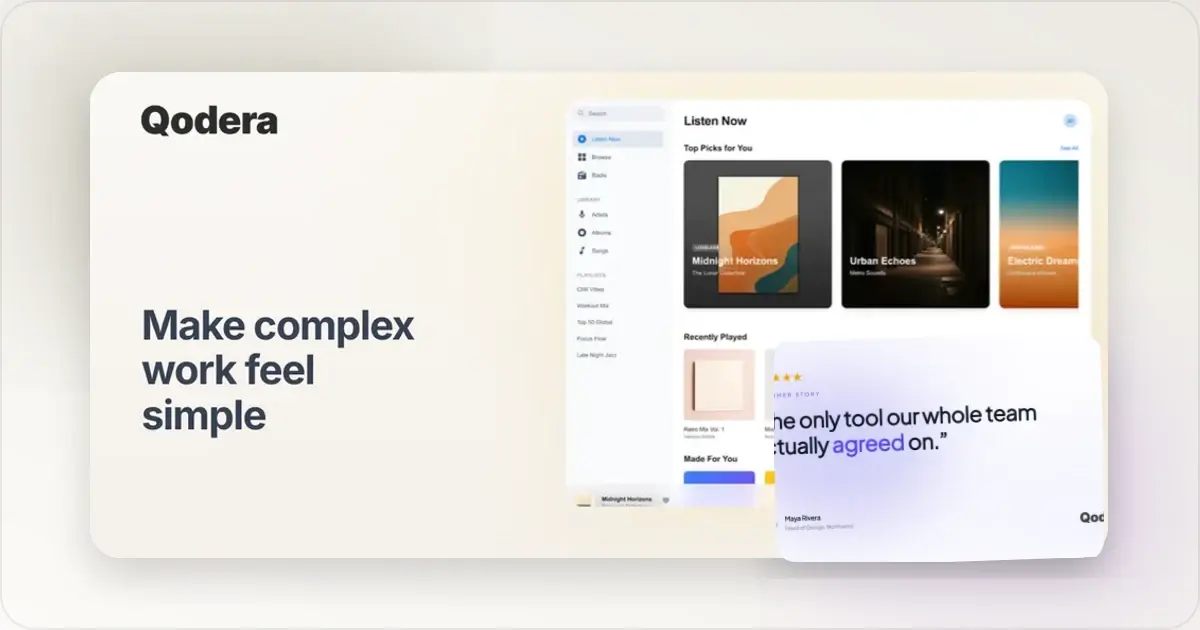
Images give a LinkedIn post more room to show a product, explain an idea, or establish a recognizable visual style. They are not an engagement shortcut: the image still has to serve the post and remain readable in the feed.
LinkedIn is used in different professional contexts, so a design that suits one audience may not suit another. This guide covers common image types, useful dimensions, and the checks that make a visual clear in LinkedIn's feed.
LinkedIn Image Dimensions by Type
Link Share Preview Images
When you share a URL on LinkedIn, the platform pulls the OG image to create a preview card.
Dimensions: 1200 x 627 pixels Aspect ratio: 1.91:1 Minimum size: 200 x 200 pixels (but anything below 1200px wide looks low-quality) Maximum file size: 5MBThis image is easy to overlook. When LinkedIn renders a link card, it appears alongside the title, source, surrounding post, and any commentary added by the person sharing it.
If you're not setting custom OG images for your pages, LinkedIn grabs whatever it can find. Usually that means your logo, a random sidebar image, or nothing at all. Create intentional preview images using a LinkedIn image generator to control exactly what shows up.
Single Image Posts
Direct image uploads to LinkedIn posts — the most common image format on the platform.
Landscape: 1200 x 627 pixels (1.91:1) Square: 1200 x 1200 pixels (1:1) Portrait: 1080 x 1350 pixels (4:5) Maximum file size: 10MBPortrait images (4:5) occupy more vertical space than square or landscape images in the feed. That can help when the composition benefits from height, but it is not automatically the best format for every post.
Article Cover Images
LinkedIn articles (the long-form publishing feature) have a separate cover image.
Dimensions: 1200 x 644 pixels Aspect ratio: 1.86:1These are similar to link preview images but slightly taller. If you're publishing articles regularly, create a consistent template for these covers to build brand recognition.
Carousel Posts (Document Uploads)
LinkedIn document posts are uploaded as PDFs that readers move through page by page. Use them when the idea genuinely needs a sequence rather than stretching a single point across several slides.
Dimensions: 1080 x 1080 pixels per slide (square) Alternative: 1080 x 1350 pixels (portrait, takes more feed space) File format: PDF Maximum pages: Check LinkedIn's current document-upload limit before publishing, because platform limits can change.Design each slide as a standalone visual that also flows as part of a sequence. Think of it like a mini presentation.
Company Page Cover Image
Dimensions: 1128 x 191 pixels Aspect ratio: 5.9:1This ultra-wide format is tricky. Keep text centered and large. Avoid putting anything important near the edges — mobile crops differently than desktop.
What Design Style Works on LinkedIn
LinkedIn's audience skews professional. That doesn't mean boring — it means intentional.
Clean Over Clever
Minimalist designs with clear typography are usually easier to read than crowded visuals. Use whitespace, keep the palette controlled, and remove any element that does not help explain the post.
Data-Driven Visuals
Statistics, charts, and data points can make a useful visual when the underlying number is sourced and the chart adds context. A bold number is not evidence on its own, so include the source in the post or image where practical.
- A sourced result from your own research in large text
- A simple bar chart comparison
- A bold number with a one-line insight
These formats work best when the reader can understand the point without hunting for missing context.
Professional but Not Corporate
Aim for clean design that still feels human and approachable. The right level of polish depends on your brand and audience, so use your own post analytics to compare formats.
Avoid stock photos of handshakes, whiteboards, and diverse teams pointing at laptops. They signal "generic content" and get scrolled past.
Brand Consistency
Create a visual system for your LinkedIn content. Same fonts, same color palette, same layout structure across posts. When people see your image in their feed, they should recognize it before reading your name.
Design for Readers, Not an Assumed Algorithm
LinkedIn does not publish a formula that guarantees distribution for a particular image format. Treat claims about exact multipliers, early-comment windows, and hidden format preferences with caution.
Choose a format based on the job of the post:
- Use a single image for one visual point, chart, screenshot, or before-and-after.
- Use a document when the reader needs a sequence of steps or examples.
- Use a link preview when the destination and click are central to the post.
- Use video when motion or narration carries information a still image cannot.
Then compare impressions, meaningful comments, clicks, and downstream actions across your own posts. That evidence is more useful than a platform-wide rule borrowed from a different audience.
Best Practices for LinkedIn Images
Optimize for Mobile First
Design for a small screen first, then verify the post on desktop as well.
- Text must be readable at mobile sizes
- Key information should be visible without zooming
- Tap targets (if relevant) need to be large enough for thumbs
Use Text Overlays Strategically
Unlike Instagram, LinkedIn images with text overlays perform well. The key is keeping it concise:
- One short headline
- One supporting stat or line
- Your brand mark in a corner
Don't try to put a full paragraph on an image. That's what the post caption is for.
Design for the Feed, Not the Full View
Most people will see your image in a scrolling feed, not clicked to full screen. Design for the smaller, in-feed rendering. If it doesn't grab attention at thumbnail size, it won't get clicks.
Control Your Link Previews
If you're sharing links to your website, product, or blog, make sure you're setting proper OG images. Use the OG image generator to create professional preview images that match your LinkedIn visual brand.
LinkedIn caches OG images aggressively. After updating an image, use LinkedIn's Post Inspector tool to force a refresh.
Common LinkedIn Image Mistakes
Uploading blurry or low-resolution images. LinkedIn compresses images. Start with high-quality originals to survive the compression. Using the same image for every post. Repetition breeds scroll-past behavior. Vary your visuals while maintaining brand consistency. Ignoring aspect ratios. A landscape chart, a square quote card, and a portrait tutorial solve different layout problems. Choose deliberately and preview the crop before publishing. Forgetting alt text. LinkedIn supports image alt text. Use it to communicate the image's meaning to people who cannot see it; do not treat accessibility text as an algorithm trick. Relying on one format without testing it. A native image and a link-preview post have different jobs. If traffic matters, make the destination easy to find instead of hiding it in a comment solely because someone claimed that tactic improves reach.A Simple LinkedIn Image Workflow
Here's a practical workflow for creating consistent LinkedIn visuals:
- Define your brand template: fonts, colors, layout grid
- Create 3-4 template variations (data highlight, quote card, product showcase, insight card)
- For each post, pick the appropriate template
- Swap in your content — headline, stat, or screenshot
- Export at the right dimensions for your chosen format
- Upload and post
Save the system as a reusable template so each new image starts from the same grid rather than from scratch.
Document Post vs Single Image: When to Use Each
There is no universal winner between a document post and a single image. A document asks the reader to move through several pages; a single image asks them to understand one frame. Choose based on the structure of the idea rather than an engagement multiplier.
Document posts suit a natural sequence — a step-by-step process, a set of examples, a before-during-after narrative, or a teardown that builds an argument across pages. Make the first page state the value and make every following page earn its place. Do not assume that a swipe is counted in a particular way unless LinkedIn documents that behavior.
Single images are a good fit for an insight that can land in one frame: a chart, a clean before-and-after, or a sourced data point set in clear typography. Stretching that idea into several pages creates filler and makes the reader work harder.
A practical decision rule: if you can state the value in one sentence and show it in one frame, start with a single image. If the value requires steps, examples, or parallel comparisons, use a document. The correct number of pages is the number needed to explain the idea without padding.
What You Can Actually Evaluate
You cannot inspect LinkedIn's complete ranking system, but you can inspect the experience your post gives a reader and the analytics on your own account.
First, test comprehension. Show the image at feed size to someone unfamiliar with the post. If they cannot identify the subject and the main point, simplify the crop or add a short headline. Not every image needs embedded text; a clear product screenshot or chart may already carry the message.
Second, test the image and caption together. The image should make the claim understandable, while the caption supplies context, a source, or a useful question. Avoid manufacturing comments with a question that has nothing to do with the content.
Third, test legibility on a phone. Text that looked comfortable in a design tool can become unreadable in the feed. Export at the intended resolution, preview it at a realistic mobile width, and check contrast as well as type size. A LinkedIn image generator can provide a consistent starting canvas, but the final preview is still the check that matters.
Frequently Asked Questions
How many hashtags should I actually use on a LinkedIn post?
Use only hashtags that accurately describe the post and help the intended audience understand its category. LinkedIn's discovery features and recommendations change over time, so avoid treating a particular count as a permanent ranking rule. Compare posts with and without them in your own analytics.
Is there a best time to post on LinkedIn?
There is no reliable universal posting time. Post when the people you serve are likely to be available, then use your account's own analytics to compare days and times. Keep the subject and format in mind when comparing results so a strong post is not mistaken for a timing effect.
Should I use a single image or a short video for B2B posts?
Use video when the content genuinely benefits from motion — a product demo, a piece to camera, or a customer story where delivery matters. Use a still image when one frame communicates the point. Compare the production effort and the outcome you care about rather than assuming one format wins for all B2B audiences.
Can I repurpose my Product Hunt gallery images directly on LinkedIn?
Sort of, but not as a copy-paste. A 1270x760 Product Hunt gallery image is roughly 1.67:1 — close to LinkedIn's 1.91:1 link-preview ratio but not identical, and different from a 4:5 portrait post. Reuse the composition, palette, and product framing, then re-export for the chosen LinkedIn format. That preserves the design language without relying on an awkward crop.
Native image upload or link preview — which gets more reach?
Use a native image when the post itself contains the value. Use a link preview when visiting the destination is the main action. Putting a link in the first comment makes the destination harder to find and is not a guaranteed reach tactic. If reach and traffic both matter, test the two approaches with comparable posts and judge them on downstream visits as well as impressions.
Related Reading
- OG Image Best Practices: The Complete Guide to Social Share Images - Foundation for all social image design
- OG Image Size Guide: Dimensions for Every Social Platform - Cross-platform dimension reference
- How to Create OG Images That Get Clicks on Twitter and LinkedIn - Creating images that perform on LinkedIn
- How to Make Your Screenshots Go Viral on Social Media - Social media visual strategies
See how your link looks when shared
Paste a public page URL to inspect its Open Graph tags, image dimensions and missing metadata. The card is an approximation; each platform controls its final preview.
Screenhance examples
Two editable starting points from the Screenhance library, selected for this social and web guide.

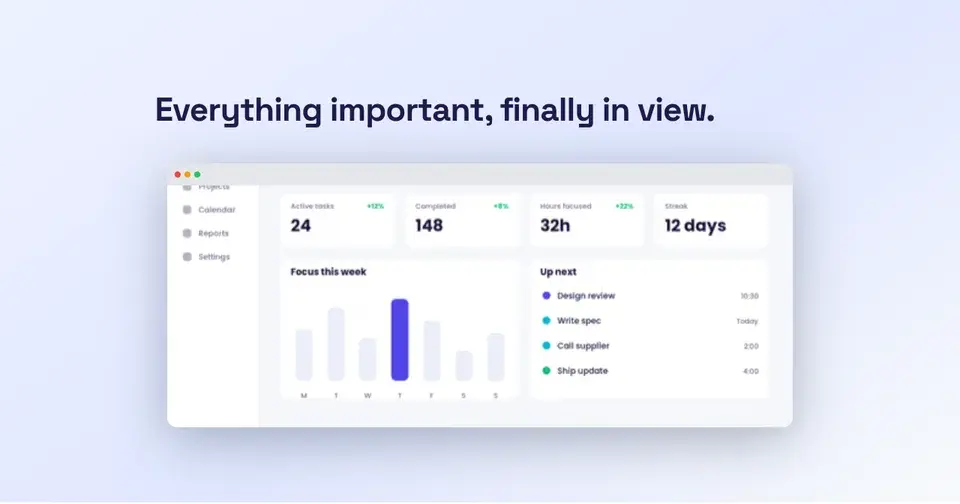
Make a perfectly-sized LinkedIn image
Free to start. No credit card required.
Keep reading
Related, product-tested guides from Screenhance.
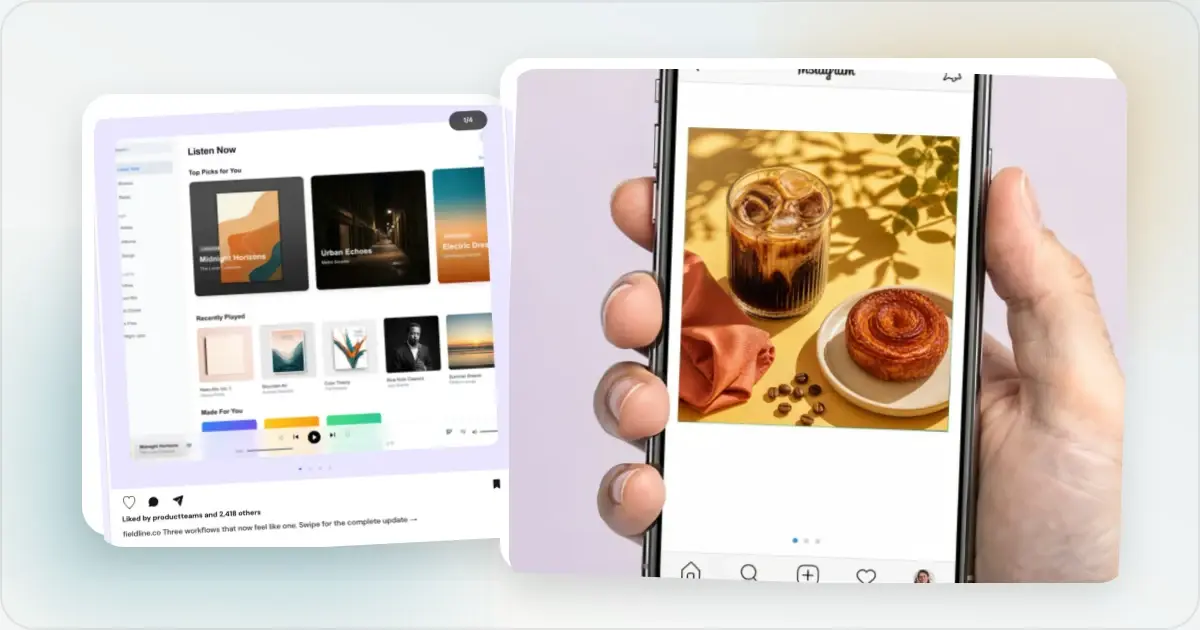
12 Instagram Mockup Examples for Better Product Launches
Explore 12 original Instagram mockup examples for feed posts, carousels, Reels, Stories, profiles, reviews, launch graphics, and product scenes.
1 Sept 2026 · 9 min read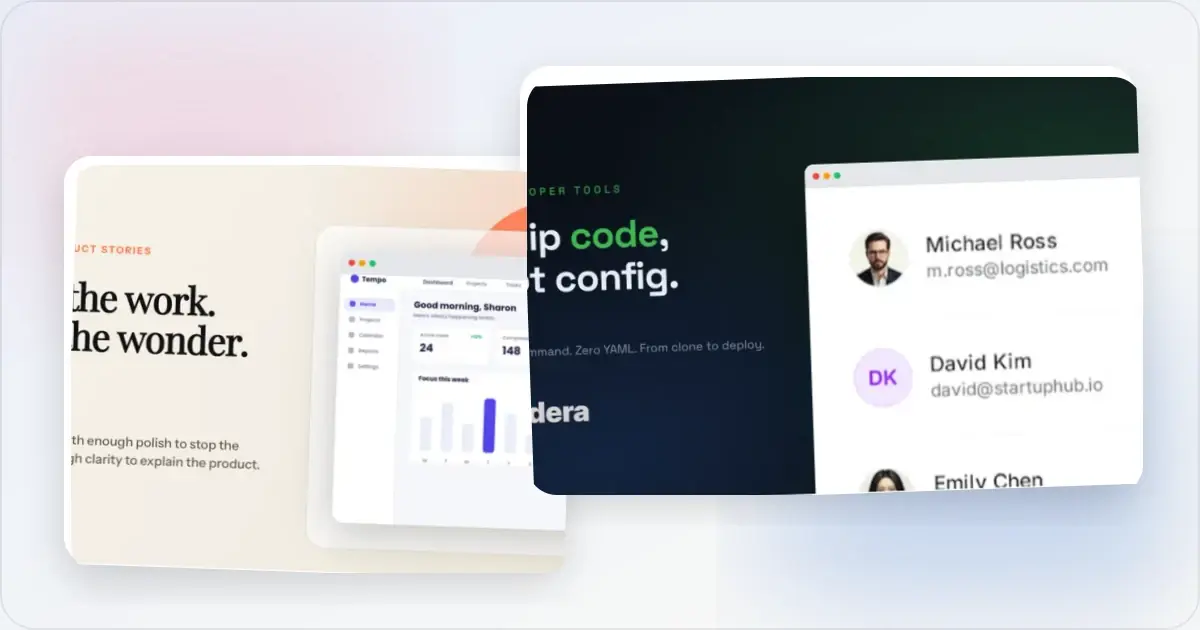
12 OG Image Examples With the Layout Logic Explained
Explore twelve original OG image examples and learn how product proof, hierarchy, contrast, crops, photography, metrics, and quotes change the composition.
20 Aug 2026 · 7 min read
How to Blur Part of a Screenshot (and When to Redact Instead)
Blur emails, names, and API keys in a screenshot in your browser, free. When blur is enough, when to redact instead, and the two-minute workflow.
2 Jul 2026 · 4 min read