
How to Create Visual Changelogs That Users Actually Read
Learn when product screenshots, annotations, and short motion clips make release notes clearer, plus how to keep a changelog archive consistent.
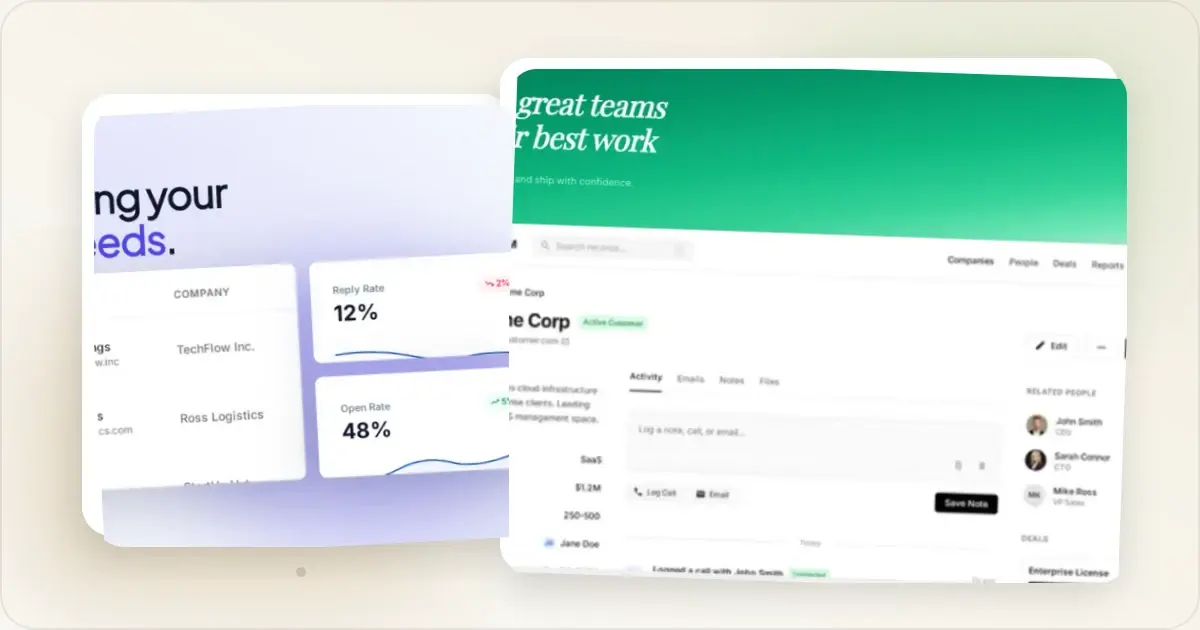
You spent two weeks building a new feature. You write up the changelog. Nobody reads it.
Sometimes the copy is the problem. Sometimes the format is. A relevant screenshot gives readers another way to understand the release without replacing a clear explanation.
Why Visual Changelogs Are Easier to Scan
Many readers scan release notes before deciding which update deserves closer attention.
A relevant screenshot can make the changed area easier to locate. It still needs a clear caption because the image alone may not explain the reason for the update.
That does not guarantee more adoption or retention. It does make the update easier to understand: the reader can compare your description with the interface they will actually use.
Visual changelogs can also travel beyond the changelog. A clear product screenshot can be reused in a launch post, an email, or an internal announcement. Give the image enough context to make sense when it is seen away from the original entry.What to Show in Your Changelog
"We added a new dashboard widget" does not show where the widget lives or what changed. A focused screenshot can answer those questions, while the surrounding copy explains why the update matters.
Show the Actual Feature
For a significant visual update, show the feature itself rather than a generic product overview. A settings panel may be the right image when setup is the important change.
Crop tightly to the relevant area. If you added a new chart type, show the chart. If you redesigned the sidebar, show the sidebar. Readers should be able to locate the changed area without inspecting unrelated parts of the interface.
Before and After
For redesigns or significant UI changes, a before-and-after comparison is powerful. Place the old version next to the new version. The improvement becomes immediately obvious without any explanation.
Annotated Screenshots
Sometimes a screenshot alone is not enough context. Add a brief annotation: an arrow pointing to the new button, a highlight around the changed section, or a short label. Keep annotations minimal and remove any callout that does not help identify the change.
Short GIFs for Interactive Features
If the feature involves interaction, such as drag and drop, animation, or a multi-step flow, a short loop can communicate what a static screenshot cannot. Set the duration and file budget for the channel, provide a useful first frame, and test reduced-motion and fallback behavior.
Screenshot Best Practices for Changelogs
Consistent Framing
Define a visual family for changelog screenshots: a small set of device frames, background styles, and export dimensions that suit the places where entries are published.
This consistency makes an archive easier to scan and helps readers recognise which visuals belong to your product. Measure opens and clicks in your own channel rather than assuming a visual treatment will improve them.
A changelog screenshot tool helps you maintain this consistency without spending time on manual formatting for each release.
Crop to the Relevant Area
Do not show your entire application when only one section changed. Aggressive cropping focuses attention on what matters.
If you added a new filter dropdown, screenshot just the filter area with enough surrounding context to orient the user. They do not need to see the full navigation bar, footer, and every sidebar item.
Use Realistic Data
Screenshots with empty states or "Test User" and "Lorem ipsum" look unprofessional. Populate your screenshots with realistic sample data that makes the feature look like it is being actively used.
Keep File Sizes Small
Changelogs are often delivered via email or loaded in notification panels. Large images slow everything down. Optimize your screenshots:
- Use PNG for UI screenshots with text (sharp edges matter)
- Compress with tools like TinyPNG or Squoosh
- Start with an image-size budget that fits your delivery channel, then verify load time on a typical mobile connection
- Export a high-density version when the display requires it, and compare the compressed result at its actual rendered size
Readable at Small Sizes
Users might view your changelog on mobile, in an email client, or in a small notification panel. Your screenshots need to be legible at reduced sizes. This means: larger UI elements in your crops, good contrast, and simple compositions.
Tools and Platforms for Visual Changelogs
Different teams publish changelogs in different places. Here is how to handle visuals on each.
Dedicated Changelog Tools
Platforms like Beamer, LaunchNotes, and Changelogfy are designed for this. They support inline images, have templates for consistent formatting, and handle email distribution. If you use one, create a visual template and stick to it.
Notion or Docs-Based Changelogs
Teams also maintain changelogs in Notion or Google Docs. Establish a shared entry template with a heading, description, optional screenshot, and relevant destination link.
GitHub Releases
GitHub releases support markdown with embedded images. Upload your styled screenshots to the release and reference them inline. This works well for developer-focused products where your audience lives in GitHub.
Custom Changelog Pages
If you build your own changelog page, use consistent image dimensions, reserve image space to reduce layout shift, and lazy-load below-the-fold media. Add enlargement controls when the interface detail is not legible at the inline size.
Optimizing Visuals for Email Delivery
Many changelogs get delivered as email newsletters. Email has specific constraints that affect how your screenshots render.
Width matters. Most email clients render at 600px width. Your screenshots need to look good at that size. Do not include wide panoramic screenshots that become unreadable when scaled down. Write useful alt text. Some email clients block images, and some readers use assistive technology. Describe the information the screenshot contributes without duplicating the adjacent caption. File size affects loading. Heavy images take longer to appear, especially on mobile connections. Set an image budget for the complete message and test it in the email clients your audience actually uses. A screenshot beautifier can help you create a polished composition before you compress the exported file. Test across clients. Gmail, Outlook, Apple Mail, and mobile clients all render images differently. Test your changelog emails in multiple clients before sending. Use hosted images. Embed image URLs rather than attaching files directly. This keeps email size down and lets you update images after sending if needed.Building a Changelog Visual Workflow
Here is a repeatable process for adding visuals to every release.
During development: As features near completion, take screenshots. Do not wait until release day when you are rushed. Before release: Style all screenshots with consistent framing and backgrounds. Batch-process them so they match. At release: Drop the styled screenshots into your changelog entry. Add brief captions or annotations where helpful. After release: Monitor engagement. Which visual entries get the most clicks? Use that data to refine your approach.Common Mistakes to Avoid
Walls of text with no visual anchor. A long entry is harder to scan when the reader cannot see the part of the product that changed. Add a screenshot when it explains something the copy cannot; do not add a decorative image merely to satisfy a format rule. Inconsistent visual quality. Some entries have polished mockups, others have raw screenshots, and some have nothing. Consistency matters for brand perception. Showing the wrong thing. A screenshot of the settings toggle that enables a feature is not as useful as a screenshot of the feature itself. Show the outcome, not the configuration.Keep the Archive Coherent
Long-running changelogs often contain several generations of screenshots: current polished assets, older raw captures, and entries with no image. That variation is understandable, but outdated UI, personal desktop details, or broken media can reduce the archive's usefulness.
That archive often reflects changing ownership, templates, and publishing priorities. A visible shift is not proof that earlier product work was sloppy, but inconsistent crops and outdated UI can make older entries harder to understand.
You do not need to redesign every old entry. Define a visual baseline for new releases and update an older image only when it is misleading, broken, or unusually important. The baseline can be simple: a consistent frame, background treatment, and crop.
A screenshot can also become disconnected from the value when it lacks context. Pair it with a concise explanation of what changed and who benefits. Use a before-and-after sentence only when both halves are accurate for the release.
Patterns That Turn Changelogs Into a Marketing Channel
These patterns can make a changelog easier to scan and maintain. Use only the ones that fit the volume and importance of your releases.
The dated hero header. Give major releases one framed screenshot of the headline feature. Smaller releases can use an inline image or no image when the change is not visual. That variation helps communicate hierarchy without manufacturing a hero for every fix. The category-tag stripe. Each entry tagged with a colored stripe or label — "New," "Improved," "Fixed," "Deprecated." Readers scanning the changelog can immediately filter to what they care about. New users want "New." Power users want "Improved" and "Deprecated." Engineers want "Fixed." Without the tag, every entry competes for the same attention. The video-first hero, screenshot-fallback. For interactive features, lead with an autoplay muted loop showing the feature in motion. Visitors who can't render video (some RSS readers, some email clients) see the static fallback screenshot. The video plays without blocking; the screenshot is always there. Use a changelog screenshot tool to export both the static frame and the looped version in one pass. The "see it live" link. When the destination is stable and permissions allow it, link directly to the feature inside the product. Documentation may be the better destination for a feature that needs setup or context. In either case, label the link so readers know where it goes. The retrospective summary. A monthly or quarterly "what we shipped" post that aggregates the highlights with fresh hero images. This catches readers who don't read every release but will read a digest. The post becomes shareable content in a way individual changelog entries rarely do.The pattern beneath all five is to treat the changelog as a maintained publication. Give it visual standards, useful navigation, and accurate release context while preserving its role as a historical record.
Frequently Asked Questions
How do I keep screenshot consistency across years of releases?
Document the visual baseline: device frame, background, crop ratio, and export size. Save the template where contributors can find it. When the product or brand changes enough to require a new baseline, record the change and use the new version for future entries instead of assigning an arbitrary redesign interval.
GIF or static for changelog entries?
Start with a static image. Use motion when the interaction itself is the change — for example, drag-and-drop, animation, or a multi-step flow. Keep the loop short, make the first frame useful as a fallback, and test the final file in every place the changelog is distributed. A static screenshot is usually clearer for a new button, label, or other still UI change.
Should changelog screenshots be dark mode or light mode?
Whatever mode your product defaults to. If your product opens in light mode, screenshot in light mode. The screenshot should match what users see when they navigate to the feature, not the design team's preferred aesthetic. The exception is if you have a dark-themed brand presence — then offer both, with the dark version as the primary changelog image and the light version inside the linked product context.
How do I handle screenshots of features that have since been removed or redesigned?
Leave the old changelog entry intact with the original screenshot. Do not retroactively swap in new screenshots — that breaks the historical record and confuses readers who linked to old entries. If the feature was removed, the changelog entry is now archaeology, and archaeology should be honest. If the feature was redesigned, a new changelog entry for the redesign references the old one. Both entries co-exist with their original visuals.
Should the changelog have its own in-page navigation?
Add in-page navigation when the archive has become difficult to scan; there is no universal entry count. Month or year jump links, optional category filters, and stable anchors for individual releases are useful options. Test the archive on mobile as well as desktop before adding a permanent sidebar.
Related Reading
- How to Present App Screenshots Professionally - Screenshot presentation fundamentals
- Visual Branding for Startups: Screenshots That Build Trust - Building consistent visual identity
- How to Display Screenshots on Your SaaS Landing Page - Screenshot best practices for landing pages
- The Ultimate Guide to Website Screenshot Mockups - Complete mockup creation guide
Screenhance examples
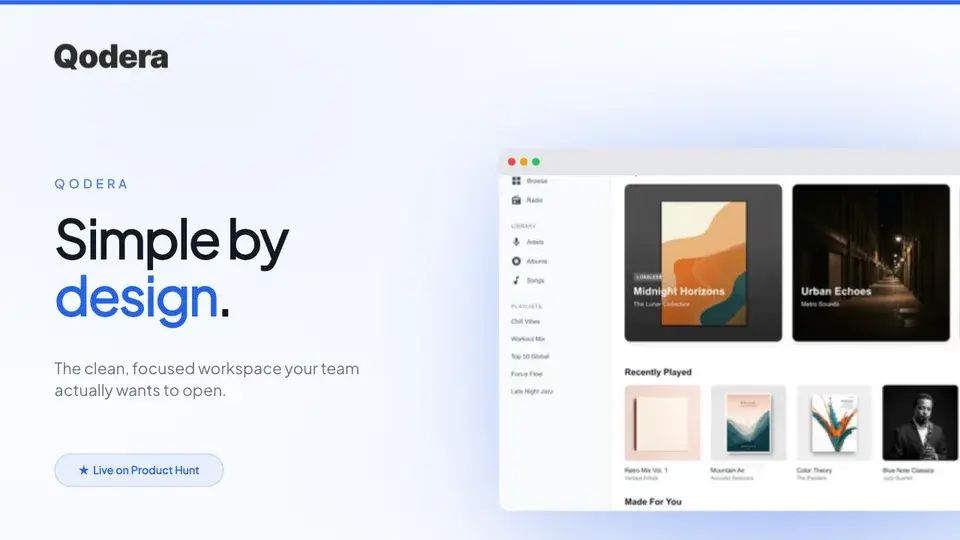
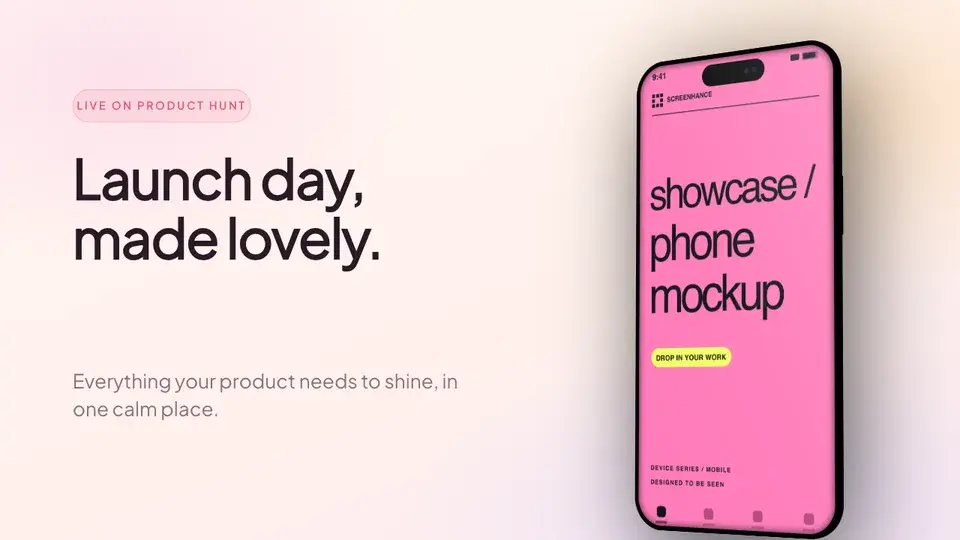
Two editable starting points from the Screenhance library, selected for this launches guide.
Ready to create stunning visuals?
Free to start. No credit card required.
Keep reading
Related, product-tested guides from Screenhance.
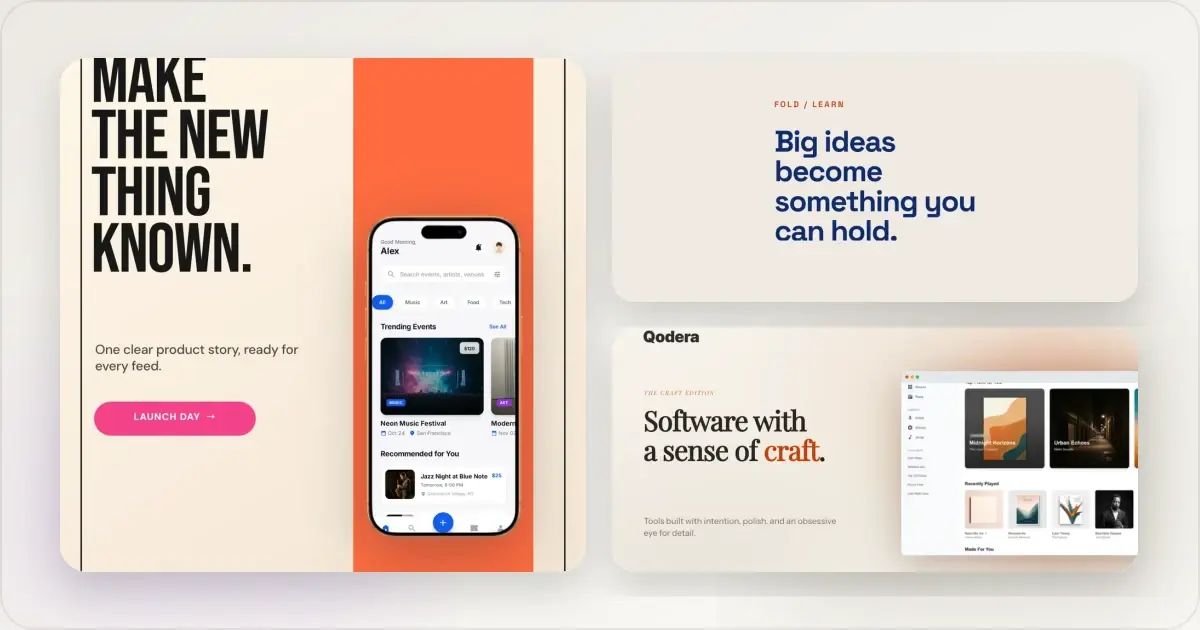
14 Best Fonts for App Screenshots and Launch Graphics
Choose readable fonts for App Store screenshots, Google Play graphics, social posts, and launch visuals, with practical pairings and editable examples.
1 Sept 2026 · 10 min read
How to Launch an App in 2026: The Complete Step-by-Step Checklist
The complete 2026 app launch checklist: a 4-6 week timeline across pre-launch, launch day, and post-launch, plus every store, Product Hunt, and OG asset needed.
4 Jul 2026 · 8 min read
How to Publish an AI-Built App to the App Store (Lovable, Bolt, Replit)
A practical App Store submission walkthrough for AI-assisted apps: enrollment, builds, listing metadata, screenshots, privacy details, and review preparation.
2 Jul 2026 · 5 min read