
Browser Mockup Best Practices for Web Apps
Browser mockups are essential for marketing web applications. Learn best practices for SaaS demos, documentation, changelogs, and more.
By Sharon Onyinye
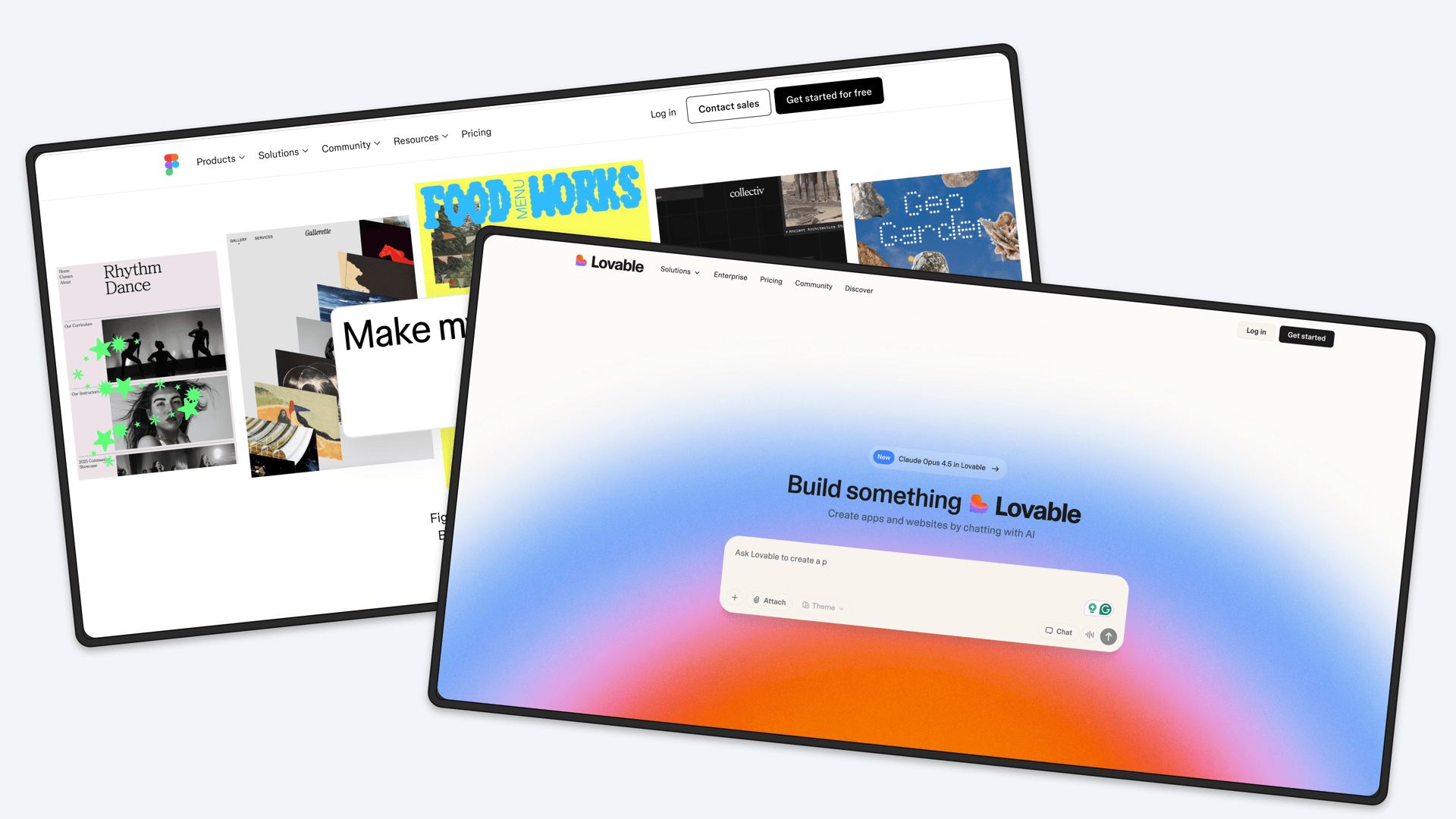
Every web application needs browser mockups. They are the visual foundation of your marketing, your documentation, your social media presence, and your sales materials. A raw screenshot communicates nothing about context. A browser mockup tells the viewer "this is a real web application you can use right now."
But there is a gap between knowing you need browser mockups and executing them well. Here are the best practices that separate amateur product visuals from professional ones.
Why Browser Frames Matter More Than You Think
A screenshot without a browser frame is ambiguous. Is it a desktop app? A mobile app? A design mockup? A browser frame removes that ambiguity instantly.
Beyond context, browser frames add three things that directly impact how people perceive your product:
- Legitimacy. A URL bar suggests a real, deployed product that anyone can visit
- Professionalism. The frame signals that you care about presentation, which implies you care about product quality
- Familiarity. Everyone uses a browser daily. The frame creates an immediate connection between viewer and product
Choosing the Right Browser Style
Not all browser frames are equal. The style you choose sends a message.
Minimal Chrome Frame
The clean, minimal browser frame with just the traffic light buttons (close, minimize, maximize) and optionally a URL bar. This is the most versatile option and works for nearly every context.
Use for: Landing pages, social media, blog posts, general marketing materials.Full Browser Frame
Includes tabs, the full toolbar, bookmarks bar, and sometimes extensions. More realistic but busier. The extra UI elements can distract from your actual product.
Use for: Tutorials and documentation where showing the full browser context adds instructional value. Avoid for marketing materials.Safari Style
Rounded top corners, compact tab bar, and a distinctly Apple aesthetic. Signals premium and design-forward thinking.
Use for: Design tools, creative products, anything targeting a Mac-centric audience.Generic or Neutral Frame
A clean browser frame without strong visual association to Chrome, Safari, or any specific browser. Keeps the focus entirely on your product.
Use for: Cross-platform products, enterprise tools, any context where browser brand association is unnecessary.A browser mockup generator gives you access to all of these styles without needing to build frames from scratch in a design tool.
Best Practices for SaaS Product Demos
When you are showing your SaaS product to potential customers, browser mockups serve as visual proof that your product exists and works.
Show the Value, Not the Chrome
The browser frame is context. Your product is the content. The frame should never compete with what is inside it. Keep frame styling subtle and let your UI be the star.
Use Realistic URLs
If your browser frame includes a URL bar, use a realistic URL. "app.yourproduct.com/dashboard" looks more credible than "localhost:3000" or a blank address bar. This small detail reinforces that your product is real and deployed.
Match the Screenshot to the Claim
If your landing page says "Track all your projects in one view," the browser mockup should show exactly that: a project tracking view with multiple projects visible. Mismatches between copy and visuals erode trust.
Crop Intentionally
You do not need to show your entire application in every mockup. Crop to the portion of your UI that supports the specific message. A focused view of your analytics dashboard is more powerful than a zoomed-out view of your entire app with everything tiny and unreadable.
Documentation and Changelog Mockups
Browser mockups are not just for marketing. They play an important role in product documentation and changelogs.
Documentation Screenshots
Good documentation includes visual guides. Browser mockups in your docs help users orient themselves and find the features you are describing.
Keep documentation mockups simple. Use minimal browser frames with no background treatment. The goal is clarity, not visual wow. Users reading your docs want to quickly match what they see on screen with what they see in the documentation. Annotate when helpful. If your documentation tool supports it, add numbered callouts or highlighted areas to direct attention to specific UI elements within the browser frame.Changelog and Release Notes
When you ship a new feature, show it. A browser mockup in your changelog entry is worth a thousand words of feature description.
Before-and-after mockups work especially well for changelogs. Show the old version and the new version side by side to make the improvement immediately obvious. Consistency across changelog entries matters. Use the same browser frame style and background treatment for every changelog screenshot. This creates a professional, cohesive changelog that users actually enjoy reading.Social Media Best Practices
Browser mockups on social media need to work harder because they are competing with everything else in the feed.
Stand Out Without Being Loud
Use backgrounds with enough visual energy to catch the eye in a feed, but not so much that they overwhelm the product. A well-chosen gradient does this better than a solid color.
Optimize for Thumbnail Size
On platforms like Twitter and LinkedIn, your image is often displayed as a thumbnail before someone clicks to expand it. The key content of your browser mockup should be recognizable even at small sizes. Large UI elements and high contrast help.
Pair with Device Frames
For maximum impact on social media, consider pairing your browser mockup with a device frame. A browser screenshot inside a MacBook mockup adds another layer of context and visual polish. This works particularly well for product launch announcements and feature showcases.
Background and Composition
The background behind your browser frame affects the overall feel of the mockup more than most people realize.
Gradients
The most popular choice for good reason. Gradients add depth and visual interest without distracting from the product. Choose colors that complement your brand and your product's UI.
Warm gradients (peach to coral, gold to amber) feel approachable and friendly. Good for consumer products. Cool gradients (blue to purple, teal to cyan) feel professional and trustworthy. Good for B2B and enterprise products. Neutral gradients (light gray to white, subtle warm tones) feel clean and minimal. Good for documentation and technical contexts.Solid Colors
Simple and effective when you want maximum focus on the product. White or very light gray backgrounds create a documentation feel. Dark backgrounds create drama and contrast, especially with light-colored UIs.
Shadows and Depth
A subtle drop shadow beneath the browser frame makes it feel like it is floating above the background. This adds dimension without complexity. Most mockup generators apply this automatically, but make sure the shadow is subtle enough to look natural.
Common Mistakes to Avoid
Outdated Browser Frames
Browser UI evolves. Chrome in 2026 looks different from Chrome in 2020. Using an old browser frame dates your entire product. Update your frames when browsers update their designs.
Visible Personal Information
Check your screenshots for open tabs, bookmarks, or browser extensions that reveal personal information or unrelated products. A browser mockup showing your competitor's product in an open tab is an embarrassing mistake that happens more often than you would think.
Wrong Aspect Ratio
Browser windows are naturally wider than they are tall. Avoid portrait-orientation browser frames or extreme aspect ratios that make the window look squished or stretched. A roughly 16:10 or 16:9 ratio looks natural.
Overloaded Compositions
One browser mockup per image in most contexts. Showing three overlapping browser windows might seem like it demonstrates product depth, but it usually just creates visual chaos where nothing gets proper attention.
Blurry Screenshots
Browser frames amplify quality issues. A slightly blurry screenshot that might look acceptable on its own becomes obviously low-quality inside a crisp browser frame. Always start with the highest resolution source screenshot available.
A Simple Workflow
Creating professional browser mockups does not need to be complicated.
- Take a clean, high-resolution screenshot of your web app at 100 percent zoom
- Crop to the relevant section if you do not need the full page
- Upload to a browser mockup tool and select your preferred frame style
- Choose a background that complements your brand and the context
- Export at 2x resolution for sharp display on all screens
This entire process takes under a minute with the right tool, and the visual upgrade over raw screenshots is dramatic.
Related Reading
- The Complete Guide to Browser Mockups for Web Apps - Comprehensive browser mockup overview
- How to Display Screenshots on Your SaaS Landing Page - Landing page screenshot placement
- MacBook Mockup Guide for SaaS Products - Laptop frame alternative for web apps
- 7 Screenshot Mistakes That Make Your Product Look Amateur - Common visual pitfalls
Make a device mockup free in 30 seconds
Free to start, no credit card required.