
ASO Screenshot Best Practices for 2026
A practical guide to planning, localizing, and testing App Store and Google Play screenshots without relying on generic formulas or unsupported benchmarks.
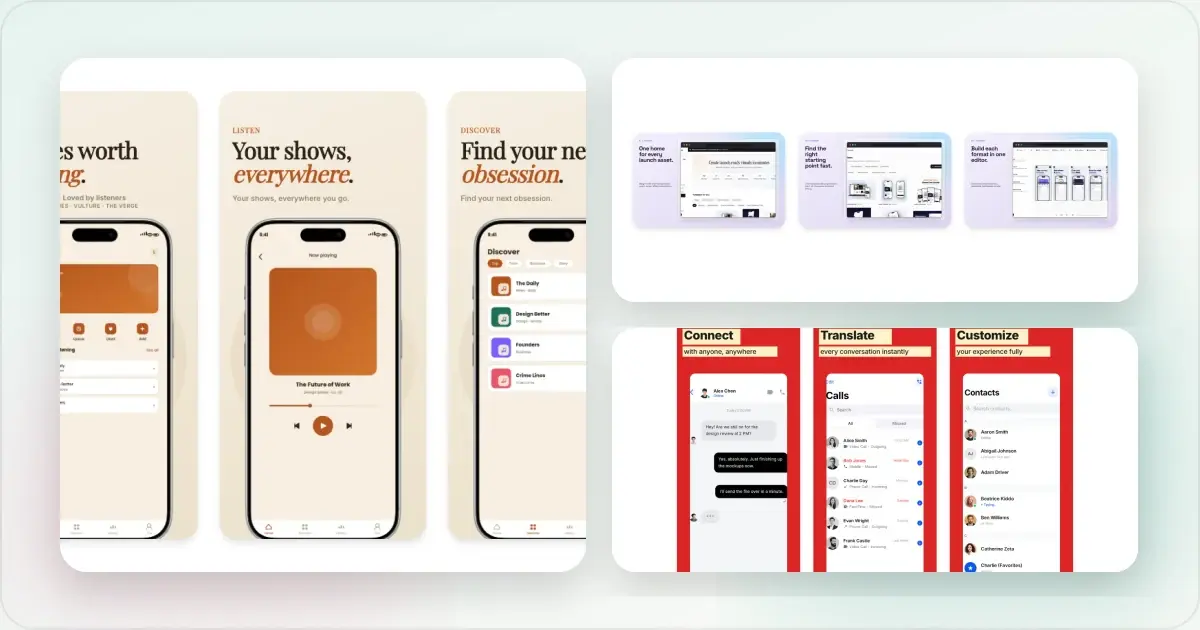
Good app store screenshots do two jobs: they show what the product really looks like, and they help the right person decide whether it solves their problem. There is no universal caption formula, color palette, or number of slides that guarantees more downloads.
The useful approach is simpler: start with a clear hypothesis, make the screenshots truthful and legible, then measure the result in the store where they will run.
Start with the decision your visitor is making
Before opening a design tool, write down three things:
- Who is this listing for?
- What problem are they trying to solve?
- What must they see before they will consider installing?
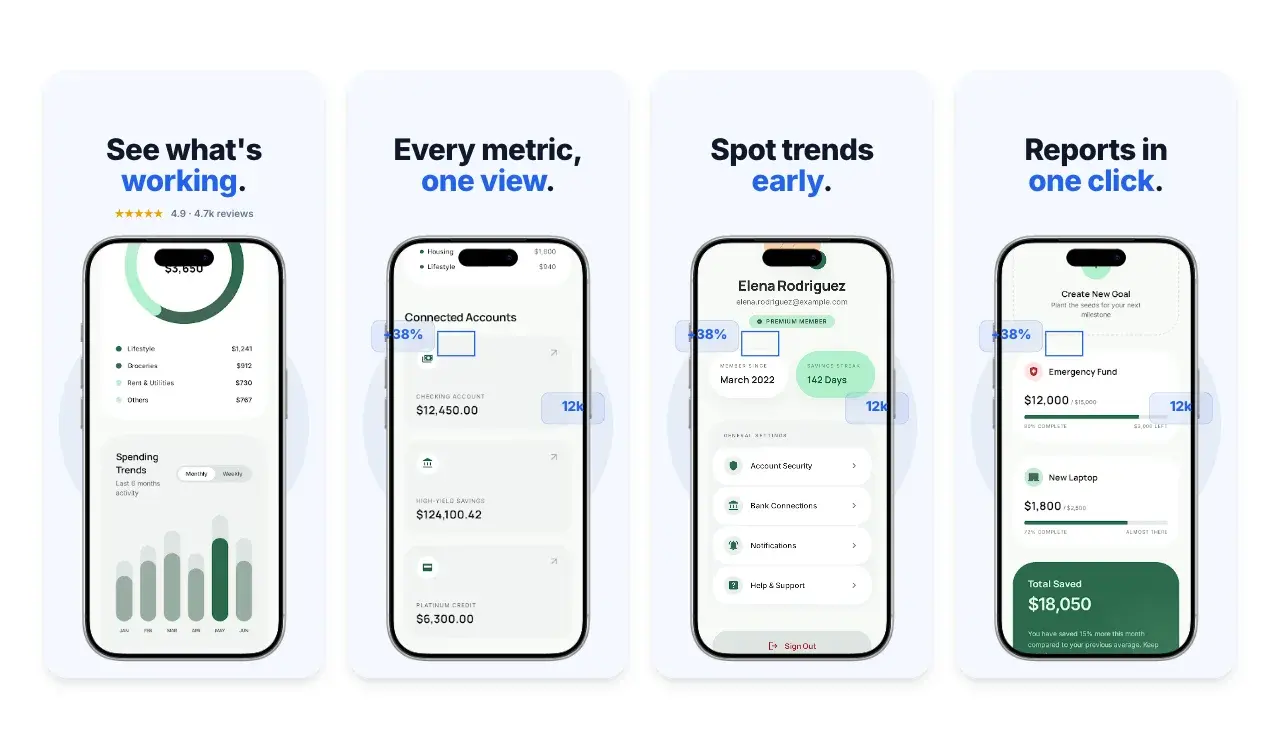
For a budgeting app, the important proof might be a clear spending overview. For a camera app, it might be the editing result. For a team product, it might be the collaboration workflow. The answer should come from product research, support conversations, reviews, and your own acquisition data—not from a generic ASO checklist.
Turn that insight into a testable hypothesis. For example: “Leading with the finished report will help project managers understand the product faster than leading with the dashboard.” That is specific enough to guide a design and later evaluate it.
Make the opening asset understandable on its own
People can encounter store assets in different contexts and at different sizes. Treat the first visible screenshot as a self-contained introduction rather than the first sentence of a long story.
A useful opening screenshot usually combines:
- a real, recognizable product screen;
- one clear idea about what the user can do;
- text that remains readable when the asset is reduced; and
- enough contrast to separate the UI, caption, and background.
Preview the final export on a phone, not only on a large design canvas. If the interface becomes visual noise, crop to the part that proves the point or simplify the surrounding composition. Do not make claims that the product cannot support.
Build a sequence around user questions
The rest of the set should help a visitor evaluate the product. A useful sequence might answer:
1. What can I accomplish?
2. How does the main workflow work?
3. Which feature removes my biggest obstacle?
4. Does the product fit my particular use case?
That is a planning framework, not a required slide count. Include only the assets that contribute something distinct. A short, coherent set is more useful than extra screenshots that repeat the same message.
Caption each screen with the benefit it demonstrates, but keep the wording concrete. “Review changes with your team” is easier to verify than “Transform collaboration forever.” Where a screen needs realistic sample data, use invented but plausible content that cannot be mistaken for a real person’s private information.
Use device frames only when they help
Device frames can provide context and create separation from the background. They can also make the product UI too small. There is no store-wide rule that says a framed or unframed composition will perform better.
Try a frame when the device context matters or the raw capture needs a clear boundary. Skip it when the interface already fills the canvas effectively. If both directions are plausible, make them an experiment instead of treating either as a best practice.
Screenhance’s ASO screenshot tool and app store screenshot generator can help you build consistent sets, resize compositions, and replace screenshots without rebuilding every slide manually.
Localize the message, not just the file
Localized screenshots should match the language and experience a person will actually receive. Translate captions, review truncation and line breaks, and make sure any UI shown in the image is consistent with the available app localization.
A reliable workflow is:
1. Choose locales from your own store and product data.
2. Translate the meaning of each caption, not word-for-word spacing.
3. Ask a fluent reviewer to check tone, terminology, and product accuracy.
4. Preview every asset after translation because text length and direction can change the layout.
5. Measure each store or locale separately rather than assuming one market’s result will transfer to another.
Avoid broad claims about what a nationality “prefers.” Audience research is more useful than design stereotypes. If you are managing several locales, an app store screenshot translator can speed up the layout work, but generated translations should still receive human review before publication.
Test a clear hypothesis on each store
Apple and Google provide native experiments, but their setups and metrics are not identical. Plan and read each test inside the relevant platform instead of combining the results into one benchmark.
Apple Product Page Optimization
Apple’s Product Page Optimization overview says a test can include up to three treatments with alternate screenshots, app previews, or app icons. Treatments are randomly shown to the user group and supported localizations you configure.
Apple’s test setup documentation says a test runs for up to 90 days unless you stop it sooner. App Analytics reports estimated conversion rate, relative lift, and confidence for each treatment. Apple recommends waiting for a treatment to be identified as performing better or worse with sufficient confidence rather than calling a result from a few early days.
Releasing a new app version while a test is running can affect results when the release changes assets or metadata involved in the test. Record releases and other acquisition changes alongside the experiment so you can interpret the data in context.
Google Play store listing experiments
Google’s store listing experiment documentation allows up to two experimental variants against the current listing. You can choose a target metric, audience share, minimum detectable effect, and confidence level. Play Console estimates the traffic and time needed for the selected setup.
Google recommends testing one asset at a time when you need to attribute the outcome to a particular change. Follow the console’s own result state—such as a winner, draw, or “more data needed”—instead of inventing a fixed minimum number of days or impressions. A lower-traffic listing may need a larger creative difference, fewer variants, or more time to produce a useful result.
A practical screenshot experiment
Use this process for either store:
1. Define the audience and baseline. Record the listing, locale, source traffic, and current store metric.
2. Write one hypothesis. State what changes, who it should help, and why.
3. Change one main variable. For example, test the lead message while keeping the visual treatment and remaining screenshots stable.
4. Check product truthfulness. Confirm the feature, interface, price, and availability shown are current.
5. Run the native experiment. Use the store’s estimated duration and statistical guidance.
6. Read the complete result. Consider the reported uncertainty, not only the direction of the headline number.
7. Document what you learned. A draw is still useful if it rules out an assumption.
Do not change a live experiment because the early line moves in a promising direction. Store traffic varies, and product releases, campaigns, featuring, or seasonality can affect the audience during the test.
Pre-publish checklist
Before uploading a screenshot set, check that:
- every screenshot reflects the current product;
- captions describe features available in the relevant version and market;
- the lead asset makes sense without the rest of the sequence;
- text is legible on a real phone;
- screenshots use the dimensions required by the destination store;
- personal, customer, and production data has been removed;
- translated copy has been reviewed in its final layout;
- the set has a named owner and hypothesis for the next test; and
- the previous assets and baseline metrics have been archived for comparison.
The aim is not to imitate a “winning” gallery from another app. It is to give your audience accurate evidence, then use the platform’s own experiment data to learn which presentation helps them most.
Frequently asked questions
How many screenshots should an app store listing use?
Use enough screenshots to answer the important evaluation questions without repeating yourself, while staying within the store’s current limits. The right number depends on the product, platform, device type, and audience. Check the live platform specifications before export.
Should the first screenshot show a feature or a benefit?
It can show both: a real product screen provides the evidence, while a short caption explains why it matters. The best lead concept is a hypothesis to test, not a universal rule.
Should I test several changes at once?
Change one main variable when you need to understand what caused the result. A substantially different concept can be useful when traffic is limited, but document all of the differences and treat the outcome as evidence for the overall concept—not for each individual design choice.
Do words inside screenshot images improve keyword rankings?
Do not add screenshot copy for an assumed ranking signal. Write for the person evaluating the listing. Use the store’s documented metadata fields for keyword and listing text work, and use experiments to evaluate whether screenshot copy helps the store metric you selected.
How often should screenshots be refreshed?
Refresh them when they no longer represent the product, when the positioning changes, or when you have a meaningful new hypothesis to test. A fixed quarterly or annual schedule is less useful than keeping assets accurate and maintaining a documented testing queue.
Related reading
Check your image dimensions
Check the pixel size and file format for App Store screenshots. Files stay in your browser and are not stored.
This checks dimensions and file type only. Check the selected display slot, colour profile, transparency and artwork separately. A matching size does not guarantee store approval.
Accepted App Store screenshot sizes
- iPhone · Duo outer: 1398 × 2034 (landscape 2034 × 1398)
- iPhone · Duo inner: 2007 × 2853 (landscape 2853 × 2007)
- iPhone · Dynamic Island (large display): 1260 × 2736 (landscape 2736 × 1260)
- iPhone · Dynamic Island (large display): 1320 × 2868 (landscape 2868 × 1320)
- iPhone · Dynamic Island (large display): 1290 × 2796 (landscape 2796 × 1290)
- iPhone · Face ID (large display): 1284 × 2778 (landscape 2778 × 1284)
- iPhone · Face ID (large display): 1242 × 2688 (landscape 2688 × 1242)
- iPhone · Dynamic Island (medium display): 1179 × 2556 (landscape 2556 × 1179)
- iPhone · Dynamic Island (medium display): 1206 × 2622 (landscape 2622 × 1206)
- iPhone · Face ID (medium display): 1170 × 2532 (landscape 2532 × 1170)
- iPhone · Face ID (medium display): 1125 × 2436 (landscape 2436 × 1125)
- iPhone · Face ID (medium display): 1080 × 2340 (landscape 2340 × 1080)
- iPhone · Home Button (large display): 1242 × 2208 (landscape 2208 × 1242)
- iPhone · Home Button (medium display): 750 × 1334 (landscape 1334 × 750)
- iPhone · 4": 640 × 1096 (landscape 1136 × 600)
- iPhone · 4": 640 × 1136 (landscape 1136 × 640)
- iPhone · 3.5": 640 × 920 (landscape 960 × 600)
- iPhone · 3.5": 640 × 960 (landscape 960 × 640)
- iPad · 13": 2064 × 2752 (landscape 2752 × 2064)
- iPad · 13": 2048 × 2732 (landscape 2732 × 2048)
- iPad · 11": 1488 × 2266 (landscape 2266 × 1488)
- iPad · 11": 1668 × 2420 (landscape 2420 × 1668)
- iPad · 11": 1668 × 2388 (landscape 2388 × 1668)
- iPad · 11": 1640 × 2360 (landscape 2360 × 1640)
- iPad · 10.5": 1668 × 2224 (landscape 2224 × 1668)
- iPad · 9.7": 1536 × 2008 (landscape 2048 × 1496)
- iPad · 9.7": 1536 × 2048 (landscape 2048 × 1536)
- iPad · 9.7": 768 × 1004 (landscape 1024 × 748)
- iPad · 9.7": 768 × 1024 (landscape 1024 × 768)
Specifications checked 2026-10-13. Apple’s source requirements.
Screenhance examples
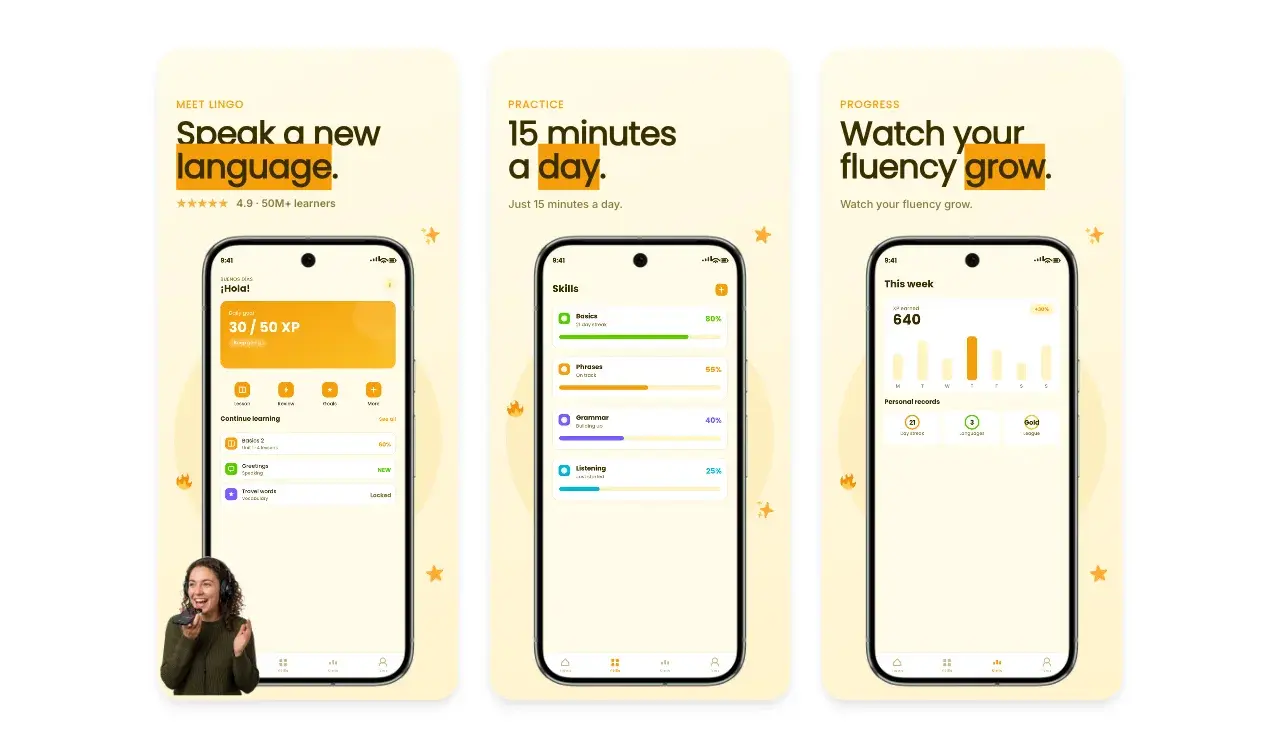
Two editable starting points from the Screenhance library, selected for this app stores guide.
Generate App Store screenshots free
Free to start. No credit card required.
Keep reading
Related, product-tested guides from Screenhance.
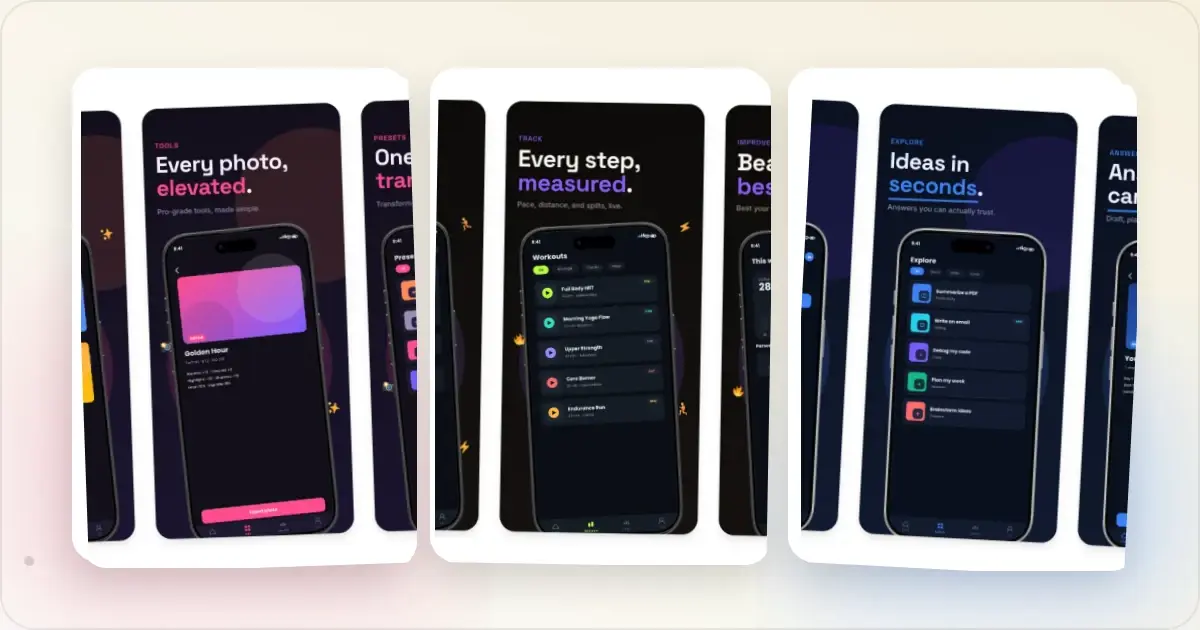
9 App Design Examples That Explain the Product Clearly
Study nine original app design concepts and the specific hierarchy, screenshots, contrast, and story decisions that make each product easier to understand.
20 Aug 2026 · 8 min read
The State of App Store Screenshots in 2026: Requirements and Testing
A current, source-linked guide to App Store screenshot requirements, localization, Product Page Optimization, and the checks to run before upload.
4 Jul 2026 · 3 min read
Best Google Play Screenshot Generators in 2026: 7 Compared
Compare seven Google Play screenshot generators across Android frames, phone and tablet workflows, localization, motion, pricing, and free access.
15 Jun 2026 · 6 min read