
The 8 Best Mockup Tools for Web Designers in 2026
8 mockup tools ranked for web designers in 2026: browser frames, responsive previews, Figma plugins, and dedicated apps. Honest pros, cons, and pricing for each.
By Screenhance Team
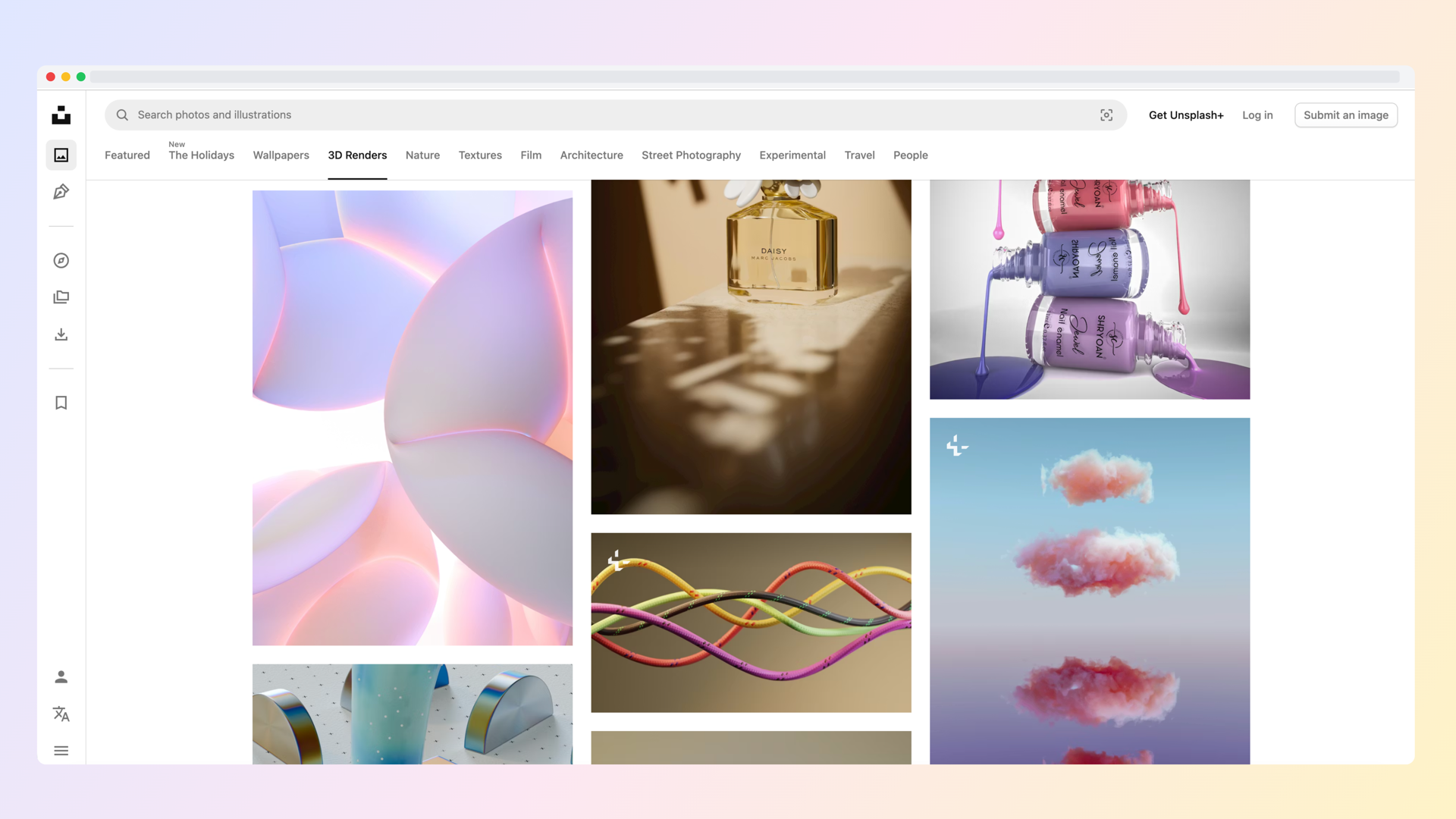
Web designers need mockup tools that handle 3 things specifically: browser frames (Chrome, Safari, Firefox) for landing-page work, responsive previews across phone-tablet-desktop in one composition, and design-system integration so brand colors and typography stay consistent. Most generic mockup tools are built for product launches and miss at least one of these. The 8 tools below are ranked specifically by their fit for web design work in 2026.
Pricing ranges from free to $15/month. The right pick depends on volume: occasional one-off mockups can live on a free tool, while agencies producing 30+ mockups per week save real time on a dedicated paid tool. Honest pros and cons for each below.
1. Screenhance
Best for: web designers who also ship App Store screenshots, OG cards, and Product Hunt galleries. The all-in-one launch kit. Price: Free tier (3 exports/month). Pro at $8/month. Week Pass at $6 one-time for 7 days.Web-design-specific features: browser frames for Chrome, Safari, and Firefox in light and dark mode. Multi-device composition templates (phone + laptop side by side). 100+ pre-designed backgrounds (gradient, glass, aurora, mesh) calibrated to not compete with the UI. Animated GIF and WebM exports for hero loops on landing pages.
Pros: One tool for browser mockups, OG cards, and any other launch visuals. Animated exports rare in this category. Week Pass is the cleanest pricing for occasional users. Cons: Smaller raw template library than tools like Mockuuups (which has 5,000+ static mockups). If apparel or print mockups are also on the table, Screenhance does not cover them.Try the browser mockup generator for a feel.
2. Screely
Best for: web designers who need a single quick browser frame and want a free tool. Price: Free for core use. Pro tier for extra features.Screely does one thing: drop in a screenshot, get a browser-framed image with a gradient background. The UI is minimalist and the workflow is fast. No signup required for the free tier.
Pros: Genuinely free, no friction, clean output. Cons: Browser frames only. No phone, tablet, or laptop frames. No templates. No animation. The moment a project needs anything beyond a single browser shot, you outgrow it.3. Figma + Apple Devices plugin
Best for: teams that already live in Figma and need design-system integration. Price: Figma Free tier supports plugins; Figma Professional is $15/month per editor.Figma's plugin ecosystem includes Apple Devices (free), Mockup Plugin (free), and Angle 4 (premium). Combined, they let you drop screenshots into device frames inside Figma where the rest of the brand system already lives.
Pros: Stays inside the design tool. Brand colors and typography stay consistent with the rest of the work. Frames update when the screenshot changes (with the right plugin setup). Cons: Each plugin has its own limits and quirks. Animation is not native. Exporting at specific App Store or OG sizes requires manually setting up artboards. The total time for a launch-quality mockup in Figma is 2 to 3 times longer than in a dedicated tool.4. Shots.so
Best for: indie web designers who want a minimalist single-shot tool with a strong free tier. Price: Free tier covers most casual use. Paid tier roughly $4 to $5/month.Shots.so has a deserved reputation in design Twitter for clean output and a delightful UI. It handles browser, phone, and tablet frames with basic gradient backgrounds.
Pros: Aesthetic favored by indie hackers. Free tier covers most use cases. Fast. Cons: Smaller template library. No App Store screenshot sets or OG card workflow. Limited animation. Best as one tool in a stack, not the central tool.5. CleanShot X (with Frame feature)
Best for: web designers on macOS who already use CleanShot for screen capture. Price: $29 one-time on Setapp, or $9.99/month on Setapp subscription.CleanShot X is primarily a screen-capture tool but includes browser frame and device frame features as part of its post-capture workflow. The Frame feature adds browser chrome, gradient backgrounds, and shadow effects to any captured screenshot.
Pros: Captures and frames in one app. macOS-native, fast. Good fit for video tutorial creators who screenshot a lot. Cons: Mac-only. Browser frame variety is narrower than dedicated mockup tools. No multi-device compositions. No App Store sets.6. Mockflow
Best for: web designers doing wireframes and mockups together for client work. Price: Free tier with limits. Premium at $19/month.Mockflow bridges low-fidelity wireframes and higher-fidelity mockups in the same tool. Useful for agency workflows where clients see both wireframe iterations and final mockups in the same deliverable.
Pros: Wireframe-to-mockup pipeline in one app. Client review and annotation built in. Cons: Output quality is dated compared to modern dedicated tools. Premium tier is expensive for what it does. Less useful for solo designers who only need final mockups.7. Mockuuups Studio
Best for: web designers who need contextual lifestyle scenes (laptop on a desk, screen in a hand) for marketing pages. Price: ~$15/month on annual plan. Limited free tier with watermarks.Mockuuups Studio's catalog of 5,000+ static scenes covers a lot of "device in a context" use cases that pure browser-frame tools cannot. Useful for landing pages targeting agencies or B2B audiences where the photographic feel matters.
Pros: Massive library. Lifestyle scenes that are hard to fake. Cons: Static images only (no animation). No App Store sets. Subscription-only with no one-time option. Output can feel "stock photo" if not chosen carefully.8. Vectary
Best for: web designers who want 3D device mockups or AR previews. Price: Free tier with limits. Pro at $19/month.Vectary is a 3D design tool that includes device mockup templates rendered in 3D. Useful for hero sections that want a more distinctive look than the standard front-facing-device shot.
Pros: Distinctive 3D output. AR preview mode is genuinely novel. Cons: Higher learning curve. Render times slow down quick iteration. The 3D-mockup aesthetic is divisive: it dates fast and some audiences read it as gimmicky.Comparison table
| Tool | Best for | Free tier | Paid price | Browser frames | App Store sets | Animation |
|---|---|---|---|---|---|---|
| Screenhance | All-in-one launch kit | 3 exports/mo | $8/mo or $6 Week Pass | Yes | Yes | Yes |
| Screely | Quick browser shots | Generous | Pro tier | Yes (only) | No | No |
| Figma + plugins | Design-system integration | Figma Free | $15/mo (editor) | Yes (plugin) | Manual setup | No |
| Shots.so | Indie minimalist UI | Strong free | ~$4-5/mo | Yes | No | Limited |
| CleanShot X | macOS capture workflow | Trial | $29 one-time | Yes | No | No |
| Mockflow | Wireframe + mockup pipeline | Limited | $19/mo | Limited | No | No |
| Mockuuups Studio | Lifestyle scenes | Watermarked | ~$15/mo | Limited | No | No |
| Vectary | 3D mockups | Limited | $19/mo | Limited | No | No |
Which tool to pick
The honest decision tree:
- Solo designer, occasional mockups, want free: Screely or Shots.so.
- Solo designer, regular mockups, also ship App Store screenshots or OG cards: Screenhance.
- Agency, design-system-driven workflow: Figma + plugins.
- macOS, heavy screen-capture use: CleanShot X.
- Need photographic lifestyle scenes: Mockuuups Studio.
- Need 3D or AR distinctiveness: Vectary.
For most web designers in 2026, the realistic stack is one tool for fast browser shots (Screely free) and one dedicated tool for full launch kits when they happen (Screenhance Pro or Week Pass). Figma sits underneath both for any custom work that needs to live inside the design system.
Frequently Asked Questions
What is the best free mockup tool for web designers?
For browser frames only, Screely is the cleanest free option with no signup. For broader device variety on a free tier, Screenhance has a free plan (3 exports/month) that includes browser, phone, laptop, and tablet frames. Figma's free tier supports plugins like Apple Devices and Mockup Plugin, useful if you already work in Figma.
Are Figma mockup plugins enough or do I need a dedicated tool?
Figma plugins handle one-off device mockups well, especially if the rest of the work lives in Figma. They struggle with App Store screenshot sets at multiple exact Apple sizes, animated exports, and consistent template libraries. Most teams use Figma plugins for design-system-integrated work and a dedicated tool for launch kits.
Do I need browser frames or just a screenshot of the site?
A bare screenshot of a website looks like a bug report. Browser frames add context (which browser, which device, what scale) and make the image feel polished. Every web-design mockup intended for marketing, social, or pitch decks should have a browser frame. Internal documentation can skip the frame.
Can I make App Store screenshots with web-design mockup tools?
Most web-design-focused tools cannot export the multi-size App Store screenshot set. Screenhance is the exception: it covers browser mockups for web work and App Store screenshot sets for app launches in the same tool. Other tools require switching to an App Store-specific generator for the screenshot set workflow.
Which mockup tool has the most realistic browser frames?
CleanShot X and Screenhance both render browser frames with realistic detail (tab bars, URL bar, traffic-light buttons, light and dark mode). Screely is cleaner but less detailed. Figma plugins vary in fidelity by plugin author. For most marketing use cases, slightly stylized frames read better than hyper-realistic ones because they don't compete with the screenshot itself.
Related reading
- Browser Mockup Generator
- Website Screenshot Generator
- Best Mockup Generators in 2026
- Screenhance vs Figma Mockups
- The Complete Guide to Browser Mockups for Web Apps
Conclusion
The 8 tools above cover the realistic options for web designers in 2026. Pick by use case, not by hype: free tools cover occasional needs, Figma plugins cover design-system-integrated workflows, and dedicated launch kit tools (Screenhance) cover the cases where browser mockups happen alongside App Store screenshots, OG cards, and Product Hunt galleries. Most teams settle on a stack of 2: one fast free option for quick shots and one paid tool for finished launch work.